


If you often have speech-to-text needs, Whisper Transcription could be a very good choice. It’s completely free to use, unlike other similar apps that all charge a fee, and it supports all Whisper models, from the smallest Tiny to the largest Whisper v3. You can choose according to your needs, and it offers multiple modes, from basic video or audio file transcription to specific apps and microphone input, covering almost all use cases.
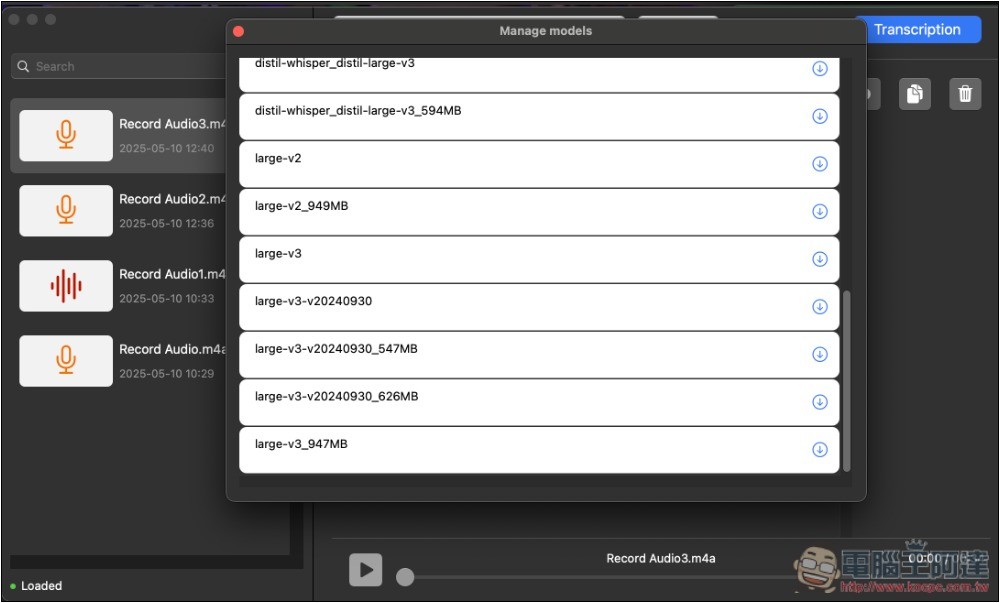
Whisper Transcription Introduction and Usage Tutorial
Whisper Transcription is available on the App Store. Although the interface is only in English, it’s fairly simple—basically you choose the mode you want, then select a model and convert to text. There are no usage limits, and it’s completely free.
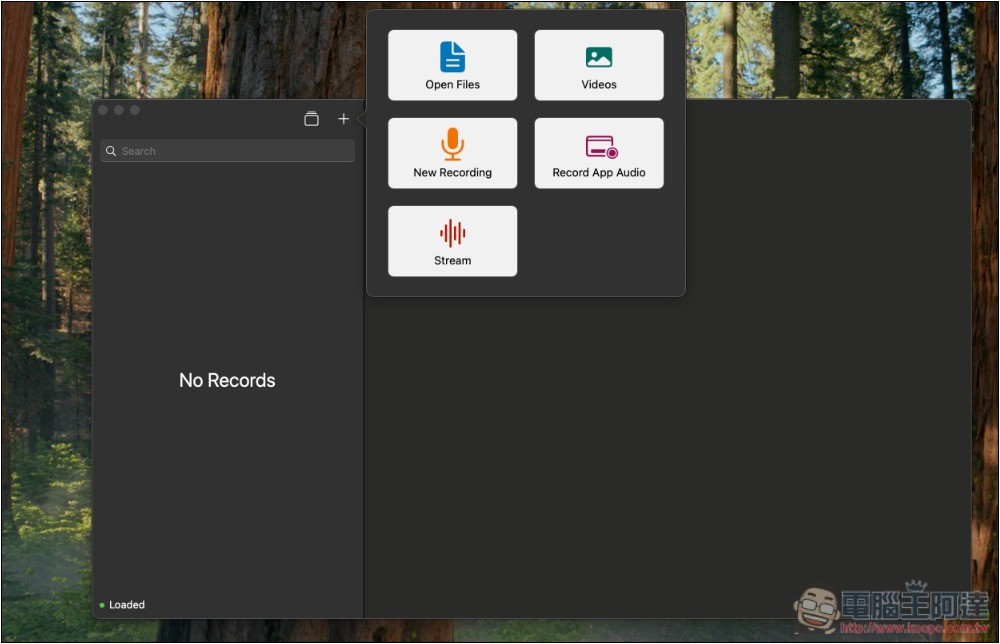
After opening Whisper Transcription, press the + symbol at the top left to choose the mode you want to use: Open File, Video, Voice Recording, Record App Sound, and Steam Live Streaming:
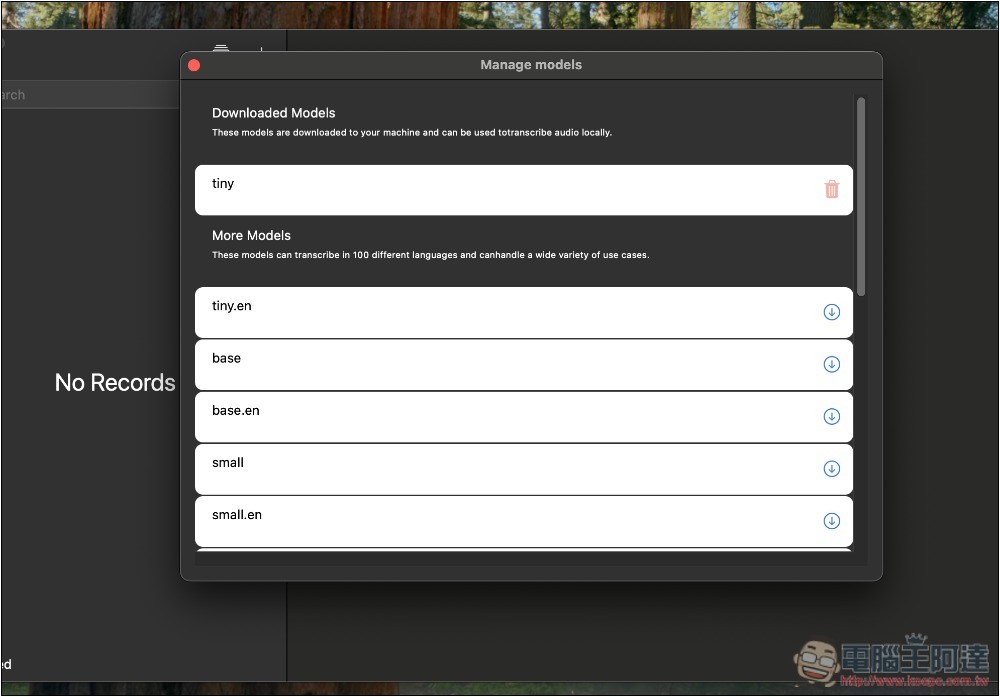
But before you start using it, remember to download the Whisper model you need first. The default is only Tiny, and Tiny only supports English. Although the file is small, there’s a high chance of recognition errors, so it’s recommended to choose a larger model:
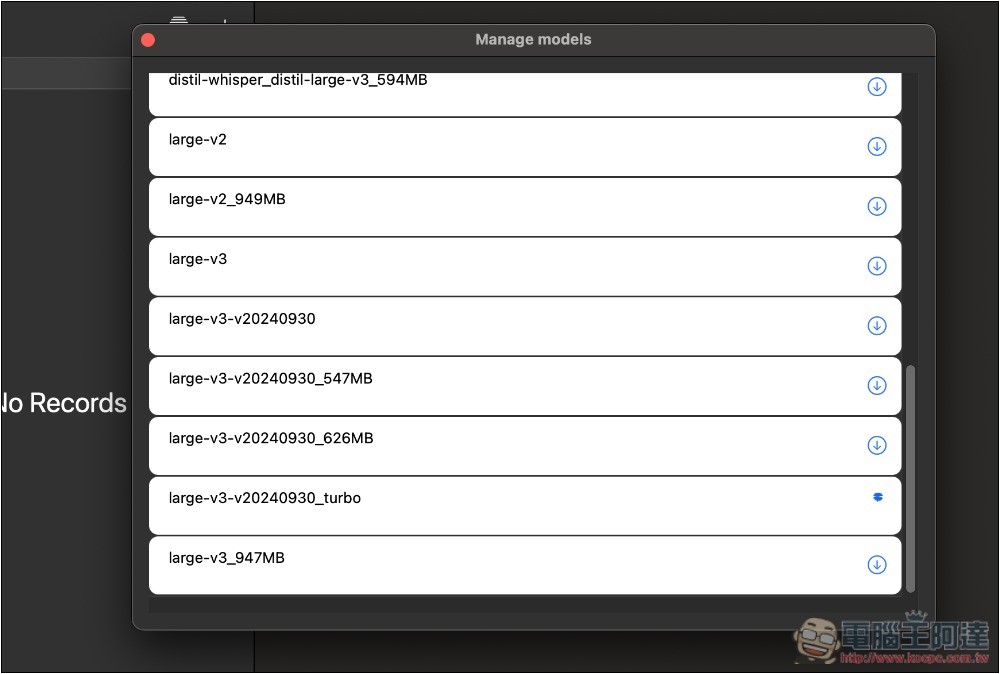
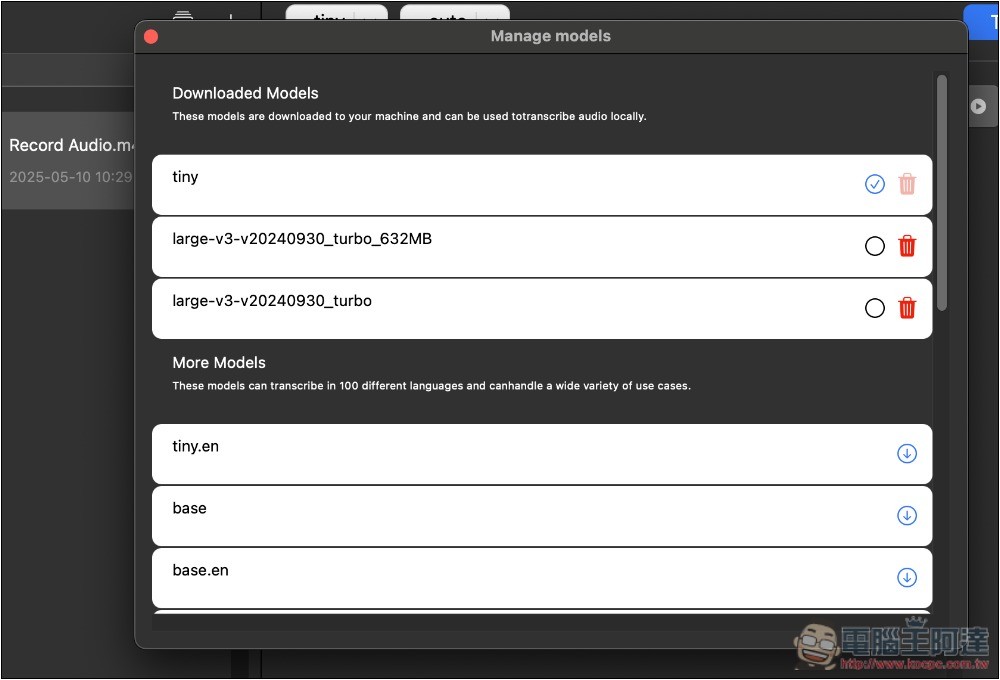
Scroll down the menu to find larger, newer models. If you want speed but still decent recognition, I recommend choosing v3_Turbo—I currently use this model for transcription. v3 is very accurate, but relatively slower. You can try both; click the icon next to it to start downloading, and you need to wait until the download finishes before you can use it:
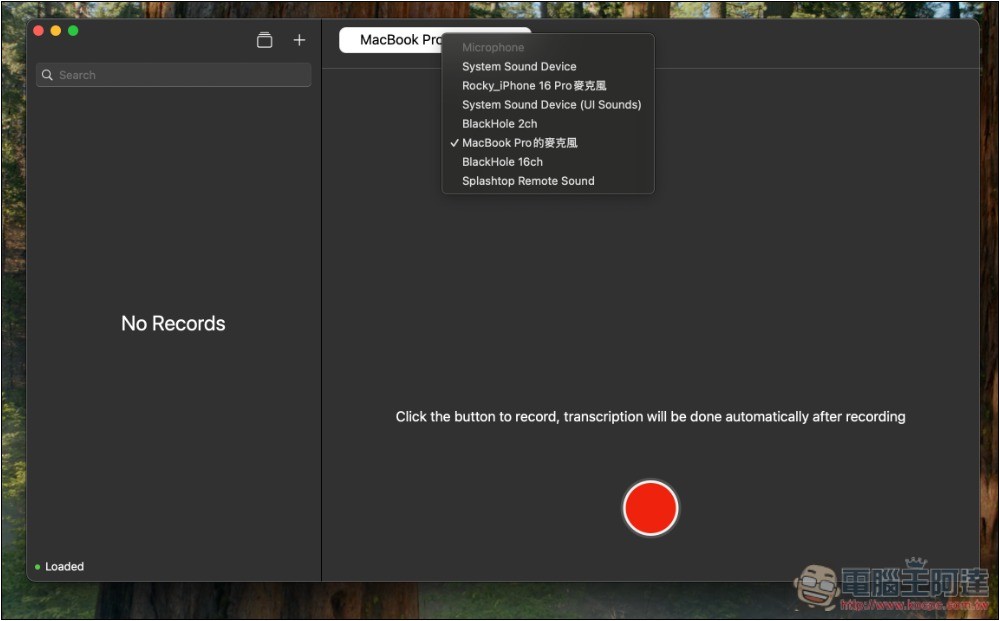
If you choose voice recording or Steam, you can select the recording source. The default is the Mac’s microphone. After setting it up, press the record button below to start recording:
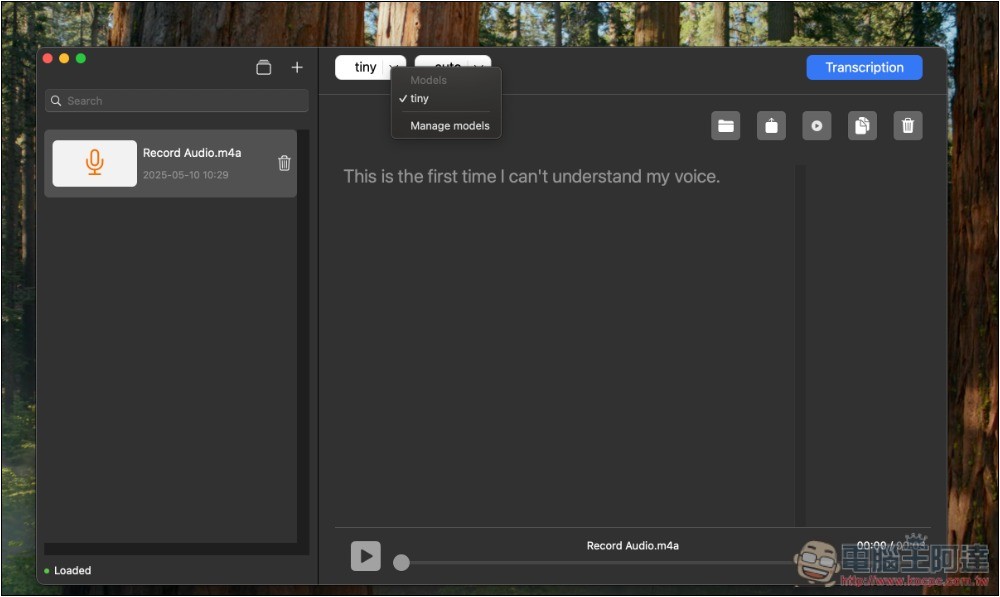
After recording, the default model used is tiny; remember to change it before conversion. Open the model menu at the top and click Manage models:
Circle the model you want to use.
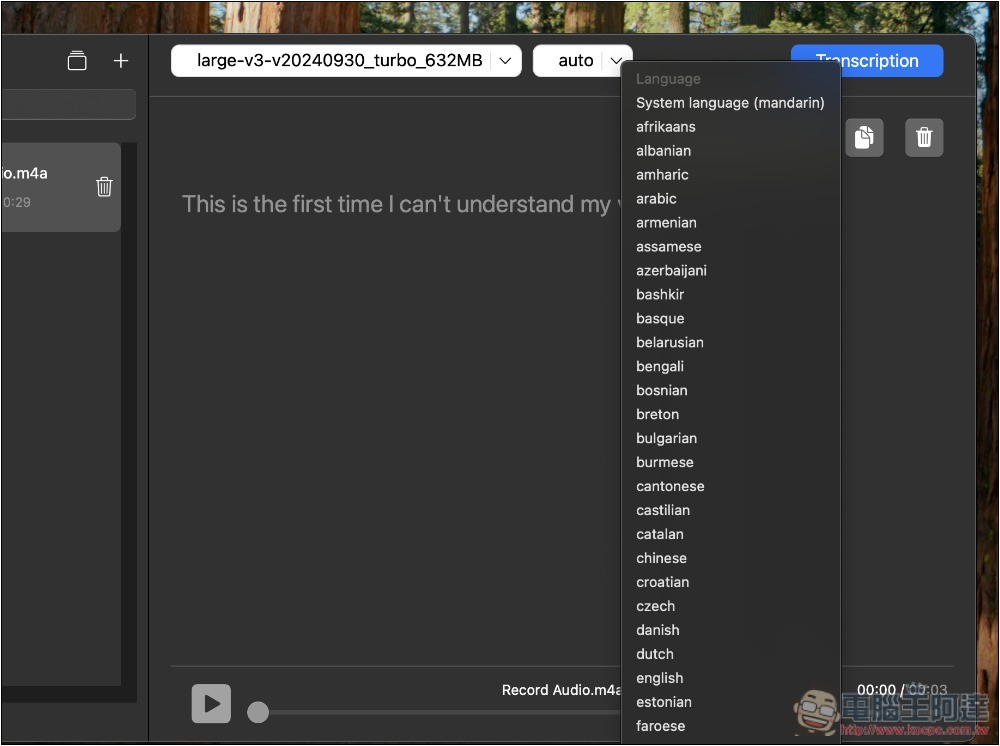
Language detection is set to Auto by default, so you basically don’t need to change it. Unless you’ve tried it and found the detection was wrong—in that case, just come back here and change it:
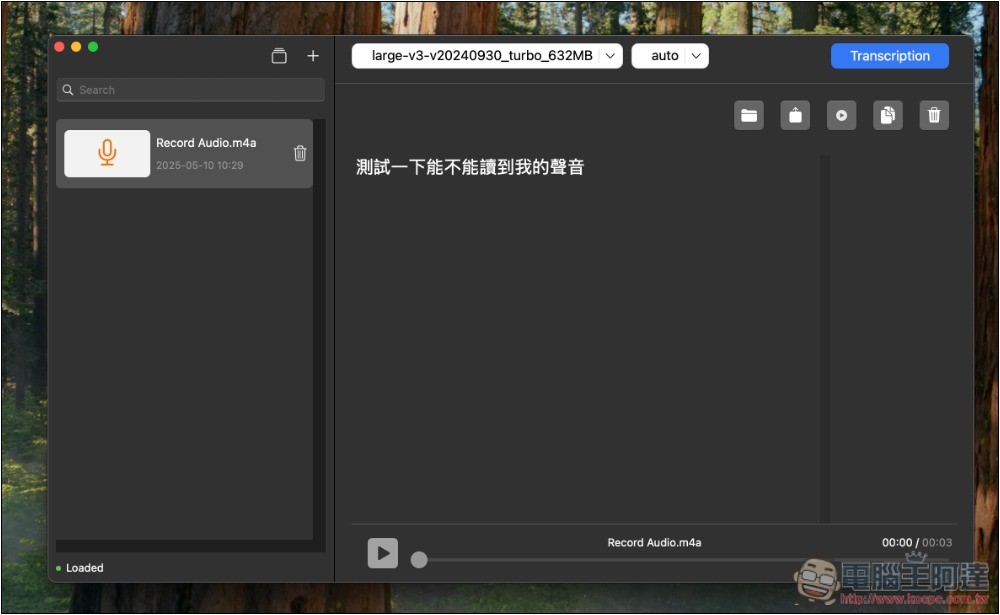
After finishing the settings, click Transcription in the upper right corner to start the conversion—it’s pretty fast. The transcribed text will then appear on screen, where you can copy, export, share, and more:
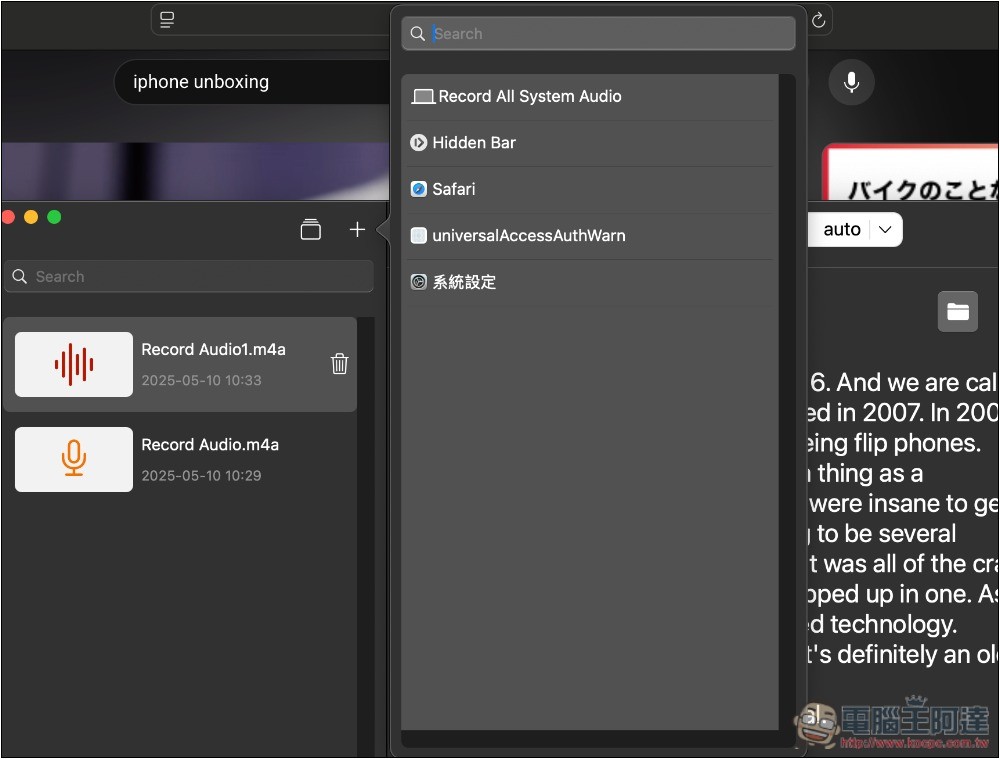
Designated apps can set the applications you currently have open:
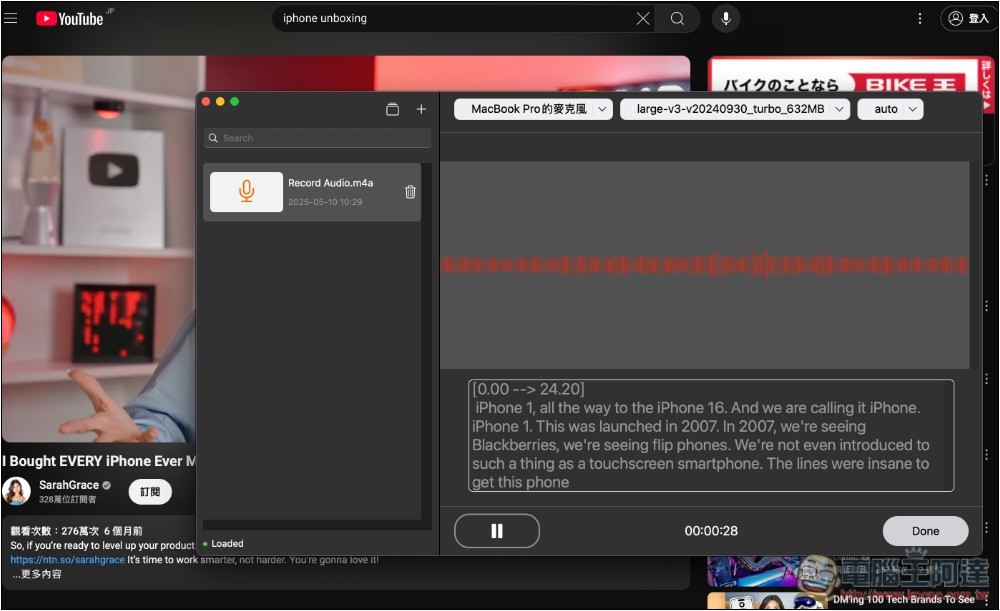
I also tested the Steam live streaming effect. Recording audio through the microphone, the recognized text appears in real time on the right, but instead of showing line by line, all the content is displayed at once:
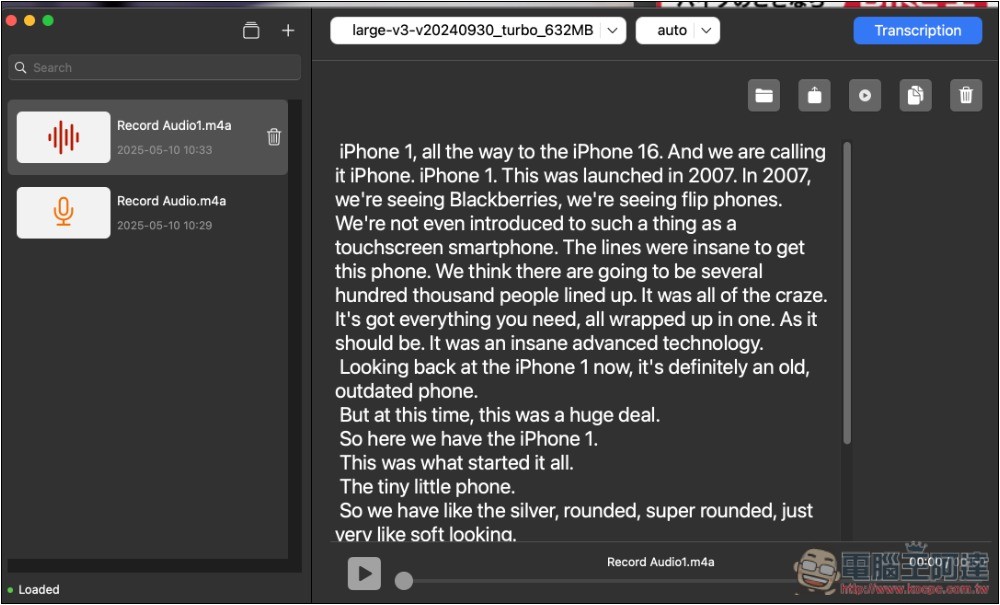
The only pity is that the converted text is all bunched together without any nice formatting, so you’ll still have to manually format it yourself for better readability.
If you don’t use a downloaded model, you can delete it by clicking the trash icon on the right in the model menu.
As for the languages supported by the model, generally speaking, the larger the model, the more languages it supports. According to Whisper’s official introduction, it currently supports more than 50 languages.
Source: KOCPC Chinese