


When you are playing some fast-paced games or watching fast-paced programs such as sports events, do you feel that there are some traces, afterimages or blurry conditions on the screen? If so, then you are experiencing screen afterimage. Various types of LCD panels have the possibility of image retention, so what methods can be used to remedy the phenomenon?
What is screen afterimage? Is there any way to remedy this?
What is screen afterimage?
Screen sticking is a visual artifact that follows moving objects. It is particularly common when gaming or displaying other fast-moving content. You may not notice the afterimage during normal use or slower-paced gaming, but it becomes noticeable when you play first-person shooters, racing games, or even just scroll quickly on a web page. Some monitors are more prone to image retention under certain conditions, such as in particularly dark scenes. Afterimages can cause the shadow season to be lost, make the screen look cluttered most of the time, and can also make your eyes more susceptible to fatigue by putting more strain on them.
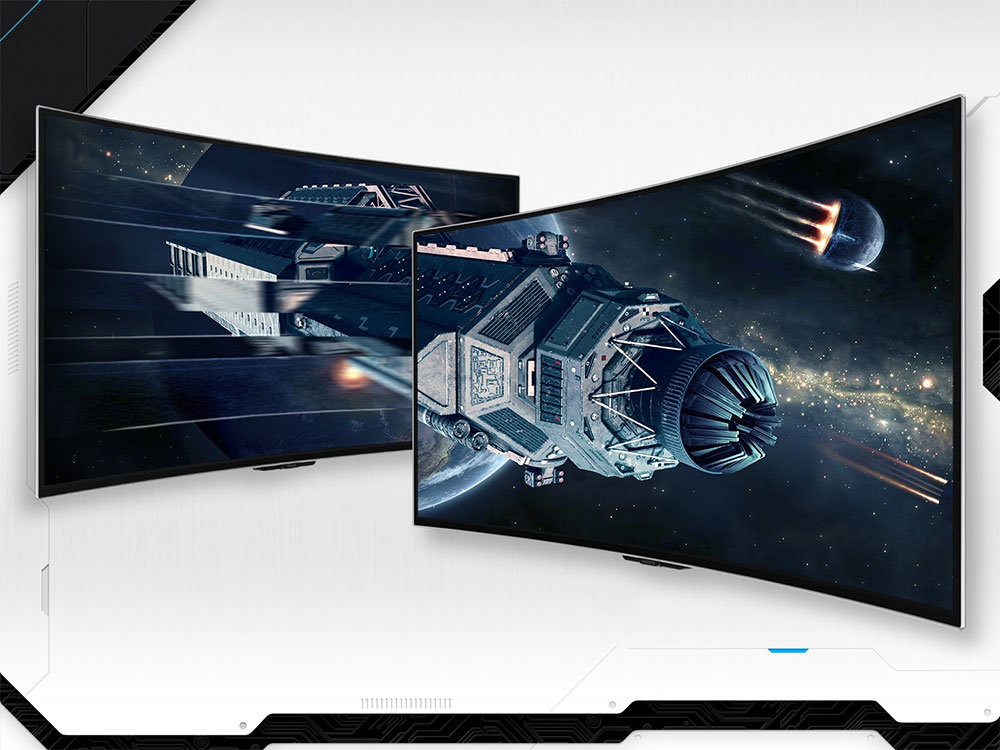
Image retention can affect any type of LCD panel, including monitors and TVs, but is especially common with VA panels, which are primarily used in TVs. There is no image retention on an OLED TV, but it is the temporary or permanent imprint caused by static images.
What causes screen persistence?
Image retention on the screen is caused by pixel response times that are too slow, preventing the pixels from switching cleanly from one color to another in time. The problem is particularly noticeable at high frame rates, where the frame rate (the time it takes to deliver a new frame) can be faster than the monitor’s response time.
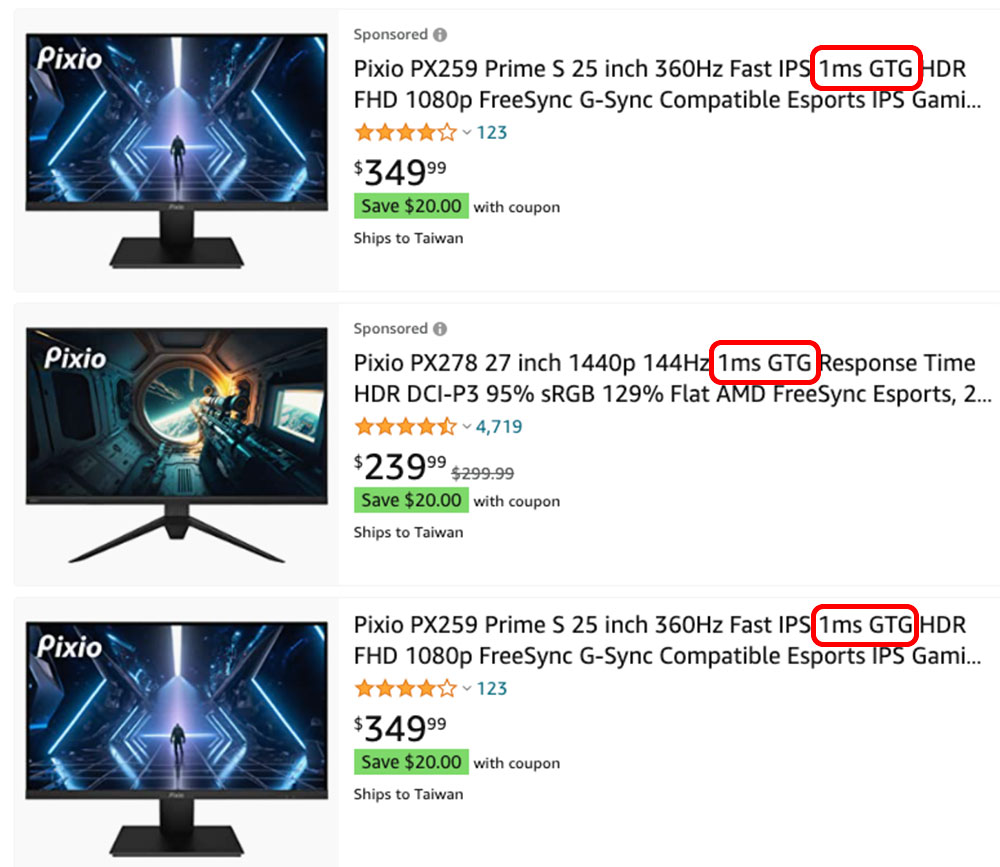
Monitor manufacturers often advertise response times (in ms) and other monitor specifications (such as contrast, refresh rate), and you may find that some screens list data more precisely as GtG (Grey to Grey, grayscale to grayscale) and MPRT (Moving Picture Response Time, which refers to the time that pixels are continuously visible). The two refer to completely different indicators. GtG refers to the time it takes for a pixel to switch between two colors, and MPRT refers to the time a pixel remains on the display. For both indicators, the lower the value, the better. If there are fast GtG and slow MPRT values, it may cause afterimages to appear on the screen.
Conduct a test to determine if image retention is present
If you’ve seen ghosting or traces of pixelation when playing fast-paced games, then you may already know that you have a problem. You may also want to further run an image retention test on the monitor, or consider buying a second-hand product. You can test it before buying. can be used UFO afterimage test on Blur Busters websiteto proceed. Adjust the number of pixels per second in the speed drop-down menu to simulate faster or slower screen motion. If the pixel trajectories you see are consistent with ghosting, you are almost certain that a problem exists.
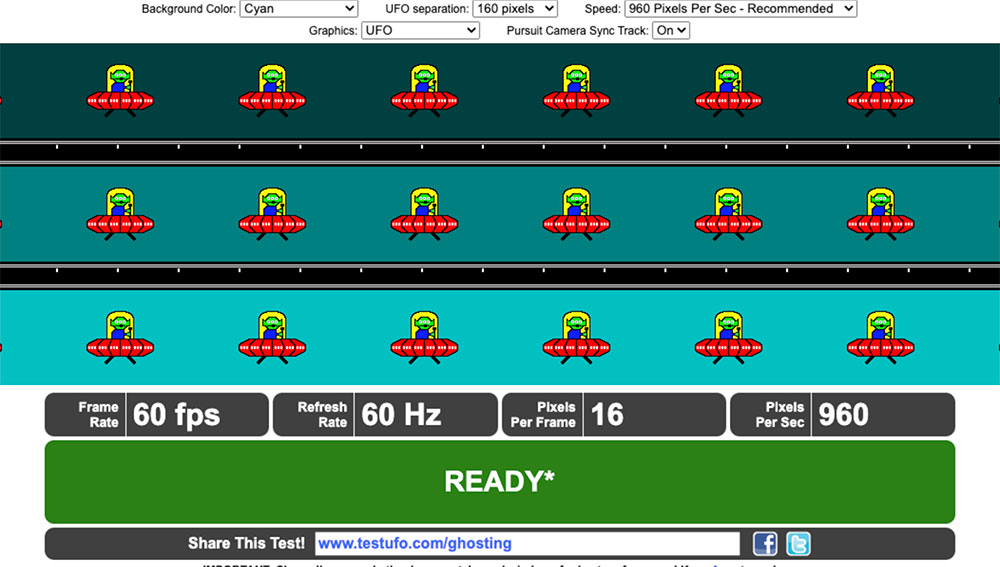
This test can also show other artifacts that may appear when you try to fix monitor artifacts, so you’ll have to use this test as you go to see if you’ve achieved a satisfactory balance.
How to fix monitor image retention?
You can try using the monitor’s Overdrive setting to correct image retention. By using a higher voltage on a single pixel, you can shorten the response time and reduce or completely eliminate image retention. Different brands have different names for Overdrive settings, so you may have to dig through the on-screen settings to find them. Commonly used names include Overdrive, OD, response time (or Response Time, LG and Samsung use this), response time, TraceFree (ASUS), Rampage Response (ViewSonic), AMA (BenQ), etc. or similar names. Some more entry-level monitors don’t have this setting, so you’re stuck with it.
In addition to Overdrive, you should also pay attention to other settings, including noise reduction and dynamic contrast, or, if you are using a TV, motion smoothing, which can lead to unwanted artifacts and image retention.
Pay attention to pixels when adjusting Overdrive Overshoot
Although we mentioned above that Overdrive can be adjusted, unfortunately it is not a perfect solution. This setting usually has a range of speeds to choose from, such as levels 1 to 5, or names such as fastest, extreme speed, etc., which makes people involuntarily go in the direction they think is the best when setting, but this can easily cause pixel overshoot or corona. Overshoot will instead produce artifacts due to pixels exceeding the required color, also known as reverse afterimage. The main cause is a scatter-like effect caused by pixel conversion too fast.
Therefore, do not strive for extreme values when setting. Just find a balanced value depending on the monitor you are using. Of course, it also depends on your personal preference. A small amount of afterimage may be more tolerable than corona, so it’s usually fine to measure at a medium Overdrive setting.
Don’t confuse afterimage with image diffusion
Blooming is another undesirable visual phenomenon that you may have heard of. Image persistence refers to pixel problems caused by response time, while image blooming is caused by LEDs being exposed to light. It is especially likely to appear on full-array local dimming displays. If you want excellent response times without image blur, consider adding some budget to something with an OLED panel.
Source: KOCPC Chinese