


Nowadays, there are many services that can be transferred across devices, but they all have one thing in common, which is that they require an Internet connection, so they cannot be used without an Internet connection. This article will introduce what should be the most convenient cross-platform file transfer tool at present: “LocalSend”, which is supported by Windows, iOS, Android and Linux. You can use it after installing the application app. There is no need to configure anything, just make sure that your device is on the same network.
LocalSend is a free open source tool that can transfer files across platforms as long as you are on the same network (Win/iOS/Android/Linux) without being connected to the Internet.
In addition, we also didVideo version of teaching, after reading this you should be able to use:
According to a previous reply from the LocalSend developer on the Reddit forum, he decided to do this because he felt why cross-platform file transfer tools like Snapdrop require an Internet connection and are often unstable. It currently supports Windows, iOS, Android and Linux, and all have apps. You can start using it after installation, which is very simple. I use iPhone to Windows as an introduction example.
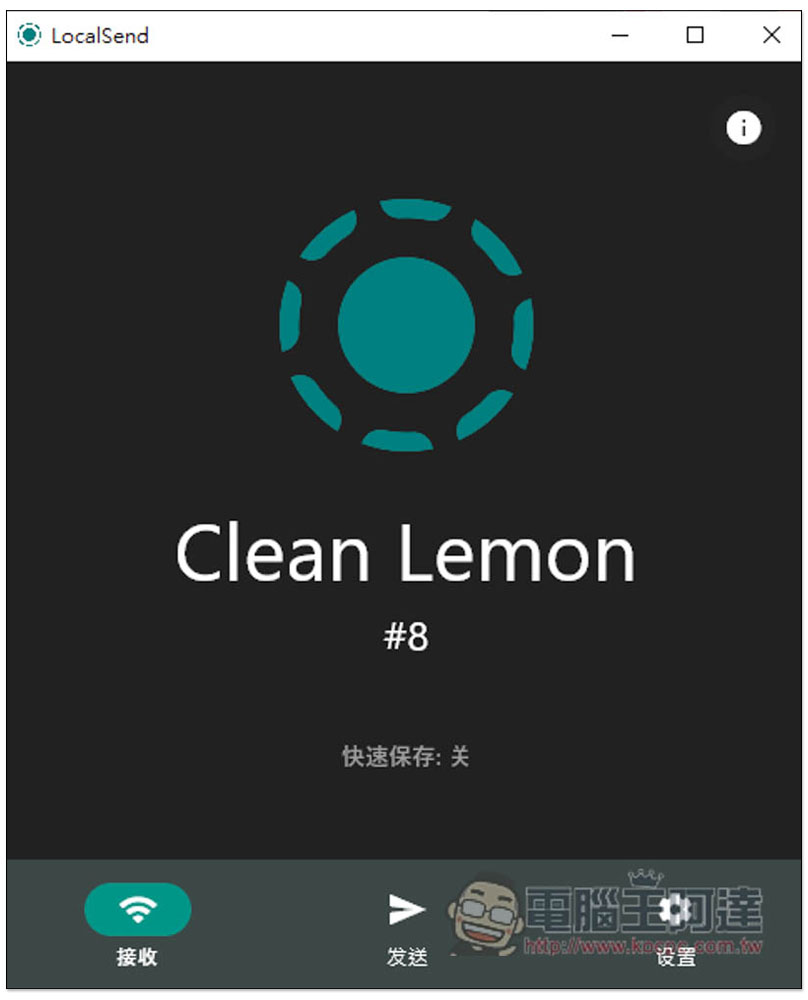
After installation, you will see this screen when you open it. Clean Lemon represents the default name of this device:
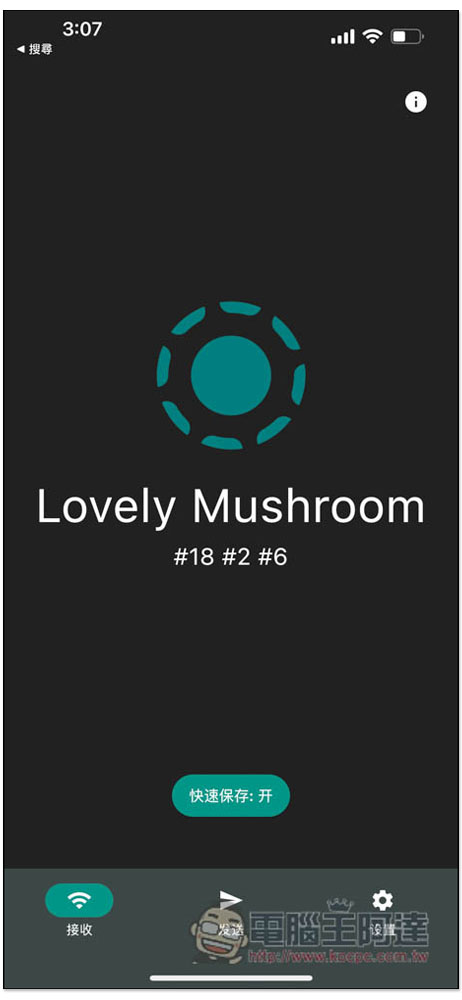
The iPhone screen also looks the same, and the device name can be changed to what you want:
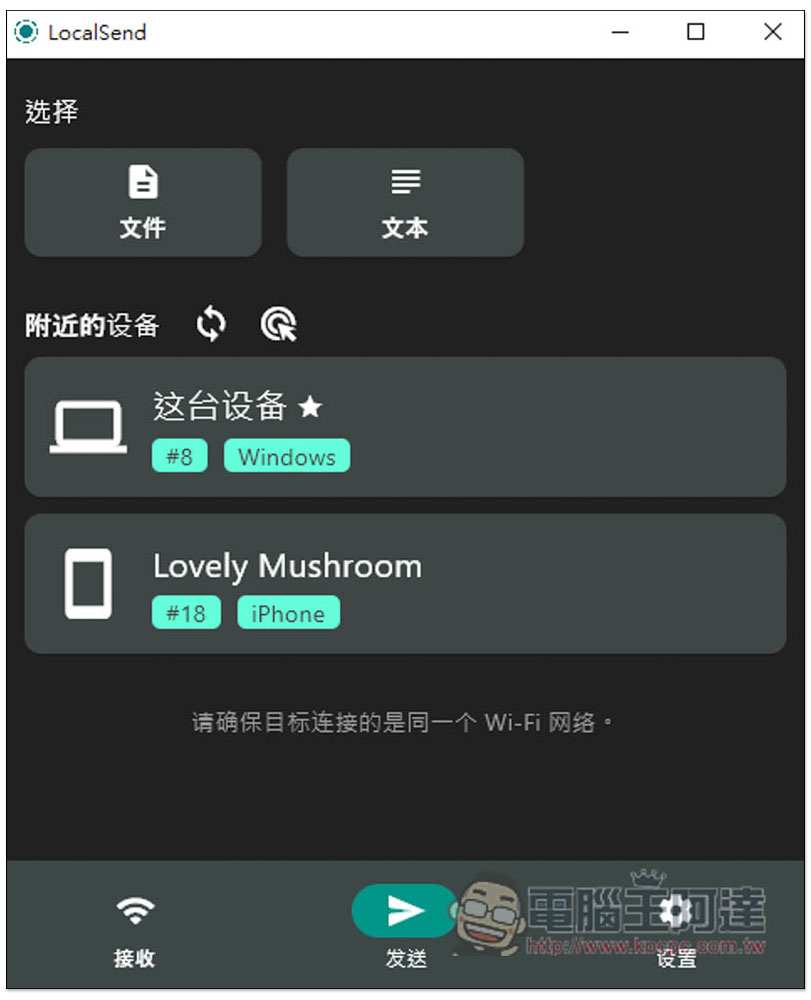
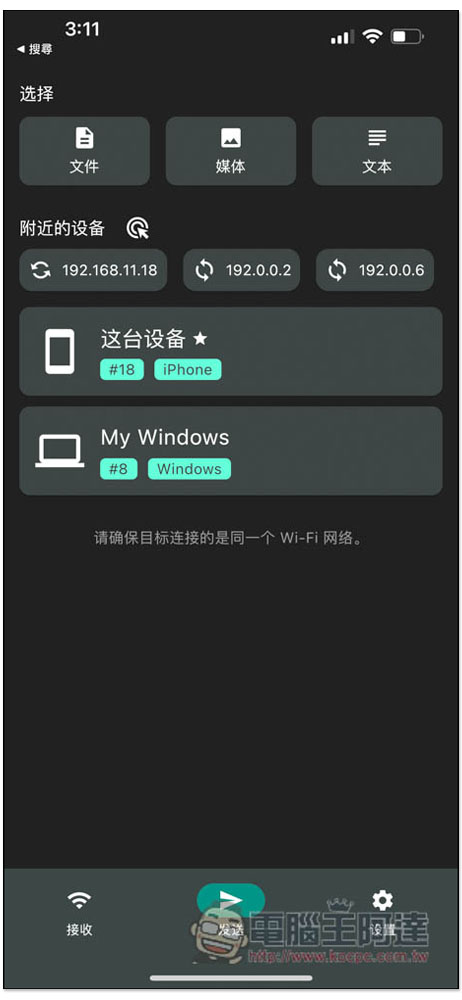
After confirming that your two devices (or more) are in the same local network, go to “Nearby Devices” in the send menu and you will see it. Then click on the top to see whether you want to send a file or a file:
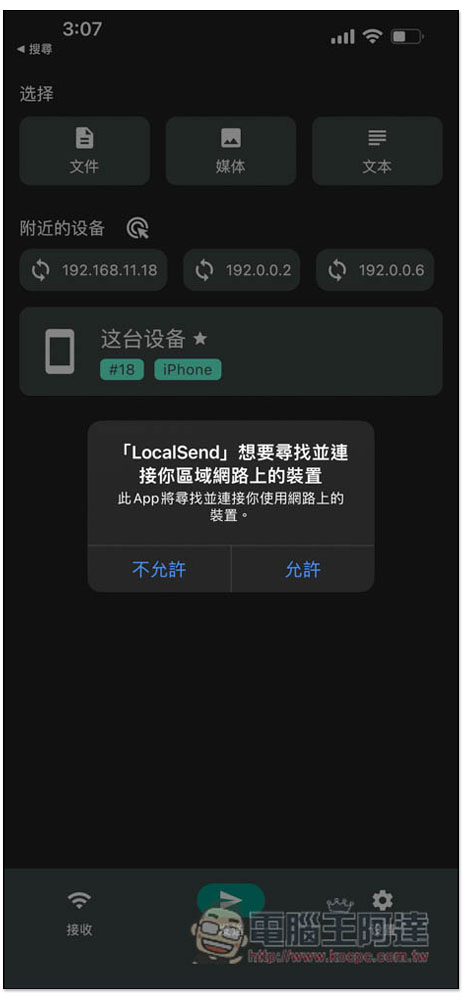
The iPhone will pop up this prompt, asking to find and connect devices on the local network. Remember to click Allow:
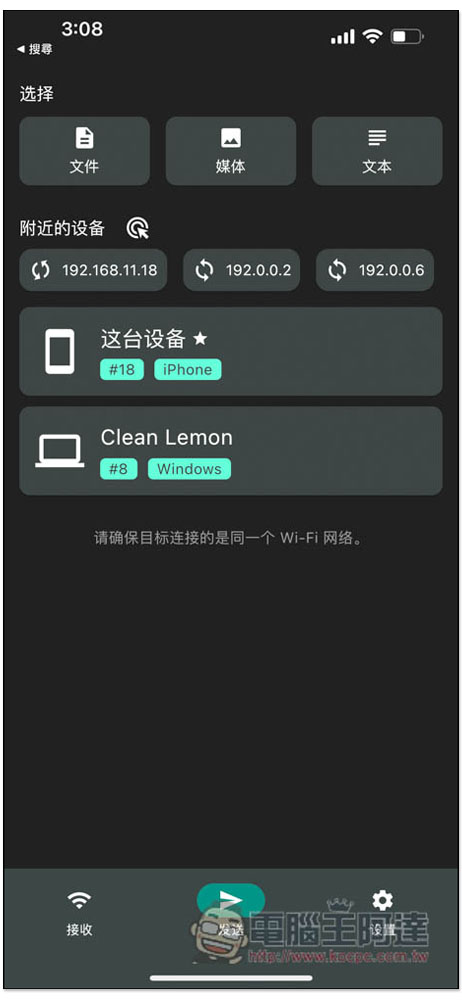
You will see other devices. When you want to transfer files, click above to select the type you want to transfer. For example, if I want to transfer photos from iPhone to Windows computer, select media:
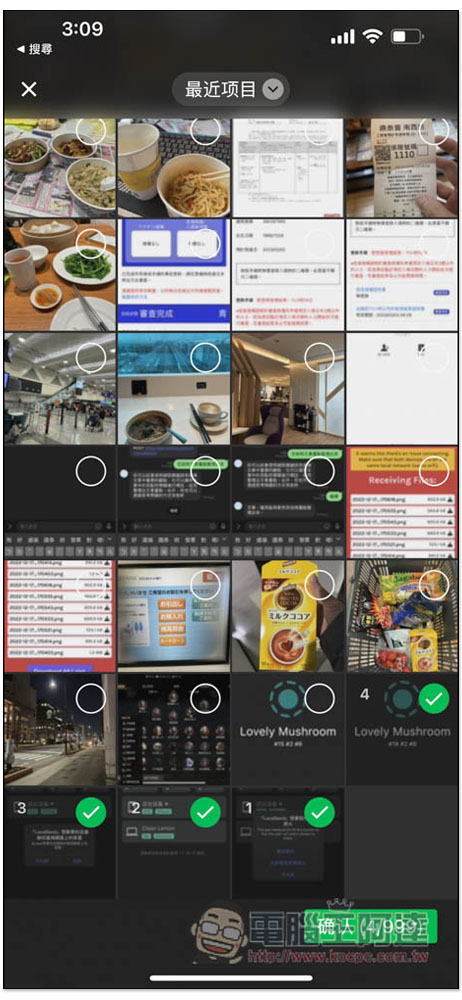
Select photos and videos to send:
The content you just selected will be displayed at the top. After confirming it is correct, click the device to be transferred below:
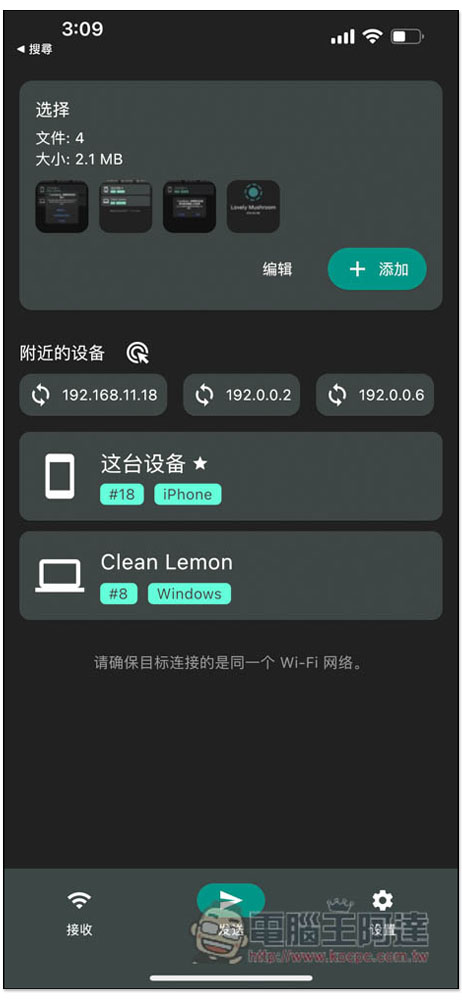
The other end needs to accept the request when transmitting, and there is no way to transmit it directly. If you want to pass it directly, we have taught you beforeNo need to install any software, you can use WiFi network to transfer photos, videos and files between iPhone and Windows”, this can be done:
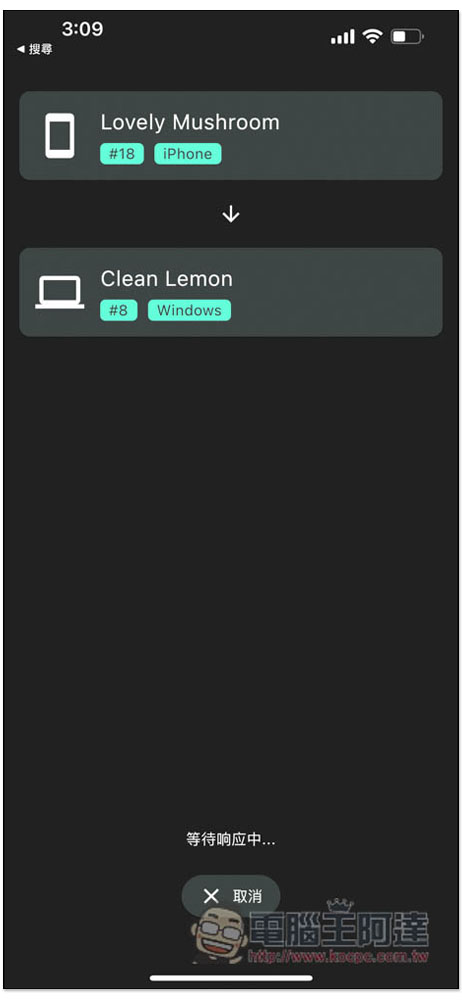
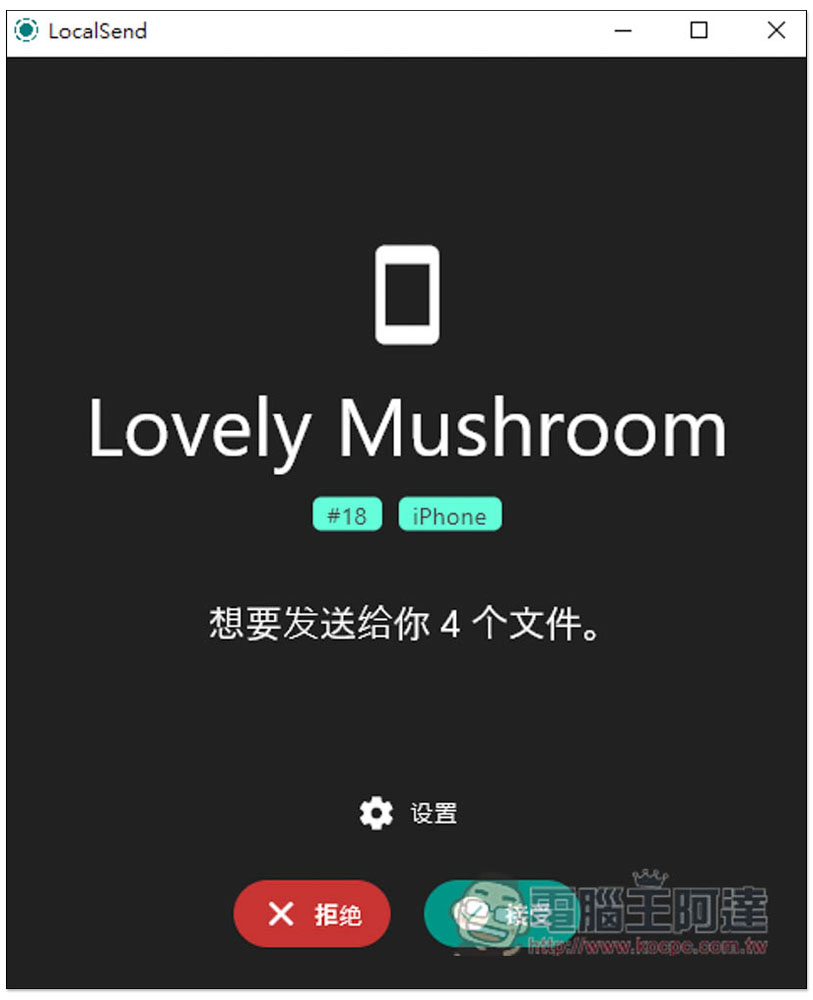
The receiving end will pop up this screen, just accept it:
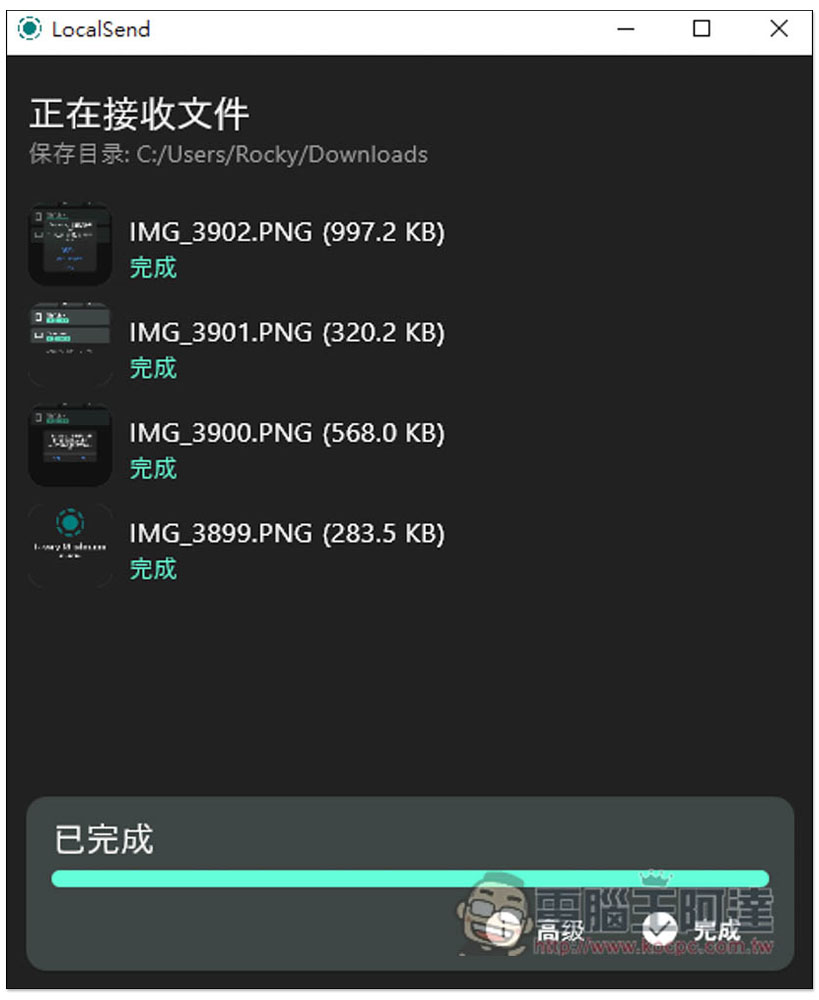
The transmission speed through the local network is quite fast, and it is completed in one go:
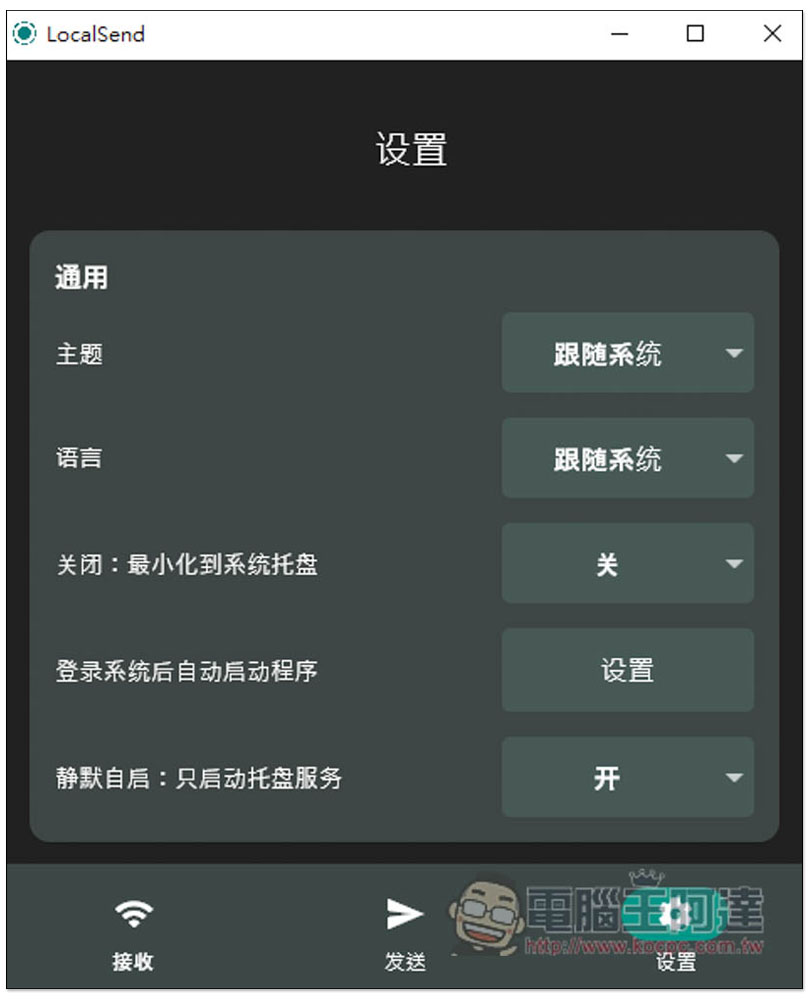
There are many things that can be adjusted in the settings, such as theme and language:
The device name is an alias. If you don’t like its default name, you can change it again:
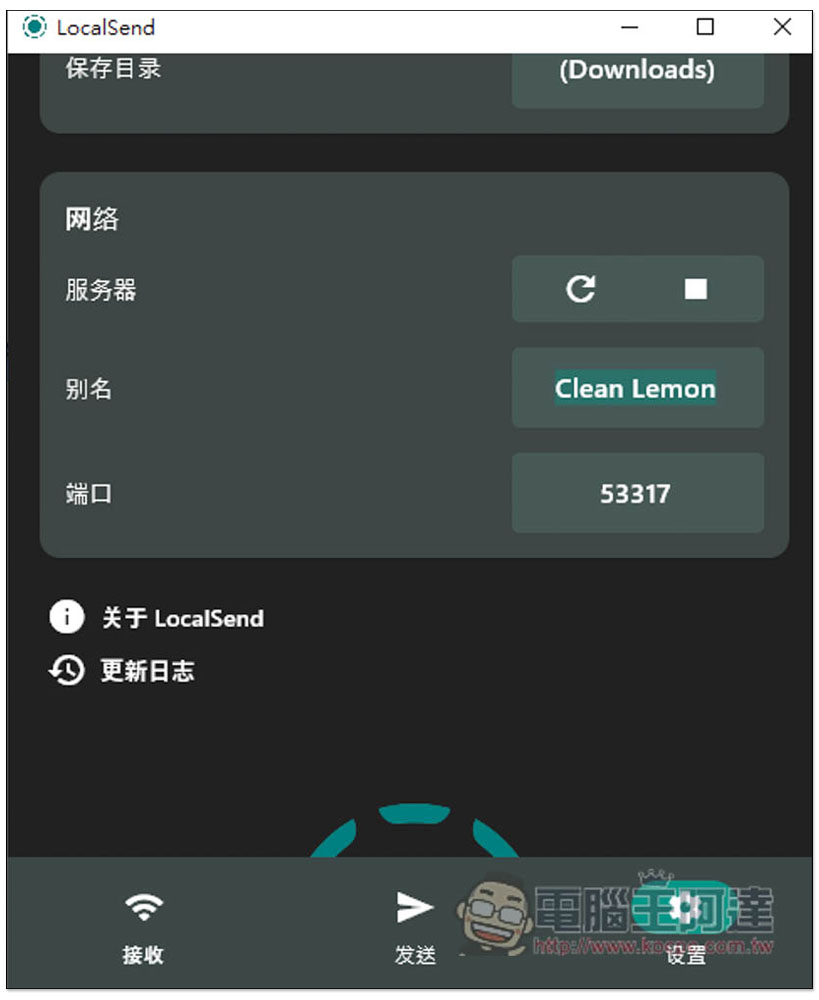
After making the change, you need to click the restart button above to actually change the name. The restart speed is very fast and it is completed in one go:
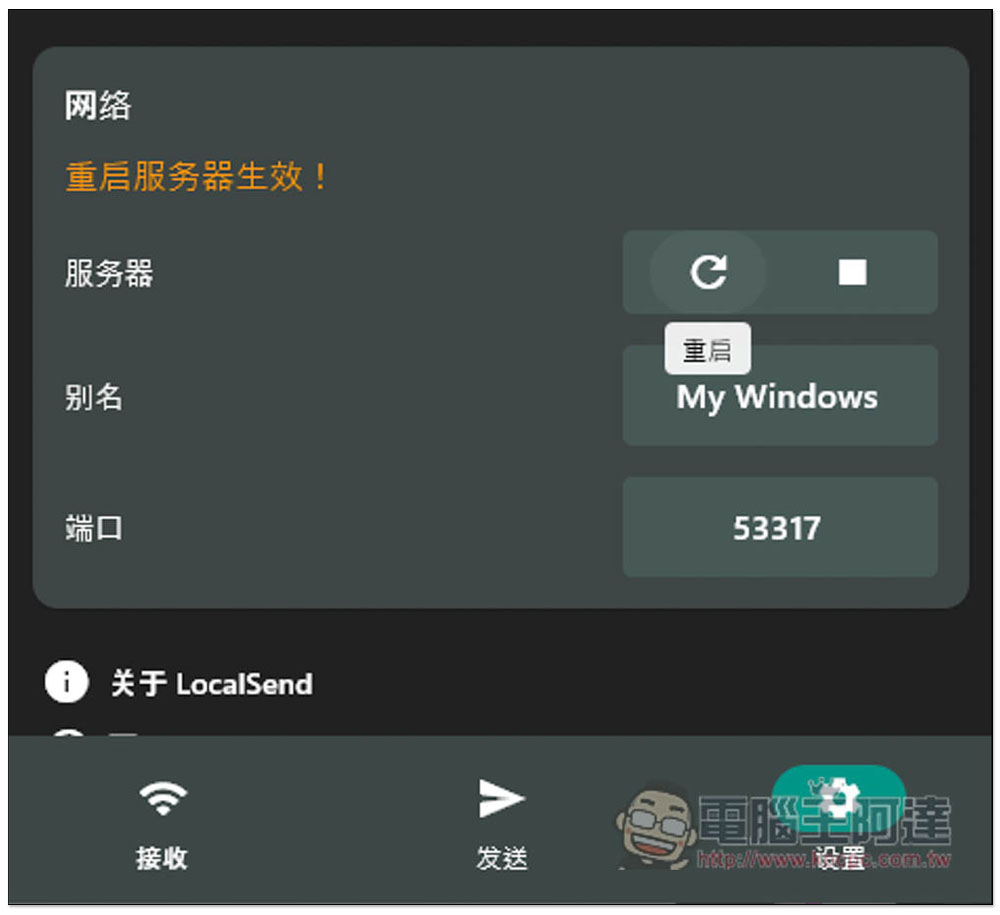
Like this, the original default was called Clean Lemon, I changed it to My Windows:
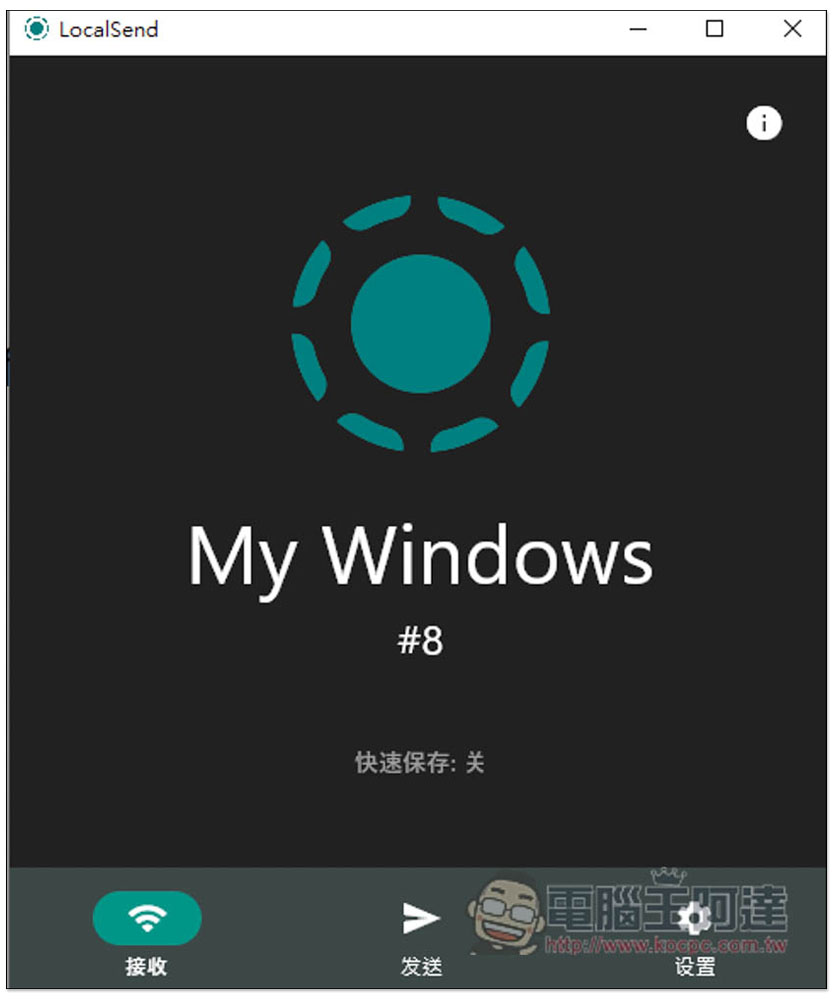
The name has indeed been changed when using other devices:
This one does not require logging in to any account at all. As long as the device is installed and under the same network, it can be transferred. This means that it is not just your own, but other people’s devices can also be used. I think it is more flexible than other models in terms of use. I highly recommend people in need to try it.
Source: KOCPC Chinese