


Smart TV has almost penetrated into most households because it integrates rich audio-visual entertainment and Internet services. Although you can get many benefits from it, some users have reported many performance problems, such as slowness in opening applications, streaming and browsing, which are the most common problems. Next, we will discuss and tell you how to eliminate basic obstacles at home.
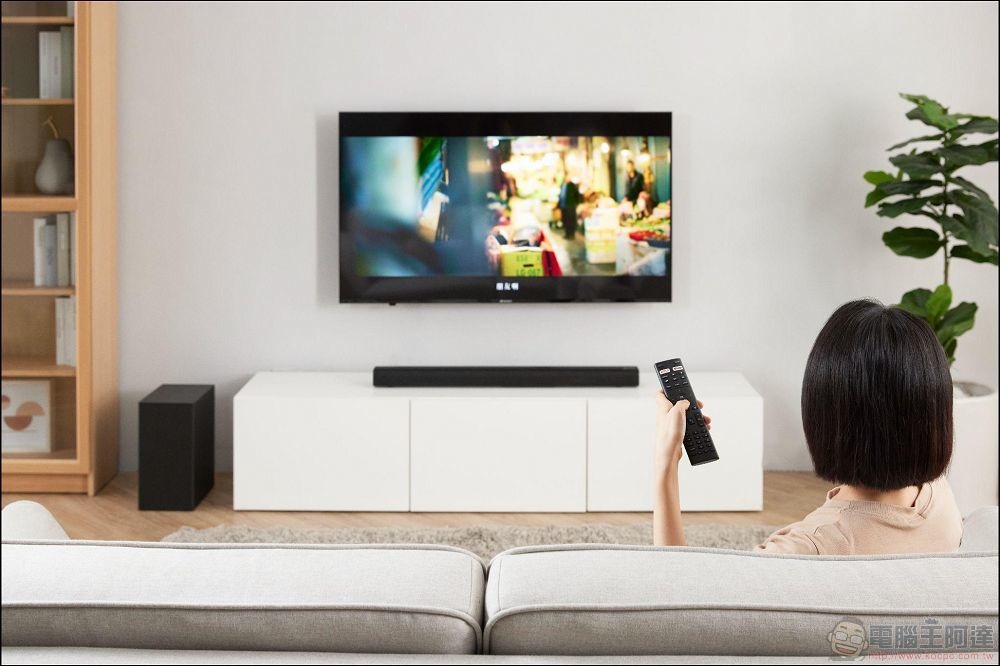
Why is your smart TV so slow? Try these methods and you may be able to improve it
The most common problem that reduces the performance of smart TVs is outdated software. Like any other device, you must regularly check if your smart TV needs updates to receive the latest bug fixes and performance improvements instantly. If your TV software needs updating, you may notice frequent problems downloading and processing the latest apps, resulting in slower performance.
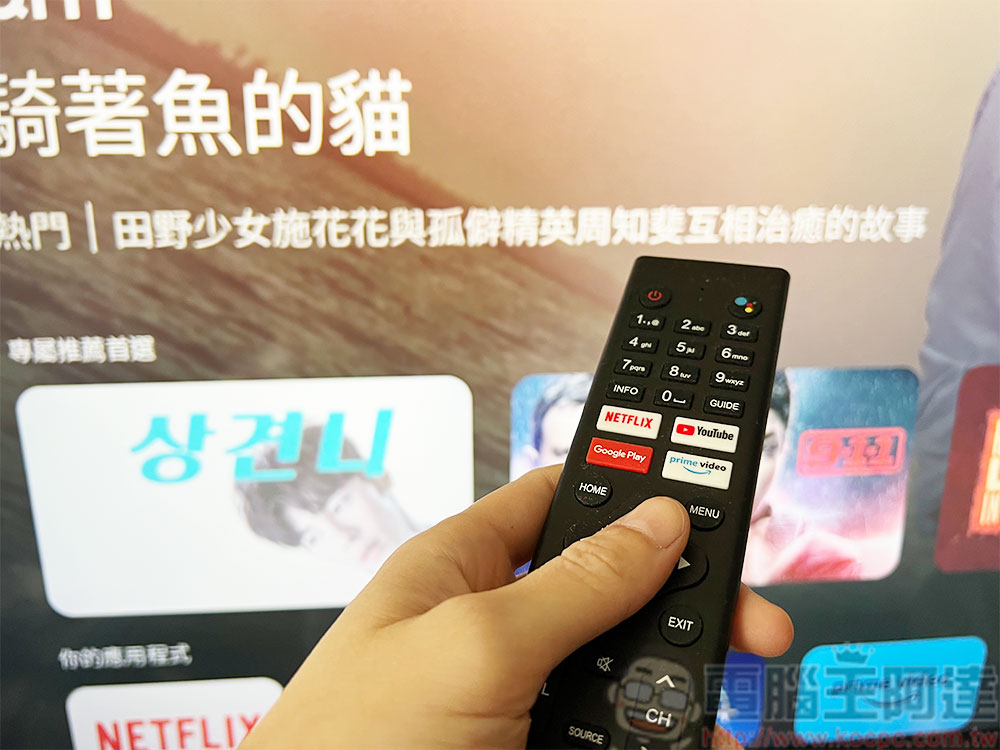
The second possible cause of slow performance is a lack of available storage space. Smart TV storage space is usually limited compared to other devices, and the apps you download and the content you save will slowly fill up the shared storage space. When the storage space is too full, your TV will start to slow down.
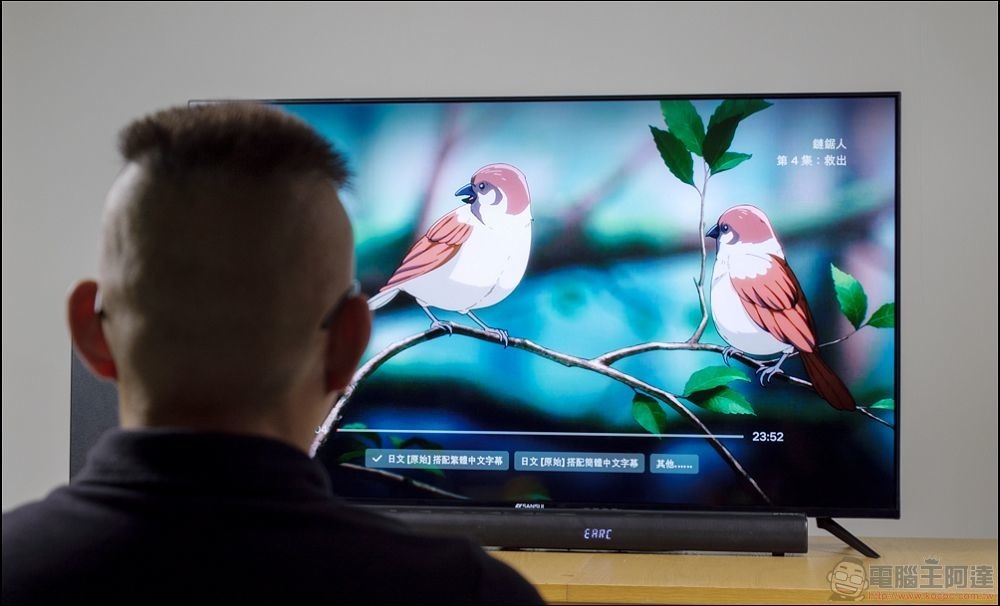
Network speed also affects smart TV performance. If you watch streaming videos or use apps that require an Internet connection, slower speeds will affect buffering, latency, and load times.
How to solve network connection issues to improve smart TV performance?
It can be frustrating if your home internet connection is too slow and unstable, especially when watching video content on your smart TV. If you frequently have to wait due to buffering, the problem is probably related to your network connection. Fortunately, you can troubleshoot your network connection and improve your TV’s performance before trying more complicated methods.
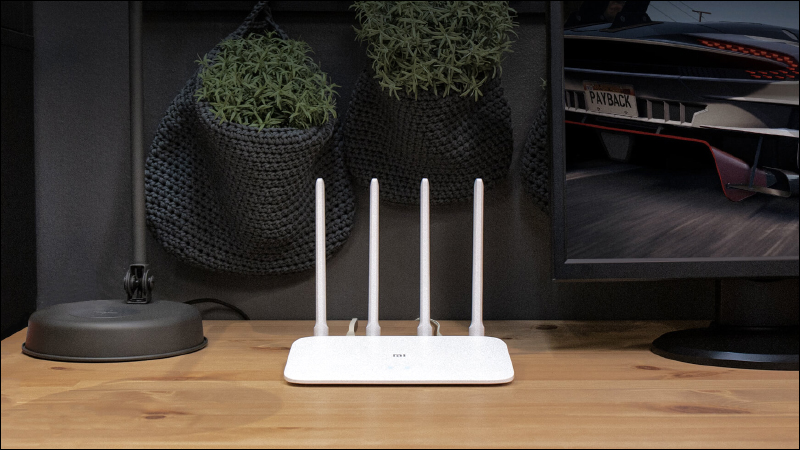
It’s critical to understand the root causes of network connection issues, some of which are likely interference from other devices, signal strength, and outdated hardware.
- Before trying to troubleshoot network connection issues, you must first determine your network connection speed. You can use a free upload and download speed test like Speedtest to see if your network speed is the problem.
- If the location of your router allows it, consider changing the network your smart TV is connected to from a wireless network to a wired network. Compared with wireless networks, wired networks will bring faster and more reliable network connections.
- Sometimes restarting the router can help solve most network connection problems. Please power off the router for at least 2 minutes and then turn it back on.
If your router has QoS or AP clam functions, turning them off will help improve the network connection. As for how to turn them off, each brand is different. You can refer to the support manual on the brand’s official website.
How to update the TV operating system?
Just like other devices such as smartphones and computers, it is important to keep smart TVs updated. As time changes, both Google and other TV systems have changed with the times. If you have never updated your TV system, you may be surprised by the unfamiliar UI interface. However, updating is a relatively simple process that can help improve TV performance and fix other bugs that cause slowdowns.
- Before updating, please make sure your computer is connected to a stable network to avoid interruption during the update process.
- Turn on the TV and find the Settings menu. You can usually find “System Update” in the host-related name directory such as System and Devices.
- After clicking to enter, check whether there is an update. If so, please download and install it. Sometimes this process takes a few minutes. Please wait patiently.
- After the update is installed, the TV will usually prompt you to restart, just follow the prompts.
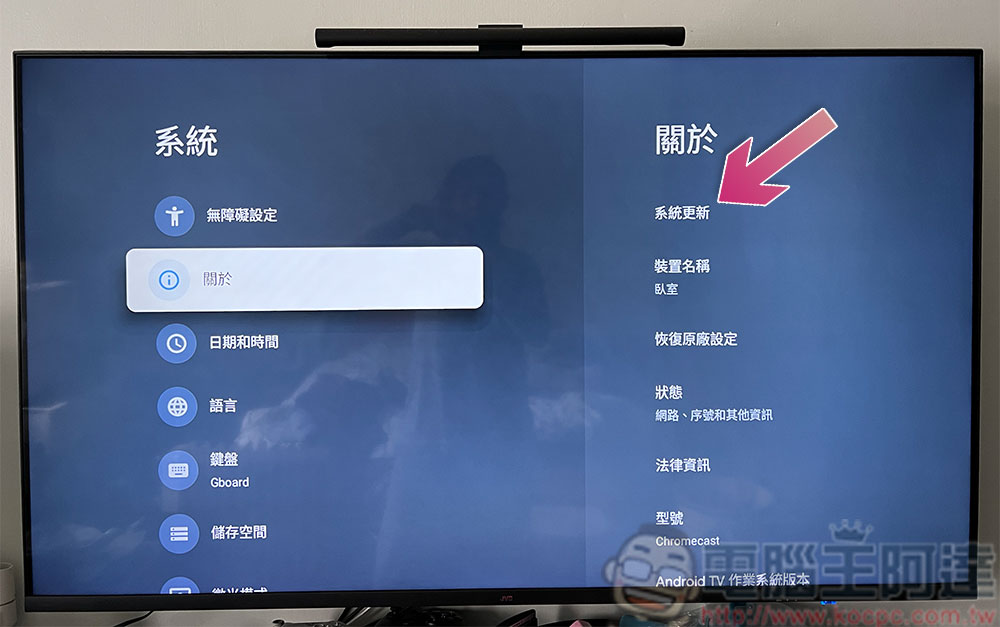
Different brands have different names and directory locations, but there will definitely be an update option. If you can’t find it, please refer to the smart TV manual or the official website support document for more information.
How to clear storage space on smart TV?
If updating your TV’s firmware doesn’t help resolve performance issues, you can also try clearing space on its hard drive. Clearing up storage space on your smart TV can improve performance and run faster.
- First, uninstall and clear all the applications on the TV that you no longer use. Don’t let them occupy the cesspool.
- If you have photos or videos saved on your TV, you can delete them to free up space. Go to the settings directory to check whether there is saved content and organize files that are no longer needed (such as videos you have watched, etc.), as well as cached and other unnecessary files.
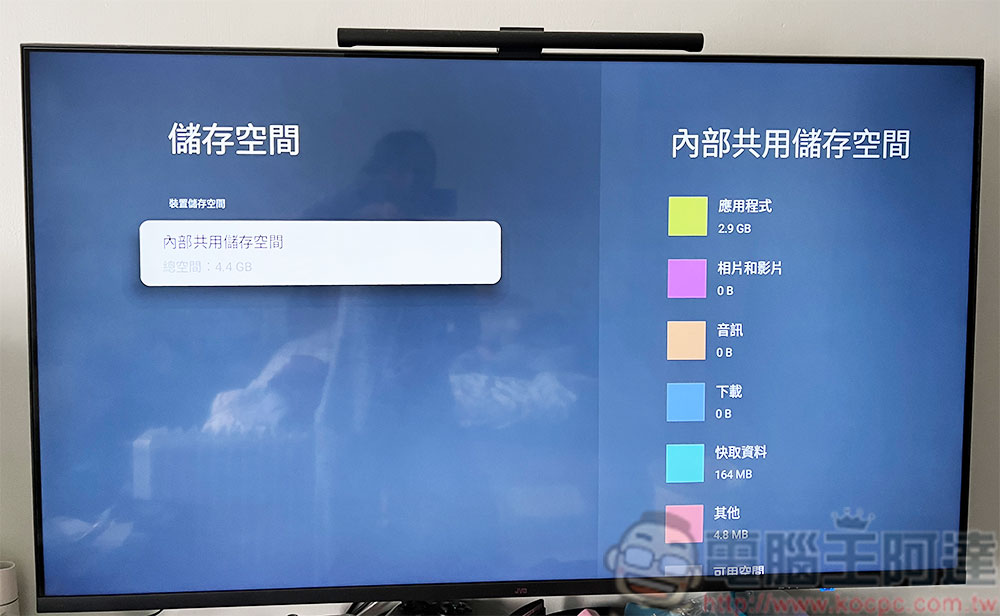
- Go to the settings directory to check the storage, clear the cache and temporary files of the application, and release the space lost by the application.
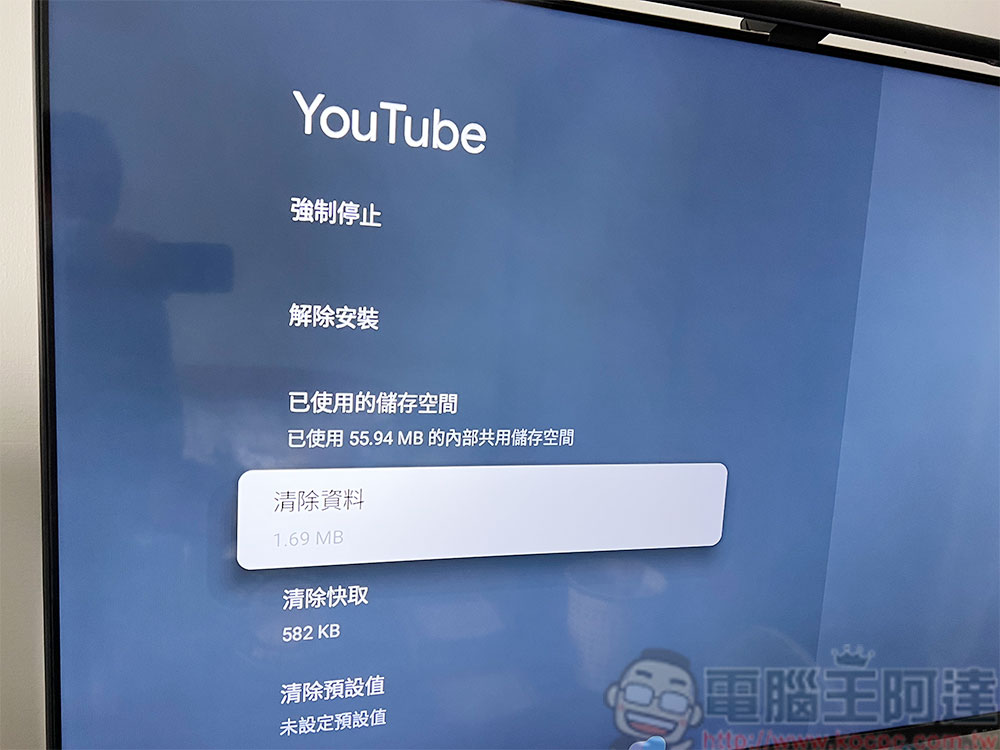
If your TV has limited storage space, you can also try using an external storage device to store content. Just connect the storage device to the TV’s USB port and transfer the content there.
The TV is very powerful but is no longer supported by the system.
If your TV itself is very old, or you bought a TV at a very low price, which is often a product several years ago, the system may be stuck on Android 9 or 10 and cannot be upgraded, and the operation execution speed is extremely slow. However, the TV panel is still strong, and the option of changing the TV at this time is impractical and unnecessary. At this time, the best and most affordable solution that I personally think is “Chromecast with Google TV”.
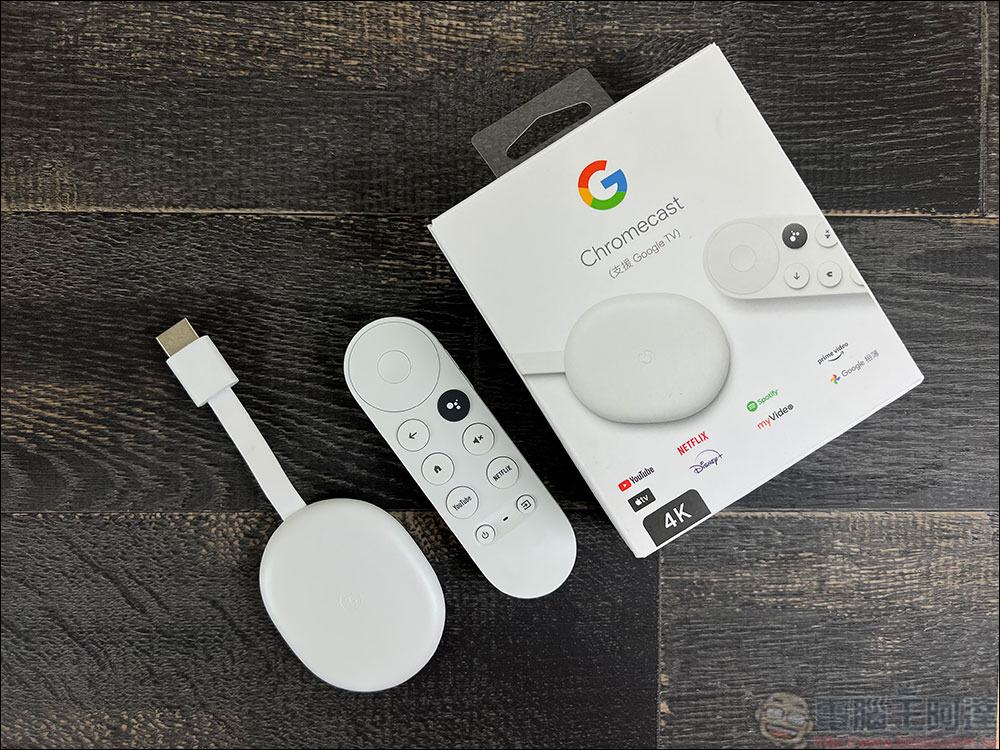
As far as the author is concerned, although I only bought the 50-inch 4K smart TV for my bedroom two years ago, because it is a cheap product, it has long been unsupported and often responds slowly. So I directly installed Chromecast with Google TV on it, using the TV itself as a fool TV, and transferred the entire system to Chromecast for execution. In this way, the problems of product obsolescence and slowness can be solved with the lowest expenditure budget, and the linked operation with mobile phones will still be smooth like Android TV, and there will be no need to adapt again.
Rhino Shield Startup Discount Code

If you start work in the Year of the Rabbit, you will not be depressed.RHINOSHIELD Rhino ShieldWe are launching a spring event and will send you an extra red envelope to get started. During the event (2023/2/2 ~ 2/5), you can get a $200 discount for spending over $1,200. There is also a 10% discount on the entire order if you do not reach the threshold. In the new year, use the new Rhino Shield accessories to create a new atmosphere in the Year of the Rabbit!
- RHINOSHIELD Rhino Shield official website purchase:Please click here
(Enter discount code [CNY2023】Get $200 off when you spend over $1200, enter when you spend less than $1200【3C-Y23】Enjoy 10% off your entire order. )
Source: KOCPC Chinese