


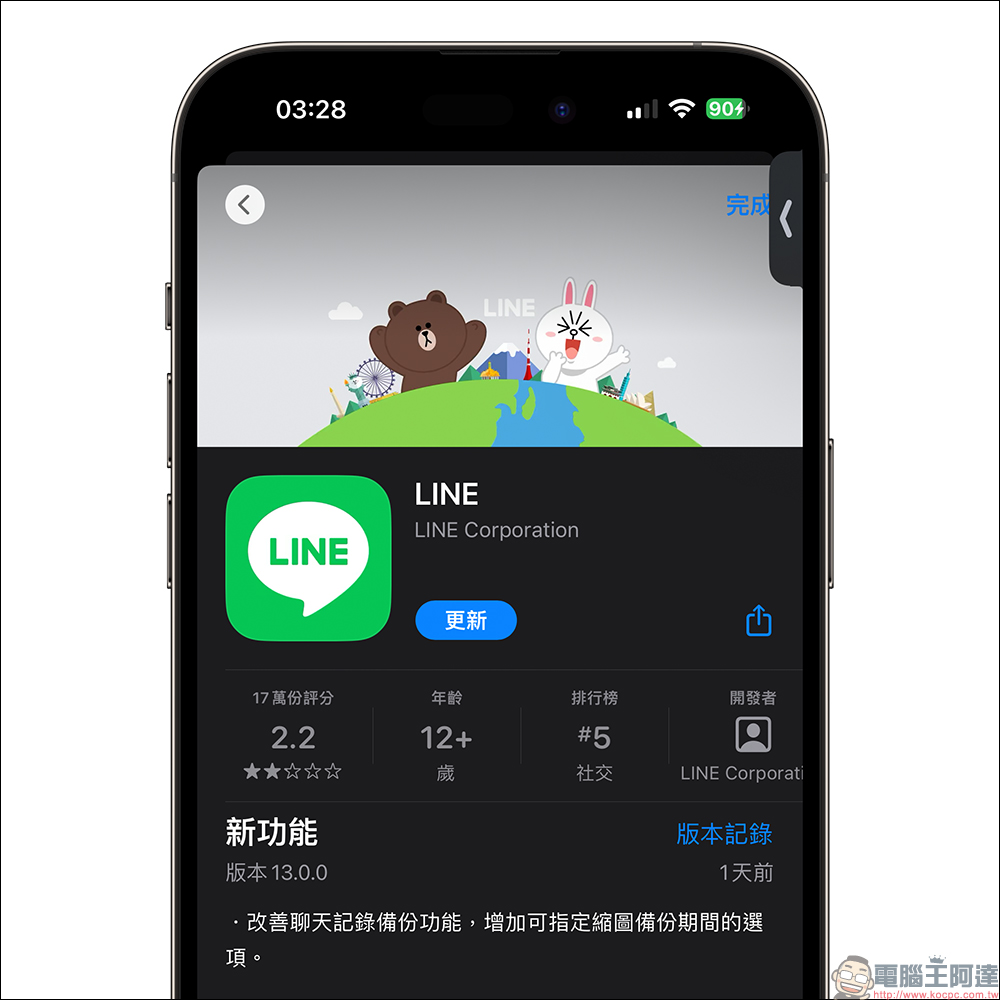
After the New Year, we will soon welcome the Lunar New Year. Do you remember to back up your LINE chat history regularly? The recent LINE 13.0.0 version update has optimized the chat history backup function and added the “Specify thumbnail backup period” option, allowing users to customize the thumbnail backup period when backing up chat history, making the backup faster and more time-saving!
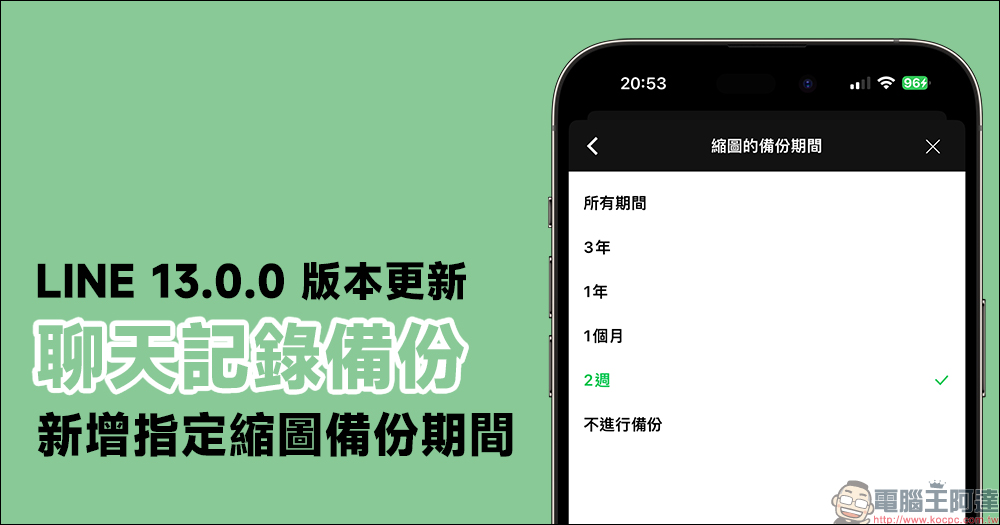
LINE 13.0.0 version update: The chat history backup function adds the option to “specify the thumbnail backup period”
Although the LINE App provides an automatic backup function for chat history, sometimes when you want to back it up manually, you will find that as the content of the chat history increases, the backup of the chat history often takes more time to complete. If you don’t want to wait too long to back up your chat history, now that the LINE 13.0.0 version update is released, you can select the “Thumbnail copy time” option in the chat history backup function.
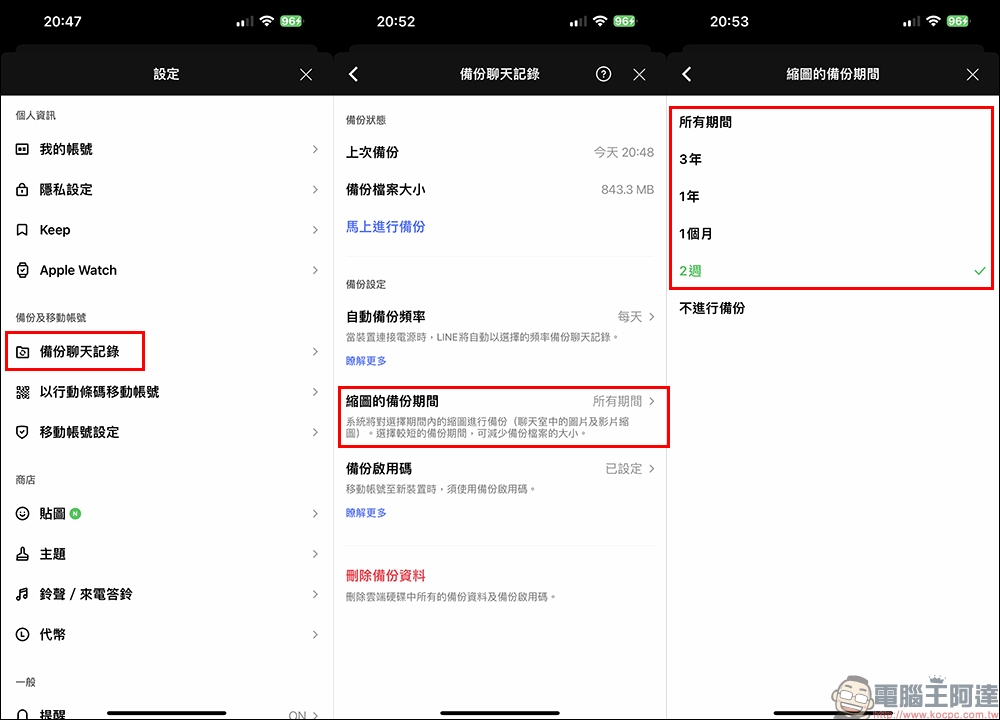
How to set the new function of “Thumbnail Backup Period”? First, open the LINE App homepage and go to “Settings”, then click “Backup Chat History” under the Backup and Mobile Account category. As long as you update to LINE 13.0.0 (inclusive) or above, you will see the newly added “Thumbnail Backup Period” option.
Click on the thumbnail for the backup period. In addition to the default “all periods”, six options are currently available: 3 years, 1 year, 1 month, 2 weeks, and no backup. If you select “Don’t back up”, when performing the chat history backup operation, the system will not back up the pictures and video thumbnails in the chat room. If you select a longer backup period, it usually takes more time to back up chat history. On the contrary, a shorter period saves time and can also reduce the size of the backup file.
In addition, starting from LINE 12.13.0 (inclusive) and above, the “Backup Activation Code” function is added to LINE chat history backup. As long as the user sets the backup activation code in advance, the chat history can be smoothly moved to the new device when moving the LINE account. At the same time, if you want to perform manual backup of chat history, you must also set the “Backup Enablement Code” first. After setting the backup enablement code, a chat history backup will be automatically performed.
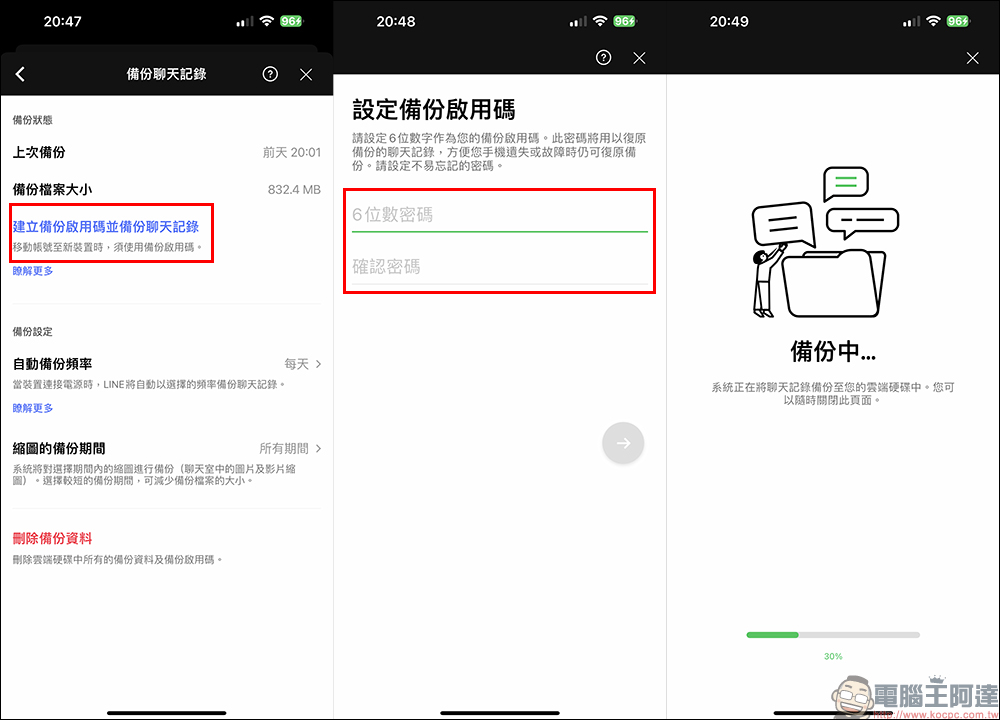
If users do not know their own LINE backup activation code, they can also click “Backup Activation Code” from the backup chat history page to see the currently set backup activation code. On the Backup Enabler Code page, users can also click the “Reset” button to set a new backup enabler code.
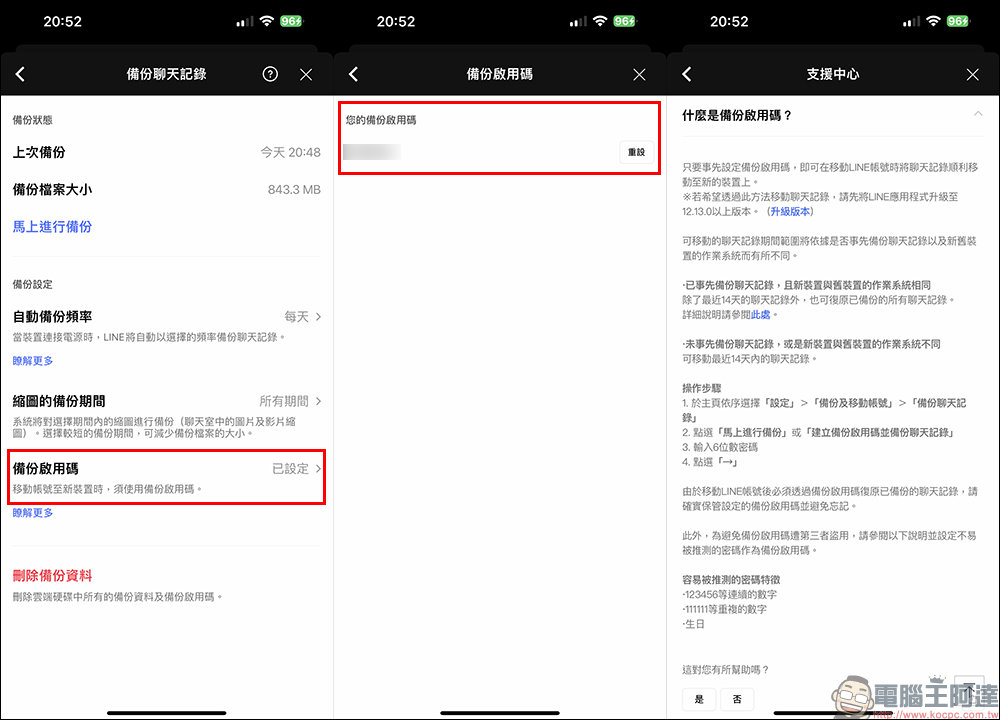
If the backup activation code has been set, if the user wants to manually back up LINE chat history at any time, he or she can click “Backup Now” to start manually backing up the chat history. After the backup is completed, the time when the chat history was last backed up will also be displayed.
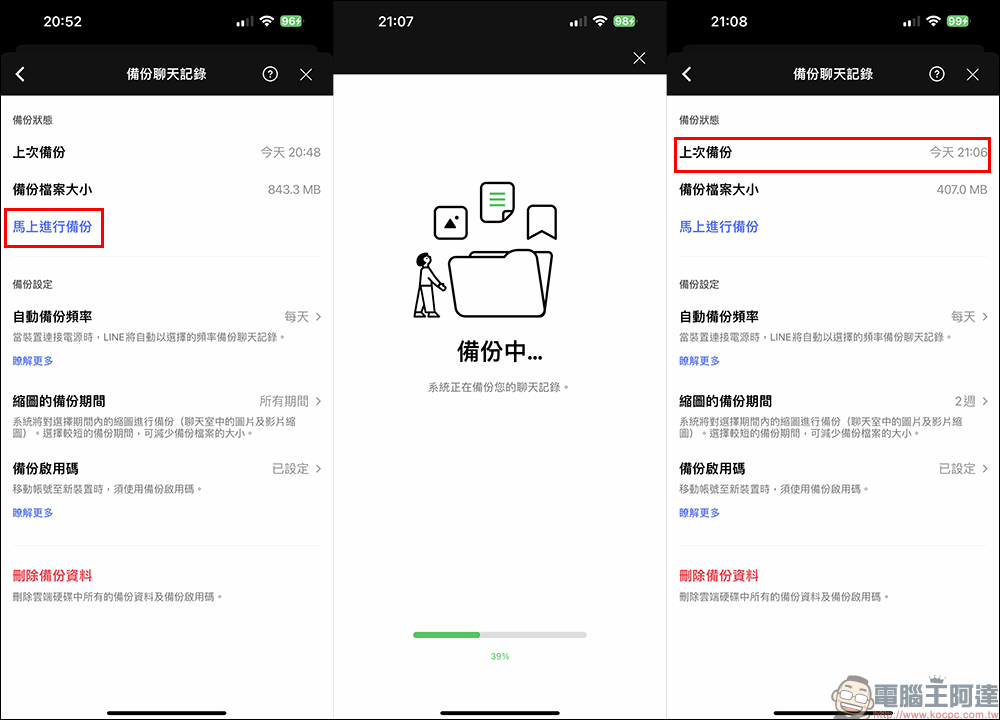
This time, after the LINE 13.0.0 version update, users can choose how long the thumbnail backup period should be based on their own usage habits when backing up chat history. Assuming that you rarely go to the chat room to browse pictures and videos sent a long time ago, you can choose a shorter thumbnail backup period, so that the files you usually back up LINE chat history can be smaller. At the same time, manually backing up chat history can save more time.
LINE App:
iOS version (App Store)|Android version (Google Play Store)
Further reading:
LINE’s Year of the Rabbit New Year event offers endless discounts and good deals, and you’ll also have a chance to win an iPhone 14 or a flight ticket!

Source: KOCPC Chinese