


Busy at work but don’t want to miss an important day? In the past, the iPhone lock screen could only display date, time, and push messages from the notification center. However, with the launch of iOS 16, users can add a variety of gadgets to the iPhone lock screen to provide more customization options. Today I’m going to introduce an App Lock Screen Widget that can add a date countdown timer to the iOS 16 lock screen.
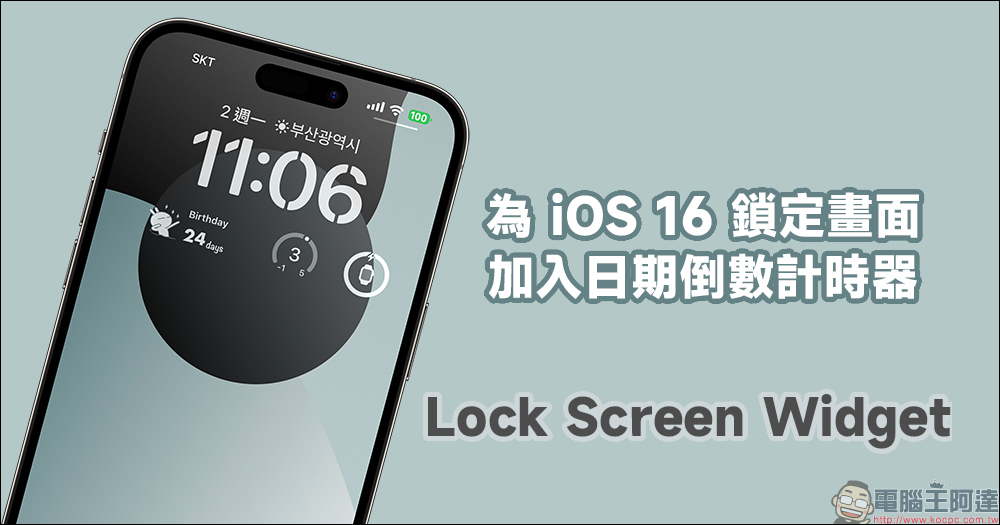
App that adds a date countdown timer to the iOS 16 lock screen—Lock Screen Widget
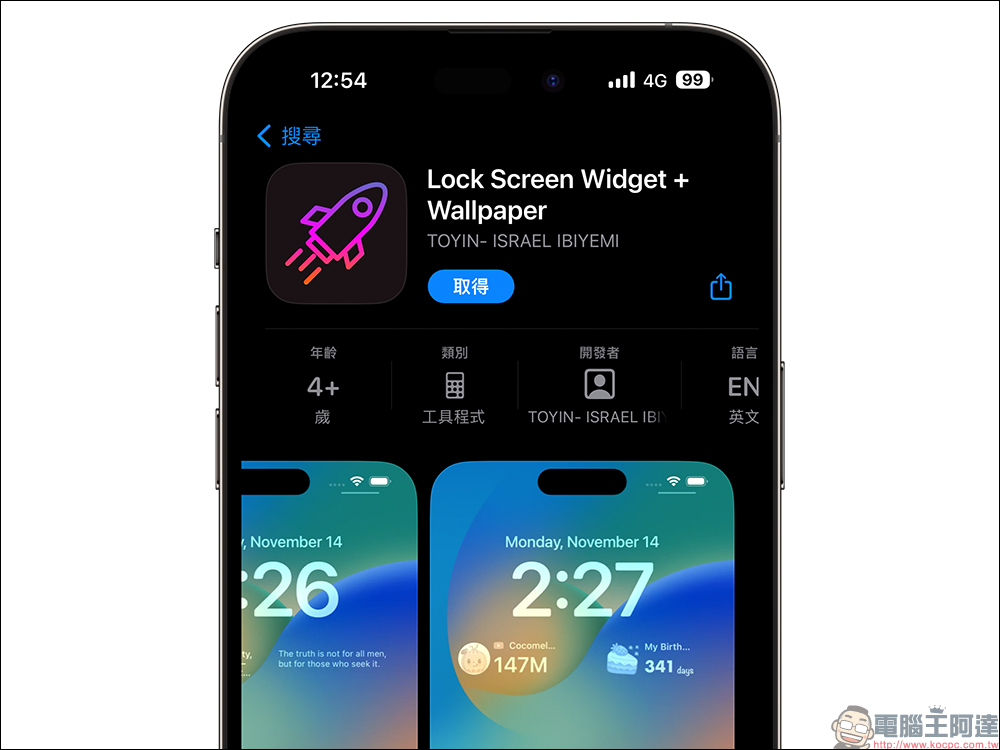
Are there some important days in your life that you always overlook because of your busy schedule? Today I will introduce this “Lock Screen Widget + Wallpaper” App, which supports a variety of customized widgets on the lock screen, including adding a date countdown timer to the lock screen! To use this lock screen widget function, you must first upgrade your iOS system to iOS 16 (inclusive) or above, and then download this App.
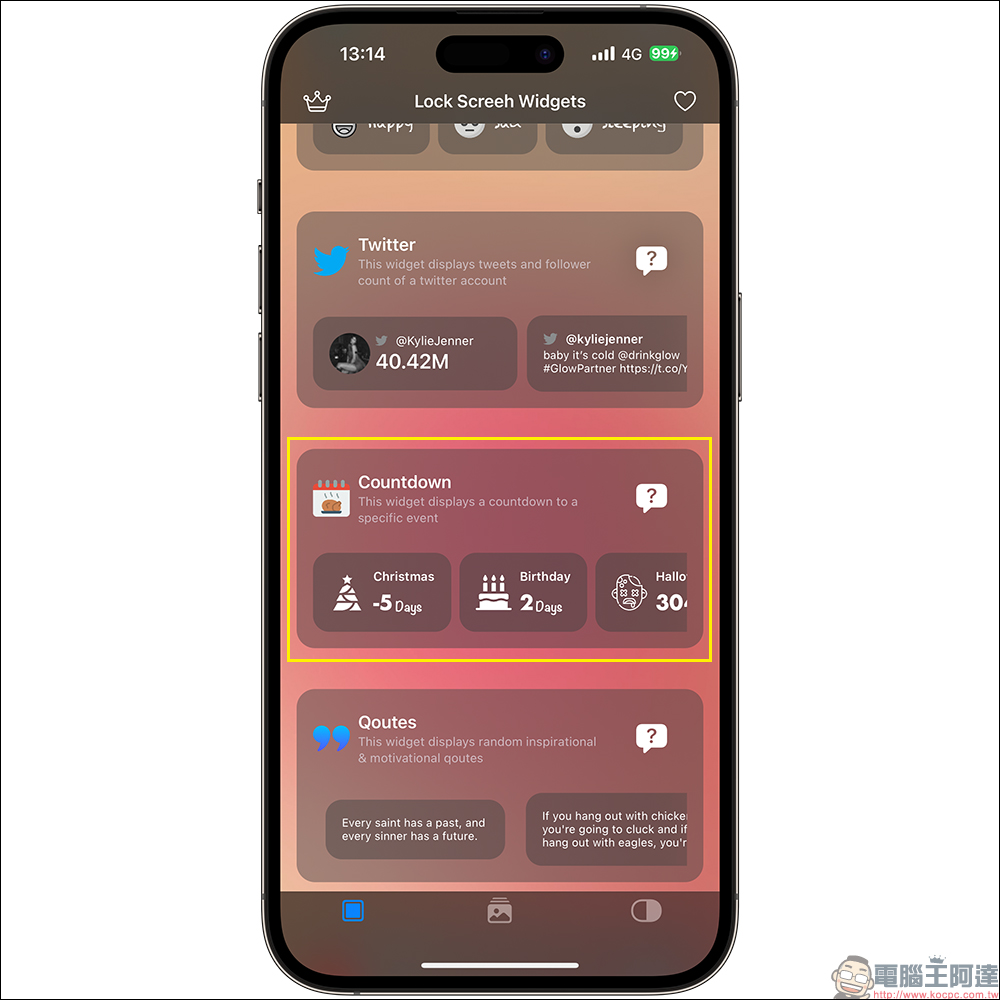
After opening the “Lock Screen Widget + Wallpaper” App, you can see widgets such as the subscription (tracking) number display and caption display of social platforms such as Twitter. Then find the “Countdown” widget. You can select any preview image for this step.
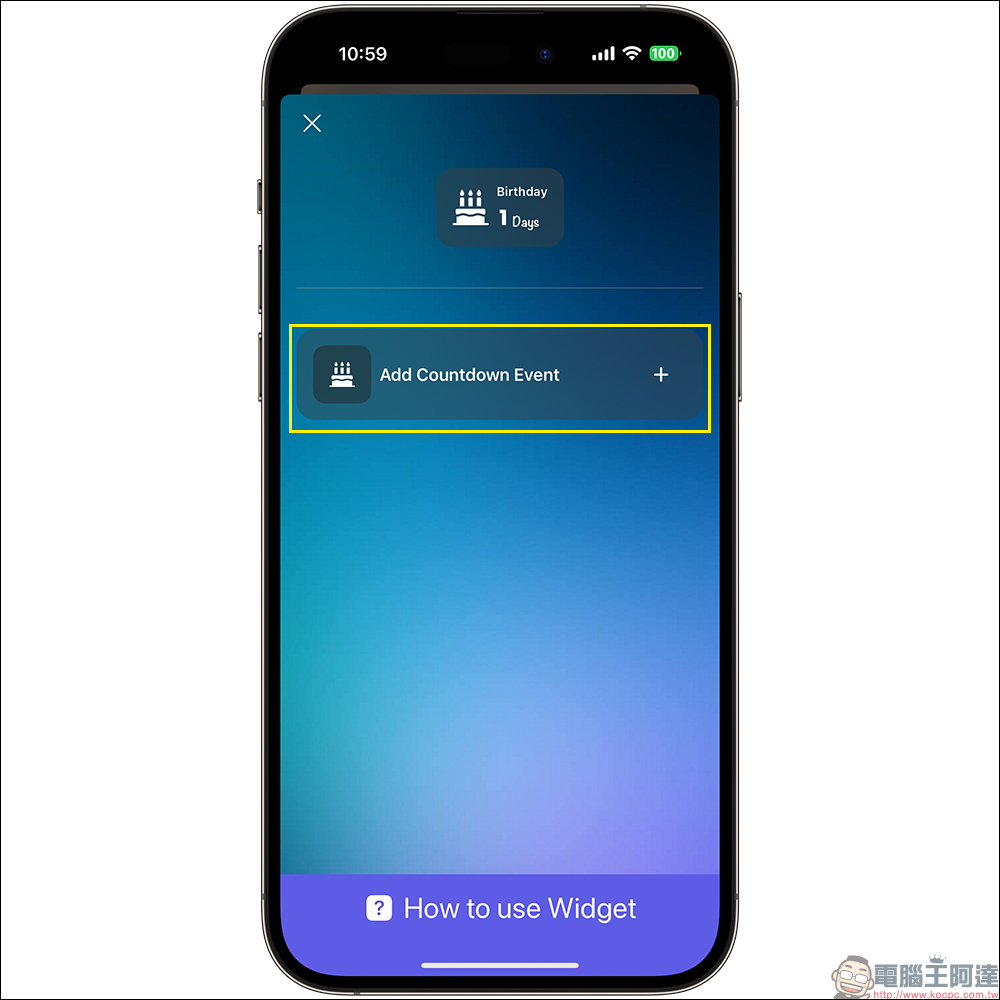
After entering the setting page of the countdown gadget, click “Add Countdown Event” to add a countdown event. Here you can set important dates such as birthdays, wedding anniversaries, dating anniversaries, Spring Festival, Christmas, etc.
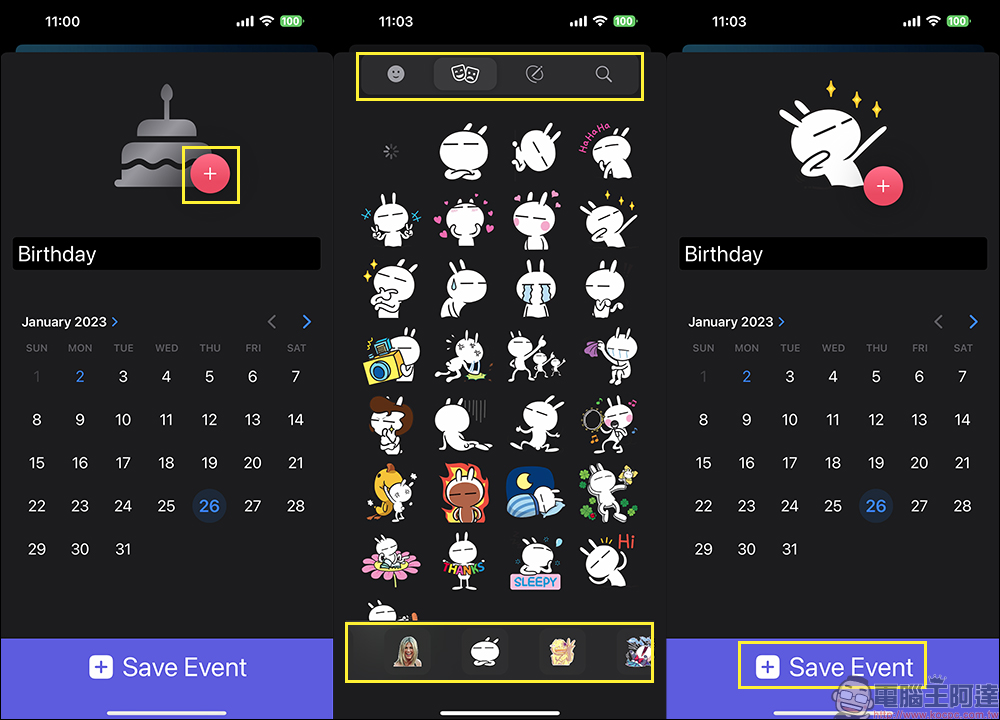
In addition to the default countdown timer icon, users can click “+” to select more stickers or emoticons as event preview icons. Then enter the event name and date of the countdown timer, and click “Save Event” to save the event after the settings are completed.
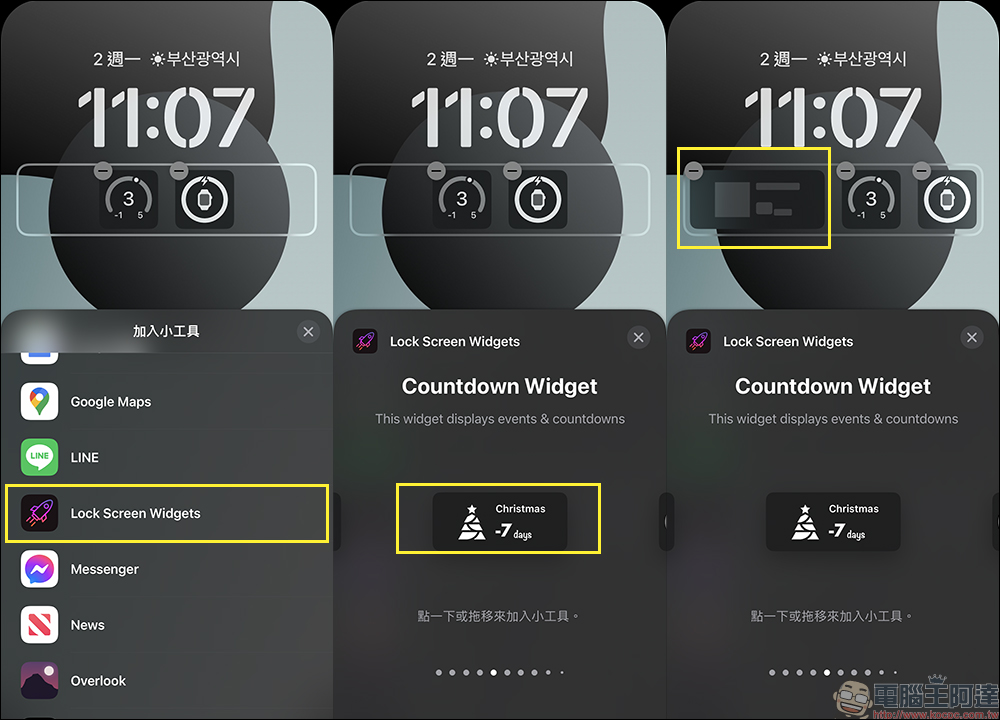
After successfully saving the activity, we then go to the main screen settings page, find “Lock Screen Widgets” when adding widget settings, and find the countdown timer widget set earlier. When a gadget is added to the lock screen, it will not actually have any gadget functions by default, so you need to click on the gadget on the screen.
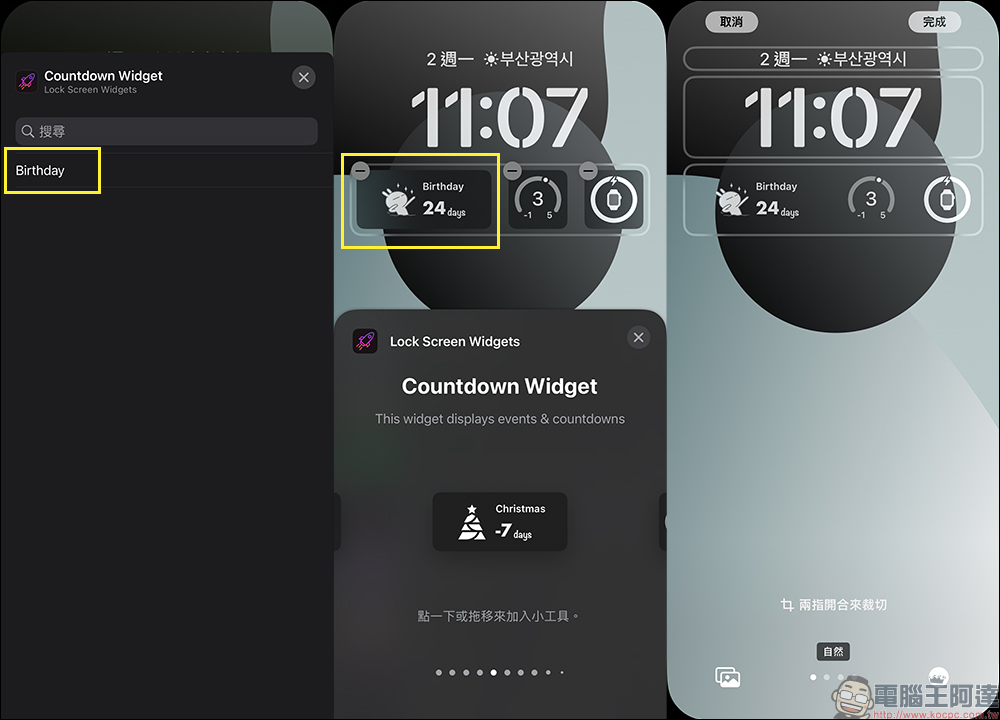
After clicking on the created event and loading it, the countdown event set earlier will appear on the main screen! If there are multiple important events, you can adjust the recent important events according to your needs. However, due to limitations on where gadgets can be placed on the iOS lock screen, up to two countdown timers can be displayed at a time.
If you are worried about forgetting important holidays such as dating anniversaries, wedding anniversaries, or even birthdays with your significant other, you might as well use this app to add it to the lock screen widget, and you can see it every day when you enter the lock screen!
Lock Screen Widget + Wallpaper App:
Click here to download (App Store)
Further reading:
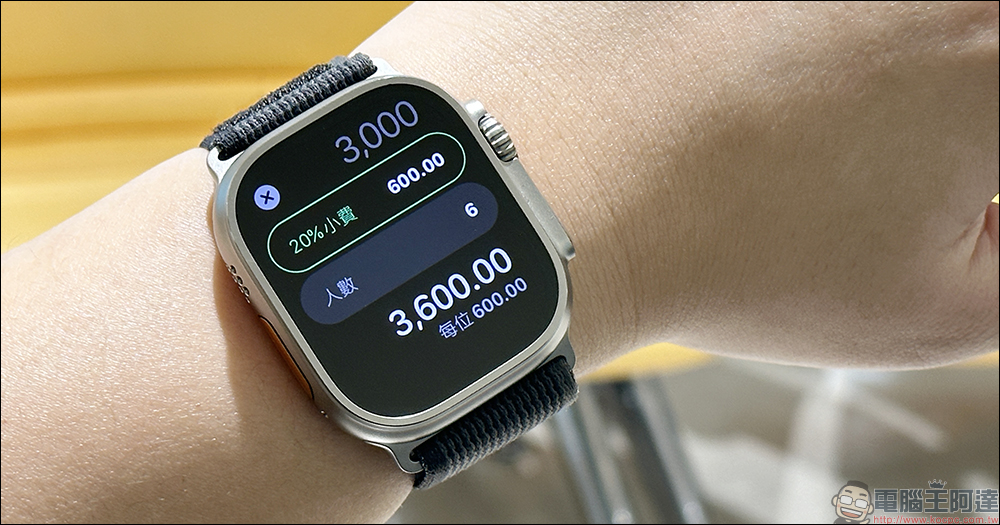
Apple Watch counts as a tip too! The hidden function of the built-in computer allows you to customize the tip percentage and number of people (teaching)
Source: KOCPC Chinese