


The “Mobile Link” application in Windows 11 is very useful for users who want to connect their Android smartphones to their computers. It allows you to view photos, messages, and calls on your phone directly from your computer, making it easier to multi-task and keep everything organized. But just like any software, it is inevitable that you will encounter some problems that cause it to stop functioning properly. This time the author will sort out how to fix common problems for you.
“Mobile Link” doesn’t work on Windows 11 computers? You can try these fixes
If you suddenly have problems with Mobile Connect on your Windows 11 computer, don’t worry, please follow us and try the solutions below. In this article, the demonstration screenshots for the mobile phone part are based on Pixel 6 running Android 13.
Grant permission to run in the background
Windows 11 does not allow newly installed apps to run in the background, especially if you are using a laptop. Let’s first try to check to grant background running permission.
- Open the “Settings” app, click to enter the “Applications” tab, click to enter “Installed Apps” and search to find “Mobile Link”.
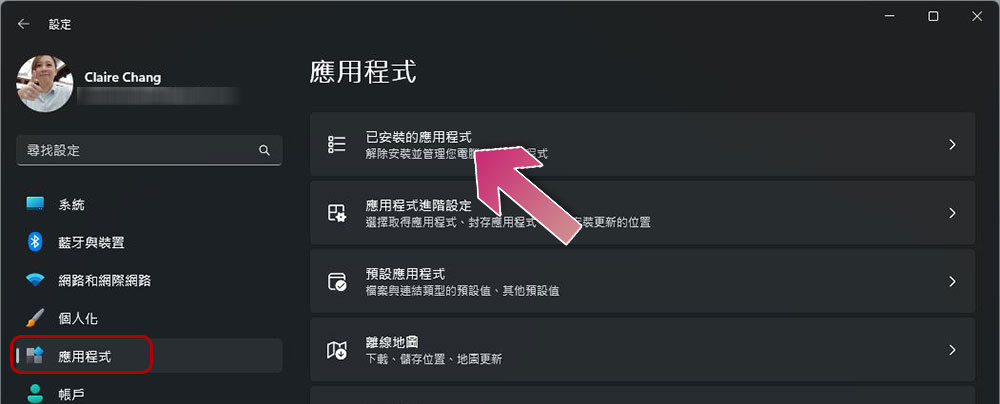
- Click the three-dot menu behind the “Mobile Link” item and select “Advanced Options”.

- Set “Background Application Permissions” to “Always.”

Enable features in the Mobile Connect app
If you find that although you have connected your phone to the computer, you are not receiving calls or messages from the computer, you may have disabled these specific functions. Here is how to enable it.
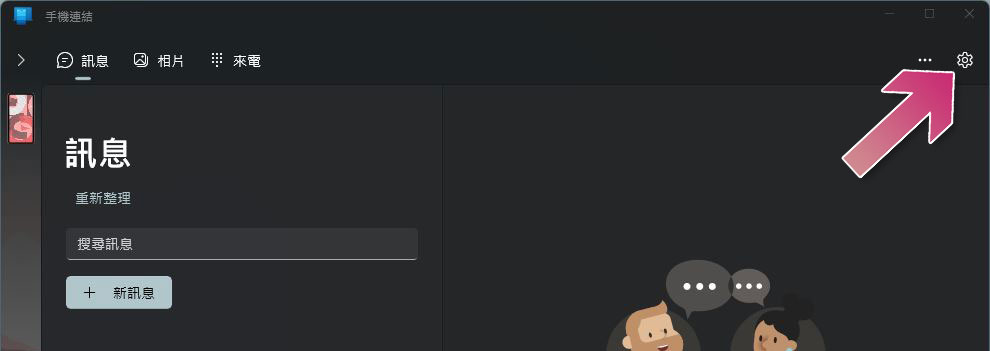
- Open the “Mobile Link” app on your computer and click “Settings” in the upper right corner.
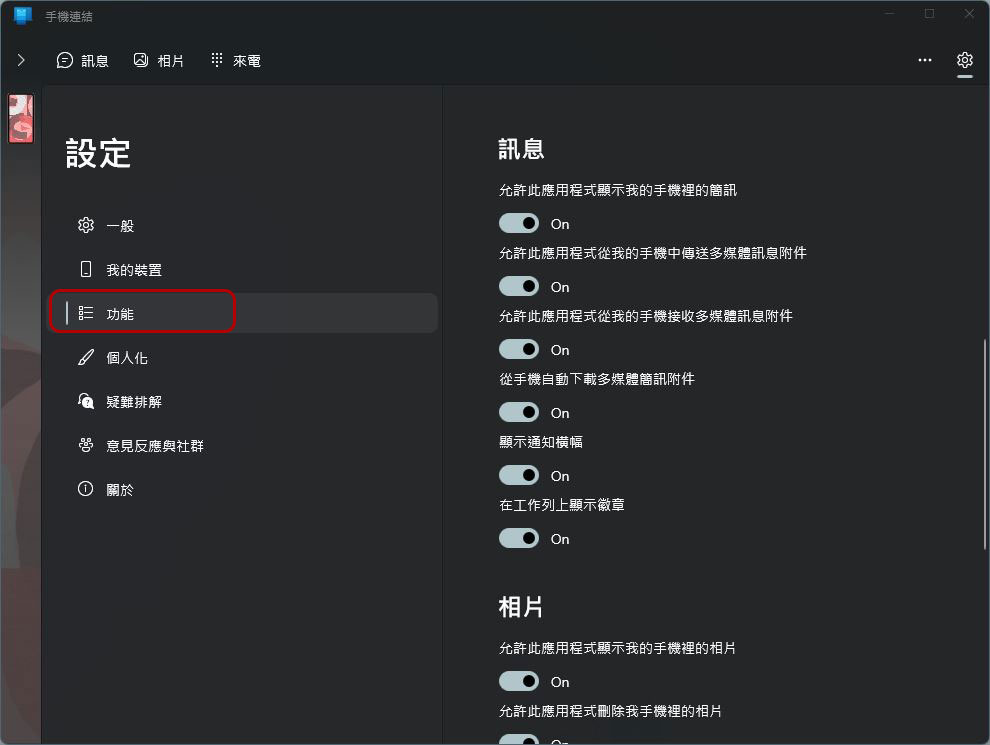
- Click to enter the “Function” tab and turn on all the switches in the messages and calls.

Troubleshooting running Microsoft Store apps in Windows
Microsoft provides you with a Windows Store troubleshooter built into the system to solve problems with any apps installed from the Microsoft Store. You can try using it to troubleshoot mobile connection issues.
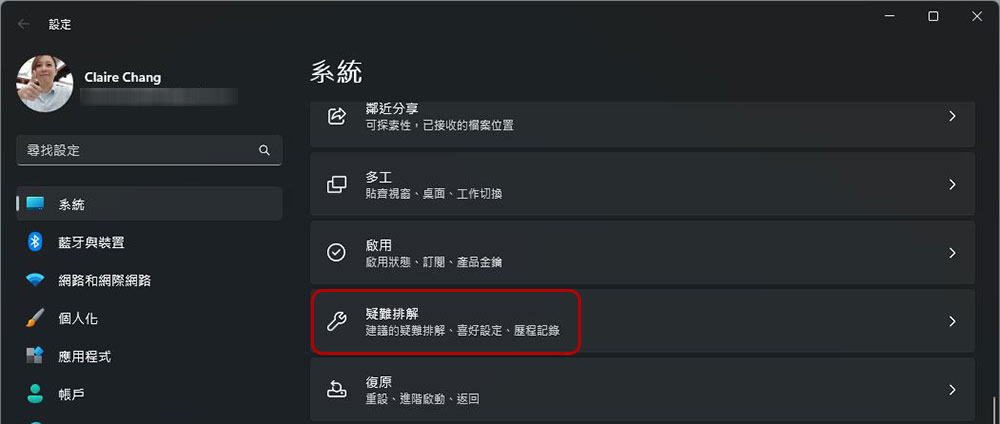
- Open the “Settings” app, scroll down in the system tab, and click to enter “Troubleshooting”.
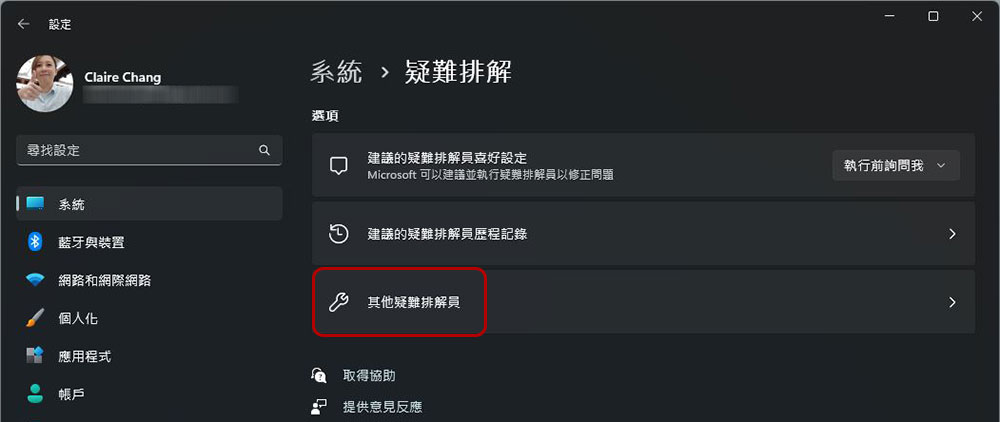
- Select “Other troubleshooters.”
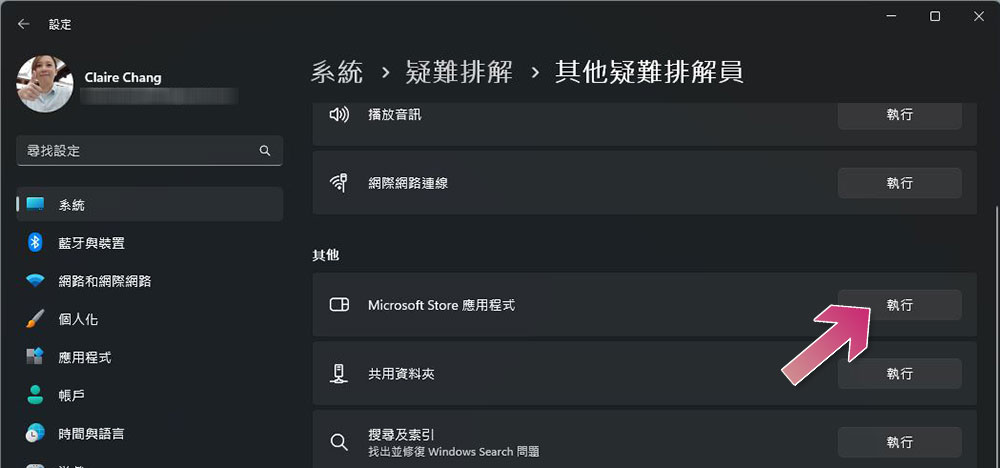
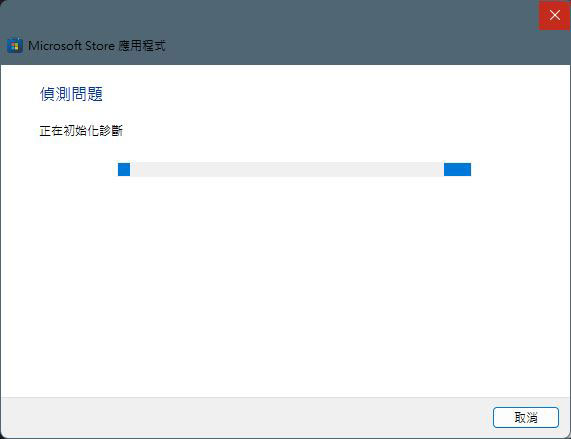
- Click “Execute” behind the “Microsoft Store App” item. Next just wait for the results of the detection scan and refer to the options available to fix the problem. If the mobile link application does not find any problems, it will not be displayed here.
Grant permissions to the Connect to Windows app on your phone
Only when you correctly connect the “Connect to Windows” app on your phone to Windows can you ensure the normal operation of the Mobile Connect app. The following settings must be performed on your smartphone.
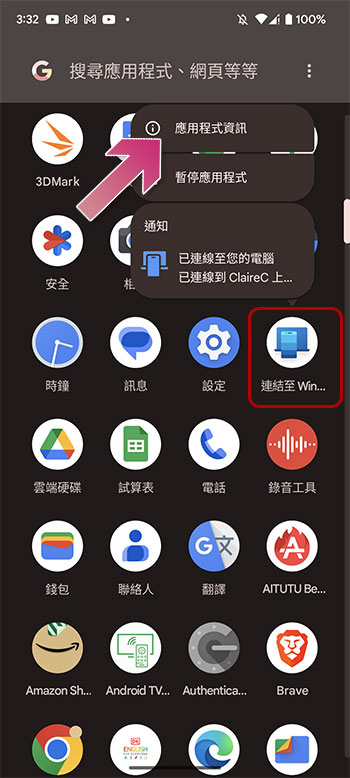
- Long press the “Connect to Windows” app icon and click “Application Information” at the top.
- Click “Permissions” on the application information page to allow all permissions required by the application.
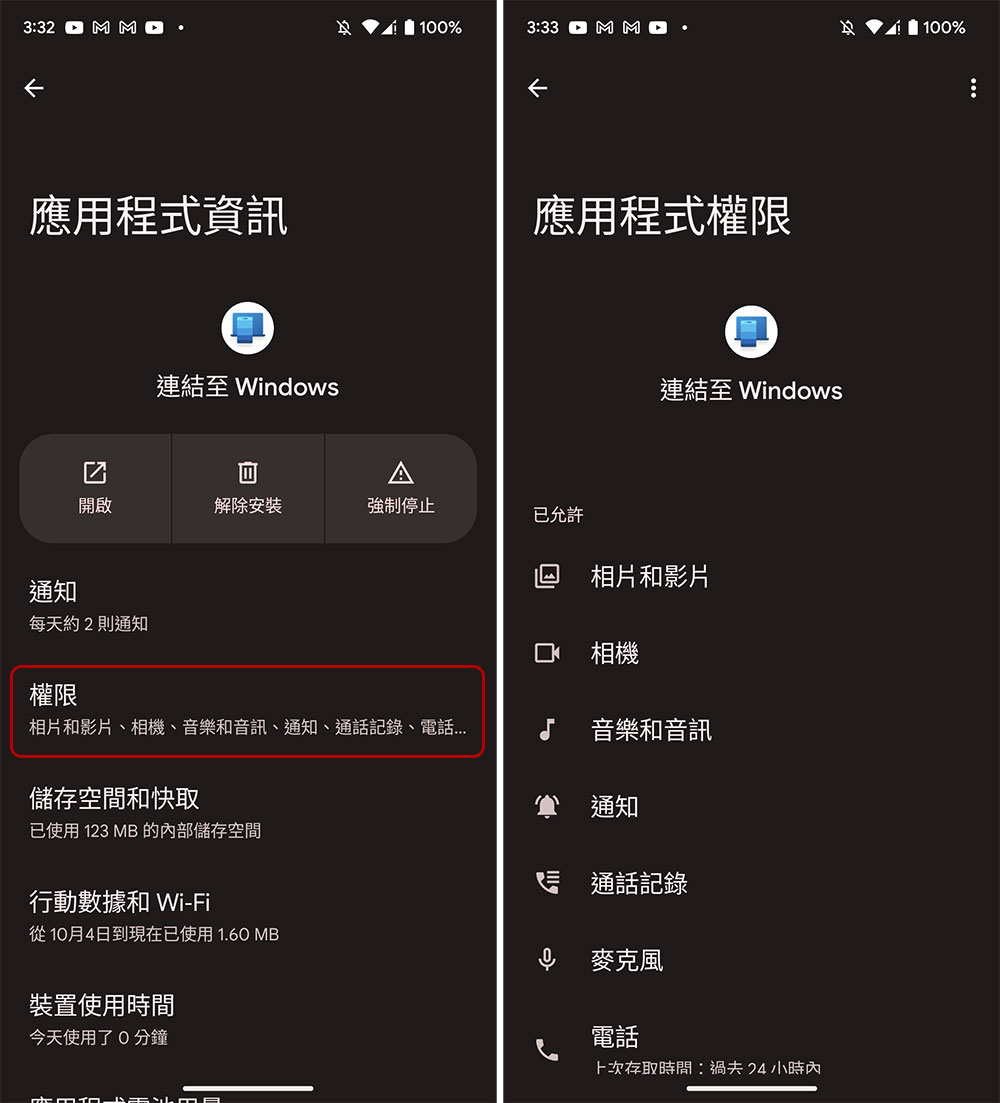
- Next, return to the “Link to Windows” application information homepage, click to enter “Application Battery Usage”, and set the battery usage to “Unlimited” to allow the application to keep running without interruption.

Turn off power saving mode (for laptops)
Power save mode is a Windows feature in laptops that allows the device to last longer. After power save mode is enabled, some Windows features may behave differently than usual, and other processes running in the background may stop to save power. The latest update of Windows 11 has brought the shortcut of the power saving mode switch to the desktop. Just click on the battery icon on the taskbar and turn off the power saving mode (gray means off, light means on).

Cancel and reconnect your phone
Sometimes the problem occurs in the device connection between the computer and the mobile phone. In this case, you can cancel the pairing connection between the mobile phone and the computer and then connect it again.
- Open the “Mobile Link” app on your computer and click “Settings” in the upper right corner.
- Enter the “My Device” tab, click the three-dot menu in the upper right corner of the device, and click “Remove”. To reconnect after removal, click “Connect new device” from here.

Repair and reset the Mobile Connect app
Apps can malfunction for any reason. If you can’t find a visible cause, try fixing it first. If it still fails, consider resetting the app to start over. Reset applications will run as fresh installations.
- Search for “Mobile Link” on your computer, right-click the app and select “App Settings.”
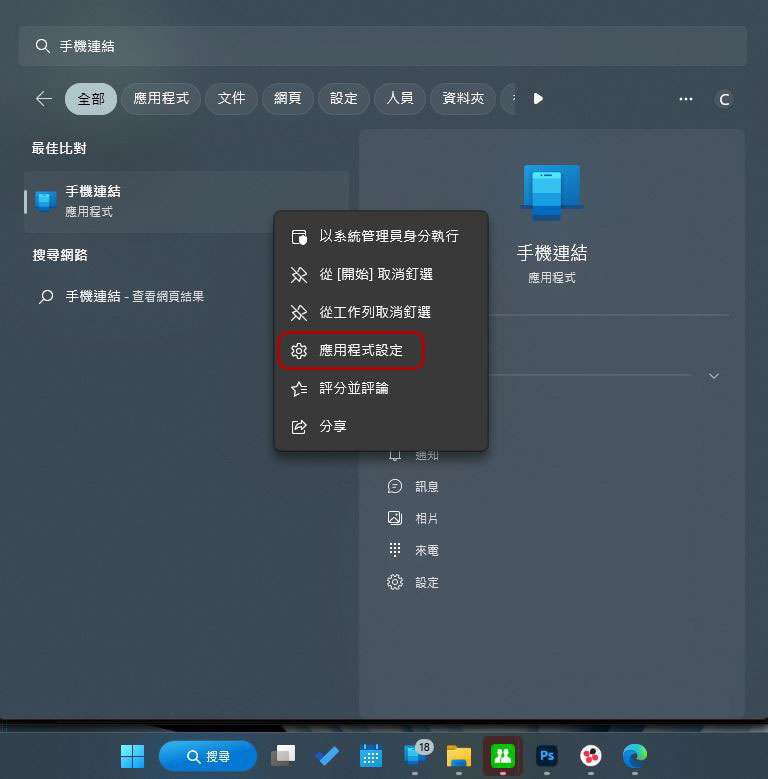
- There are two options in the “Reset” project, namely repair and reset. What is the difference between the two?
Repair: This option can wait for Windows to try to fix potential problems with the Mobile Connect app. It is also your first choice. If it doesn’t work, use reset.
Reset: This option will reset all phone links to their original appearance, clean and you can set it up again just like using a newly installed application.

Usually the above methods are useful for troubleshooting common problems. Since the Mobile Connect application has a deep integration with Windows to provide multiple cross-device experiences, more features will be added in the future. To achieve this purpose, the Mobile Connect application cannot be uninstalled and reinstalled through normal channels. If it’s completely broken, you’ll have to use PowerShell or a Windows Terminal to uninstall and reinstall it, and then install it back from the Microsoft Store.
Further reading:How to remove preloaded apps on Windows 11?
Source: KOCPC Chinese