


The Google Play Store is essentially an app preloaded on your Android phone that lets you download millions of apps and games in just a few clicks. The app itself works well most of the time, but it can become unstable at times, and you may see endless downloads or error messages when downloading important apps. If you find that your Google Play Store app is frequently unstable, here are some tips on how to fix common issues.
Unable to launch, download and install apps from Google Play Store? Tips for solving common problems
The steps and screenshots mentioned in this article are all demonstrated using a Pixel 6 phone running Android 13. If the phone model and operating system you are using are different, there may be some options and function locations that are different. You can check it out yourself.
Don’t take the problem personally, check the Play Store first
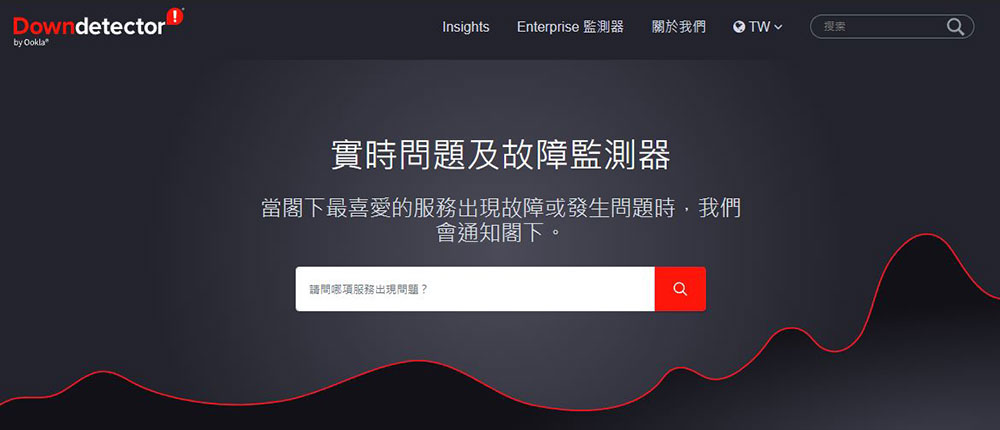
The first thing you need to do is check the Google Play Store app itself for issues affecting users globally or in your region. Make sure the fault lies with Google first, so you don’t waste all your time and energy trying different ways of working to solve an unsolvable problem. It is recommended that everyone first “Down Detector” Tool websites like this check to see if other users have also reported problems. If you see a sudden increase in the number of backlashes, it is best to wait patiently for Google to fix it. Fortunately, Google responds very quickly in this regard, so you don’t have to worry about facing long downtime.
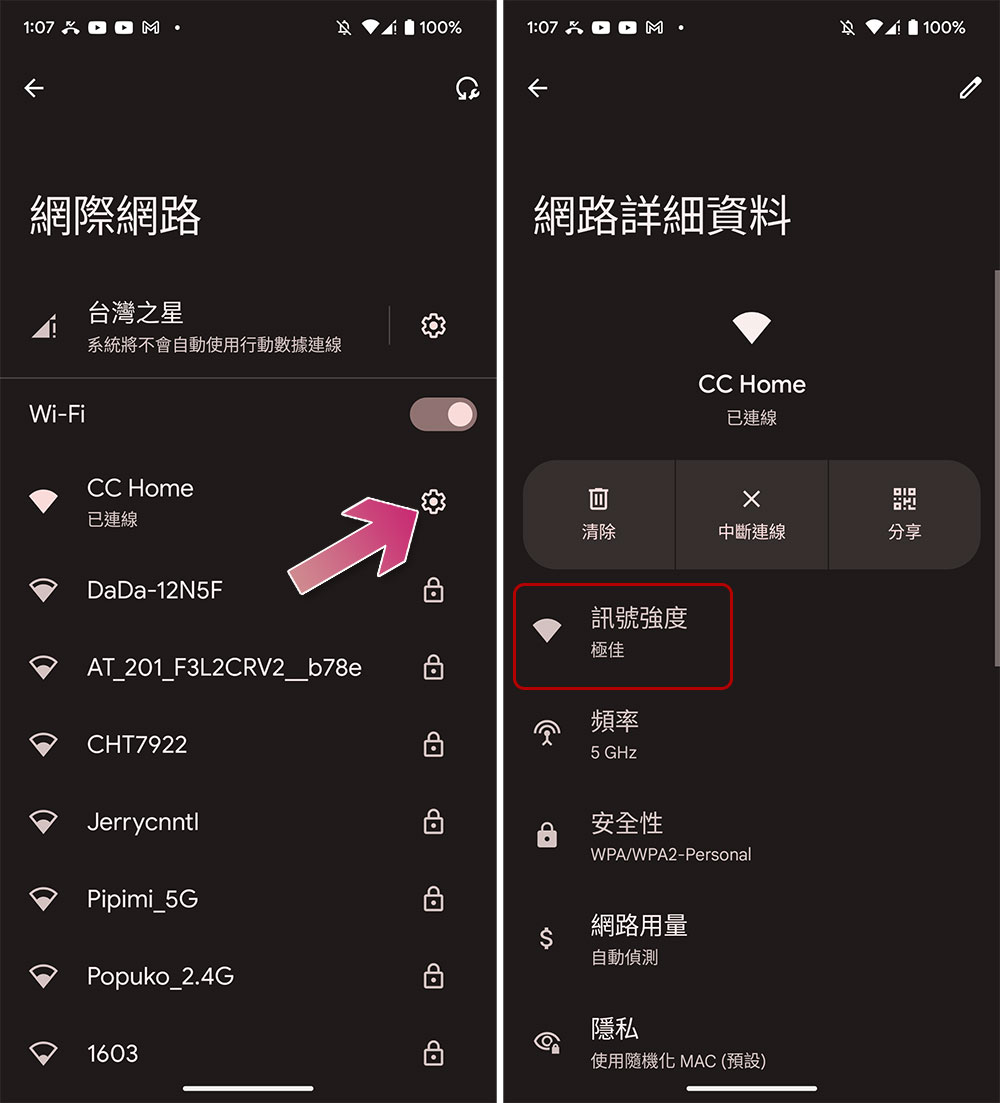
Check Wi-Fi and mobile network connections
It is important to check if the connection is stable so that the network can bring your smartphone to life. If you’re using Wi-Fi, you can confirm the strength of your connection from your phone’s settings or by looking at the status bar at the top. You can also try using your browser to load another website or test your network speed.
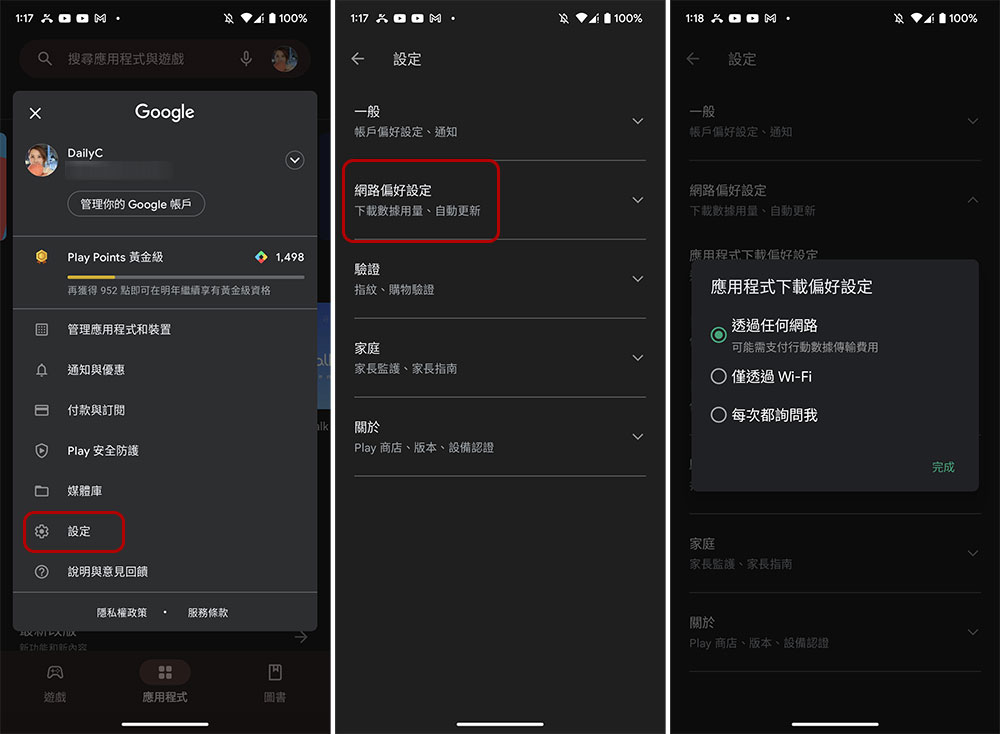
If you downloaded the app using a mobile connection, you must confirm that you have allowed the Play Store to download via mobile data and then try again.
Reboot
If you have a very stable internet connection but are still experiencing issues, the first thing you should do is reboot your device. As cliché as it sounds, a simple reboot usually solves most problems, so it’s worth giving it a try to see if it does the trick.
Clear Play Store app cache and data
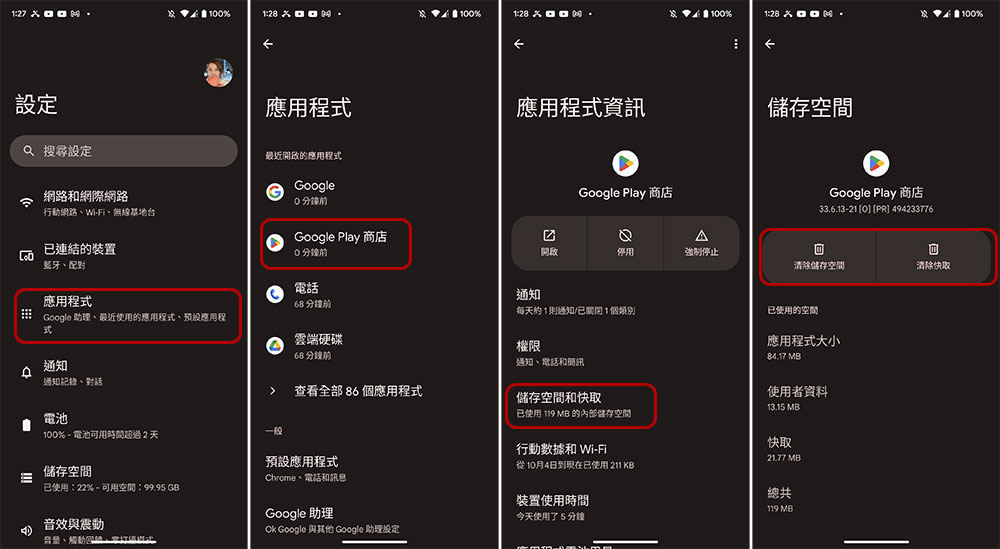
If the above steps don’t solve the problem, then it’s time to try other methods. Clearing an application’s cache and data is also known to be a good solution to most problems, especially if it’s related to downloading and reading large files or multiple pieces of content:
- Open the “Settings” app and enter “Applications”.
- Click “Google Play Store”, enter the inner page and click “Storage & Cache”.
- Both the “Clear Storage Space” and “Clear Cache” shown above must be done once.
Uninstall and reinstall updates for Play Store and Play Services
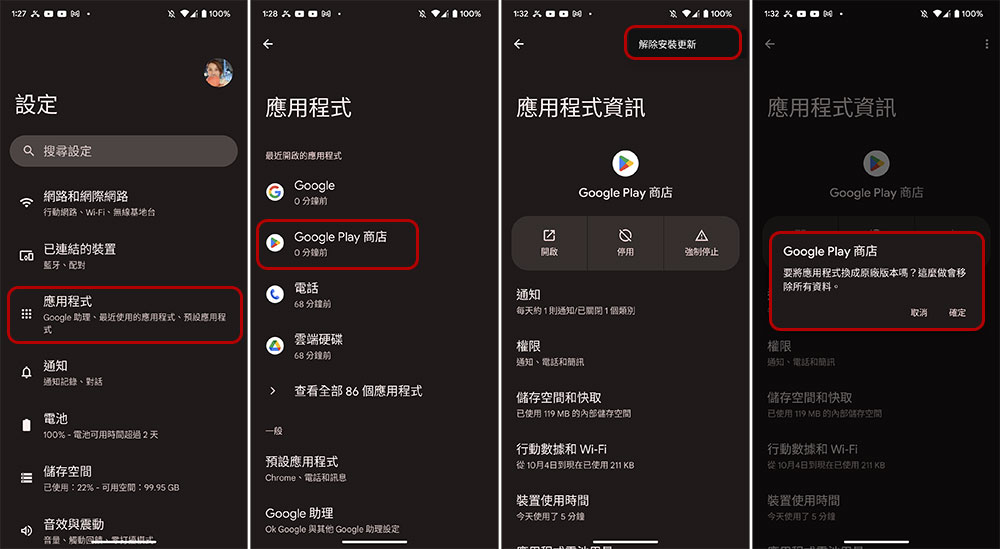
If nothing you have done so far has worked, you may want to take a few extra steps to try and get Play back to normal, and one option is to uninstall and reinstall the Google Play Store itself. After completing the settings below, please perform the same operation for Google Play services, then restart your phone and try again. The uninstallation here is different from the daily removal of applications. The operation here can be understood as restoring the Play Store and Play Services to factory settings.
- Open the “Settings” app and enter “Applications”.
- Click “Google Play Store”, enter the inner page and click “Storage & Cache”.
- Click the three-dot menu in the upper right corner to see “Uninstall Updates”, click it.
- Click OK when you see the option to reset the Play Store to factory settings.
Check for Android operating system updates
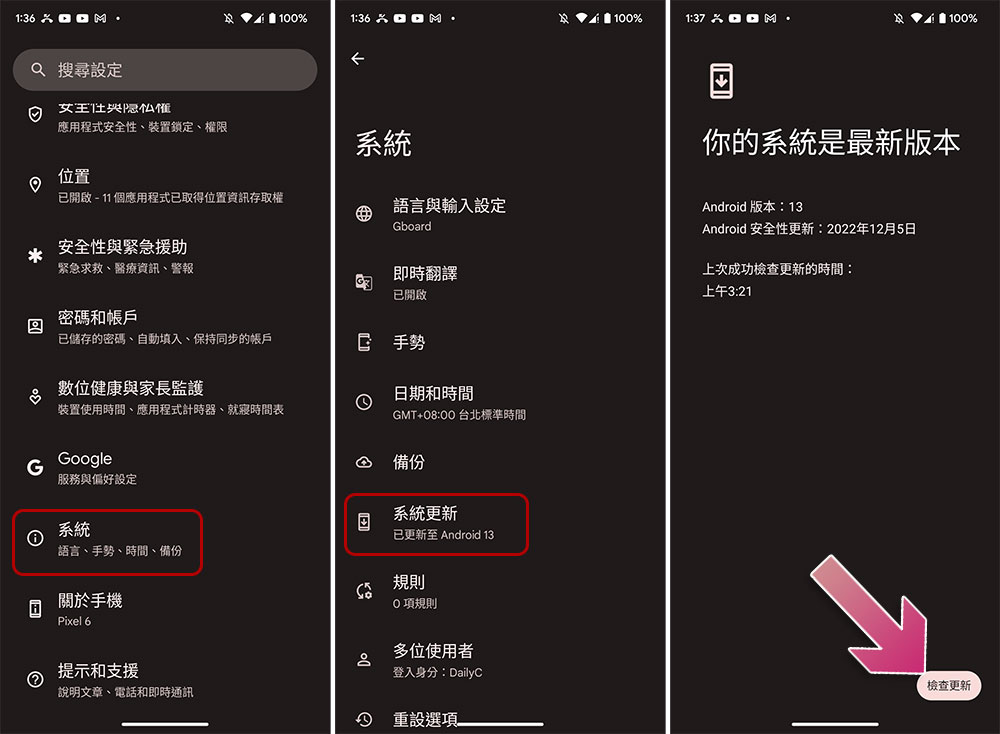
If your download is still stuck, you should check if there are any available updates or security fixes for your device, which can sometimes help resolve common issues.
- Open the “Settings” app and enter “Applications”.
- Scroll down and click to enter “System”.
- Click “System Update” and check for any uninstalled updates.
Remove and rejoin your Google Account
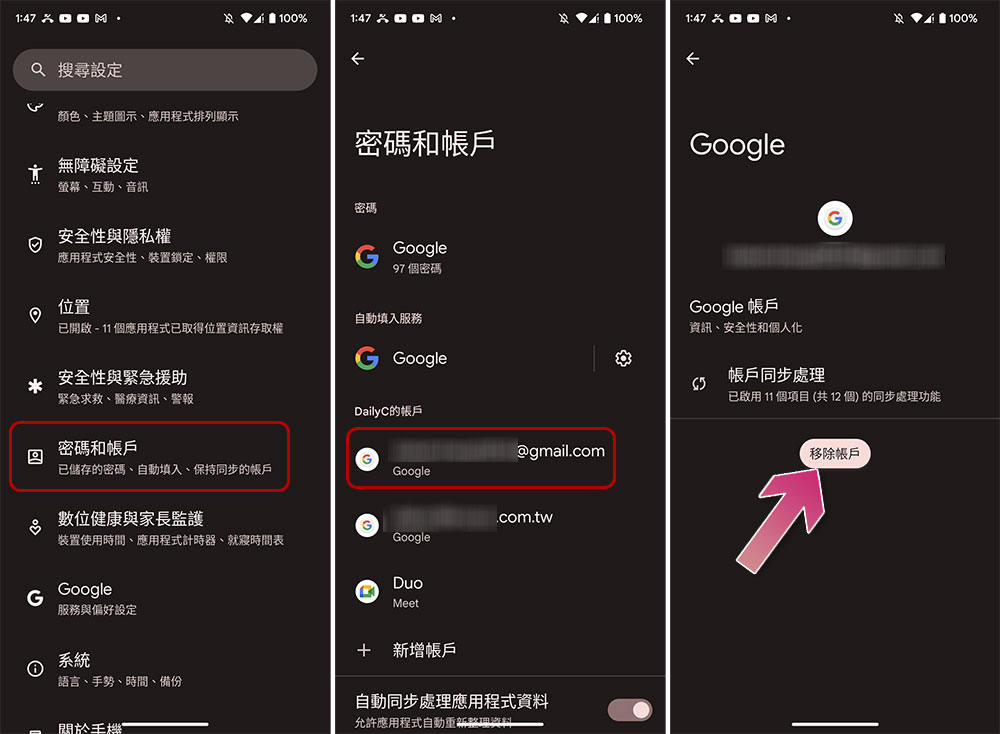
Another tip is to delete your Google account and re-add it to your device, but before doing this it is recommended that you create your account one last time to make sure everything is backed up to the cloud. This will prevent any accidental data loss during the process. After completing the following operations, you can try downloading or updating the app from the Play Store again to see if it works.
How to remove your Google Account
- Open the “Settings” app and enter the “Passwords & Accounts” item.
- Click on the account you want to remove, then click “Remove Account.”
Re-add your Google Account to your device
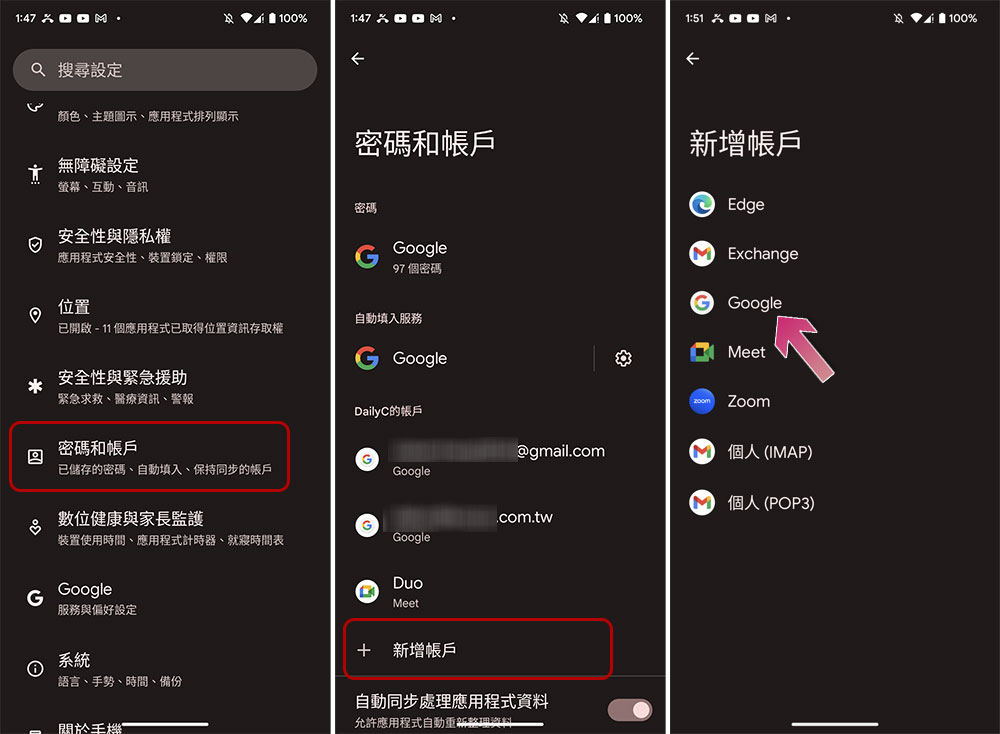
- Open the “Settings” app and enter the “Passwords & Accounts” item.
- Click “New Account” at the bottom, then select “Google” on the next page.
The Play Store is almost the main axis of the intelligence of Android phones, making your smartphone truly smart, so once a problem occurs, it is like taking away the brain of the phone, which is really annoying. I hope one of the above methods can be useful to you, or you can also try other simpler fixes, such as force stopping the Play Store, turning off VPN, etc. I hope these tips can be helpful to everyone.
Source: KOCPC Chinese