


Not just mobile phones, many devices now use USB-C specifications, so you are likely to have multiple USB-C cables on hand. What you need to know is that even if they look the same, not every USB-C has the same charging speed and transmission capabilities. Some only support slow charging, and some can even be connected to an external screen. This article will recommend a very useful free tool “WhatCable”. As long as the device is connected to the Mac via USB-C, you can immediately obtain this USB-C capability diagnostic information to help you quickly identify it.
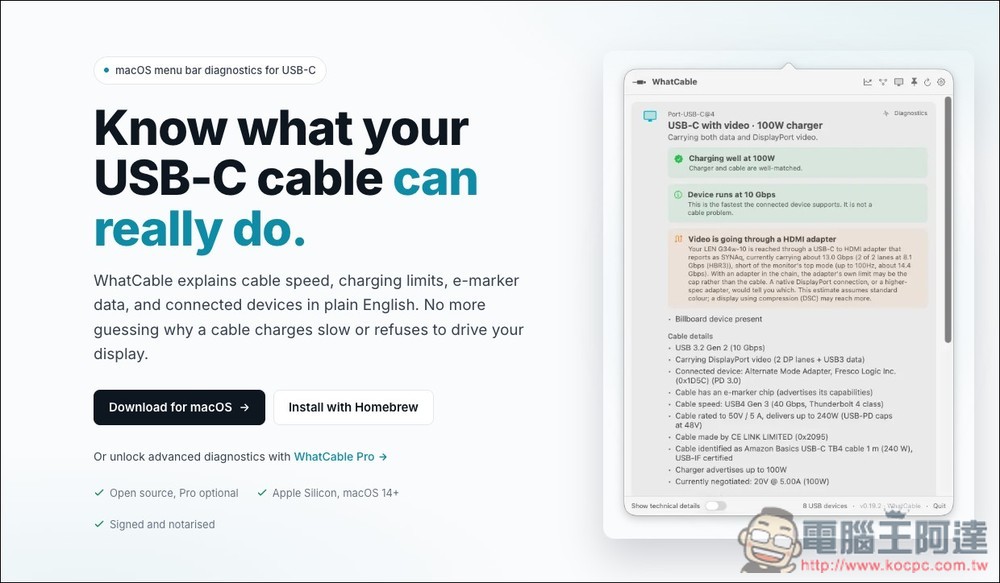
WhatCable Free Mac Tool Introduction and Operation Tutorial
WhatCable is a USB-C cable diagnostic tool specially built for macOS. Its main purpose is to help you understand what the USB-C cable in your hand can do.
Many USB-C cables look almost the same, but their actual capabilities are much different. Some can only charge slowly, while others can support high-speed data transfer, external screens, and even Thunderbolt 4 or USB4. WhatCable reads the USB-C, USB Power Delivery and e-marker information that macOS itself can obtain, and tells you the current charging power, cable limitations, data transfer speeds, external device status, and whether the bottleneck lies in the cable, charger, Mac port, or external device.
If you have a lot of USB-C cables at home, but don’t know which one is suitable for fast charging, which one can connect to the screen, and which one is suitable for external SSD, this tool is very suitable for use. WhatCable not only lists hardware information, but directly converts it into easy-to-understand judgments, such as “This cable limits the charging speed” and “This adapter prevents the screen from running to full specifications.” It is useful for both ordinary users and advanced players.
This tool currently supports Apple Silicon Mac and requires macOS 14 or above. It adopts a free and open source model. Basic functions can be used for free. There is also a Pro version that provides more advanced diagnostic information, such as real-time power, PD protocol, port health status, DisplayPort Alt Mode and more complete raw data analysis.
Featured highlights
- Can identify the charging capacity, data transfer speed and e-marker information of USB-C cables
- Identify bottleneck sources in vernacular terms, such as cables, chargers, Mac ports, or external devices
- You can check whether the external screen is running at full resolution and update rate
- Supports USB 2, USB 3, USB4, Thunderbolt and DisplayPort path identification
- Provides macOS menu bar App, which is simple to operate and does not require additional background services
- Built-in CLI tool, suitable for advanced users to use the terminal to quickly check wires
- Free and open source, the Pro version can unlock advanced diagnostic functions such as real-time power, PD contract, port health, etc.
- Only supports Apple Silicon Macs, not Intel Macs or Windows
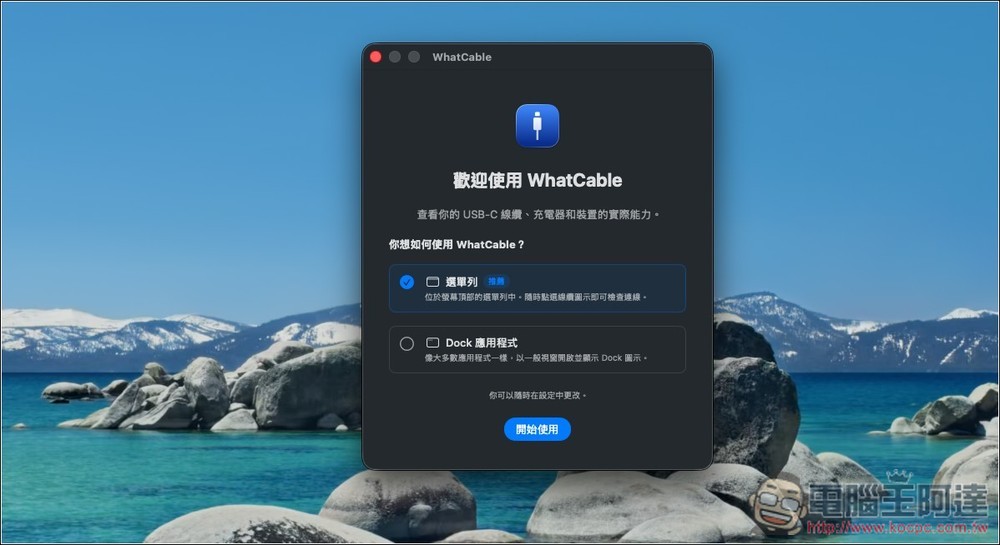
After downloading WhatCable and opening it, this setting window will pop up for the first time. It depends on whether you are used to displaying it in the “Menu Bar” or the normal “Dock Application”. This can be adjusted in the settings later:
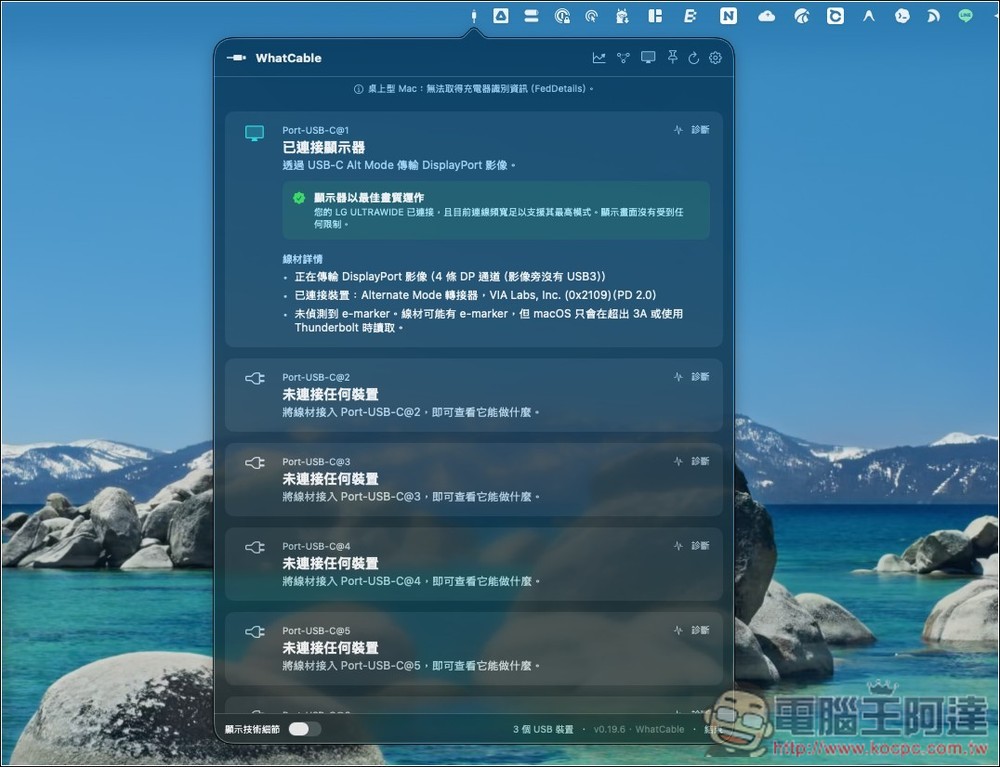
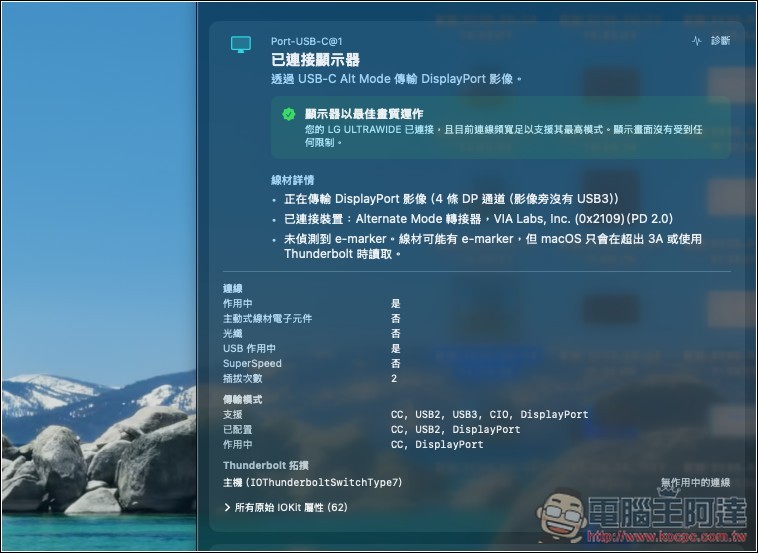
I set up the menu bar so that it will always be in the upper right corner in the future. Clicking it will display the currently connected USB-C information. My screen is connected through USB-C, and it prompts “The monitor is operating at optimal image quality.” It means that the one I bought is fine:
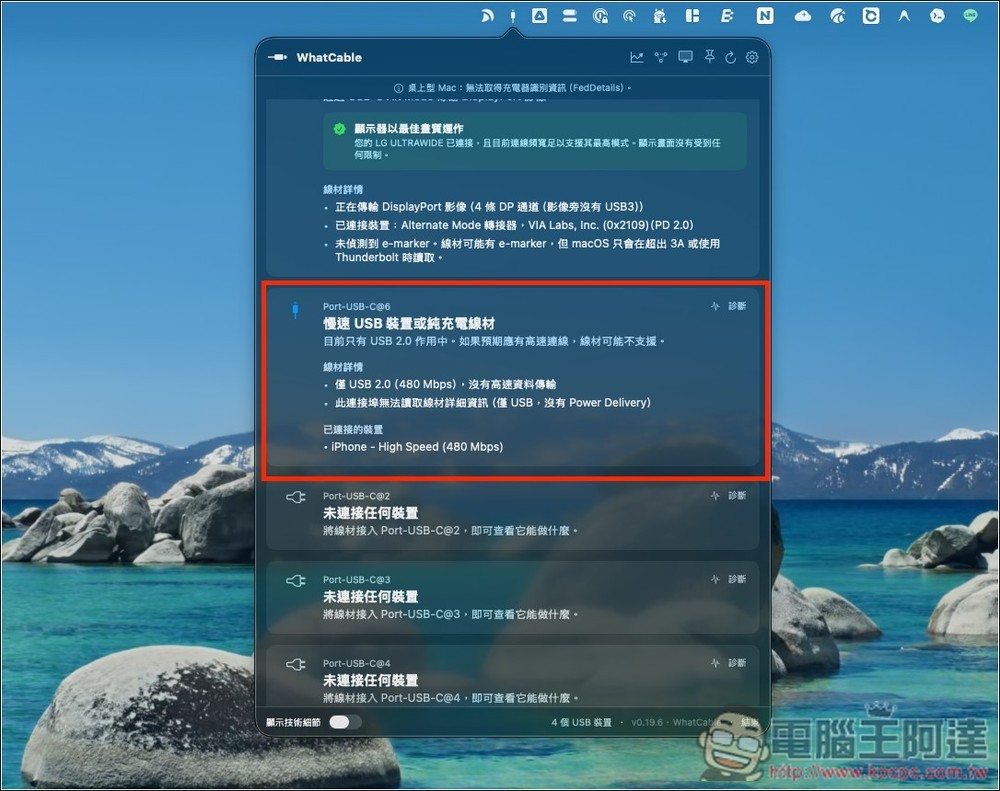
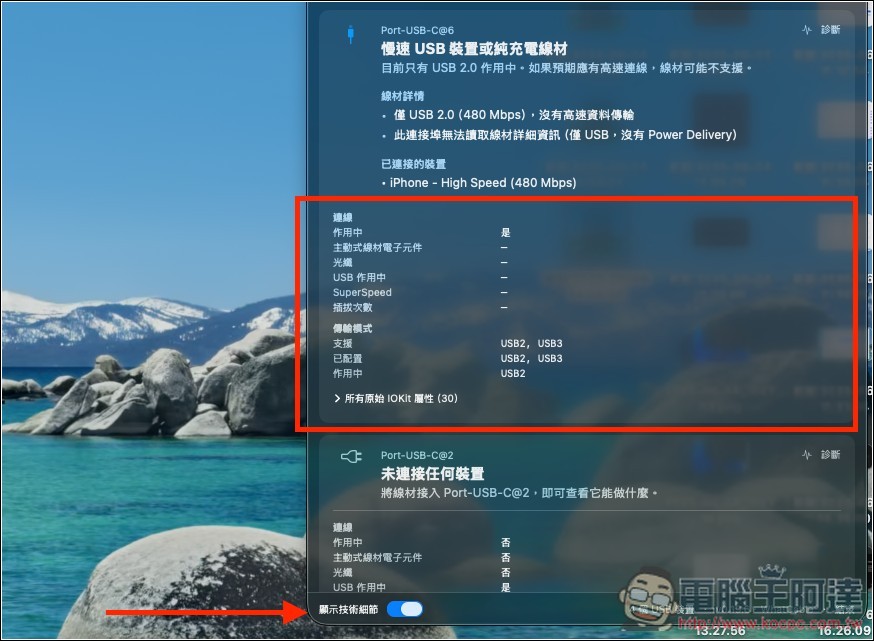
I have an older USB-C on hand. After connecting it to Mac (the other end is connected to iPhone), the message “Slow USB device or pure charging cable” appears. This one does not have high-speed data transmission, only supports USB 2.0 (480Mbps), and does not have Power Delivery:
There is also a “Show technical details” function below, which will tell you more information when enabled:
This USB-C information about the monitor is very complete:
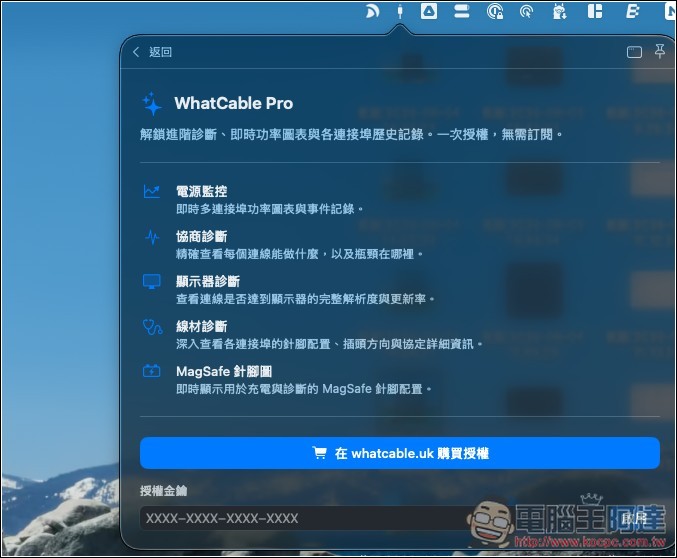
The diagnostic function is only available in the Pro paid version:
Source: KOCPC Chinese