


Although the DeepSeek official website also lets you use the full-power DeepSeek R1 671B for free and unlimited, you have to open a separate browser tab every time, which is somewhat inconvenient. So here we’d like to recommend a very useful “Geek Sidebar” extension. After installing and logging in, you can use chatbots powered by several AI models directly in your browser sidebar, including DeepSeek R1 671B, and it even includes the FLUX image generation tool. It’s completely free with no usage limits.
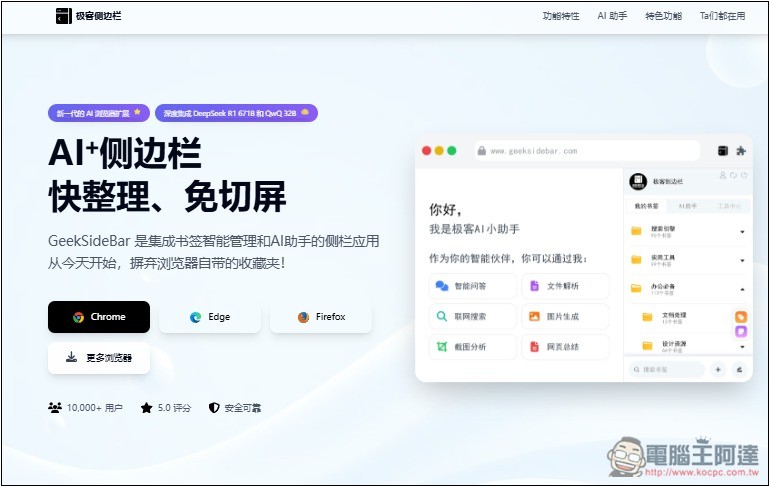
“Geek Sidebar” Extension Usage Tutorial and Introduction
“Geek Sidebar” is a browser extension that supports Chrome, Microsoft Edge, and Firefox. Click the link above to visit the official website, where you can find installation links for each browser.
In addition, the Geek Sidebar mainly has three major features: cross-platform cloud sync, AI bookmarks, and AI assistant. The DeepSeek R1 671B introduced in this article is provided within the AI assistant, meaning it has a wide range of functions. Once you get it, you can try it out extensively.
One more thing to note is that you need to log in to use it, and currently only WeChat or mobile phone number login is supported.
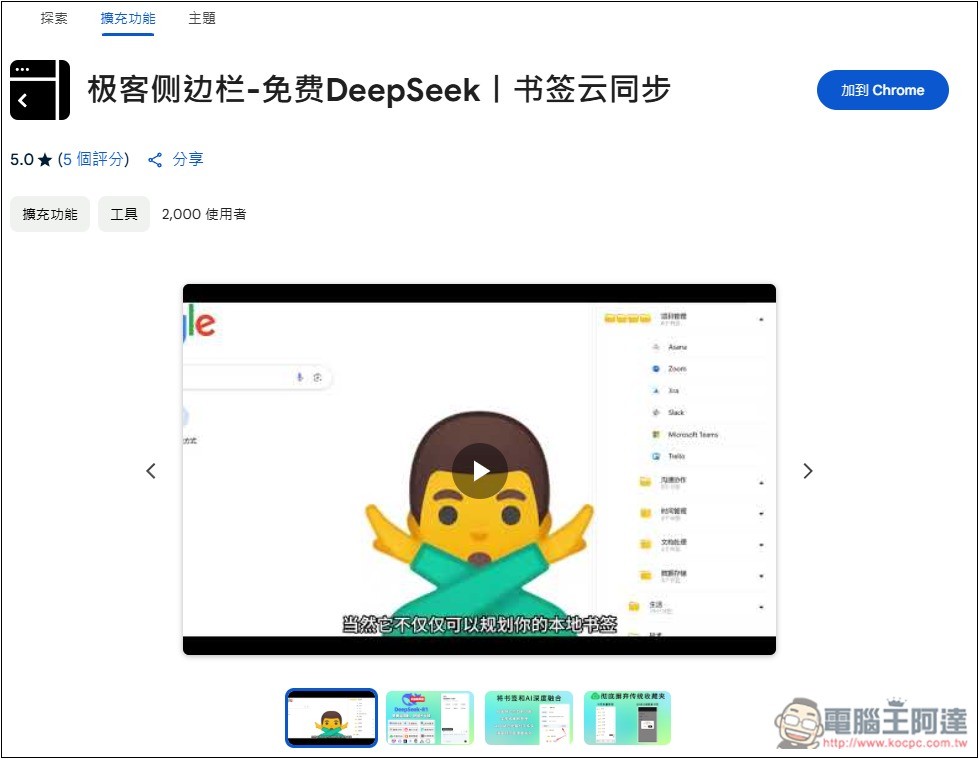
I’ll use the Chrome version as an example. After going to the Chrome Web Store, click Add to Chrome:
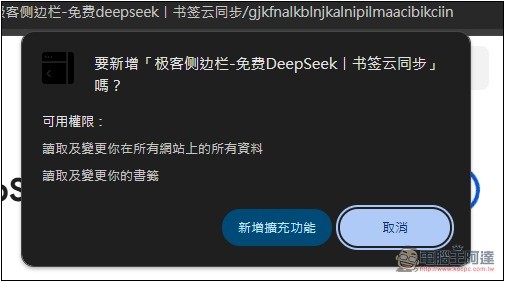
This message will pop up at the top; click Add extension:
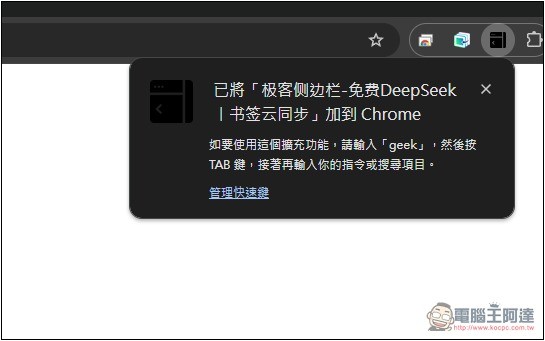
When this screen appears in the top-right corner, it means the add-on has been successfully installed. However, the default extension icon will be hidden, so go to the puzzle piece icon on the right to pin it.
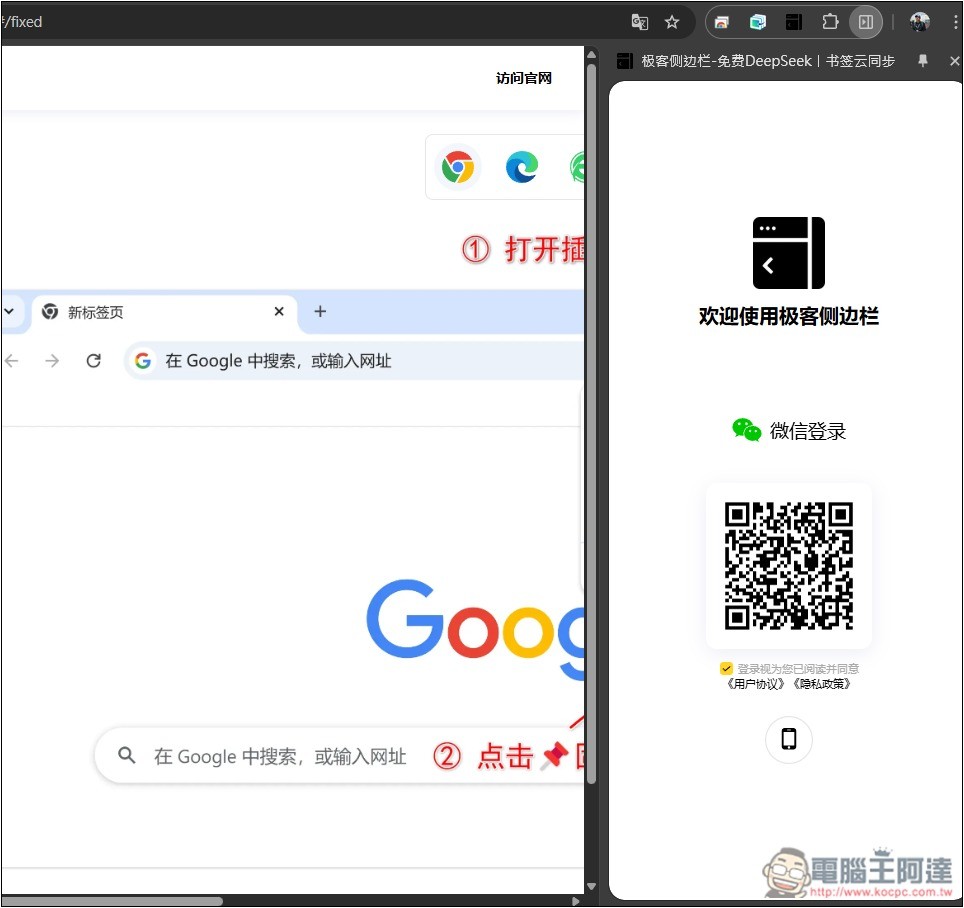
Click the Geek Sidebar extension icon, and you’ll see a panel appear on the side. Please choose a login method. I’ll log in with WeChat, just scan it:
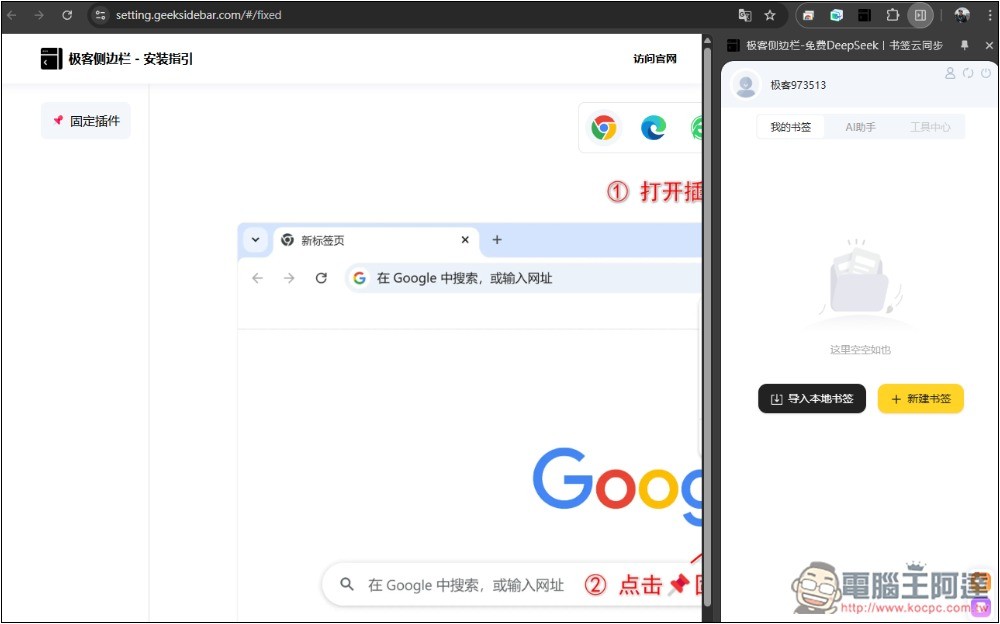
After logging in successfully, you’ll see three main features: My Bookmarks, AI Assistant, and Tools Center. Please click on AI Assistant.
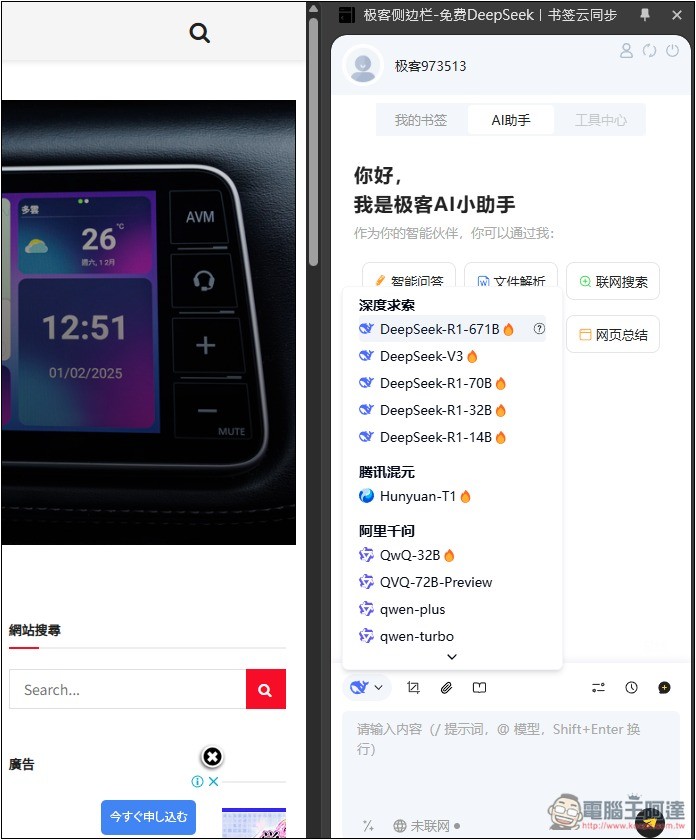
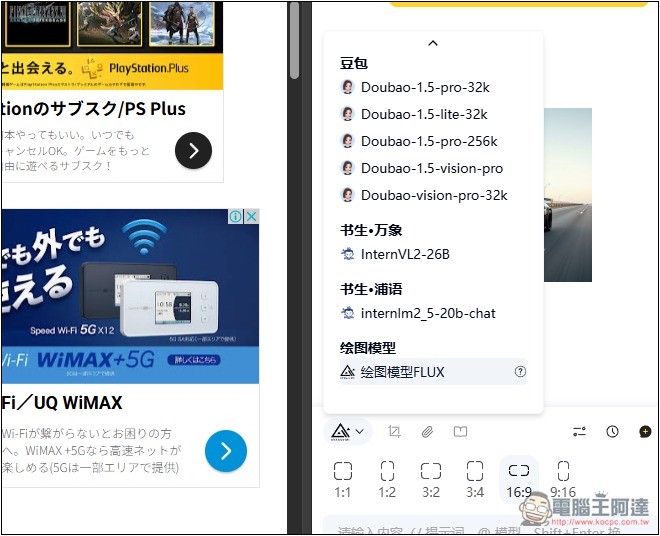
You will see the AI chat interface. Click the model menu in the bottom left corner; the top one is DeepSeek R1 671B, and there are also 70B, 32B, 14B, and V3. It also offers Alibaba Qwen’s QwQ, qwen, Tencent’s Hunyuan, etc.:
One great thing about this AI assistant is that it automatically grabs the webpage you’re currently reading. If you want a summary, just click “Summary” in the AI assistant.
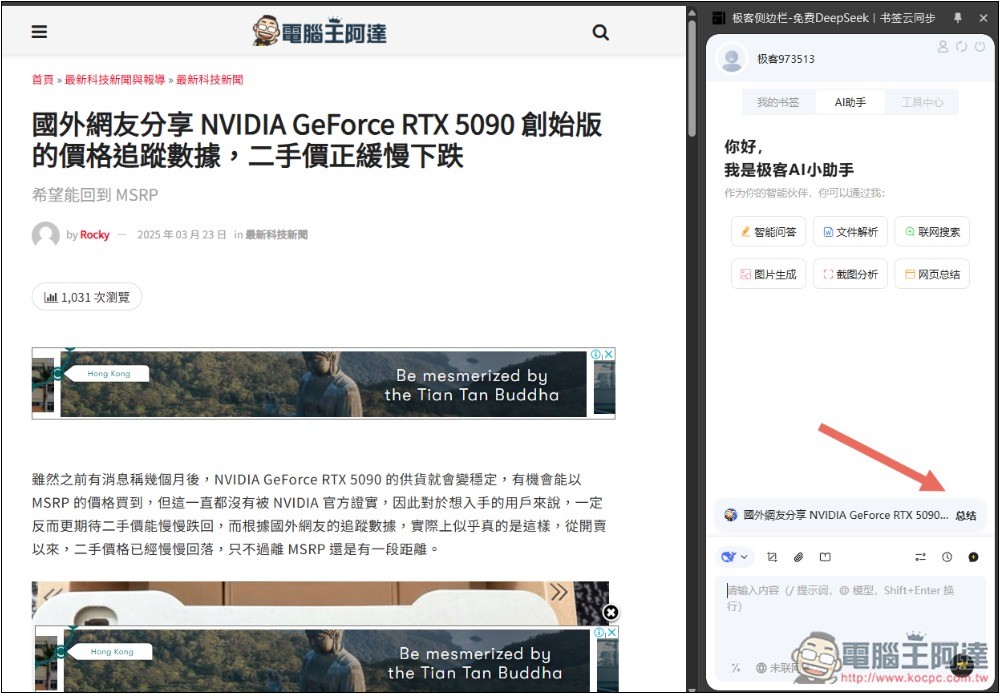
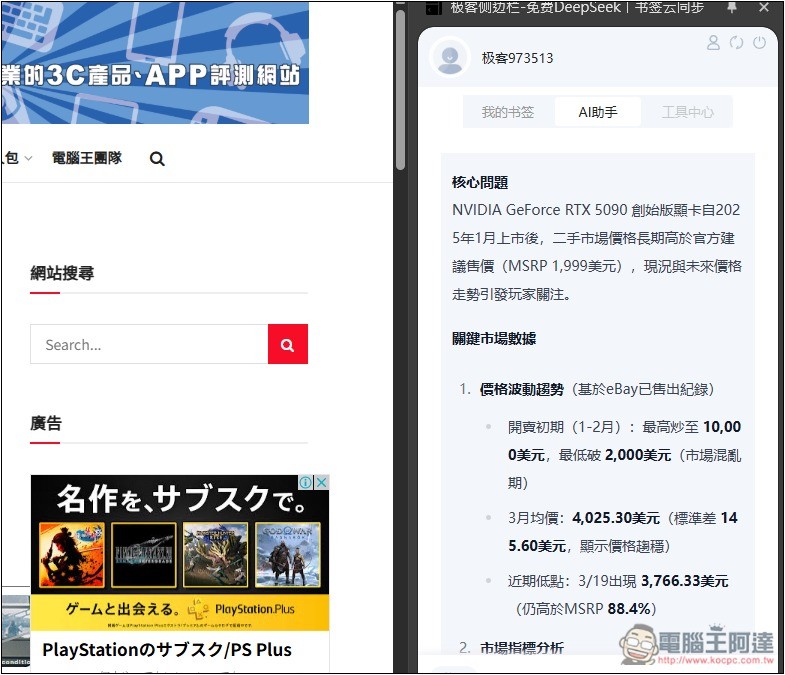
DeepSeek R1 671B will begin thinking about this article and summarize it:
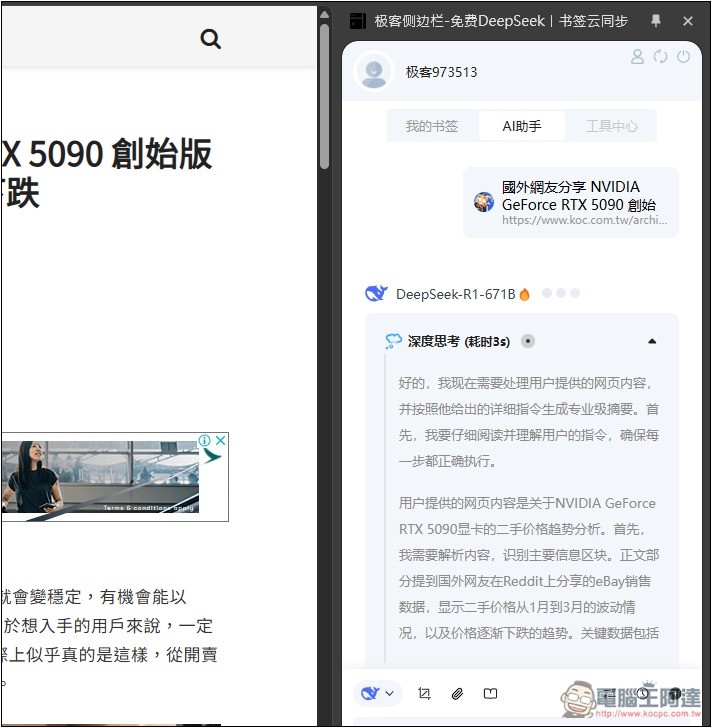
Like this, no need to copy or paste anything—just one click and you can easily get a summary of the webpage content.
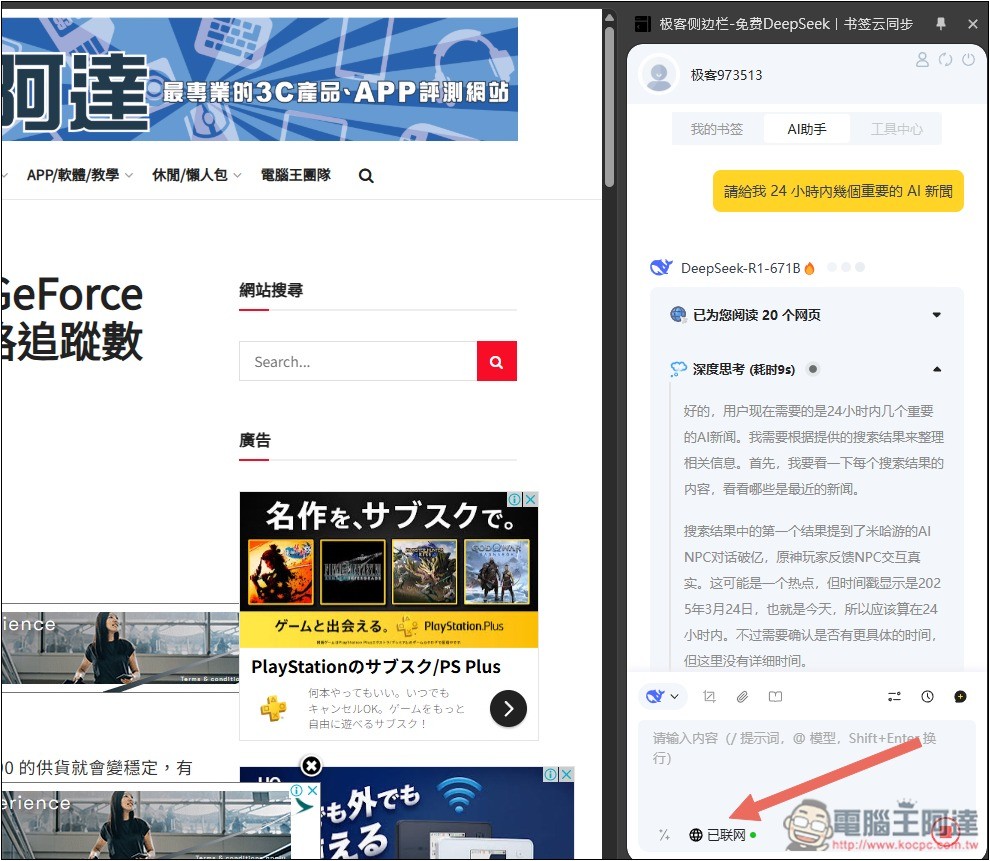
It also supports internet access. Turn on the web connectivity function below, then enter what you want to ask. DeepSeek R1 671B will start searching online. I tested it by asking for AI news within the last 24 hours, and it read 20 web pages.
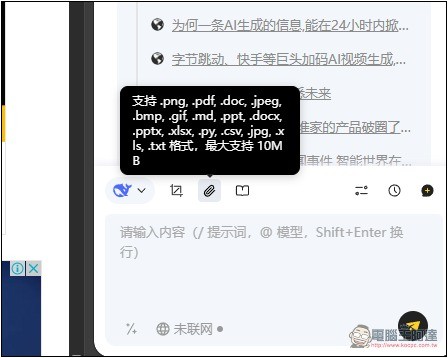
Screenshots, file uploads, and more are also supported:
You can also give it a URL and have it translate the content into Traditional Chinese: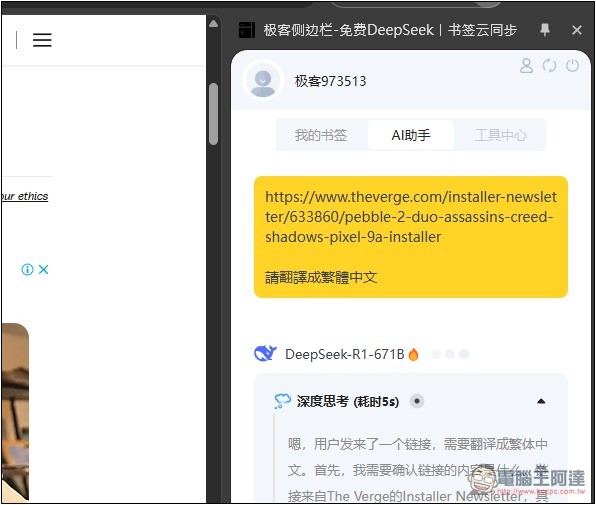
DeepSeek R1 671B’s translation quality is quite good:
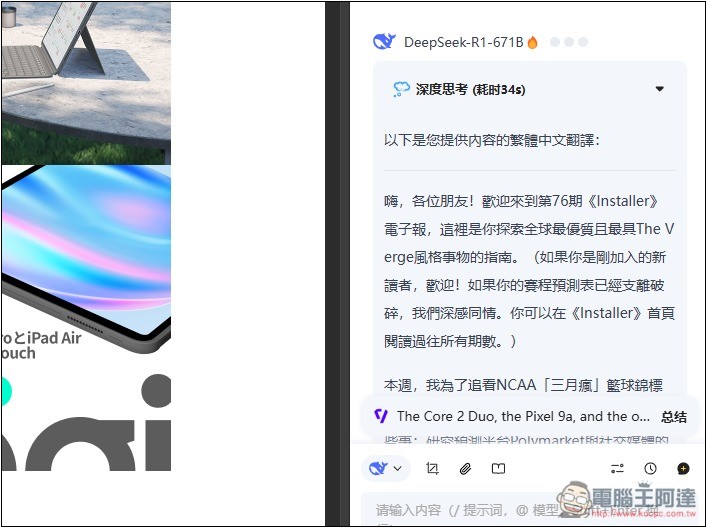
If you want to generate images, scroll to the bottom of the model menu to find the FLUX image generation model:
Enter your image description, and it’s generated in a few seconds — the quality is pretty good.
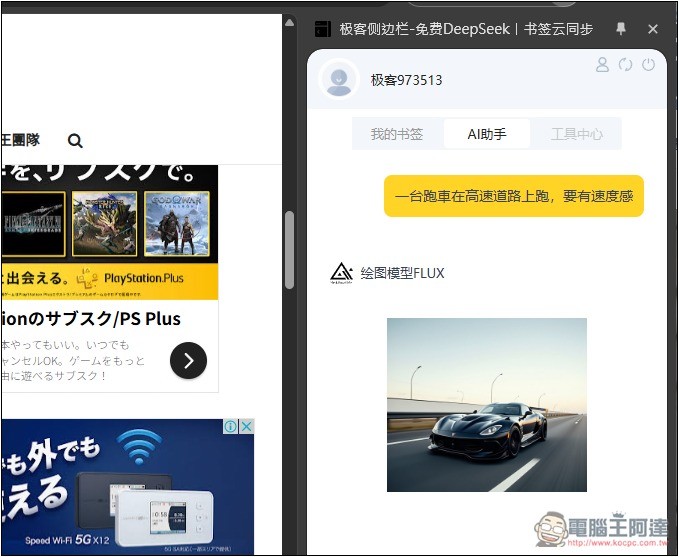
Currently, these AI models have no usage restrictions, including FLUX image generation—you can use as much as you want. However, it’s uncertain whether any restrictions will be added in the future.
Source: KOCPC Chinese