


When taking group photos with friends, alone photos, or even beautiful scenery, you will often encounter strangers and unsightly objects in the picture who want to be removed. However, not everyone can use professional software such as Photoshop, and this article will recommend SnapEdit, a free online tool for removing people that is super simple to operate and has very good removal effects. After you upload the photo and circle the people or objects you want to remove, AI will help you complete the removal with one click.
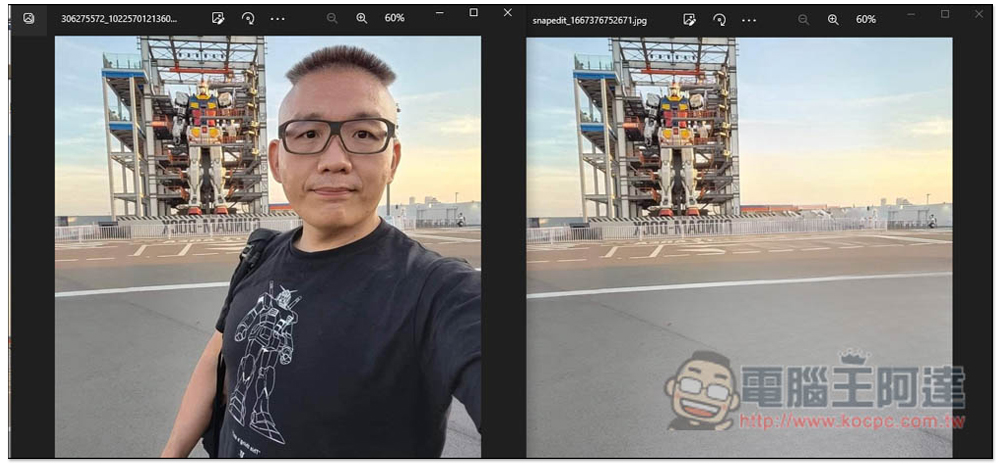
SnapEdit is a free online tool for removing people and objects from photos. It provides editing functions and the effect is quite good.
- Click me to go to the SnapEdit website
- Click here to download from App Store
- Click here to download from Google Play
In addition to the web version, SnapEdit also provides an app version, both for iOS and Android. Here I take the web version as an example.
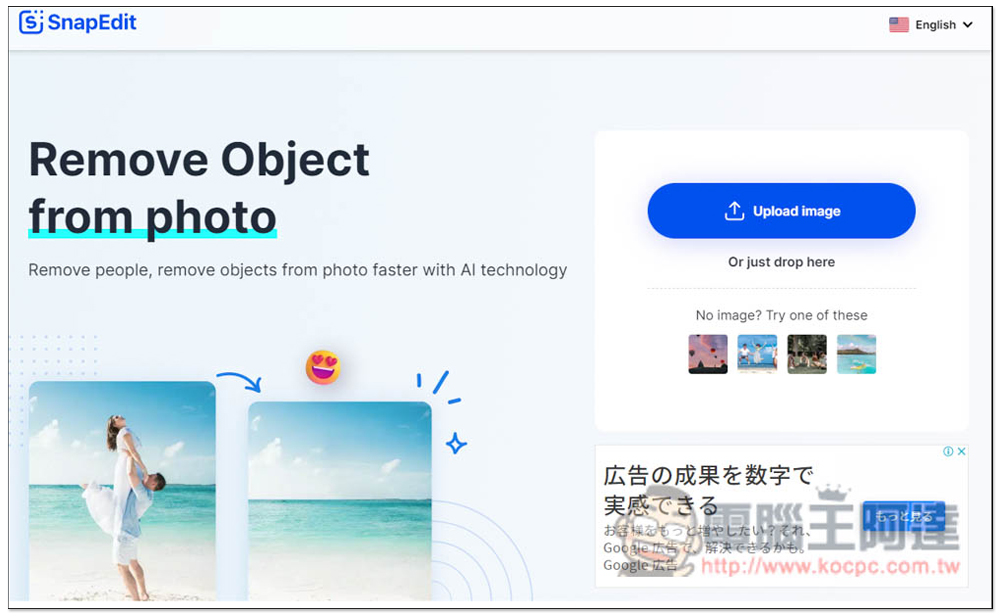
After entering the SnapEdit website, click Upload Image to upload the image manually, or drag it in directly. JPG, PNG and JPEG are supported. In addition, there are several sample photos below that you can use. If you want to try it out first, you can use these photos:
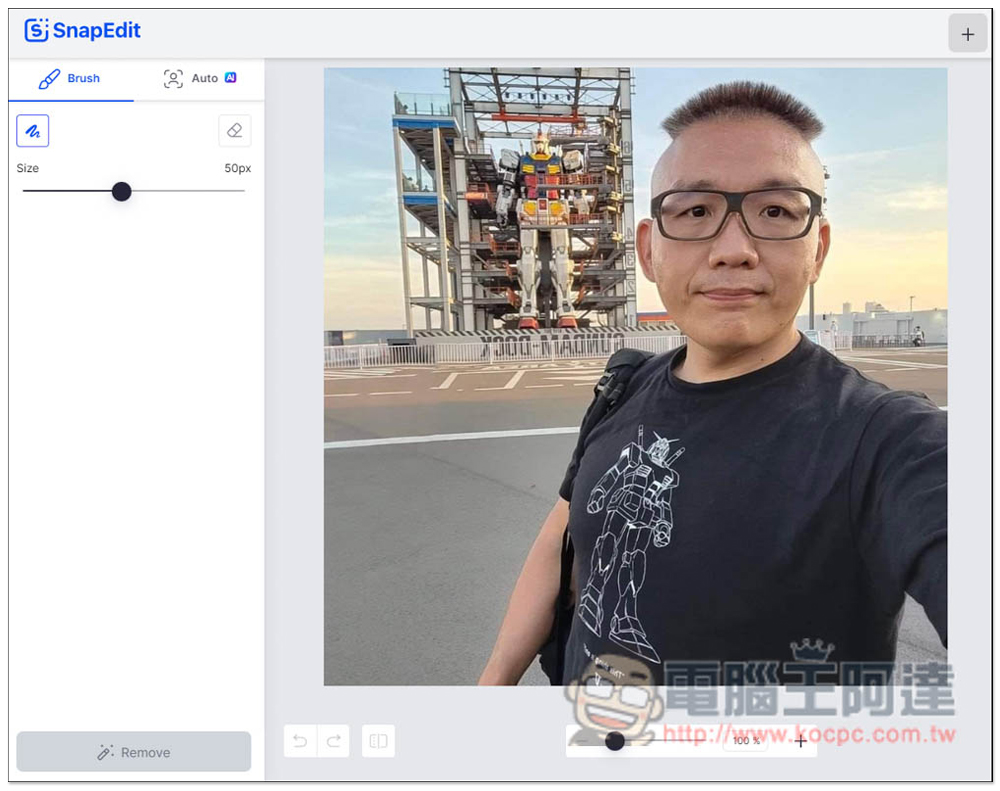
After uploading, you will enter the background. You can directly manually draw the range to be removed. You can adjust the brush size on the left side, but I recommend using their Auto AI function:
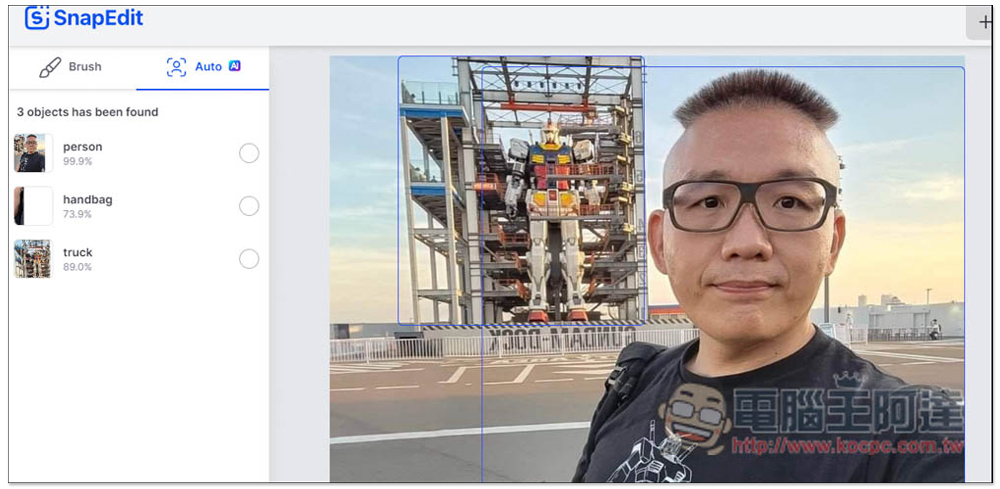
AI will automatically identify the objects in the photo. There are three in this photo, people, handbags, and steel bullets. If the ones you want to remove are not recognized, you have to do it manually. I use characters:
AI will automatically draw the area where it recognizes the characters. In my picture, some edges were not drawn, so I manually corrected them:
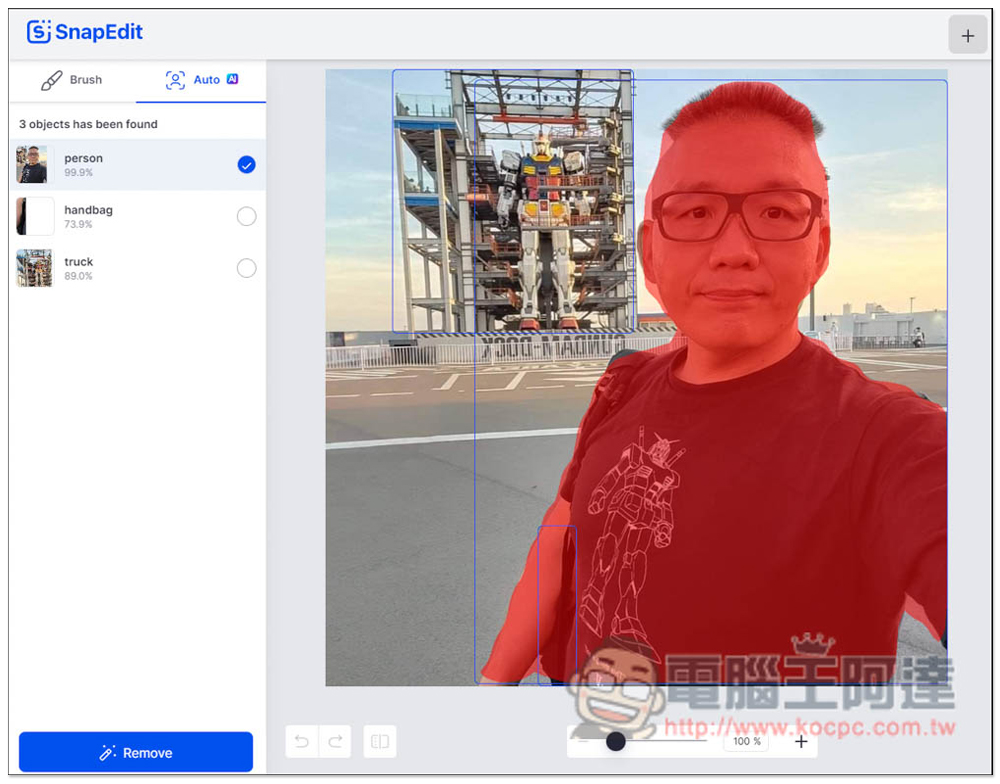
Like this, fill in the undrawn area, and you don’t have to draw it very accurately. Just make sure that the removed characters or objects are drawn in red:
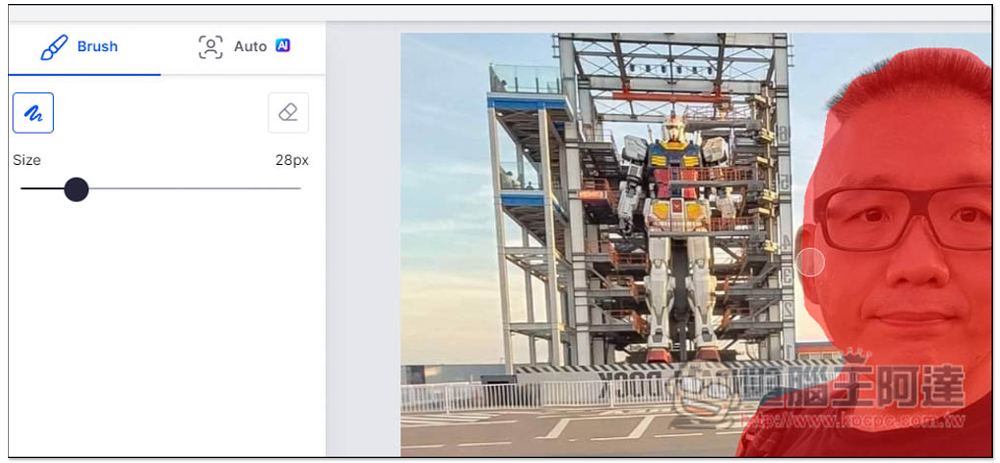
After patching, you can click Remove in the lower left corner to remove:
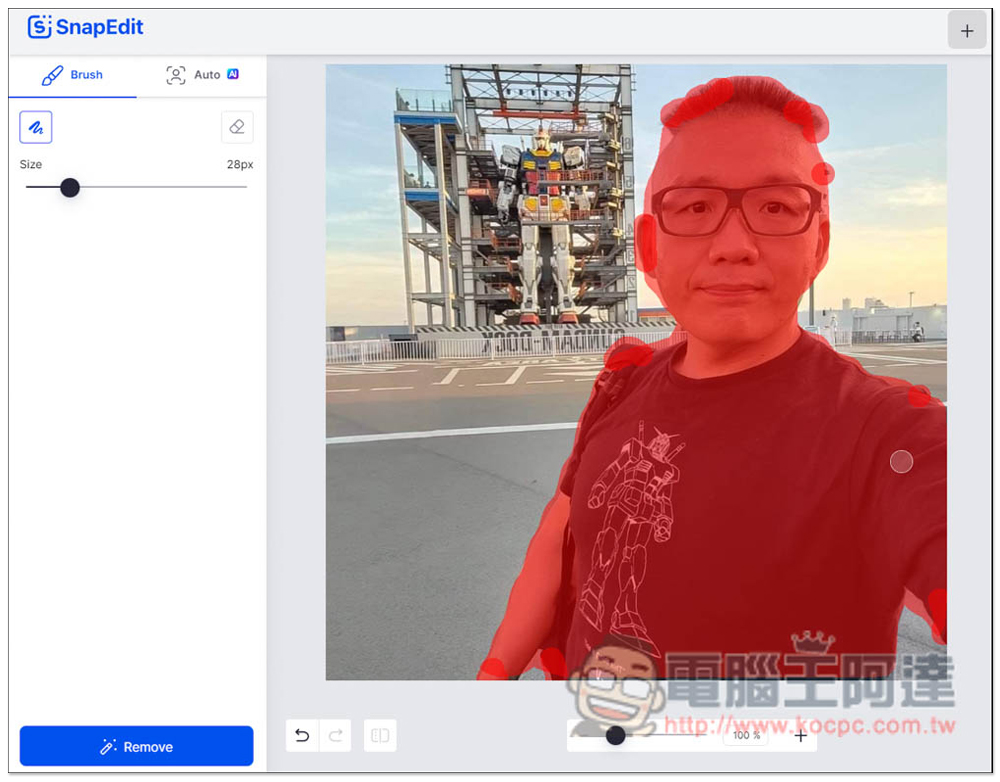
You will see that the Ada character is missing! The picture added by AI is also quite natural. If it weren’t for the strange pillar above, you would really think that this was a photo taken when no one was around:
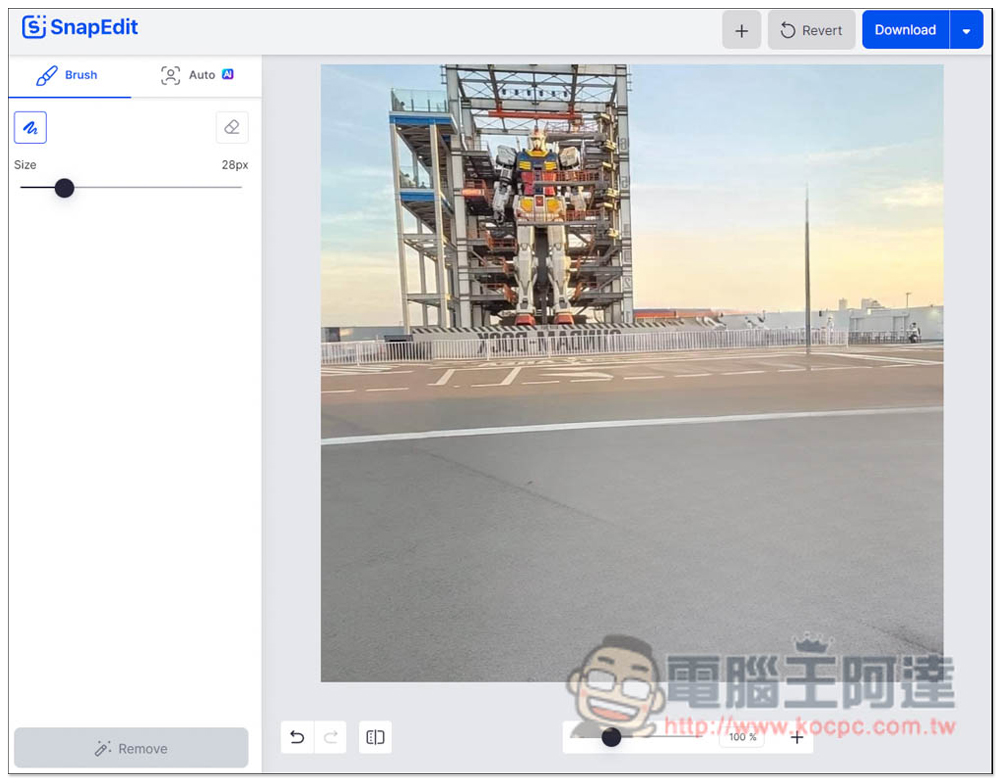
Next, I also tested the steel egg at the back, which felt very difficult:
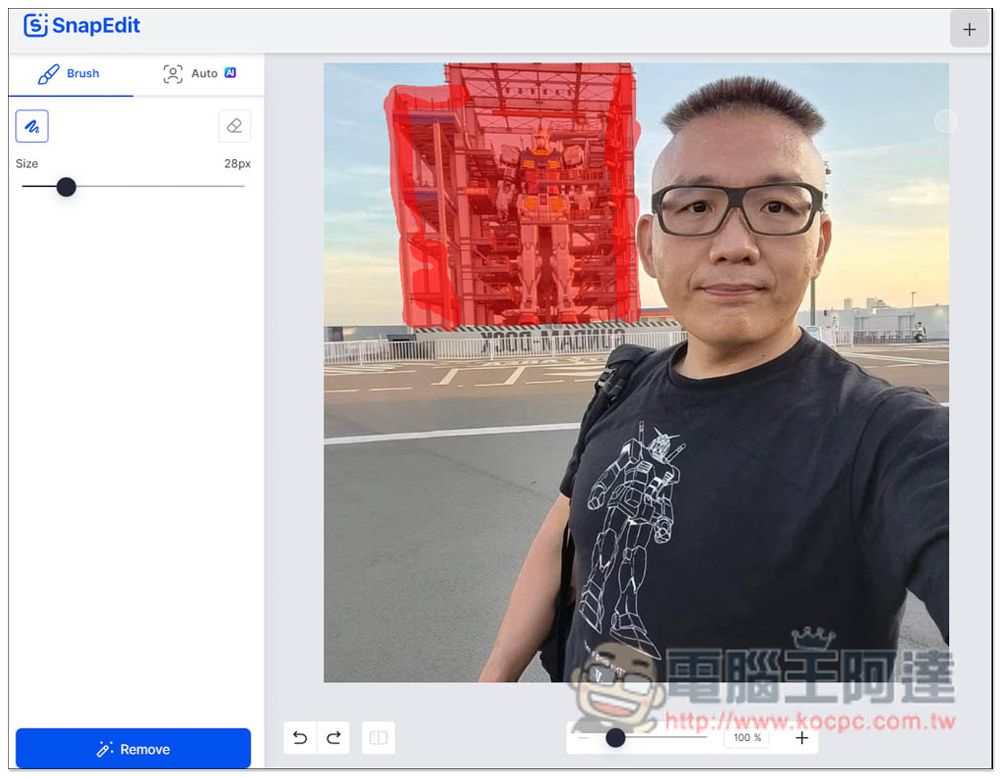
Unexpectedly, the effect was quite good. As long as I trim the orange strip at the back, it should become very natural. That’s right, after removing an object with this tool, you can also perform the second and third removal:
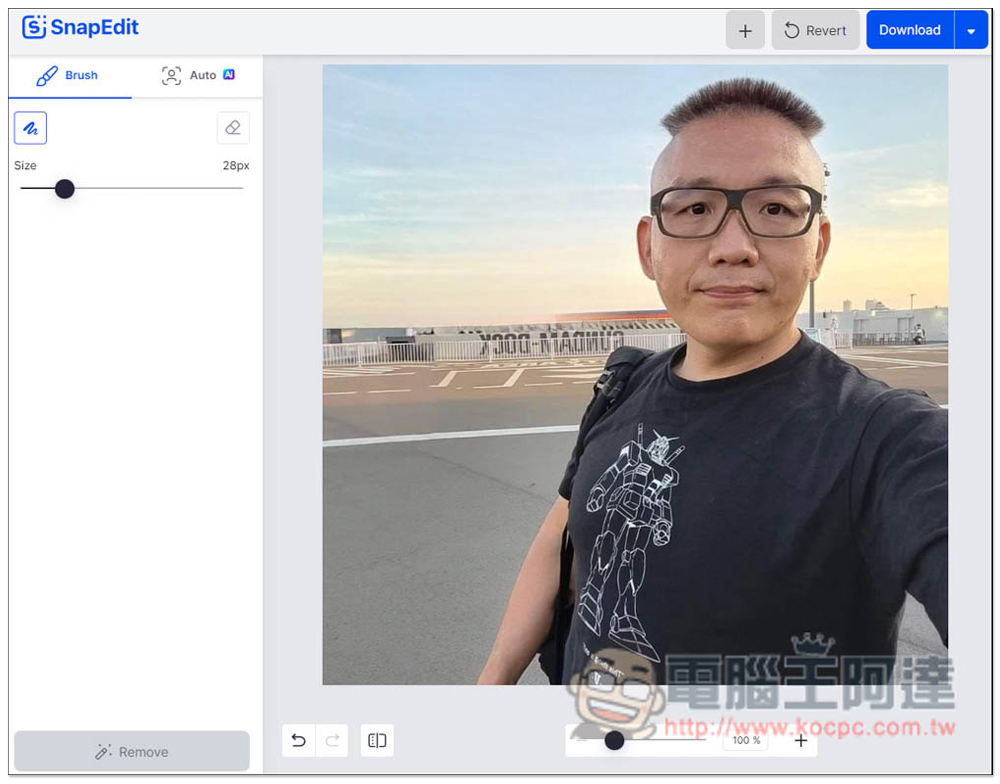
When removing the photo of the Ada character, the pillar looked very abrupt, so I removed it a second time, drew the pillar and pressed Remove:
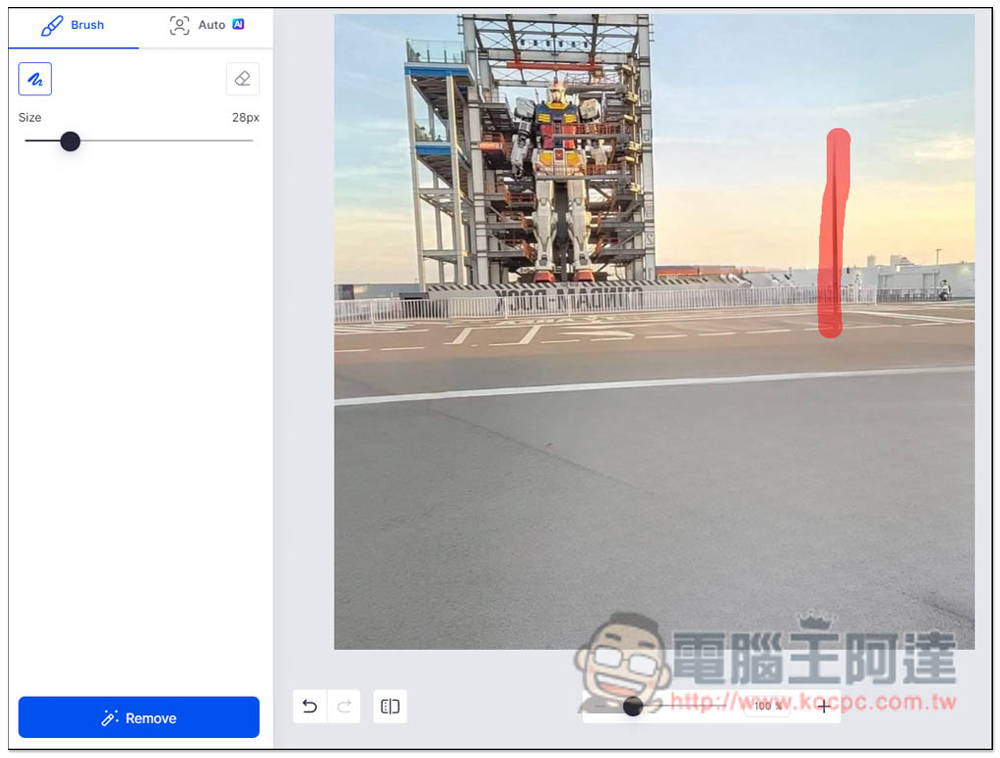
This is perfect. I have to say that the filling effect of this tool is really great. The original pillars and Ada covered the railing at the back, but after both were removed, the railing was filled up supernaturally, and no flaws were visible:
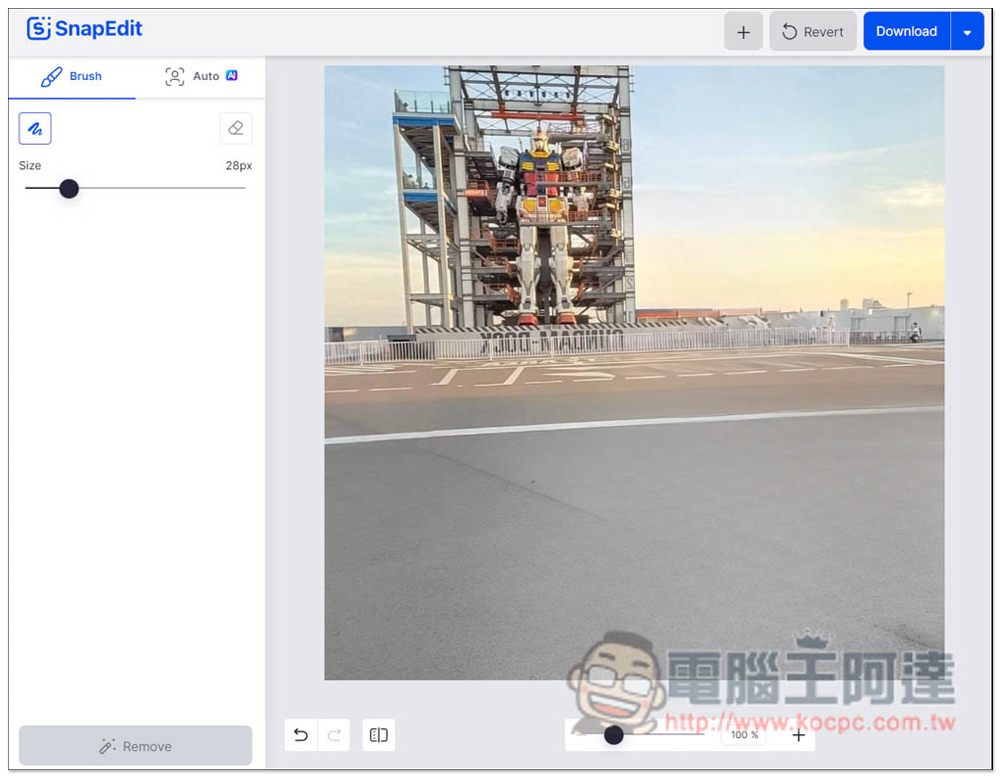
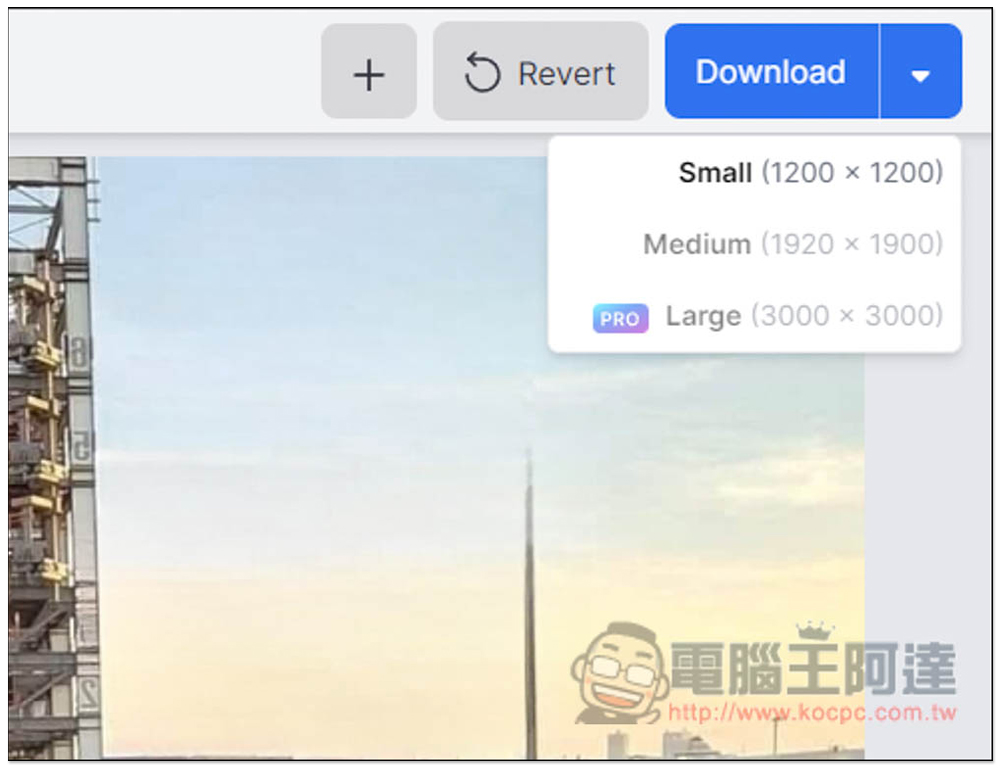
After no problem, click Download in the upper right corner to download. The free version provides two resolutions: Small (1200×1200) and Medium (1920×1900). Large (3000×3000) is only for PRO members:
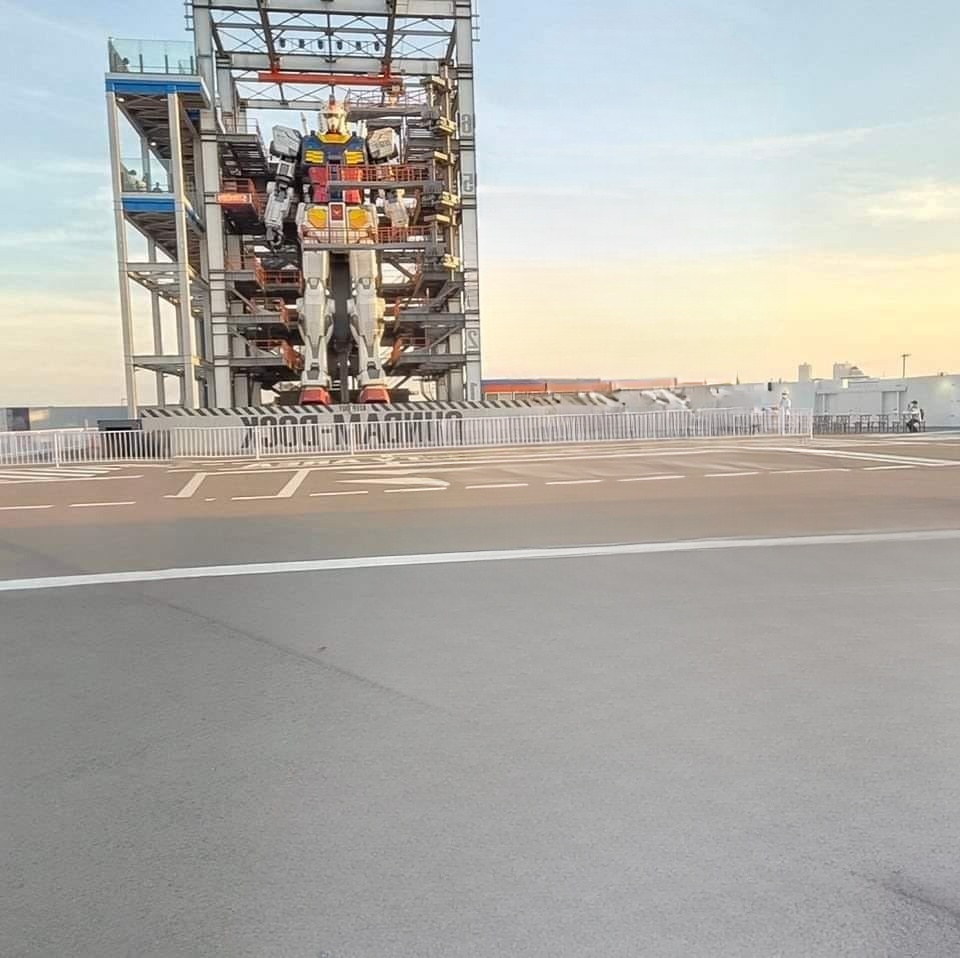
Below is the photo after the removal. It really looks like a photo taken when no one was around. To make it more natural, just remove the black line on the road. Basically, there should be no flaws:
Source: KOCPC Chinese