


Today I’d like to introduce a free tool called “Gemini Co-Drawing.” Gemini Co-Drawing uses Gemini 2.0’s native image generation capability to let AI create simple line doodles based on the user’s drawings and text. You can experience the services offered by Gemini Co-Drawing by using the Gemini API. If you want to learn how to use Gemini Co-Drawing and how to generate your own Gemini API, keep reading!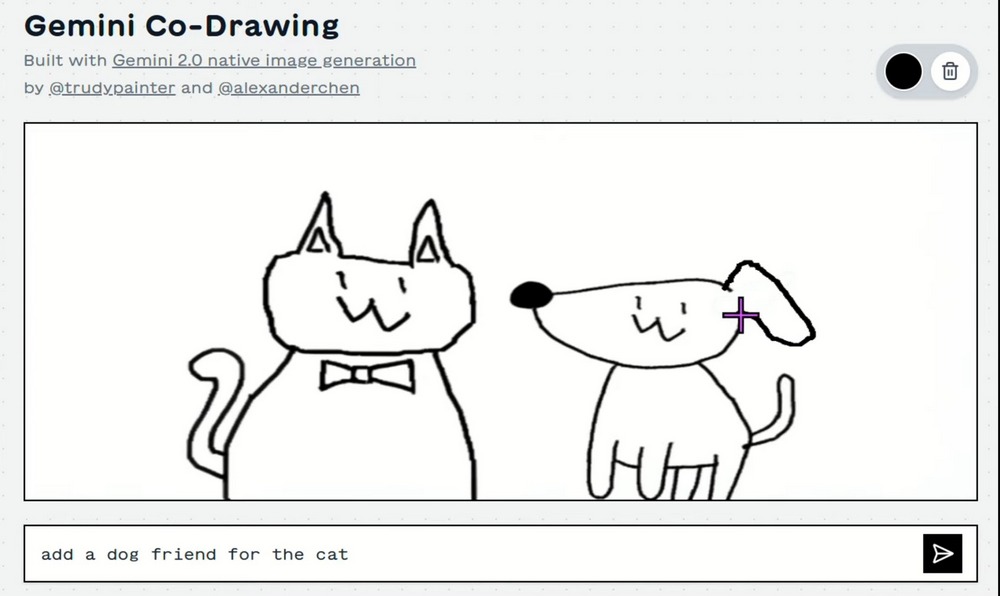
Free AI doodle tool Gemini Co-Drawing launches! Create cute doodles from text and hand-drawn sketches
Recently, Google AI Developers shared on X a free, open-source tool called “Gemini Co-Drawing” that uses Gemini 2.0’s native image generation capability. Gemini Co-Drawing leverages the Native Image Generation feature newly launched in Gemini 2.0 Flash, enabling AI to generate images that align with text input. With Gemini Co-Drawing, you can create cute doodles by combining drawing and text input. Simply sketch a rough outline, describe what you want, and Gemini Co-Drawing will draw it according to your needs, as shown in the image below: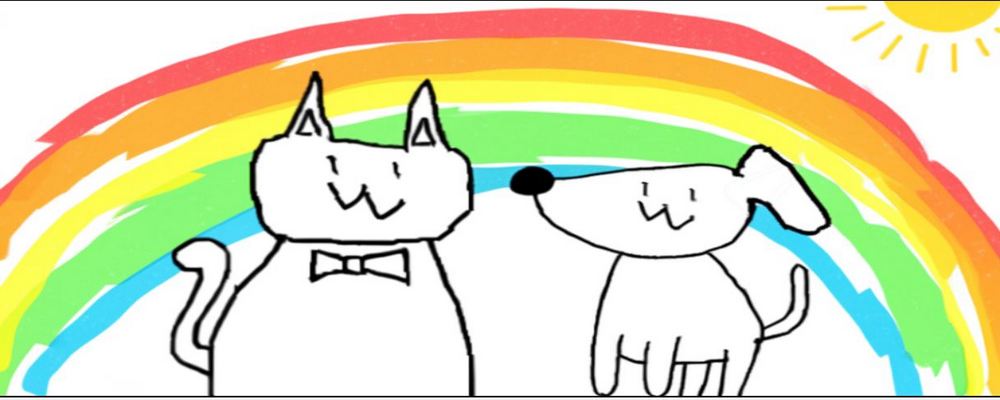
Before we begin, since using Gemini Co-Drawing requires the Gemini API, let me first show you how to generate your own Gemini API. Click「Here.Go to the Gemini Developer API page, then click “Get Gemini API key” on the screen.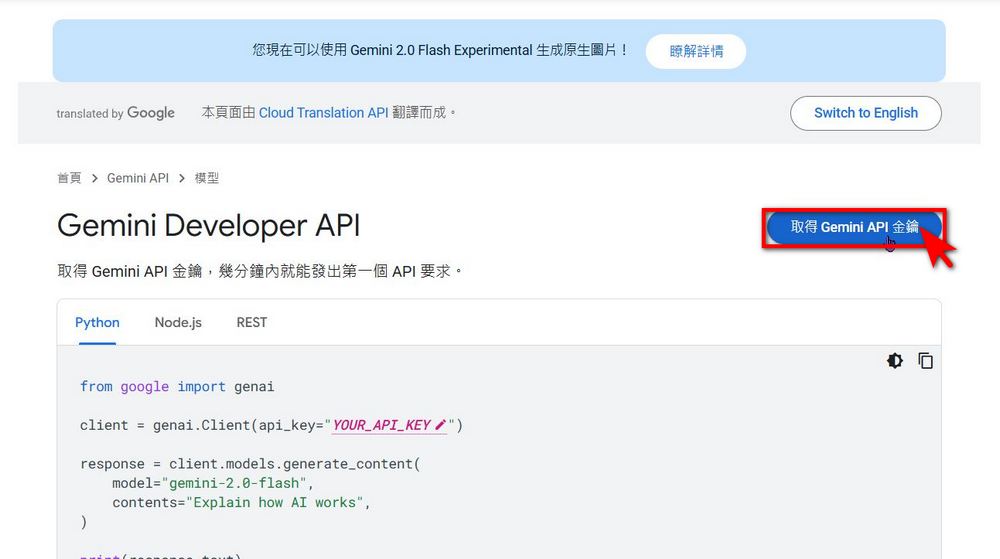
Next, you’ll be taken to the API keys screen. Click Generate API key. You’ll see your API key—just click Copy. Now that you’ve learned how to generate a Gemini API key, let’s move on to using Gemini Co-Drawing!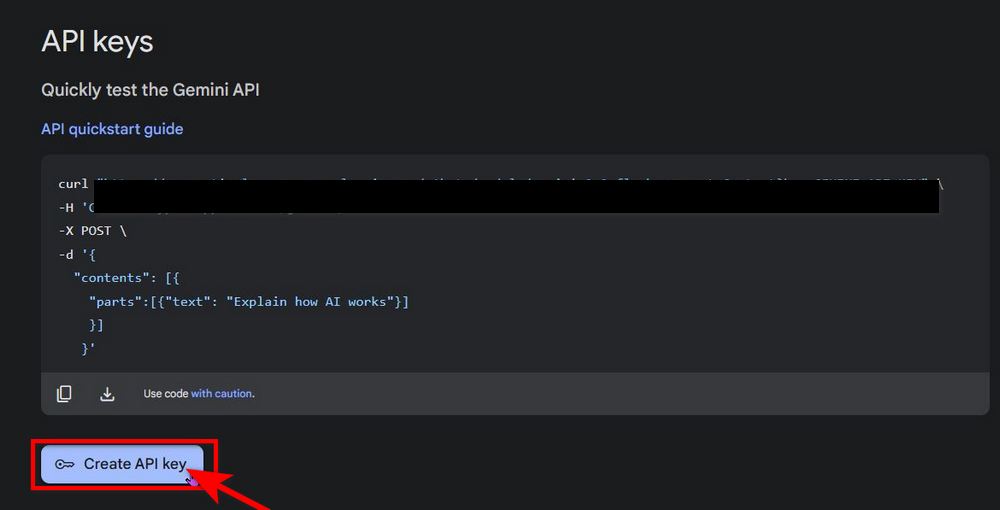
Go to Gemini Co-Drawing and create on your own
After going to the Gemini Co-Drawing page, you’ll see this screen. You can draw whatever you want on the white canvas—for example, the editor first drew a cat. Then you can enter text in the “add your change …” field below. After entering it, click send, and Gemini Co-Drawing will generate a doodle on the white canvas that matches the text content. Like the editor entered “draw a bowtie,” and then Gemini Co-Drawing added a bowtie tie to the editor’s cat.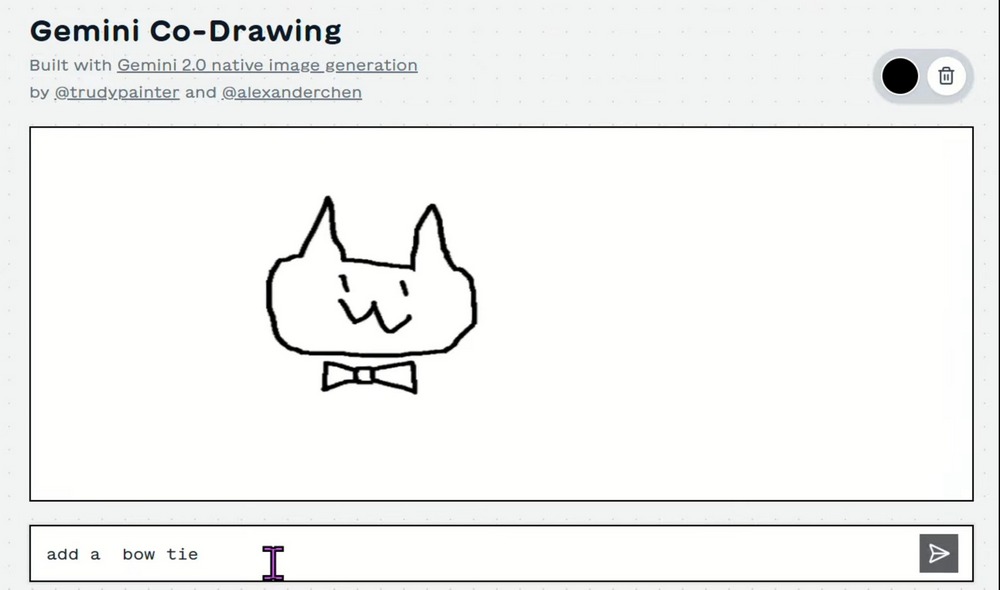
After using it for a while, a prompt will appear asking you to enter your own Gemini API. Just follow the tutorial above to generate your own Gemini API and paste it in, and you can continue using it!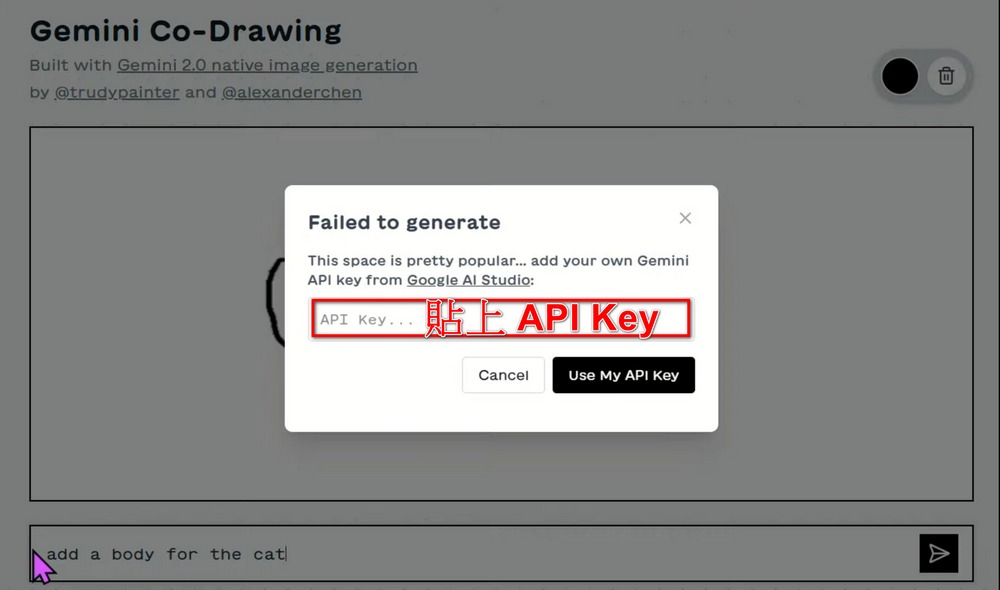
You can also ask Gemini Co-Drawing to add something to your canvas, like adding a dog friend next to the cat. Here, because the dog friend generated by Gemini Co-Drawing didn’t have ears, the editor drew an ear for the dog. If you think the background is too plain, you can also enter text, for example, to add a rainbow and sun to the background. This way your white canvas will instantly become exciting.
If you think the generated content doesn’t meet your expectations, you can also click x to delete everything.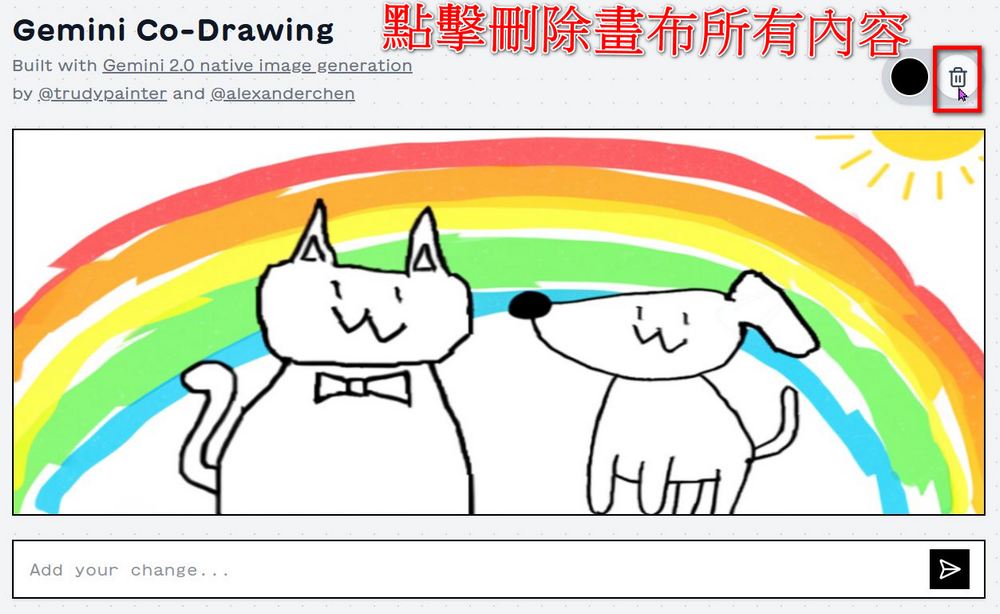
Besides the玩法 mentioned above, Google AI Developers also shared many more ways to play with Gemini Co-Drawing. You can check out the examples below to see if there’s a玩法 you like. If you’re interested, you can also head over to Gemini Co-Drawing to try it out yourself!
Some fun examples of Co-draw with Gemini 2.0 native image generation
(make your own doodle with the link below)👇🧵pic.twitter.com/gQeS8jx1oB
— Google AI Developers (@googleaidevs) March 21, 2025
Some fun examples of Co-draw with Gemini 2.0 native image generation
(make your own doodle with the link below)👇🧵pic.twitter.com/gQeS8jx1oB
— Google AI Developers (@googleaidevs) March 21, 2025
Get serpentine with it.pic.twitter.com/JpNs0uUQm5
— Google AI Developers (@googleaidevs) March 21, 2025
Improve your drawings.pic.twitter.com/1ILY1D9xo3
— Google AI Developers (@googleaidevs) March 21, 2025
Source: KOCPC Chinese