


As LLM models become increasingly powerful, even versions with modest parameter counts can deliver solid performance, so more and more people are looking to install and run LLM language models locally. Recently, AMD has also entered the fray, launching its own GAIA chatbot. And unlike NVIDIA, AMD makes it available to all computers—even machines with no AMD hardware at all can install and use it. Users with Razen AI processors can also install an optimized version that runs faster.
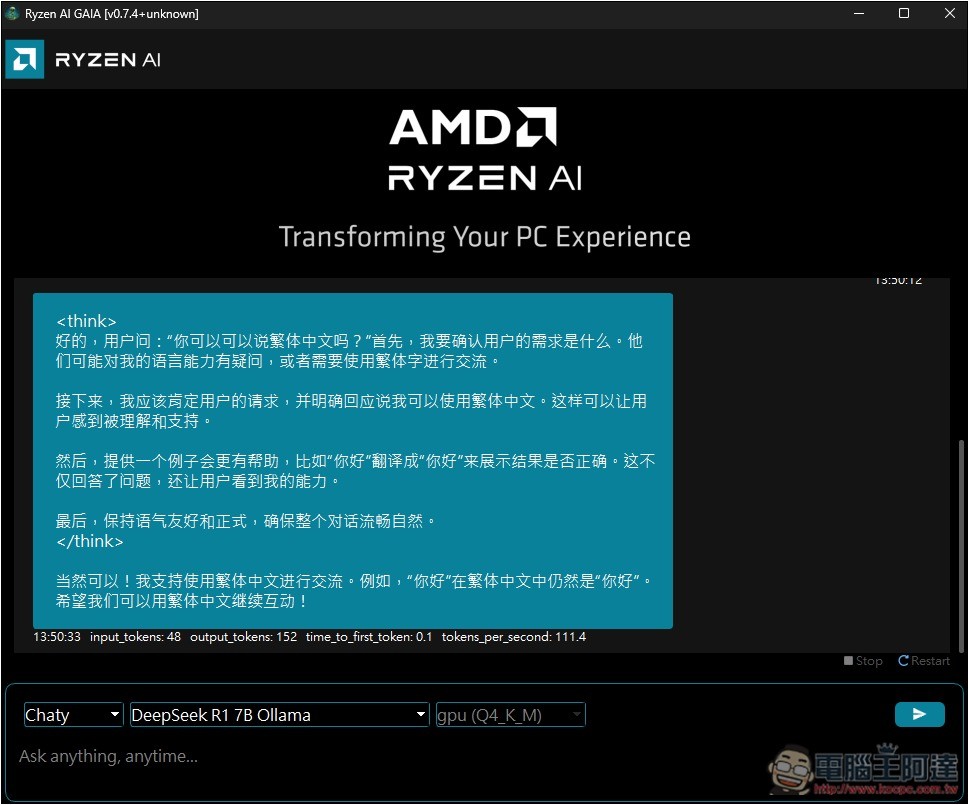
AMD launches GAIA open-source tool for local LLM chat
Recently, AMD announced on its official website the launch of a brand-new GAIA local LLM chat open-source tool,According to the introduction, GAIA can run multiple large language models on Windows PC, using the open-source Lemonade SDK for inference. Users can switch models for different tasks, such as summarization and complex reasoning. Currently, the installable models include the Llama series and DeepSeek series.
In addition, GAIA also features a RAG agent system that combines models with knowledge bases to enhance response accuracy and contextual understanding.
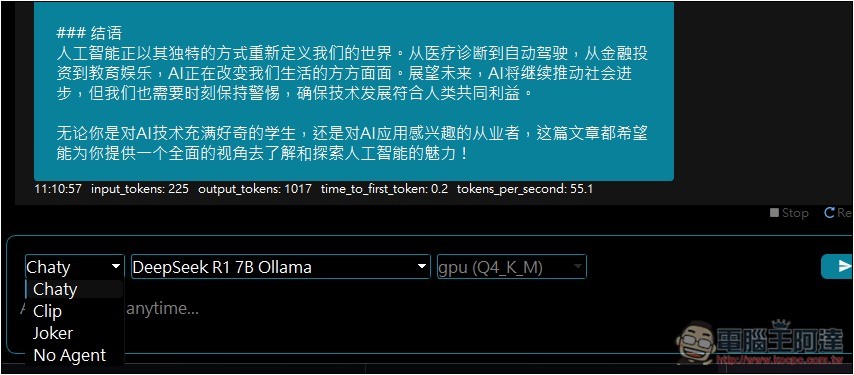
Currently, GAIA supports four proxy modes:
- No Agent: No agent intervention, providing the most direct way to test LLMs, suitable for developers to evaluate model interaction and performance.
- Chaty: An AI chatbot with conversation history that naturally interacts with users, enabling contextually coherent exchanges.
- Clip: An agent that combines RAG architecture with YouTube search/Q&A functionality, capable of extracting video content and answering related questions.
- Joker: A humorous agent that uses RAG architecture to generate jokes, adding fun and entertainment to conversations.
GAIA provides two installers: one that can be installed and used on any Windows PC, and a Hybrid installer specifically optimized for computers equipped with Ryzen AI processors, capable of utilizing the NPU and integrated GPU to significantly enhance AI computing performance.
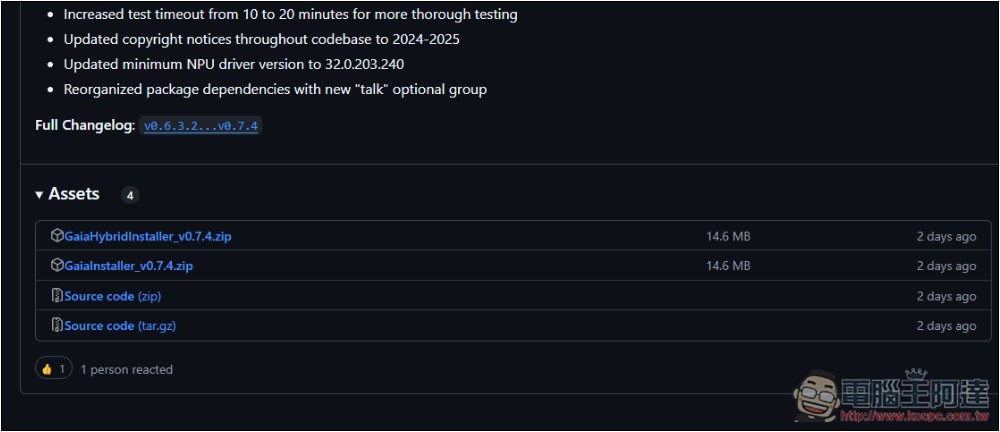
After clicking the link above to go to the GitHub page, the latest version is currently v0.7.4. Scroll to the Assets section and download the version that suits your computer. My computer’s processor isn’t an AMD Ryzen AI, so I downloaded the installer without the “Hybrid” label.
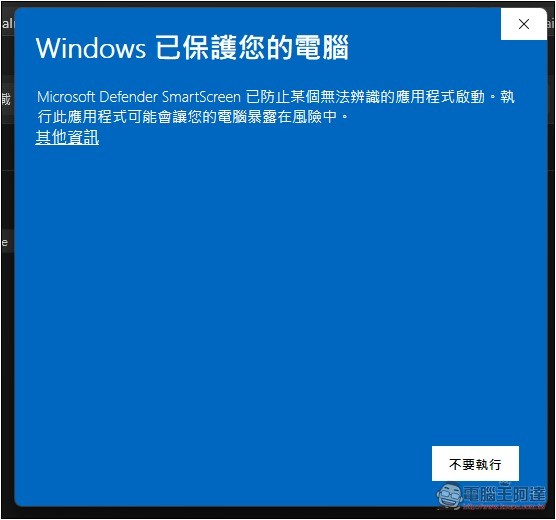
When you first open it, this warning will pop up. Tap “More Info”:
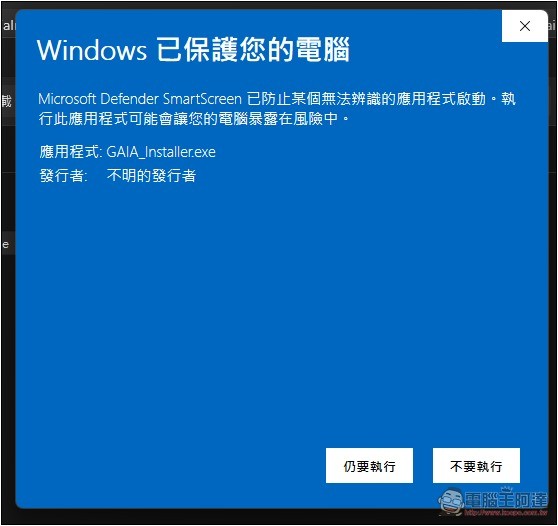
Next, you can see the button that still needs to be executed:
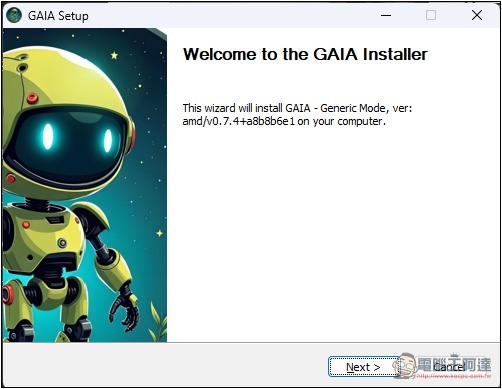
Just keep pressing Next throughout the installation process:
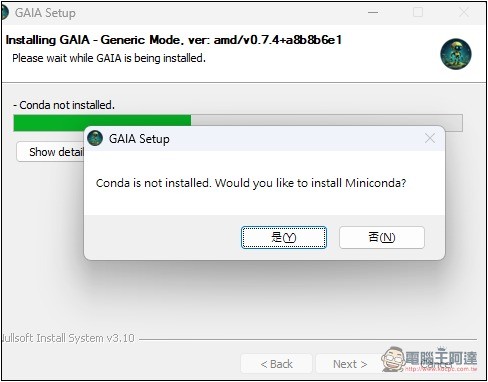
This software requires some dependencies during runtime, and it will also ask whether to install them along the way. Just click Yes, including Python 3.10, Miniconda, FFmpeg, Ollama, etc.:
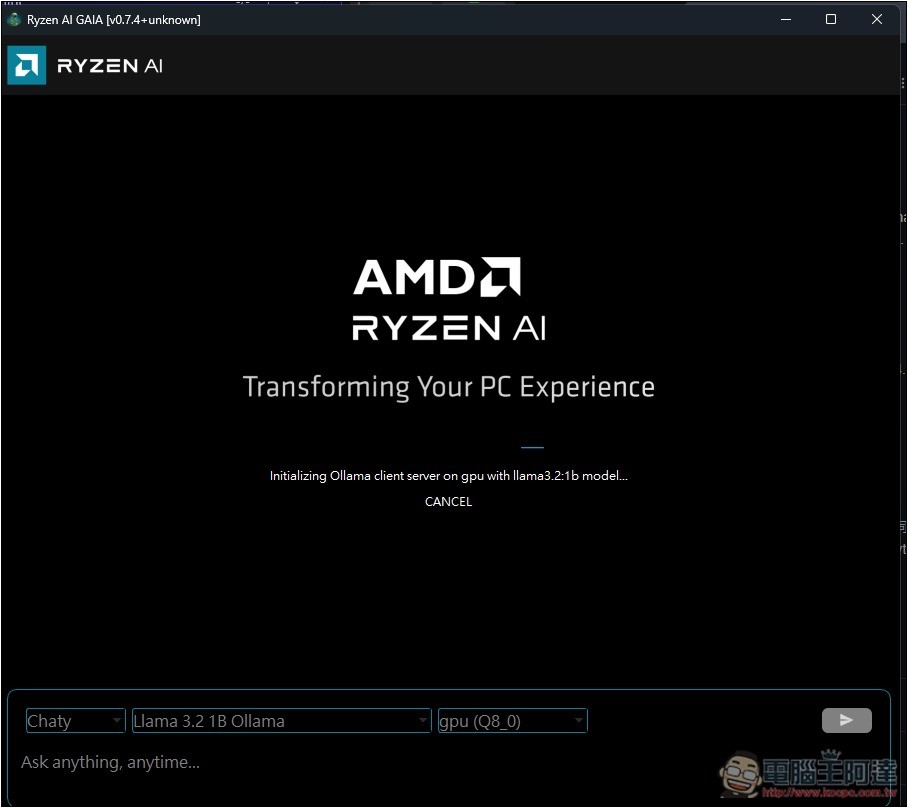
After installation, please open GAIA-UI, and you will see this interface. By default, it will automatically download Llama 3.2 1B Ollama:
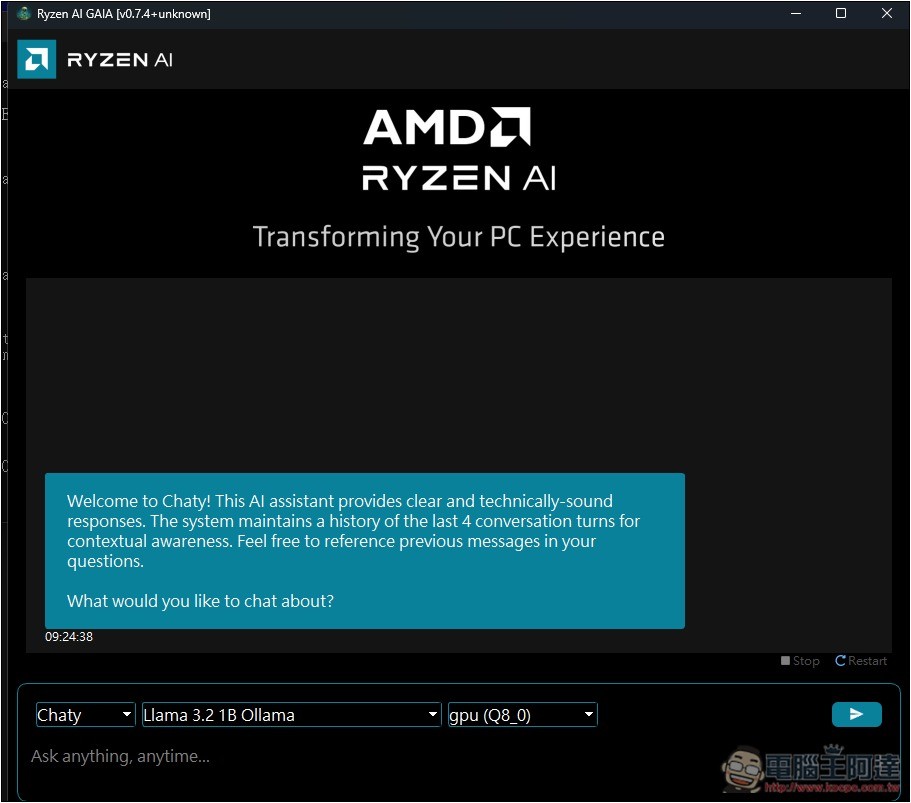
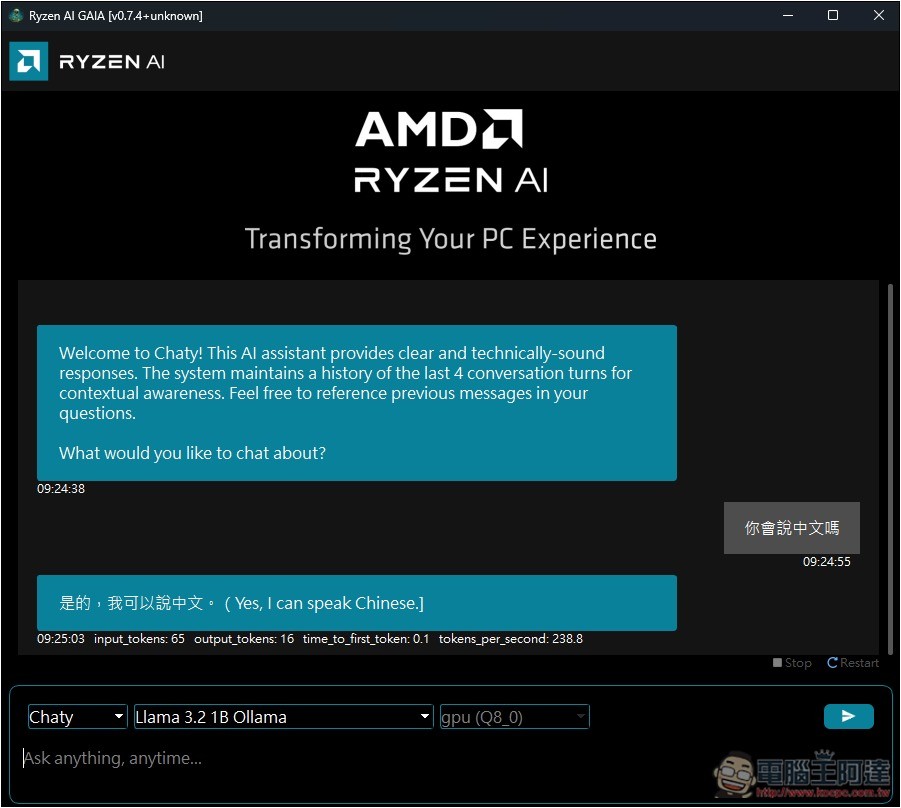
After downloading and installing Llama 3.2 1B Ollama, you can start chatting with the AI, which defaults to Chaty mode:
The Llama 3.2 1B model also supports answering in Chinese:
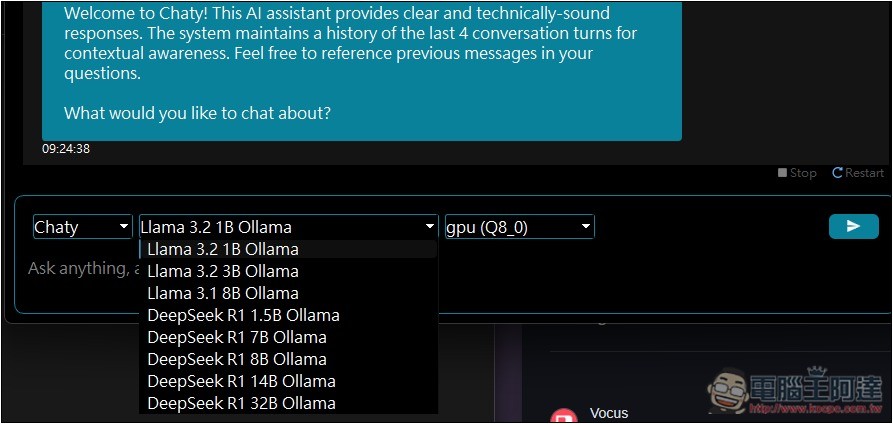
Below you can switch to other models; first-time use requires downloading and installation:
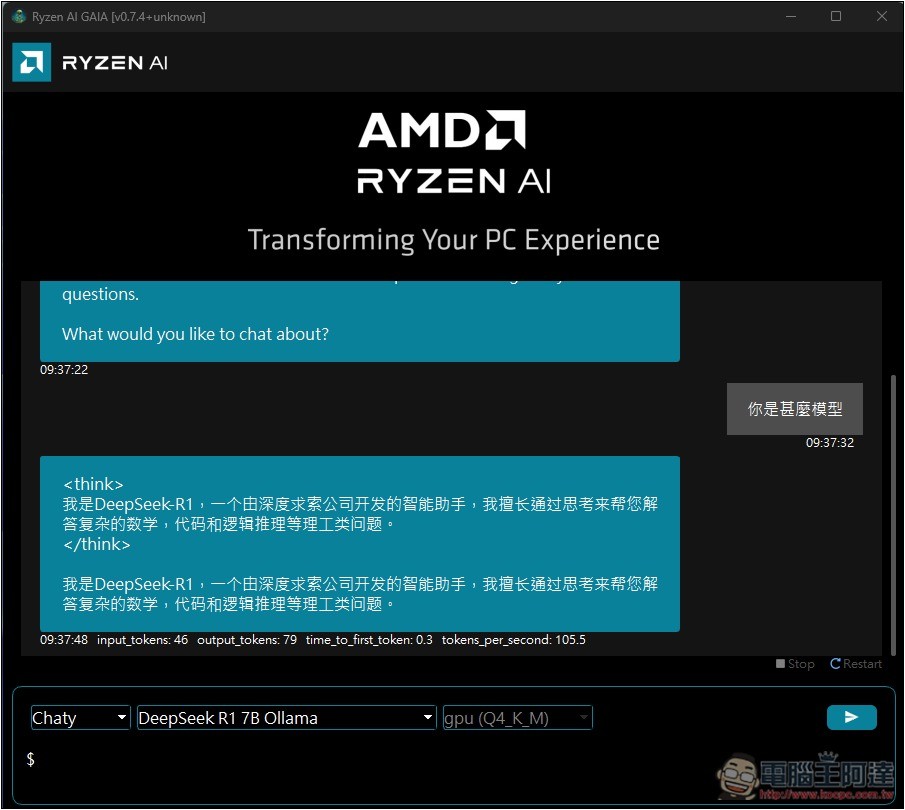
Hands-on test: DeepSeek R1 7B Ollama also succeeded:
The left-side menu is for switching proxy modes:
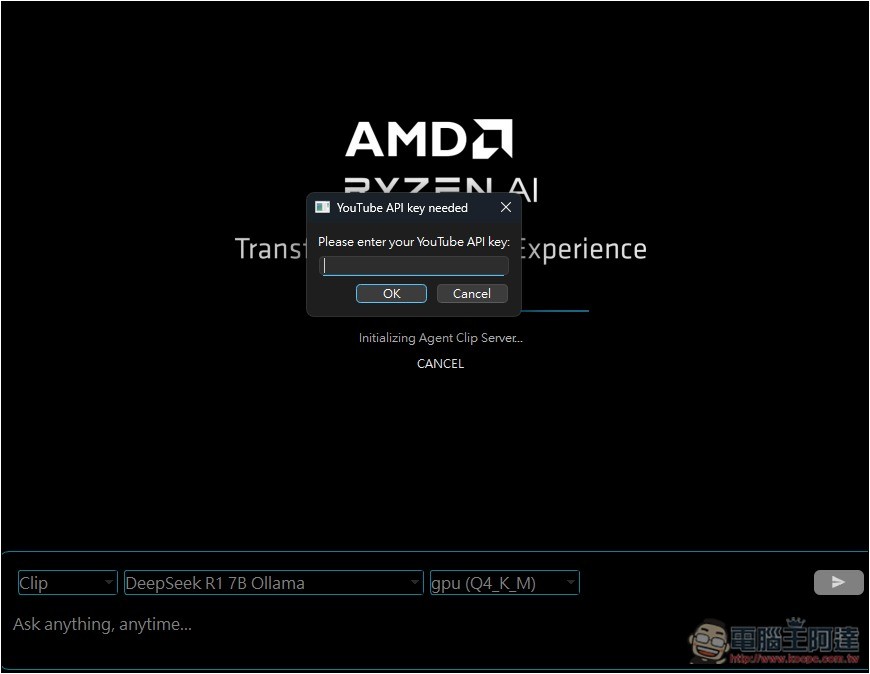
Clip requires a YouTube API key to function:
Compared to LM Studio,AingDesk Compared to other tools, AMD’s GAIA is still quite basic and doesn’t support a Chinese interface, so it’s worth trying out, but it’s mainly recommended for Ryzen AI PC users.
Source: KOCPC Chinese