


In the era of remote work, you often need to collaborate with people all over the world; many phishing emails are also written in foreign languages and contain harmful links, making you fall for the bait accidentally. Don’t let language differences become the main reason that hinders email communication, and don’t let language differences make you fall into the trap of unscrupulous people. If you are a Gmail user, you don’t need other third-party translation tools. The built-in Gmail translation function can be used quickly!
How to Translate Received Letters in Gmail to Solve Foreign Language Dyslexia
Although the Chrome browser has a built-in web page translation tool, if the entire web page is translated in order to translate one letter, it may also affect the reading of other letters. In fact, Gmail has a built-in tool that can translate the text of a single message. It can even automatically detect the language and translate it into your language with just one click.
What is the difference between translating the content of a letter and translating an entire web page?
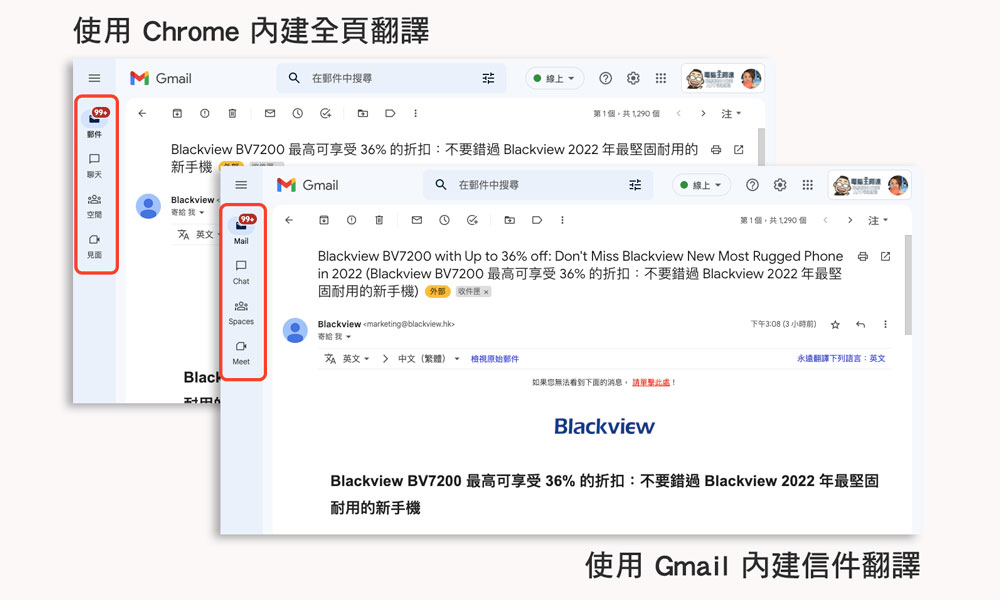
Some people may not understand why Chrome has a built-in translation function, and why Gmail needs an additional function to translate letters. You can look at the comparison chart below. We focus on the functional items on the far left (circled by the red box). The result of using Chrome’s full-page translation is that all functions, senders, and all elements on the entire web page will be translated into the usual language as long as they are text; using Gmail’s letter translation only translates the text of the letter and will not affect other elements on the web page.
Translate a single message received in Gmail
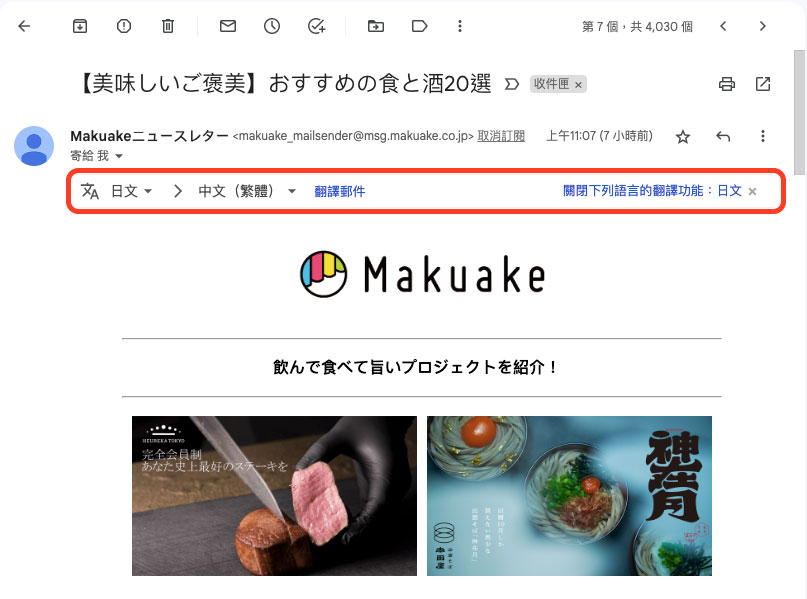
When you open Gmail and log in, when you open a foreign-language letter, Gmail determines that the language used in the letter is not your usual language, and will provide translation options at the top (as shown below). If you see this message appear and confirm that the language is correct, please click the “Translate Message” button in the field. If you don’t want Google to help you translate a specific language in the future, you can select “Turn off translation for the following languages: XXX” on the far right of the translation field (XXX is the language type).
People are prone to making mistakes, and so are software systems. If Gmail does not display the translation option in the foreign language email you clicked, there is no need to panic. You can manually click on the three-dot menu in the upper right corner of the email and select “Translate Email”.
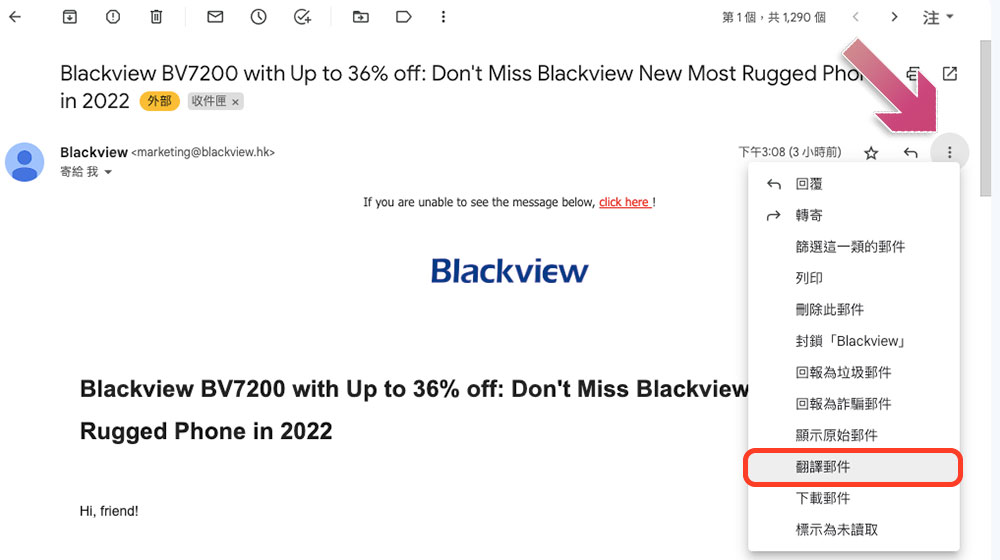
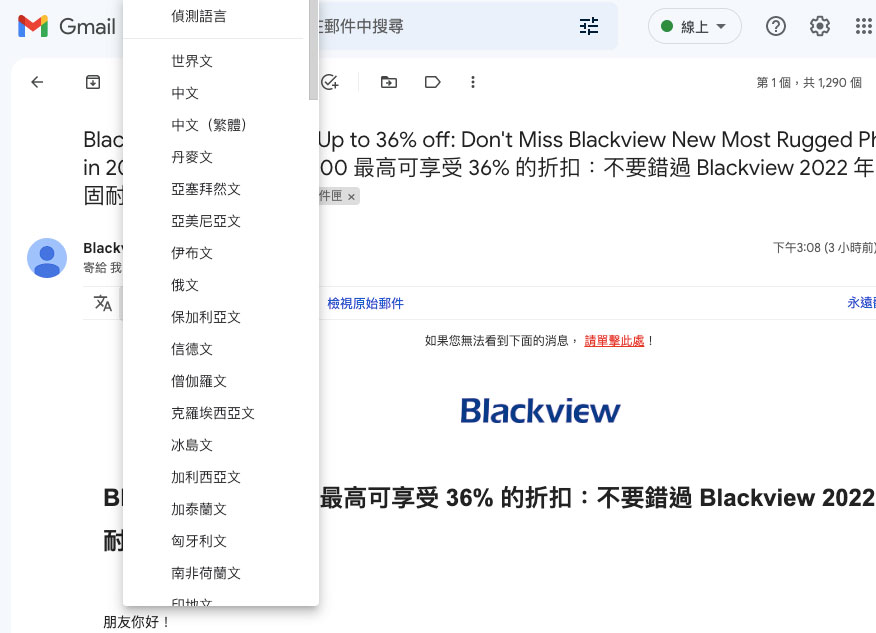
You will then see a translation field at the top of the message. Select the language of the current message from the drop-down menu on the far left, or click “Detect Language” at the top of the menu to let Gmail determine it for you; the column on the right is for selecting the language you want to translate. Basically, when this column pops up, it will default to your language. Finally, click “Translate Email”.
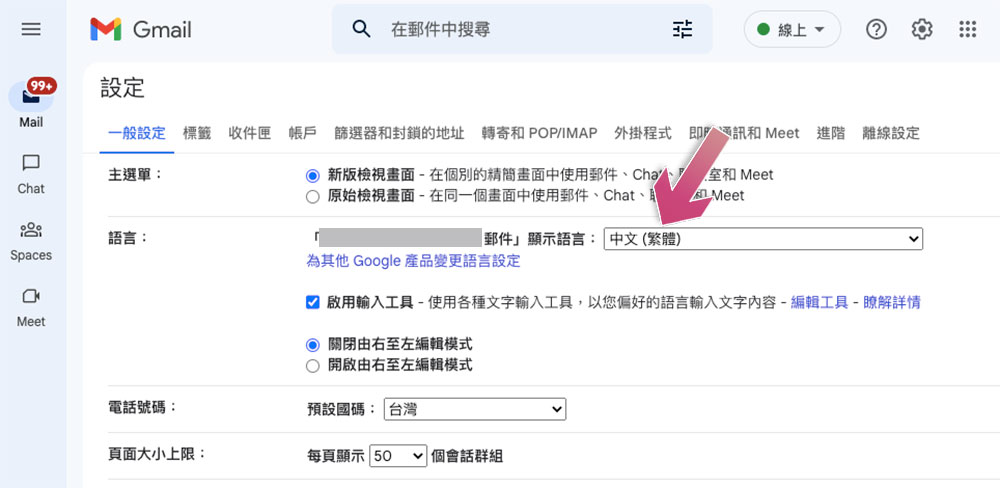
If you want to check or change the default language, you can click the gear icon in the upper right corner to enter “Settings”, then click “View all settings” and check or change the “Language field” in the “General Settings” tab.
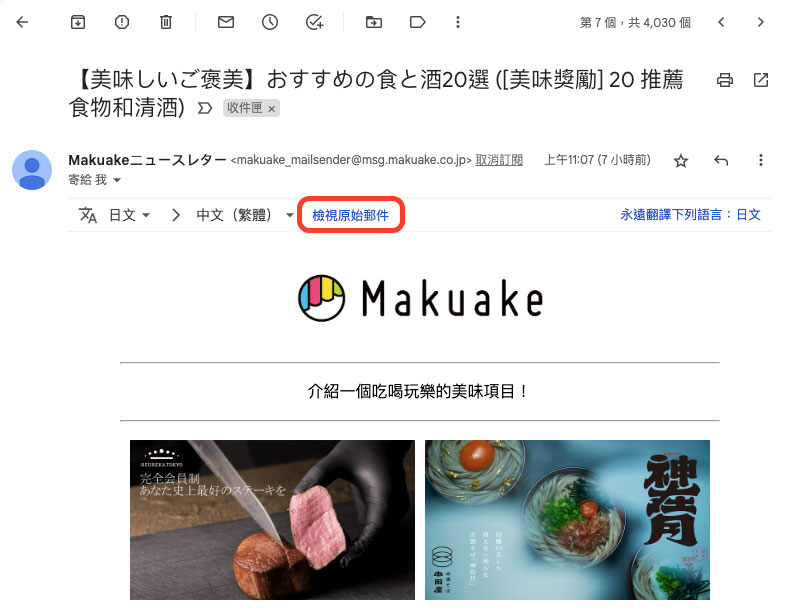
If you want to cancel the translation and return the letter to its original form, you can click “View Original Message” on the translation field to return it to its original form.
Source: KOCPC Chinese