


The keyboard will become very dirty after being used for a long time, especially for people who often eat in front of the computer. There may be sauce on the keycaps, and you will definitely want to clean it at this time. In order not to accidentally touch the keyboard when cleaning, many people may unplug the cable or turn off the power. In fact, there is software that can directly lock it, making the operation more convenient. In addition, if you don’t want others to touch the computer when you leave your seat, you can also use these sets of software to achieve this.
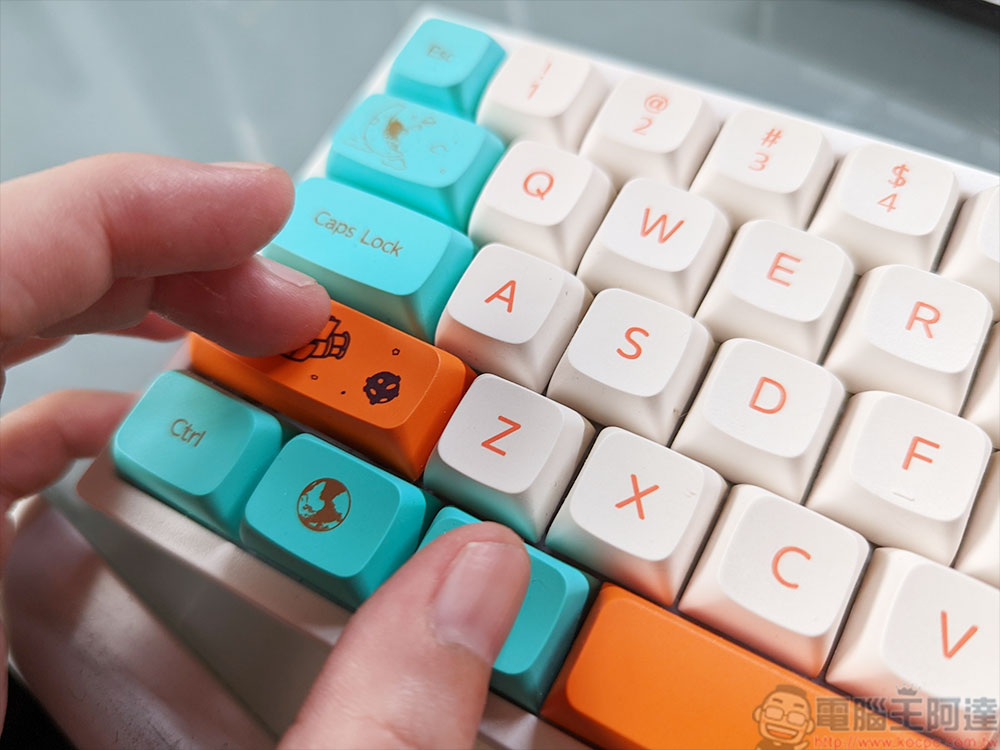
4 ways to temporarily lock and disable your computer keyboard when cleaning it or leaving your seat
1. iwck
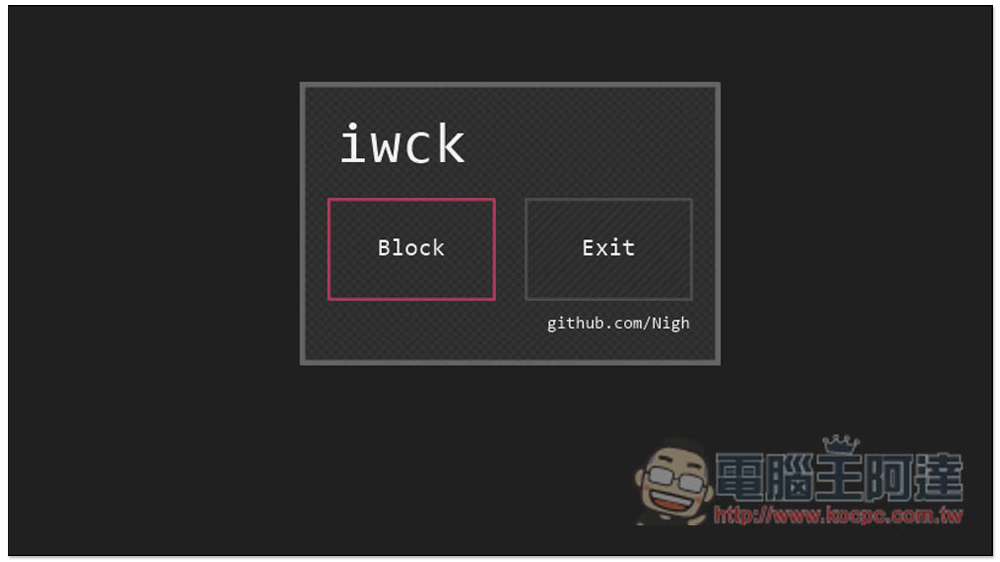
iwck is a set of open source free software that is shared on GitHub. The file is very small, only 439KB, and can be used without installation. When you need to lock the keyboard, just press Block on the screen, and you will find that there is no response when pressing any keys.
Unlocking is also done by pressing Block. This also means that if you leave your seat to use it, remember to hide the screen in the background after locking. The screen can only be locked, and the mouse can still be used.
2. BlueLife KeyFreeze
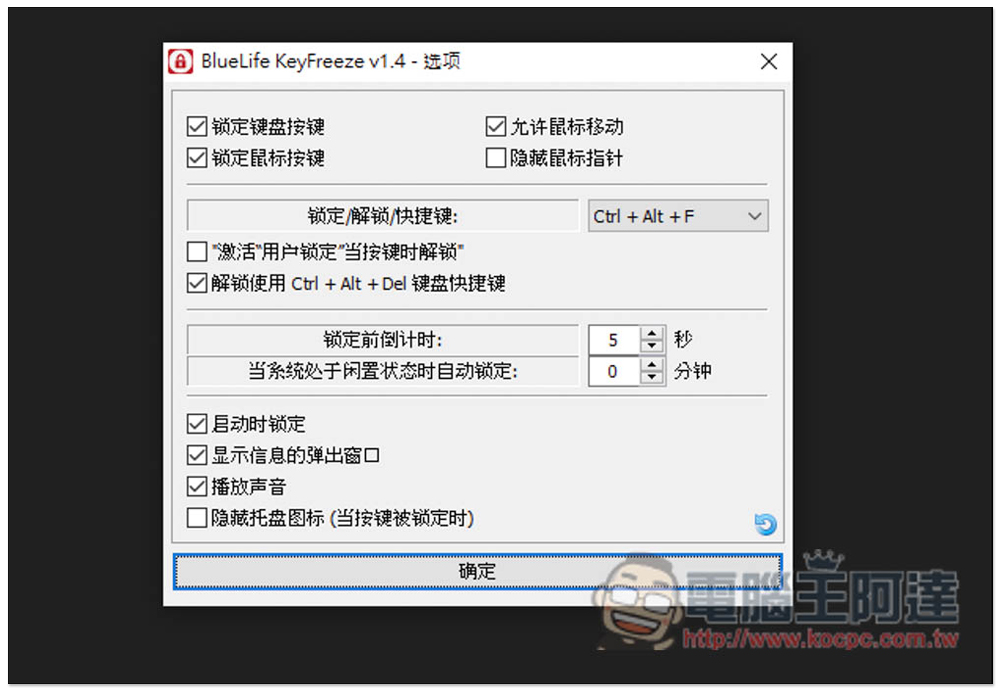
It is also a free software, not only the keyboard, BlueLife KeyFreeze can also lock the mouse. People who don’t know how to unlock it when it is enabled will not be able to use either the keyboard or the mouse. The default unlocking shortcut key is Ctrl+Alt+F. This must be remembered because when you open this software, the keyboard and mouse will be locked immediately, and you must press this shortcut key to unlock.
If you don’t like this shortcut key, you can also go into the options to modify it. There are about 20 groups. When locked, you can specify whether you want to allow mouse movement or hide.
Go to the official website to download
3. KeyboardLock
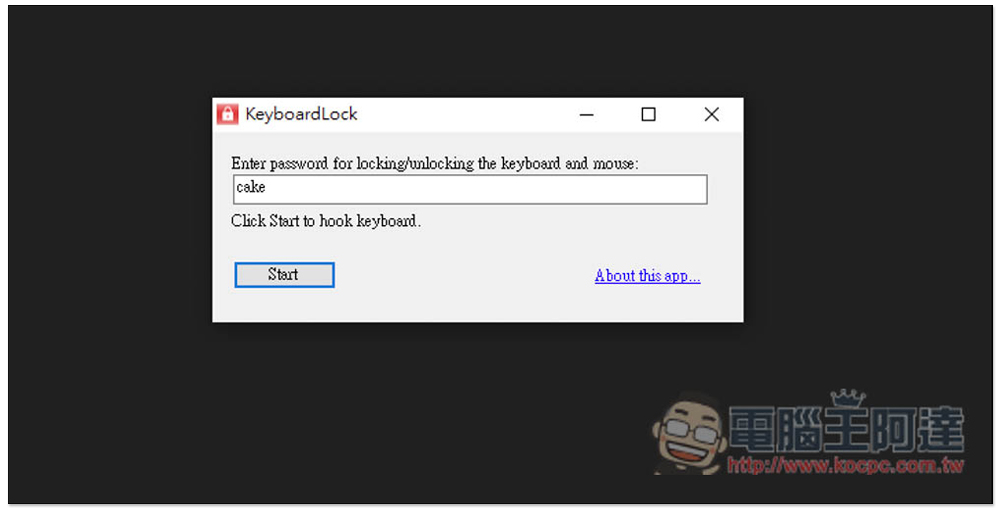
KeyboardLock is a set of free software that is simple to operate, can set a password, and can also lock the keyboard and mouse at the same time. After execution, you will be asked to set a password. The default is cake. After pressing Start, enter the password you set on the keyboard. The keyboard and mouse will be locked and the software window will be hidden. Although the mouse can continue to move, it cannot click on anything. The same goes for unlocking. Entering the password on the keyboard will unlock it.
4. Anti-Shaya
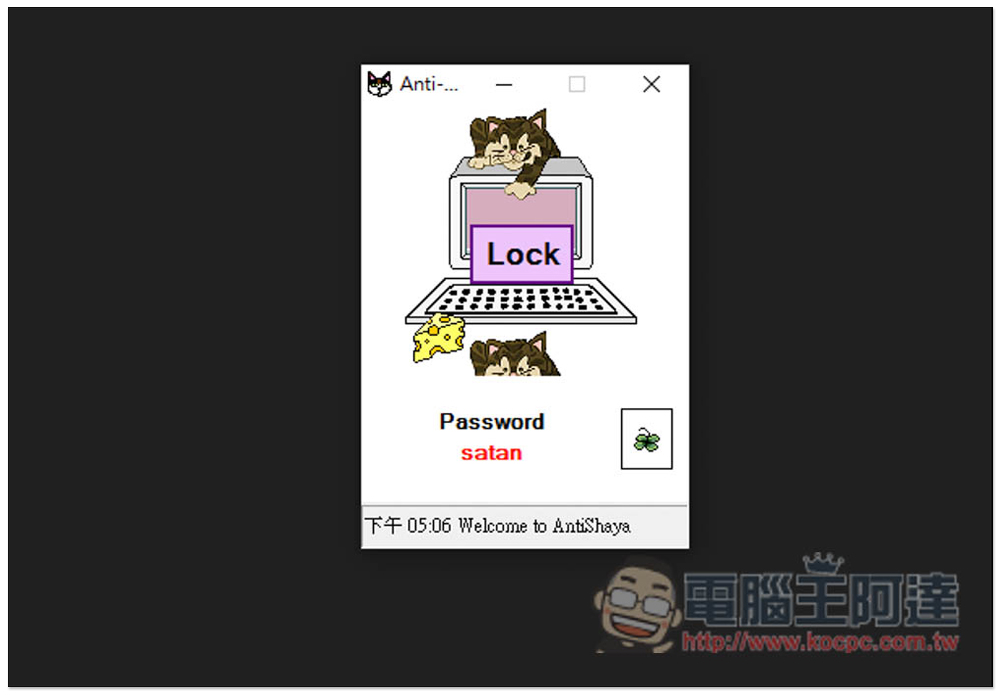
Same as the first set of iwck, it can only lock the keyboard, but Anti-Shaya provides a password setting function. After locking, you need to enter the correct password to unlock. The operation is also very easy. I just don’t know why. I once or twice confirmed that the password is correct, but it shows that the password is incorrect and cannot be unlocked. If this happens to you, you can force Anti-Shaya to close by opening the work administrator (Ctrl+Alt+Del), and the keyboard will be unlocked.
Summarize
For those who just want to clear the keyboard lock, just use the first set of iwck. It is simple and easy to use, and there is no need to worry about forgetting the password. For those who want to get out of their seats and don’t want their computer to be used by others, the first set of KeyboardLock or the second set of Anti-Shaya will do. They can lock the keyboard and mouse, and also have a password function.
Source: KOCPC Chinese