


When reinstalling the computer or upgrading the operating system, you will need to use the official Windows ISO file. Although it can be downloaded from Microsoft’s official website, some friends who are not very computer savvy may not know how to download it or how to choose to download the version they want. This article will recommend a very easy-to-use free software: Hasleo Windows ISO Downloader, which can easily download the ISO file of Windows 11 / Windows 10 / Windows 8.1 with one click, 32 Both bit and 64-bit are available.
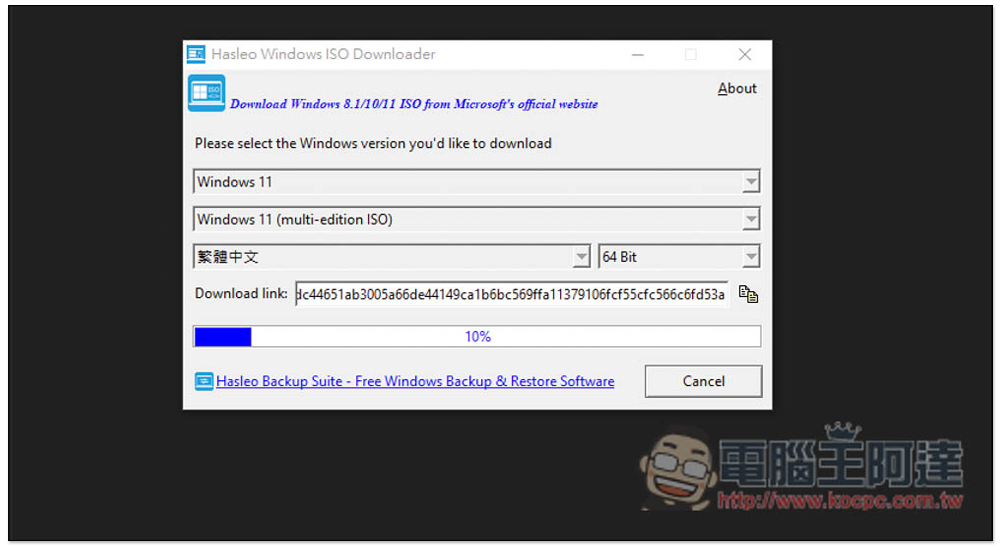
Hasleo Windows ISO Downloader is a free software for downloading Microsoft official Win11/10/8.1 ISO files with one click.
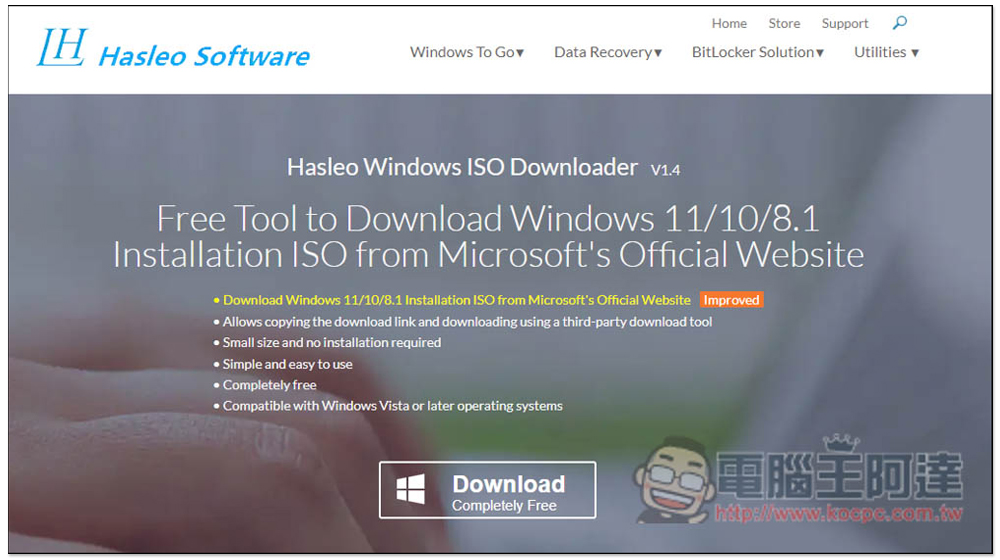
Hasleo Windows ISO Downloader is a completely free software and does not require installation. After downloading, it is an installation-free file that can be used directly. The Windows ISO files downloaded by this software are all official from Microsoft, so you can rest assured:
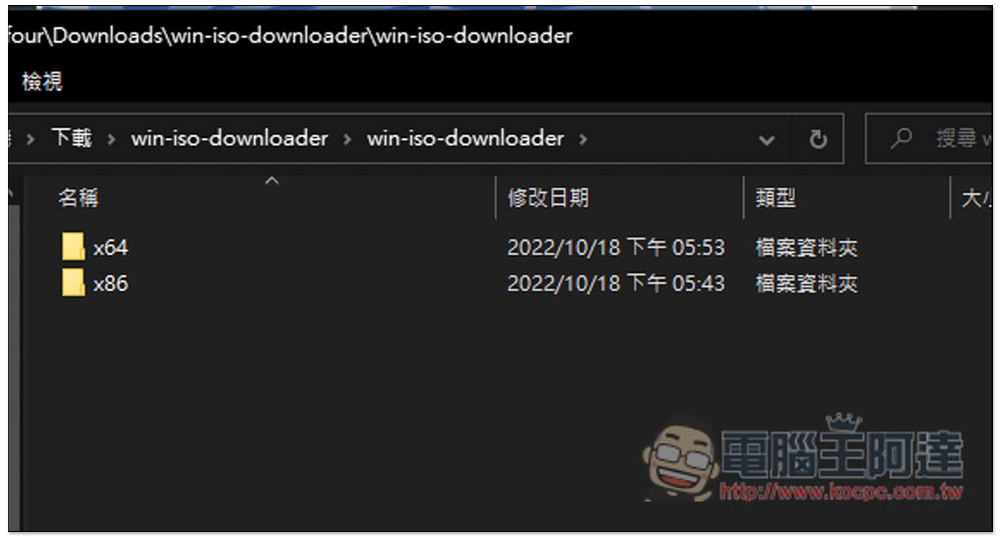
After downloading and unzipping, you will see two folders. If you want to download 64-bit version, use x64, and if you want to download 32-bit version, use x86. Here you need to select the right one:
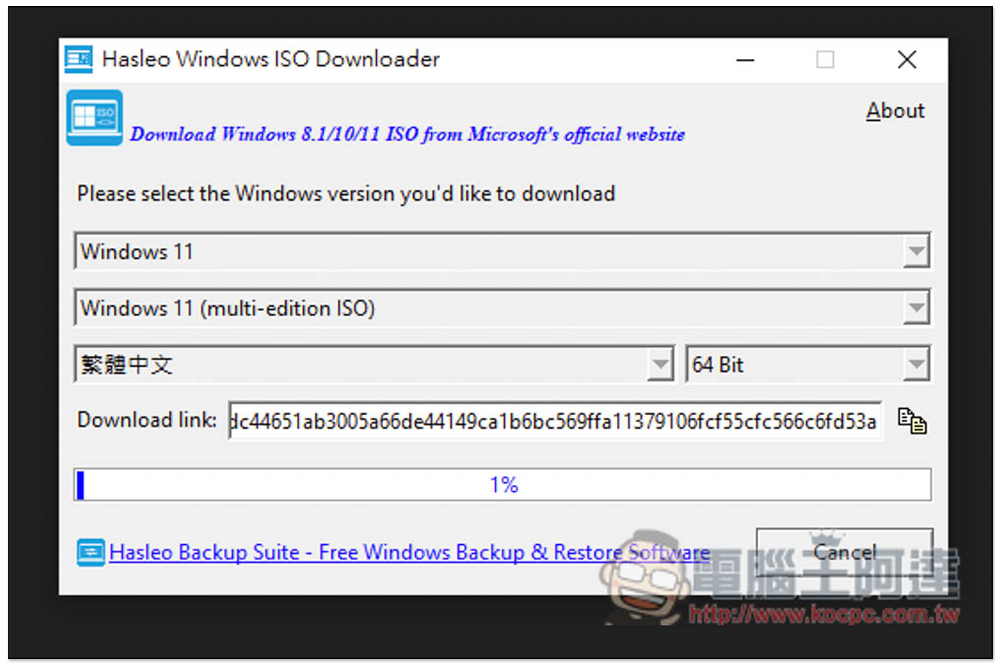
Although it does not support Chinese, the operation is quite simple. First, open the top option:
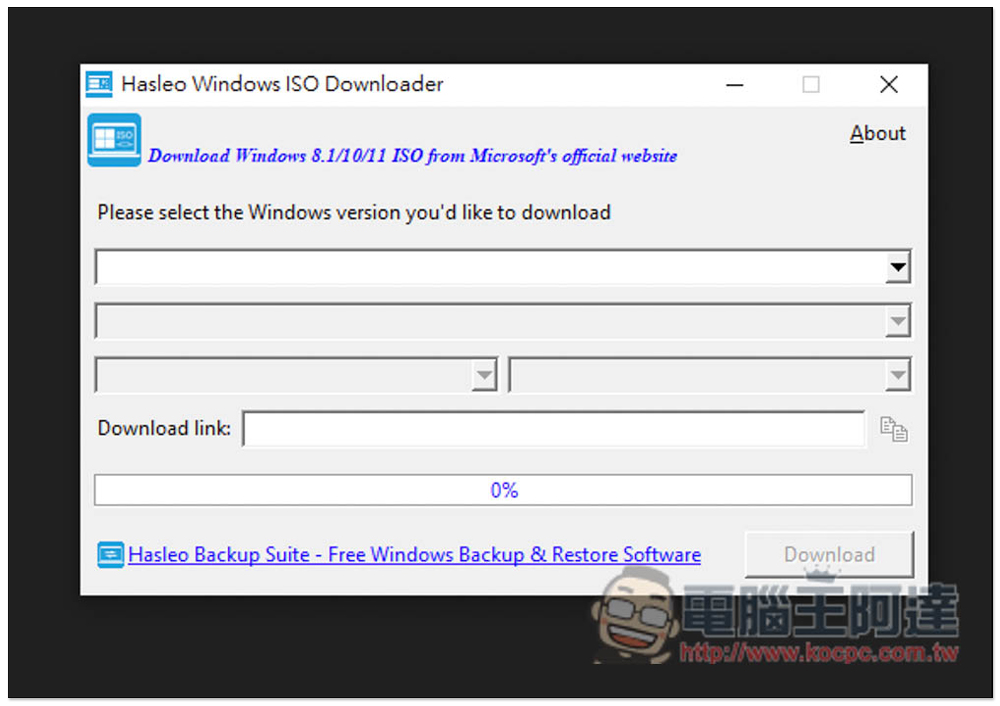
Select the operating system version you want to download, Windows 8.1, Windows 10, or Windows 11:
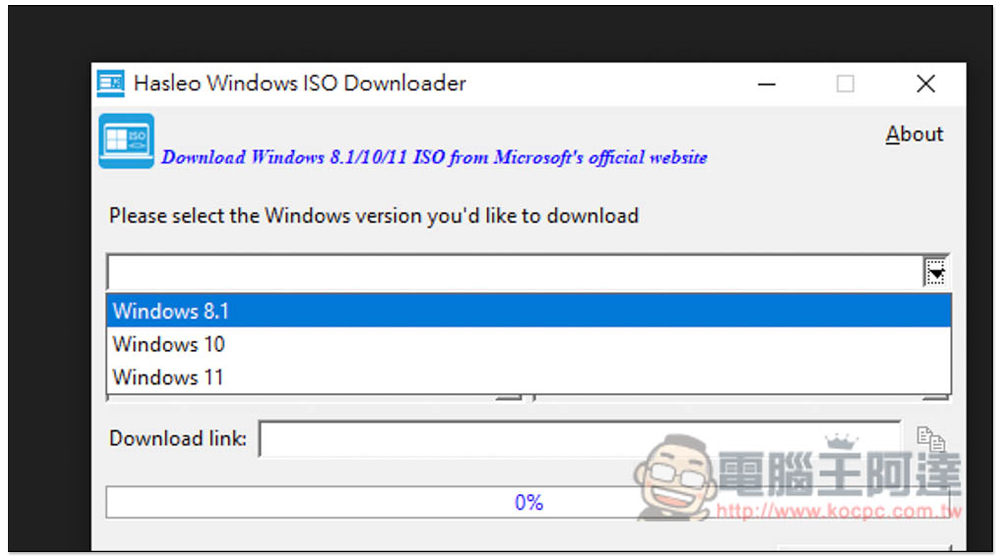
After selecting it, it will start searching. It will take a while to wait for it to finish running, about a minute or so:
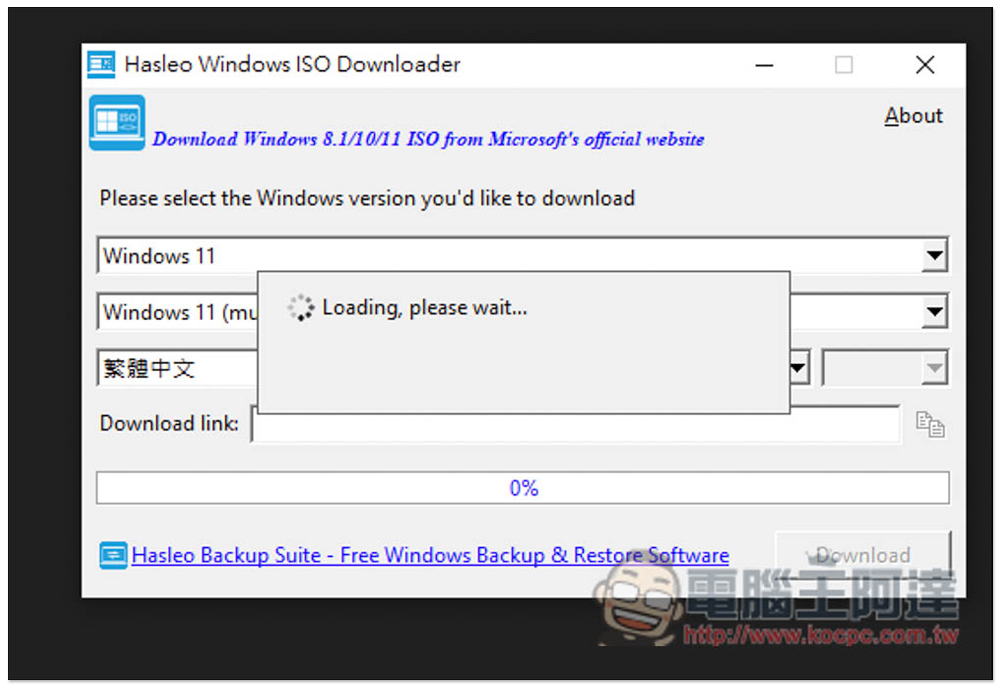
After running, check whether the ISO file is correct and whether it has the number of bits you want. The language should detect the language of your current Windows:
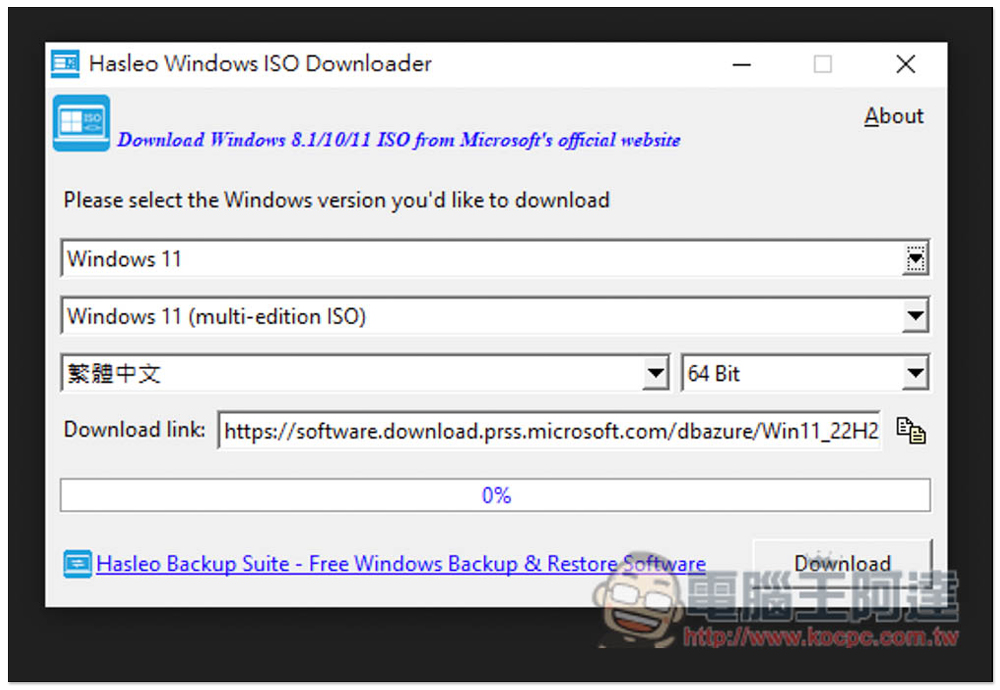
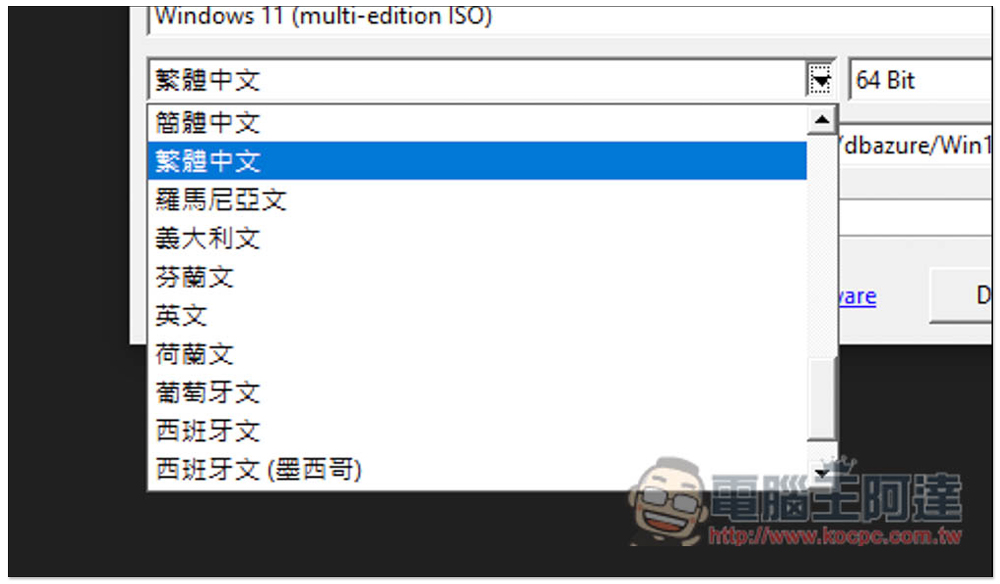
There is only one version of the ISO file of Windows 11. The language part can be changed to another, whichever you want to download will do. The number of bits cannot be changed:
If there is no problem, press Download in the lower right corner and the download will start. Wait until it reaches 100% and it will be completed. In my actual test, the download was indeed successful:
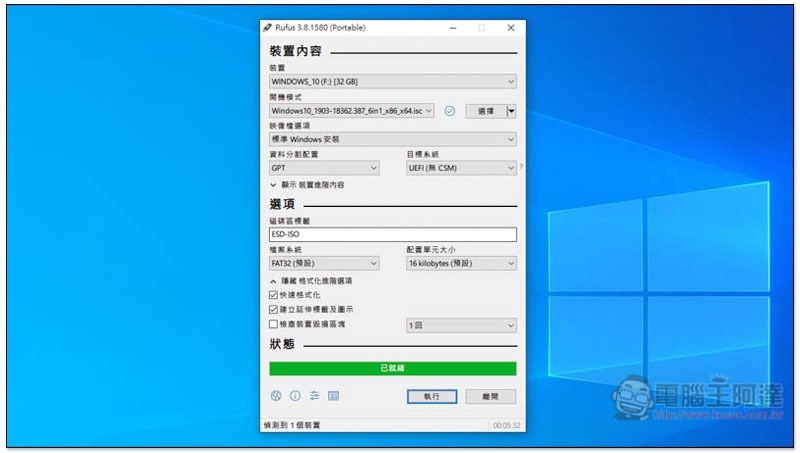
If you want to create a USB bootable disk, then I would recommend another free tool called Rufus. This one can create a USB bootable disk directly after downloading the ISO file. You don’t need to add another step, the operation is super simple, and it supports many Windows versions:
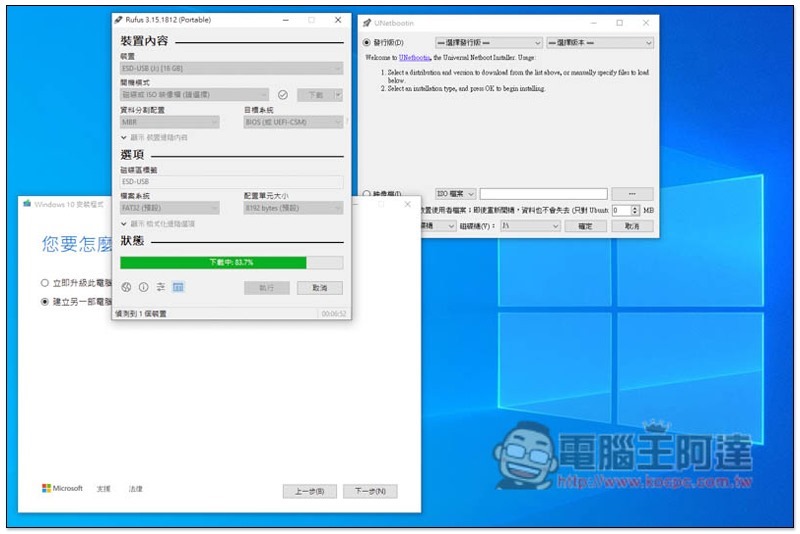
In addition, we have also written an article beforeThree ways to create a Windows USB bootable disk, it is highly recommended for friends who often re-educate to learn:
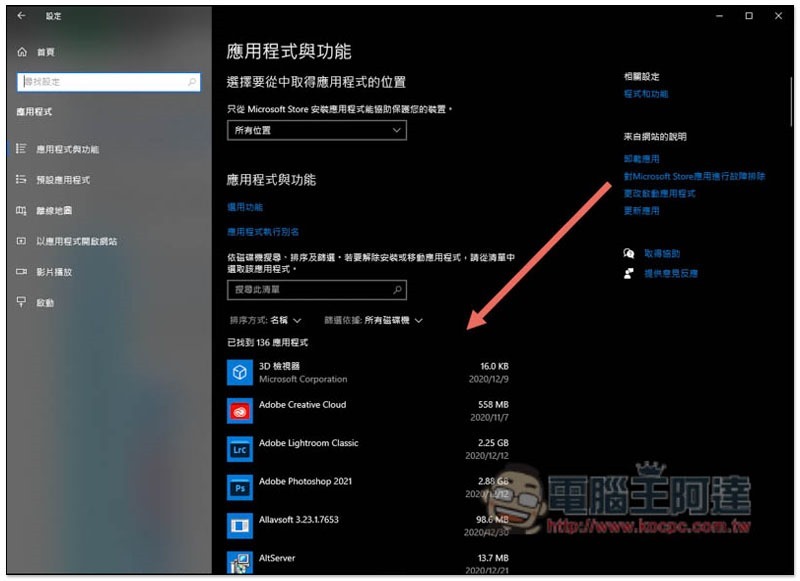
When refilling, some people may want to record which applications and software are currently installed on the computer so that they can be quickly retrieved after refilling. If you don’t know how to record, this article has organized 5 ways, you can take a look:
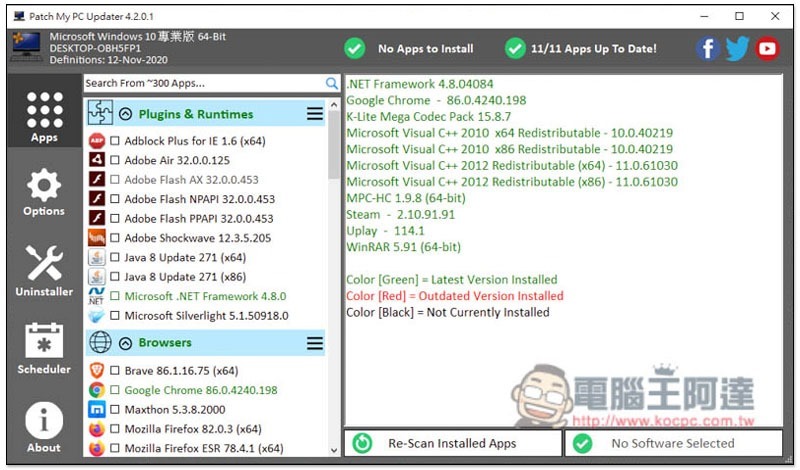
If you want to know if there are more useful free tools, you can refer to Patch My PC software, it provides the function of one-click installation of more than 300 free Windows utility software, and also has built-in version checking, removal, etc., which is very good:
Source: KOCPC Chinese