


Setting up the “Emergency Assistance” function only takes a few minutes, but it may save lives in emergencies. Therefore, when you buy a new Android phone, in addition to transferring data, setting up the emergency assistance series of functions is one of the most important things. The emergency assistance function also has other extended additional functions. This time, the author will guide you step by step through the setting-related series. Quickly take out your mobile phone and follow along.

Teach you how to set up the “Emergency Assistance” series of functions on Android to help you in times of emergency!
In this setting tutorial, the author uses a Pixel 6 mobile phone running the Android 13 operating system. The overall system is closest to the original Android. Most mobile phones of other brands (such as Sony, Asus, Nokia, etc.) have very similar setting methods. All models except Samsung can follow this tutorial.
Add emergency contact
If you have not set an emergency contact in your mobile phone, then turning on the emergency assistance function is meaningless, so the first thing to do is to set an emergency contact first. It is recommended that when choosing an emergency contact person, you can prioritize your relatives and friends who live together or live close to each other, and friends who you often interact with, that is, people who will come to help you in an emergency. You should also talk to them first before setting them. About 2 or 3 people are the safest.
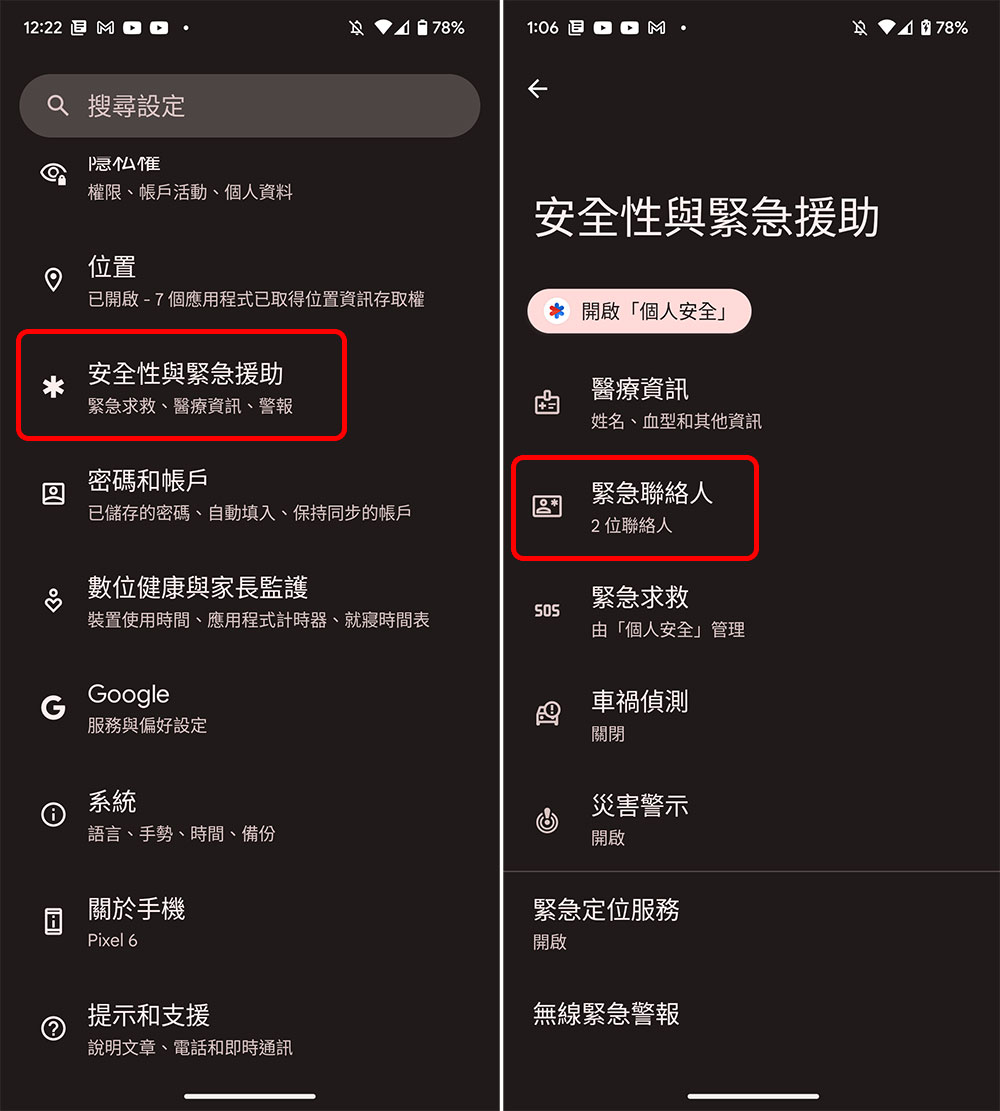
- Open the Settings app, scroll down to find “Security & Emergency Assistance”, and click “Emergency Contacts” after entering.
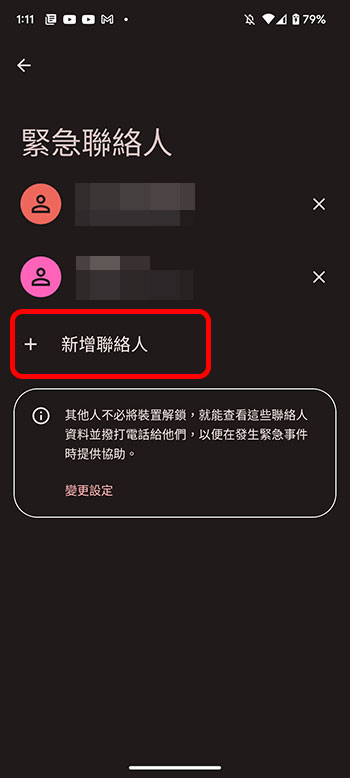
- Click “Add Contact” and select the people you want to add from the address book list. If the person you want to set is not in the address book, please add him to the address book before setting him as an emergency contact.
Emergency assistance and related function settings
After you set up the emergency contact, you can officially enter the emergency assistance function setting. Next, the author will tell you the important relevant function settings one at a time, so you might as well pick up your phone and follow along!
Turn on the “Emergency SOS” function
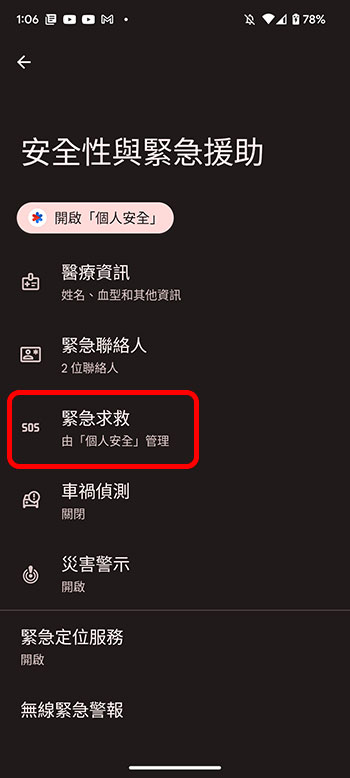
- Open the Settings app, scroll down to find “Security & Emergency Assistance”, and click “Emergency SOS” after entering.
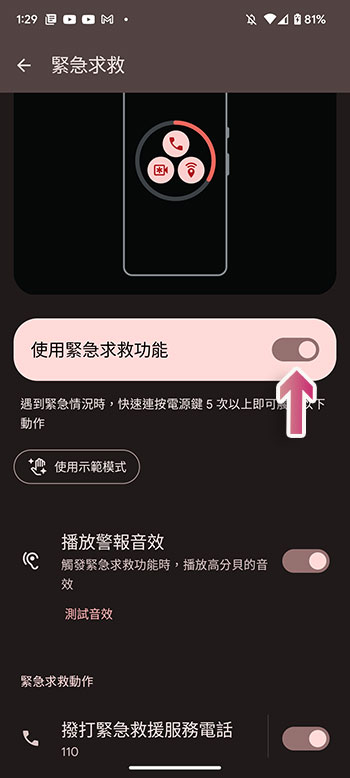
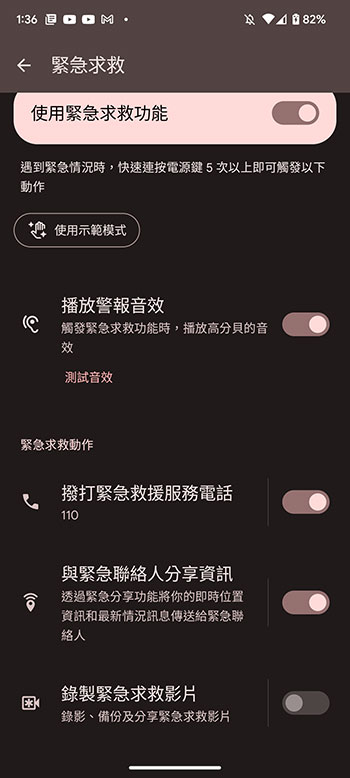
- Turn on the “Use Emergency SOS” switch. In the future, when you encounter an emergency, just press the power button more than 5 times quickly to trigger the action you choose in the next step.
- Next, you can customize emergency rescue actions, such as dialing emergency rescue numbers, playing alarm sounds, sharing location information with emergency contacts through text messages, recording emergency rescue videos, etc. We will mention some details later.
Share information with emergency contacts
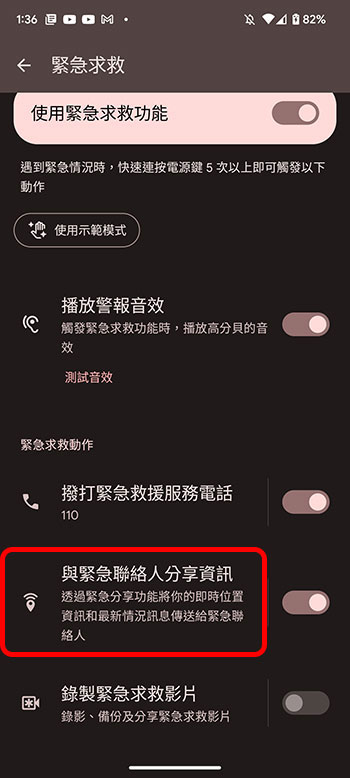
Another important feature in emergency services is sending status updates to emergency contacts. It sends messages to selected contacts about your current location, battery status, and when you started and ended phone calls. If you want to turn this feature on, you must first allow Google Maps and SMS to always see your location.
- Click “Share information with emergency contacts” in the “Emergency SOS” menu and start setting up.
- Next, you can choose the information you want to share, including general phone calls, emergency calls, low device battery, real-time location information, etc.
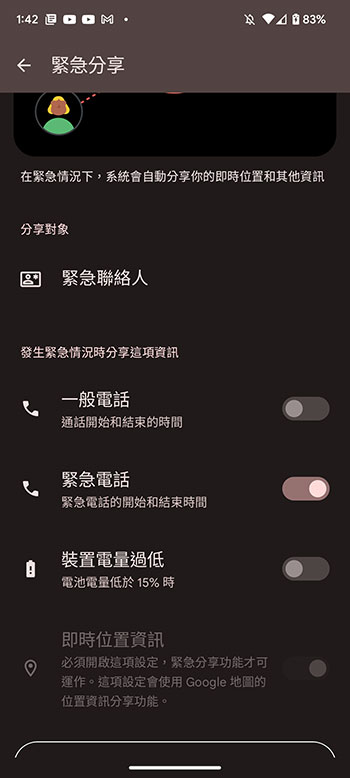
- If you want to share real-time location information, you must separately open the “Location Information Sharing Function” in Google Maps to enable it.
Record emergency video
When emergency rescue is triggered, your phone can use the selfie lens and rear lens to record videos for up to 45 minutes. You can still use your phone while recording. After the recording is completed, the video will be backed up to your personal Google account through Google Drive, so it is recommended that you set up your account in the Google Drive application before continuing with the following operations. In addition, you need an Internet connection to back up your videos.
- Click “Record Emergency Video” in the “Emergency SOS” menu.
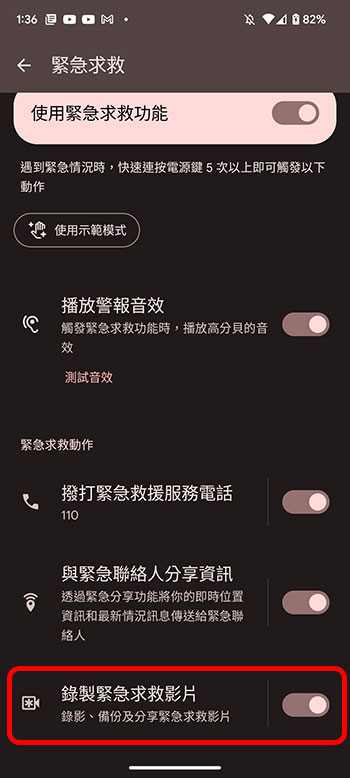
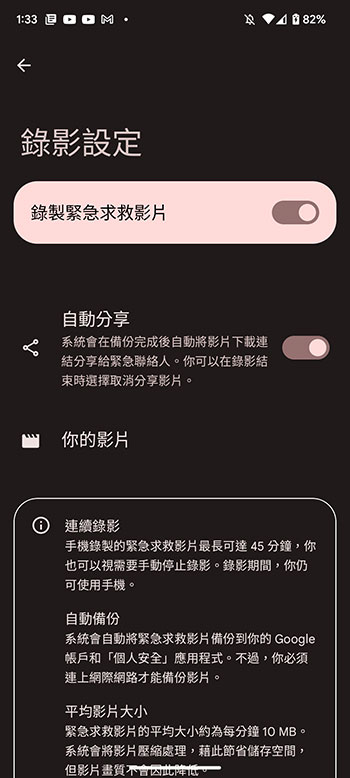
- Turn on the “Record Emergency Video” switch and turn on the “Auto-Share” below to automatically back up and share it with emergency contacts.
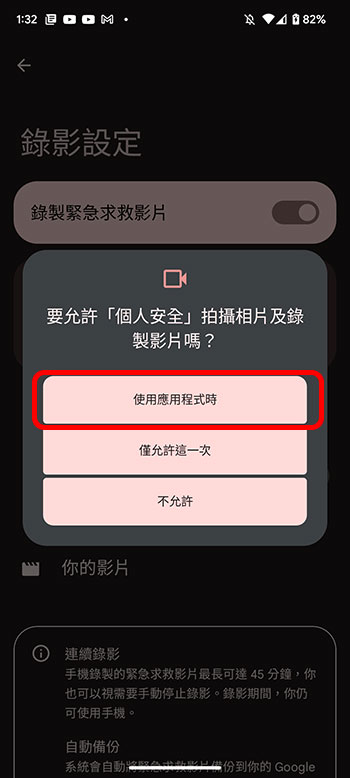
- Next click “While using the app” in the Permissions section to enable permission to record video and audio.
Enable additional emergency settings
Android also provides other advanced setting functions to improve security. The settings for these functions are also located in “Settings >> Security and Emergency Assistance” and can operate independently of emergency assistance. You can also enter your personal medical information such as blood type, allergy history, and medications so that medical personnel can view this important information from the lock screen during rescue.
Set up medical information
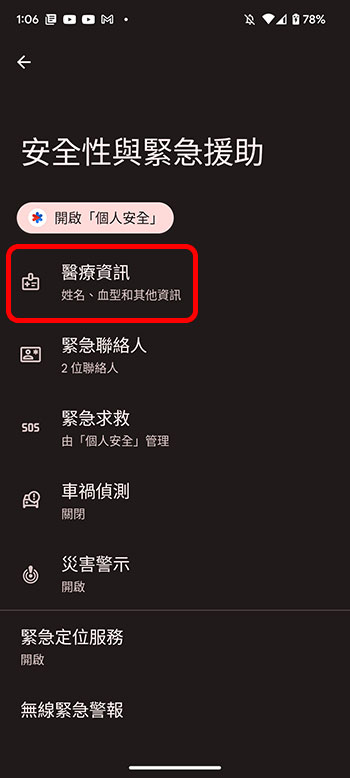
- Click on “Medical Information” in “Safety and Emergency Assistance”.
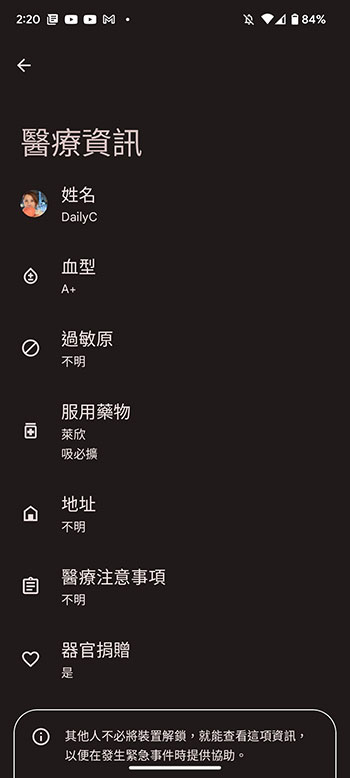
- On this page, you can click on each item to set more personal medical information. This information will only be stored on the phone itself and will not be shared with others or transferred to the cloud or remote servers, so it can be used with peace of mind.
Enable car crash detection
If you are unfortunately involved in a car accident on the road, but your phone may not be in your hand, Android can automatically detect a serious car accident and make an emergency call, and share your location with the emergency rescue center. In addition, there is a built-in 60-second countdown timer to prevent accidental triggering, so you don’t have to worry about making automatic calls at every turn.
- Click on “Car Accident Detection” in “Safety and Emergency Assistance”.
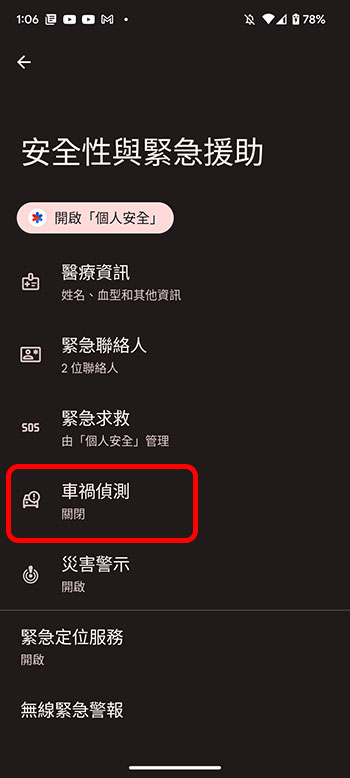
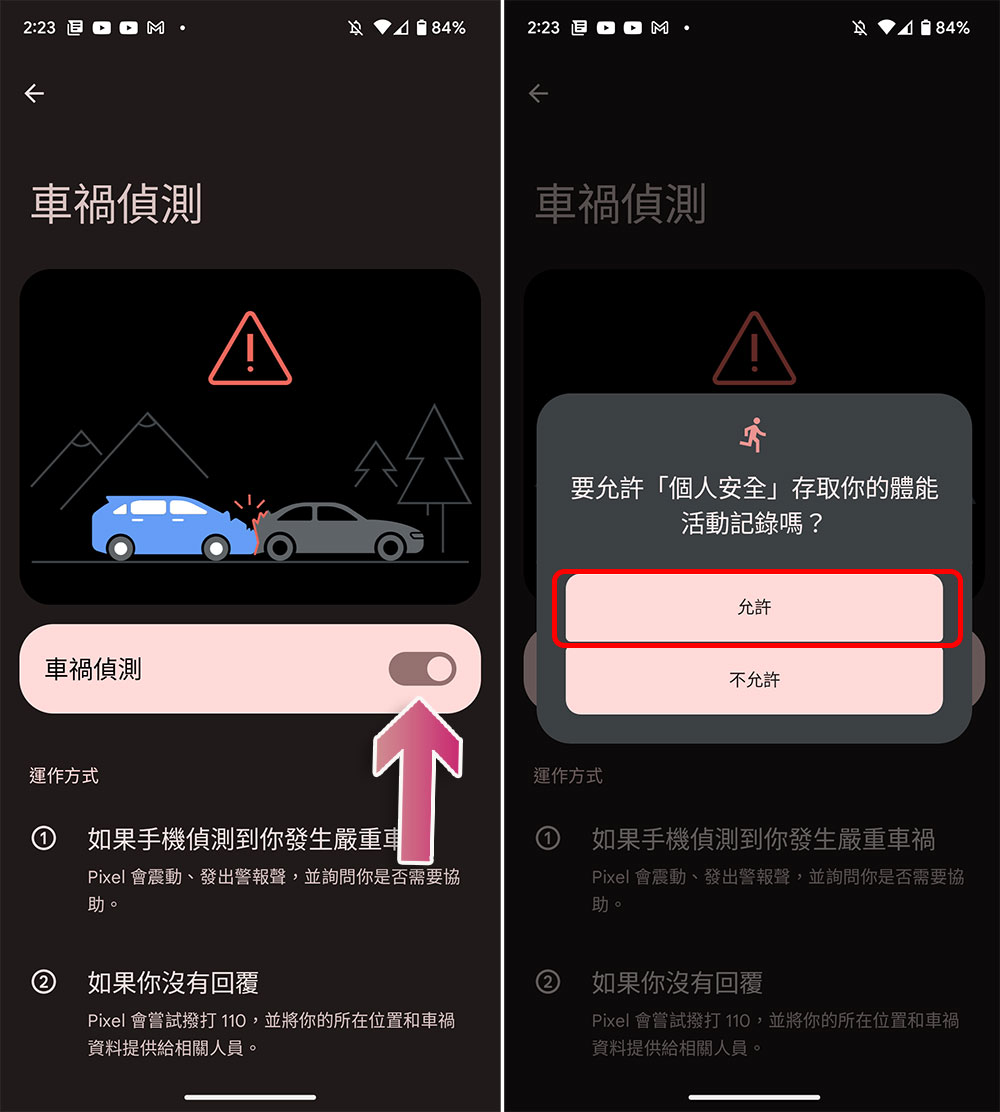
- Turn on the “Car Accident Detection” switch. The system will ask you whether to grant permission to access physical activity records. Please select “Allow”. In addition, you will also need to grant “Personal Security” location access permission, in which case please select “While using the application”.
What should be noted here is that just like Apple Watch cannot guarantee accurate detection and recording of every car accident, Android’s car accident detection is not 100% accurate, so the most important thing is to pay attention to driving safety yourself.
Source: KOCPC Chinese