


Bluetooth is a technology that we use every day and don’t even pay much attention to anymore. From headphones, keyboards, mice, to cars, speakers, smart watches, it is almost everywhere. In recent years, the transmission quality, stability and distance of Bluetooth have been significantly improved, but strangely, disconnection problems still occur from time to time, which is annoying. You and I must have encountered this: after putting down the phone for a while, the headset suddenly loses connection even though it has been paired successfully; or when the Windows computer wakes up from sleep, the Bluetooth device seems to have lost its memory and needs to be reconnected.
Why does your Bluetooth keep disconnecting? One setting helps you solve it
As smartphone screens become larger, functions become more powerful, and AI processing becomes more complex, battery life has become one of the most important optimization projects for various manufacturers. In order to extend the usage time, the Android system will implement various power-saving strategies in the background, including limiting application activities, reducing background synchronization frequency, and even actively putting certain system services into hibernation when it detects that the device is idle.
Here’s the problem: Bluetooth services are also included in these “optimizations”. In other words, even if you have paired headphones or speakers, as long as the phone determines that you are not using Bluetooth for the time being, it may automatically downgrade the Bluetooth service, hibernate, or even directly interrupt the connection. This is why your headset suddenly disconnects after you put your phone on the table for ten minutes; or why your Windows computer goes to sleep and the Bluetooth keyboard never wakes it up.
The good news is that Android actually provides a way for you to exclude Bluetooth from the power saving mechanism. The following is an example of a Google Pixel phone. Different brands of Android phones may have slightly different paths. Regardless of the path, the purpose is the same: to prevent Bluetooth services from being forced to save power by the system:
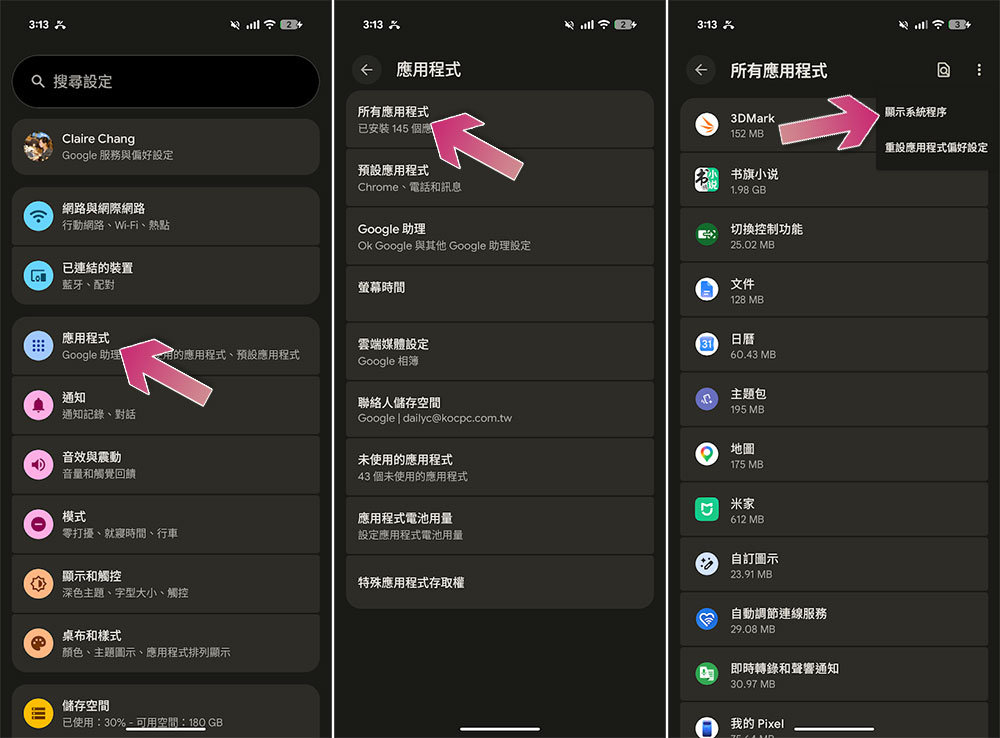
- Open “Settings”
- Enter “Application”
- Click “All Apps”
- Open the menu in the upper right corner and select “Show system programs”
- Find “Bluetooth” and click on it
- Click “App Battery Usage”
- Turn on the “Allow in background” switch and click the arrow to see more options
- Change the option from “Optimize” to “Unrestricted”
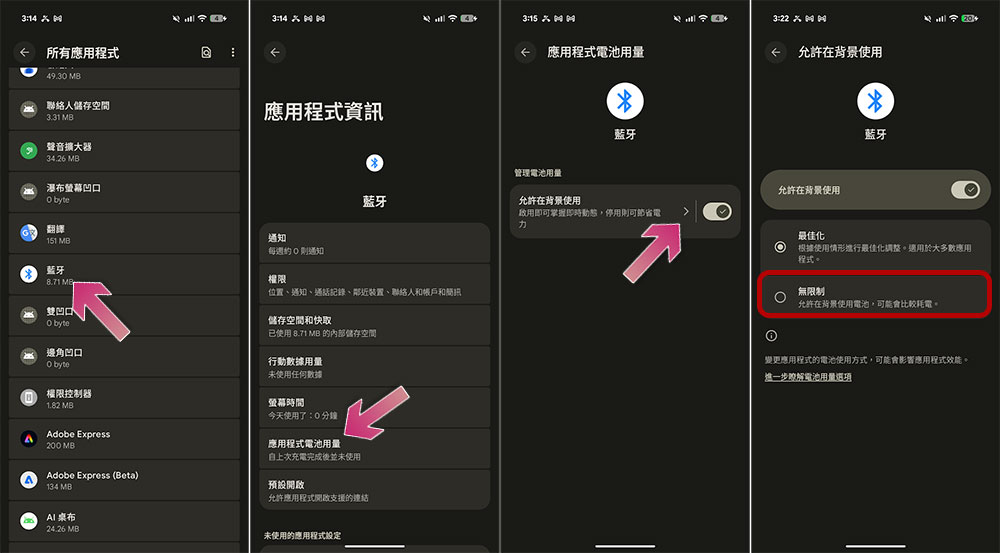
After the setting is completed, the system will no longer treat it as a background service that can be hibernated, but will keep it running stably. This can usually effectively reduce disconnection, delay, re-pairing and other problems, especially for devices that need to stay connected for a long time, such as Bluetooth headsets, smart watches, Bluetooth keyboards and mice, the improvement effect is very obvious. Of course, this adjustment may slightly reduce battery life, but the impact is usually very limited. For most people, a stable Bluetooth connection is more important than a little more power.

Android does a good job in battery management, but sometimes its “over-zealousness” can cause trouble in use. As long as you make this small adjustment, your Bluetooth device can remain stable and uninterrupted, and the overall user experience will be much smoother.
Source: KOCPC Chinese