


When surfing the Internet, when they see a good picture, or need it for work or homework, most people should right-click to open the menu, and then click the download function. If you want to speed up this operation process, the Double-click Image Downloader extension recommended in this article can realize it. You can now double-click the picture with the left-click. And the best part is that originally, the right-click can only download images in WebP format, and it will be automatically converted into JPG.
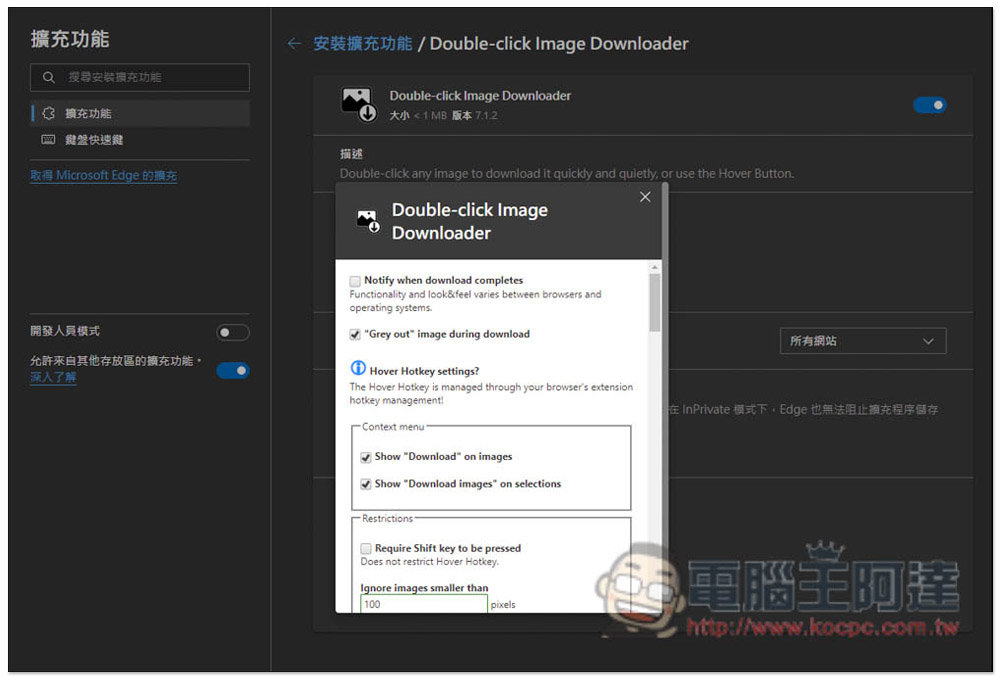
Double-click Image Downloader extended function, you can quickly download and collect web images with two clicks
Although Double-click Image Downloader is a Chrome extension, it can also be installed and used in Microsoft Edge, so if you are a friend who uses Edge, you can also refer to it. I will use Edge as an introduction example below, and the operations are the same.
After entering the Chrome Store, click “Add to Chrome” in the upper right corner to install:

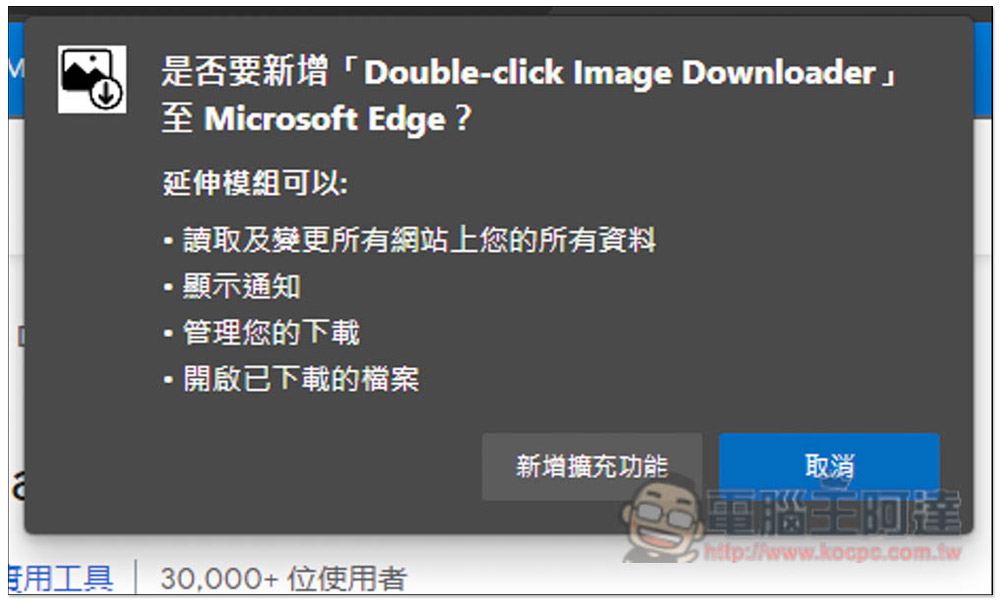
This window will pop up above, please click “Add extension”:
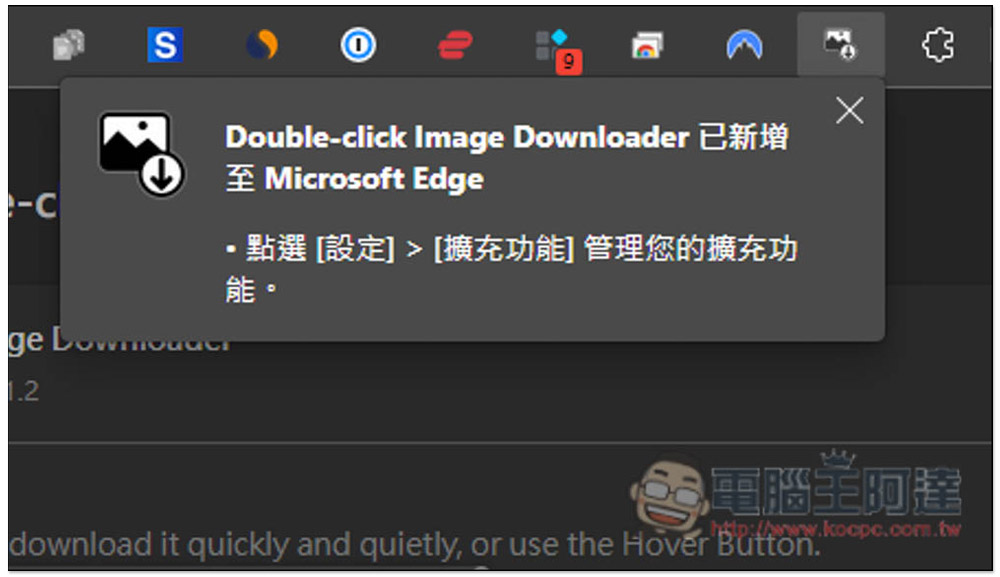
Displaying this message means that the installation is complete, and then the icon will be hidden. Basically, there is no need to open the display. You can now download the image with two clicks of the mouse:
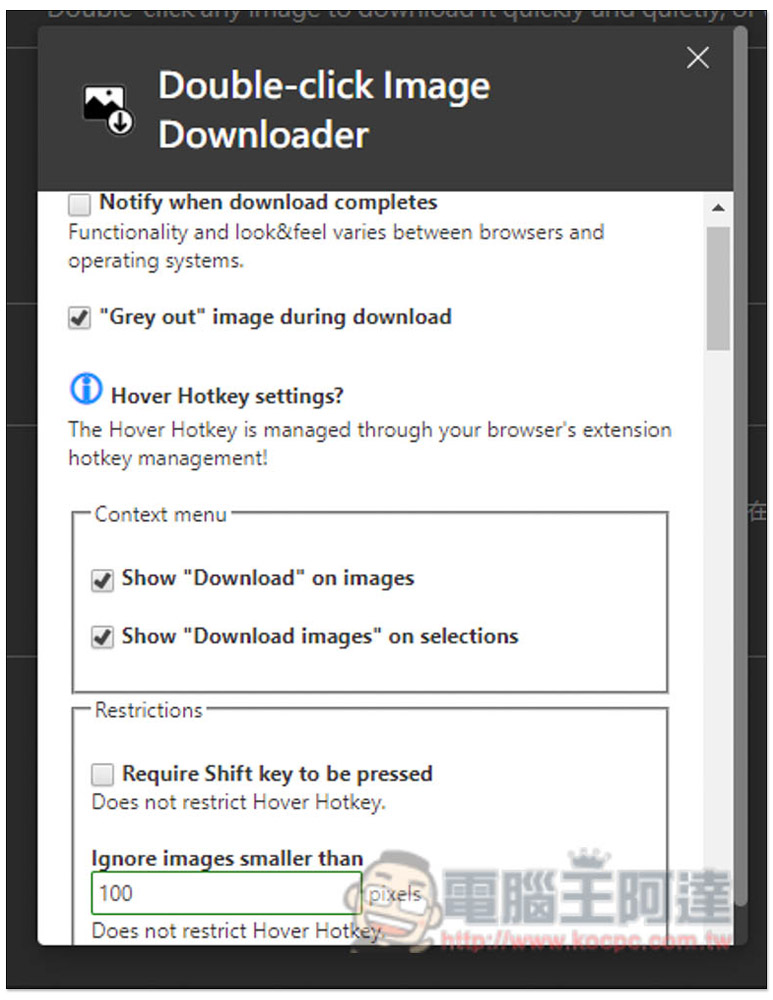
There are some settings in the extension options that can be adjusted, such as notification after downloading, ignoring the size of the image (default is 100), etc.:
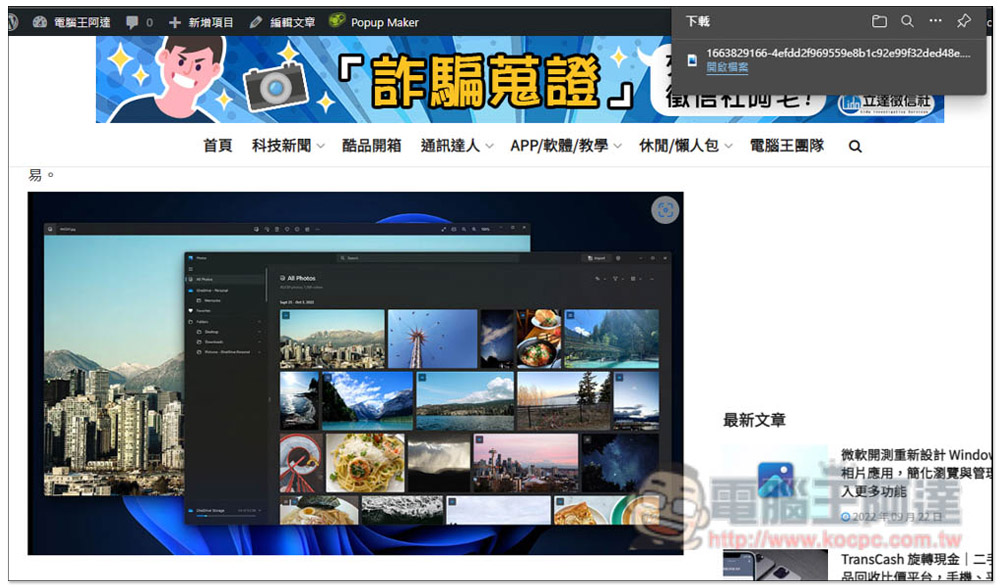
Then after you find any picture you are interested in, just click the left mouse button twice directly above the picture, and you will see that the download has started. There is no need to open the right-click menu. The operation is very convenient, especially for people who often download Internet pictures, it saves a lot of time:
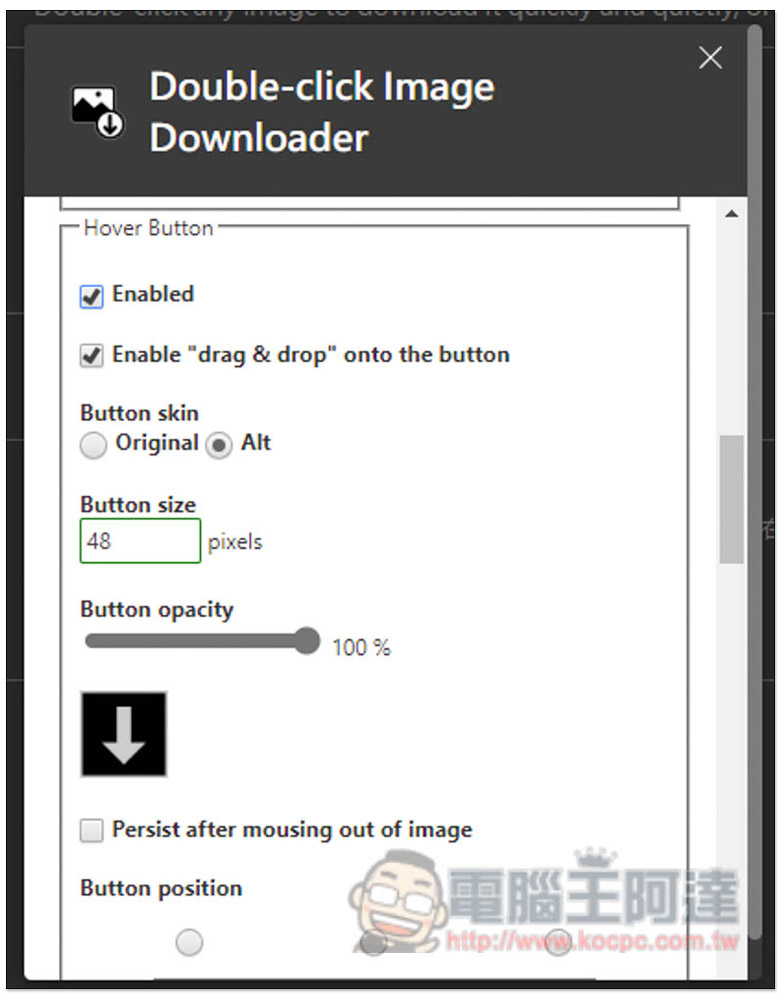
In addition, if you feel uncomfortable clicking twice, this model also provides the function of displaying the download icon. Open the extension options, scroll down to find the Hover Button, and check Enabled. You can adjust the rest, such as: button appearance, button size, transparency, button position, etc.:
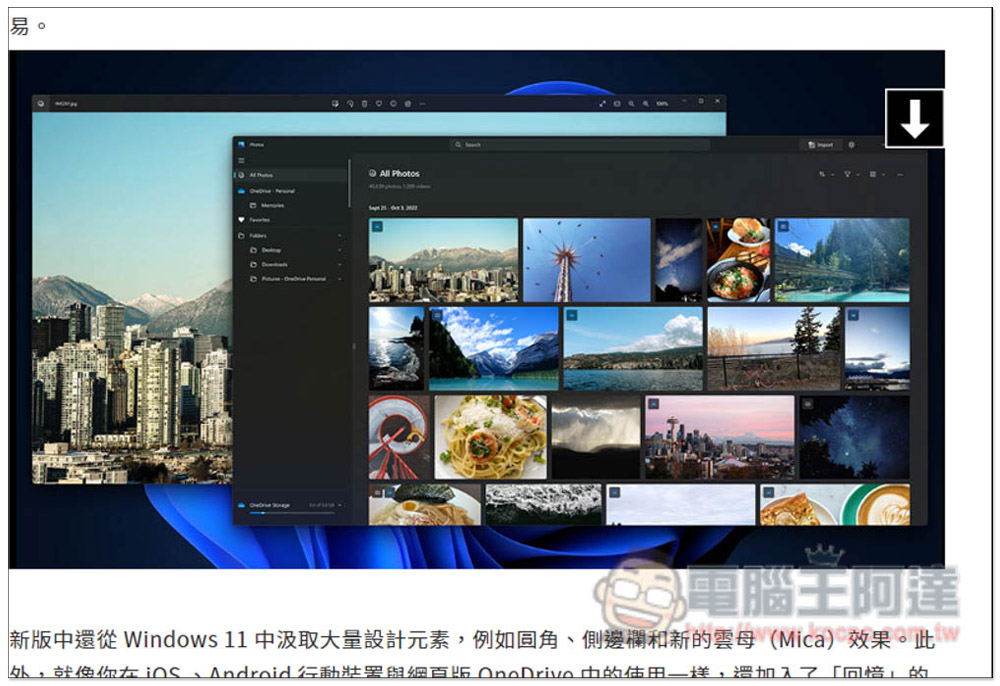
After opening, move the mouse over the image, and a download icon will be displayed next to it. Clicking it will start downloading. This also means that you can click the download icon once, or click twice directly above the image to download the image:
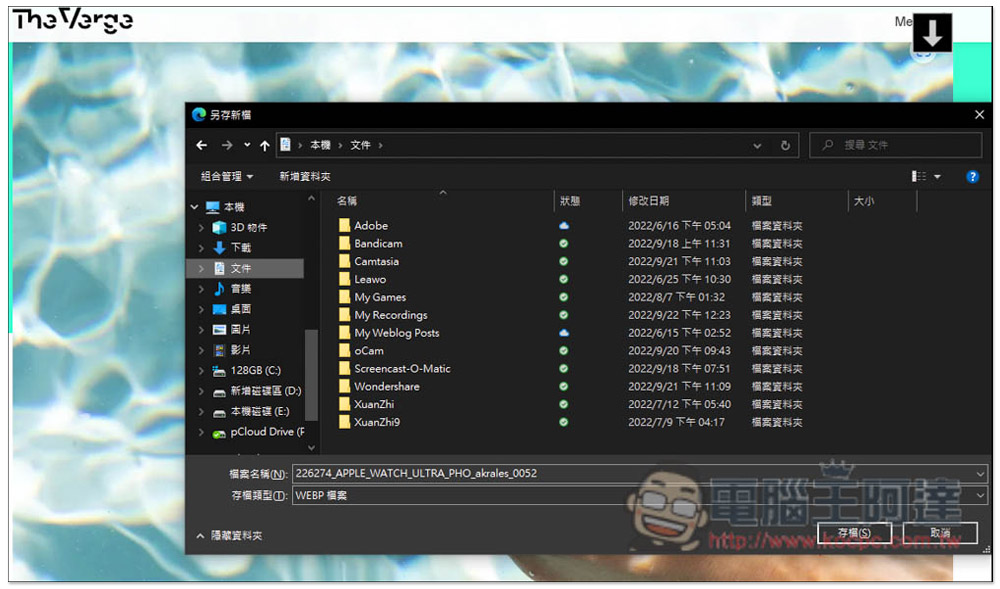
This picture can only be downloaded in WebP format by right-clicking. You can directly download JPG using this extended function:
But what’s a pity is that when I tested it, Instagram didn’t support it, but Facebook had no problem.
If you are looking for an image download extension plug-in that can also download Instagram, we have previously recommended another image-picker that is also good and supported by almost all websites.
Finally, I would like to remind you that when using online images, please pay attention to copyright issues. If you want to use them for commercial purposes, remember to find ones with free authorization. Do not download them casually and use them casually. It is very likely to infringe copyright. This is a legal issue.
For free pictures, you can refer to what we have introduced xFrame、Foter、skitterphoto、KissCC0、Pixel Mob、PAKUTASO etc.
Source: KOCPC Chinese