


Apple’s iOS 16 is officially released. After installation, you will find many new features you like, such as the return of battery percentage, editing and canceling messages, etc., but there may be some features you don’t like or are not interested in. So this time the author has sorted out three features that are obviously new but not very popular, and will also teach you how to turn them off.
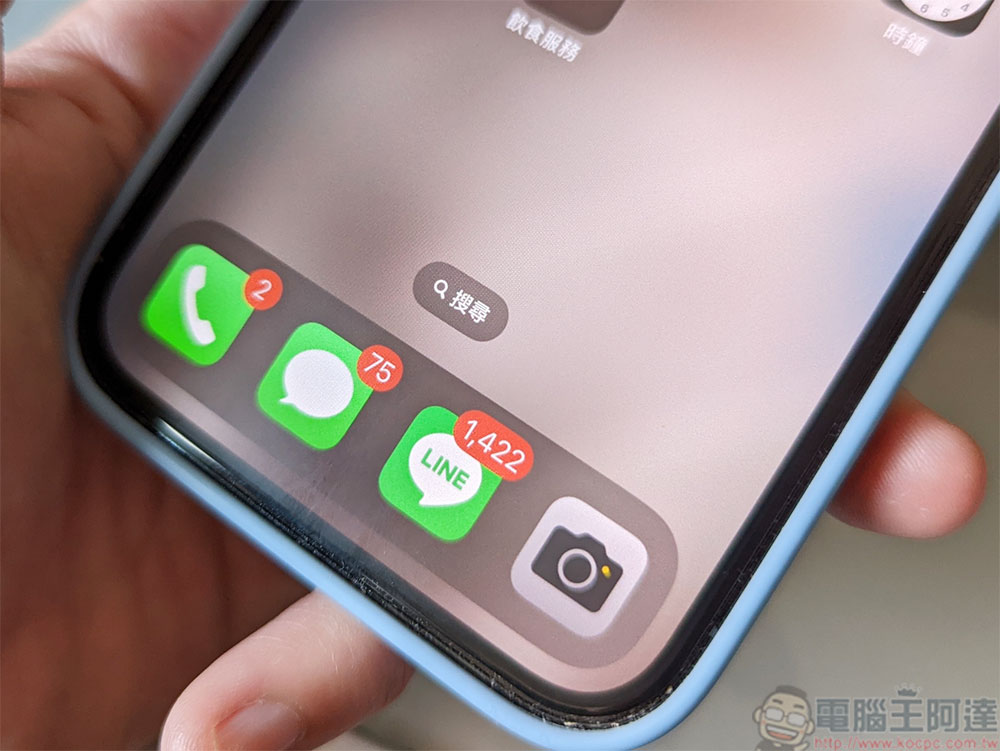
New gadgets are not necessarily easy to use. Three features you will want to turn off after updating to iOS 16
There are many new things added in iOS 16, and of course there are some parts that people don’t like, such as the search button on the main homepage that is easy to accidentally touch, the small personal photo window that pops up unexpectedly, etc. Fortunately, the three unpleasant features listed today can all be turned off manually. Follow me and turn them off!
Prevent personal photos and videos from popping up unexpectedly
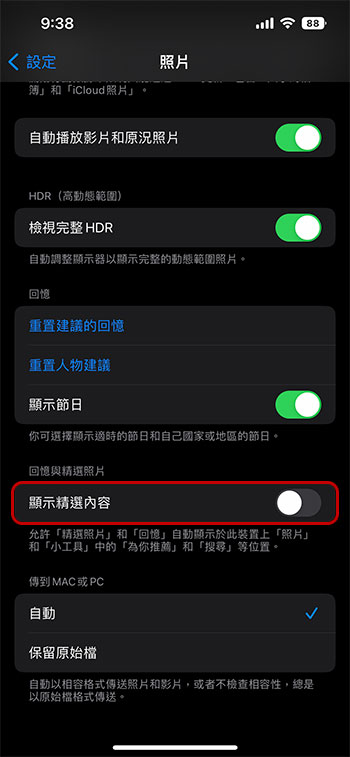
Apple’s AI helps display photos and videos in various places on iPhone. AI thinks that you should want to see these photos about family outings, couple photos, etc., but you may not want it to pop up at any time and catch you off guard. Sometimes it is quite embarrassing at the wrong time. In iOS 16, you can now prevent these Featured Photos and photos called Memories from appearing in the Photos widget on the Home screen, as well as in the Search and Recommended for You sections of the Photos app.
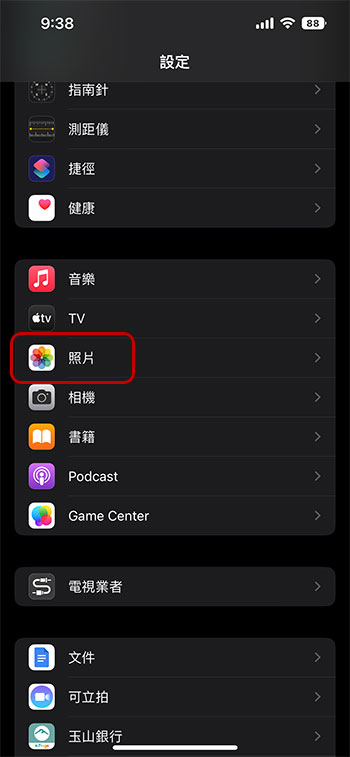
- Open the Settings app and scroll down to find Photos.
- Scroll to the bottom and turn off the “Show Featured Content” option, so that all the featured photos will not be displayed elsewhere on the device, but will only be visible in your photo gallery and album.
Prevent accidental interruption of calls by accidentally touching the side button
The power button on the side of the iPhone allows you to quickly sleep or wake up the phone, but if you accidentally press it during a call, the phone will end the call on its own initiative. If this has happened to you before, with iOS 16 you can finally turn off this quick keystroke feature to avoid it happening again.
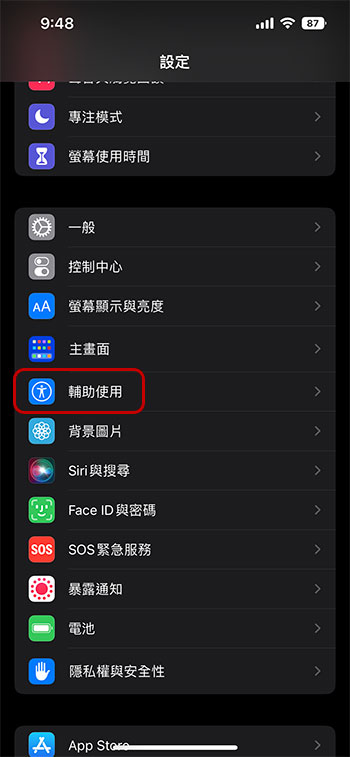
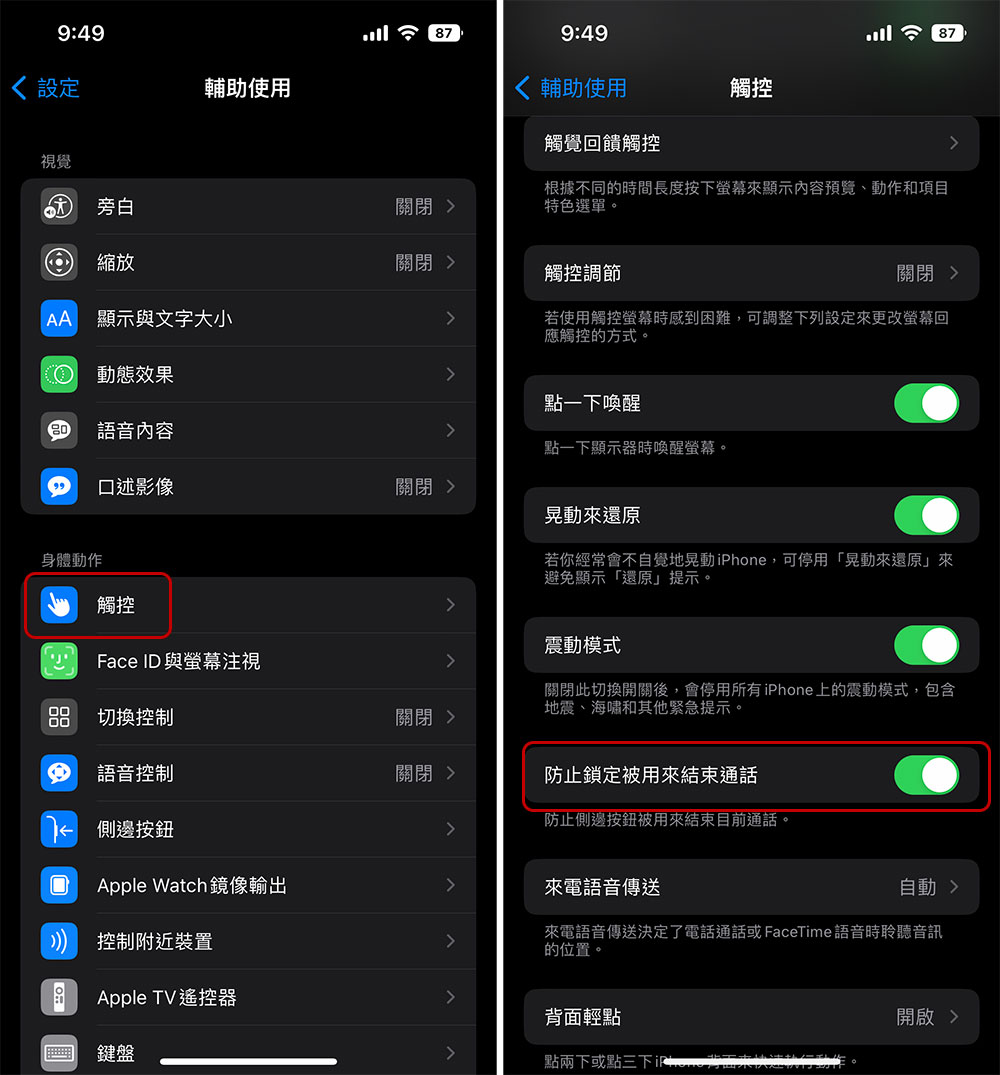
- Open the “Settings” app and click “Accessibility”.
- Go to “Touch” and turn on the “Prevent lock from being used to end calls” switch (turns green).
Take the search button off the home screen
The “Search function” on iPhone allows you to quickly find what you need, whether it is text messages, third-party applications, files, notes, and locations. You can find almost everything on the device and on the Internet, and you can easily find it. Just swipe down anywhere on the screen to call it up. iOS 16 also adds another way to access Search from the home screen, just click a small button just above the bottom row of Dock. Annoyingly, it’s extremely easy to accidentally touch because it’s so close to your thumb when you swipe between homepages. Fortunately, iOS 16 provides the option to remove it.
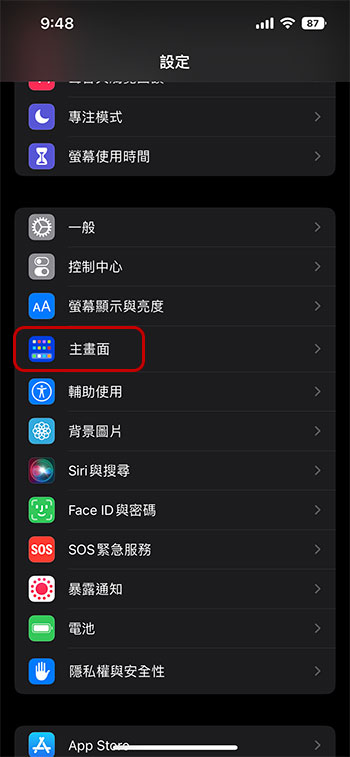
- Open the “Settings” app and click to enter the “Home Screen”.
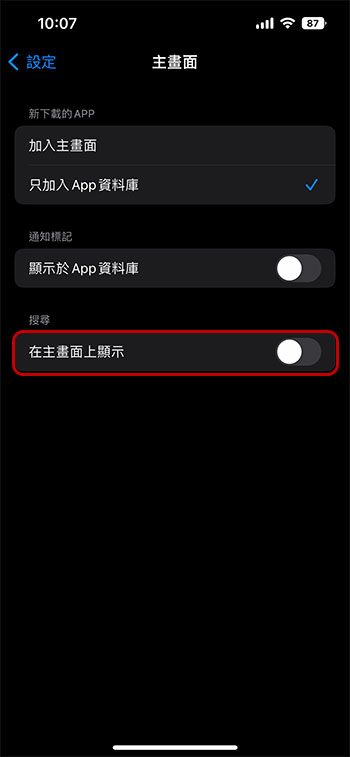
- Turn off “Show on home screen” to prevent searches from being displayed in an eye-catching and accidental location.
Source: KOCPC Chinese