


On Windows systems, everyone is familiar with using “Ctrl + C” to copy text or images, but you may only know that after copying, you must quickly paste it on the target, otherwise it will be overwritten by the next copy. If you are a Windows 11 user, you don’t have to worry about this, because the system has built-in clipboard history. Don’t you know how to use it? Then you have to learn it this time!
How to enable and view clipboard history on Windows 11 to be more productive
The built-in clipboard history function of Windows 11 is actually super convenient. As long as you copy it once, it will be temporarily stored in the record. You can go back and copy the content at any time. You don’t have to worry about forgetting to paste it by mistake and copying something else over it. Especially when writing assignments and reports, there will always be some long proprietary names or uncommon English words. It is particularly convenient to quickly find and copy.
Enable clipboard history on Windows 11
Before using the recording function, you must manually turn it on. The steps are simple:
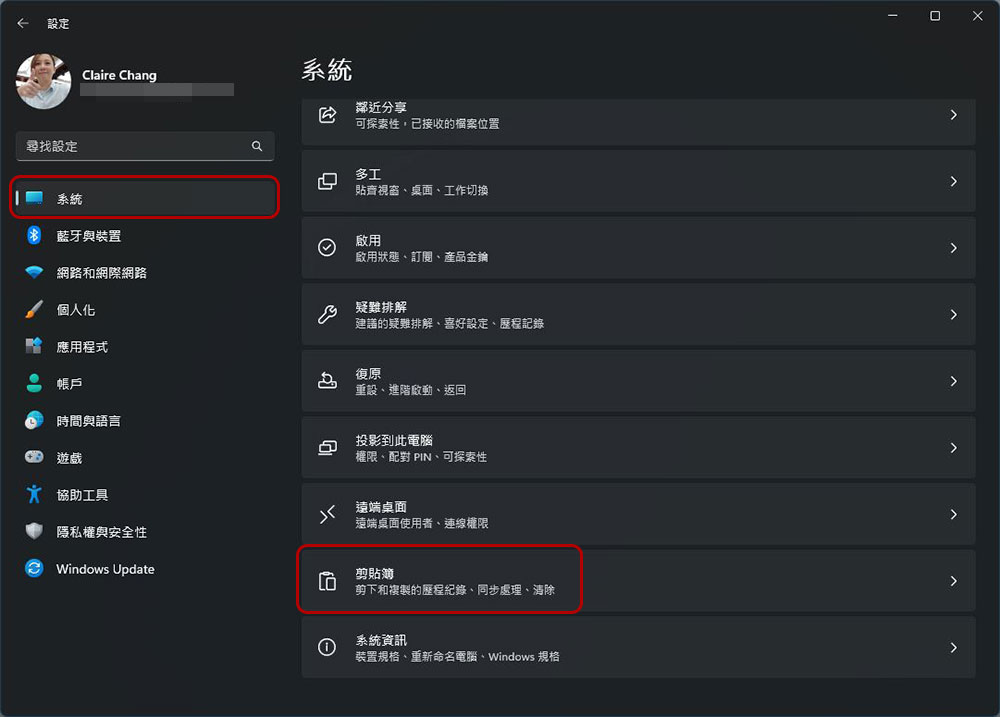
- Open “Settings”, enter the “System” tab, scroll down to find “Clipboard”.
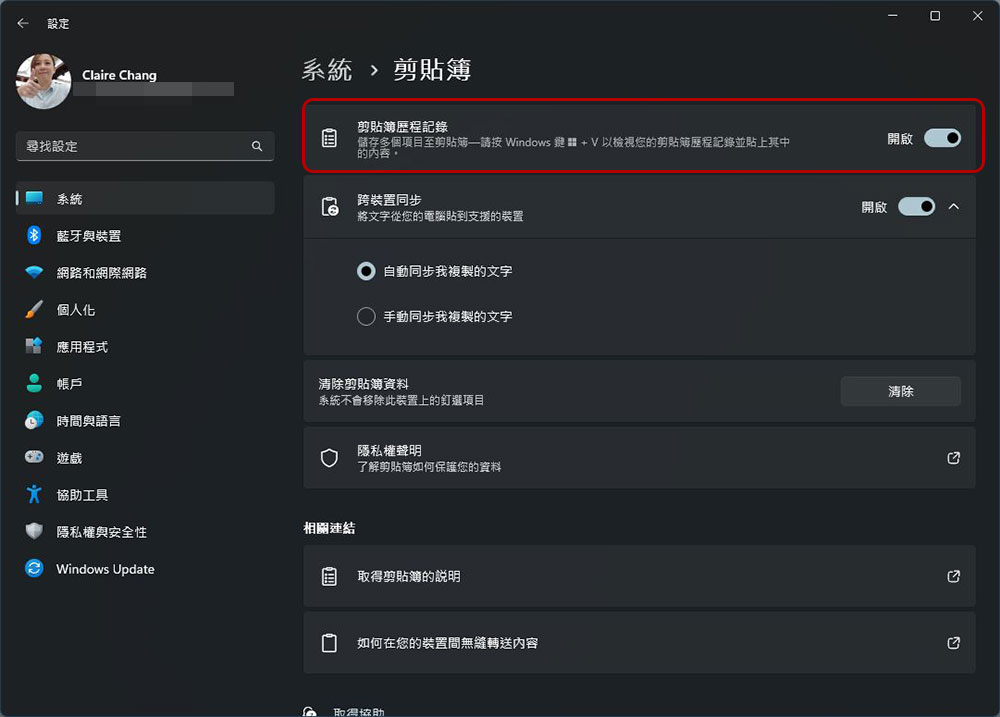
- After entering, turn on the “Clipbook History Record” option. If you have multiple devices, it is recommended that you also turn on the “Cross-device synchronization” below so that you can access the same content on different devices, and then choose whether to synchronize automatically. In addition, if you want to clear the clipboard records, you can also do so from this page.
View and use clipboard history
Although you have turned on this feature, I would like to remind everyone that the support for copying images in the clipboard history in Windows 11 is limited to specific applications, such as Microsoft Edge, the built-in screenshot tool, etc. You can still right-click and select copy from the function according to your personal preference, or use the keyboard shortcuts “Ctrl+C” or “Ctrl+V” to copy and paste the selected text or image. The method of calling and accessing the clipboard history is also very simple:
- After turning on the clipboard history, you only need to press “Win + V” to bring up a small window to view the previously copied content. After selecting the content you want to access, go to the destination and press “Ctrl + V”.
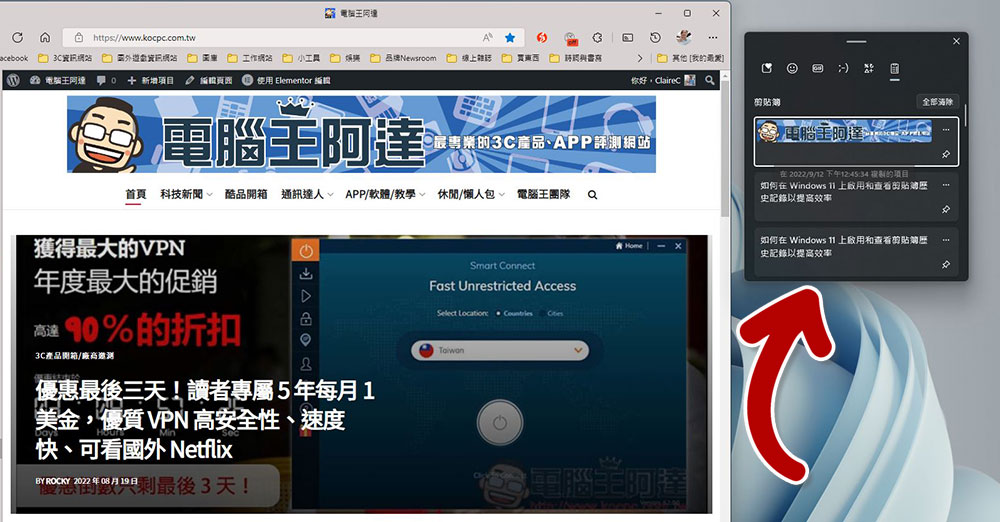
- If you want to keep a piece of content in the clipboard history, just click “Pin” (the pushpin icon) below the piece of content.
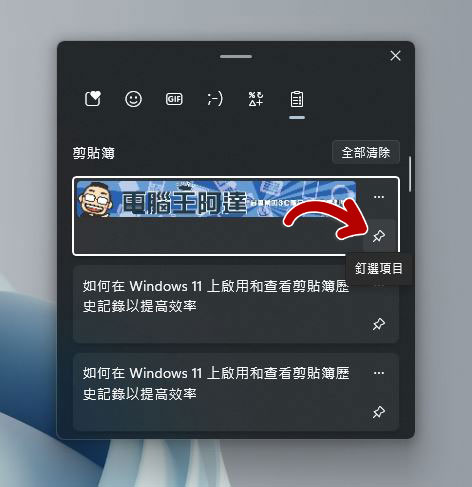
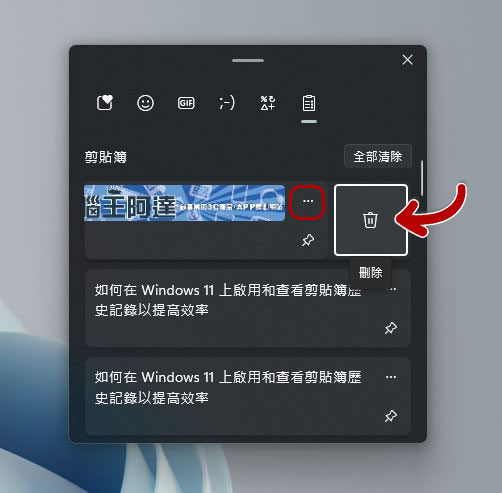
Although there is a “Clear All” button above to clear the clipboard history, if you only want to clear a specific record, just click the three-dot menu to the right of the data and then click the trash can icon to complete.
This function is really convenient, I can’t be the only one who knows it (?), especially when writing articles related to conferences. Sometimes manufacturers have long names for their products, and it would be really tiring to type them repeatedly, so I always use this method to quickly access it without having to copy it over and over again, which is more efficient with half the effort!
Source: KOCPC Chinese