


The “Control Center” on iPhone is a very convenient feature that allows you to quickly access some of the most important controls on your phone, including airplane mode, focus mode, flashlight, volume, WiFi, Bluetooth, and screen brightness. In addition to the presets, you can also add other commonly used shortcut keys. If you suddenly find that the control center panel on your iPhone cannot call you, don’t panic, follow us to eliminate the obstacles.
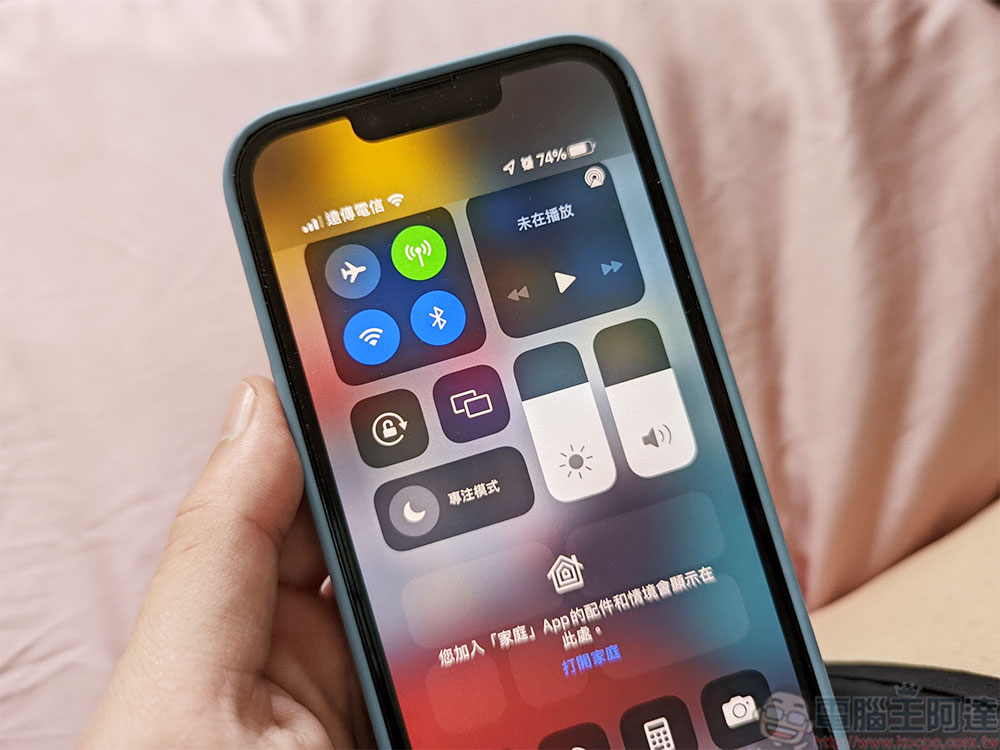
Can’t call the Control Center panel on your iPhone? How to solve it? See here!
How to use Control Center might be a little different depending on what model of iPhone you have. If you’re using an iPhone
Why is Control Center not working on my iPhone?
Because the control center is so convenient, sudden failures are always troublesome. Let’s first take a look at some common reasons why iPhone Control Center suddenly gets stuck or becomes unusable:
- The touch screen sensor may be faulty.
If your iPhone’s screen sensor is damaged, parts of the screen will become unresponsive, which may be what’s preventing you from swiping out of Control Center. - iOS did not download or install correctly.
If your update process is interrupted or incomplete, some actions on your iPhone including Control Center may not work properly. - System error.
Although iOS is very complete, it is still not immune to glitches, and these glitches are likely to be the culprits that cause the Control Center to get stuck or frozen. - Access permission is closed.
This feature is enabled by default, but if you accidentally disable it, Control Center won’t work properly when you’re not on your iPhone’s Home screen or Lock screen. - You have turned on VoiceOver.
VoiceOver is an accessibility feature that speaks aloud what’s on your screen and changes how some features, including Control Center, work.
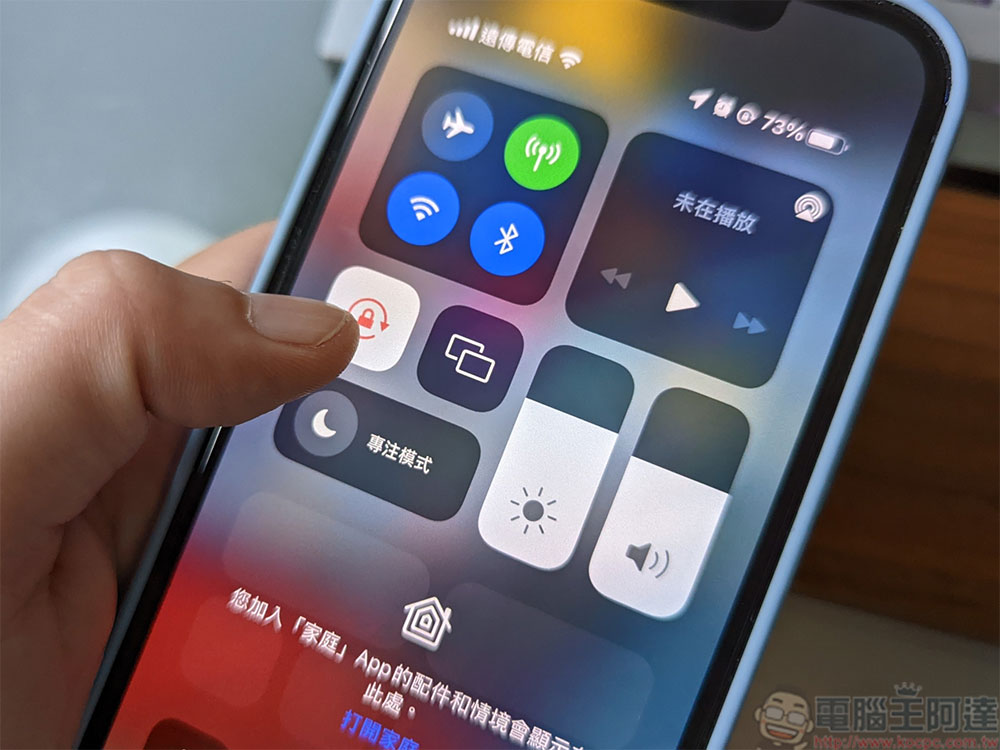
How to fix Control Center that won’t slide up or down?
After understanding the possible causes, let’s try these fixes:
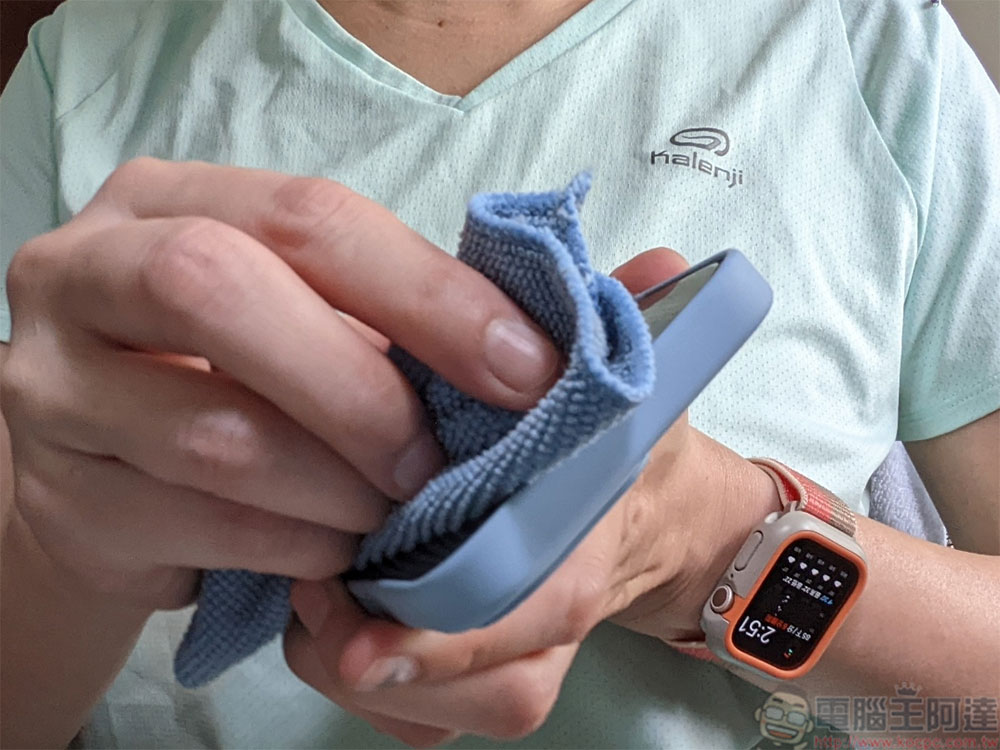
- Clean iPhone screen
This isn’t the most technical fix, but sometimes dirt or liquid on the screen on your iPhone can make the controls unresponsive to touch, thus causing the Control Center to freeze or freeze. Please clean it with a microfiber cloth at this time. If you want a more thorough cleaning, you can remove the screen protector and phone case and try again after cleaning is complete.
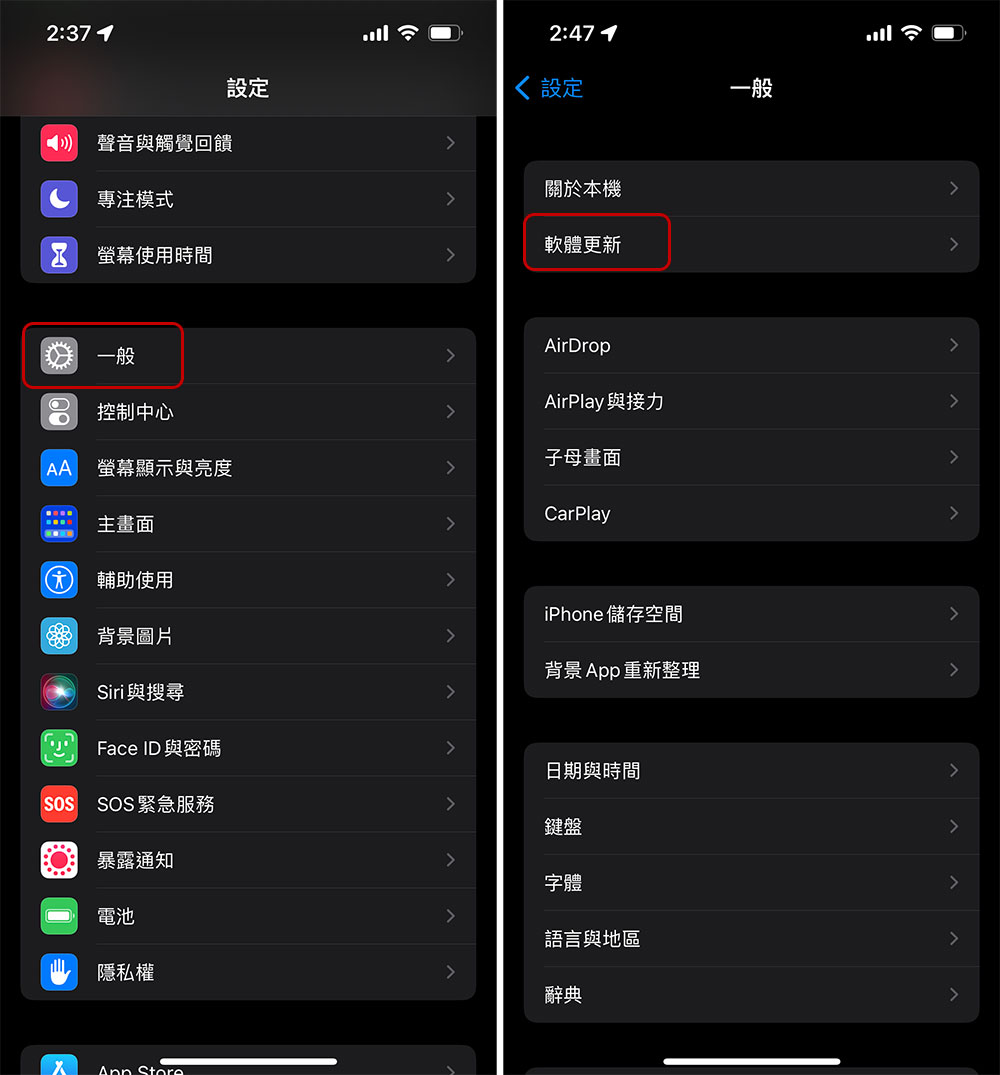
- Update to the latest version iOS
Updating your iPhone will fix glitches and bugs that can cause Control Center to malfunction, and thankfully, updating to the latest iOS version is easy, right from Settings.
- Turn on Access in App and access when screen is locked
You can go to “Settings >> Control Center” and turn on the “Access in App” item.
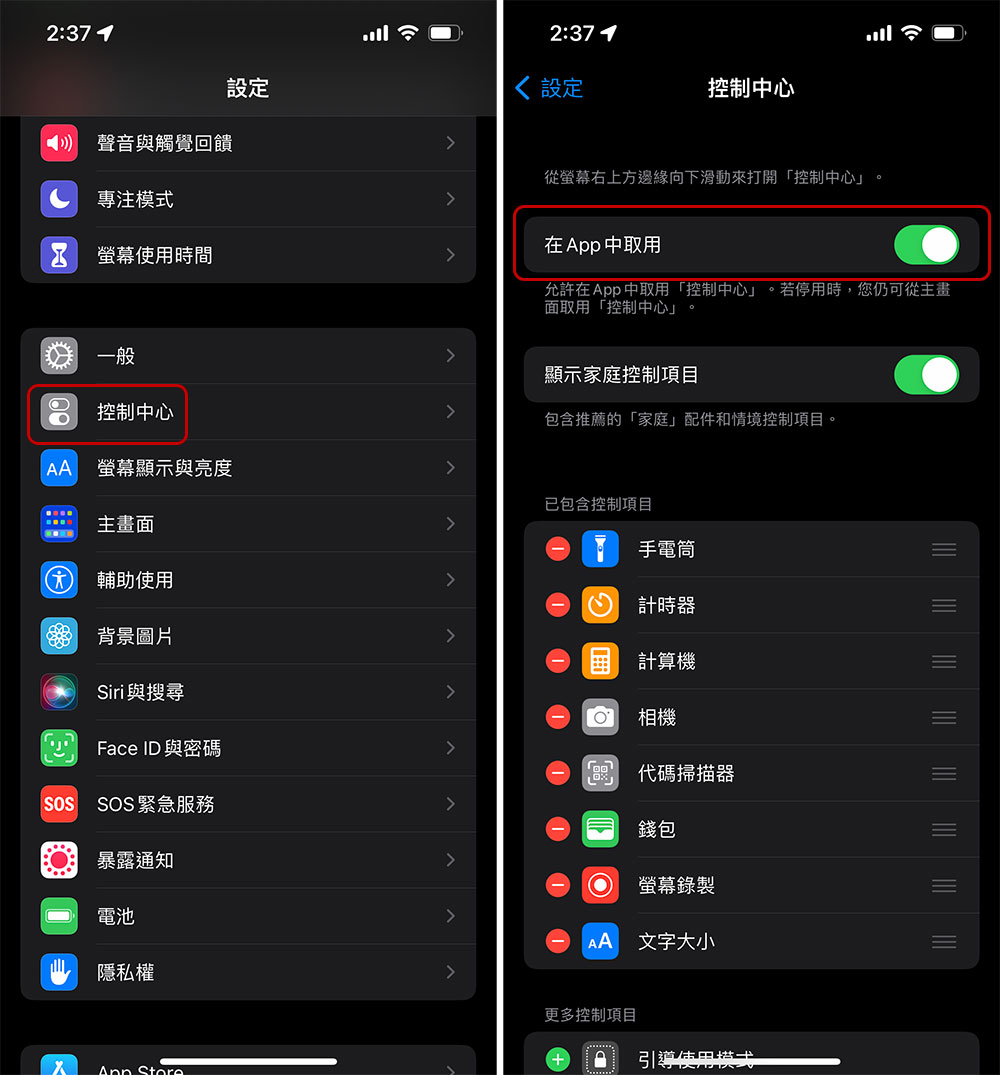
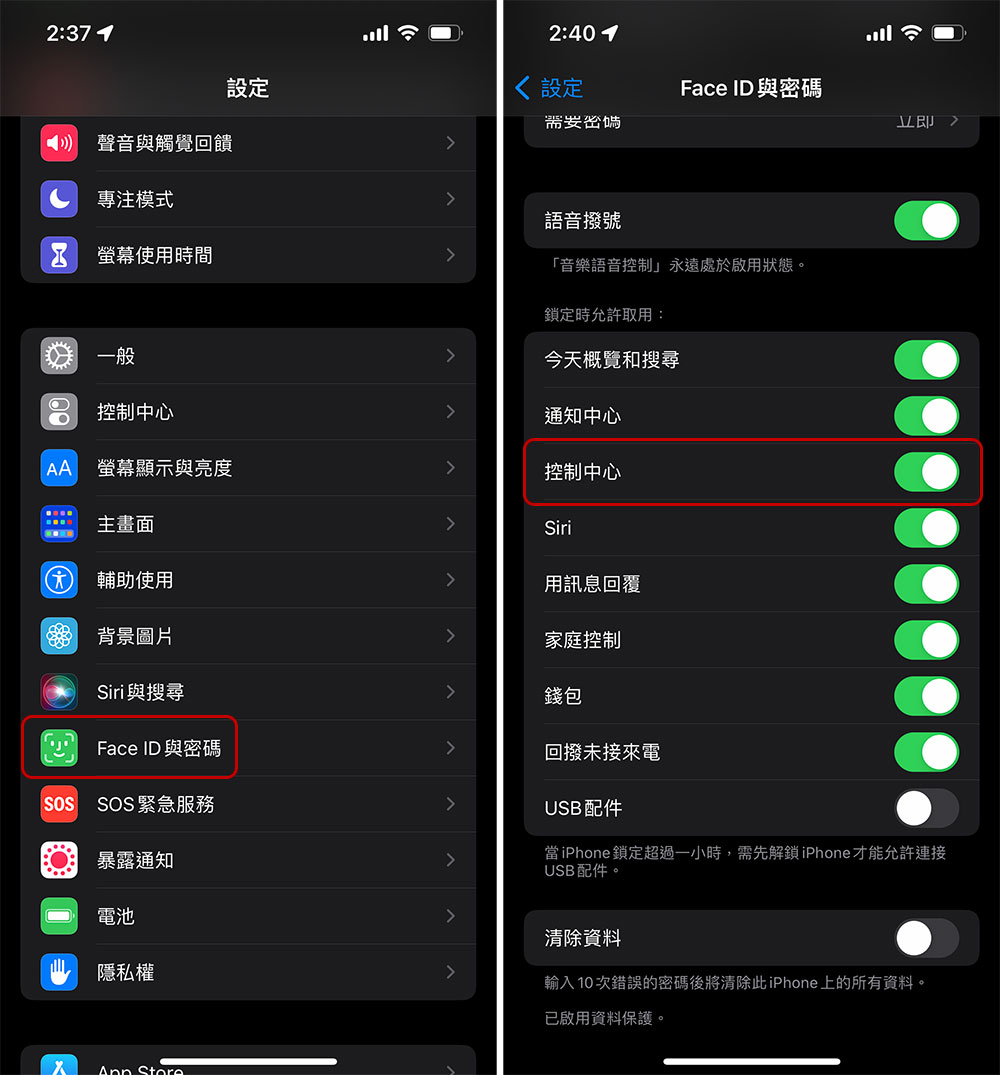
If you encounter a more specific control center failure when the iPhone is locked, you need other repair methods. At this time, you can go to “Settings >> Face ID and Password”, enter the password, scroll to the bottom of the page until the “Allow access when locked” item, and turn on the “Control Center”.
If it still doesn’t work, try more fixes
If you have tried the repair method in the previous paragraph and still cannot restore access permission to the Control Center, you can try the following steps:
- Turn off Narration
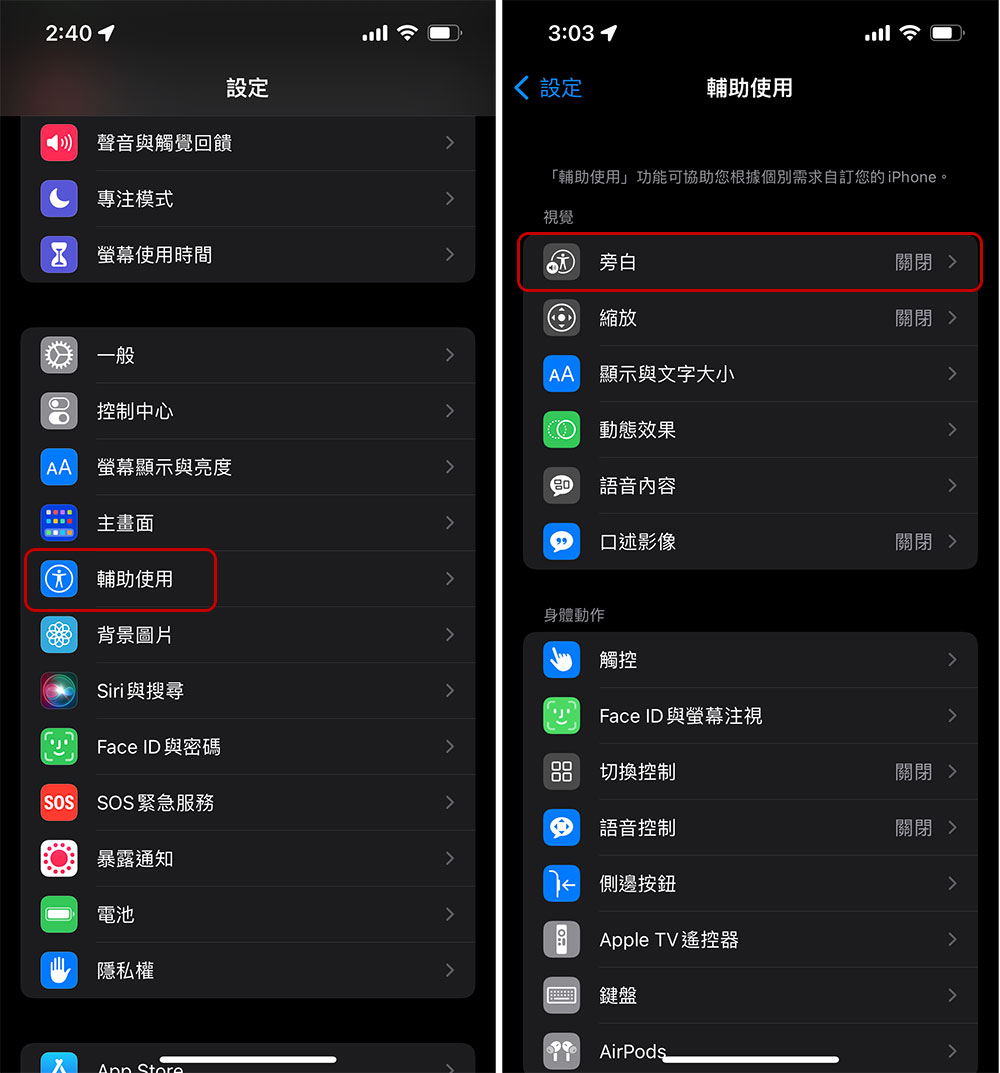
If you accidentally turn on this feature, it will affect your use of the Control Center. You can go to “Settings >> Accessibility” to turn it off. Please note that when the narration state is enabled, if you want to open “Settings” by touch, you must double-click the application icon. If “narration” is very important to you, then you can press and hold the time at the top of the screen until the time is framed by a black frame, and then swipe up from the bottom of the screen with three fingers to open the Control Center.
- Reboot
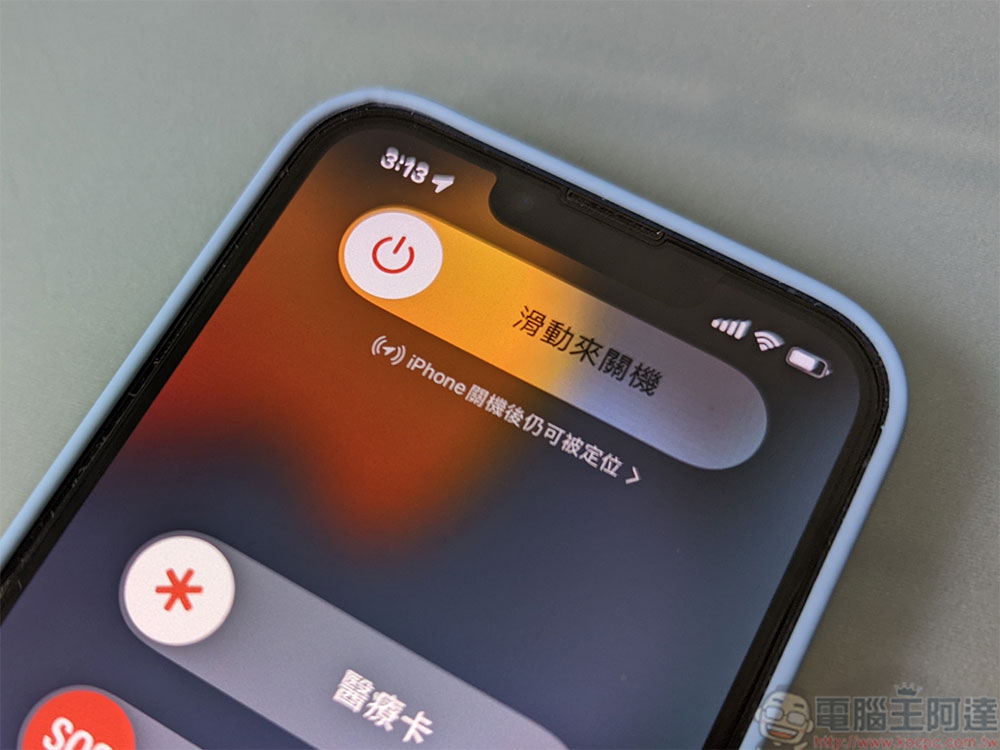
Restarting your iPhone can resolve most basic performance issues almost easily. If you want to restart iPhone 8 and older models, press and hold the power button on the side until the slider appears, slide it to turn off the phone, then wait for it to completely shut down before restarting. For iPhone
You may need to try a variety of fixes to regain access to Control Center and have all of your most-used settings at your fingertips again. If none of the above suggestions work, then you should send your iPhone to an authorized repair center or an Apple direct store for assistance. Since the Control Center is likely to be caused by a screen failure or software defect, these problems still need to be handled by professionals.
Source: KOCPC Chinese