


Modern people are very accustomed to taking pictures with their mobile phones to record various details and fragments of life, such as cute moments of pets and children, souvenirs of delicious food and beautiful scenery, etc. However, accidental deletion of photos on iPhone is a common thing, especially if you plan to share multiple photos at once but choose to delete by mistake, you will inevitably feel like “it’s over”. Today I will tell you how to view deleted photos on iPhone, and how to completely delete photos to free up space.

How to view deleted photos on iPhone? How to completely delete photos?
Apple states in its support document that recently deleted photos will not disappear from the iPhone immediately. Instead, they will be transferred to the “Recently Deleted” folder in the “Photos” app. This folder will retain the photos, videos and screenshots you deleted in the past 30 days. Unless you have turned off iCloud photo synchronization and performed a recent iCloud or iTunes backup, these image data will be permanently deleted once it exceeds 30 days.

In special cases, you won’t be able to retrieve deleted photos. For example, if you accidentally delete a photo that someone else sent you in a text message but was never actually saved in the Photos app, the photo will be gone forever. However, in this case, if the sender still has the photo, you can try asking for the photo to be resent.
Restore photos to their original location vs. completely delete photos
Photos, videos, and screenshots, whether you delete them from your iPhone, iPad, or Mac, go to the Recently Deleted folder in the Photos app. As long as you enable iCloud Photo Library, the folder will sync across all Apple devices you own, and by doing so within a month or so, you can easily retrieve content you didn’t want to delete. You can follow these steps:
- Open the “Photos” app and click on the bottom tab to switch to “Album”.
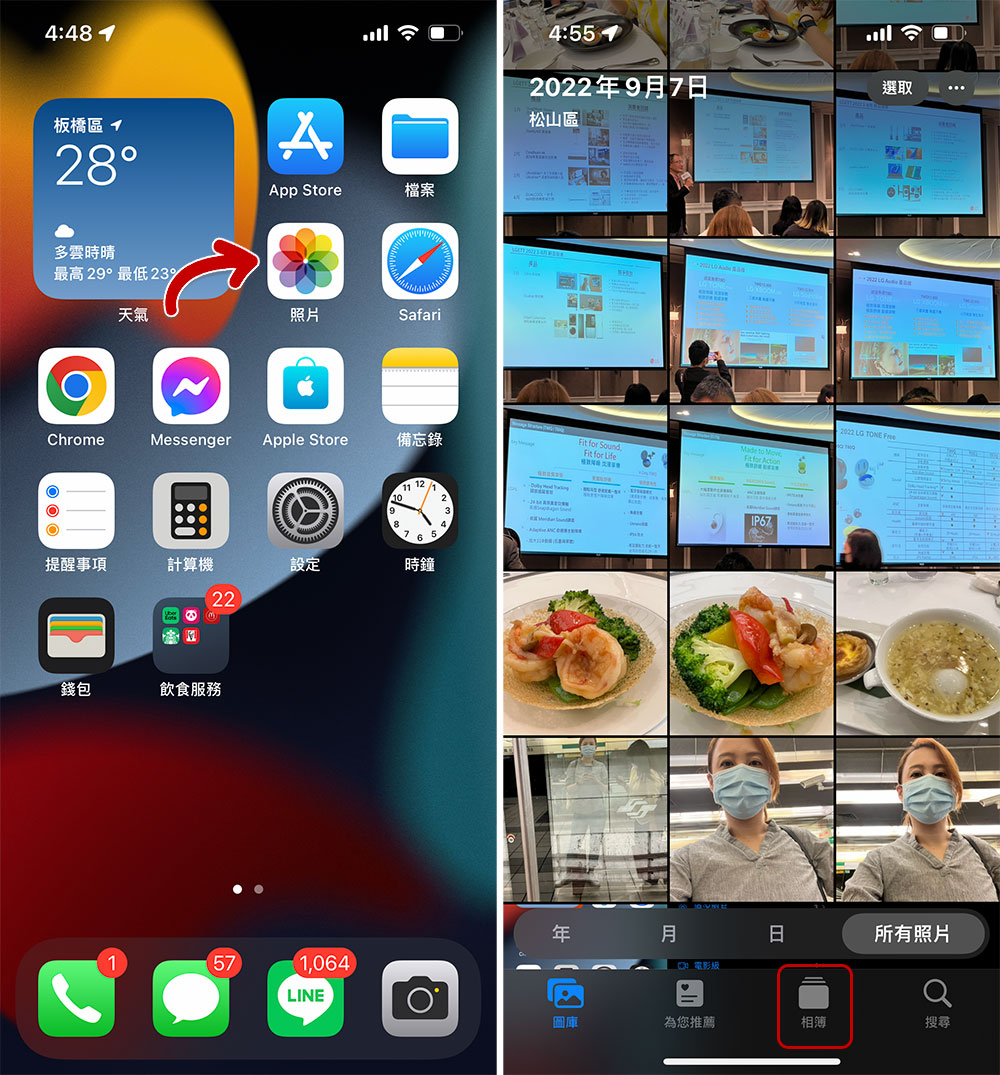
- Scroll to the bottom of the page and click “Recently Deleted”.
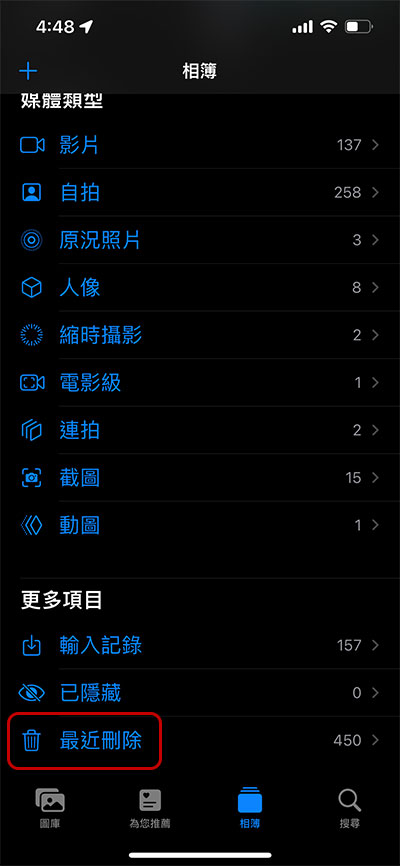
- Click on the photo you want to recover and click “Recover” in the lower right corner.

- If you want to restore multiple photos at one time, you can click “Select” in the upper right corner to select multiple photos, and finally click “Restore” in the lower right corner.

- If you want to completely delete a photo, you can click “Delete” in the lower left corner after selecting the photo, or select multiple photos and click “Delete” in the lower left corner.

Of course, permanently deleting a photo means you can’t get it back, and once you confirm you want to delete a photo, it’s gone forever, so make sure you really want to delete the content for good. If you have iCloud Photo Sync enabled, the photo will be synced across all your devices; if iCloud Photo Sync is not turned on, you can recover permanently deleted photos from your most recent iCloud or iTunes backup.
Source: KOCPC Chinese