


At some point, you may need to check the specifications of your Windows 11 computer, especially if you encounter computer problems or just want to know whether your computer is compatible with a certain application or game. Checking the computer specifications can be used for troubleshooting, etc. If you are very computer-savvy, you may have purchased according to the specifications you need, but not everyone is like this, especially when using a company-issued computer. This article will tell you 4 ways to check the computer specifications in Windows 11.
4 Ways to Check Your PC’s Specs on Windows 11
Checking your computer’s specs on Windows 11 isn’t difficult, and there are four ways to do it. These methods vary in complexity and the amount of information they provide, so you can choose the method that best suits your needs.
- View from Settings
- Use the DirectX Diagnostic Tool
- Use “System Information” to view
- View via Terminal
View from Settings
The easiest way to check specs in Windows 11 is to look at it from the Settings app, which provides a basic spec overview that includes processor, RAM, and information about your version of Windows.
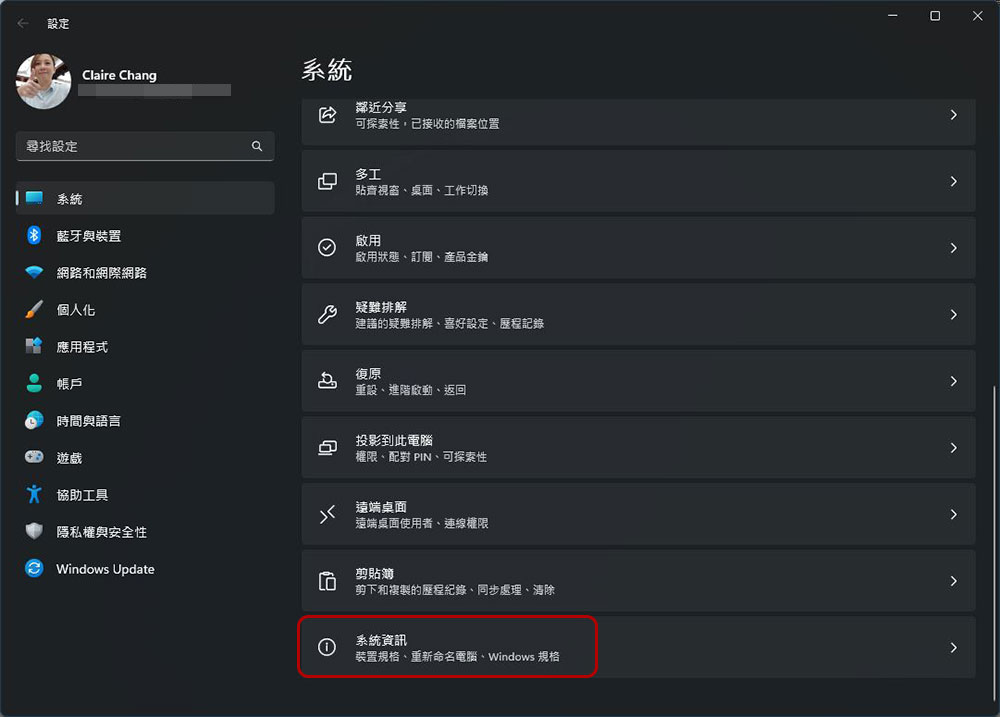
- Open the Start menu and find Settings.
- Scroll down to the end of the “System” tab to see “System Information”, click to view it. (The default opening page is system paging)
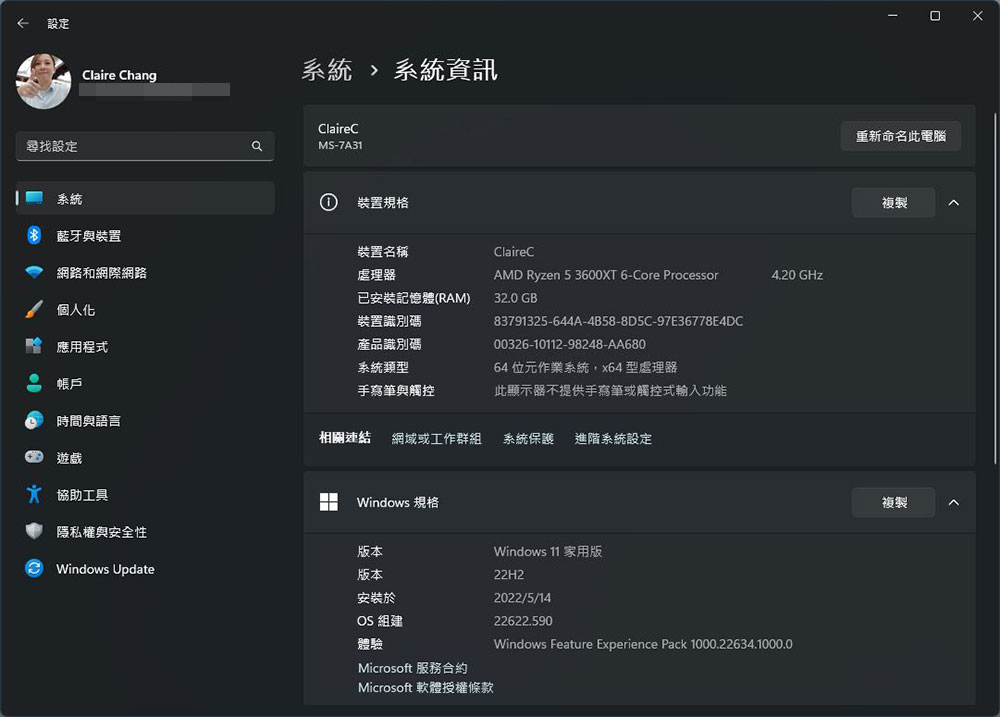
Underneath that, there’s also a Windows Specification so you can see what version and build of Windows you’re running. For example, you might be running the initial version of Windows 11, or you might already have Windows 11 version 22H2, etc.
Use the DirectX Diagnostic Tool
If your focus is primarily on game-related hardware specs, or around things like CPUs, GPUs, audio devices, etc., the DirectX Diagnostic Tool is a great way to learn more details about your system hardware and the features it supports.
- Search for “dxdiag” and click to open it.

- Basic system information is displayed in the “System” tab, including Windows version and build, BIOS version, and information about the processor and RAM.
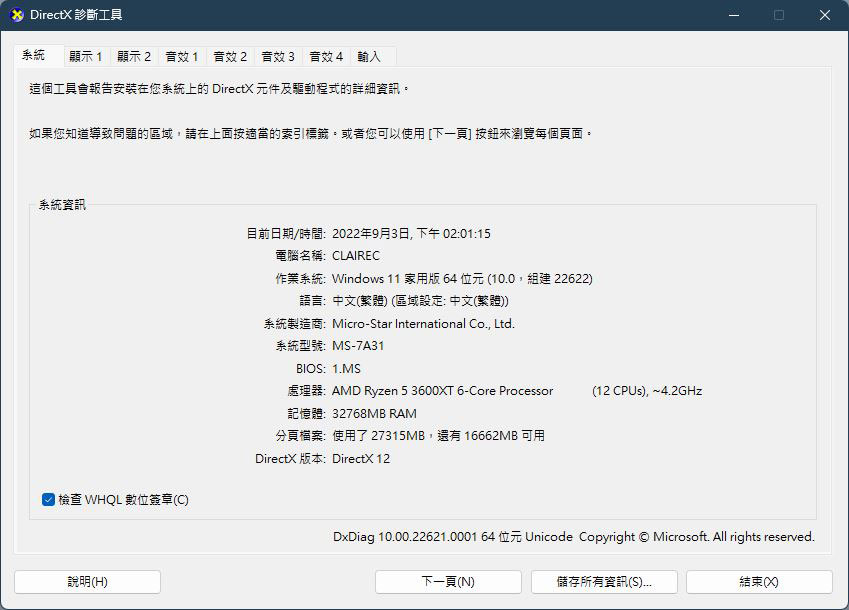
- The most interesting part is that you can see multiple “Display” tabs. If your computer has multiple GPUs, it will list the name, memory capacity, driver version and supported DirectX of each GPU in tabs. DirectX is essential for playing games on your computer, and support for specific versions may determine whether you can play certain games.
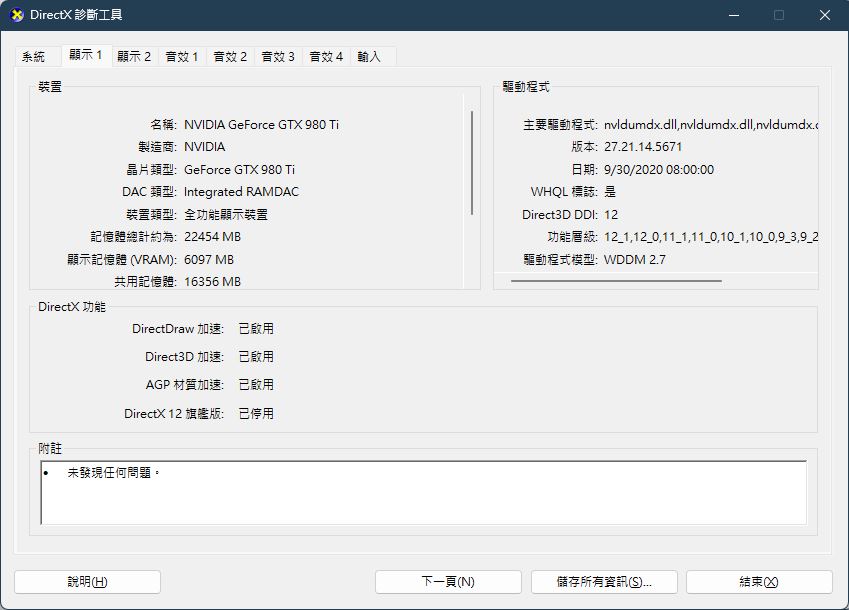
- If you have multiple audio devices, they will also be displayed in different tabs, and the input section lists the connected input devices, such as mice, keyboards, etc.
Use “System Information” to view
If you want to know more detailed information about Windows 11 computer specifications, another good option is called “System Information” as its name suggests. This is an old tool that has actually been around for a long time. Although it can provide very detailed content, it is not easy to find.
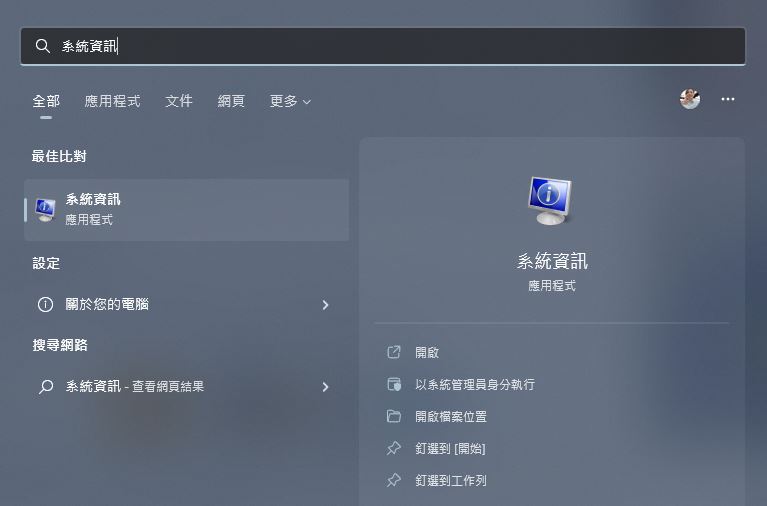
- Search for “System Information” and click Open.
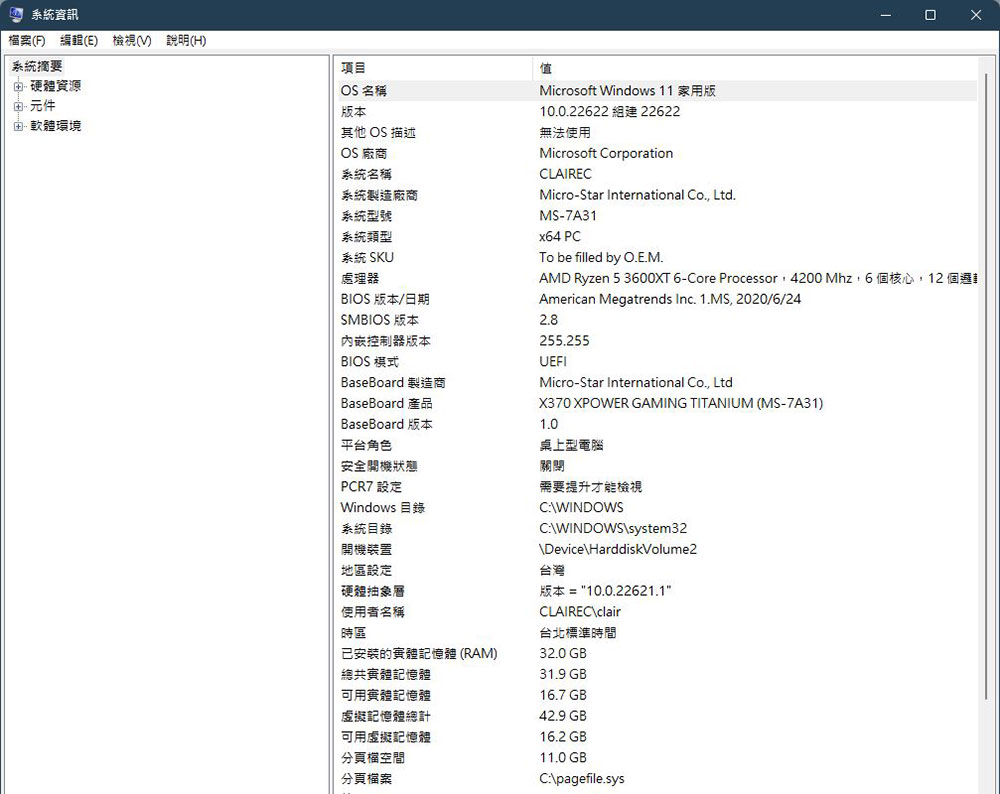
- By default, the system summary will be displayed as soon as the “System Information” window is opened, which contains information about the processor, including clock speed, number of physical cores, threads, etc. You can also see RAM information on this page.
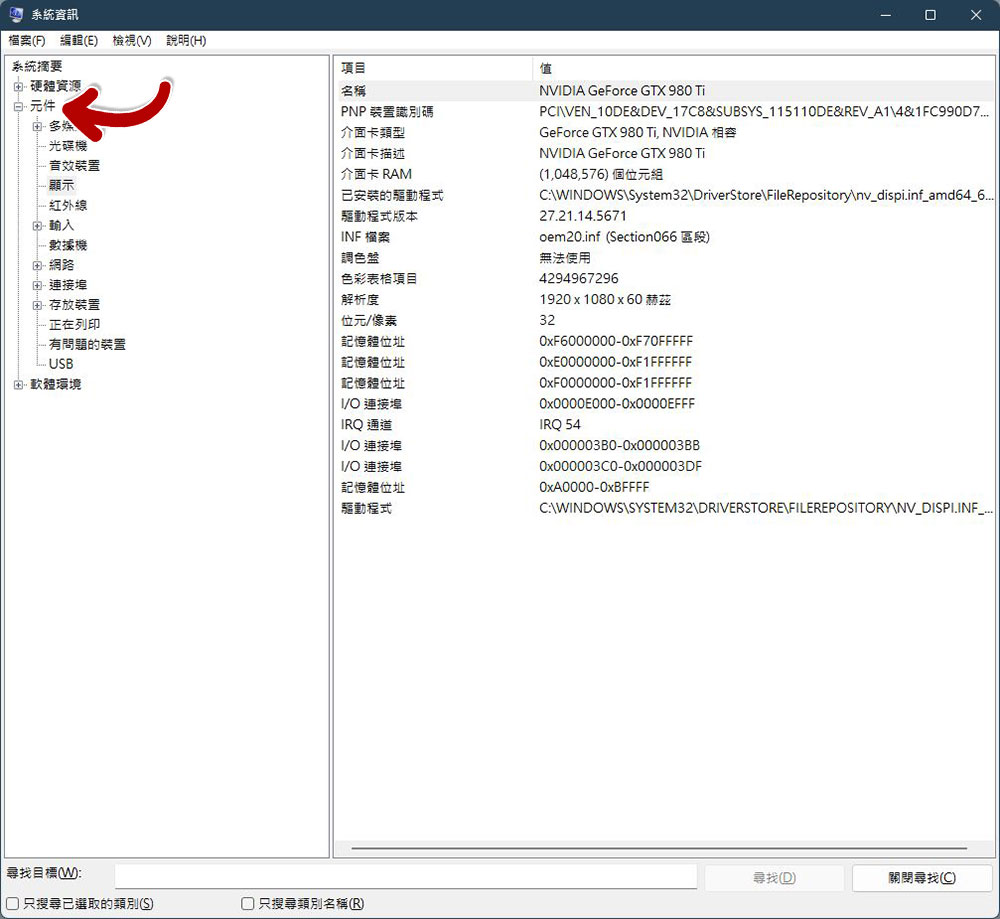
- If you want to know more about other computer hardware, please expand the “Components” menu in the sidebar. Here you can see information about monitors (including GPU graphics cards), audio devices, storage, etc. Some of the subdirectories can also be expanded, so you can see a very complete view.
View via Terminal
If you prefer to work with command tools, you can also use Windows’ built-in Terminal application to find system specifications. Today’s Windows Terminal is a console that can run both Command Prompt and Windows PowerShell. Both tools allow you to check the specifications of your computer. Although the commands used are different and the appearance is slightly different, the effect is equally awesome. While neither method will give you a ton of details about things like the GPU, it’s an alternative method if you want to look up specs on your Windows 11 PC.
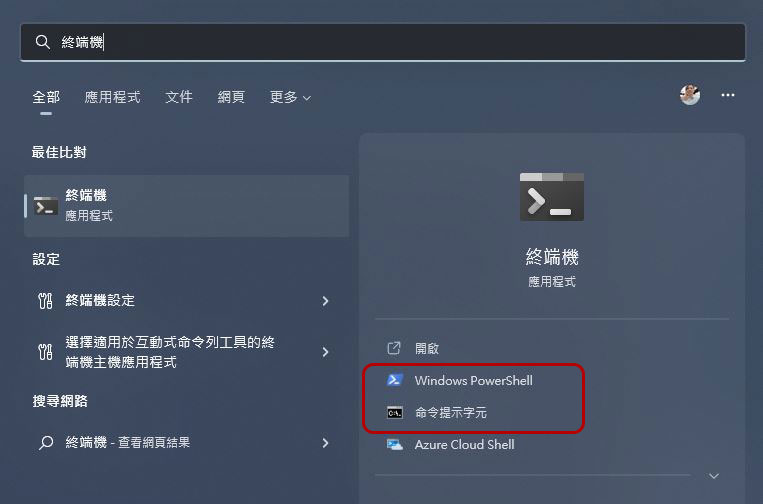
- After searching for “Terminal”, you can see that there are two different options, namely “Windows PowerShell” and “Command Prompt”. Next, I will tell you how to do the two different methods.
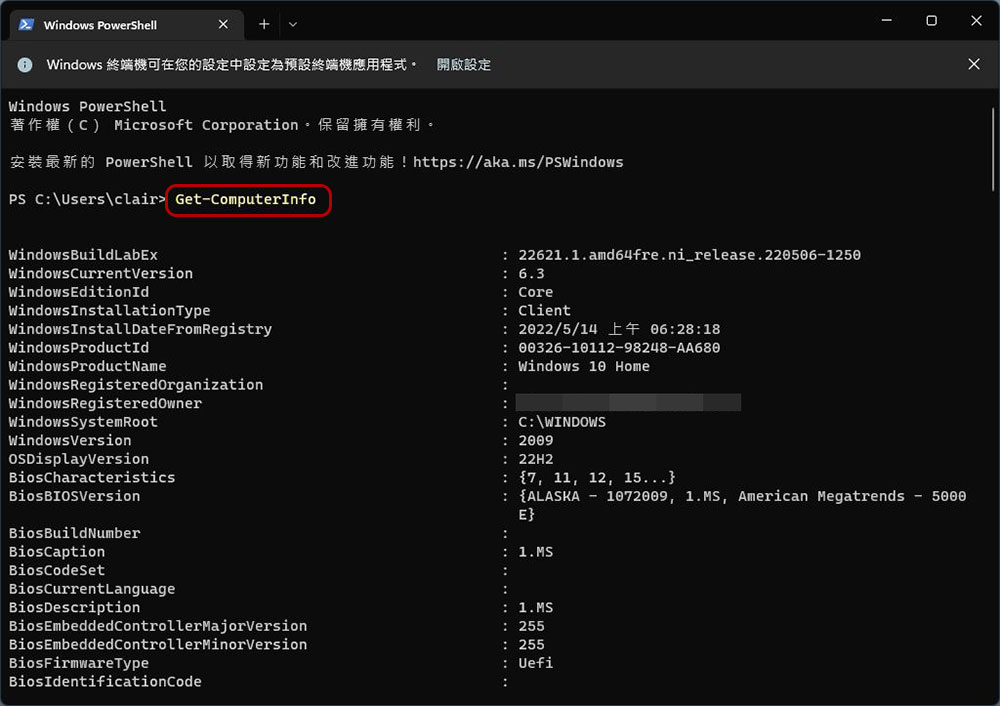
- If you are using “Windows PowerShell”, please enter “Get–ComputerInfo” Then press Enter. In a few seconds, you can see information about the Windows version, BIOS, processor, etc. in the window.
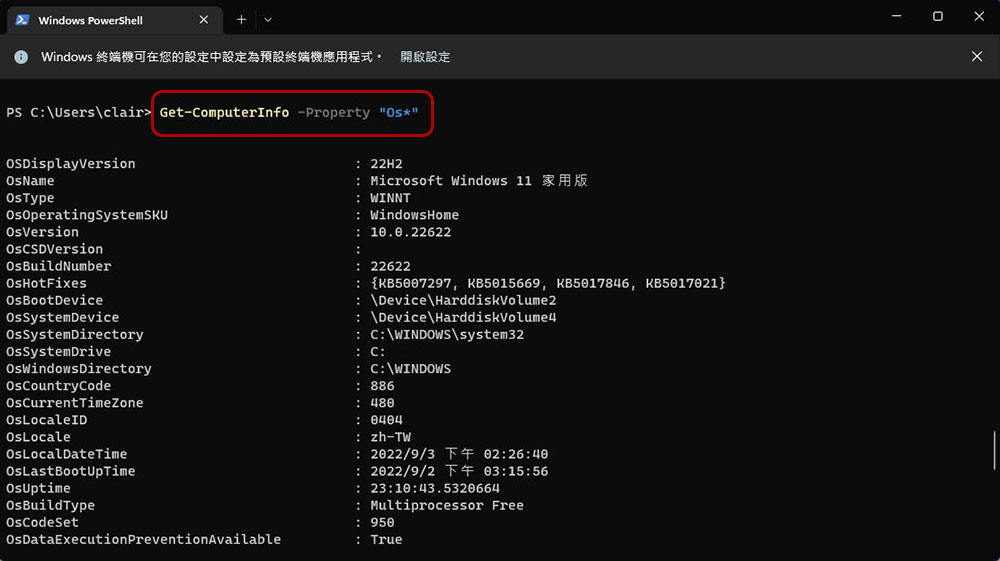
If you feel that all the results are too long and too cluttered, and you want to optimize the search results, you can add the name of the property you are looking for after “Get-ComputerInfo”, and you can also use * as a wildcard to search for all parameters starting with a specific string. For example, to get all items whose names begin with Os, you would enter “Get-ComputerInfo -Property “Os*”」
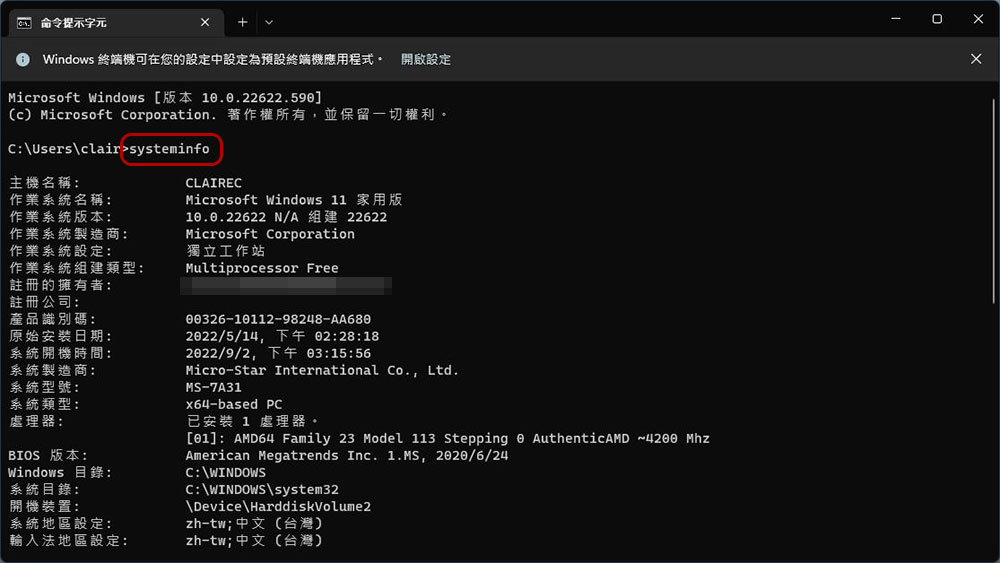
- If you prefer to use “command prompt characters”, please enter “systeminfo” to obtain more organized specifications.
The above four are all the information you can check the specifications on your Windows 11 computer. Among these methods, DirectX Diagnostic Tools and System Information provide the most detailed details, but you can choose a method according to the items and purposes you want to know, which will make your query more efficient.
Source: KOCPC Chinese