


For friends who are running blogs or websites, they will definitely want to use smaller images, so as not to slow down the page reading speed. They may even want to add watermarks to prevent others from stealing them. This article will recommend a very convenient free online tool called OptimizeImages that can compress images, convert formats, and add watermarks at the same time. If you happen to have these three needs, it is best for you and you don’t need to use other tools.
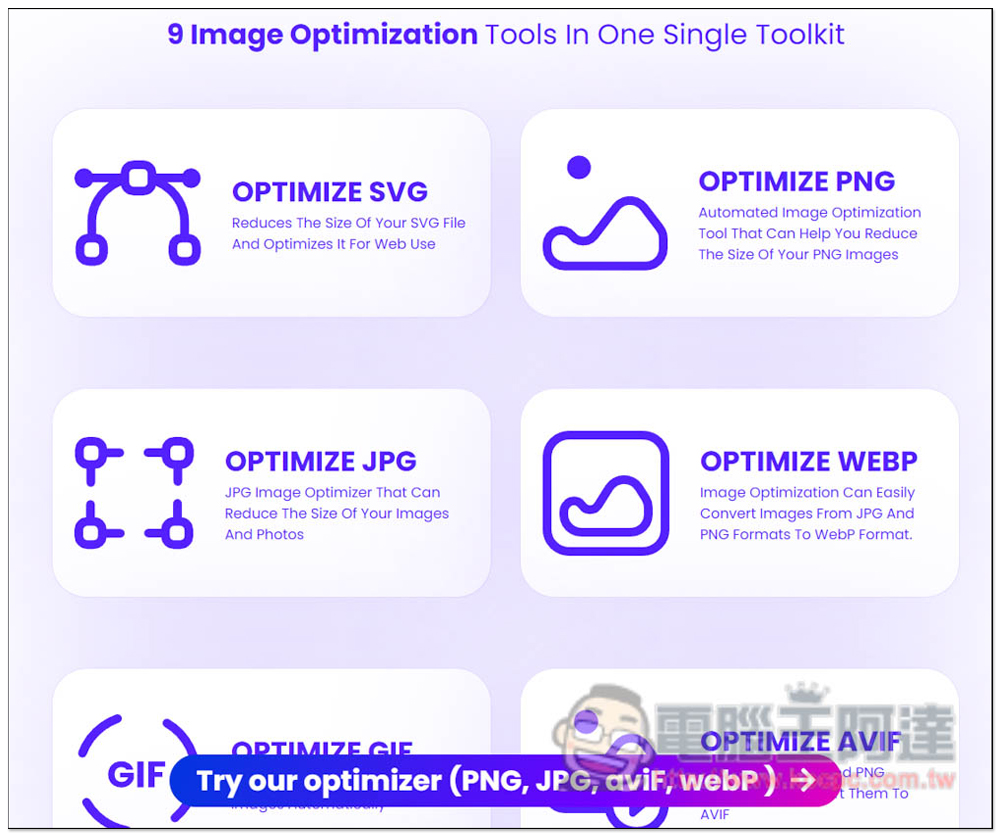
OptimizeImages is a free online image compression and conversion service, and also provides an introduction to the function of adding watermarks.
There are 9 main tools provided by OptimizeImages, which is quite a lot:
- OPTIMIZE SVG (compressed SVG format)
- OPTIMIZE PNG (compressed PNG format)
- OPTIMIZE JPG (compressed JPG format)
- OPTIMIZE WEBP (compressed WEBP format)
- OPTIMIZE GIF (compressed GIF format)
- OPTIMIZE AVIF (compressed AVIF format)
- GET HTML AND SEO TAGS (Get HTML and SEO tags)
- WEBSITE CRAWLER (website crawler)
- WATERMARK MAKER (make watermark)
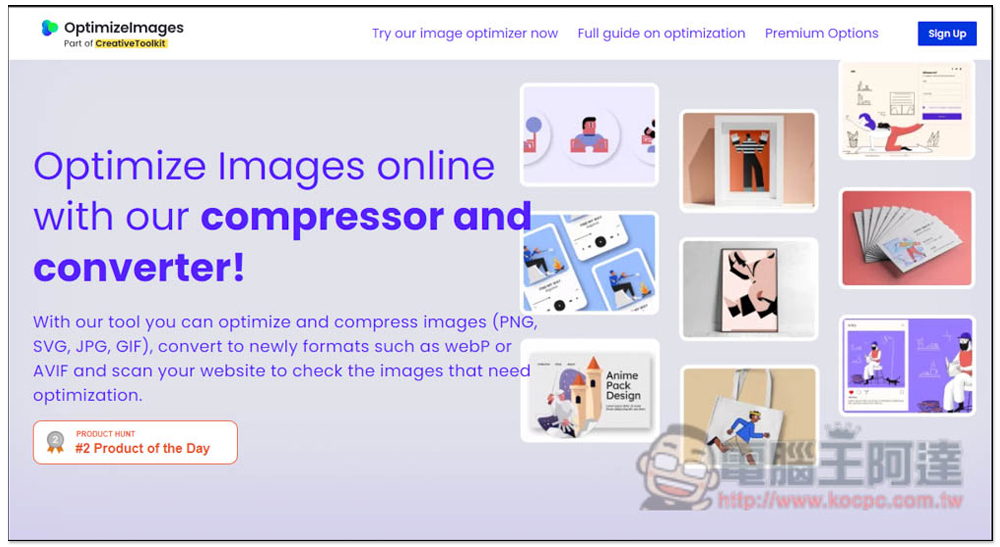
After entering the homepage, click Try our Image optimizer now above to select the tool you want to use. In addition, although this website is free to use, it also offers a paid version. The free version has some limitations, such as it can only process up to 30 pictures at a time, each file can be up to 10MB, and the monthly transmission bandwidth is only 1GB. If you want more, you need to upgrade to the paid version, which is enough for ordinary small users:
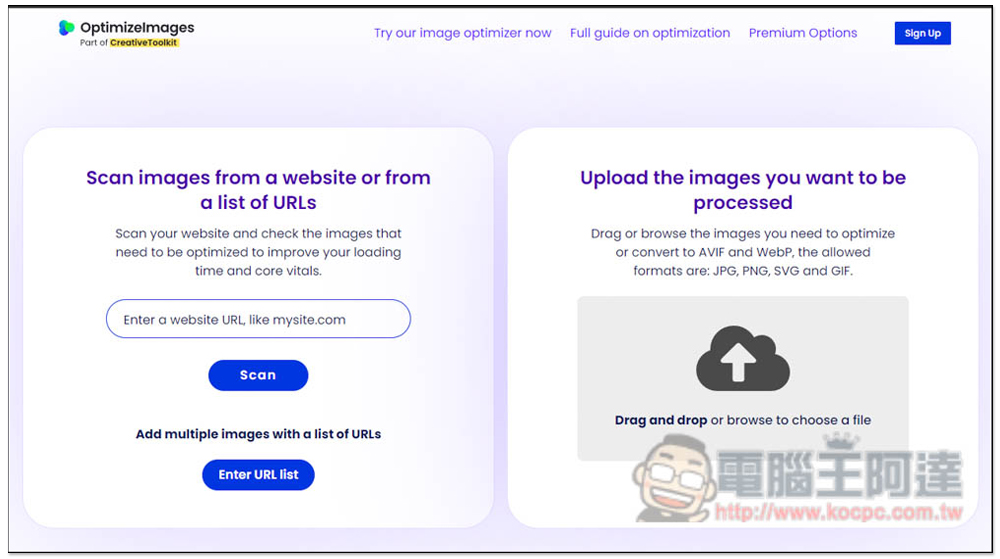
You can directly drag in the images you want to compress and optimize, or directly paste the website URL, and it will automatically analyze the compressible images on the webpage. Supported formats are JPG, PNG, SVG and GIF:
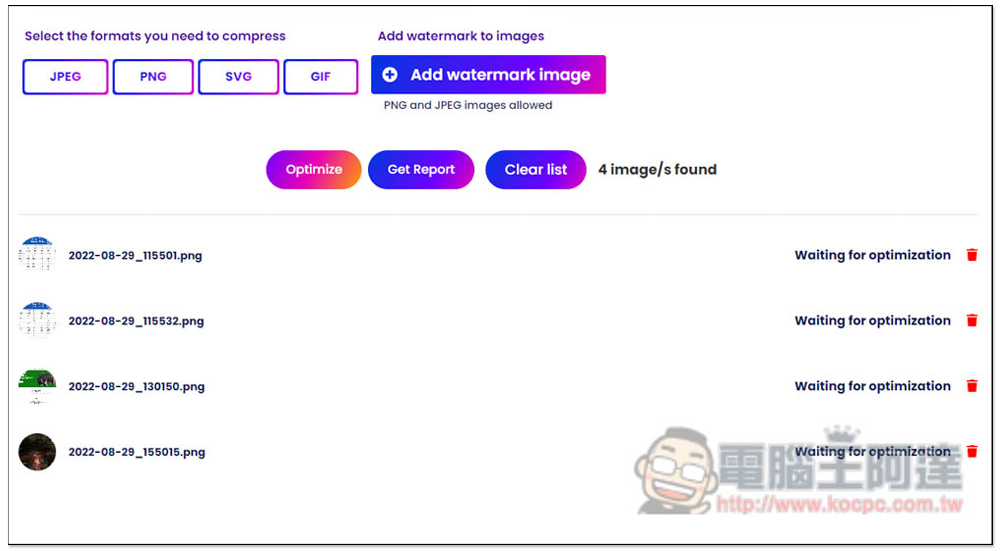
Then scroll down to see the images you uploaded, or the image formats supported by the website. In the upper left corner, you can select the format you want to compress. If you want to process all of them, don’t worry about it. Add watermark image to add a watermark. Press Optimize and the compression will start:
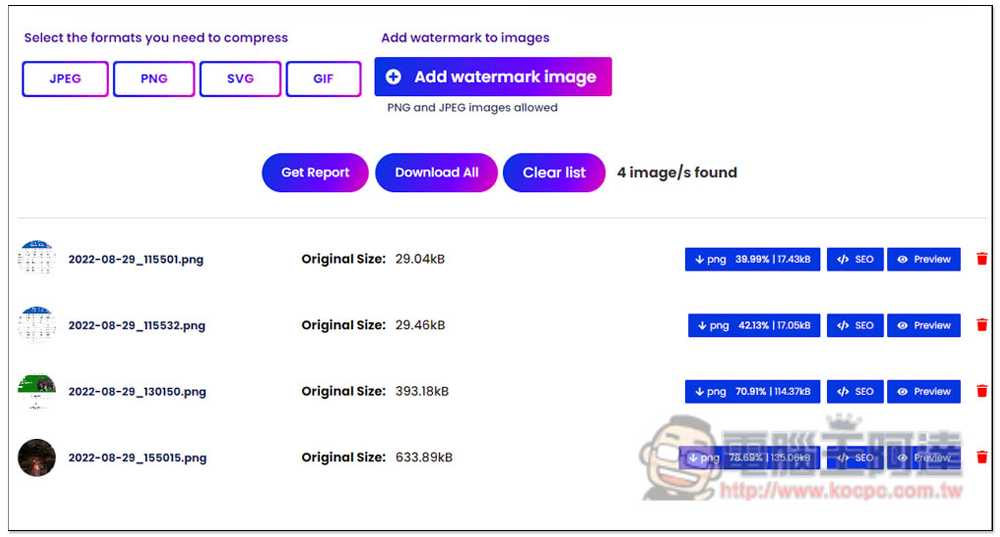
After compression, the original file size (Original Size), compression percentage and remaining size, SEO, and preview (Preview) will be listed:
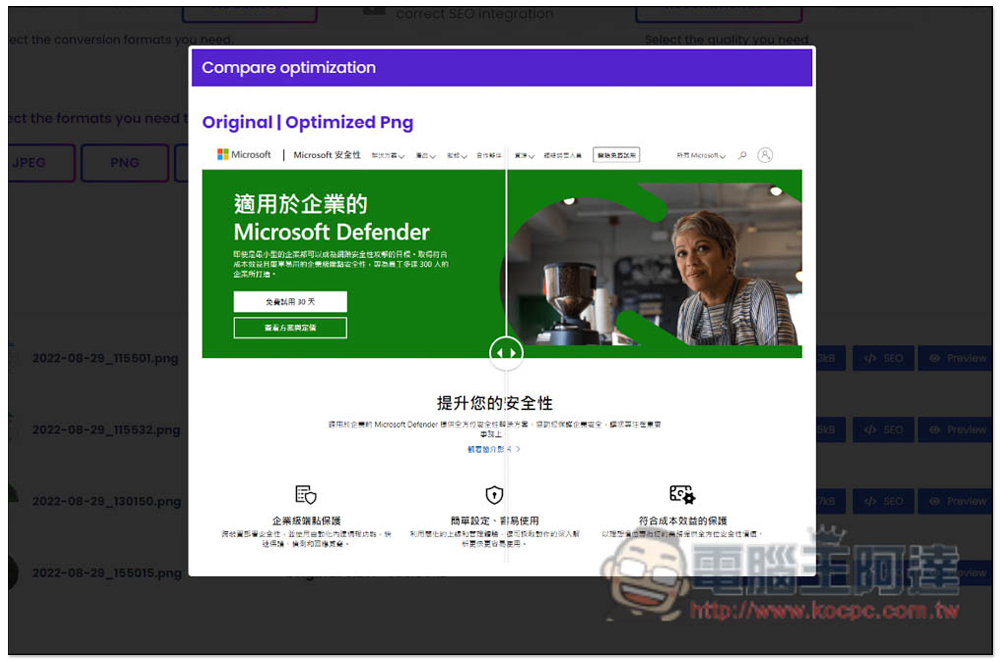
You can drag the preview left and right to view the quality before and after compression. If you are satisfied, download it:
In addition, for the conversion part, currently only files can be converted to WEBP and AVIF formats. If you have needs, just change it to the format you want in the Convert images to the following formats option. The default is No convert.
Friends who simply want to compress images can also refer to what we have introduced before. Imagator、Optidash, are also easy to use. Imagator does not need to upload, it is completed directly in the browser, which is more secure.
Source: KOCPC Chinese