


Canva is a good partner for self-media creators. It has a lot of templates and galleries. The focus is on cloud services. As long as you have a browser, you can easily get started. I introduced it beforeCanva is a powerful drawing tool for online presentations, videos, and social media“After the article, readers responded enthusiastically, so this article mainly explains some usage skills of Canva, and briefly compiled 10 usage skills, hoping to help you complete creative design more effectively.

用 Telegram 訂閱【挨踢路人甲】最新文章:https://t.me/itwshare
追蹤【挨踢路人甲】粉絲專頁:https://www.facebook.com/itwalker
- Go and carry
- element lock
- Gradient
- folder
- text bend
- group element
- Crop element
- frame
- Save frequently used colors
- Insert link
The background removal function can only be used after upgrading to Canva Pro. First, click on the image and press [Edit Image]. The [Background Removal Tool] will pop up on the left, click on it.

Wait a few seconds and finish.

If there are quite a few elements on the layout and you don’t want these elements to move, you can select the element and click the lock icon in the upper right corner. This way you will not be able to move these elements.

You can type “Gradient” in the search bar of “Element”, and many color pictures will pop up. Choose the one you like.

Right-click the image and select “Set Image as Background”.

You can also click the color icon next to Image Edit to change the color.

If we find some pictures or templates we like, we can place the mouse on the pictures, click […] and select [Move to Folder].

Select “Create new folder”.

After taking the folder name, click [Move here], and then you can find the folder you just created in [Folder].

Click on the typed text, then click [Effect], and finally select Bend.
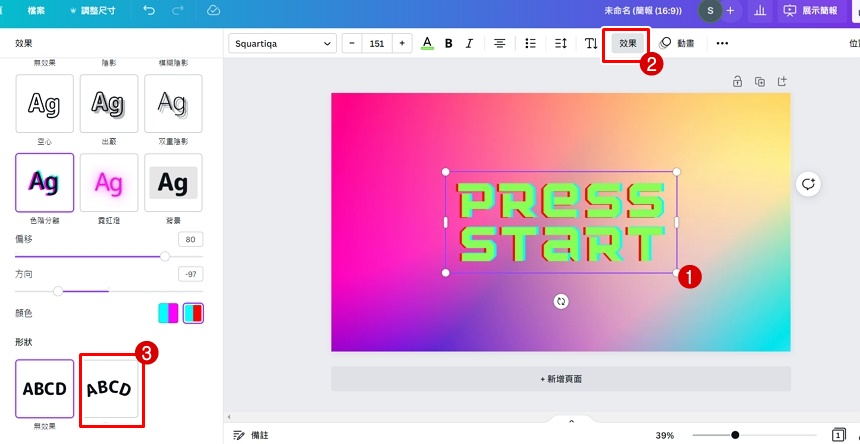
In this way, the font will be curved and the curvature can be adjusted.

What should you do if you want to move more than two elements but don’t want the gap between them to change? First press and hold the left button to select the element to be fixed.

Click “Create Group”.

The newly framed elements can be moved and rotated together.

Click on the element you want to crop and click [Crop].

Select the range to stay.

Just one mouse click and you’re done.
Search for “frame” in the “Element” column.

Drag a picture or video into the frame.

Release the left mouse button and you’re done.

Go back to the homepage, click [Brand] in the lower left corner, then click [+] to adjust the color, and finally click [Add CMYK].

Repeat the above steps to save a bunch of colors you like.

First click on the text, click […] above, and click [Link].

After pasting the URL, click [Finish] and it will be OK.

The above are 10 practical tips for Canva that I think can help you complete your design faster. If you still don’t know what canva is, you can click hereherefor reference.
Further reading:
- Canva – Powerful drawing tool for online presentations, videos, and social media
- Open the IP.ME web page to query IP, Whois, DNS records and other information
- ClipDrop, an online memorization tool, automatically removes memorization with just one click of the mouse.
Source: KOCPC Chinese