


Almost everyone has a Gmail account these days, and many of them use it as one of the main channels for daily communication with work email. Google continues to add many practical little functions to it, but you may not have discovered them because you have not used them. The “Confidential Mode” that I want to teach you today is one of them. This function can be of great help when you need to send letters that contain sensitive and confidential content that should not be leaked out.
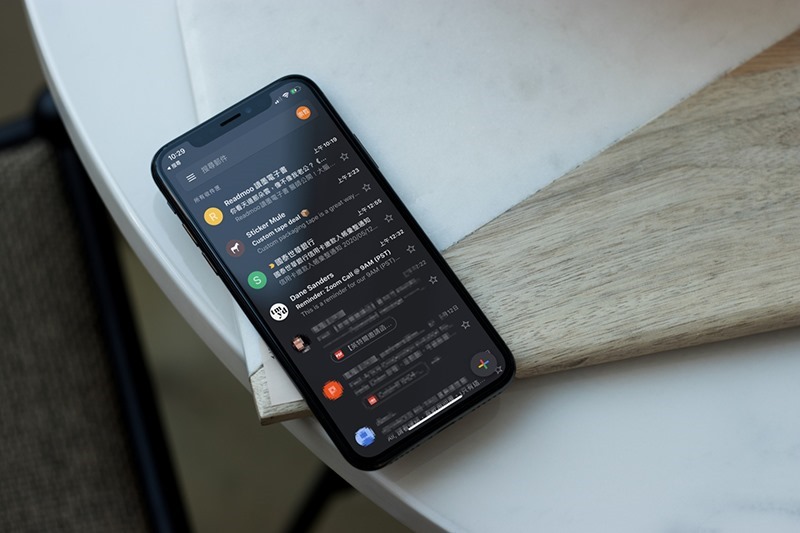
How to write a confidential letter in Gmail that cannot be forwarded and has a deadline? (Including web version and mobile version tutorial)
Google uses TLS to keep your emails relatively secure during delivery, and the service also offers more secure S/MIME encryption for business and education users, but there are other ways you can make personal correspondence more secure, one of which is Confidential Mode. Google launched Gmail’s confidential mode in 2018, which allows users to set an expiration time when sending letters and prevent recipients from copying the content, forwarding it to others, or downloading the content of the letter. You can use it on the web and mobile versions, but no matter which device you send it from, you must enable it when composing a document.
Send from browser web version
- First, click Compose a new letter.
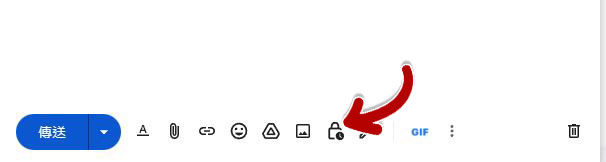
- Find an icon with a lock and a clock on the toolbar next to the send button. This is the switch that enables confidential mode.
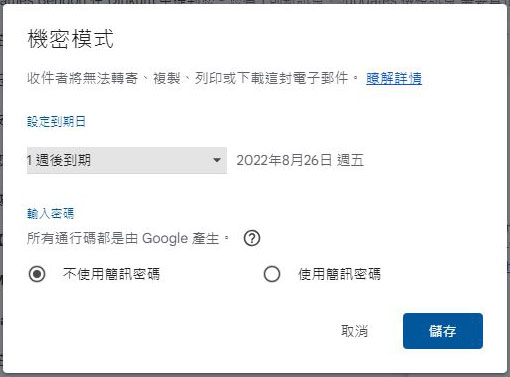
- After clicking, in the pop-up window you can set the expiration time and whether you need to send a Google-generated lock password via SMS to the recipient to unlock the email. The expiry date can be set from 1 day to up to 5 years.
- A confidential mode notification will be displayed at the bottom of the letter to let you and the recipient know that the letter is sent in confidential mode and remind you of the expiration date.
Send from mobile version
Why does the mobile version need to be taught separately? Because the UI design of Google’s mobile version of Gmail is very different from the web browser version, and the functions are located in different positions, I will talk about it separately.
- First, click Compose a new letter.
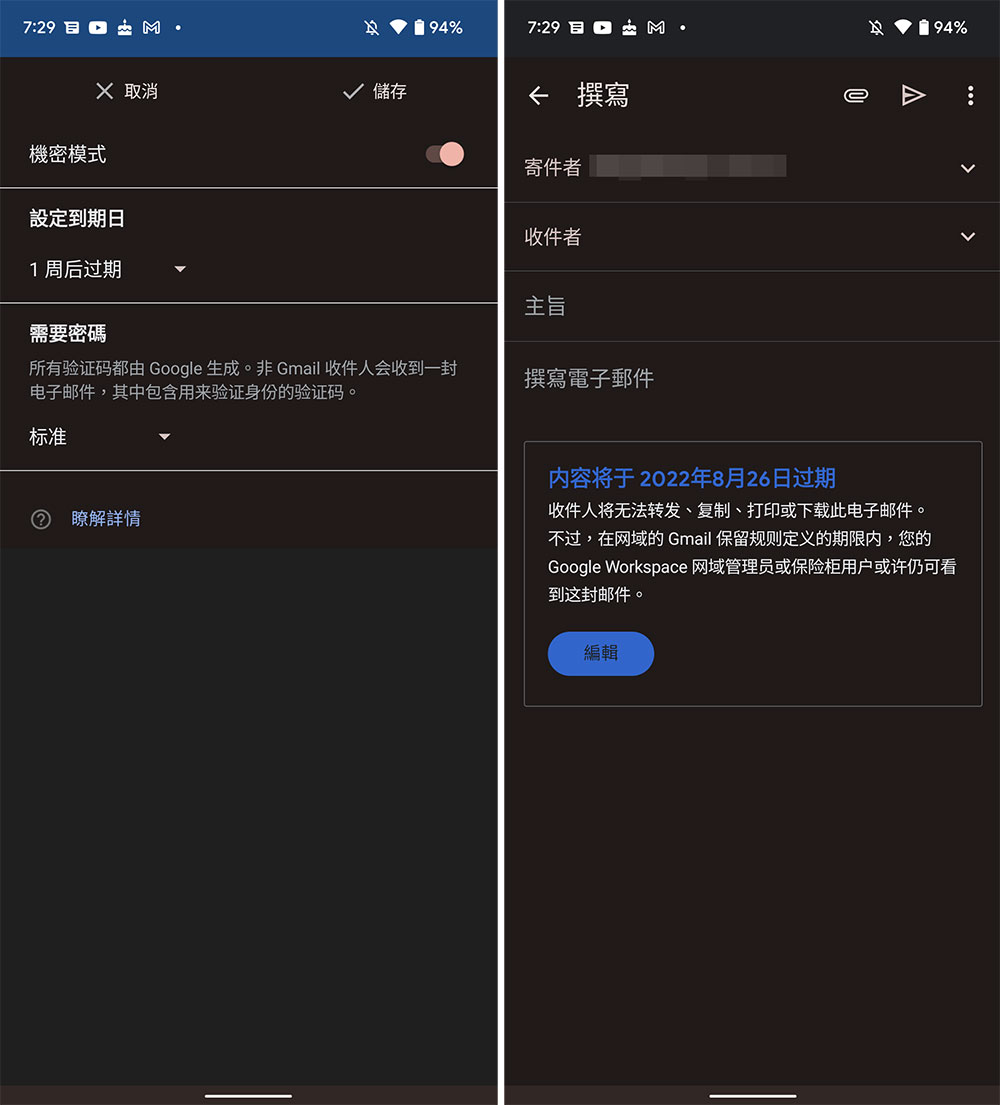
- Then click the three-dot function menu in the upper right corner of the email writing interface and select “Confidential Mode”.
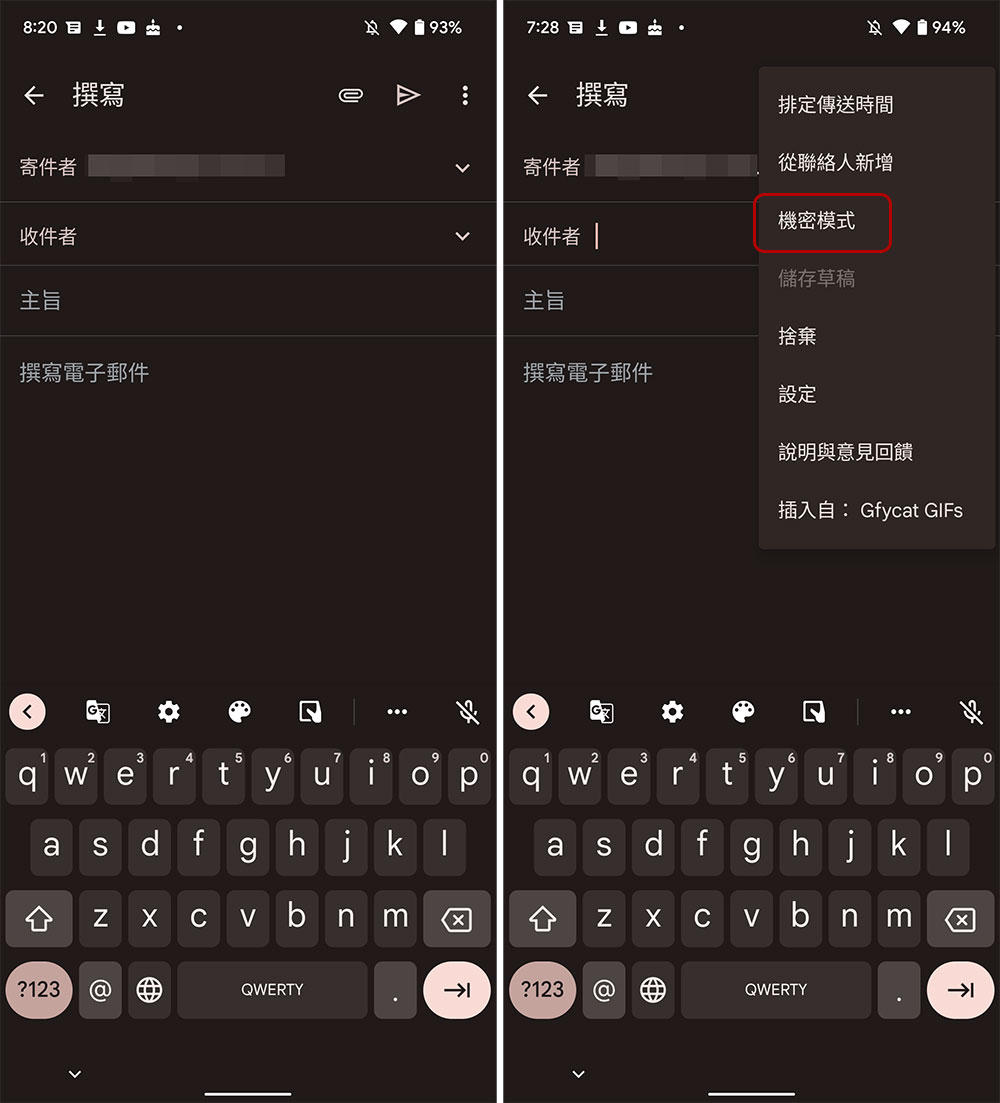
- The next page will let you set the expiration time and whether you need to send a Google-generated lock password via SMS to the recipient to unlock the email. After you complete the settings, you can see that the expiration time you set is displayed below the letter. This letter is considered a confidential letter when it is sent.
What kind of letters require confidential mode? Sometimes you may include personally identifiable information, tax financial information, business plans or confidential content in the letter, and confidentiality is particularly important. At this time, using confidential mode can not only ensure that the recipient or interested parties will not forward, download, print or copy it, but also cannot read it after it expires. It gives you an extra layer of protection, and everyone can make good use of it.
Source: KOCPC Chinese