


Microsoft’s Windows operating system is clearly far ahead of other systems in terms of daily tasks such as multitasking and productivity, thanks to the company’s addition of Snap Group, Snap Layout, virtual desktops, file manager paging and other features to the system. This time, we focus on Snap Layout and Snap Group to tell you how to become a truly knowledgeable productivity expert.
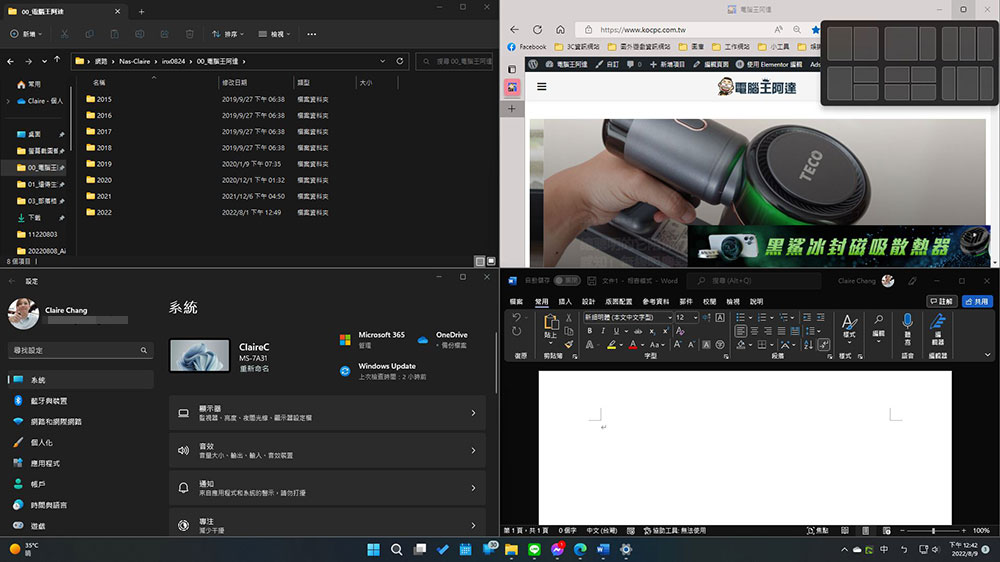
Teach you how to make full use of Windows 11’s Snap Layout (snap windows) and Snap Group to improve multitasking productivity in seconds
Snap Assist allows you to open two apps at the same time by splitting the screen in half and placing them side by side. Snap Layout and Snap Group are two important features built on Snap Assist in Windows 11, which further enhance the original Snap Assist function and make it easier to arrange Windows 11 applications on the desktop. Next, the author will outline these two features and teach you how to use them more advanced.
What is Snap Layout?
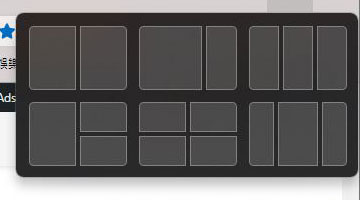
Snap Layout is a refined version of Snap Assist, giving you more flexibility to work with up to 4 apps at once on your desktop. To achieve this goal, Snap Layout provides 6 different layouts for you to choose from. You can choose a preset application from these options based on the number of apps you want to use at the same time and the order in which you want them to appear:
- Double window arrangement 2 styles
- 3 types of three-window arrangement
- Four window arrangement 1 style
How to use Snap Layout?
Using the Windows 11 multitasking feature is very simple, you can easily call Snap Layout in the following ways:
- Press the Win + Z key combination in an application or window, or hover the mouse cursor over the window maximize button to display the Snap Layout menu.
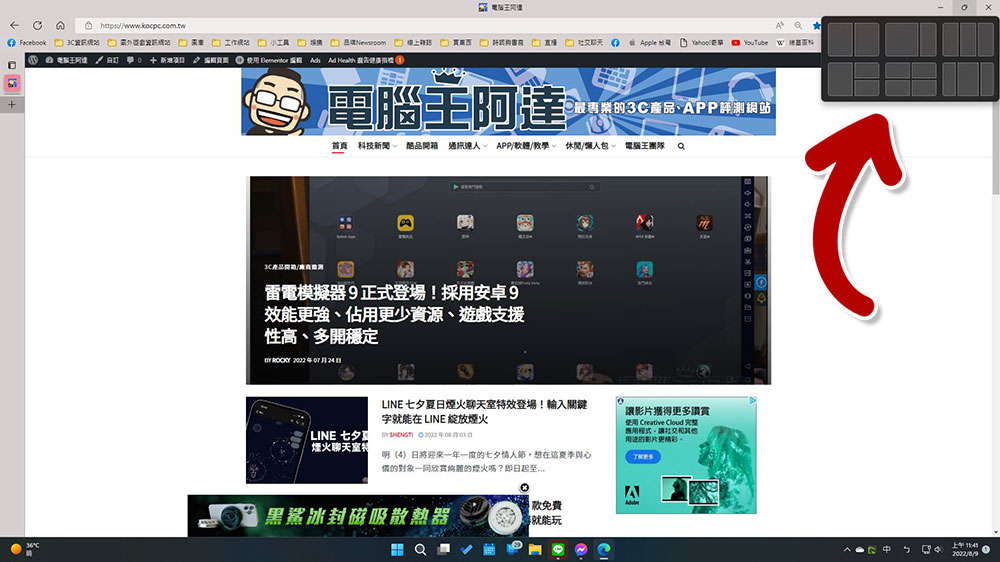
- In Snap Layout you will see different layout options, each with multiple differently configured blocks. Choose a layout from these options based on your needs, then hover your mouse over the area where you want the currently active window to be placed during the period. You can see that the block will be highlighted with different colors, and you can click it to place the window in the position of your choice.
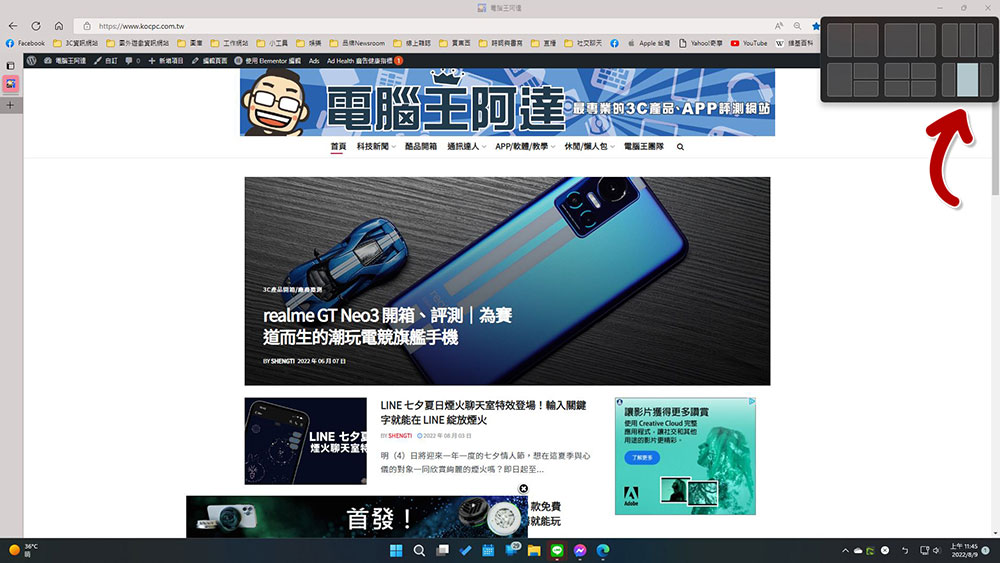
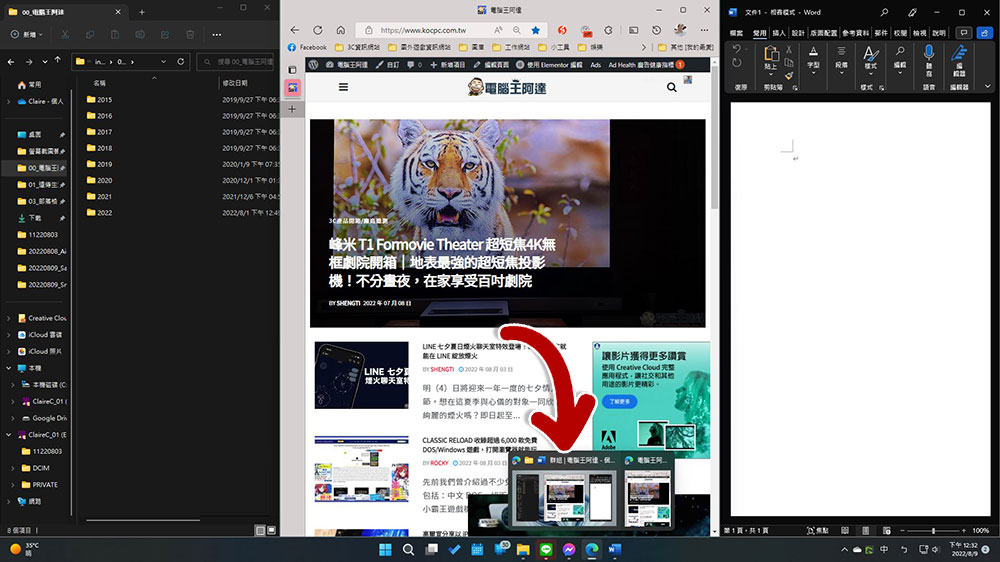
- All other active applications and windows will display thumbnails in other areas that have not yet been selected. Press the “Alt + Tab” keyboard shortcut to browse, and click the desired application window to drop it into the designated area.
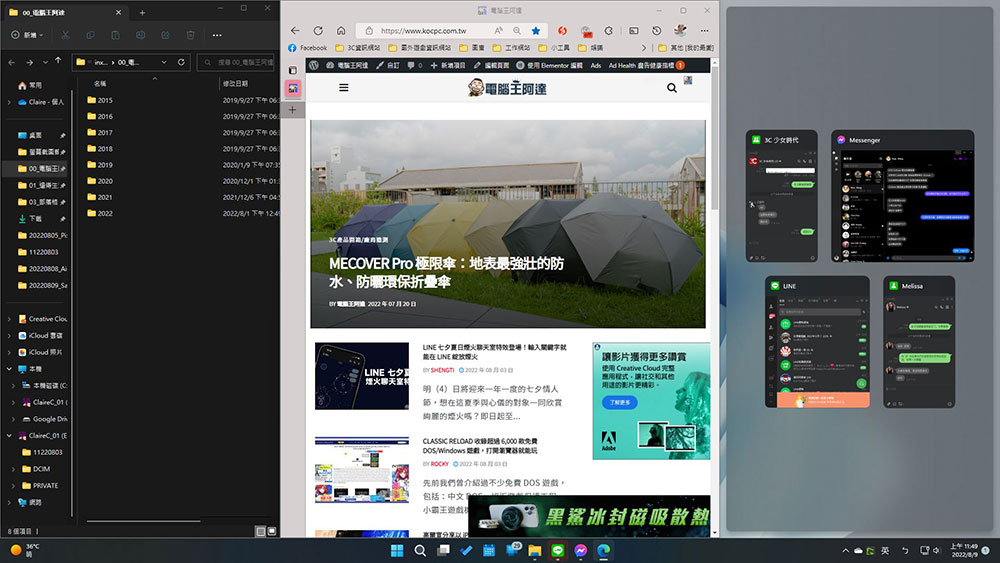
This feature is very useful, especially if you are using a large monitor or have multiple windows and applications open on an ultrawide screen and want to arrange them. You no longer have to manually adjust the padding, and you are not limited to just two windows. Microsoft even provides a dedicated settings page in “Settings” through which you can adjust the overall functionality and customize it. Currently, we can only use Snap Layout to combine up to 4 different windows, and we cannot create custom layouts based on usage scenarios. You can open the “Settings” application, select “Multi-tasking” in the “System” tab, and expand the “Snap Window” folding menu to make some simple personalization settings, but the items that can be customized here are very limited.
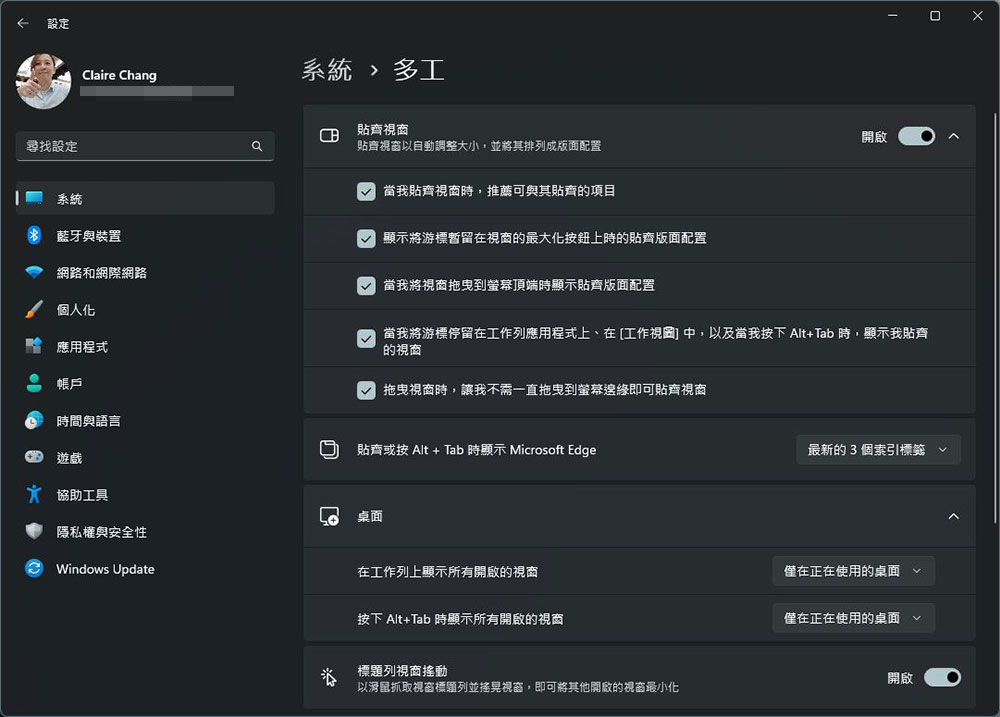
Advanced usage: Use with PowerToys’ “FancyZones” custom layout (also applicable to Windows 10)
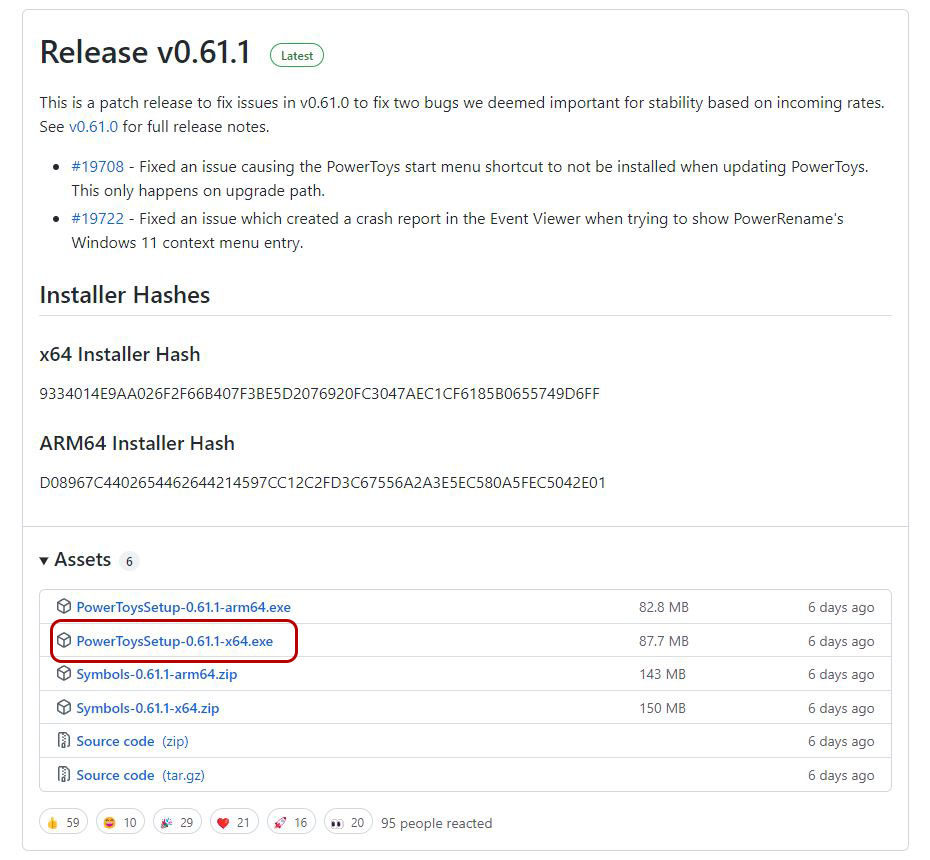
If you want to customize more of the Snap Layout experience to make it more in line with your personal usage habits, then you need to add Microsoft’s own “PowerToys”. (Click here to download from GitHub)
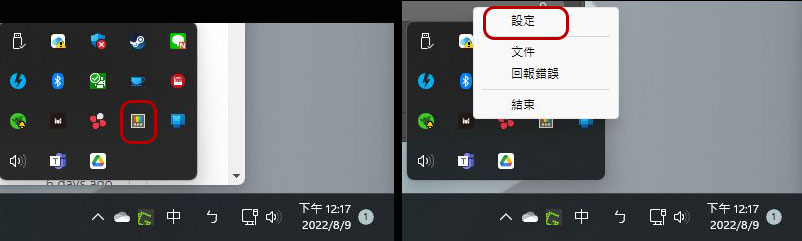
After installing PowerToys, open it. It will appear in the small tray in the lower right corner of the operating system. Right-click the icon and select “Settings.”
Next, click “FancyZones” in the left sidebar, and then click “Launch Configuration Editor” in the right window.
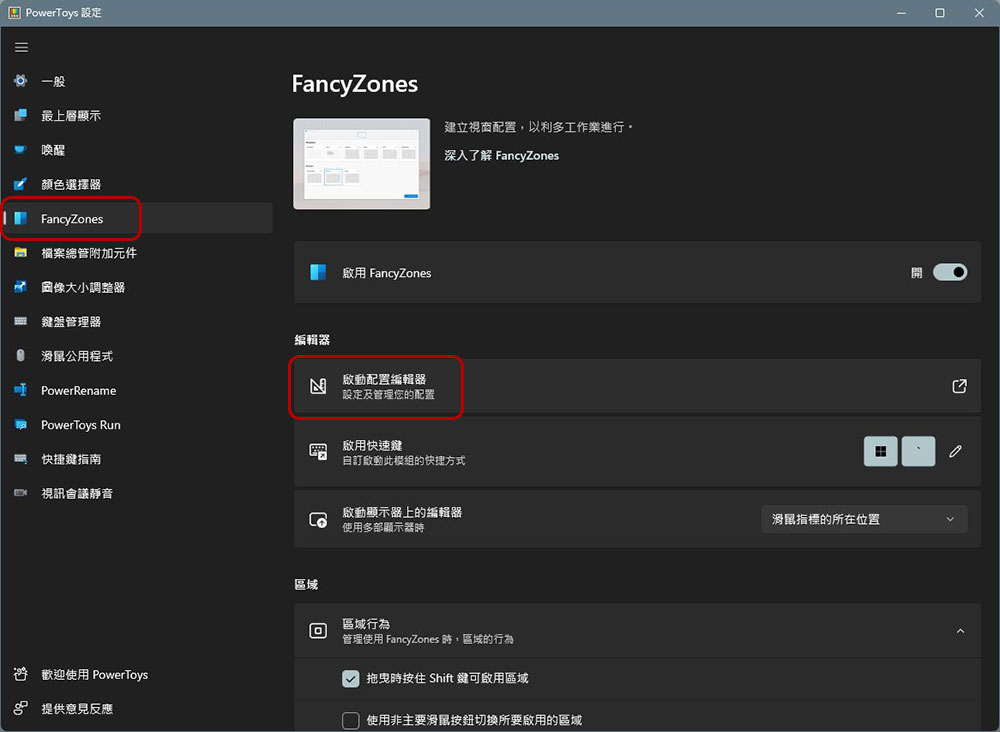
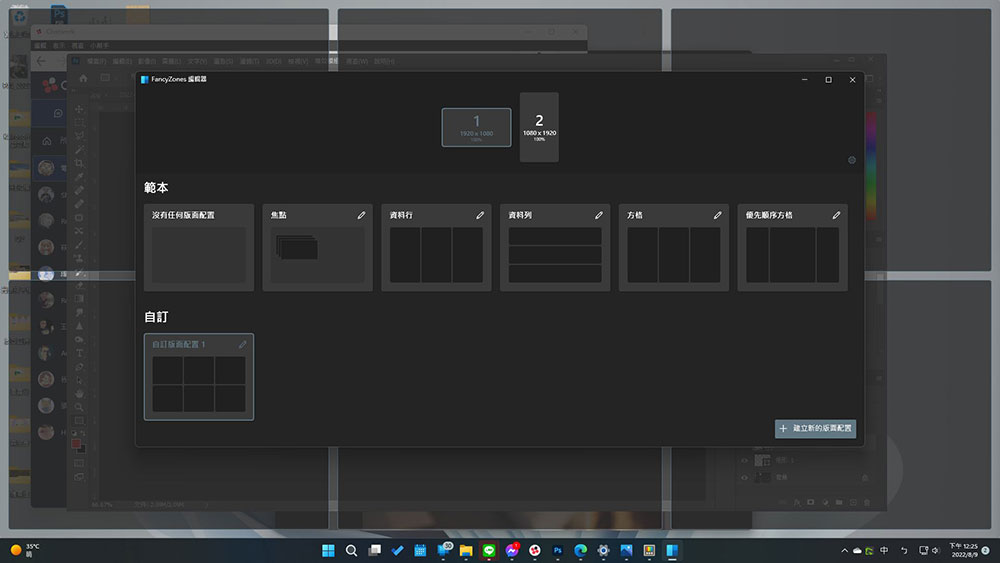
In the editor, whether you are a single-screen or multi-screen user, you can customize the layout of windows on each screen. After you save your custom layout, the next time you drag a window, just hold down Shift at the same time to recall the layout and place the window where you like.
What is Snap Group?
Snap Group is an extension of Snap Layout. It automatically records the layout groups you arrange in Snap Layout. When you use the same set of applications next time, the previous layout presentation is automatically applied without having to rearrange these windows again. Although this feature may not directly enhance multitasking, this neat little helper feature can save you the trouble of opening and arranging single application windows one by one.
How to use Snap Group?
The process of using Sanp Group is very intuitive and simple. All you need to do is create a Snap Layout that contains at least two windows, and that’s it. You can use any application or window that supports Snap Layout to create, and there is no specific application to click to view. Interestingly, this feature also works across multiple windows of the same app, and Windows can also remember if the feature is used on other monitors, making it easier for multi-screen users. Currently, this feature is very limited and fixed, but through continued user feedback and user requests, Microsoft has a good chance of adding more options and features to improve the user experience.
Productivity and hybrid work seem to be important areas for Microsoft and Windows development, and basic features like Snap Layout, Snap Groups, and virtual desktops are just the beginning of where Windows is heading in the future. We’ve already seen Microsoft testing and highlighting new features like pagination in File Manager, widgets on the desktop, and an improved Alt + Tab window switching experience, with more to come in future versions of Windows.
Source: KOCPC Chinese