


When surfing the Internet, we often use the previous page, next page, close paging and other functions. When accumulated bit by bit, it actually takes a lot of time. This article will recommend a very easy-to-use “CLEAN crxMouse Gestures” free extension function, which can be used for Chrome, Edge The browser has added support for mouse gestures, which means that in order to operate any browser function in the future, you only need to draw with the mouse. For example, if you swipe left on the page, the previous page function will be enabled. There is no need to slide to the previous page function options, which is very convenient.
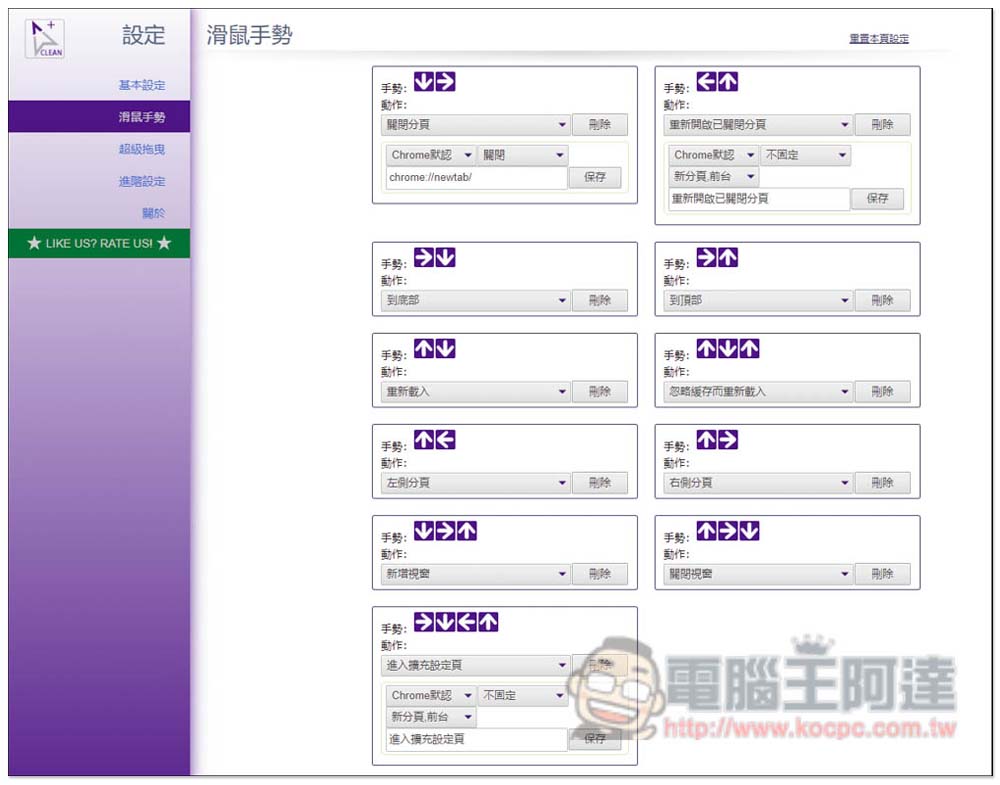
CLEAN crxMouse Gestures Introduction to adding mouse gestures to your browser (Chrome/Edge)
crxMouse Gestures has been revealed to collect users’ private data before, and CLEAN crxMouse Gestures is based on the optimized version of crxMouse Gestures. It organizes and optimizes the program code and removes the mechanism of uploading the user’s browser to the web page in the original version, so it is more secure and functionally the same as crxMouse Gestures.
After entering the CLEAN crxMouse Gestures installation page, click “Add to Chrome” on the right. Both Chrome and Edge browsers can install it:

This message will pop up above, click “Add extension”:
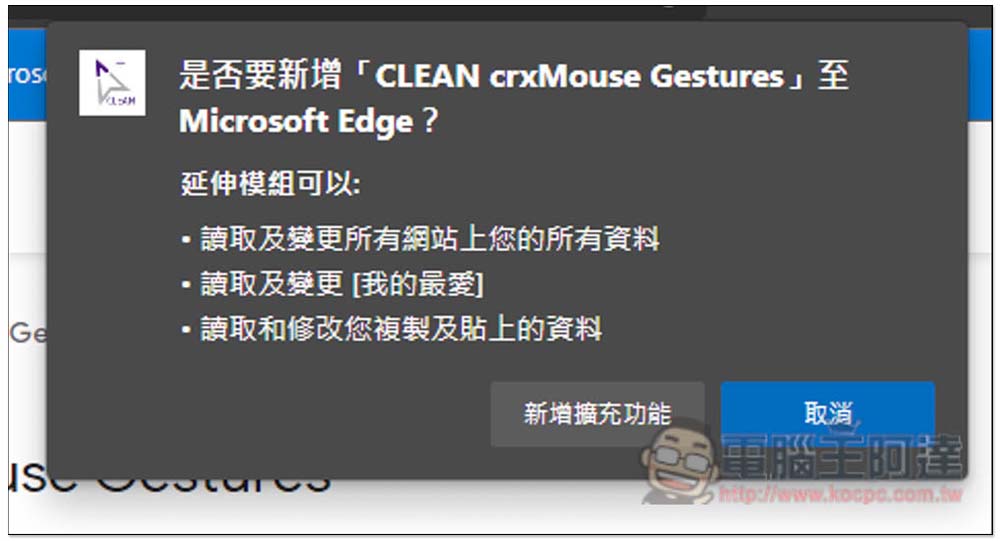
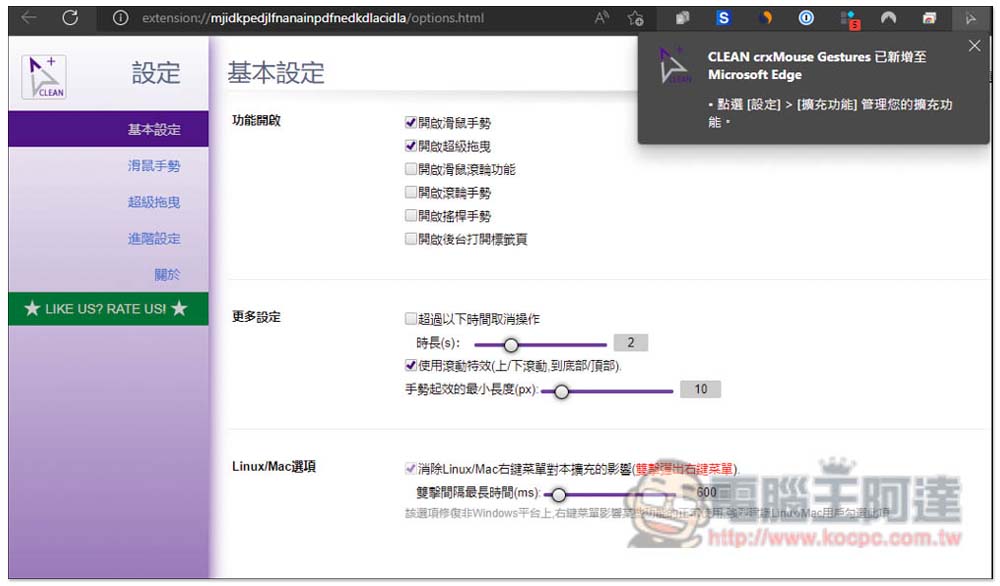
The installation is now complete. Commonly used mouse gesture operations have been preset for this device, so please open the settings:
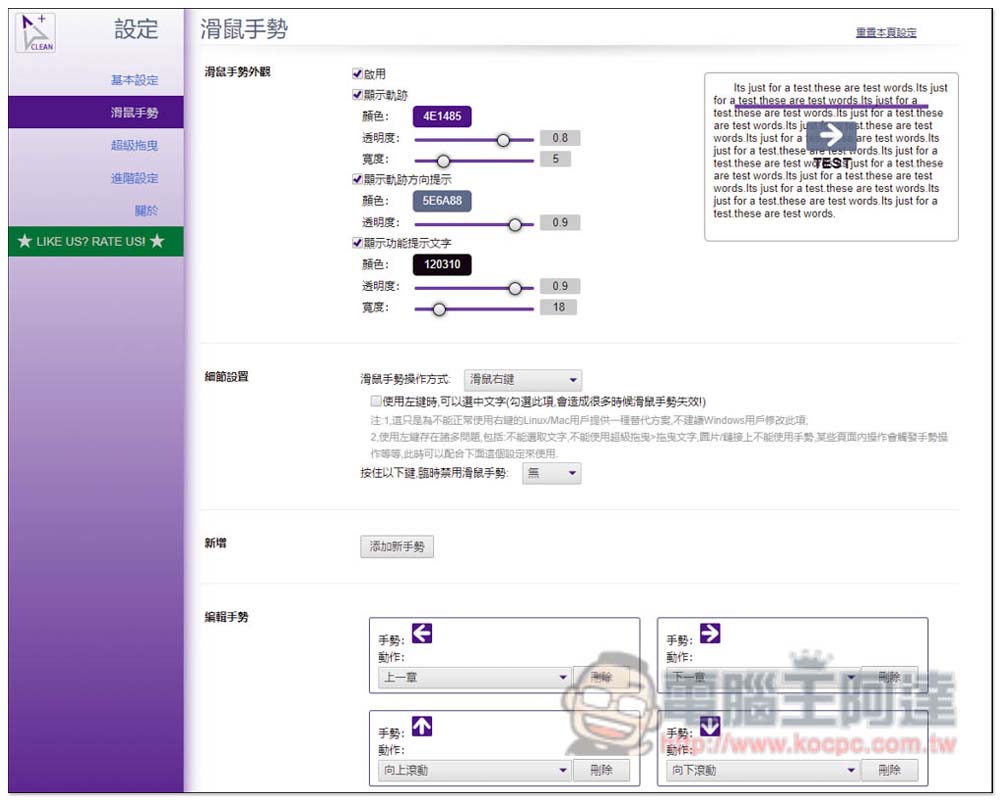
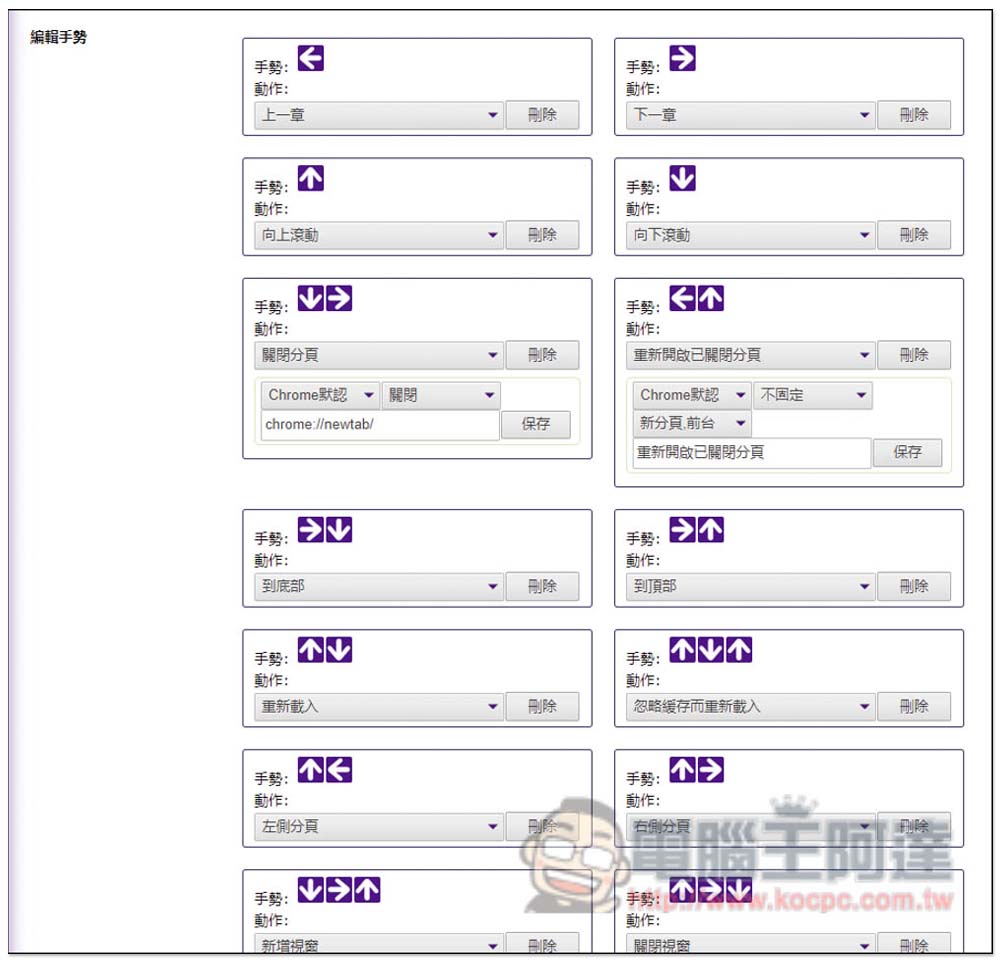
In the mouse gesture menu, gestures for all commonly used functions can be set, and the displayed trajectory, color, etc. can also be modified:
Basically, all the gestures are quite intuitive. For example: to go to the previous page, slide the mouse to the left, and to go to the next page, slide to the right. If you want to reorganize the page, just slide up first and then slide down. So there should be no need to change it. Just remember what functions it has:
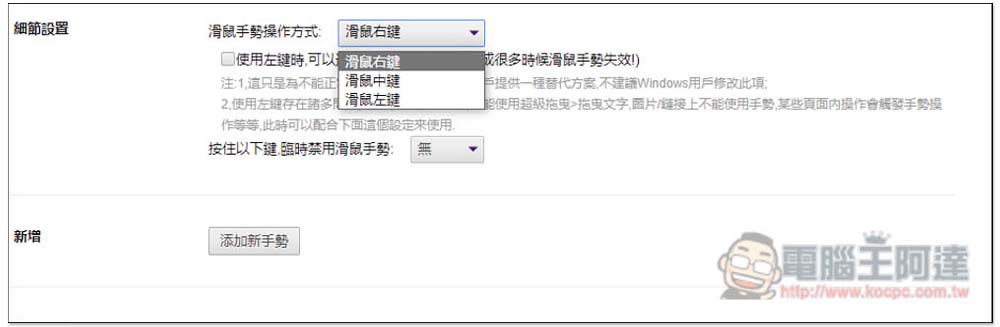
The default key for mouse gesture operation is “right mouse button”, which can also be changed to middle mouse button or left mouse button. In addition, a button for temporarily disabling mouse gestures is added:
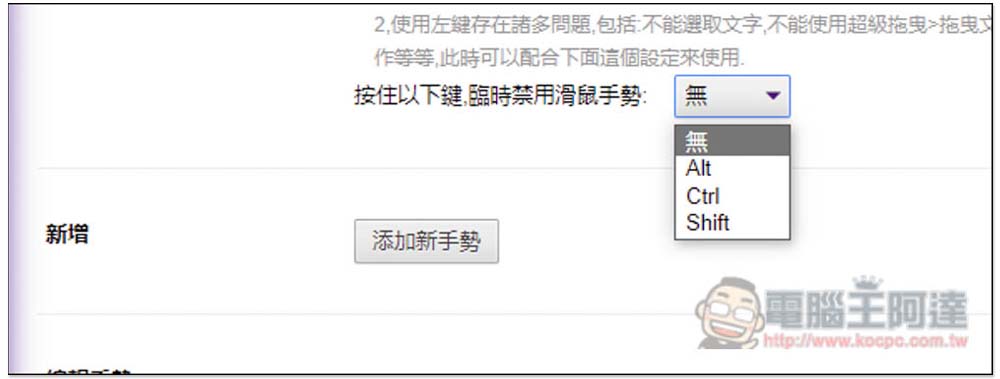
Can be set to Alt, Ctrl or Shift. It also supports adding new gestures yourself:
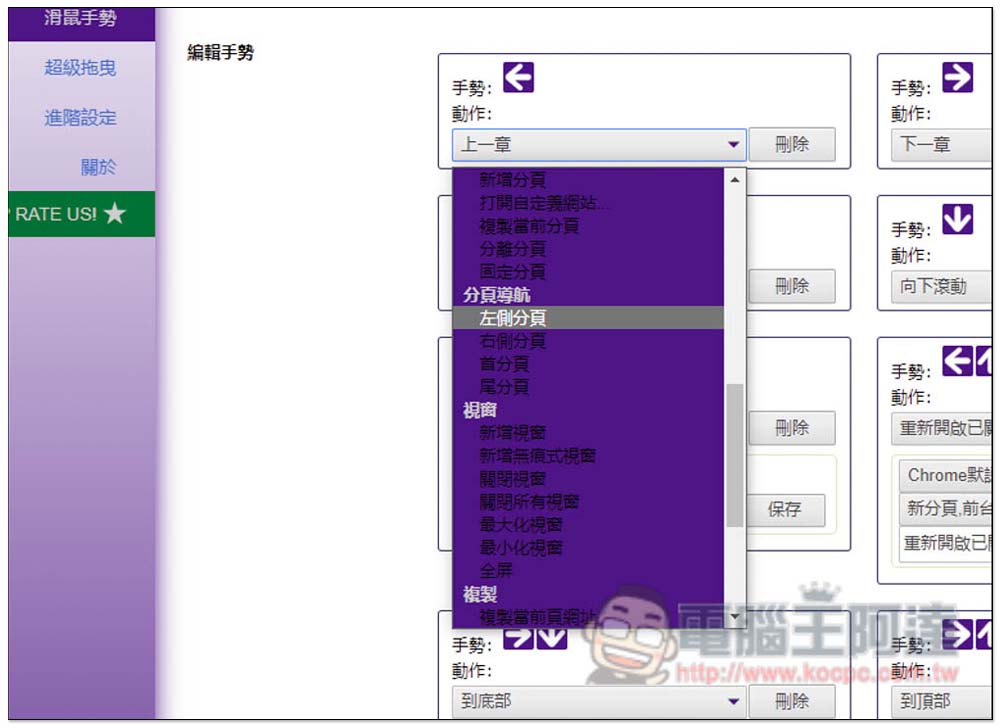
There are really many functions and actions provided, but the color matching is not very good, and the words cannot be read clearly:
For example, on the following page, just press and hold the right button of the mouse anywhere on the page and draw to the right. A line will appear on the screen, which also prompts what functional gesture operation it is. After releasing the right button, this function will be enabled and jump to the next page:

If it is a combination of gestures, remember not to release the right mouse button in the middle. For example: to rearrange the page, first draw up and then down, and then release the right button to enable the rearrange function:

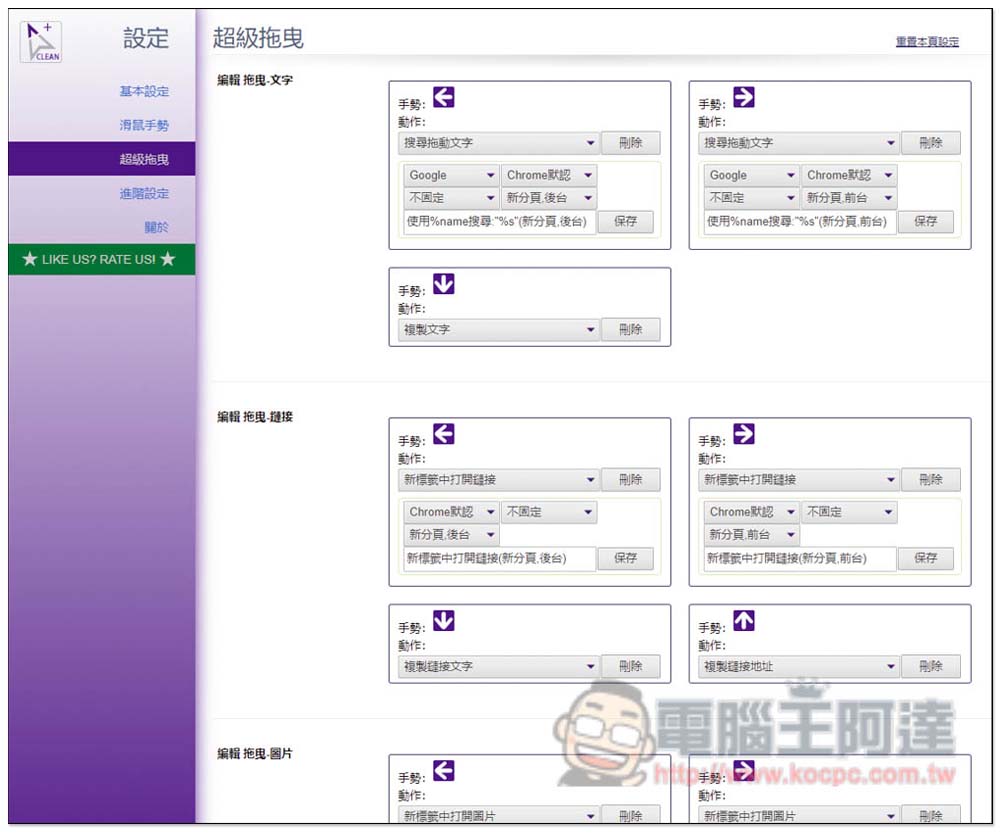
There is also a “Super Drag” function, which provides some special functional gestures, such as dragging text on a web page and sliding it to the left, which will automatically enable Google to search for this text:
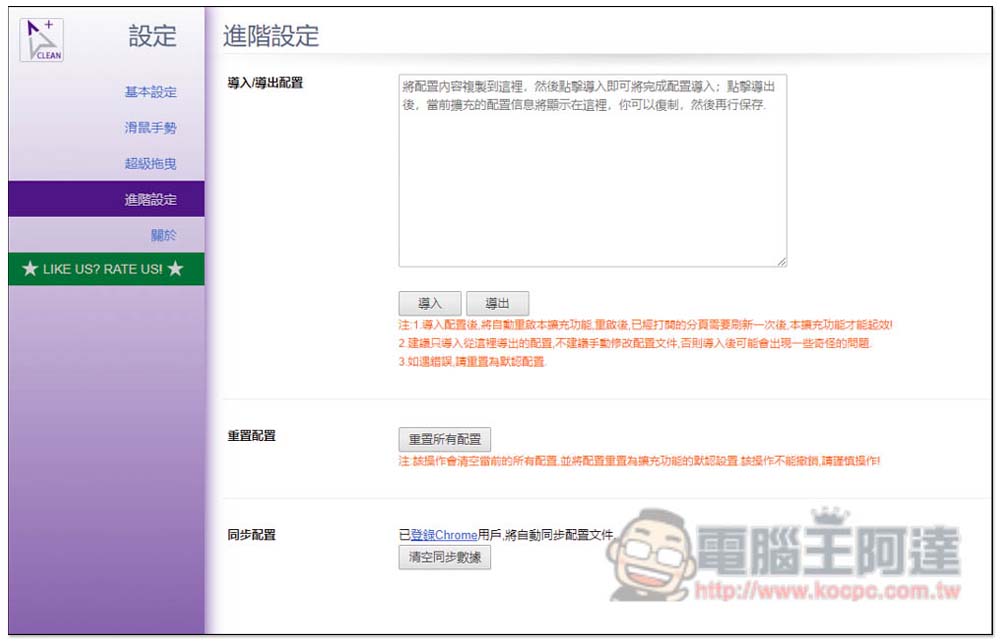
The advanced settings menu allows you to import, export actions, or reset all gestures to default values:
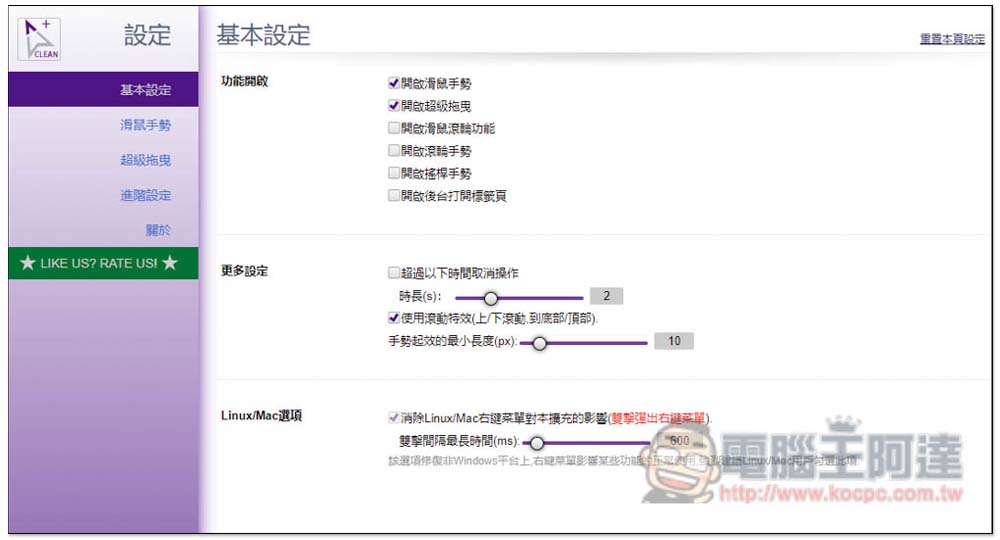
The homepage menu can turn on/off mouse gestures, super drag, mouse wheel and other functions:
Source: KOCPC Chinese