


Another video editor is free for a limited time! ThunderSoft Video Editor is a multi-functional video editor that not only does general cropping, but also splits video frames, video compression, picture-in-picture, video enhancement, batch editing, etc., and can even create GIFs! The free license code is only available for a few days, so hurry up and get it!

用 Telegram 訂閱【挨踢路人甲】最新文章:https://t.me/itwshare
Enter the event webpage (the event webpage URL is at the end of the article), scroll down, and click [click here] after seeing How to….

Select the language you want and click [OK].

Press [Next].

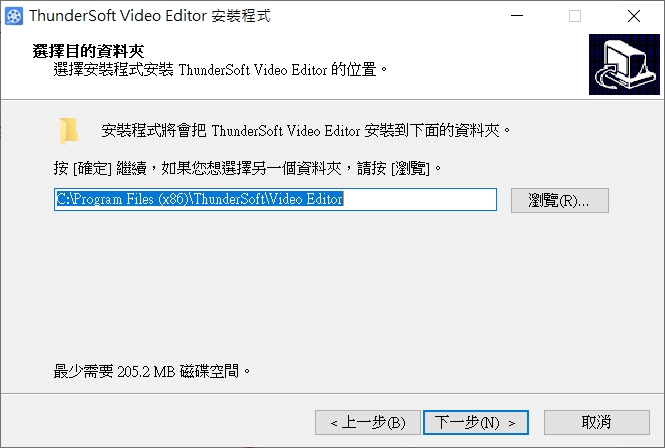
After selecting the location where the application will be installed, click [Next].
Set folder shortcuts.

Choose whether to create a desktop shortcut.

Click [Install].

Wait for a while and the application will be installed.

You can check [Start ThunderSoft Video Editor 13.0.0] and click [Finish] to start it directly.

After the application is launched, you will enter the following interface, where you need to enter your email address and registration code.
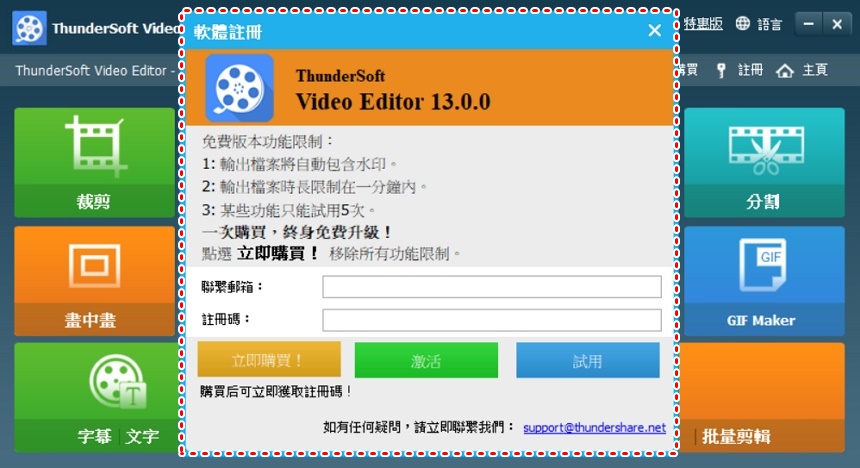
Go back to the event page and continue to scroll down to see [Spoiler]. After clicking it, there will be a string of registration codes, which you can copy directly.

After filling in your email address and registration code, click [Activate].

You can use ThunderSoft Video Editor for free for the next 1 year. Although ThunderSoft Video Editor does not have many functions, it can still cope with general editing requirements. In addition to cropping and merging, it can also convert, split, compress, and even create GIFs.

Click Crop to enter the following screen. Click on other elements in the red box to use different tools.
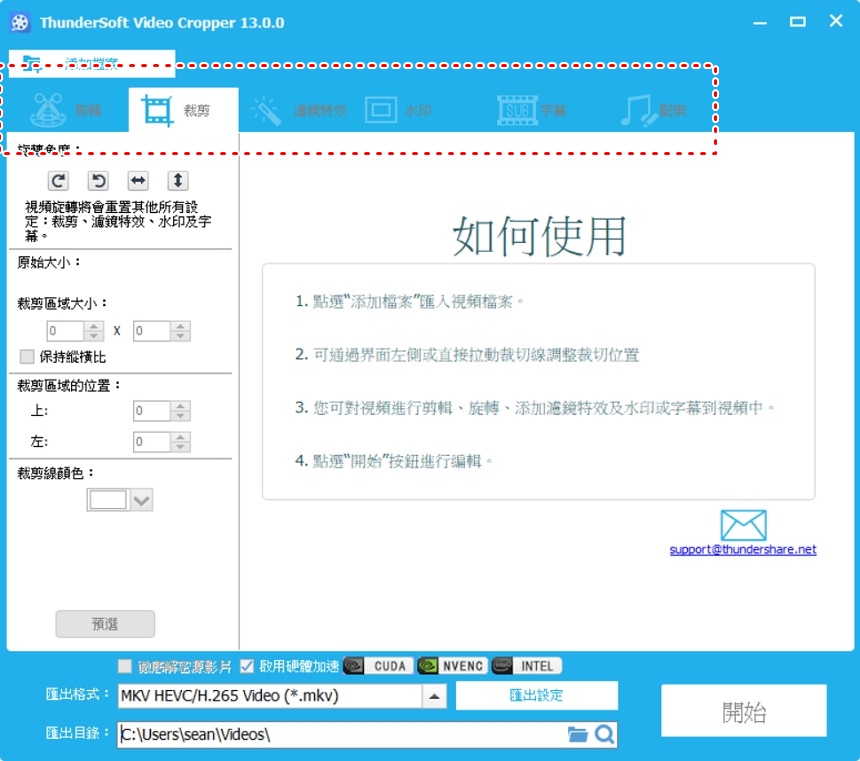
Click “Add File” in the upper left corner to select the video file in your local machine.

In the [Clip] section, you can choose whether to keep or delete the selected area.

[Crop] Various adjustments can be performed in the red box on the left, such as rotation, trimming line color, cropping area size, etc.

There are many options for [Filter]. Simply tick the box and it will be applied to the video.

〔Subtitles〕You can import files directly, no need to manually type them slowly.

In the [Music] section, click [Import Music] to select music in your local machine.

After editing is completed, select the output format and click [Start].

Next wait a moment.

After the conversion is completed, click [Open exported file].

The video will be placed in the same place as the original party.

The interface of [Split Video Frame] is different from the above tools. On the left, you can select the split type and adjust other options, and on the right, you can add filters.

[Merge] tool, click to add files, select 2 or more videos to merge, and click [Start] after completion.

[GIF Maker] Click in to convert video to GIF and image to GIF. Select the start and end time of the video and paste more than one image into the image file. After completion, click [Generate GIF].

〔Batch Editing〕You can crop multiple videos at one time. You can add as many files as you want to reduce. The lower right corner will be used to crop the video.

【Software name】:ThunderSoft Video Editor
[Event URL]: Clickhere
Further reading:
- For a limited time, get a lifetime license for the Perfect PDF 9 Editor editing tool for free
- Apowersoft Background Eraser automatic background removal software is free for a limited time
- PC AutoTimer – Automatic timer for Windows systems, free for a limited time~
Source: KOCPC Chinese