


The mobile phone supports a higher screen display update frequency, which will provide users with a smoother experience. In recent years, high screen refresh rates are no longer exclusive to flagship phones, and even mid-range and entry-level models have gradually supported them. But after setting it, how to know the current screen update rate? Today I will share the tutorial on how to display the screen update rate of Android phones, and enable it directly without installing the app!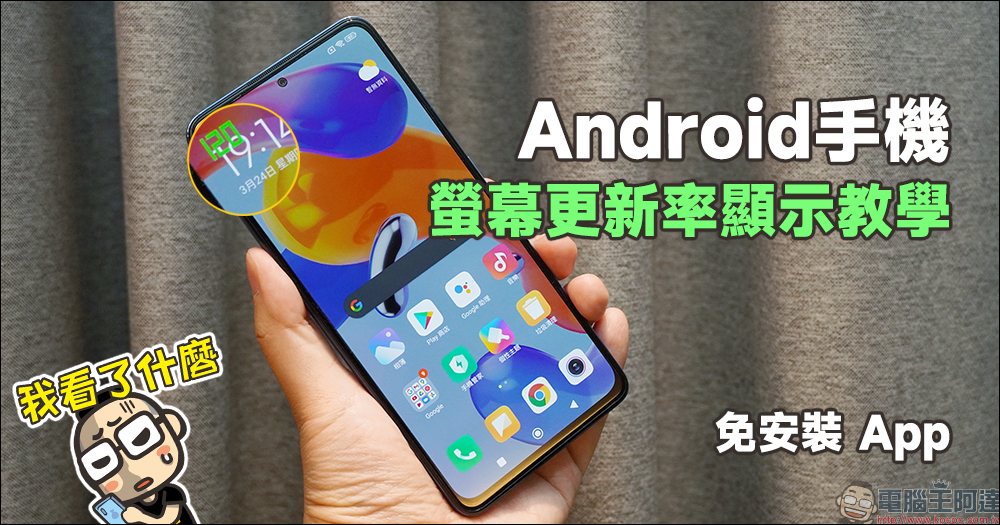
Android phone screen refresh rate display tutorial: no need to install App, built-in in Android system!
In addition to Apple finally providing the high screen refresh rate of 120Hz ProMotion for the iPhone last year, the Android camp has started to support it from flagship phones many years ago, and has now been extended to mid-range and even entry-level models, so that even consumers with limited budgets can enjoy the smooth display experience brought by high screen update frequency.
However, after a mobile phone supports a screen refresh rate of 90Hz, 120Hz or higher, apart from observing it with both eyes, is there the simplest way for users to instantly display the current screen refresh rate? In fact, in addition to third-party apps, this function has already been built into the Android system.
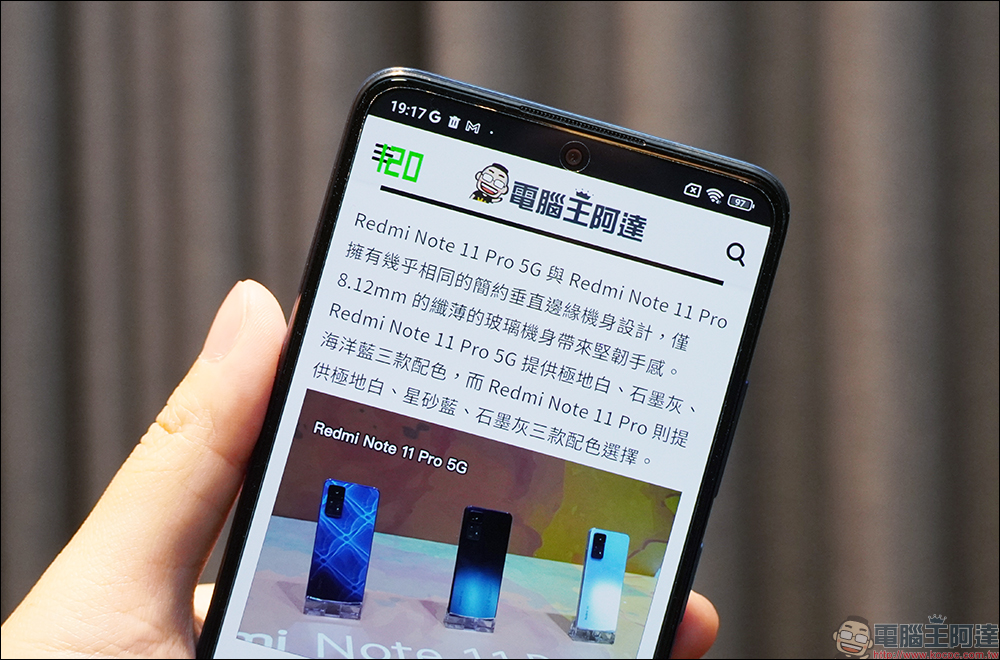
Next, this article will quickly share with you how to display the current screen update frequency of your phone through the hidden function built into the Android system without installing an app. Before we begin, let me explain that this tutorial must be for Android phones with Android 10 (inclusive) and above.
Since different brands of Android phones have slightly different names and locations of setting functions, this article will use Xiaomi MIUI for demonstration. Just like for phones of Xiaomi, Redmi or POCO brands, you can directly refer to the setting steps in this article. If you use other brands of phones, you can also find the corresponding functions on your own, and then start reading!
Step 1. Enable developer settings
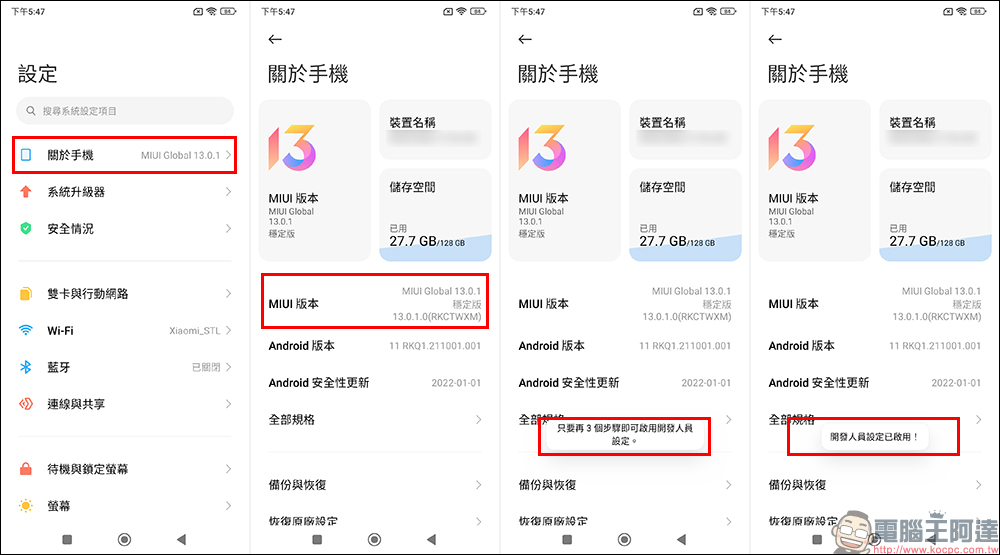
First, go to the system “Settings” and click “About Phone”, then click the software version number 7 times in succession. Taking the MIUI in this article as an example, click the MIUI version 7 times. During the clicking process, a prompt will appear on the screen “Just x more steps to enable developer settings”. After clicking 7 times, “Developer settings have been enabled” will be displayed. This means that you have successfully turned on the developer of your phone!
Step 2. Turn on display refresh frequency
After enabling developer settings, we then return to the system “Settings” page to see the blue “Developer Options”. If you are also a user using MIUI, this option is hidden in “More Settings” in “Settings” and is called “Developer Options”.
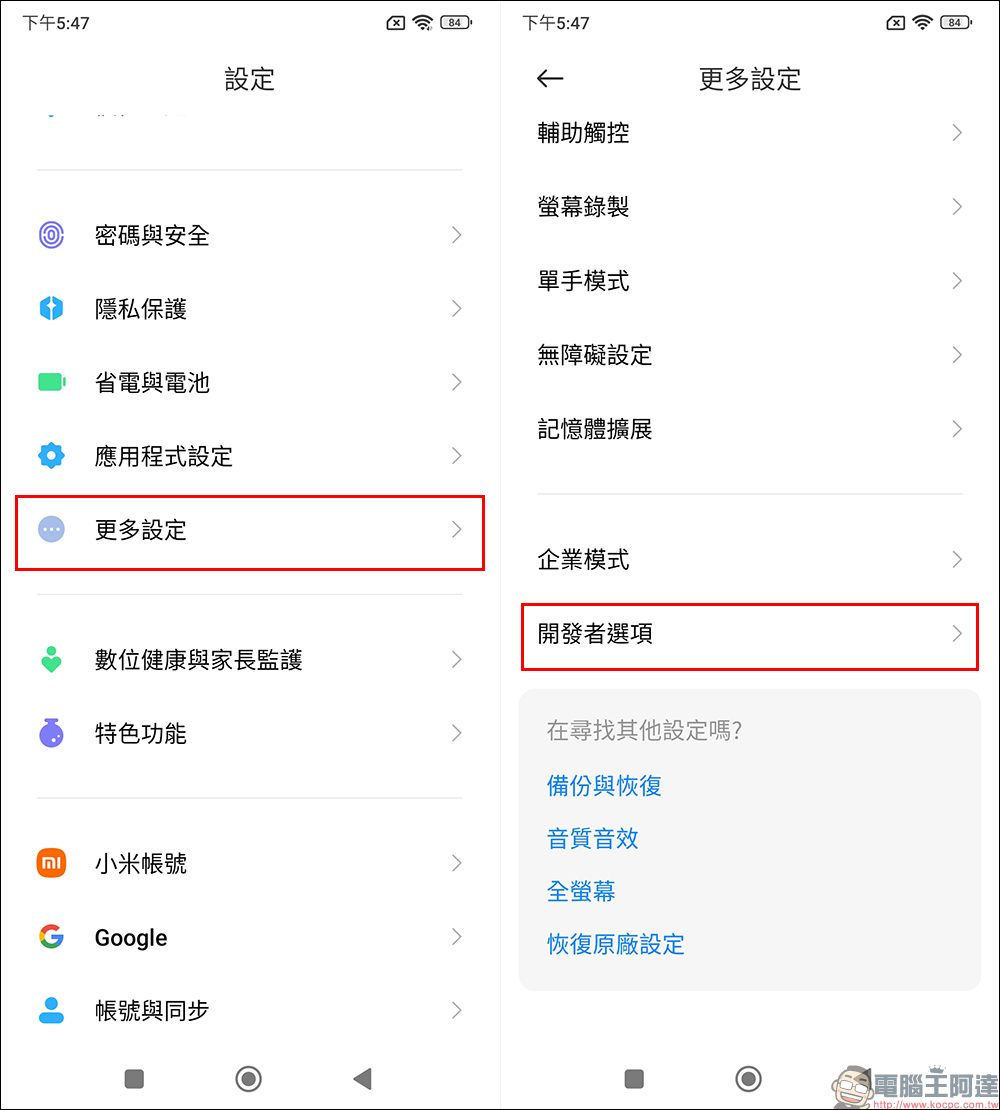
After entering the Developer Options (Developer Options) settings, scroll down the page to find the option “Show refresh frequency”. After turning this feature on, you will see a display of the screen refresh rate in the upper left corner of the screen!
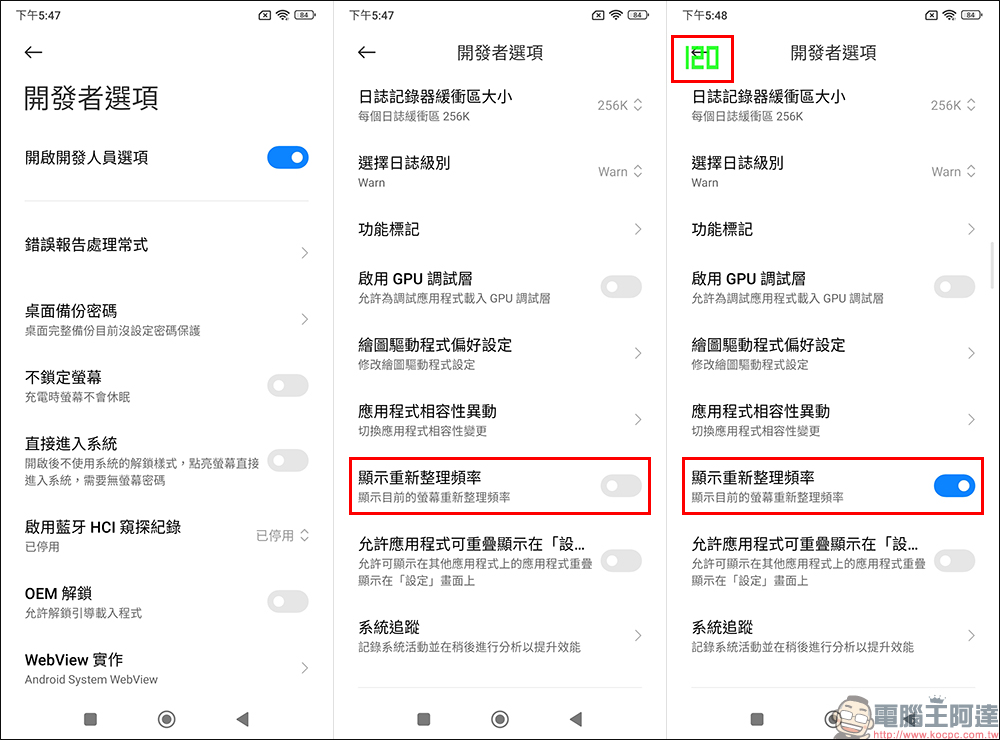
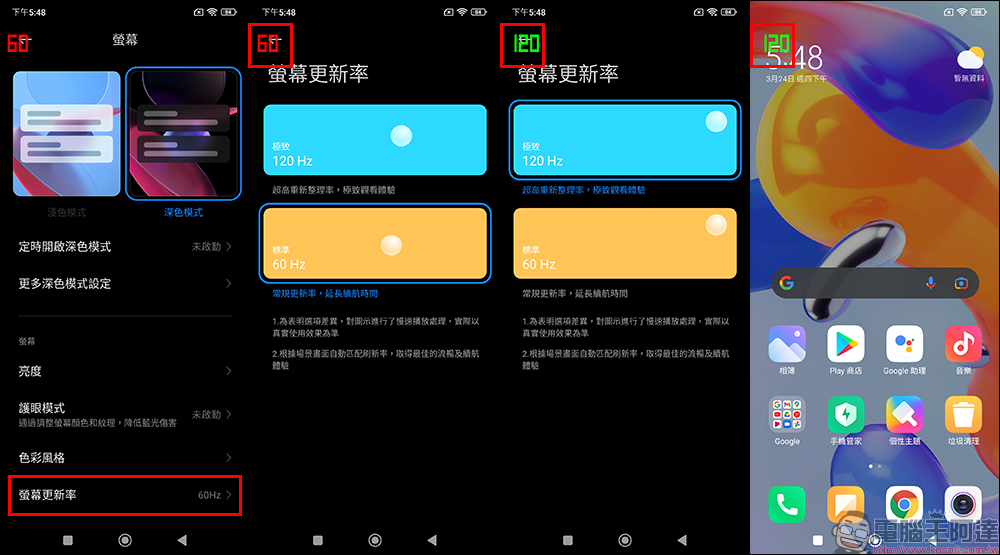
To confirm whether the screen refresh rate has changed, you can also first go to the page where you set the screen refresh rate on your phone.
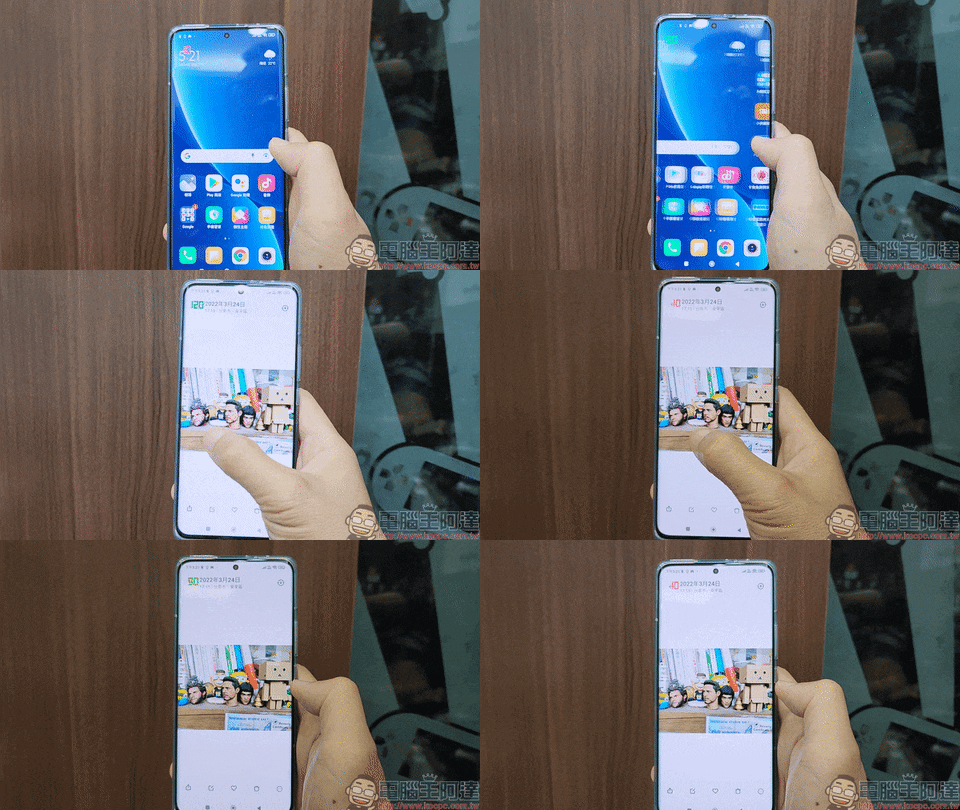
In addition, if you use an Android phone that supports the “Intelligent Adjustment of Screen Update Rate” function (for example, the Xiaomi 12 Pro that supports AdaptiveSync Pro screen), you can see the changes in the screen update rate when the screen is stationary and when your finger touches and slides the screen. Of course, if you don’t want to continue to display the screen update frequency value on the screen in the future, you can also go to the developer options to turn it off.
Source: KOCPC Chinese