


For people who often need to stay outside, they must often encounter notifications that the iPhone battery is less than 20% and it is recommended to enable low power mode. In order to ensure that it can continue to be used for a period of time, most of them will enable it, but they have to manually press it every time, which is really a bit troublesome. Therefore, this article will tell you a little trick. After setting the battery remaining at 20%, 30%, or any other number you set, the low power consumption mode will be automatically enabled without having to operate anything.
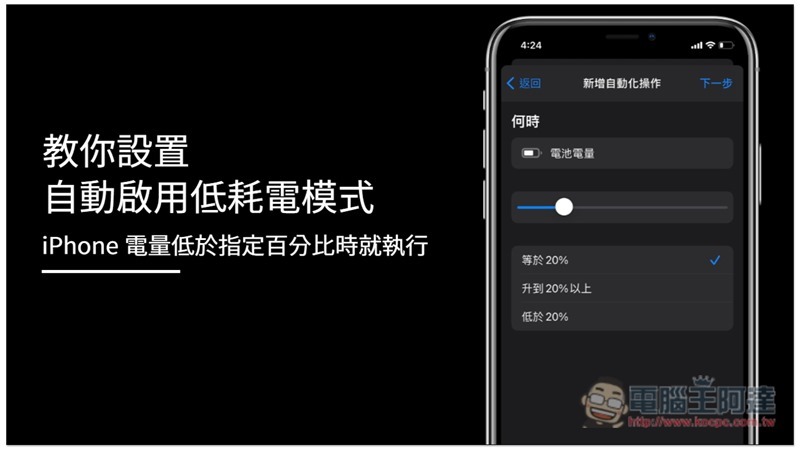
Tutorial on automatically enabling low power consumption mode when the iPhone’s battery power falls below a specified percentage
This method requires the Shortcut App. If you haven’t installed it yet, please go there first. App Store download.
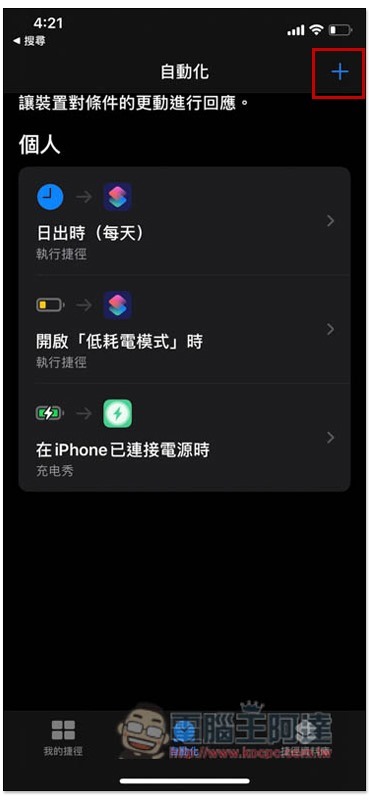
After opening the Shortcut App, click on the automation menu below, then press + Function in the upper right corner:
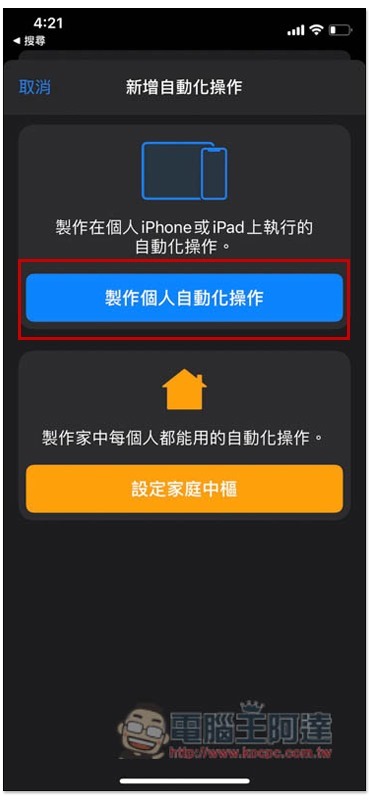
Select Make a Personal Automation:
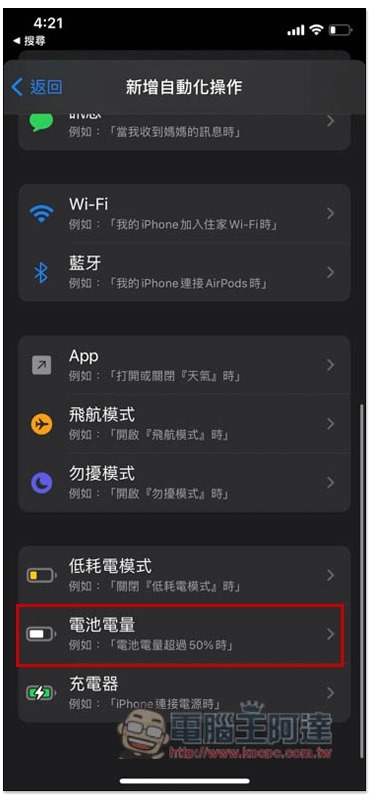
Scroll down the screen to find “Battery Level”:
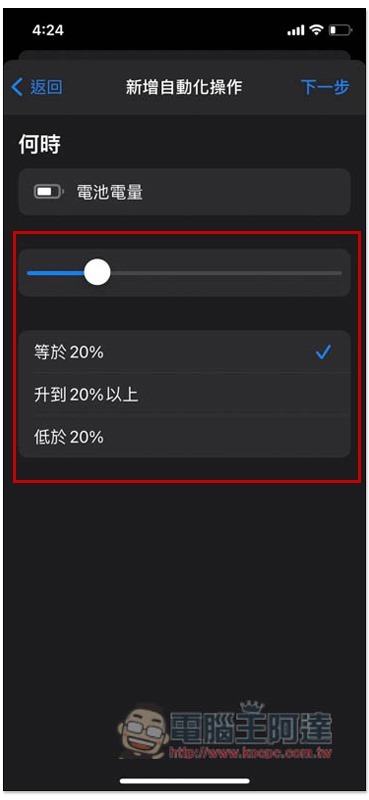
Then use the slider to set the battery power percentage you want. The system will pop up a reminder at 20%, so you can set this number. Of course, those who want to protect the health of the battery or extend the use time can set it higher, such as 25 or 30%. If there are no special requirements for the options below, there is no need to change them. Keep the default “equal to”:
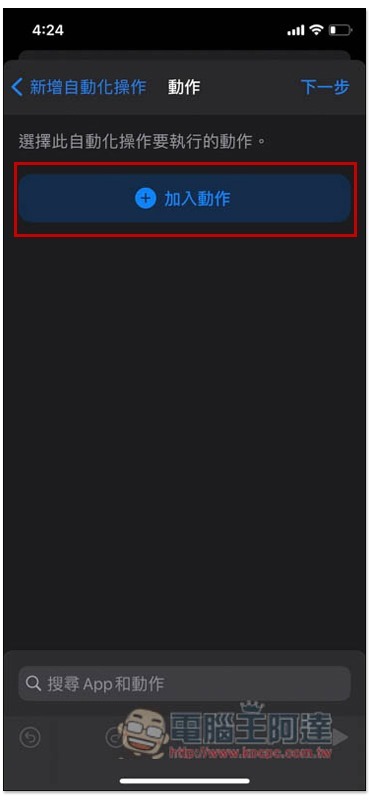
Then press “Add Action”:
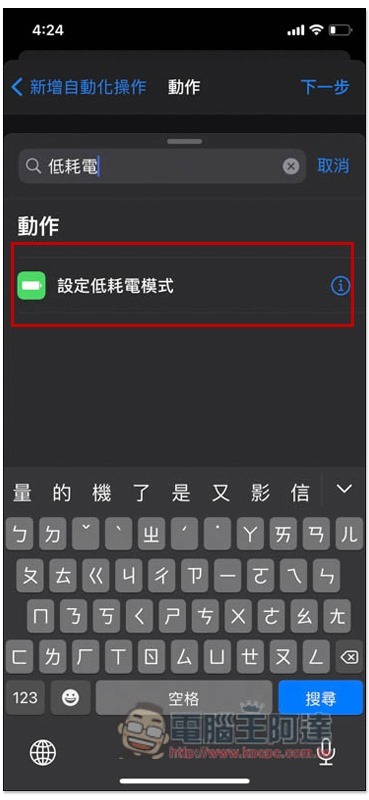
Enter the keyword “low power consumption” directly into the search field to find “Set low power consumption mode”:
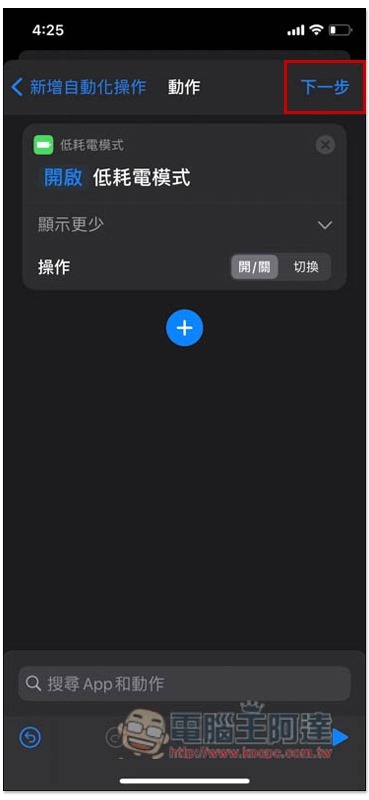
Turn on Show More, make sure “On/Off” is selected, and then click “Next” in the upper right corner if there is no problem:
Remember to turn off “Ask before executing” before pressing Finish, so that it will become truly automatically enabled. If it is turned on, the inquiry window will still pop up before each execution, just like the default notification below 20%:
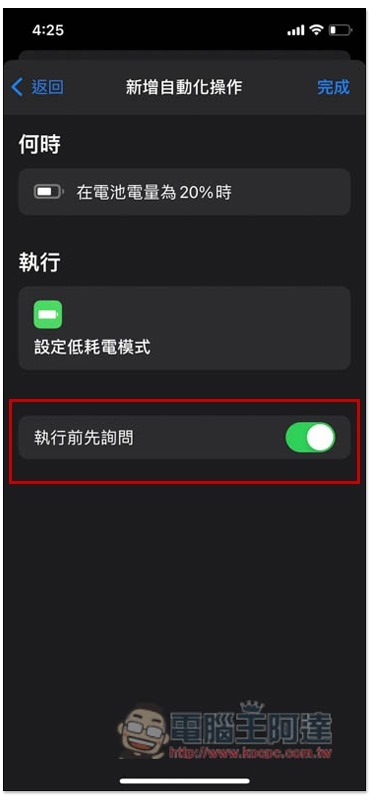
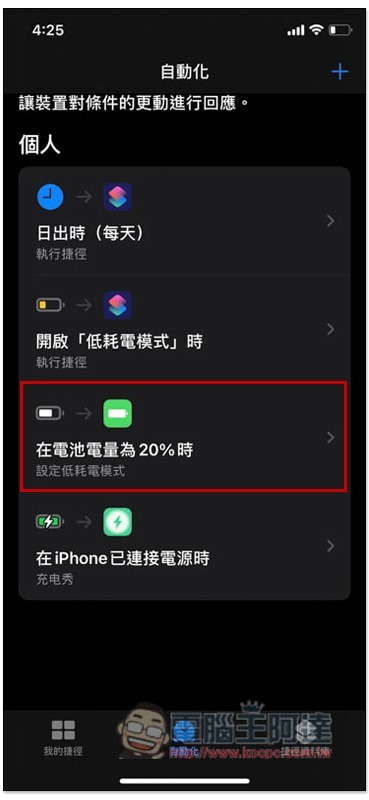
This is successful. In the future, when the iPhone battery power is lower than the percentage you set, you will see that the low power consumption mode is automatically enabled:
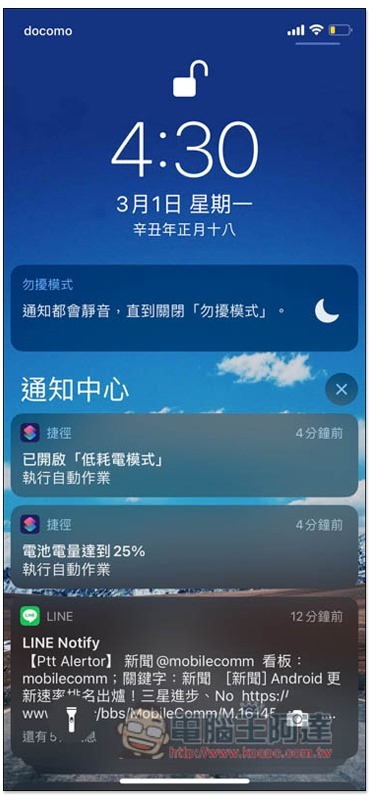
You will also be notified after it is enabled, but you can actually tell by looking at the battery capacity color in the upper right corner turning yellow:
Even for people who rarely turn on low power mode, it is highly recommended to set it up so that you don’t have to worry about forgetting to manually enable it one day, causing the iPhone to quickly run out of power.
Source: KOCPC Chinese