


Smartphones have built-in screenshot functions, and even third-party screenshot apps are already full of them. It would be too weak to introduce the same apps as ordinary ones. Although we usually rarely introduce applications that are still in beta, this time the Firefox ScrenshotGo Beta is different from others. Not only can you take screenshots, but you can also easily search for them, export screenshot text, etc., and you can also classify screenshots, so that screenshots are no longer just pictures.
Firefox ScreenshotGo Beta screenshot application, which can classify, search, and transfer text very conveniently
In addition to quickly keeping records, screenshots can also save some content such as serial numbers for subsequent search. It is not easy to find content containing important information among a large number of photos and pictures. Although the application recommended this time is still in beta version, if your need is to directly transfer screenshot text or want to make it easier to find, then Firefox ScreenshotGo Beta is really easy to use!

Android download:Click here
(currently only Android version)
This app is currently only available in English and has a very simple interface.
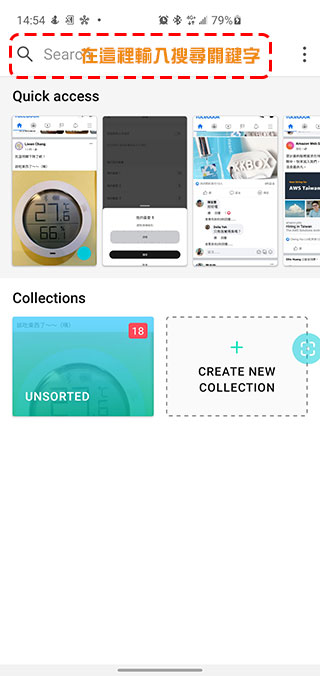
First, after installing and opening it (remember to grant permission), you can see that the main screen is clean. The upper half can see the preview of all the screenshots currently on your phone; the lower half is your category folder.
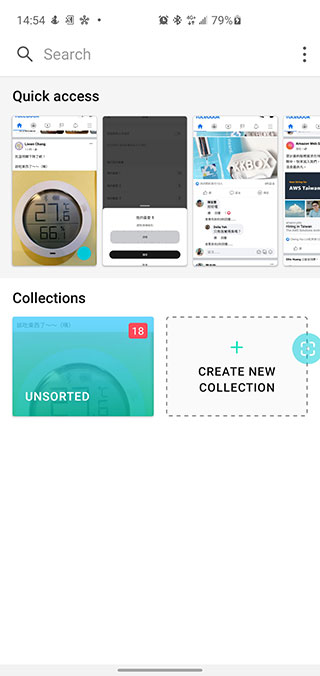
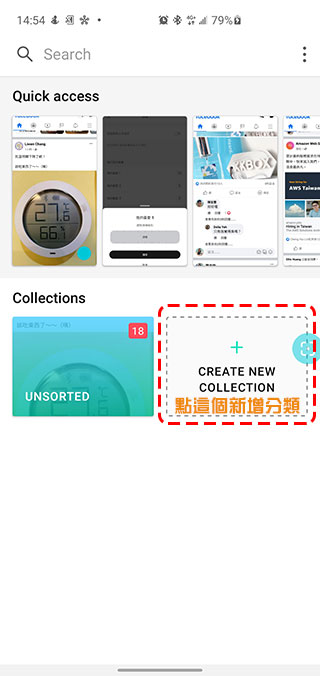
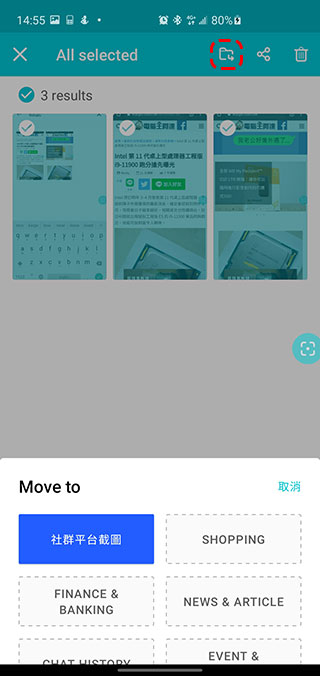
Yes nothing wrong! In this application, you can categorize and archive the applications according to your own preferences and logic to facilitate your subsequent search. You do not need to retrieve the information you want one by one from a bunch of messy historical screenshots. First create a category (the name is up to you), then you can use the search method to find the screenshots you want to put into this category using keywords. Long press the image to display the selection check mark, then select all the images you want to add, click the move icon in the upper right corner and select the category you want to add.
The search function is also quite easy to use. Just enter things like the source of the screenshot, keywords in the screenshot, etc. in the Search field above. For example, if I want to find relevant screenshots of Computer King Ada’s website, I only need to enter “KOCPC” in the main URL and the screenshots will be automatically filtered out. If you want to use the keywords in the screenshots to search, the current system can only recognize English characters, but it is quite convenient.
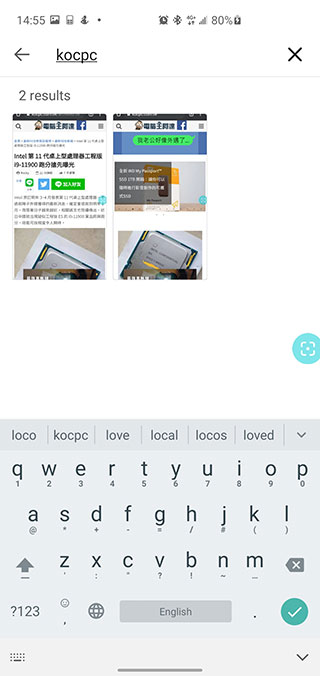
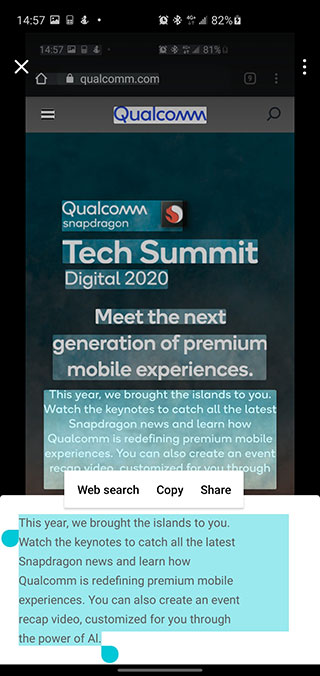
If you want to convert the text in the screenshot, the current version is more accurate in English. Just click on the screenshot and click on the text recognition icon in the lower right corner. The system will automatically help you frame the text. You only need to touch the lighted block and the text will be displayed in the bottom box. From here, you can select it for further operations such as copying or sharing.

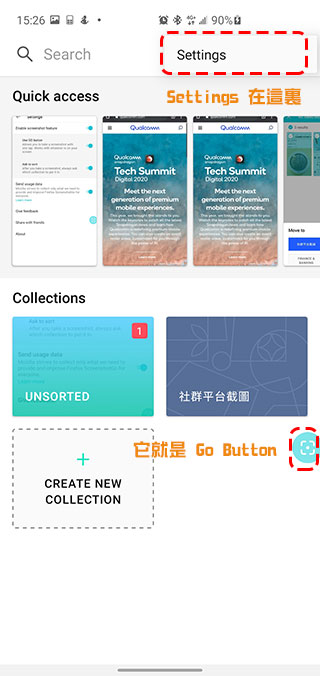
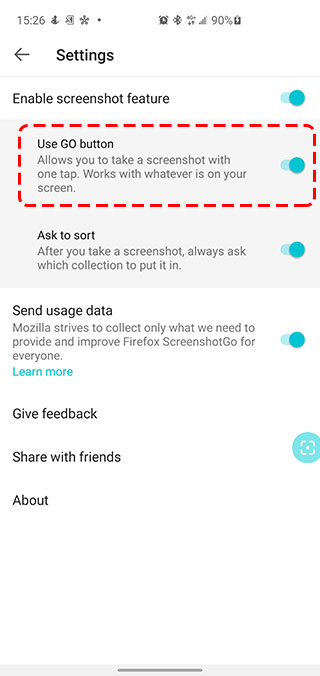
Generally speaking, if you want to take a screenshot on an Android phone, you have to press the combination of the volume button and the power button, but this app has a built-in “Go Button” that you can just click on to quickly take a screenshot. If you accidentally turn it off or find it annoying (drag the Go Button at the bottom of the screen to turn it off), you can re-enable it in Settings.
Although Chinese recognition is not currently supported, I think this is very likely in the future. After all, it is still in the Beta stage, and things will be added or subtracted at any time. In fact, many authorization keys and serial numbers are a combination of numbers and English letters, so it is a very practical application.
Source: KOCPC Chinese