


Since iOS 14, iPhone users have been able to use desktop widgets to create their own iPhone home screen. Some people have also begun to think about the retro style. Since Apple released iOS 7 in 2013, it has adopted a new visual design. The overall style has been changed from the immersive style of iOS 6 to a flat style. However, for many iOS users, the old style has accompanied many memories, and looking back now, it is still quite nostalgic.
Recently, there is a theme pack website that directly organizes a rich collection of iOS 6 wallpapers and application icons, allowing everyone to return to the retro iOS 6 home screen through the combination of shortcut scripts.
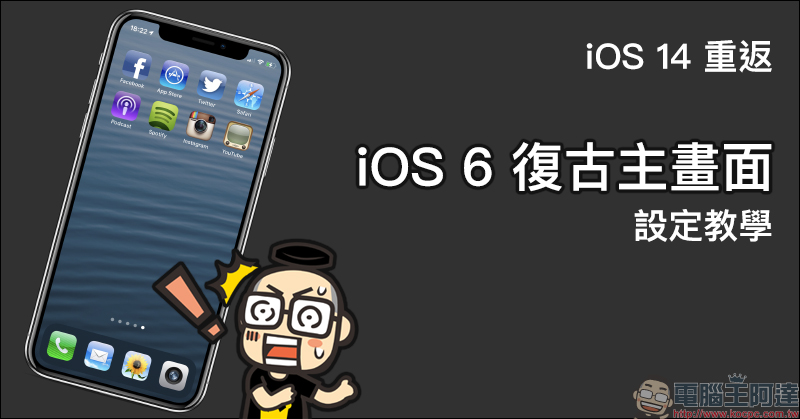
iOS 14 returns to the “iOS 6 retro home screen” setting tutorial
Presumably users of iOS 14 have more or less desktop gadgets placed on the home screen, right? If you sometimes want to change your mood and nostalgic for the immersive-style app icon design of iOS 6 back then, then hurry up and learn this theme pack and tutorial!
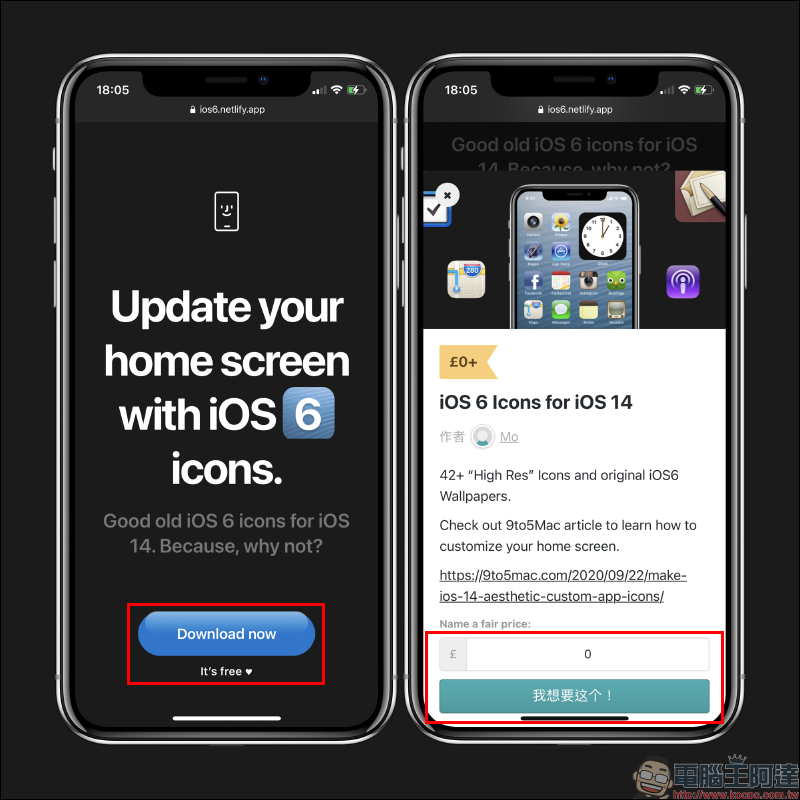
First, open the iOS 6 theme pack download website with Safari browser and click “Download now” to download it immediately. Then enter “0” in the amount field and click the “I want this” button below to proceed to the next step:
iOS 6 theme material download:Click here to go
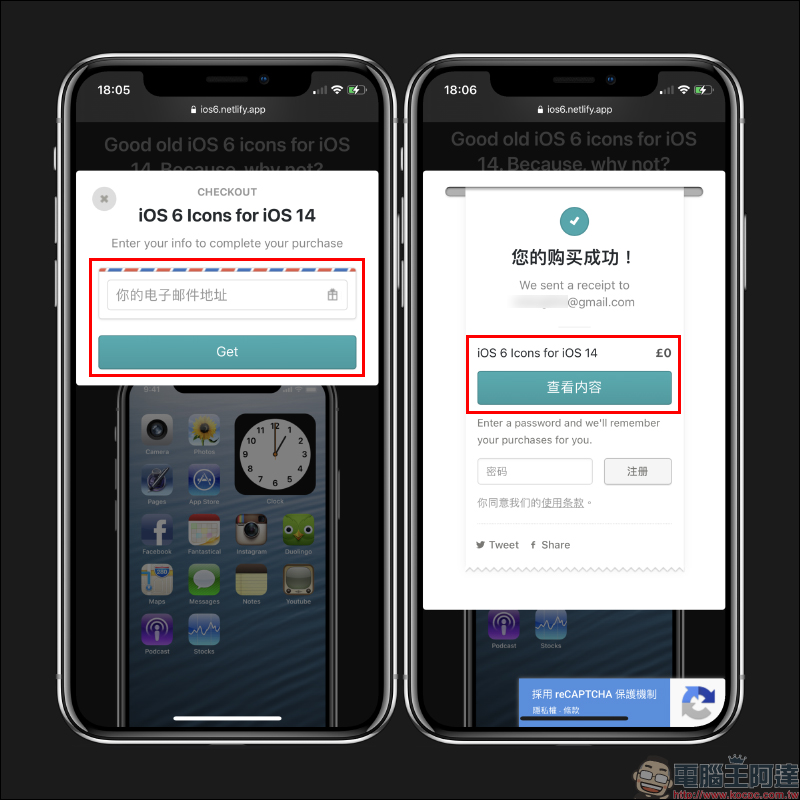
Jie Zhu can get this iOS 6 theme pack for free by entering his email address on the checkout page and pressing the “Get” button. After successfully purchasing for free, click “View Content”:
You will see an iOS6.zip file in the content. Click “Download” to download. At the same time, you can also see the downloaded file in the download item in the upper right corner of the browser:
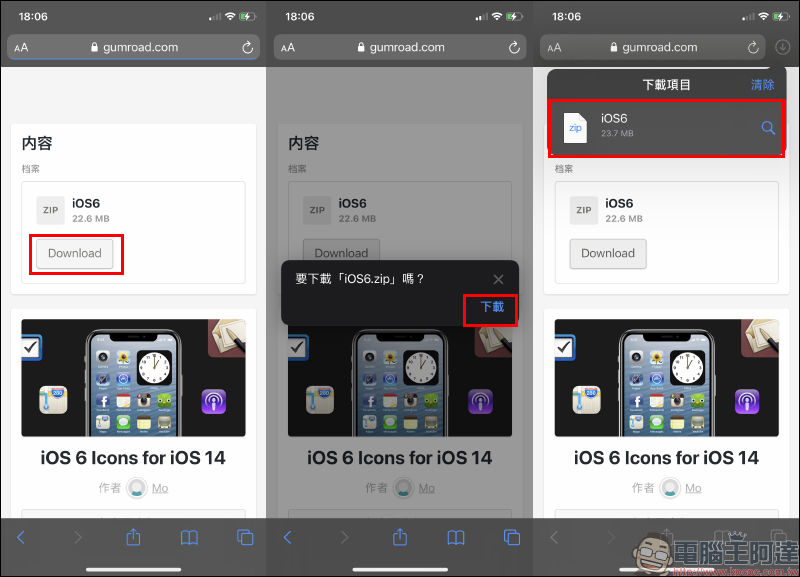
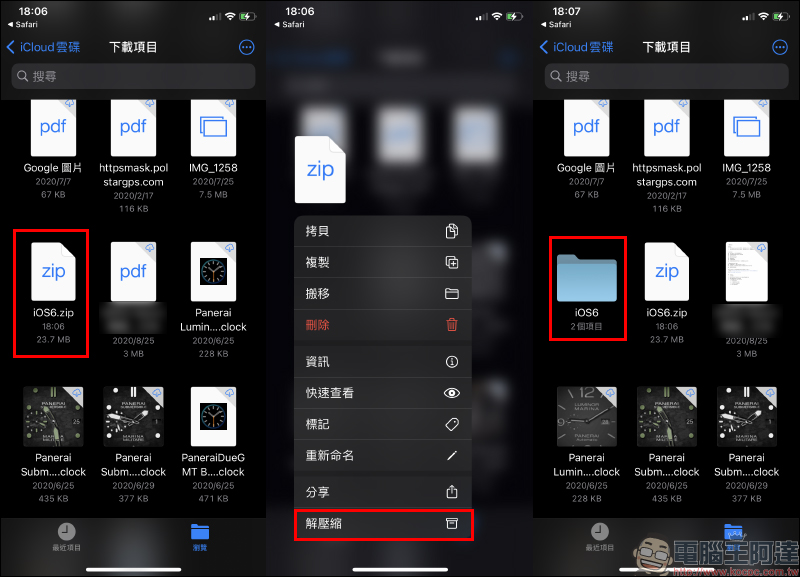
Click on the file to jump to the “File” App, find the file “iOS6.zip”, long press and “Extract”, select the iOS6 folder after decompression is complete:
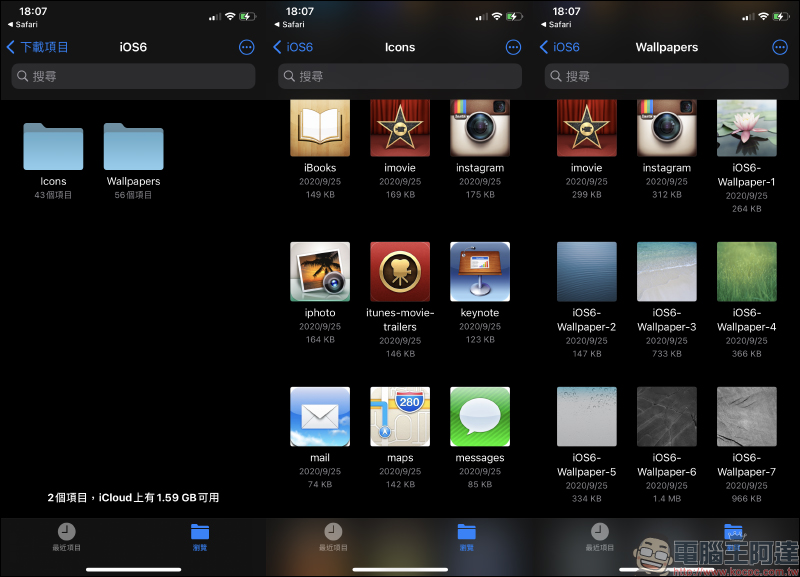
There are two subfolders in the iOS6 folder, which are Icons for organizing various application icons and Wallpapers for various iOS 6 wallpapers:
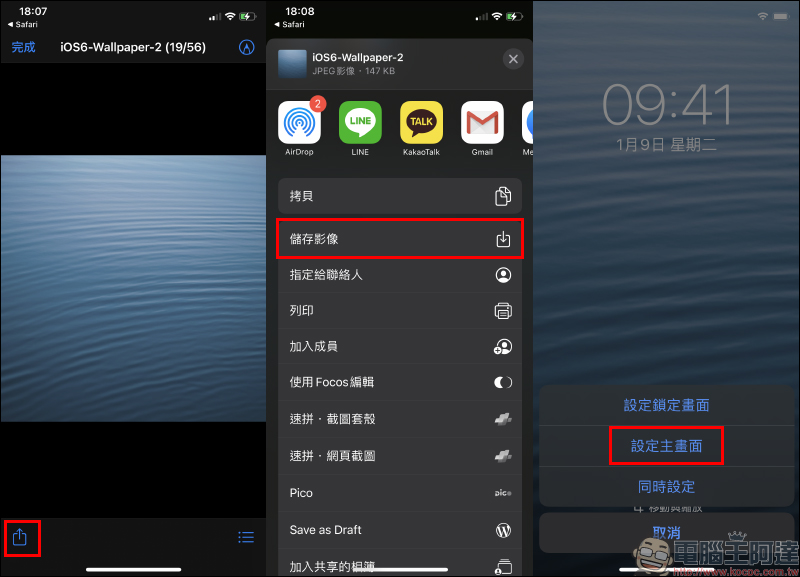
First let’s change the iOS 6 style wallpaper! After selecting your favorite wallpaper image in the Wallpapers folder, click the “Share” button and “Save Image” to save the image to the “Photos” App. Then you can change the wallpaper just like you normally set the wallpaper background!
After finishing the wallpaper, the next step is to set up the iOS 6 icon style application. The technique used here is actually an “old method”. In fact, it is to use the “Shortcut” App to create a new shortcut for opening the App command, and then change the image of the shortcut and add it to the main screen.
This method is actually very simple. First create a new shortcut in the “Shortcut” App, select “Add Action” and then find the process command. Select “Open App” for the process command:
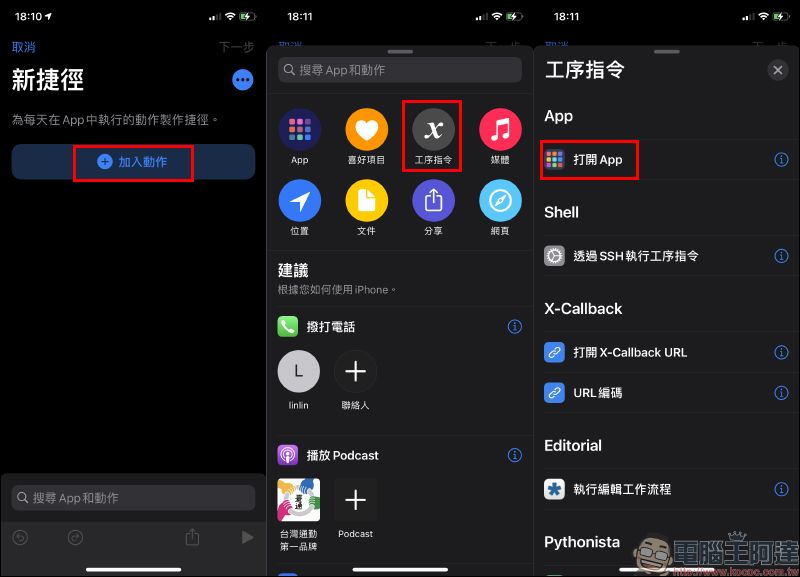
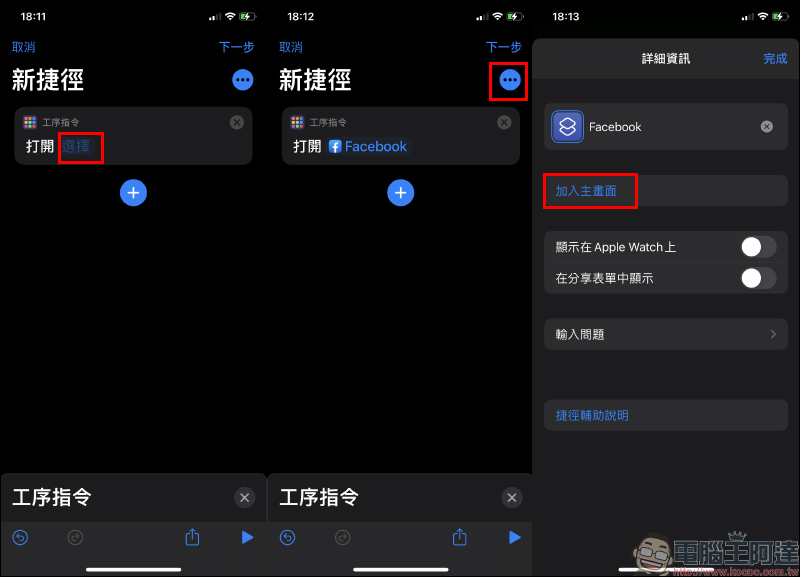
Then there is the app that this shortcut wants to open! Here we will use Facebook for demonstration. Select App, click on the upper right corner to expand the details, and then find “Add to main screen”:
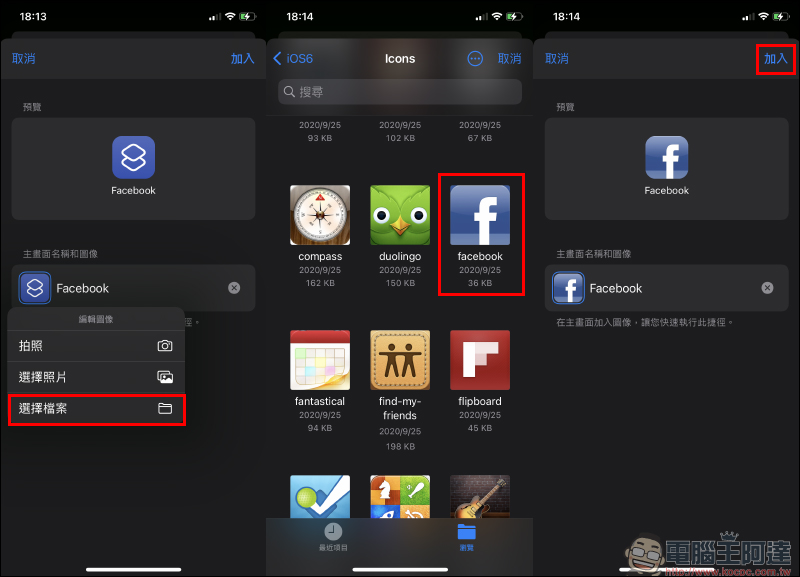
This stage is to set the icon and name of this shortcut command on the home screen. Therefore, in addition to entering Facebook in the text input field, we also click “Select File” in the icon editing image menu, select the Facebook icon in the iOS 6 theme pack, and click “Add” after the settings are completed!
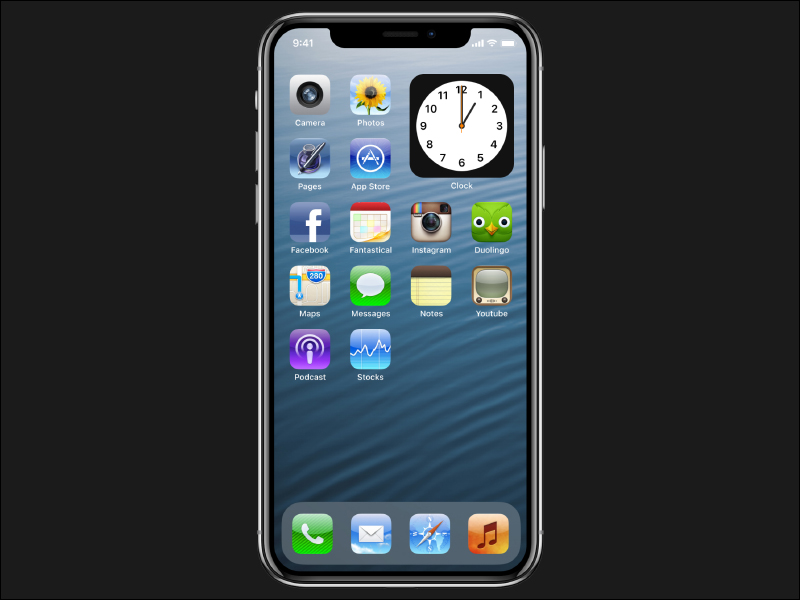
The following is the result of using the iOS 6 theme package for your reference:
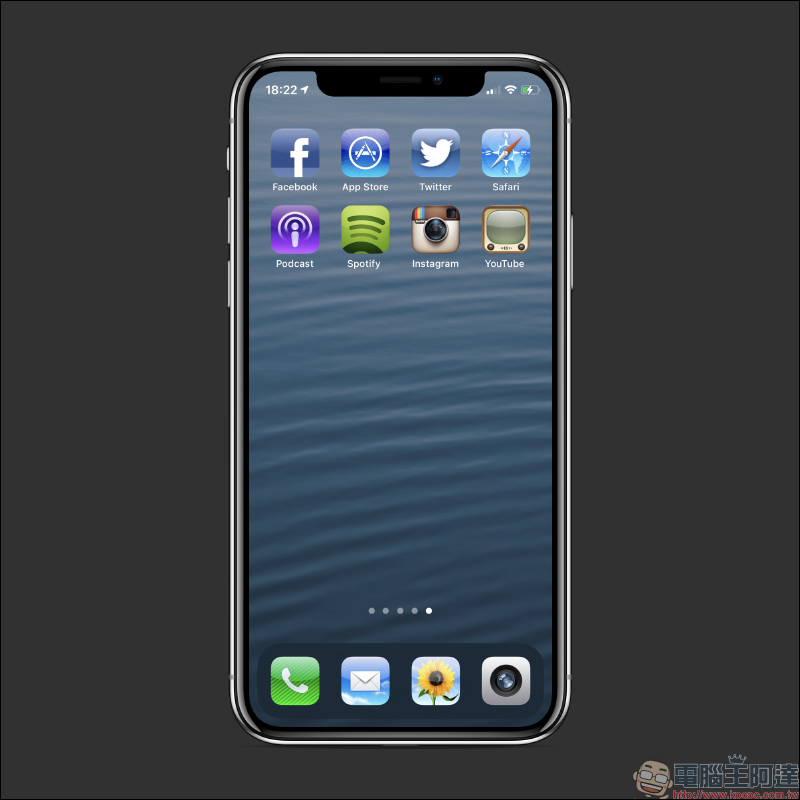
However, this setting is only a change in appearance. It does not mean that the actual applications and systems will return from iOS 14 to iOS 6 of the year. It only uses shortcut commands to open the App. There are also some shortcomings in these application icons made with shortcuts. For example, the red dot for unread message notification will not be displayed in the application, and it is quite time-consuming to create a new shortcut independently for each application displayed on the home screen (if you have many applications).
iOS 6 theme material download:Click here to go
Further reading:
Tips for hiding the bottom Dock in iOS 14: Perfectly hide the Dock bar at the bottom of the home screen, suitable for both dark and light appearances!
Source: KOCPC Chinese