


Because iOS is a closed system, the security part is designed very strictly. Although this is a good thing, it is quite a headache when you forget certain passwords. For example, if you accidentally forget the screen lock password, the iPhone will be locked and cannot be used; if you forget your Apple ID or buy a second-hand iPhone, you want to log out and log in to another account, etc. You may think that you can only turn to a mobile phone store or repair center (maybe there is no solution). In fact, there is such a powerful iMyFone LockWiper software that can help you solve this problem easily, and the operation is quite simple.
Just connect your iPhone to your computer, open the set and enable the unlocking process, wait for it to run and you’re done. Even people who don’t know much about technology can get started quickly. Whether it is “Forgot Screen Lock Password”, “Remove Apple ID”, or “Remove Screen Time Password”, this set is all supported, and in my actual test, it is all feasible.
Of course, some people may worry about the possibility of bricking? As long as you follow this set of instructions, you’ll be fine. My iPhone X still works normally after testing three unlocking functions.
Click here to view and purchase LockWiper (iOS)
Click here to view and purchase LockWiper (Android)
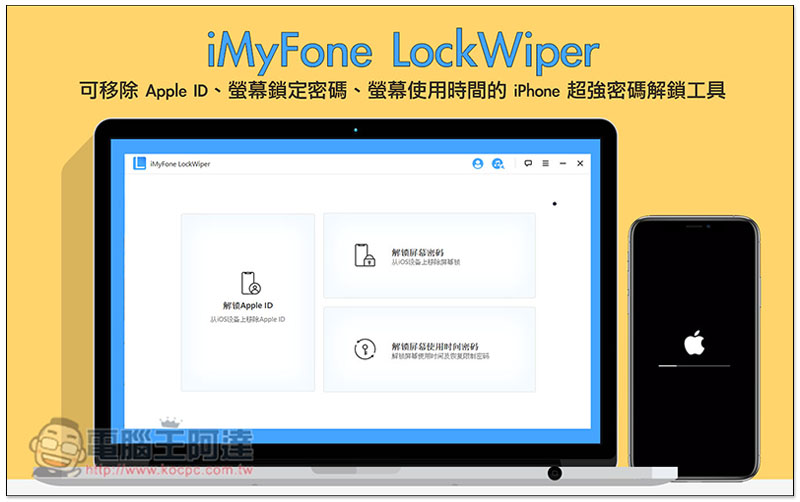
iMyFone LockWiper software introduction
iMyFone LockWiper supports both Windows and macOS systems. It can unlock some iOS versions and devices, so no matter which iPhone, iPad or iPod it is, it is basically no problem. However, some unlocking functions have some restrictions, which I will explain below.
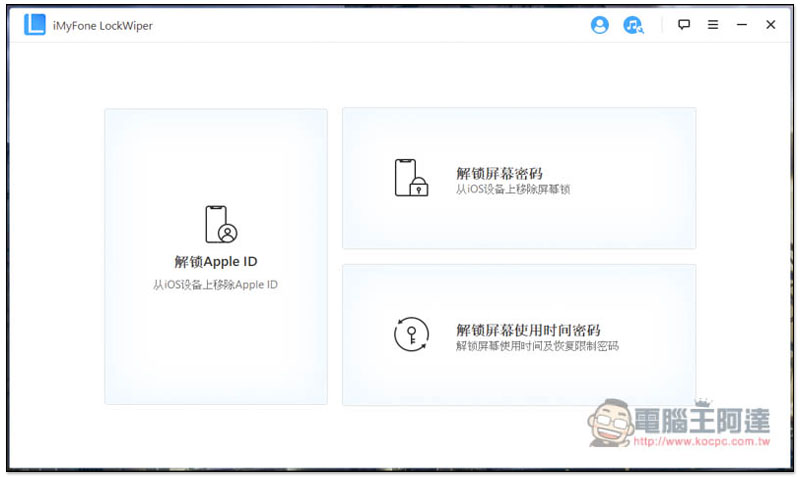
The operation interface is very simple. The main screen has three major functions: “Unlock Apple ID”, “Unlock Screen Password” and “Unlock Screen Time Password”:
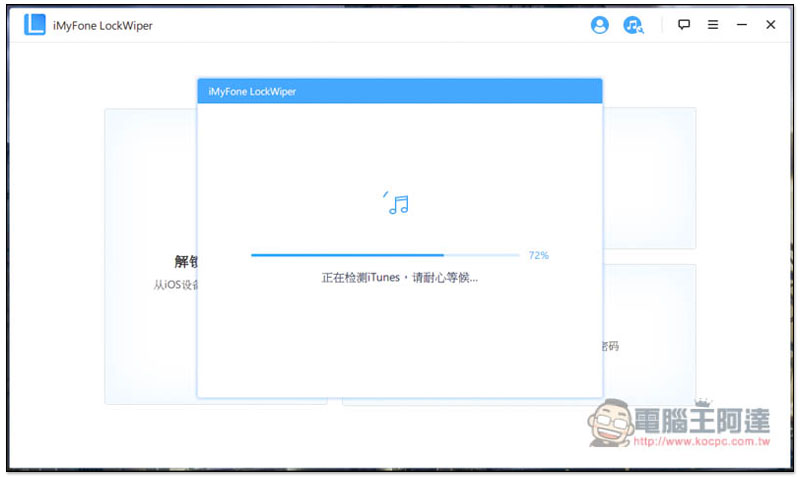
It needs to be used with iTunes software. If it has not been installed on your computer or Mac, remember to download it first. For those who have already installed it, it will also automatically detect whether it is the latest version to ensure a smooth unlocking process:
The unlocking operation is very simple. After connecting the iOS device (iPhone, iPad, iPod) to the computer, click on the function you want to unlock to start. I will use iPhone as an example below.
Actual test of unlocking Apple ID (forgot account password)
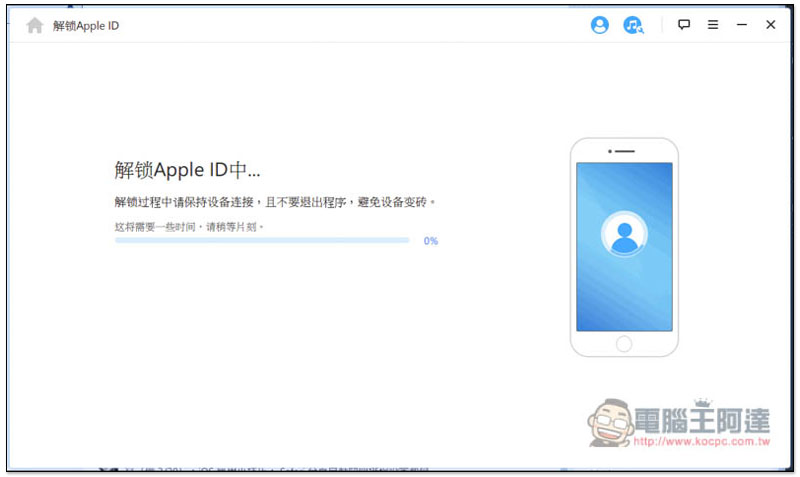
Once you click Start, the steps to unlock your Apple ID will be performed. Please keep your iPhone connected and do not unplug it or close the software to avoid bricking the device:
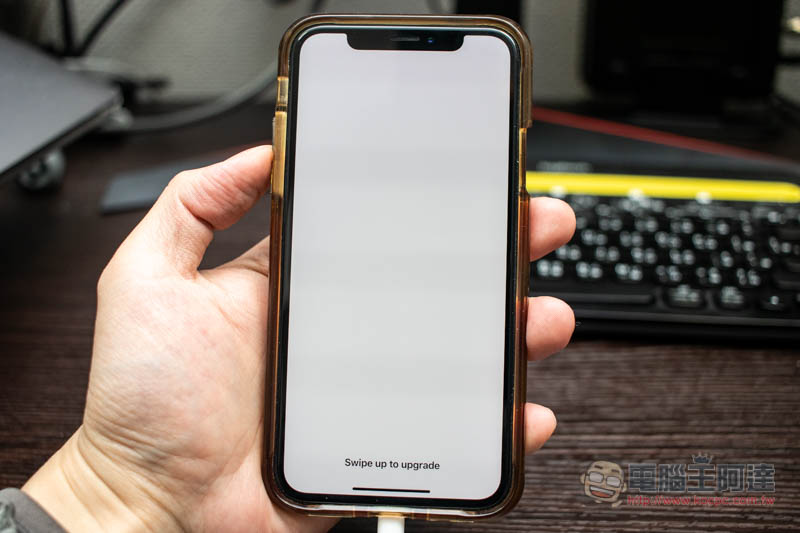
During the process, the iPhone will display this all-white screen. At this time, please slide up from the bottom:
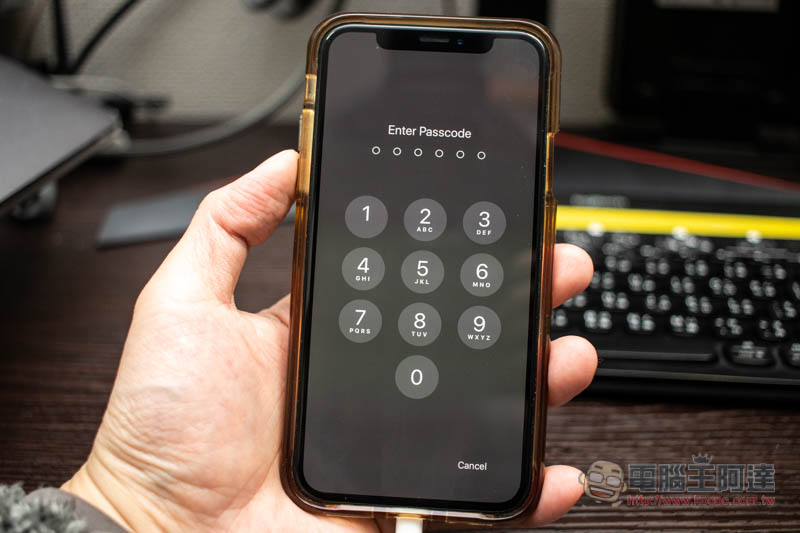
Enter your screen unlock password:
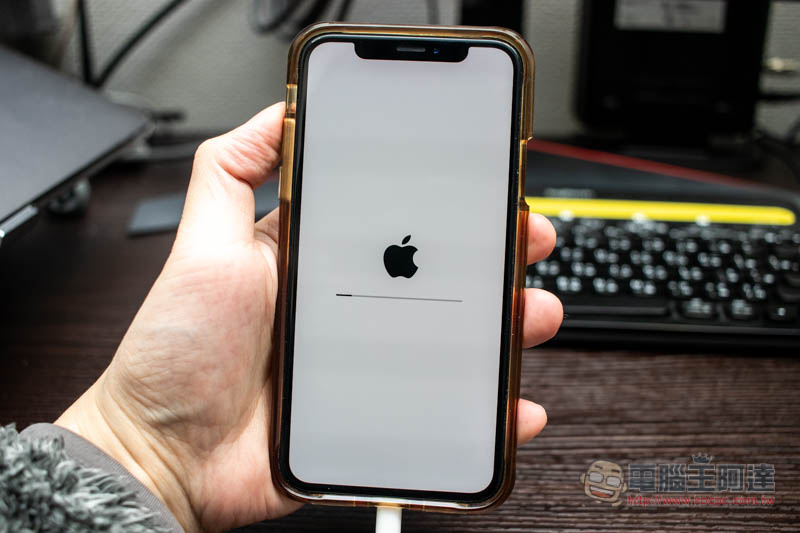
Then it will restart, and you need to wait for a while:
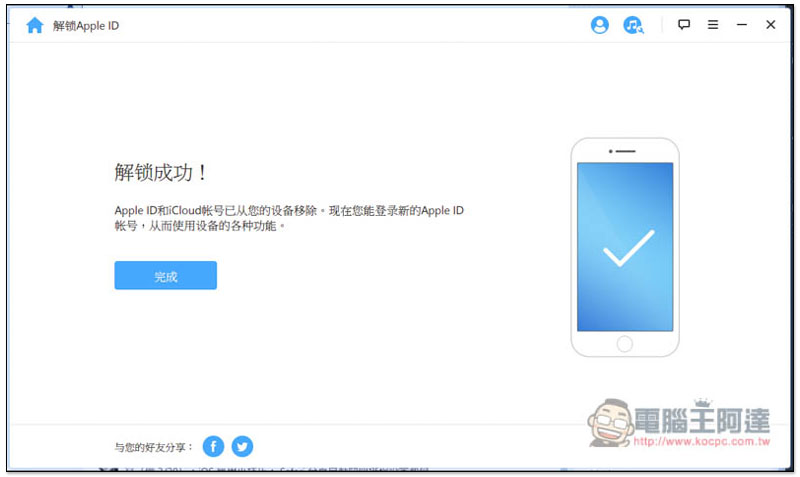
Wait for LockWiper to display the unlocking success screen:
The iPhone will enter the initial setup steps:
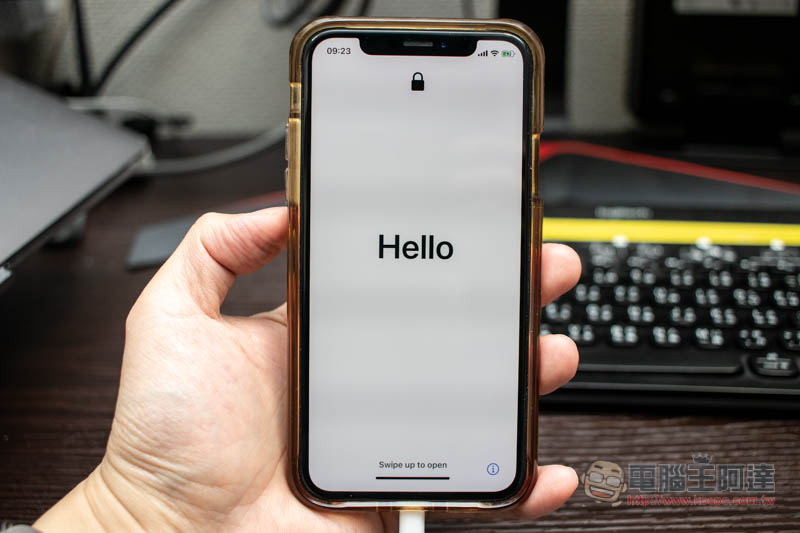
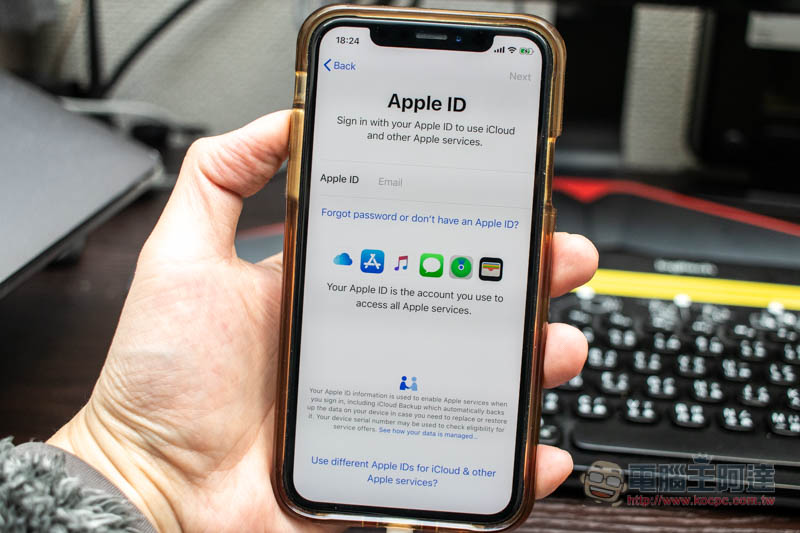
As expected, the original Apple ID disappeared and became a reset account. In addition, although the interface of the setup process is in English, don’t worry about this. You can adjust it to Chinese from the settings later:
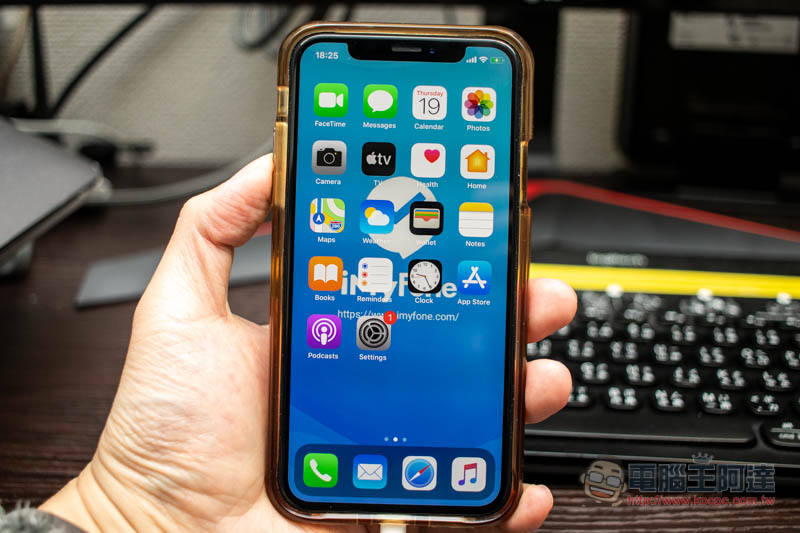
After entering the iOS home screen, the wallpaper will change to iMyFone, and all original data will be deleted. If you have a previous backup, you can enable the restore process:
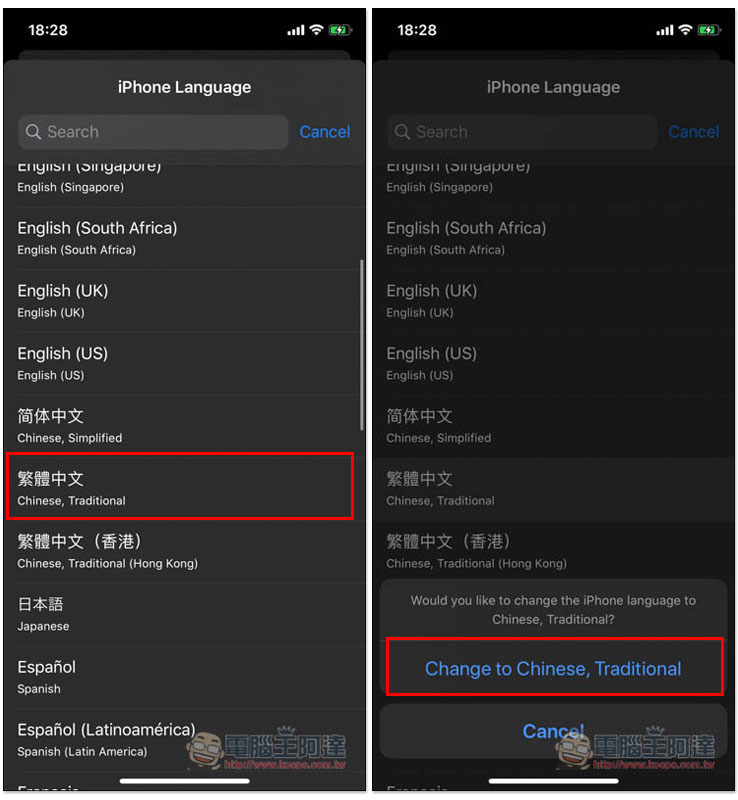
The steps to change back to the Traditional Chinese interface are as follows: Open Settings -> General -> Language & Region, and click iPhone Language above:
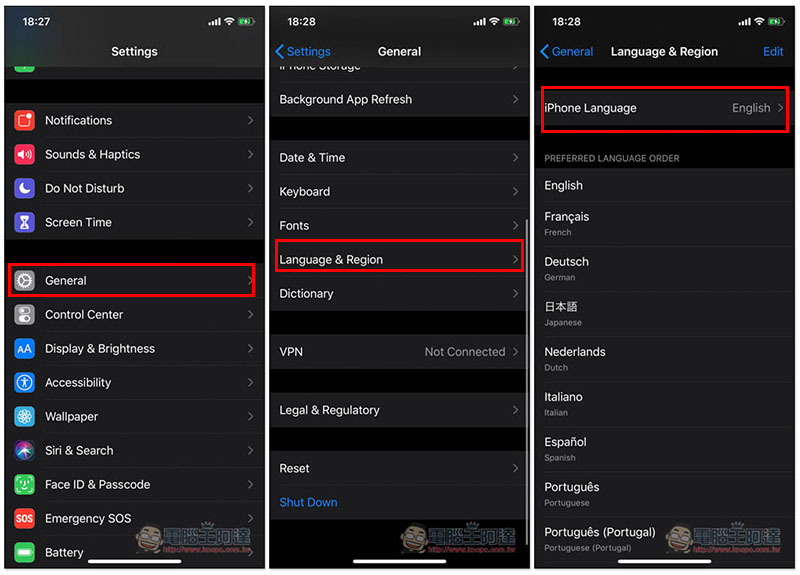
Scroll down to find Traditional Chinese and click on it:
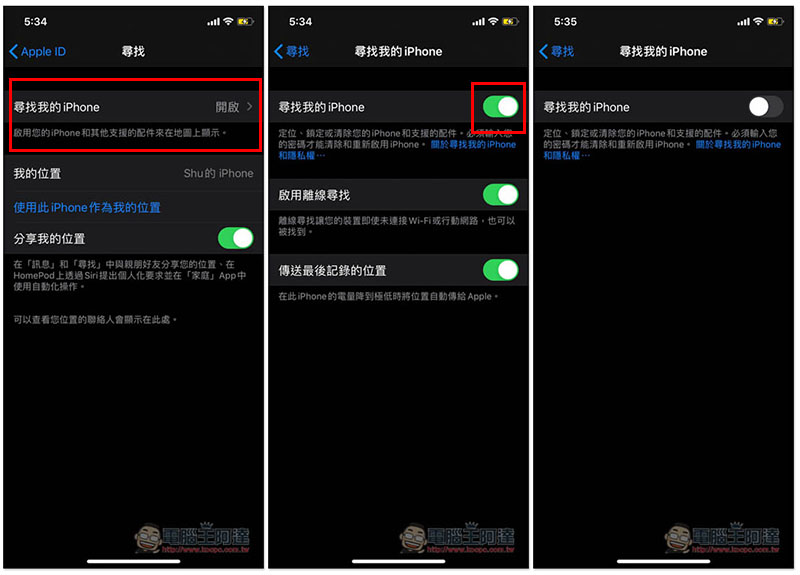
There is a condition for “unlocking Apple ID”. If the “Find My iPhone” function is turned on in iOS 11.4 or above, it cannot be unlocked and must be turned off. If you are not sure whether it is turned on, you can go to Settings -> click on the Apple ID at the top and you will see the “Find” function. In the Find My iPhone option, you can confirm whether it is turned on or not. Click the button to turn it on or off:
Actual test of unlocking iPhone screen password
Unlocking the iPhone screen passcode will upgrade iOS to the latest version, so before you start, you need to download the firmware package. This package will automatically detect your iPhone model and then download the corresponding firmware version. You don’t need to find it yourself, just click download. Of course, remember to connect to the Internet first. If downloading fails, there are solutions below:
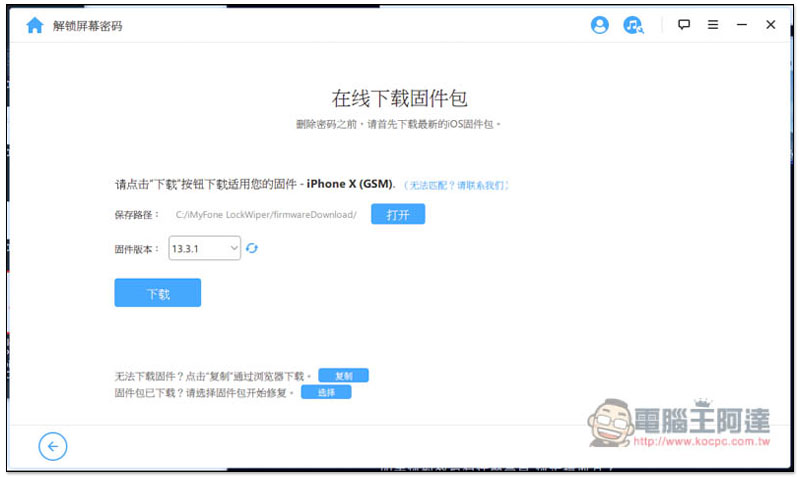
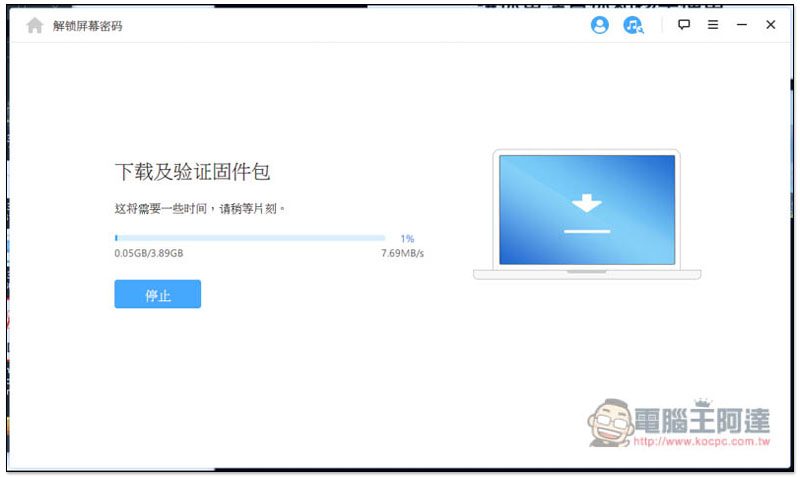
The firmware package files are quite large, exceeding GB, so it will take a while to download:
After the download is complete, press “Start decompression”:
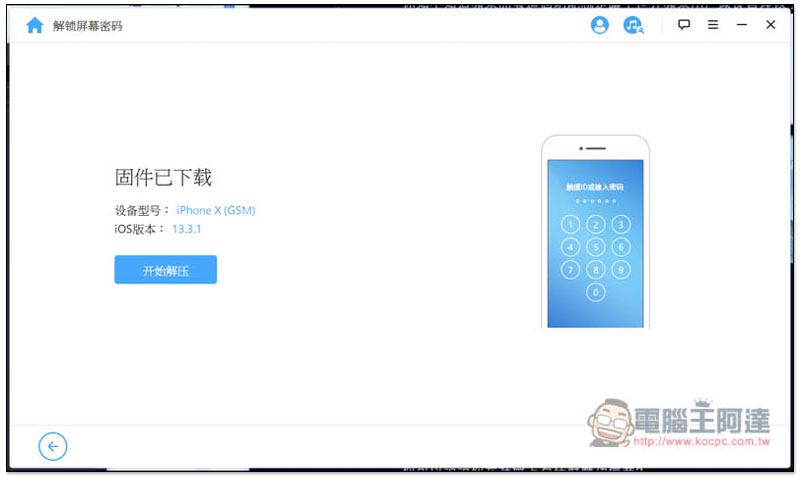
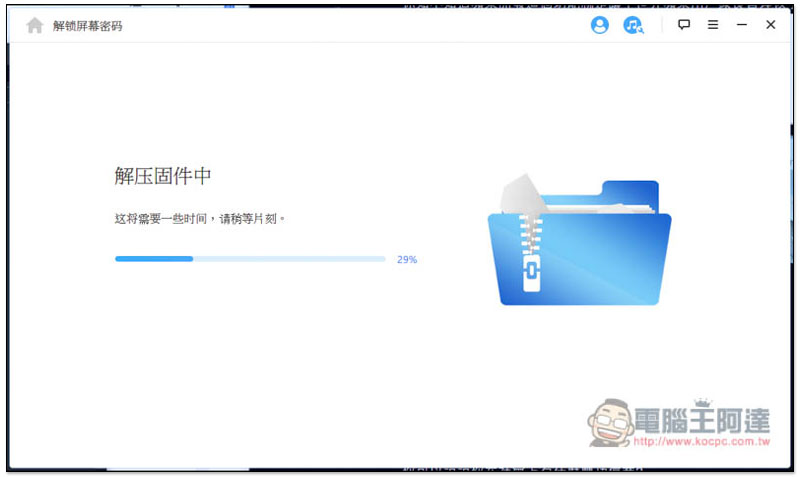
The decompression speed is faster than downloading:
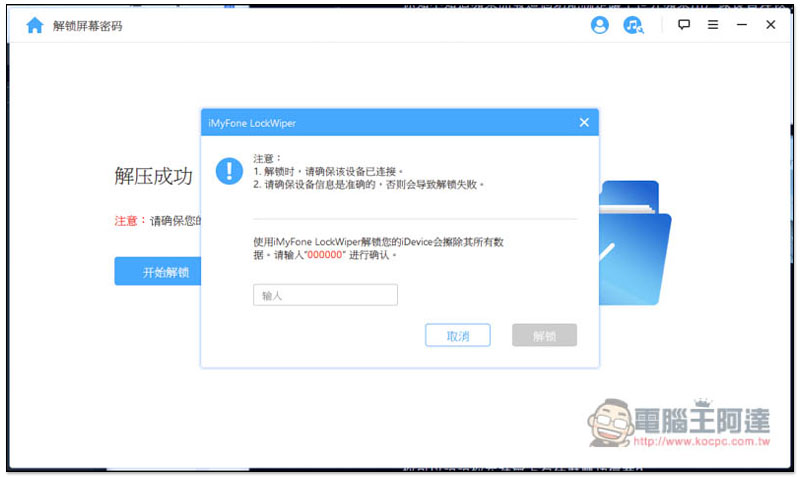
After completion, a warning will pop up before officially starting to unlock, reminding you that all data on the iPhone will be removed. If there is no problem, enter 00000 to confirm:
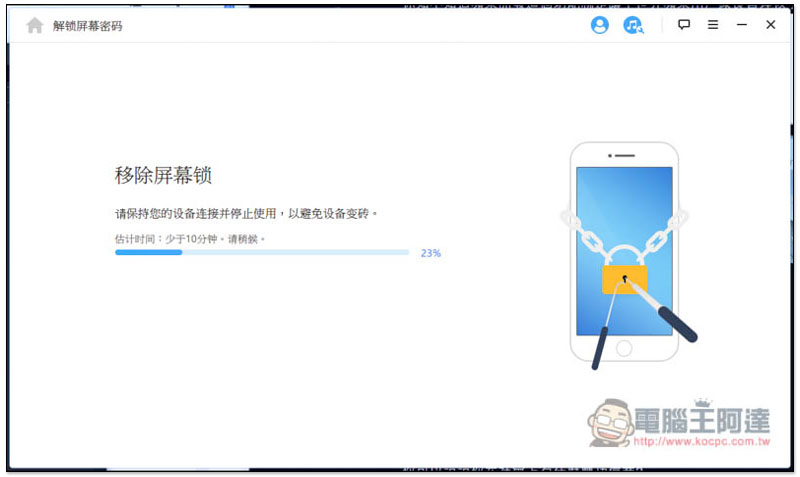
The removal process will take about less than 10 minutes. It is also very important to “don’t unplug the iPhone” to avoid bricking:
The iPhone screen will also change to the Apple icon:
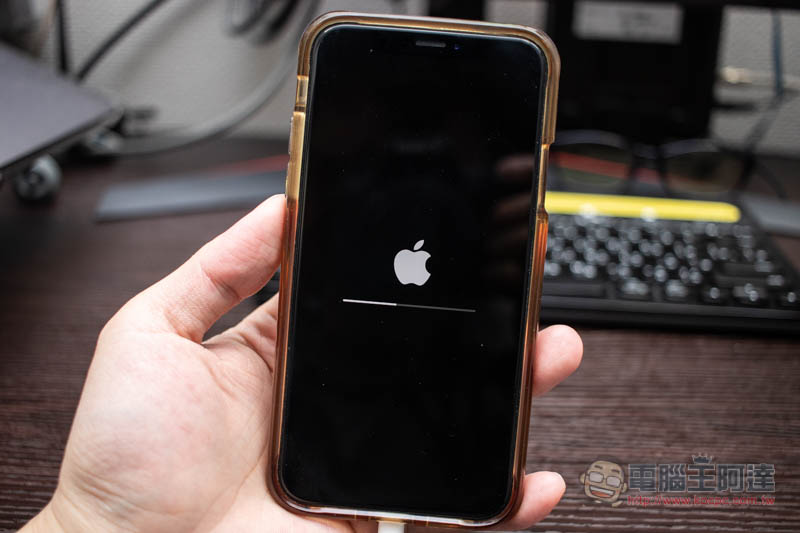
After the removal is complete, the iPhone will take a while to restart, please wait patiently:
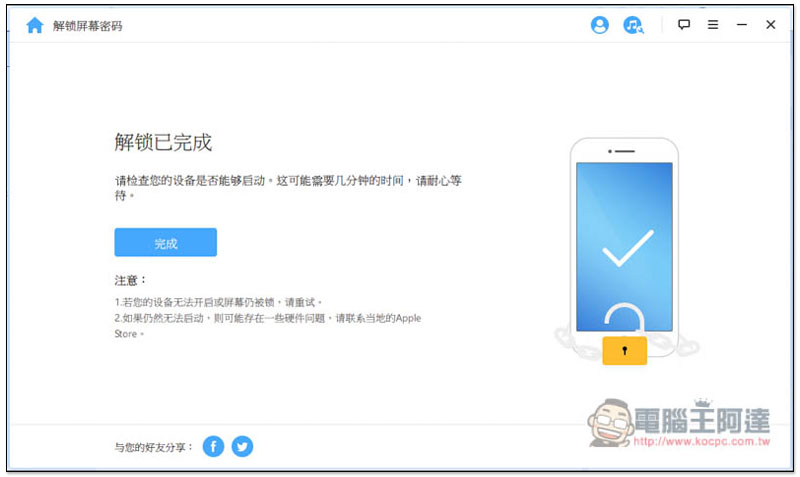
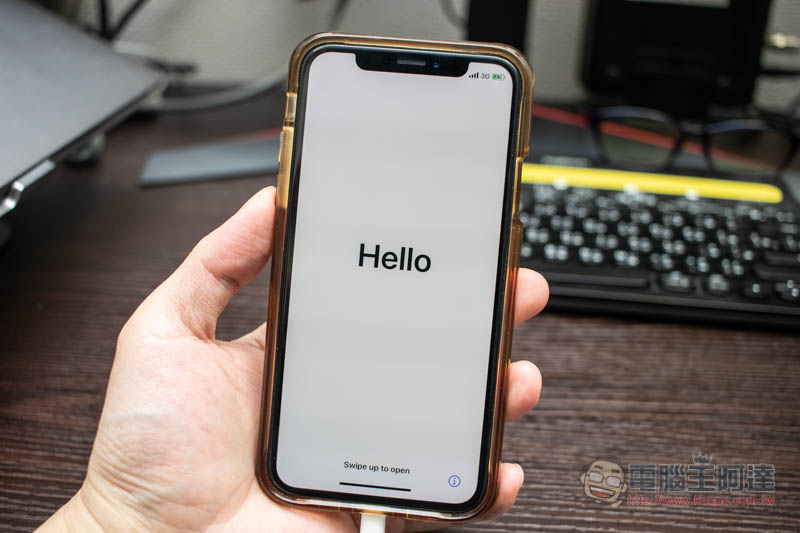
Then you will enter the initial setting screen, just follow the screen settings step by step:
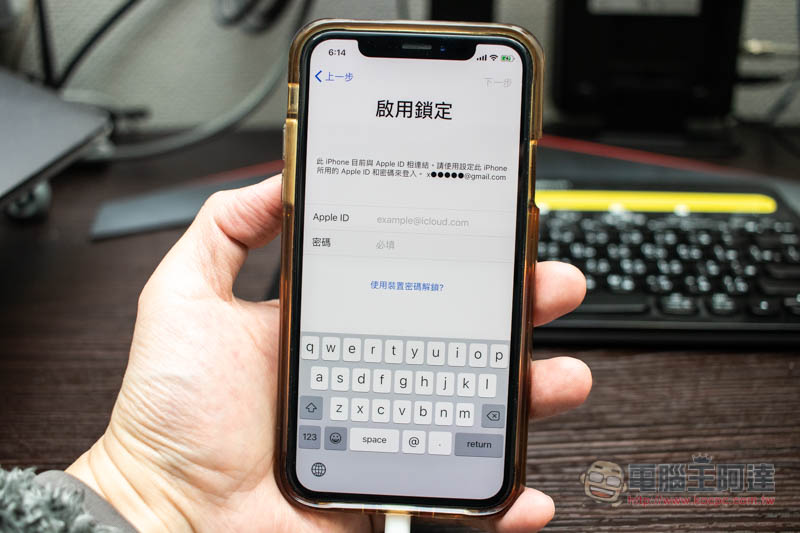
If you are like me and have the Find My iPhone function turned on, then the “Enable Lock” step will appear during the setup process, and you need to enter the previously bound Apple ID to enable it. People who are closed don’t have this step:
After the setting is completed, you will enter the main screen without entering the screen password, and the iPhone will become clean. You can restore it through previous backups in iCloud or iTunes:
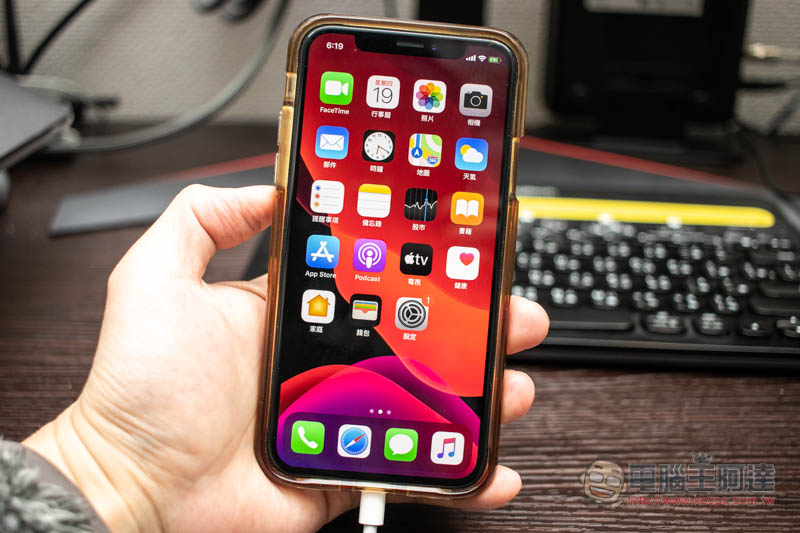
Actual test of unlocking iPhone screen time password
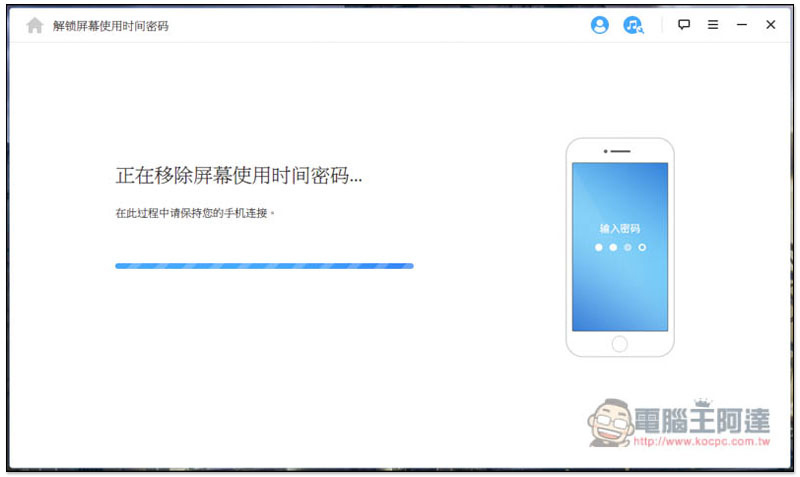
After clicking to start unlocking, LockWiper will show that it is being removed. Please ensure that the iPhone is continuously connected during the process. The speed is quite fast, it takes about a few minutes to complete:
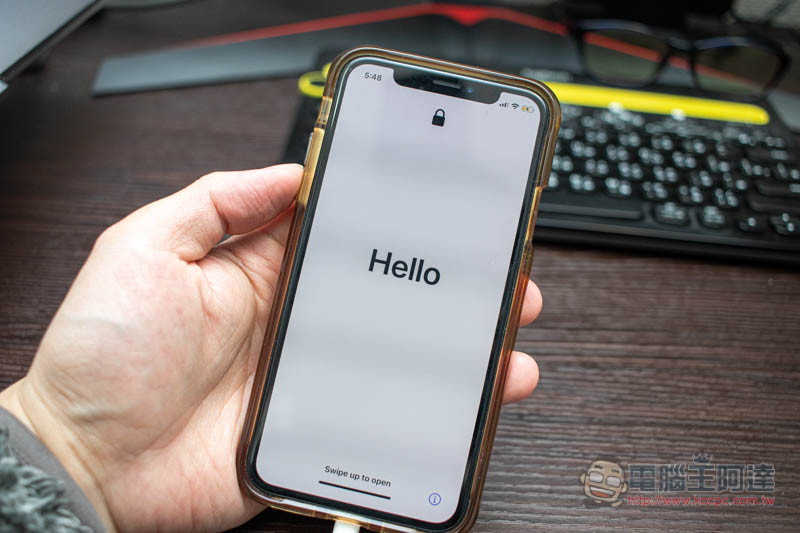
After completion, the iPhone will display the Hello screen of initial settings, but don’t be afraid, all the data is still there without any changes or deletions, you just need to run the process again:
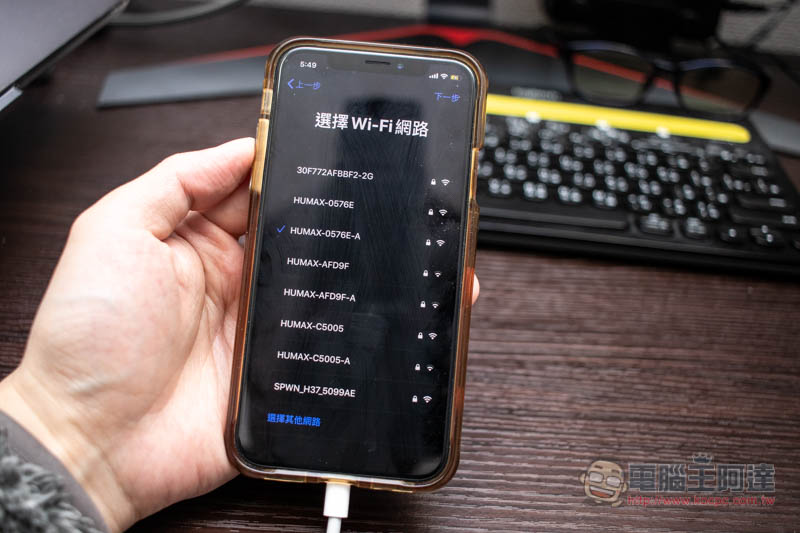
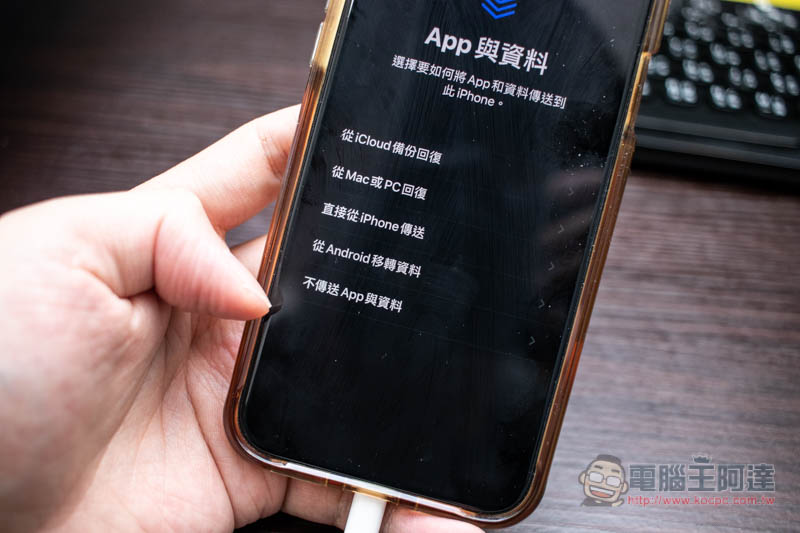
The retained Wi-Fi wireless network settings are also remembered, so basically the setting process is one step at a time. There is only one step to pay attention to:
App and data settings must select “Don’t transfer apps and data” to ensure successful unlocking of the Screen Time passcode:
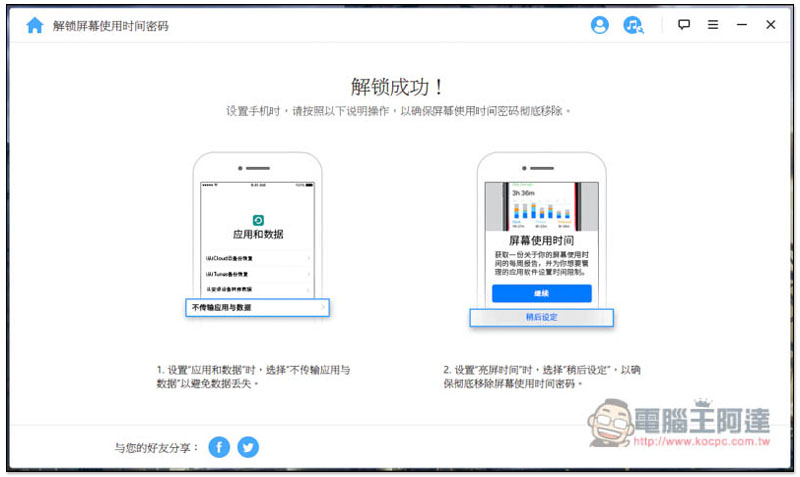
The LockWiper unlocking success screen will also prompt you to select this one, and select “Set later” for screen usage:
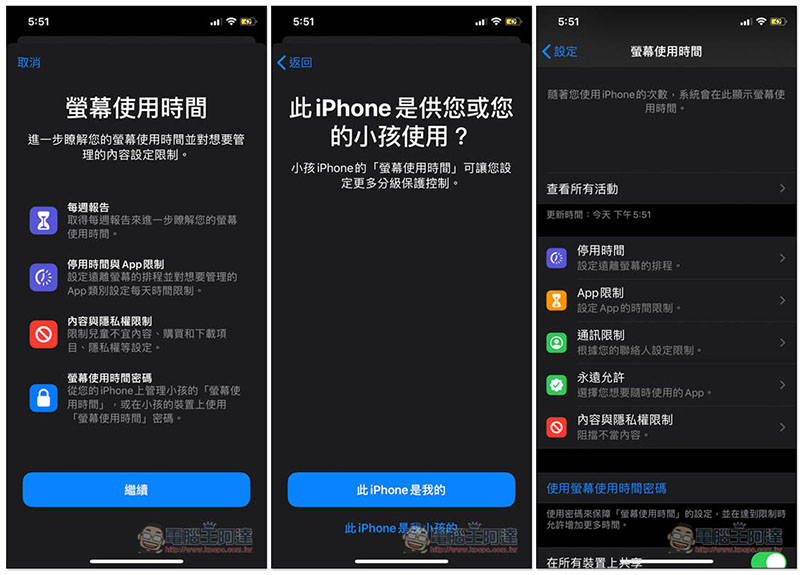
After completing the initial setup process, go to Settings -> Screen Time, and it turns into a completely new state, successfully unlocked:
in conclusion
I have to say, when I first started testing, I was really a little worried about whether it would become a brick? Unexpectedly, the process went smoothly. iMyFone LockWiper is really a savior for forgotten passwords! If you need to unlock your Apple ID, screen password, and screen time, we highly recommend this set. It can completely solve your problems, and the operation is super simple.
If you do encounter any problems during the process, iMyFone also provides technical experts and one-on-one support, so you can easily get help. Even better, this set also comes with a 30-day money-back guarantee, making it virtually risk-free. (To cancel the subscription, you need to write to the customer service mailbox (support@imyfone.com), and then the customer service will assist in solving the problem)
In addition to the iOS version, iMyFone also has an Android version that can remove FRP lock and screen lock. Those in need can also refer to it.
They have a promotion right now, enter this discount code at checkout『F487SA“You can save more.”
Click here to view and purchase LockWiper (iOS)
Click here to view and purchase LockWiper (Android)
Source: KOCPC Chinese