


In the past at ChatGPT Uploaded files and images are automatically deleted from the server after a set period of time, so if you want to ask about the same file content later, you’ll generally need to re-upload it. Opening a new conversation doesn’t help either—files can’t be shared between conversations. If it’s just one document, that’s not a big deal, but when you have multiple files that need to be cross-referenced repeatedly for long-term use, having to re-upload every time becomes quite inconvenient.
Now we finally don’t have to do this anymore. Earlier… OpenAI Introducing the new “Library” feature—now all files you upload to ChatGPT will be automatically saved, so you can browse and manage all your past uploads anytime and reuse them in new conversations.
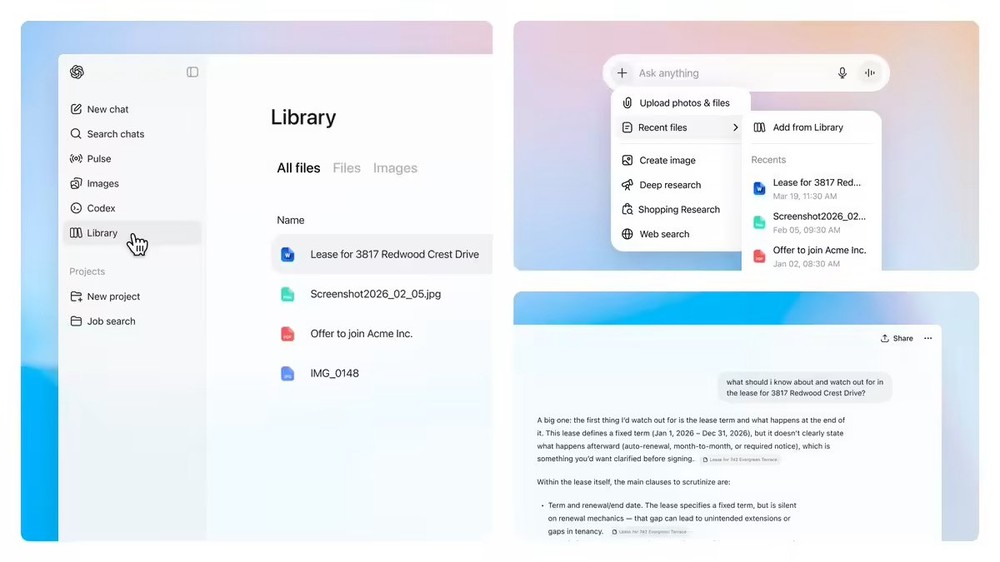
ChatGPT Launches ‘Library’ Feature, So Your Uploaded Files Will No Longer Disappear
OpenAI earlier announced on its official community the launch of the ChatGPT Library feature. In simple terms, it’s a new File Explorer within ChatGPT where all files you upload—including documents, spreadsheets, presentations, images, and more—are centrally stored, making it convenient for you to browse and manage them.
In the ChatGPT web version, you’ll see a brand new “Library” tab in the left sidebar—click on it to browse all the files you’ve previously uploaded and that ChatGPT has generated for you:
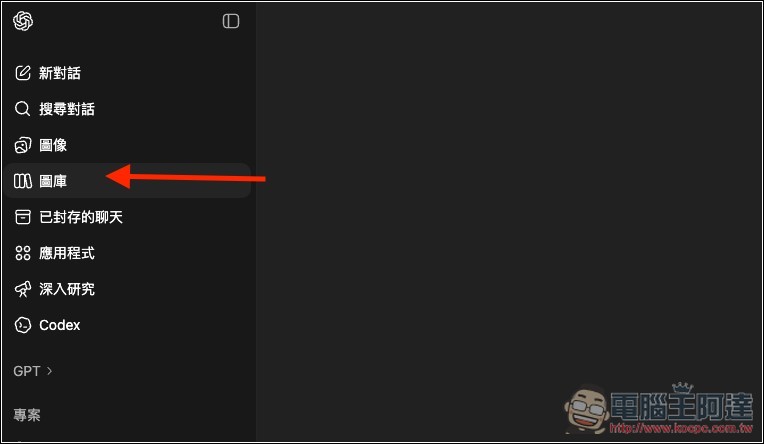
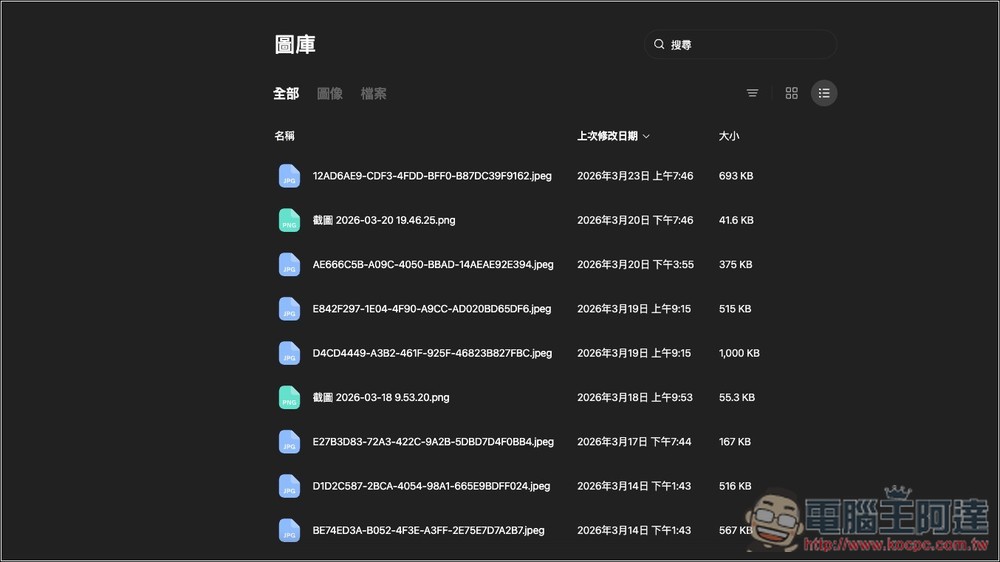
I looked into it, and it seems that files starting from this February will be preserved. There are also category tags to distinguish files and images, and it supports a search function to quickly find needed files by searching keywords:
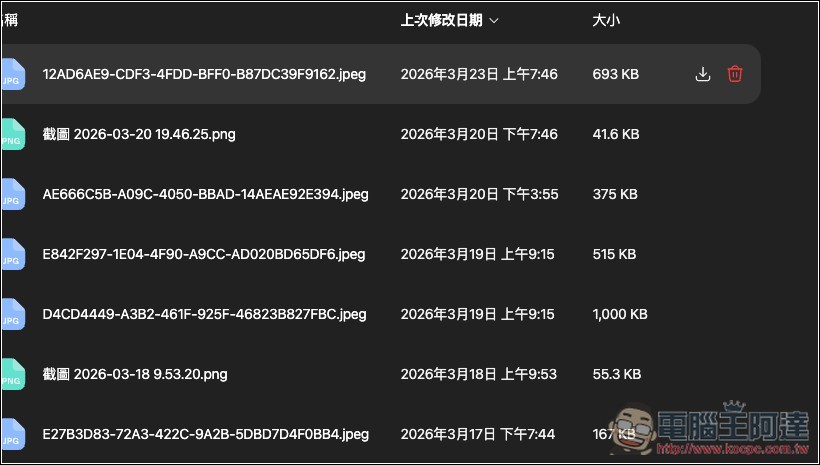
Hover your mouse over a file, and download and delete icons will appear on the right:
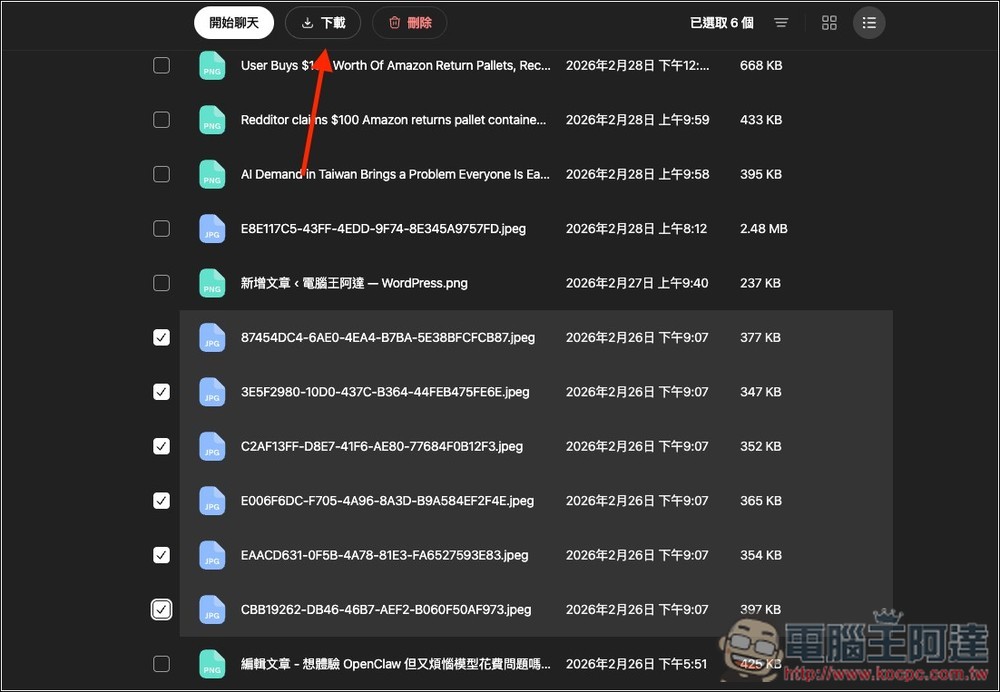
You can also select multiple files at once to download or delete, or even drop them into a new chat room to use:
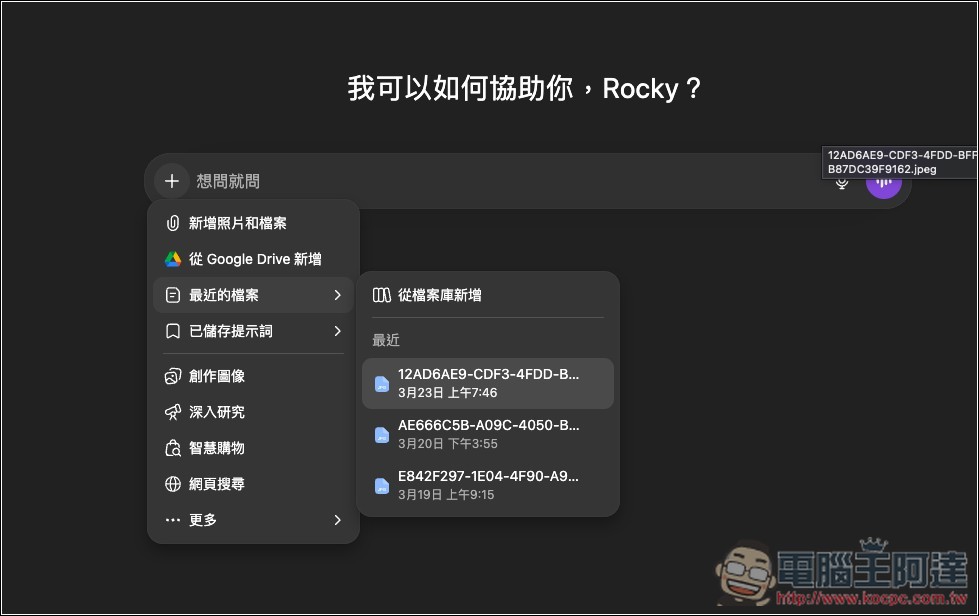
You can also quickly use files you’ve uploaded before in the conversation. Click the + icon next to the input box, and the “Recent Files” menu will show your recently uploaded files, or you can add new ones from the file library, so you don’t have to upload them again.
With the launch of the file library feature, the server will no longer automatically delete your uploaded files, and deleting a conversation won’t delete the files you uploaded either. This means that even if you delete a chat, the files you uploaded in that conversation will still be kept in the “File Library” and will need to be manually deleted. And when you manually delete a file from the File Library, OpenAI states it will be completely removed from the server within 30 days.
Is there a storage limit for the file library? OpenAI doesn’t explicitly state this in their official file library Q&A, but the file upload FAQ mentions that each user has a storage limit of 10GB, while enterprise users have an organizational limit of 100GB. If you exceed the limit, the system will show an error message when you try to upload. So for regular users, the file library storage capacity is probably just 10GB. In other words, it can’t really be used as a cloud drive.
Unfortunately, ChatGPT doesn’t currently offer a feature to check how much storage you’ve used, so there’s no way to proactively see how much space you have left.
The “File Library” feature is currently available to Plus, Pro, and Business plan users worldwide, but users in the European Economic Area (EEA), Switzerland, and the UK still cannot access it. OpenAI says these regions will follow later. It’s still unclear for free tier users.
Source: KOCPC Chinese