


Microsoft’s Windows security update released in September 2026 was originally intended to patch system vulnerabilities, but unexpectedly caused anomalies in the File History backup feature for some users. Although Microsoft subsequently released a fix update and marked the issue as resolved in its official documentation, some users still report that backup times are not updating and files cannot be restored properly. Japanese tech media also found in real-world testing that some backup-related anomalies did not completely disappear with the updates. For users who have long relied on Windows’ built-in feature to back up important data, they may still need to personally confirm whether their backup files are actually being saved successfully.

The September Windows update caused problems, and Microsoft has admitted there is an issue with the backup feature.
This incident can be traced back to as early as September 8, 2026. At that time, Microsoft released the routine security update KB5124008 for Windows 11 24H2 and 25H2, but after the update, users reported that File History, which had been working normally, suddenly failed to recognize the backup drive.
File History is a built-in file backup feature in Windows that can periodically back up the user’s documents, pictures, and other supported folder contents to an external hard drive or network storage location, and retain file versions from different points in time for easy restoration later.
The problem is that some users have correctly connected an external hard drive, yet the system keeps displaying a “Reconnect the drive” warning. More troublesome is that some computers show no obvious error message, but backup times stop updating and previous versions of files cannot be found.
Microsoft confirmed in an official support document that the September security update may prevent File History from creating or updating backups, and on some computers Event Viewer will also leave crash logs related to FileHistory.exe and KERNELBASE.dll.
Because backup features are unlike ordinary applications, users do not necessarily check them every day. If a problem goes unnoticed for a long time, it may only be discovered when data actually needs to be restored—and by then, it may turn out that the most recent files were never backed up successfully at all.
KB5124010 was claimed to fix the issue, but Japanese media testing still found anomalies.
In response to this issue, Microsoft released Windows 11 preview update KB5124010 on September 22. The official update notes explicitly list File History as a fixed item, stating that this update resolves the system error prompting users to reconnect the backup drive, as well as the inability to back up or restore files properly.
After installing it, many users did indeed see normal operation restored.
However, things don’t seem to be that simple.
Japanese tech media “Niche PC Gamer’s Environment Setup ZA report published on September 28 pointed out that even after installing KB5124010, reports were still received from some users saying that File History was not working properly.
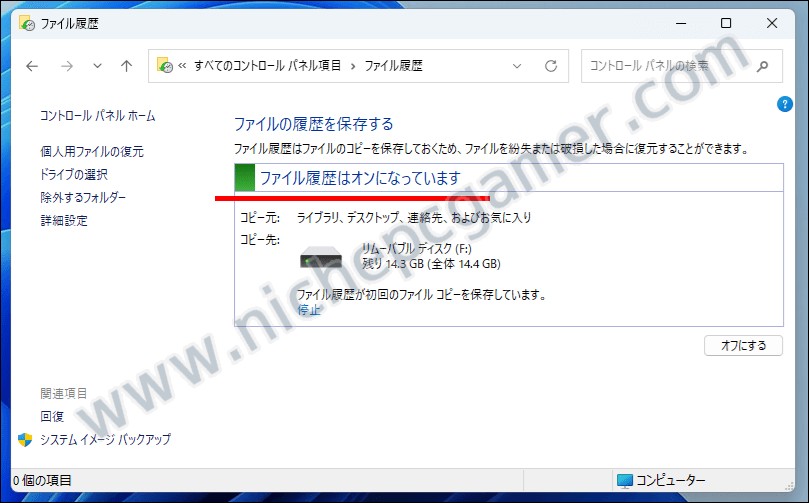
The outlet also conducted its own testing and found a rather subtle issue: after manually running a backup in the console, the “last copied date and time” did not update, but upon actually checking the backup folder, the newly created files had indeed been successfully backed up. In other words, at least in this test case, the problem was not that the backup had completely failed, but that the time information displayed by the system was inconsistent with the actual backup status.
The outlet also used a test computer still on the February 2026 update state for comparison, and found that after performing a manual backup in the old environment, the date updated normally, so it believes the relevant behavior in the new version of Windows remains abnormal.
On Microsoft Q&A, some users have also reported that after installing KB5124010, although the system can now display the correct backup drive, it still shows an error that the drive cannot be recognized. However, there is currently not enough evidence to show that these residual anomalies are a large-scale issue, nor is it possible to confirm that all cases stem from the same cause.
The October update has been released, and readers are still reporting that the backup issue remains unresolved.
On October 13, Microsoft officially released the Windows 11 cumulative security update KB5127648, applicable to 24H2, 25H2, and 26H2, while for the Windows 10 Extended Security Updates version it released KB5126657. In the official update notes for Windows 10 KB5126657, the known issue where File History cannot back up and restore is also listed as fixed.
However, Computer King Ada recently received a letter from a reader stating that after multiple updates on Windows 11 25H2 and Windows 10 22H2, they still encountered issues related to File History.
Based on the information provided by readers, this mainly includes the following situations:
-
After manually pressing “Run Now” to back up, the last copy date did not update correctly.
-
The backup drive can read and write normally, but some newly added or modified files do not show the latest backup version.
-
On the “Previous Versions” page in the file contents, the latest backup cannot be found.
-
When using the “Clean Version” feature, an “element not found” error occasionally occurs.
-
Some files in the backup folder do not match expectations, and I am concerned that the backup data is incomplete.

This reader said they have contacted Microsoft technical support multiple times and also raised related issues in Microsoft Community Hub and Feedback Hub. Notably, the reader also manually adjusted the FileHistory backup folder name, so it is still not possible to rule out the possibility that the existing backup index or local settings may affect subsequent behavior.
On the other hand, some similar cleanup-version bugs have appeared in past versions of Windows, so not all anomalies can be directly attributed to the September or October updates this year.
Therefore, at this stage, the more accurate way to put it is:Microsoft has fixed the previously confirmed File History backup issue, but some users are still reporting similar symptoms, and further clarification is still needed.
Don’t just look at the backup time! How can you confirm that Windows actually backed up successfully?
For general users, the biggest takeaway from this incident is that you cannot rely solely on the backup status displayed by Windows to determine whether your data is safe. If you normally use File History, it is recommended that you check it using the following methods.

Step 1: Check backup settings
Open “Control Panel” → “System and Security” → “File History”, confirm that the backup destination is still connected properly, and check the backup time currently displayed.
Step 2: Create a test file
In a folder already included in the File History backup scope, add an easily identifiable test document, such as a text file, and record the creation time.
Step 3: Manually perform the backup
Return to the File History Control Panel and click “Run now” to have the system perform a backup.
Step 4: Check the actual backup contents
Open the backup destination, locate the FileHistory folder, and check whether the test file just created has appeared in the corresponding backup location.
Since the File History folder structure may contain usernames, computer names, and backup files from different versions, you should verify against the actual backup structure when searching, and do not directly modify or delete existing data.
If the file does exist, it means that this test at least resulted in a successful backup; if it is not found, the backup settings and execution status need to be further checked.
In addition, we also recommend using the File History restore interface to test whether backup files can be restored to another safe location, to avoid directly overwriting the original data.
It is not recommended to directly remove security updates just to fix backup issues.
Some online discussions suggest restoring File History to normal by removing the September Windows update, but this approach is not suitable for all users. First, updates such as KB5124008 also include important security fixes, and directly uninstalling them may re-expose the computer to known vulnerabilities. Second, if the issue is with the backup index, time display, or individual system settings, simply removing the update may not resolve it.
A safer approach is to first confirm that the system has the latest applicable Windows updates installed, then actually test the backup and restore functions. If anomalies persist, you should first use another independent backup method to protect important data, and at the same time record the Windows Build, update number, error messages, and test results, and provide them to Microsoft for further troubleshooting.
In particular, for work documents, important photos, and data that cannot be recovered, it is best to keep an additional backup in an offline or separate location to avoid losses caused by the failure of a single backup mechanism.

Conclusion: Microsoft says it’s fixed, but whether the backup actually succeeded is the real point.
The most noteworthy aspect of this Windows File History incident is not only that the September update once caused the backup feature to fail, but also that some users may still face a mismatch between the backup time and the actual status after installing the fix update. However, based on the verification results so far, it cannot be directly concluded that the October update again caused large-scale backup failures, nor is there sufficient evidence to prove that a large number of users lost data as a result.
For users, the most important thing is to confirm whether the files they actually need can be successfully backed up and properly restored, not just whether the date shown on the console has changed. After all, the worst thing about a backup feature is not an error message popping up, but always believing that the data has been backed up, only to discover a problem when you really need to restore it.
Source: KOCPC Chinese