


Last month we shared aA super simple way to bypass the Microsoft account sign-in requirement when installing Windows 11No need to enter any commands, and no need to modify the registry. And, unsurprisingly, Microsoft blocked it again. I have to say, Microsoft is extremely efficient at doing this.
According to the latest hands-on testing by foreign media, this one-click login-skip vulnerability has been quietly fixed. Now, clicking the same “Learn more” only shows a generic data management information page, and it is no longer possible to directly create a local account.
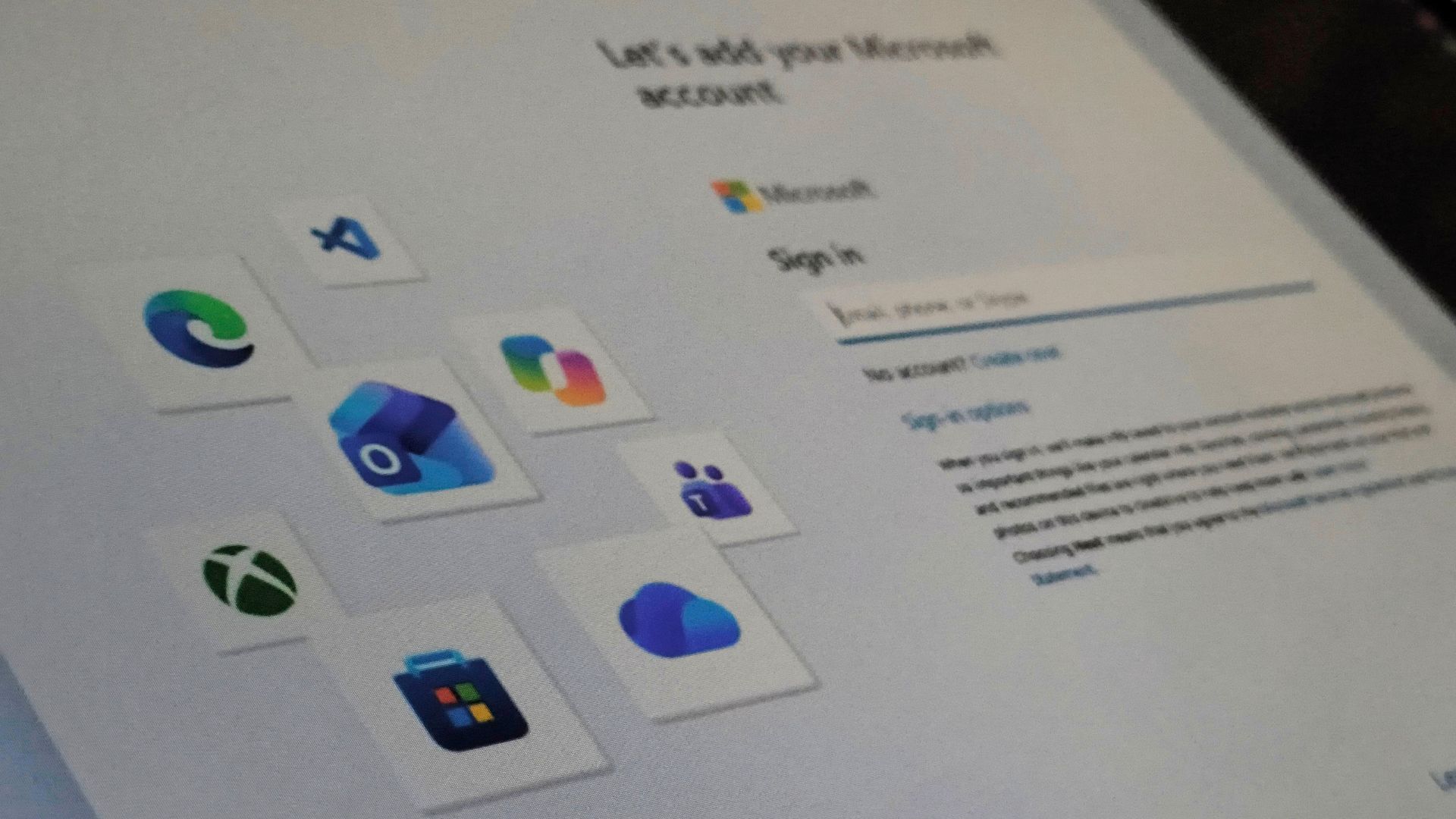
Image source: Windows Latest
Microsoft blocks another workaround! During Windows 11 installation, clicking “Learn more” let you skip a Microsoft account—and it was patched in less than a month.
According to Windows Latest According to reports, they tested using a brand-new Windows 11 26H2 ISO downloaded directly from Microsoft servers, and after clicking “Learn more,” the screen now only goes to the “See how your data is managed” page, where the only button available is “Back,” and it no longer automatically jumps to “Who’s going to use this device?”
The same method still worked before the patch, and Windows Latest speculates that Microsoft made a server-side change, so all new installations will be affected without waiting for a system update.
French tech outlet Korben also added that this installation process itself runs on web components, so even if you have an old ISO on hand, you’ll still be affected by the new changes.
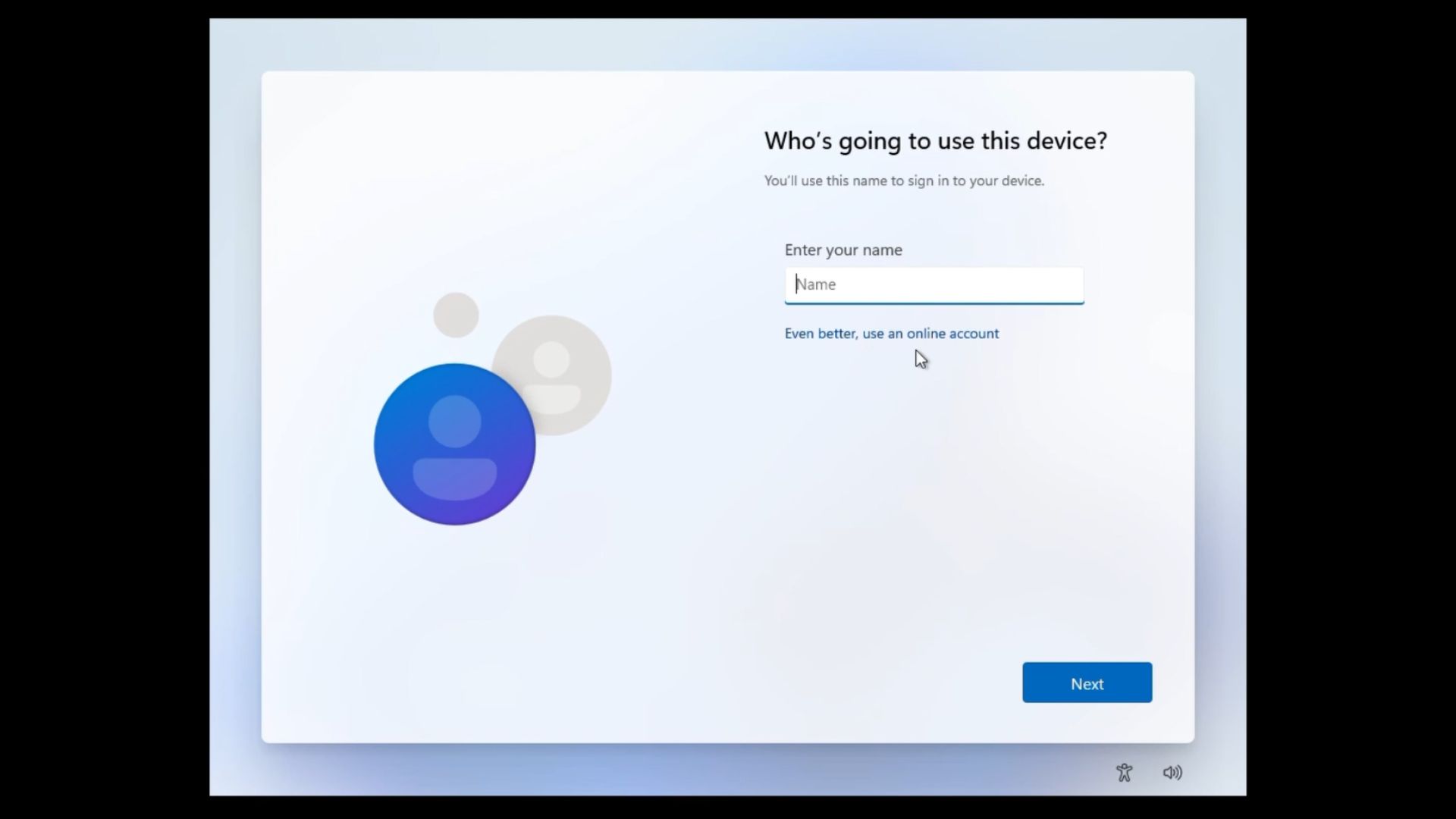
Image source: Windows Latest
So what options are left to bypass it now? Basically, only two are relatively viable, and both are much more of a hassle than the method that was blocked this time:
- Creating an installation USB drive with Rufus: Rufus is a free bootable drive creation tool. When writing a Windows 11 ISO, it will pop up an options window; after checking Remove Microsoft account requirement, the installed system can directly create a local account. For average users, this is currently the lowest-barrier method.
- Domain join (Windows 11 Pro only): With Pro, during account setup, you can take the domain join route instead, and what you ultimately create is a local account. It involves more steps and the options are more hidden, so it’s better suited to people who are already familiar with enterprise environments.
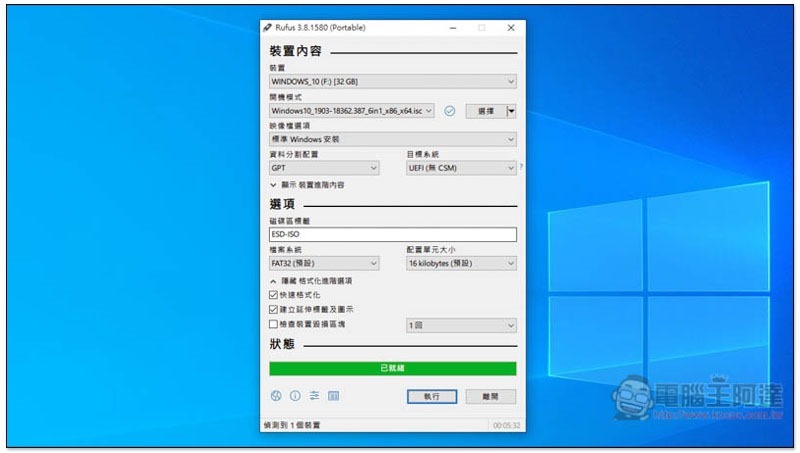
There’s also another way: sign in with a Microsoft account during installation first, then after you get to the desktop, go to Settings → Accounts → Your info and click “Sign in with a local account instead” to switch over.
Windows Latest also complained in an article that Microsoft fixed a link that bypassed account sign-in in less than four weeks, yet other long-delayed Windows issues haven’t seen that kind of efficiency. For example, the September security update KB5124008 caused Code 10 errors in some USB Audio Class 1.0 devices, and there is still no permanent fix.
If you’re going to reinstall next and don’t want to sign in with a Microsoft account, the more practical approach right now is to first use Rufus to create the installation USB drive.
That said, signing in with a Microsoft account isn’t without its benefits. Once you’re signed in, you can use Find My Device to locate a lost laptop, and settings like your wallpaper, browser, and passwords can sync across different computers. For typical users who only have one computer and don’t reinstall the OS often, it’s actually pretty convenient.
Source: KOCPC Chinese