


For people who switched from Windows to Mac, if they had used the ASUS input method on Windows before, they probably really miss that seamless mixed Chinese-English typing experience. With Mac’s built-in input method, you have to switch manually, and for some people, that switching approach still doesn’t feel natural even after a long time. If you have this issue, you can try “Jingjing Input Method,” a third-party input tool for Mac. It offers a mixed Chinese-English typing mode, and also includes a highly convenient built-in AI word selection and English word prediction feature. It automatically determines the most suitable words, saving you more time on choosing characters.
However, I should also clarify here that this is not a free input method, but it offers a 14-day free trial after installation. If you’re satisfied with it, you can consider whether to upgrade to the paid version.

Introduction to the Jingjing Input Method: a Mac input method tool supporting mixed Chinese-English typing.
ZingIME (晶晶輸入法) is a third-party Chinese input method designed specifically for macOS Zhuyin users. Its main highlight is removing the hassle of frequently switching input methods when mixing Chinese and English. Normally, when typing Chinese on a Mac, if you suddenly need to enter English content such as ChatGPT, macOS, or meeting mid-sentence, you have to press Caps Lock to switch to English, then switch back to Chinese after finishing. With ZingIME, you can skip that step and directly type a mix of Chinese and English in the same input state, making the whole process smoother.
It’s not just relying on the system to “guess” whether you want to type Chinese or English—instead, it’s designed around an intuitive interaction: when you type English letters, English predictions appear first, and you can press Tab to accept a suggestion. But if you then press a Zhuyin tone key, the input is processed as Chinese Zhuyin instead. So for users who are already used to Zhuyin input, it’s very easy to pick up. The only thing to keep in mind is that the rhythm of entering Zhuyin will take a bit of practice.
Built-in “220,000-word English dictionary” and “AI word-choice correction” features. The language model reads the context of the entire sentence and automatically corrects common homophone usage issues such as “在/再” and “反應/反映.” What’s more, this AI doesn’t need to connect to the cloud—all input, AI processing, and personal word-frequency learning data remain on the Mac itself.
Beyond basic input, the JingJing input method also has many practical little features, such as automatically handling full-width and half-width formats for Chinese and English. Typing “today” can quickly bring up the date, “kilometer” can find the ㎞ symbol, and numbers can be converted into Chinese uppercase numerals or Roman numerals.
There’s also a rather interesting “Meow Keeper” feature: if it detects abnormal keyboard activity, it temporarily locks text input to prevent the content you’re editing from being messed up by stray key presses.
Main features
- Mix Chinese and English directly: no need to keep pressing Caps Lock to switch when typing English.
- AI character correction: Fixes common homophone selection errors based on the context of the entire sentence.
- 100% on-device AI processing: input text and AI processing are never uploaded to the cloud.
- English word prediction: built-in dictionary of about 220,000 English words, with Tab for quick completion.
- Automatic full-width and half-width handling: English, numbers, and symbols automatically use the appropriate format.
- Smart input function: quickly enter dates, units, special symbols, and Chinese uppercase numerals.
- Meow Gatekeeper: detects abnormally fast continuous input to prevent cats from accidentally stepping on the keyboard and messing up text.
- Standard Zhuyin configuration: Those who originally used macOS Zhuyin will barely need to relearn anything.
Go to the Jingjing Input Method official website
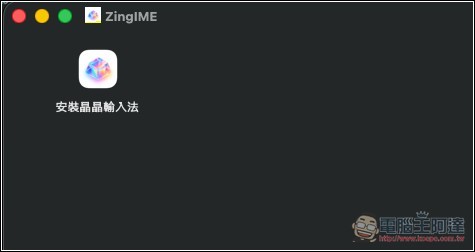
After downloading the installer from the official website, open it and double-click to install the Jingjing input method:
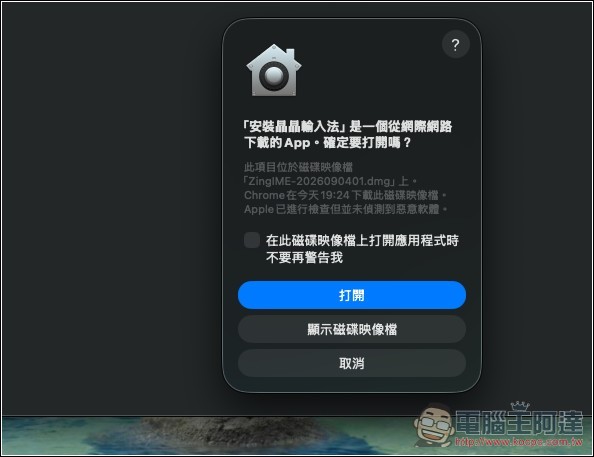
This prompt window will pop up, click Open:
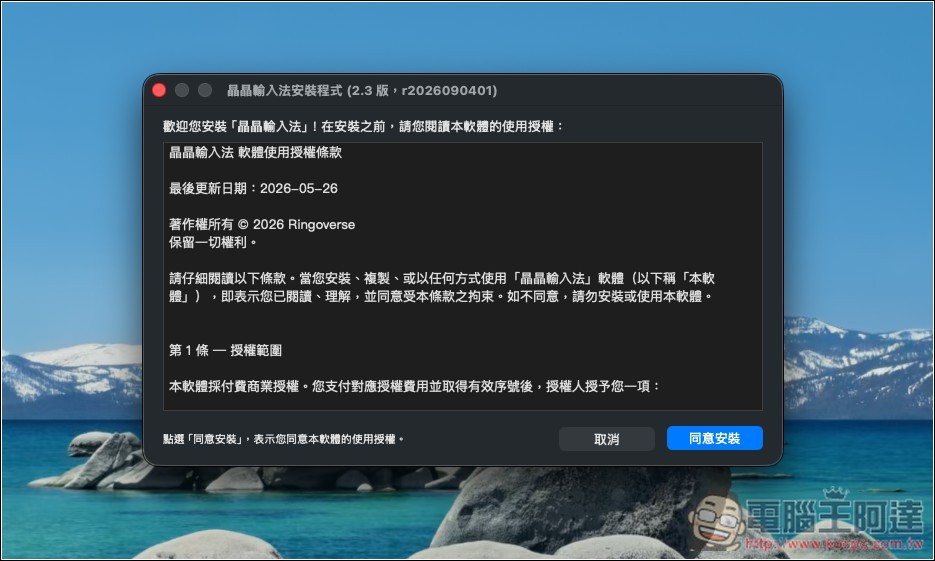
Then it will enter the installation steps. Click “Agree and Install”:
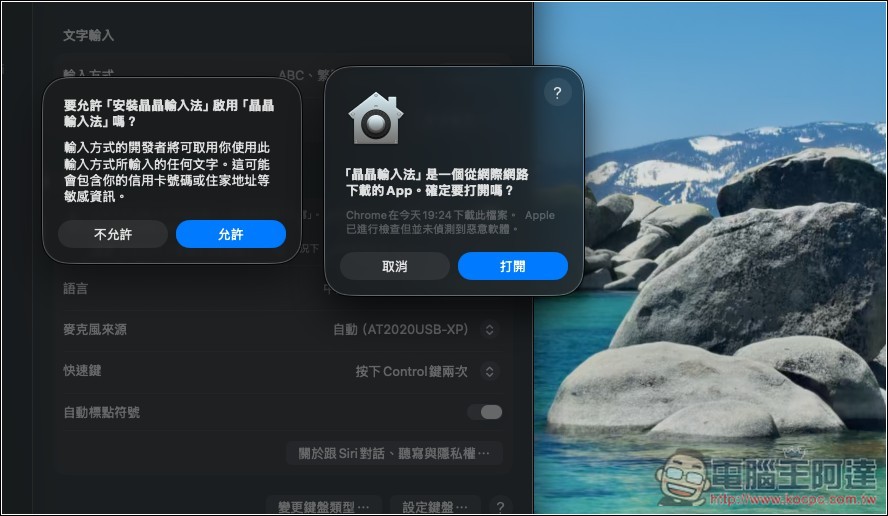
When a window pops up asking to allow “Install Jingjing Input Method” to enable “Jingjing Input Method”, remember to click Allow:
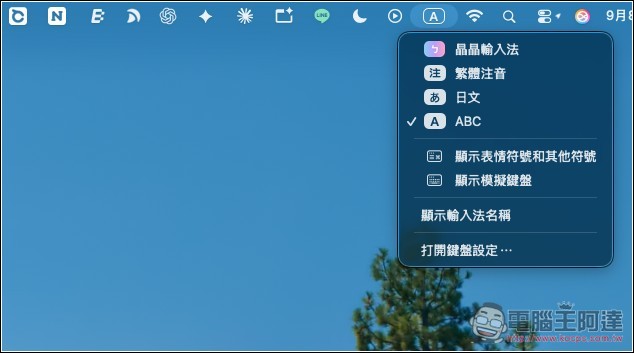
Once finished, you’ll see the JingJing input method in the top-right input menu. If it doesn’t appear, go to Settings > Keyboard, and in the “Text Input → Input Sources” section, click Edit on the right, tap the + at the bottom left, and you’ll find the JingJing input method under Traditional Chinese—just add it.
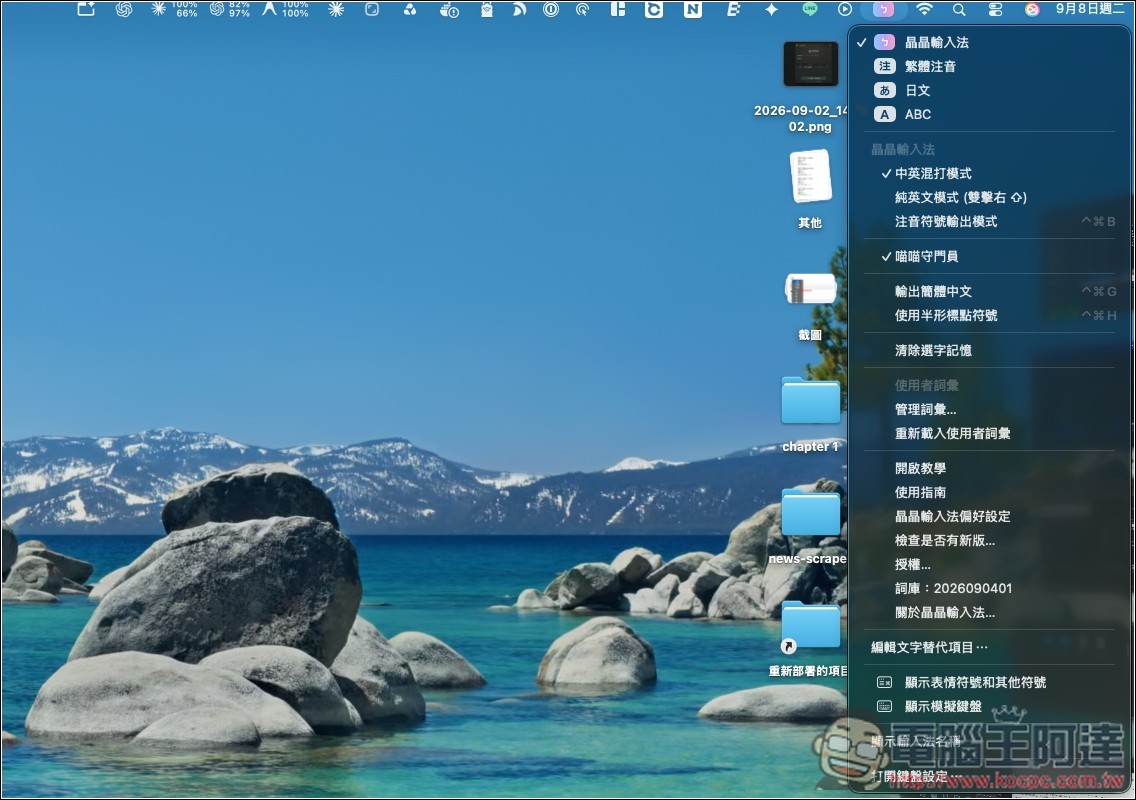
After switching to the Jingjing input method, there are many settings below. In the mode section, there are three options: “Chinese-English mixed typing,” “pure English mode,” and “Zhuyin symbol output mode.” The latter two have shortcut keys; if you use them often, you can memorize them for quick switching. If you have pets or kids at home who might occasionally press your keyboard, you can turn on the “Meow Meow Gatekeeper” — it will automatically detect anomalies and lock your keyboard to prevent random presses.
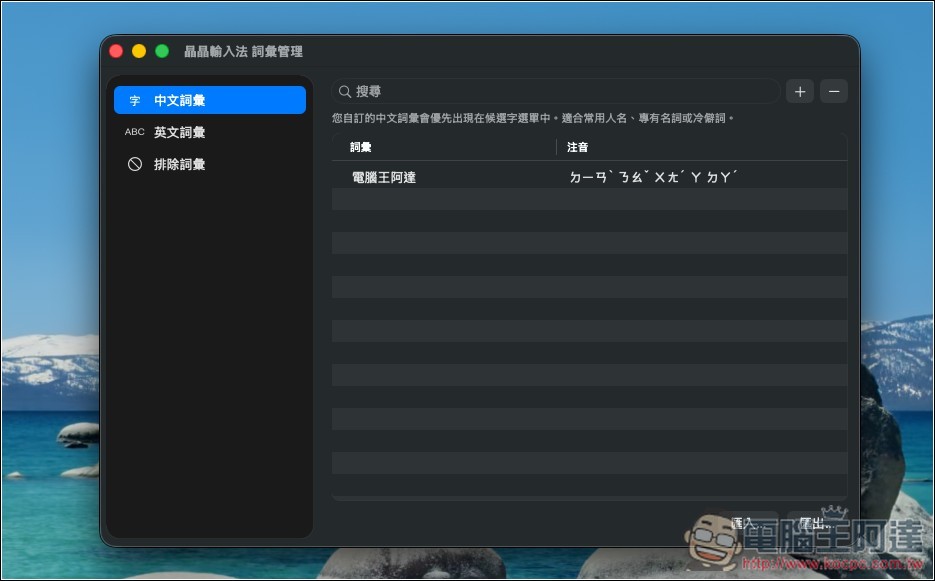
You can add commonly used vocabulary so it will be easier to input in the future:
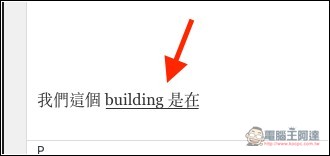
Besides being good for mixed Chinese-English typing, I think a few of its features are also nice. When I write, I often need to type in both Chinese and English. In the past, with the built-in input method, I had to add spaces before and after English myself. With Jingjing, I don’t—after typing English and then switching to Chinese, it automatically adds the space for me. That’s very convenient:
The English word prediction is also good, most predictions are accurate. I just need to type a few letters, then press Tab and it will directly become the full word:

I test that Chinese actually also predicts:
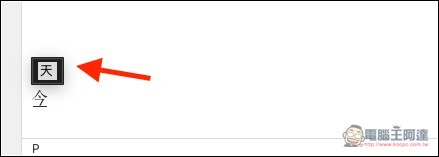
The figure below is the previously mentioned “kilometer” input that finds the ㎞ symbol. Whether this is useful depends on how often you use it.
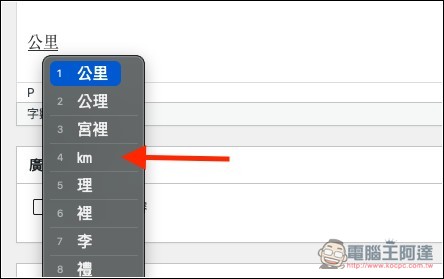
As for AI character selection, I think there’s still room for improvement—most of the time it doesn’t necessarily pick the one I want to use.
Source: KOCPC Chinese