


Many people delegate their work to AI agents for assistance, so if AI could know what we’re doing anytime, anywhere, that would be a huge boost to efficiency. Now, ChatGPT can actually do this. OpenAI recently announced the launch of a brand-new Computer History feature, which—as its name suggests—records your computer usage history. In other words, once you enable this feature, ChatGPT can automatically log your activities across permitted apps and websites, organizing them into a work history you can refer back to later. When you need it down the road, you can search your history at any time, or even have ChatGPT take over and finish the next steps of your work for you.
Unfortunately, currently only ChatGPT Pro users can use this feature for personal plans; ChatGPT Plus still doesn’t have access to it. Also, Business and Enterprise plans are eligible, but administrators must first grant permission.
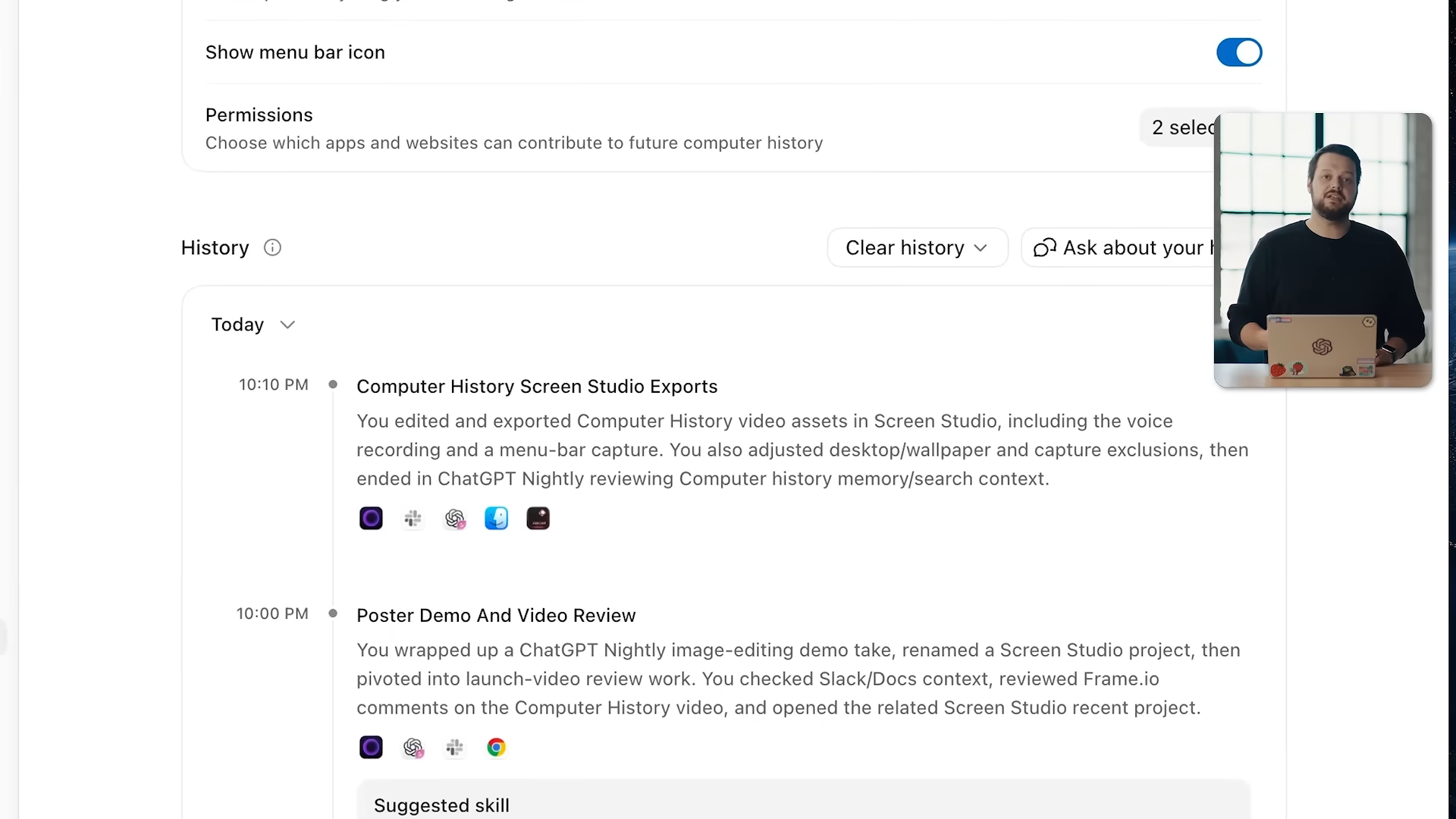
ChatGPT Mac version launches “Computer History”: records operation events instead of screenshots, replacing the previous Chronicle
OpenAI earlier announced on its official X account the launch of a new Computer History feature. ChatGPT can now remember your cross-app and cross-site activity on your computer, making future interactions more personalized without requiring you to re-explain yourself each time. In addition, since this requires the system’s built-in accessibility features, this is exclusive to the Mac desktop app.
For ChatGPT Pro users, this may feel familiar—that’s right, Computer History’s predecessor was the Chronicle research preview.
The difference between Computer History and Chronicle: OpenAI stresses that this isn’t just a rename, but a rebuild from scratch. Chronicle’s approach is to capture screen images locally, then periodically have Codex summarize recent activity into memories. Computer History completely abandons screenshots and instead captures so-called interaction events, including clicks, typing, keyboard shortcuts, app switches, and context that macOS exposes through the accessibility system.
Meanwhile, OpenAI has also clearly listed which records will be excluded, which many people care about. The excluded items include screenshots, screen recordings, microphone input, system audio, and browsing activity in incognito mode.
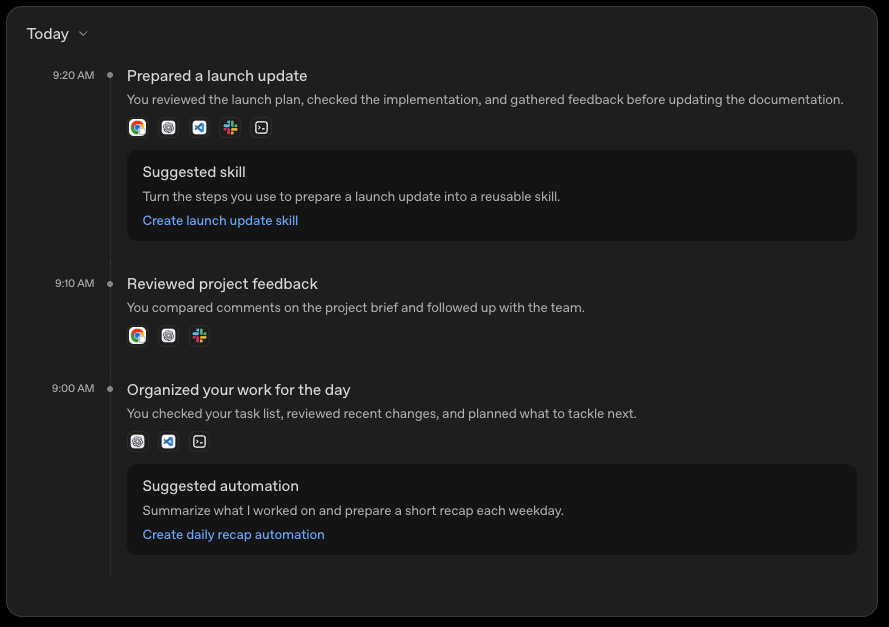
Regarding data retention, there are two types of files. The first is the “temporary event file,” which is the raw operation log, recording what keys you pressed at what times, where you clicked, and which app you switched to, accumulated entry by entry, so the data volume is large. The second is the “memory file,” a condensed summary of your operations, something like “In the afternoon, I edited slide 3 of a presentation in Figma, then looked up a certain specification in the browser” — a one- or two-sentence conclusion.
The overall recording process is roughly as follows: events first accumulate locally on your Mac for up to 48 hours, then get sent to OpenAI’s servers to be processed into memories. The original event files aren’t retained on the server side, nor are they used for model training. The generated memory files are saved back to ~/.codex/memories/extensions/skysight/ on your own computer, and they’ll persist indefinitely unless you delete them.
You can also specify which apps and websites should be automatically recorded and which ones to exclude, and you can review the content on the timeline item by item before deciding whether to delete it.
Computer History is turned off by default, so people who don’t want to use this feature don’t need to pay attention to it. Once enabled, Computer History will automatically organize your activity on specified apps and websites into “memories” and a timeline, which can then be referenced by both ChatGPT and Codex.
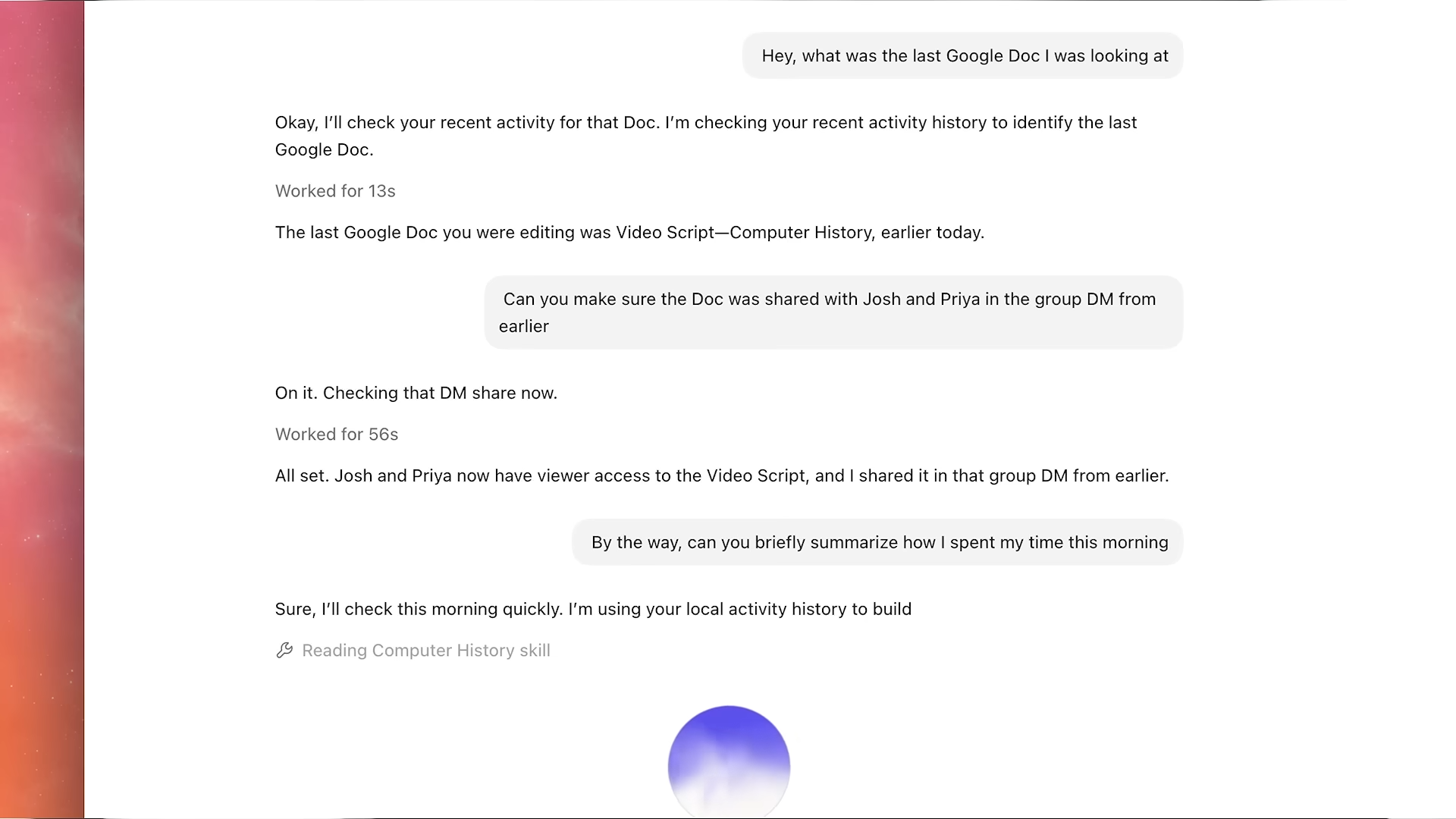
In other words, you can directly ask, “Where is that document I was just looking at?” or “Can you summarize what I did today?” or pick up an interrupted task right where it left off, without having to recall it yourself. Besides answering queries, it also proactively observes your usage patterns. If it notices that you’ve repeated a certain process many times, it will suggest turning it into a reusable skill or automation script. Note that this feature requires memory to be enabled to work:
Notably, this feature carries risks. OpenAI acknowledges in official documentation that files generated by Computer History may contain sensitive information and are not encrypted, meaning other programs running as your macOS user could potentially read them. Another issue is that the risk of prompt injection is amplified: “Computer History will increase the risk of prompt injection from app and website content.”
OpenAI’s recommendation is to turn it off when communicating with others unless the other party has explicitly agreed in advance. Apps containing health, financial, or personal data are all recommended to be excluded.
Additionally, Computer History consumes tokens when organizing activities and generating memories, so leaving it open for extended periods will use up a certain amount of your quota.
Source: KOCPC Chinese