


When using a computer, you will occasionally need to use content that has been copied before. This article will recommend a very easy-to-use EcoPaste clipboard management tool. It will automatically record the text, links, images, and files that have been copied in the past. It can even be added to your collection, making it easier for you to reuse it in the future, and you can customize how much clipping history you want to record. All data is stored locally, so there is no need to worry about leakage. It is also completely free and is supported by Windows and Mac.
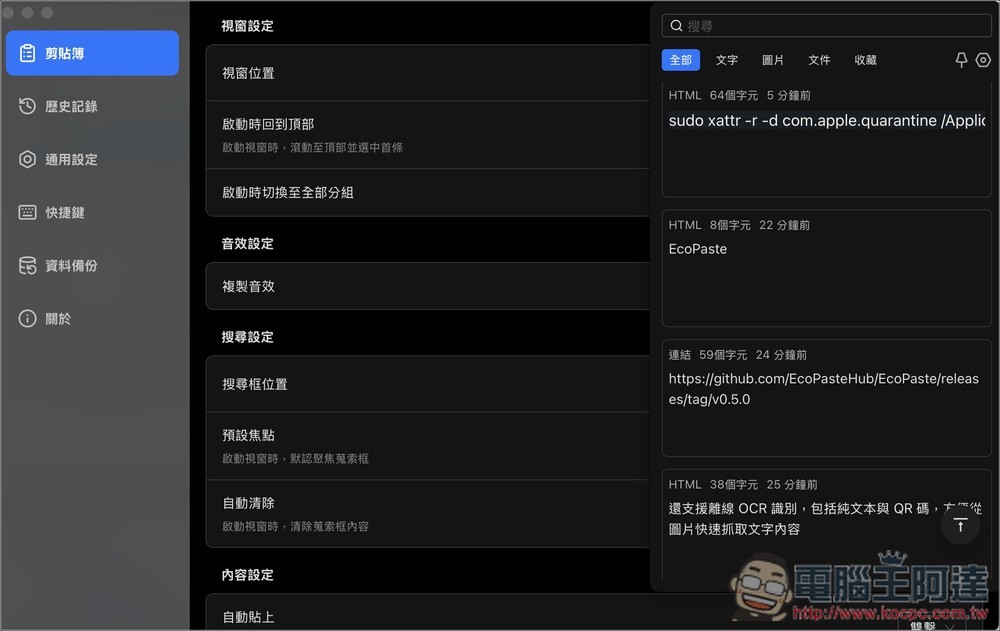
EcoPaste is an open source free clipboard management tool that makes it easy to retrieve and use past copied content.
EcoPaste is a free and open source cross-platform scrapbook management tool built on the Tauri v2 architecture. It supports Windows, macOS and Linux. It has a simple interface and supports a variety of clipping content formats, including plain text, links, HTML, images and document files. It also uses automatic grouping and note functions to allow you to find the one you want to use faster.
In addition to the clipboard, there is also built-in offline OCR recognition to facilitate you to capture text content from images.
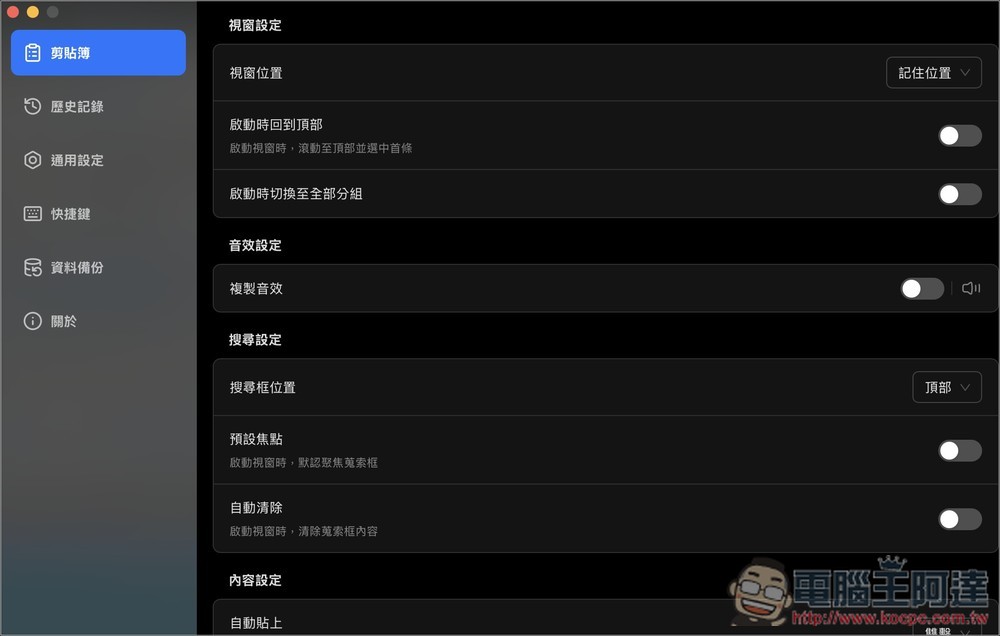
This is the setting interface of EcoPaste. In the clipboard menu, there are some good settings you can start with, such as copying sound effects. If you are not sure whether the copy is successful, you can turn this on:
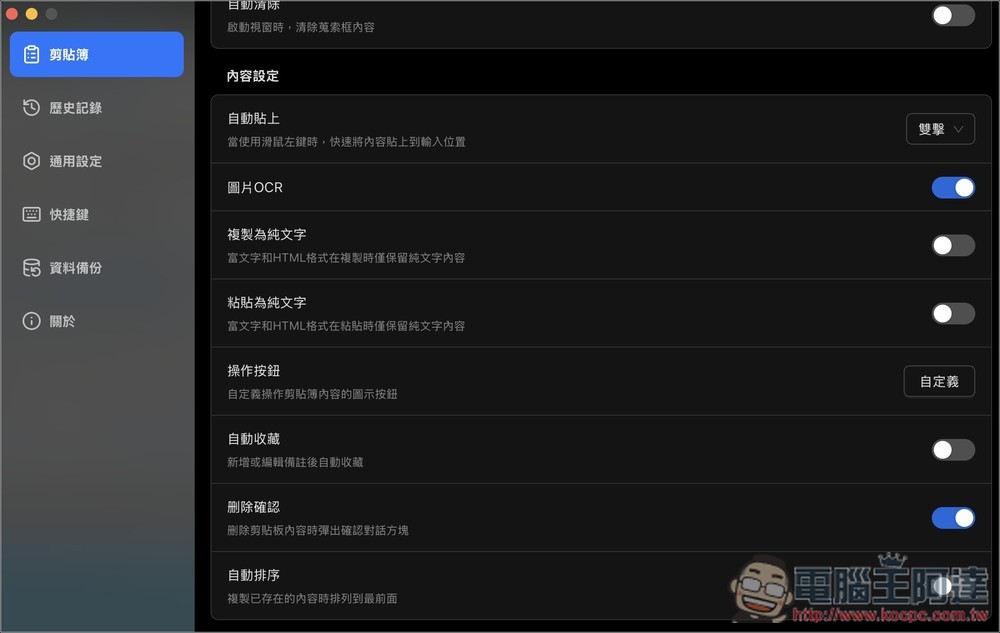
Scroll down and there are content settings. The default automatic paste is double-clicking twice, and you can also change it to other operations you are used to. In addition, if you want only plain text every time you copy or paste, you can turn on “Copy as plain text” or “Paste as plain text”:
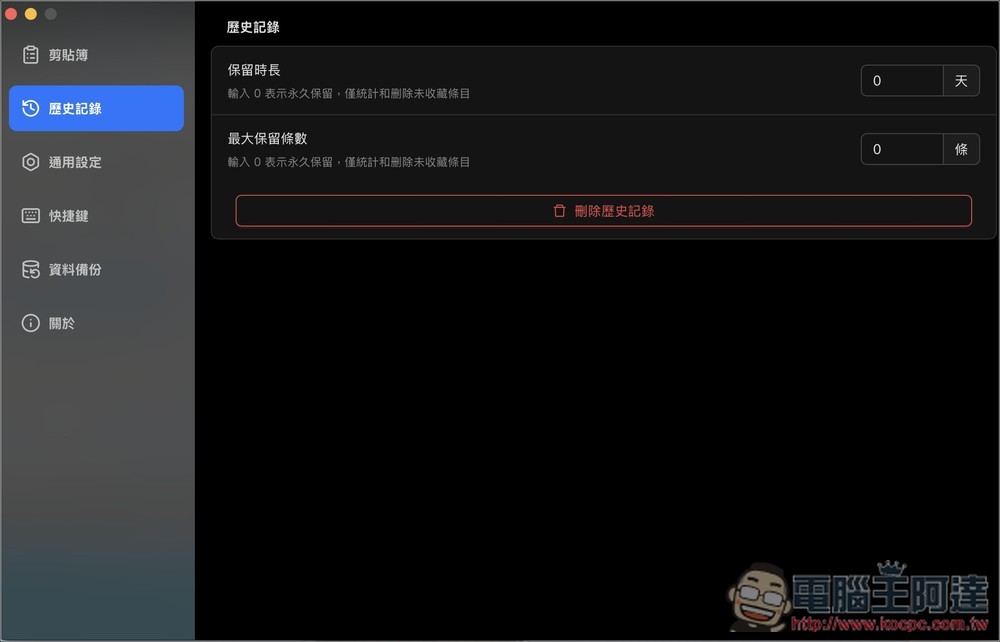
For historical records, you can set how many records to retain, including the duration and number of records to retain. The default value of 0 represents permanent retention. There is also a one-click delete function for historical records below:
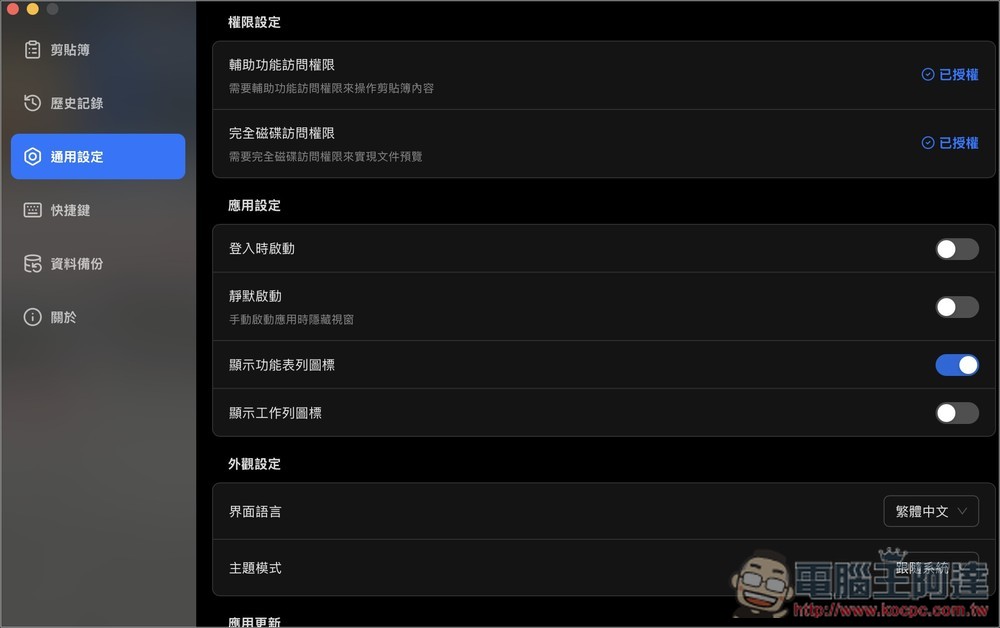
In the general settings, the top two permissions are very important. “Accessibility Access Permission” and “Full Disk Access Permission” must be authorized to ensure that all functions operate normally. It depends on whether you need to start other functions when logging in, display menu icons, etc.:
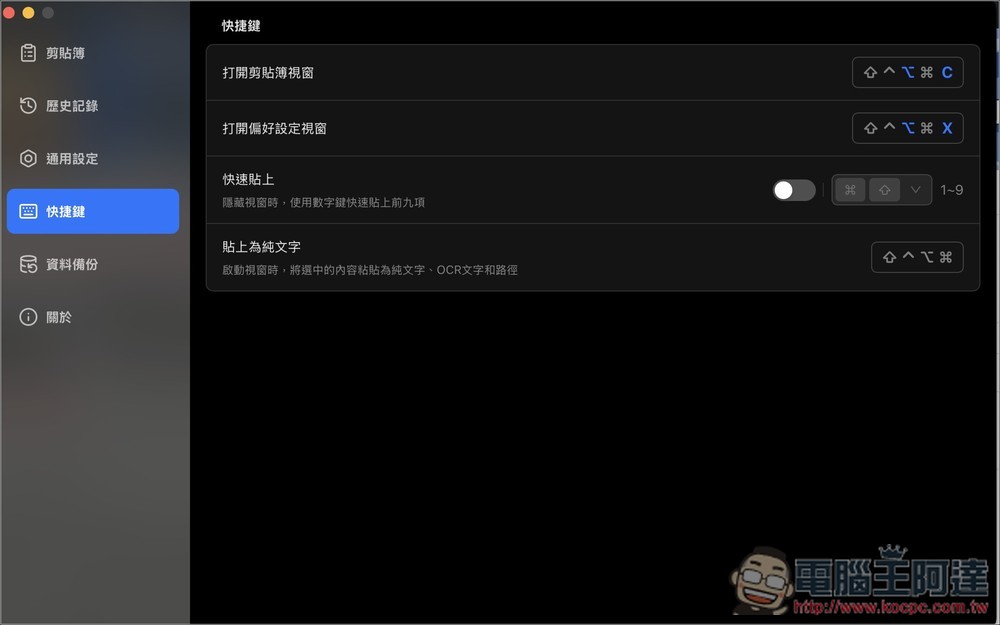
In the shortcut section, be sure to remember “Open Clipbook Window” so that you can browse your historical clipboard records. The default for Mac version is option+c. There is also a quick paste function. If it is turned on, you can use the designated shortcut keys to quickly paste the first nine historical records:
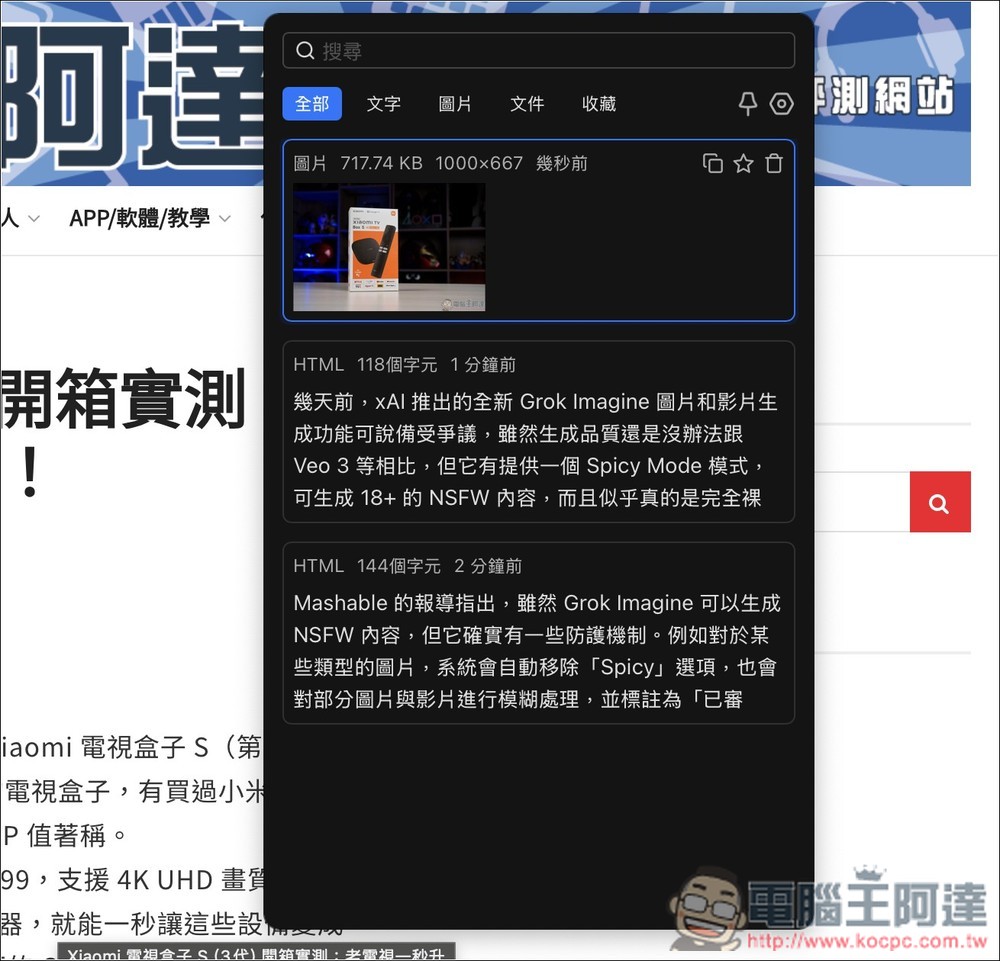
Like this, after pressing the clipboard window shortcut key, this small window will be displayed. The entire menu will display your past copy history, as well as text, pictures, files and collections. There is a search function at the top. If you want this window to stay on top, just click the pin in the upper right corner. The hexagonal pattern on the right is the setting:
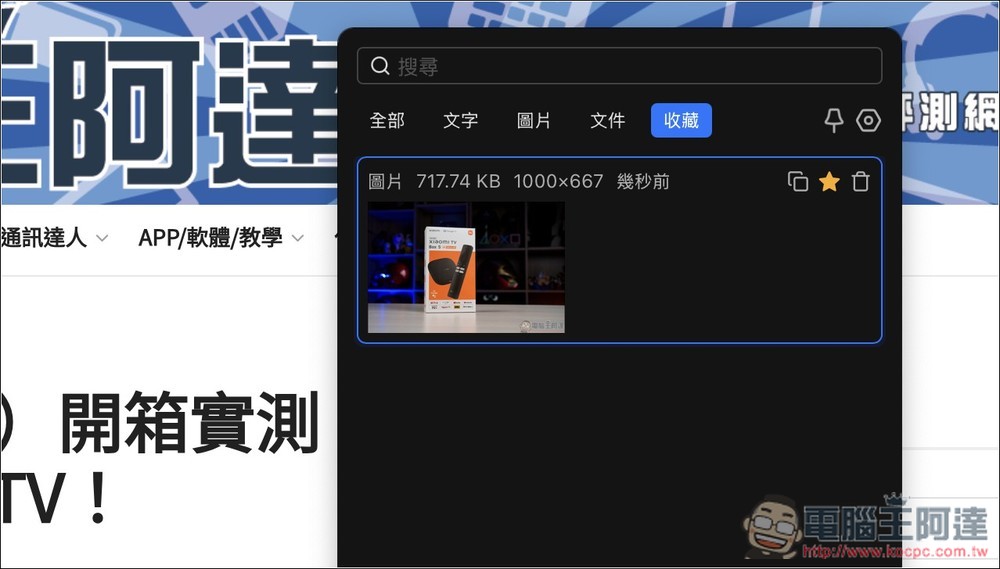
You can open the star in the upper right corner of your frequently used scrapbook records and they will be placed in the collection menu:
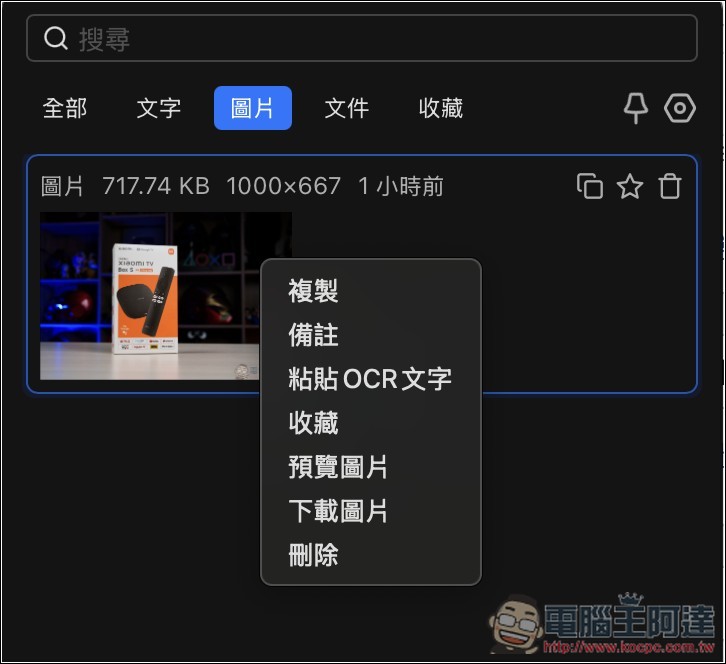
When you open the right-click menu, you can find the functions of remarking and pasting OCR text:
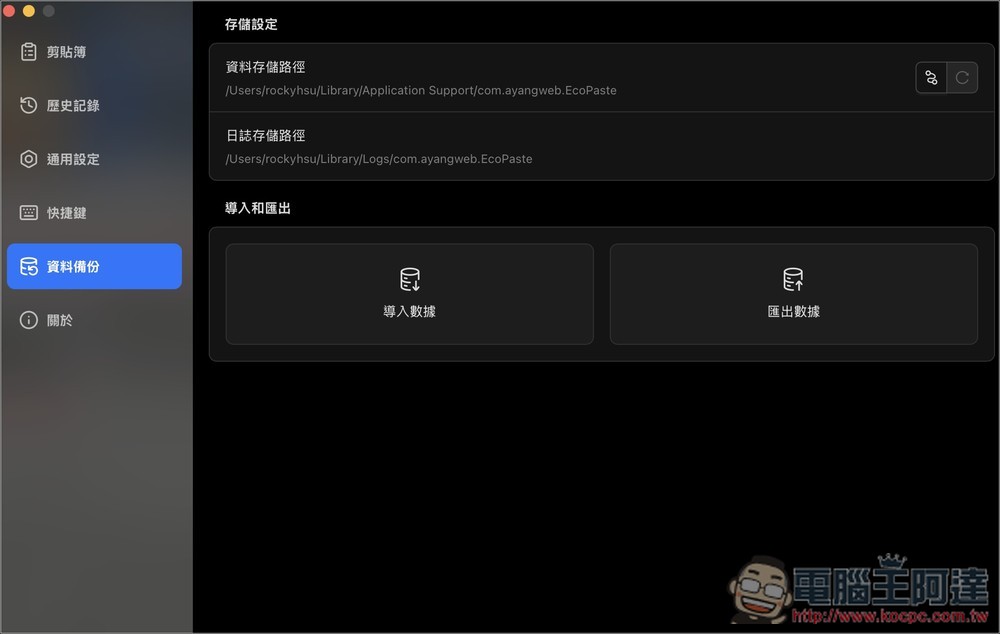
In the data backup menu of the settings, you can find the data storage and log storage paths. If necessary, you can also export the data and continue to use it after changing to a new device or operating system:
When Mac users open it, they may see a “The application is corrupted” message. This is because the application requires an official signature, which is expensive ($99 per year) and open source projects cannot afford it. Therefore, you need to manually bypass the signature to use EcoPaste normally. Enter the following command in the terminal:
sudo xattr -r -d com.apple.quarantine /Applications/EcoPaste.app
Source: KOCPC Chinese