


Advertising, suggestions, diagnostic information, and many unnecessary settings are enabled by default in Windows. These are unnecessary items that you can turn off if you wish. Although Microsoft provides a high degree of freedom in personalization settings, in order to protect your security and privacy, please make sure to keep the 7 settings we proposed this time turned on at all times.
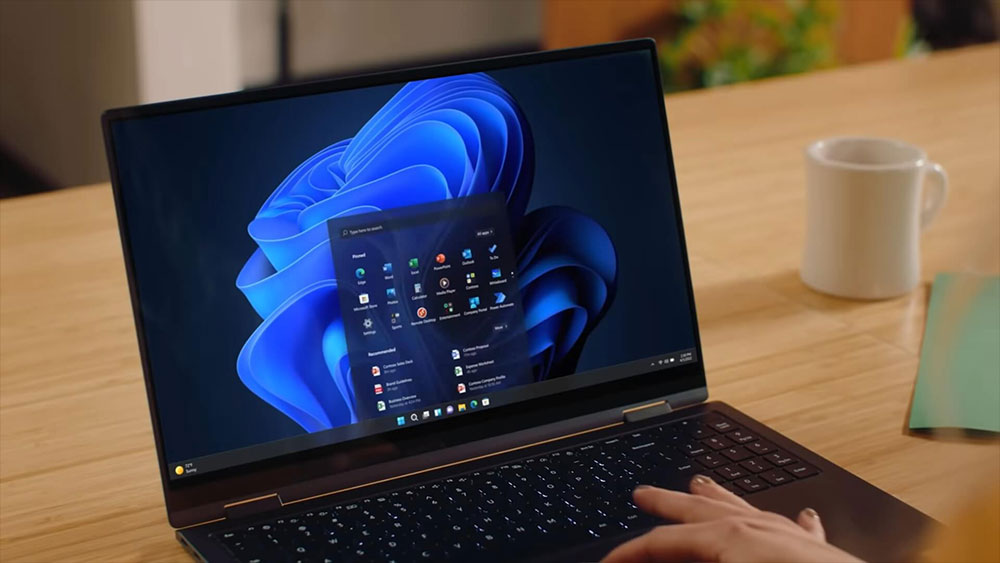
7 Windows settings you should keep enabled
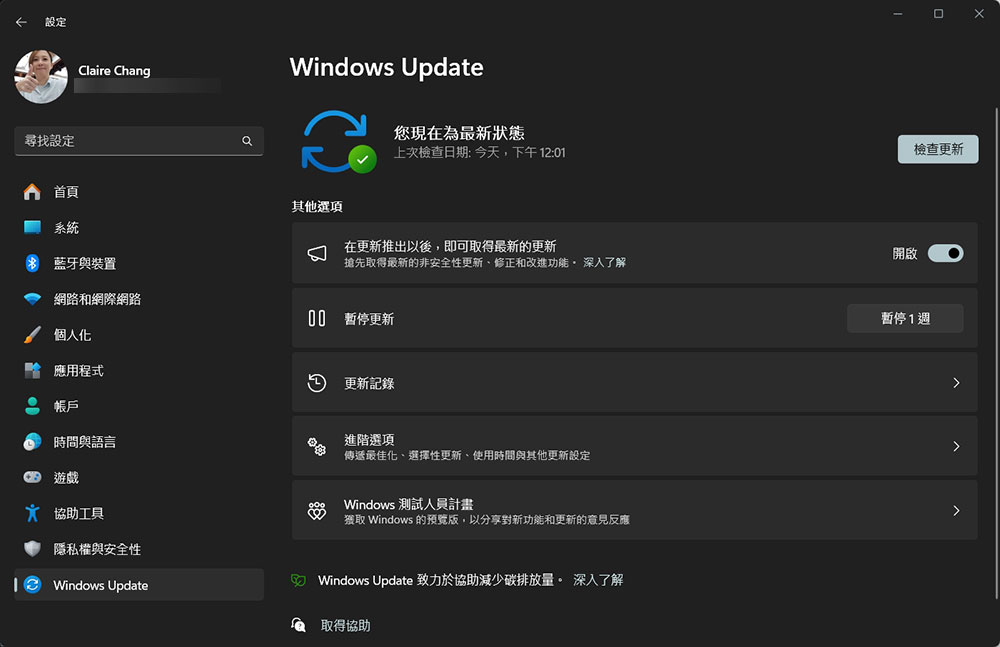
1. Windows Update
Microsoft regularly rolls out updates to fix bugs and security vulnerabilities in previous updates, improve existing features for better system performance, and add new features to the operating system. It is recommended that you do not skip installing any updates unless there is a problem with the version update, because skipping may cause many problems. If security patches are not installed in a timely manner, the device may be more vulnerable to malware attacks, the operating system may be unstable and bugs will continue to plague you, the system will not function properly without performance optimization updates, and you may miss out on some interesting new features.
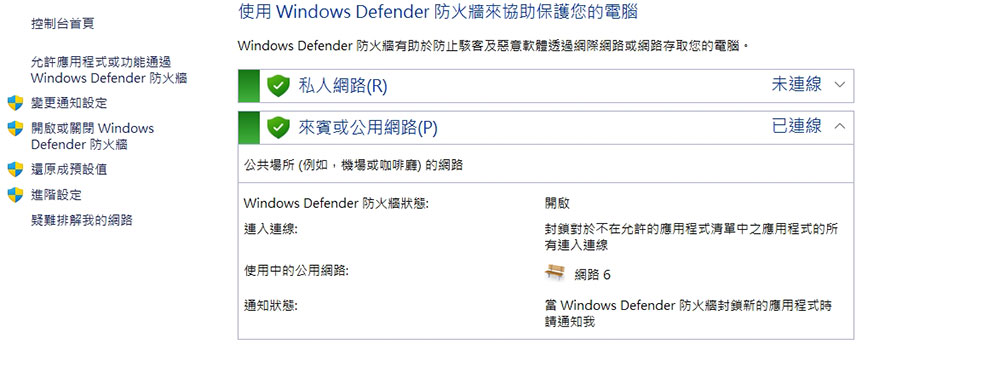
2. Firewall
A firewall acts as a barrier between your computer and harmful network traffic. You can think of it as a gatekeeper, monitoring incoming and outgoing network traffic and blocking any suspicious content. If malware infiltrates your device, this protection prevents it from sending your data to hackers, who would then not be able to gain authorized access.
When you turn off your system’s firewall, you remove this protection and make your device vulnerable to viruses that can collect your data and send it to malicious actors. If you don’t want this to happen, don’t disable your firewall.
3. User Account Control
You may have seen a prompt window appear when you run a program that requires managing access permissions. This is a User Account Control (UAC) prompt, which acts as a checkpoint to prevent users or malware from changing system settings and files without the device administrator’s consent. If malware gets onto your device, it won’t be able to make changes beyond what non-administrator users can do, meaning system settings won’t be seriously compromised. It will warn you to be careful when a third party requests administrative rights through a UAC window. If you share your computer with other people, this feature can prevent them from accidentally installing malware.
Disabling UAC will allow anyone to use your device and any malicious applications to make unauthorized changes, which may harm the stability of the system. To avoid this risk, never disable UAC.
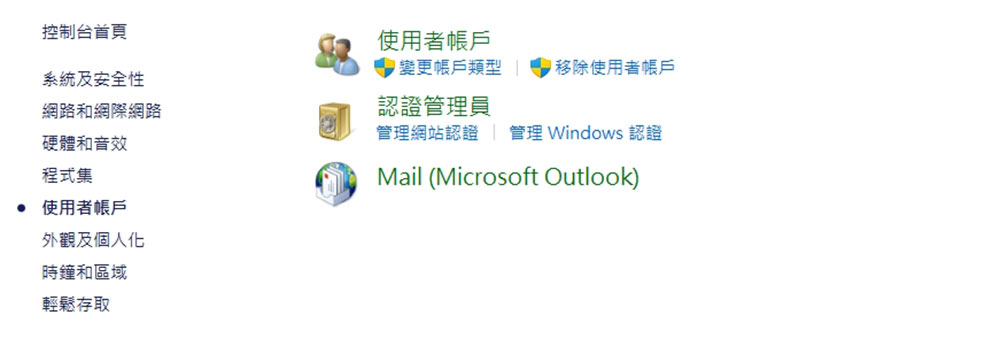
4. Login page
The login page is your first line of defense against unauthorized access, and while Windows allows you to bypass the login screen, you should never do so. Disabling the login page might seem like a convenient way to save you the hassle of entering your password or PIN every time, but it makes your device vulnerable to anyone with physical access to it. They can access your data and make unauthorized changes.
Even if you don’t use your device in a public environment, you should keep this layer of protection in place because you never know who might have access to your device. If your device is stolen, everything stored on it will be at the mercy of the thief. So please tolerate the inconvenience of entering your password (or logging in using Windows Hello) and keep the login page enabled.

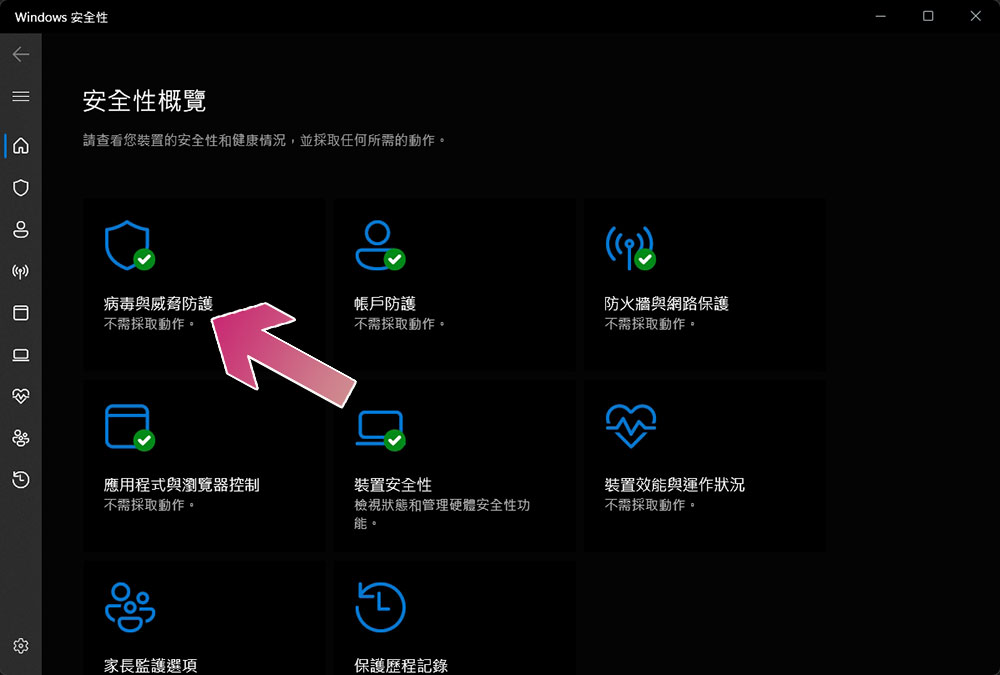
5. Virus and Threat Protection
If there’s only one setting that needs to be turned on, it’s definitely not “Virus and threat protection.” It continuously scans your device for infections and threats and detects them before they cause harm. If malware is mistakenly allowed in, this protection detects, blocks and removes it, preventing further spread. If you turn off this necessary protection, viruses can easily infiltrate your device without being detected for long periods of time, corrupting your files, stealing sensitive information, and spreading throughout your system. Additionally, if your device is connected to an organization’s network, it could become a source of infection for all connected devices on the network.
Enabling this protection prevents all of this, so you should always keep it active to protect your device and protect others on your network.
6. Controlled folder access
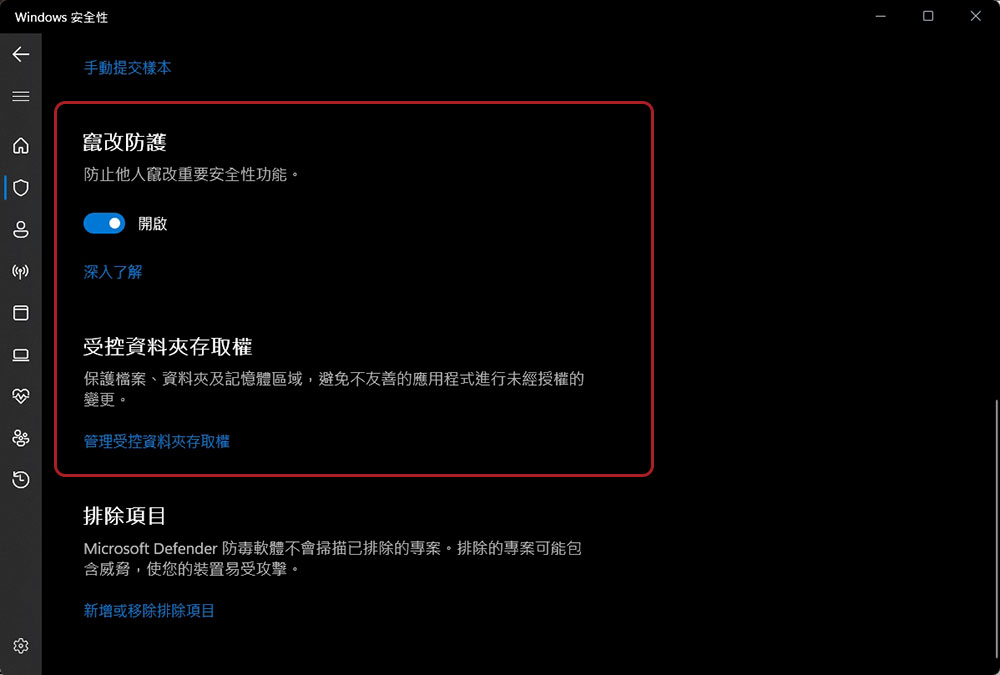
Ransomware is one of the most popular online threats. This type of malware encrypts the data on your computer and demands a ransom in exchange for a decryption key. Therefore, once you become infected, you will have to pay a large sum of money to the scammer to regain access. In most cases, you may spend days negotiating with the hackers to complete the ransom transaction; if you choose not to pay, you may have to give up your data and install a new operating system, and sometimes, even after paying, there is no guarantee of getting your data back.
Windows provides controlled folder access protection to prevent unauthorized applications from modifying your files, and you should always enable this feature no matter what.
7. Credit rating protection
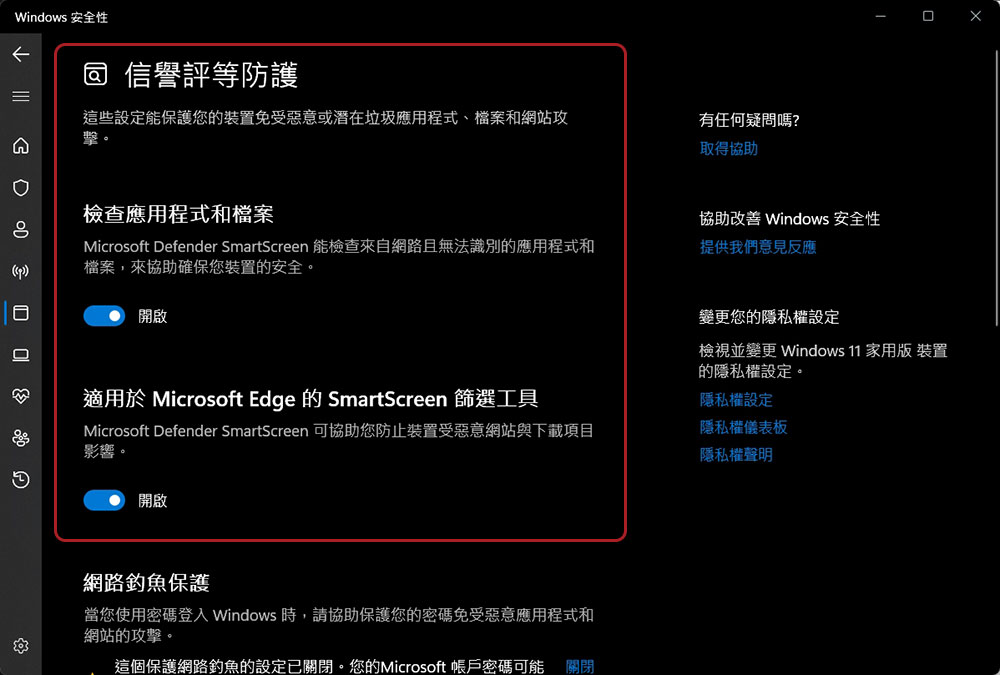
Reputation Protection uses data and algorithms from millions of users to protect your device from malicious and potentially unwanted apps, files, and websites. Intelligent App Control in Microsoft Defender protects your device from unrecognized apps on the web, and SmartScreen filtering tools for Microsoft Edge alert you about malicious websites.
These tools help protect your device from unrecognized threats and can automatically block suspicious downloads. In addition, they provide phishing protection and can help block malicious email attachments and links, reducing potential security risks.
If you have no special usage habits, Windows already provides basic functions to ensure device security, and there is no need to download additional anti-virus software. Your job is just to get familiar with them and make sure they are enabled. Now that you know which settings to keep active, if you install any application or software that requires these settings to be turned off, it’s best to suspect that it might be potentially malicious and err on the side of caution.
Source: KOCPC Chinese