


Google Can be said to be the most generous of all AI services currently available, with every AI tool free to use, such as GeminiGoogle AI Studio, NotebookLM, etc., and the allowances they offer are also very generous. However, because there are so many AI tools, many people may not know how to use them beyond chatting and generating images. Recently, I saw a video by an AI expert sharing 12 ways to use them, each of which is pretty good and can be extended to more practical uses. I’ve compiled them all below—it should give you a really good reference.
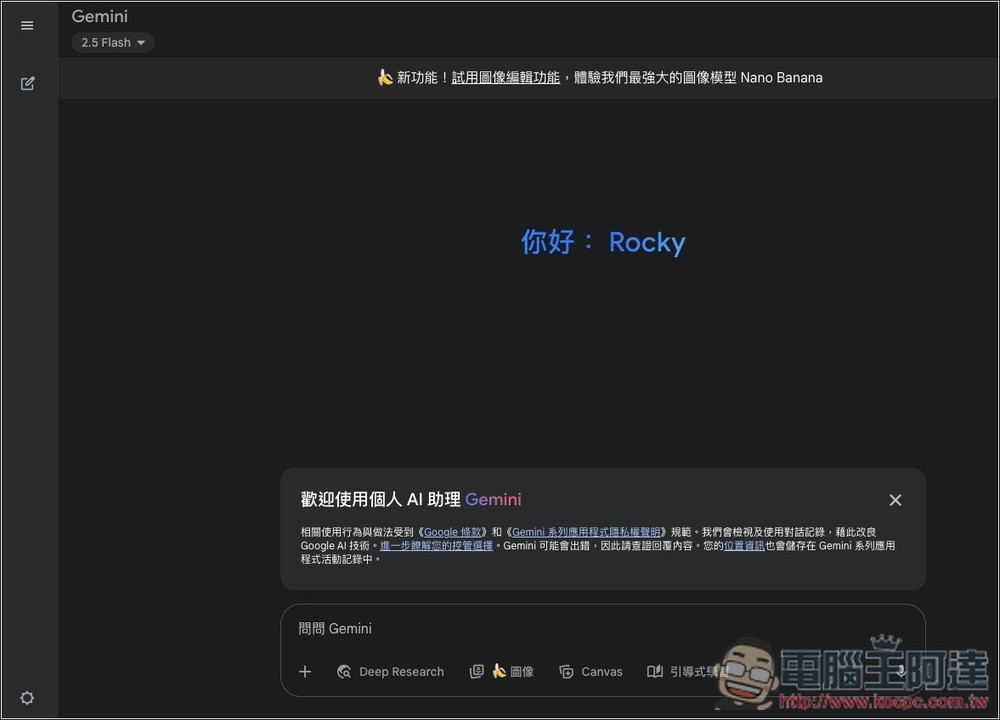
A compilation of over 15 free ways to use Gemini and Google AI Studio.
Matt Wolfe is a very well-known AI guru internationally, often sharing tips on using AI tools on his YouTube channel. In his free Gemini video, he mentioned some excellent use cases. These are available with a free Google account at no cost, while paid users can get higher usage limits.
1. Rapidly develop apps or games
In Google AI Studio, there’s a “Build” feature that lets you easily develop an app or game with just a single prompt. Matt Wolfe used this feature to create “Emoji Fusion Master,” and what’s especially noteworthy is that he didn’t give Gemini any specific ideas about the gameplay at all. He only used the following conceptual prompt, and Gemini came up with the core gameplay mechanics on its own:
build a unique and fun game that has never been made before but is super fun and addicting it should also be colorful and beautifully designed
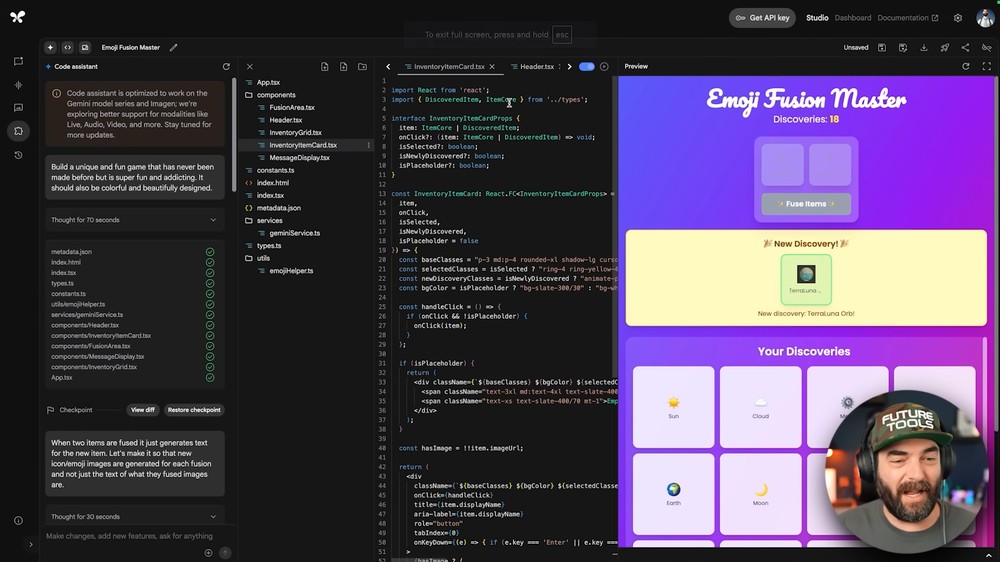
He then directly demonstrated in the video using Build to create a game mimicking the classic “Frogger,” and Gemini did it perfectly—the game was fully playable as well.
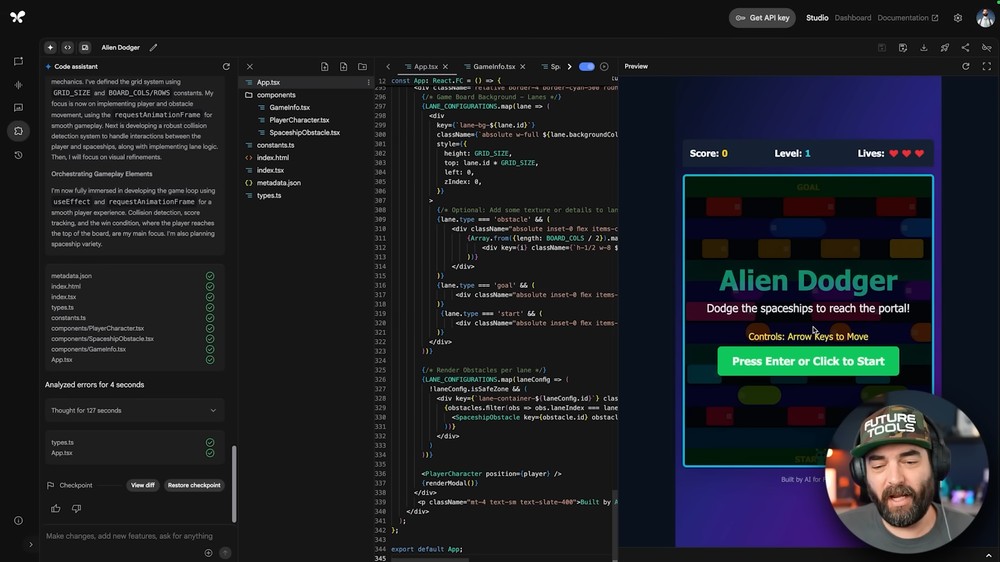
2. Pair with screenshots to create your very own productivity tool
This is similar to the first one, except this time there’s an extra trick: “pair it with a screenshot” to let Gemini understand what you want the interface to look like.
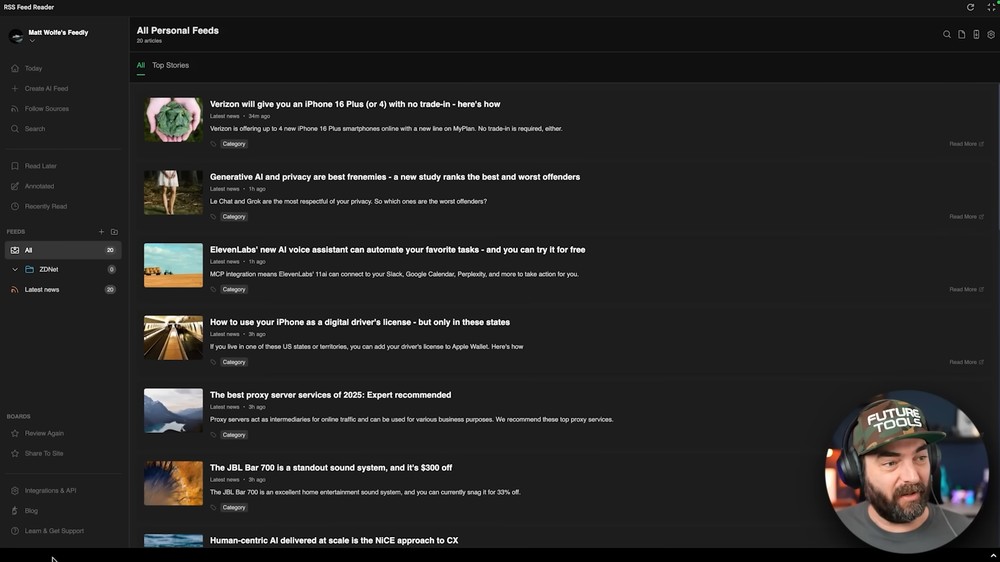
Matt Wolfe demonstrates building an RSS subscription management tool. He uploads a screenshot of the Feedly interface, then enters a text description of the prompt (below), and Gemini creates a tool that looks and functions similarly.
create an RSS feed reader that looks similar to the screenshot i’d like to be able to add multiple RSS feed sources and have the app pull in the latest news from that feed i’d also like to be able to sort feeds into folders
The more important part is that after Gemini generates something, it tests itself to see if there are any bugs. If there are, it will automatically try to fix them until everything is fine before finishing.
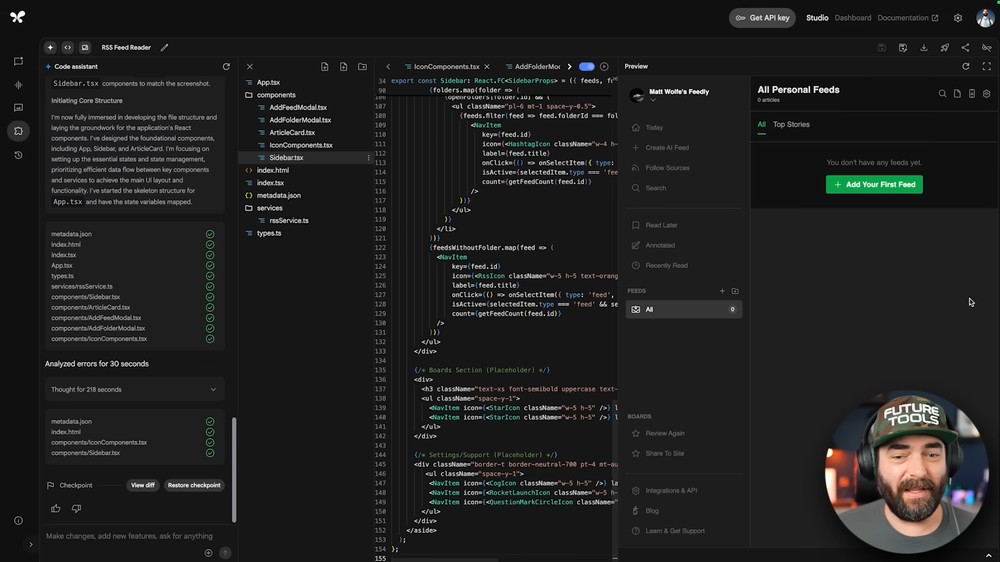
In testing, all features work properly, and the interface really resembles Feedly:
3. Share your screen so AI can help you solve the problem at hand.
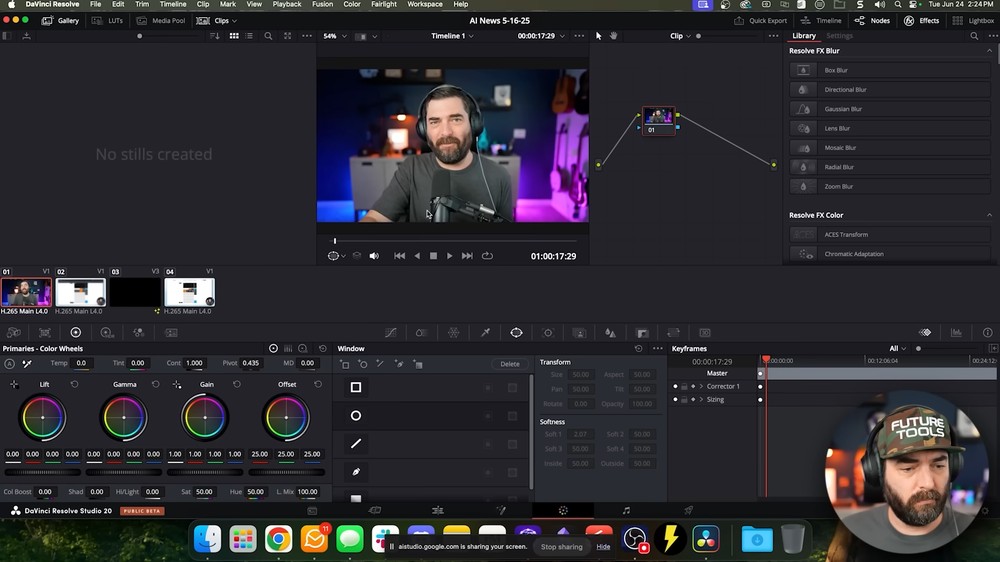
In the “Stream” feature of Google AI Studio, there is a “Share Screen” screen-sharing function. Once enabled, you can operate software while using voice or text to ask Gemini what to do next, and it will watch your screen and guide you. If you happen to be learning a new piece of software, this feature is very useful.
Matt Wolfe demonstrated background removal for video in DaVinci Resolve, and Gemini did provide step-by-step voice guidance on how to do it. Although the final background removal result wasn’t that great, it at least got the job done, and you could also continue asking Gemini to improve the quality afterward.
4. Identify things you don’t know
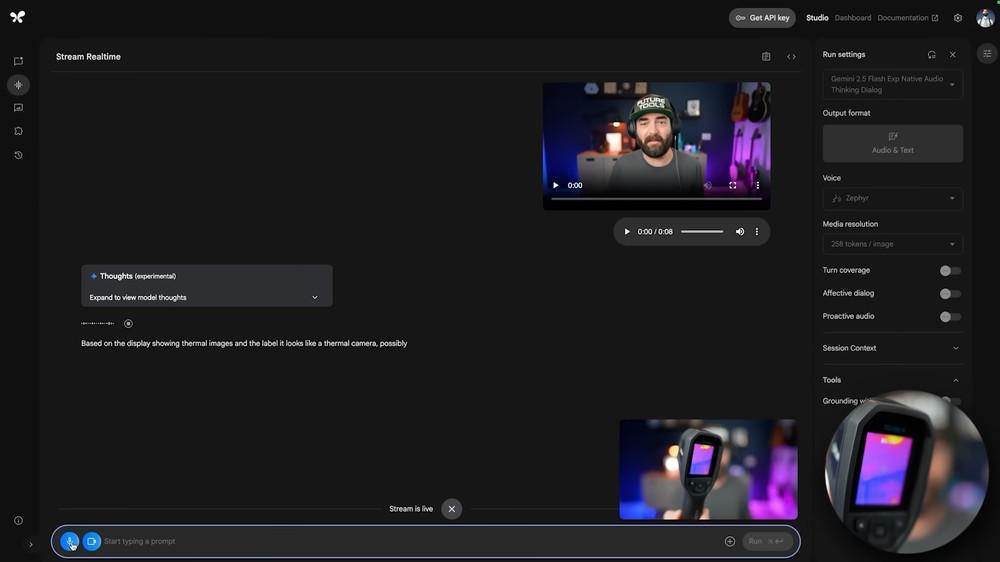
If your computer has a webcam, then anytime you have something at hand you want to learn more about, you can go to the Stream feature in Google AI Studio, enable the Webcam option, and ask, “What am I holding?” Gemini will identify and explain it based on the image.
Actually, you can also do this through Gemini Live on your phone; it just depends on which one is more convenient for you.
5. Let Gemini watch YouTube videos for you
Many people may not know about this feature: Gemini can also help you watch an entire YouTube video. Just paste the YouTube video link into Google AI Studio, then ask the question you want to know, and Gemini will help you find it. The only thing to note is that if the YouTube video is too long, it will exceed the Tokens usage. So if you find that you can’t send a message, it likely means Tokens have been exceeded. You can check the Tokens info at the top of Google AI Studio.
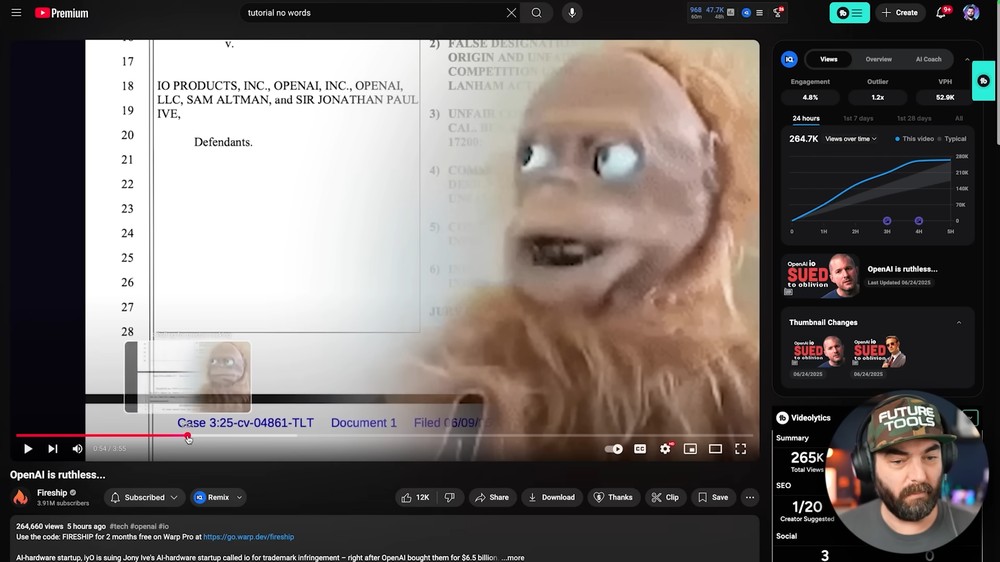
To prove that Gemini wasn’t pulling answers from the transcript, Matt Wolfe asked a visual question: which memes appeared in the video? That wouldn’t be found in the transcript. After analyzing, Gemini listed the timestamps where the memes appeared:
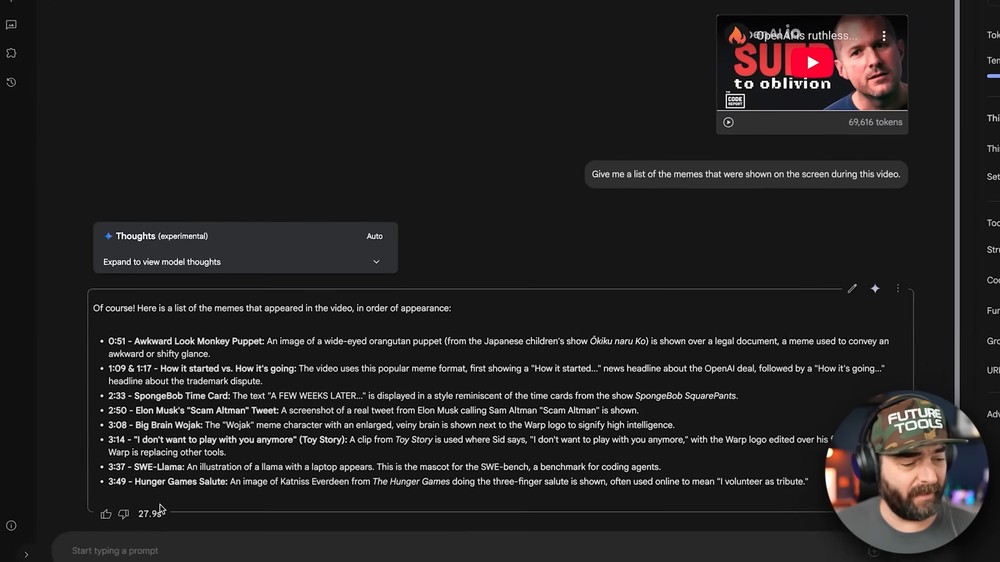
Upon actually checking that specific time point, the meme did appear, showing that Gemini truly “watched” the video to find answers, rather than analyzing the transcript.
6. Create video subtitles
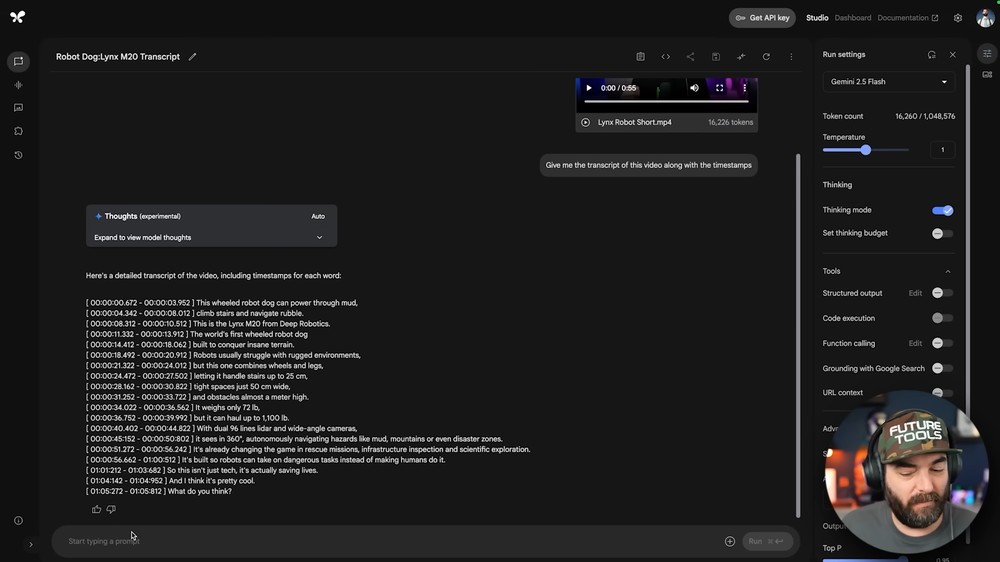
Google AI Studio also supports generating subtitles for videos. After uploading a video to the Chat, you can enter a prompt like “Give me a timestamped transcript of this video,” and Gemini will generate the subtitles. Note that the uploaded file cannot exceed 2GB.
7. Text-to-Speech
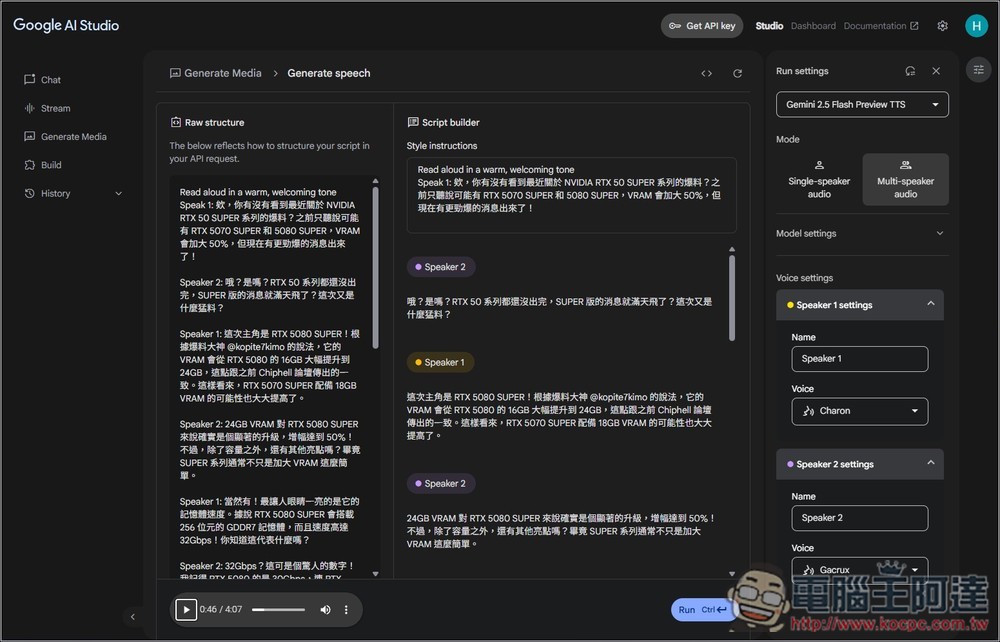
We’ve also introduced this feature before, which can be Text-to-speech in Google AI Studio, and it also supports multiple people speaking, meaning you can use this feature to create things like podcasts.
8. Edit and generate images
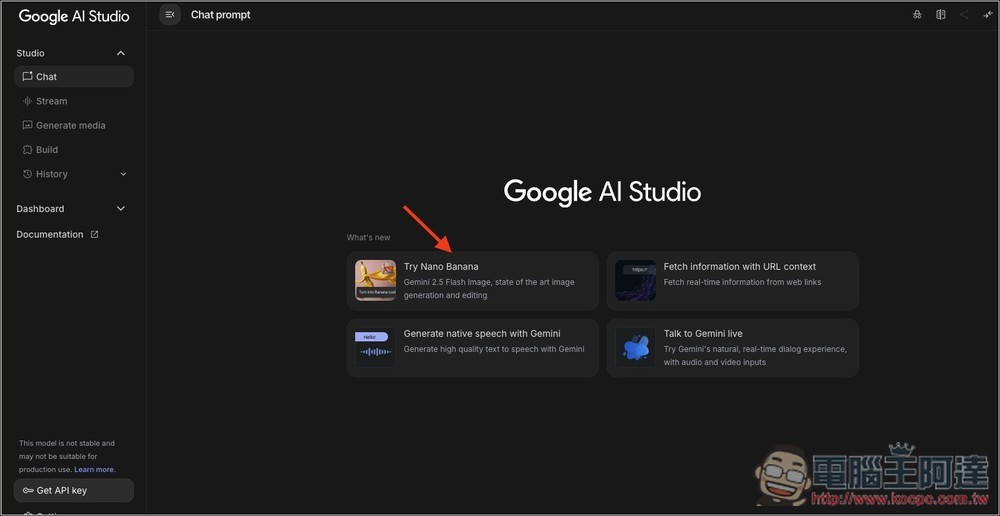
Next up is Nano Banana, which many people are familiar with. You can try it out in Gemini or Google AI Studio. With Nano Banana, you can edit or generate images while keeping characters consistent. Since many people have probably already played around with it, I won’t go into too much detail.
9. Generate Interactive Data Map
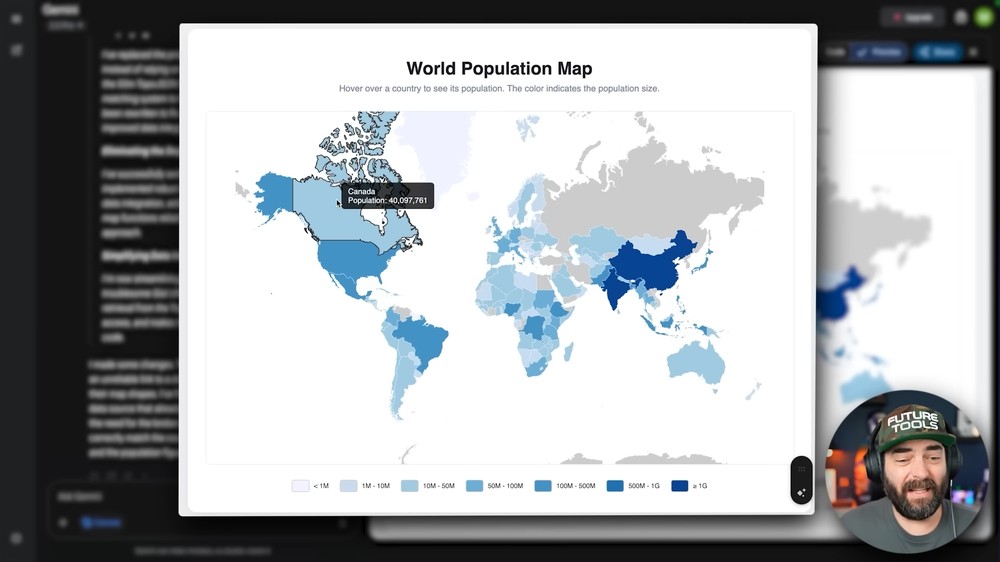
With just the “Canvas” feature enabled, Gemini can create documents and applications to produce interactive infographic content. Matt Wolfe demonstrated this with a prompt to “create a world map colored by population density,” and within moments, he had a beautiful interactive data map.
10. Create report charts
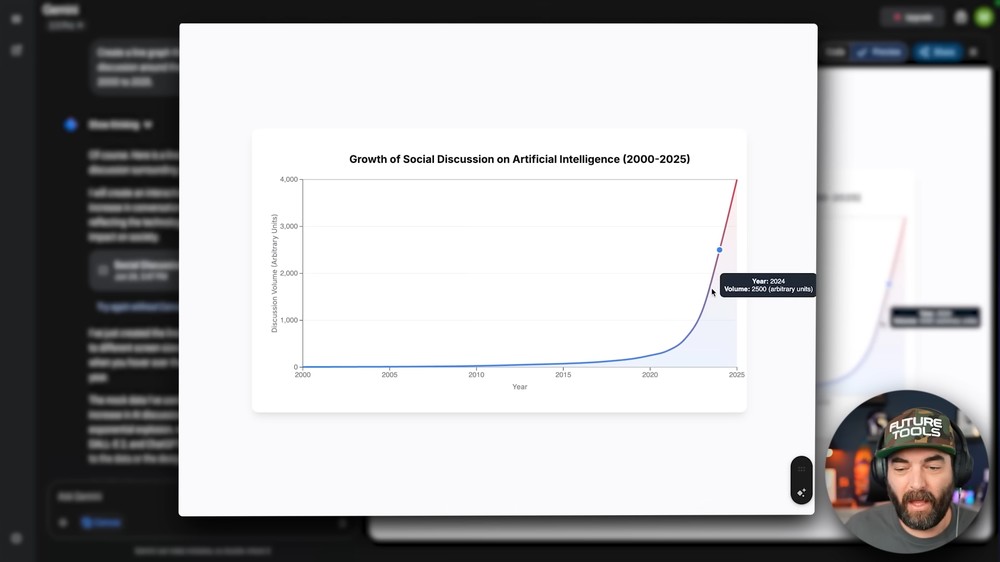
This is a continuation of the previous one. Similarly, after enabling the “Canvas” feature, you can ask Gemini to create charts, such as: “Create a line chart showing AI topic popularity from 2000 to 2025,” and Gemini will generate an interactive chart:
11. Conduct in-depth topic research
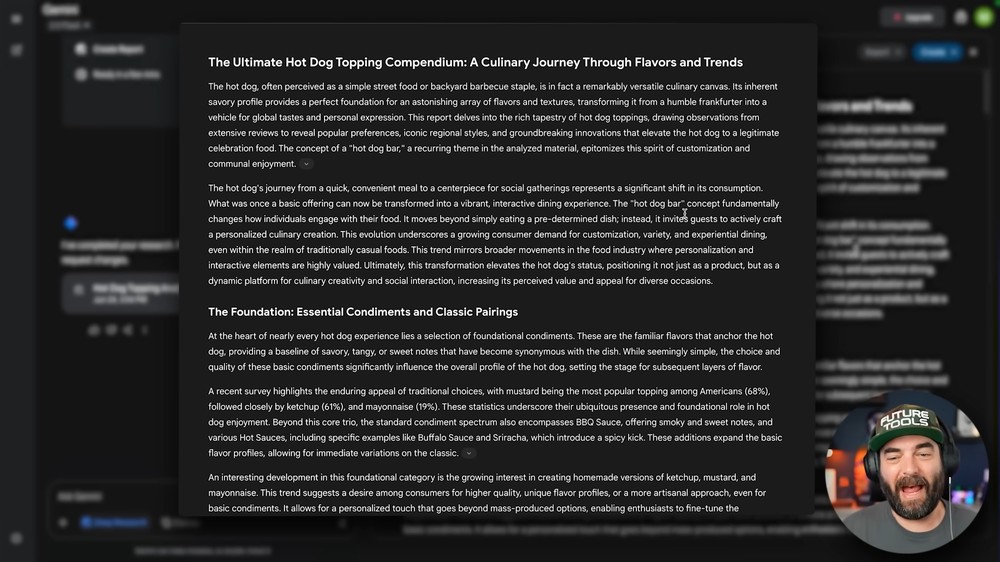
The free version of Gemini also supports deep research. Simply select the 2.5 Flash model and turn on the “Deep Research” feature to conduct in-depth research on any topic you want, such as “What are the hot dog toppings around the world.” The AI will plan out the research steps, and after getting your approval, generate a highly detailed Google Docs report with cited sources.
This feature is also available in the free versions of AI tools like ChatGPT, but Google has several stronger advantages:
- Report more in-depth.Unlike other AI that only provide summary-style answers, Gemini’s deep research generates a multi-page Google Docs report.
- The report content is structured and well-organized.For the “hot dog toppings” demonstrated by Matt Wolfe, the report not only lists the toppings but also organizes them into charts, and provides detailed classification and explanations based on categories such as “regional style,” “signature toppings,” and “primary flavors.”
- Seamless integration with other Google services.After research is complete, you can export it to Google Docs with one click, and the report will open directly in the document, making it easy to save, edit, or collaborate with others—a very practical advantage.
12. Adapt articles into Podcasts and videos
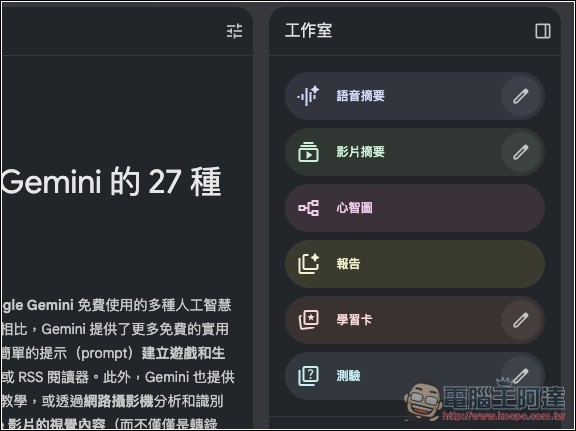
For difficult or lengthy articles, some people may struggle to get through them but still want to absorb the knowledge inside. In that case, you can use NotebookLM to import the article URL, PDF file, or plain text content, then use the “Audio Summary” on the right side to turn it into a Podcast, with two hosts explaining the content for you.
If you prefer dynamic videos, you can switch to video summary instead. The AI will generate a presentation-style video to explain the key points for you.
13. Generate unique phone wallpaper
You can use your imagination with the Nano Banana image generation feature in Gemini or Google AI Studio, describing any image you want with text (for example, “a cyberpunk cat”) to create a wallpaper that’s uniquely yours.
14. Generate video thumbnail ideas
For those who run a YouTube channel, if you have no ideas for video thumbnails, you can try describing your video content in Gemini and ask Gemini to provide multiple thumbnail design ideas or visual descriptions with high click-through rates.
15. Get creative recipes
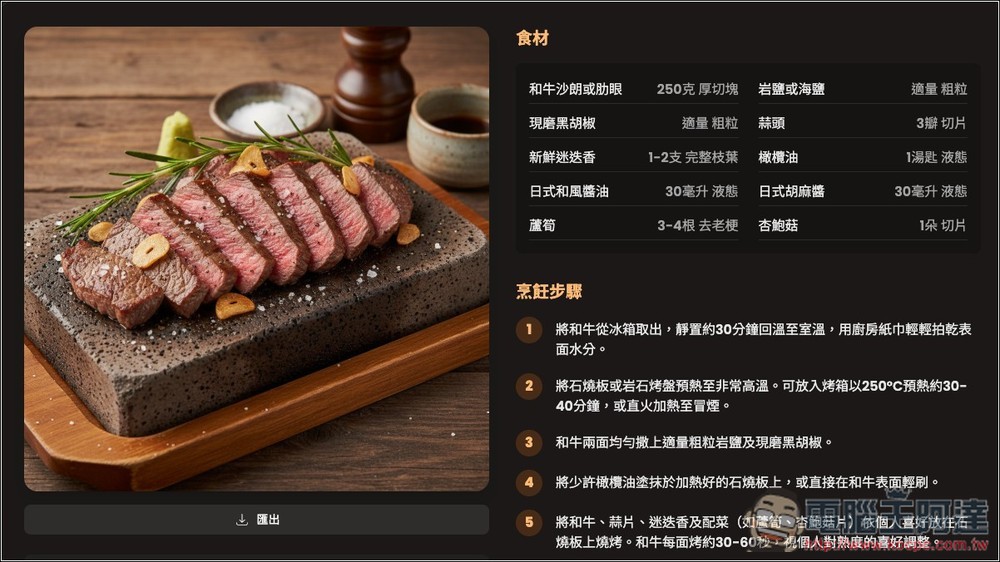
Tell Gemini the ingredients you currently have in your fridge, then ask for diverse recipe suggestions and detailed cooking steps. You can also use the ones we introduced before. 8Dishes.MECome and get 8 recommended dishes from various cuisines with one click.
16. Plan themed travel itineraries
When planning a trip, you can use the “Deep Research” feature to plan your itinerary. For example, you can ask Gemini, “Research the 10 most authentic street foods in Florence, Italy, and their history,” and the AI will give you an in-depth travel and food guide.
17. Turn learning materials into audio
Convert the web articles or ebook chapters you want to learn into audio files (voice summaries) through NotebookLM, so you can learn by listening during commutes or workouts.
18. Proofread article text
This is a trick I use quite often: after writing an article, I’ll just feed the whole thing into Gemini and ask if there are any typos or content errors. If Gemini spots any, it lists them out, and even offers suggestions for optimizing the content.
conclusion
The above are some recommended uses from Matt Wolfe and me. Of course, there are more than just these. If you have other uses that you think are great, feel free to share and discuss in the community post.
Source: KOCPC Chinese