


Recently, after Gemini added audio file analysis, everyone can now use Gemini directly to convert recordings into transcripts for free, without relying on other apps. The transcription speed is also very fast—I tested an audio file of about 20 minutes, and it finished in around a minute. That’s really great. I also tested the subtitle part. Although it could generate the subtitle format I requested, only the first few seconds of the timing were correct; the rest was off.
Gemini can also turn audio recordings into transcripts for free — 20 minutes of content takes just 1 minute to process.
Gemini’s audio-to-transcript feature is available in both the free and paid versions, though the length limits and context differ.
- Free: up to 10 minutes per upload, context limited to 32K tokens
- Pro / Ultra: up to 3 hours per upload, context up to 1M tokens
Context length not only enables generating longer verbatim transcripts, it also affects the depth of processing after speech-to-text conversion. Audio files also have a file size limit, currently 100MB.
The usage is also very simple. After opening Gemini and logging into your Google account, upload the audio file and enter a prompt to start transcription. The prompt I used is very simple:
請幫我生成完整的繁體中文逐字稿
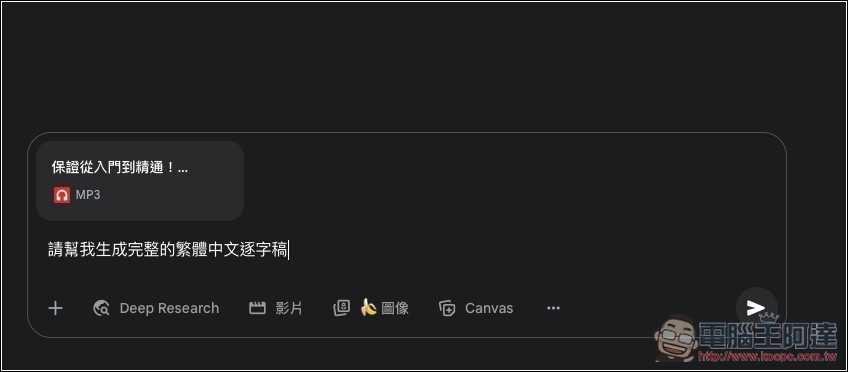
Then Gemini will start transcribing. A 10-minute recording will basically be done within 1 minute—it’s very fast:
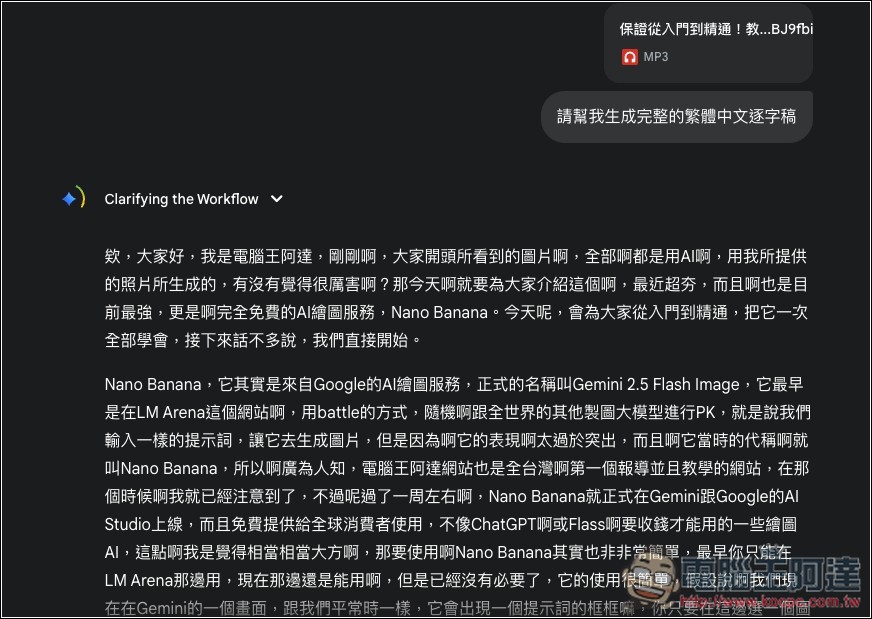
Once you have the full transcript, you can start chatting with Gemini about whatever you want to know. It’s similar to ChatGPT’s voice mode, where you can get a key summary of the transcript content. People online have already cracked and shared the prompts used for ChatGPT’s voice mode. If you want to get almost identical responses, you can copy them and try it out:
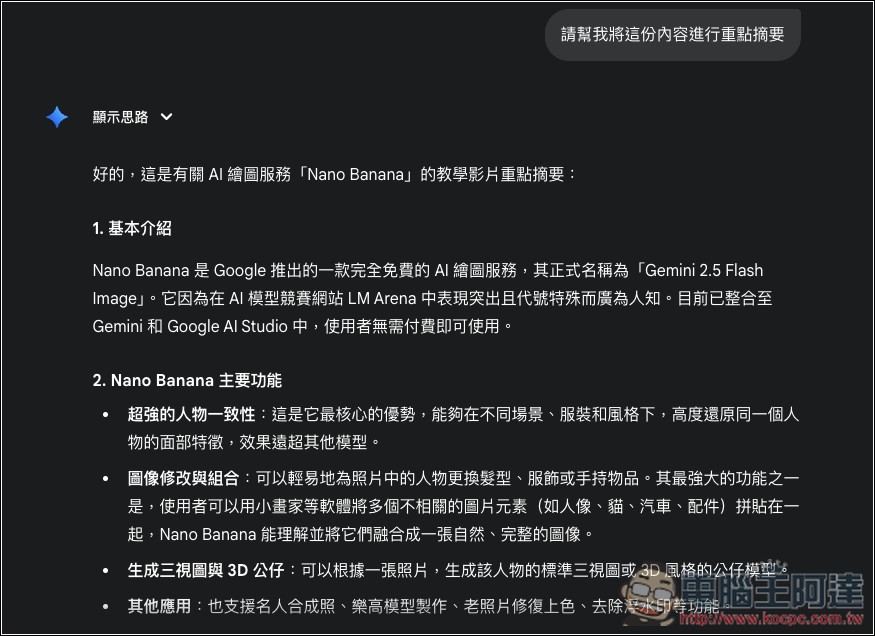
Also, for example, after a meeting, you might want to know what to prepare next, and you can ask it directly like this:
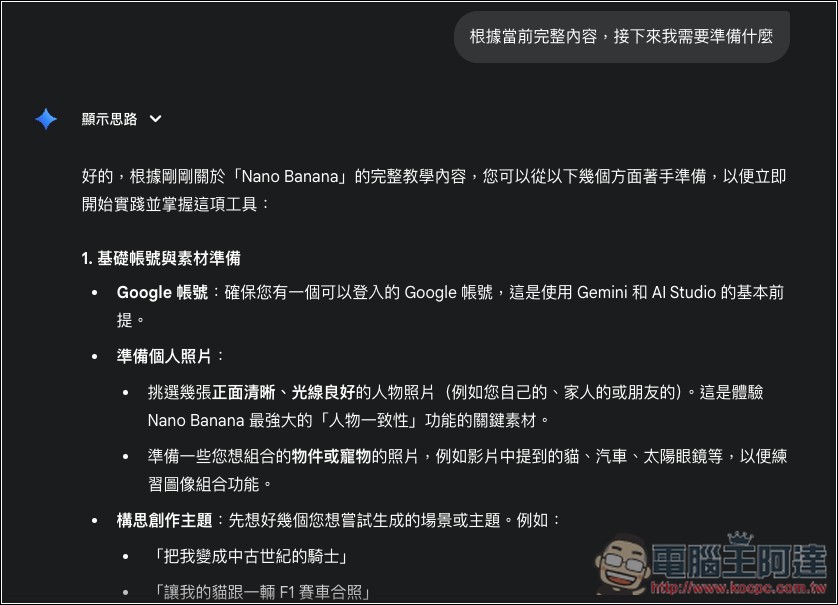
But note that since this is transcribed via AI, just like OpenAI’s Whisper, some parts may still have missing or duplicated content, so after transcription, it’s recommended that you read through the entire thing yourself.
I also tested generating subtitle files; the transcription content needs to include the timestamp format I specified. Below is the prompt I gave:
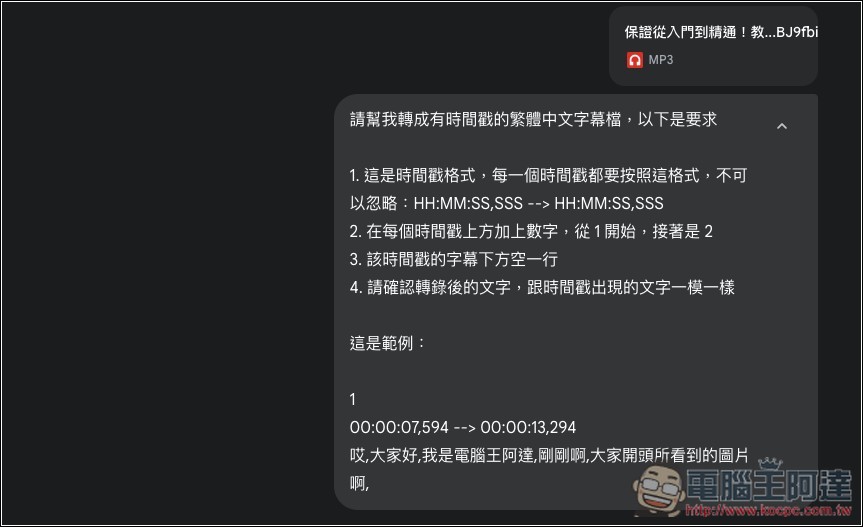
Although Gemini correctly generated the specified format, unfortunately it still failed. The subtitles and timing were correct for the first few seconds, but the timing went wrong after that — the subtitles appeared too early, and some content wasn’t even transcribed. Clearly, at this stage it still can’t generate subtitles with timestamps:
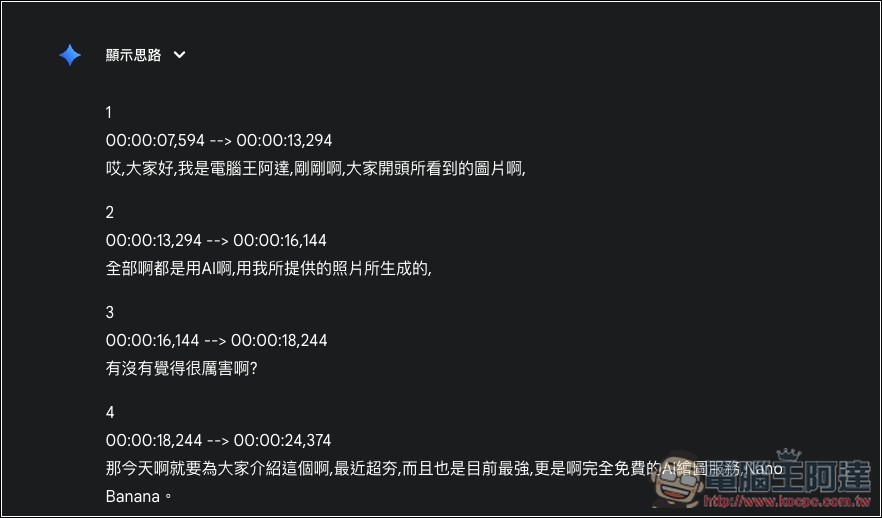
If you’re not sure how to ask Gemini, here are some common ways to use it:
- Summary and key points: Organize key takeaways, important sentences, and chapter outlines to quickly grasp the main points of interviews, meetings, or courses.
- Various resolutions: extract action items, decisions, and follow-up owners from audio recordings (great for meeting minutes).
- Content Q&A (finding specific segments): directly ask “What is mentioned about X?” or request that the paragraphs/time points where a certain topic is mentioned be marked.
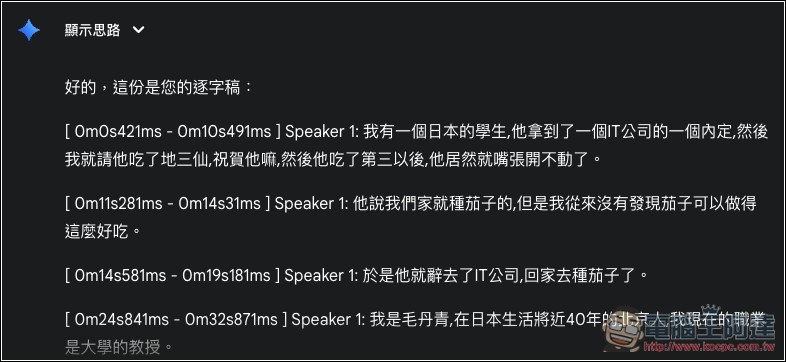
Additionally, you can ask Gemini to output speaker labels like “Speaker 1/2…” for easier organization later, though this depends on the quality of the recording file—if it’s too poor, the speakers may not be identifiable.
Source: KOCPC Chinese