


The built-in media players in most mobile phones and computer systems are simple and can meet your basic needs, but don’t think about advanced needs. Many device manufacturers do this to maintain a simplified user experience, encourage third-party development, and save original factory development costs. If you frequently watch videos on your device, the built-in player may be a hassle, but luckily there are many third-party apps that offer more features and customization options to improve your viewing experience. So how to choose? Which players are worth trying? This time the author has sorted it out for you.
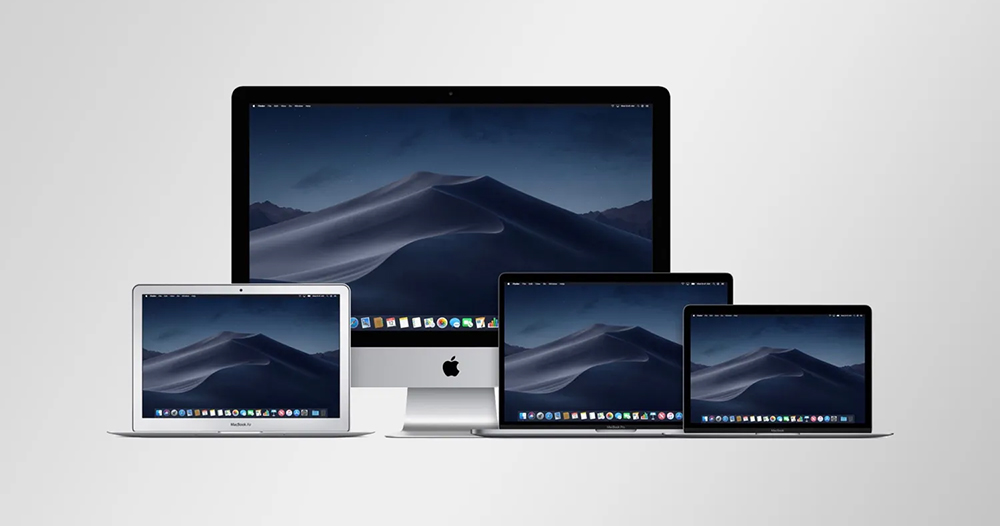
How to choose a third-party media player for Mac & 3 best free player recommendations
How to choose a third-party media player for Mac?
How to choose a third-party media player can be roughly divided into three parts: functional requirements, user experience and compatibility, and we will briefly explain these three points.
Functional requirements
Most third-party media player applications provide basic functions, such as pause and play, multiple format support, etc. Some also provide advanced media playback controls, such as equalizer, downloading and adding subtitles, parental control, video quality adjustment, etc. Below we start by listing some of the standard features you can see in a media player:
- Playback control: basic functions such as play, pause, stop, rewind, fast forward and volume control.
- Supports various formats: It can play audio and video file formats, such as MP3, MP4, AVI, WAV, etc.
- Playlist Management: Create, save and manage playlists to organize your favorite multimedia content within the app.
- Subtitles support: Ability to download and add subtitles to videos, with options to change font, size and color.
- Streaming capabilities: Stream media from online sources like YouTube, podcasts, or radio stations.
- Equalizer settings: Customize your audio settings using the equalizer to adjust bass, treble, and other sound frequencies.
- Video quality adjustments: Options for changing brightness, contrast, saturation, and other video quality settings.
- Full screen mode: Watch videos in full screen for an immersive experience.
- Synchronization: Automatically synchronize audio and video tracks if they are misaligned.
- Parental Controls: Set content restrictions based on ratings or other criteria to ensure appropriate viewing for children.
- Integration with cloud services: Access and play media stored in cloud services such as Google Drive, Dropbox, and more.
- Customize: Personalize the look of your media player with different skins or themes.
- 3D and VR support: Some high-end players offer 3D or virtual reality support for compatible media.
- Social media sharing: Share what you are watching or listening to directly on social platforms.
- Remote control via mobile app: Control playback from your mobile device, turning your phone or tablet into a remote control.
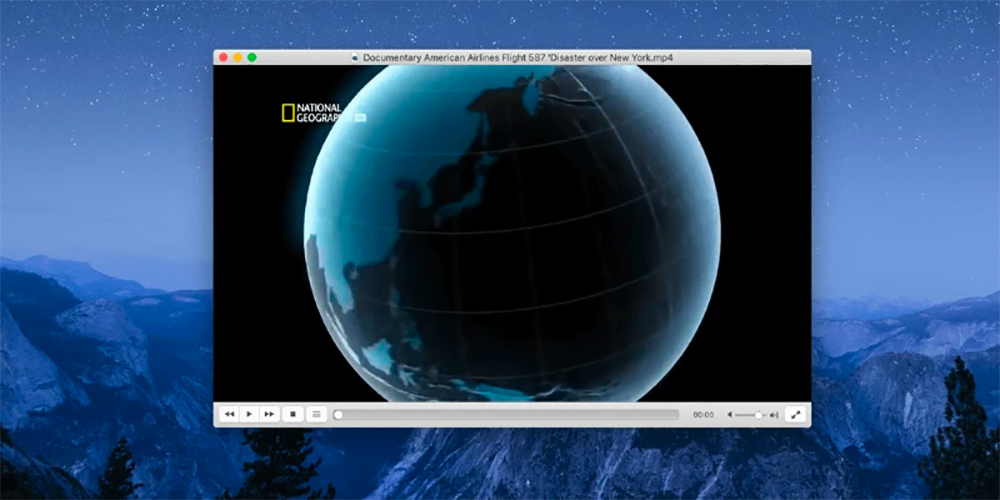
user experience
Another important factor you should consider is user experience. Since you’ll be interacting with the player application most of the time when watching videos, it’s best to choose an app with a simple user interface. Additionally, some third-party media player apps display ads to generate revenue, which may also impact the overall viewing experience.
compatibility
Apple switched from Intel processors to its own Silicon, a switch that affected many third-party apps, including media players. Many third-party applications developed for Intel-based Macs have compatibility issues with the new Apple Silicon Macs. However, most apps have been adapted to the new architecture, but it’s always safer to go back and check for compatibility before choosing the best media player app.
Recommended third-party media players for Mac
IINA
- Supported formats:
MP4、MKV、AVI、FLV、MOV、WMV、MPEG、H.264 (AVC)、H.265 (HEVC)、VP9、OGV、WebM、MP3、AAC、FLAC、WAV、OGG、WMA、ALAC、SRT 、ASS、SSA、SUB、VTT - Compatible systems:
macOS 10.11 and later. It also supports M1 or higher Macbooks. - Price: Free
- Download URL:Click here
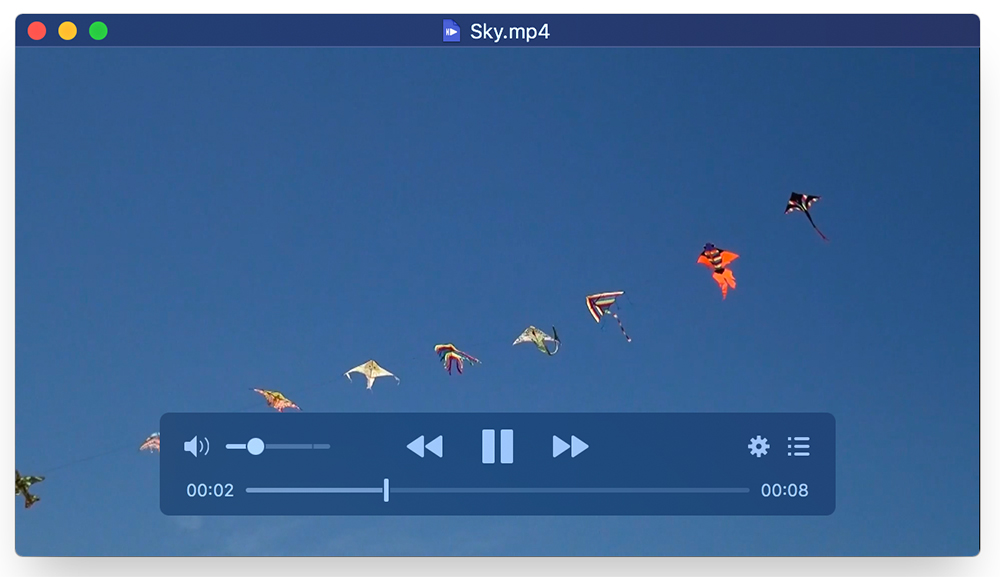
IINA is a simple and modern Mac media player application. The app supports YouTube DL and various browser extensions to play videos online within the app, and is fully integrated with macOS so you can use Force Touch, Touch Bar, picture-in-picture, and more. You can open the app, browse for media on your device, and enter the URL of the media you want to play; for example, you can paste a link to any YouTube video and it will play immediately. The app also has various settings such as the ability to adjust brightness, contrast, etc. to customize the video. IINA also allows you to crop, rotate and adjust the playback speed of your videos. It also has built-in advanced video features, such as a hardware decoder (enabled by default), which uses special computer hardware (such as a graphics card) to play videos more smoothly. There are also various audio customization functions, such as selecting audio tracks, importing external audio tracks from the device, matching audio playback to videos, and more. There is also a dedicated subtitles tab where you can add subtitles to videos or search for subtitles within the app, which is very helpful when watching movies.
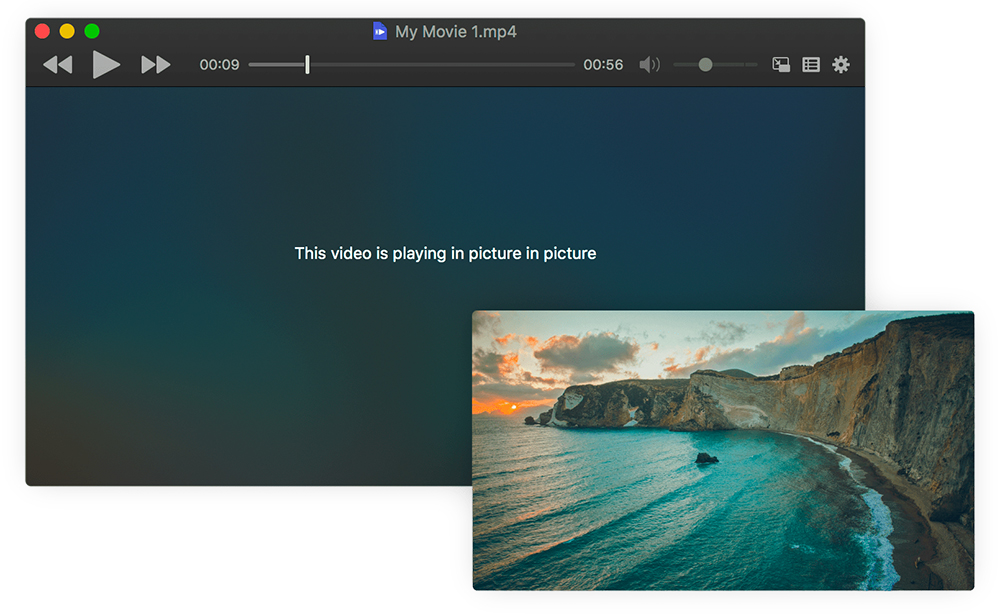
Finally, you can create playlists, add media to playlists and manage them. The app also supports videos like picture mode. It also has its own music mode to play music. The user interface is simple and modern, offering a variety of customization features that allow you to change the appearance of the app to your liking. The app isn’t found on the App Store, but you can download it for free from the official website and install it manually on your Mac.
VLC Media Player
- Supported formats:
MP4、MKV、AVI、FLV、MOV、WMV、MPEG、H.264 (AVC)、H.265 (HEVC)、VP9、OGV、WebM、MP3、AAC、FLAC、WAV、OGG、 WMA 、ALAC、SRT、ASS、SSA、SUB、VTT - Compatible systems:
Windows, macOS, Linux, iOS and Android. VLC is a cross-platform media player. - Price: Free
- Download URL:Click here
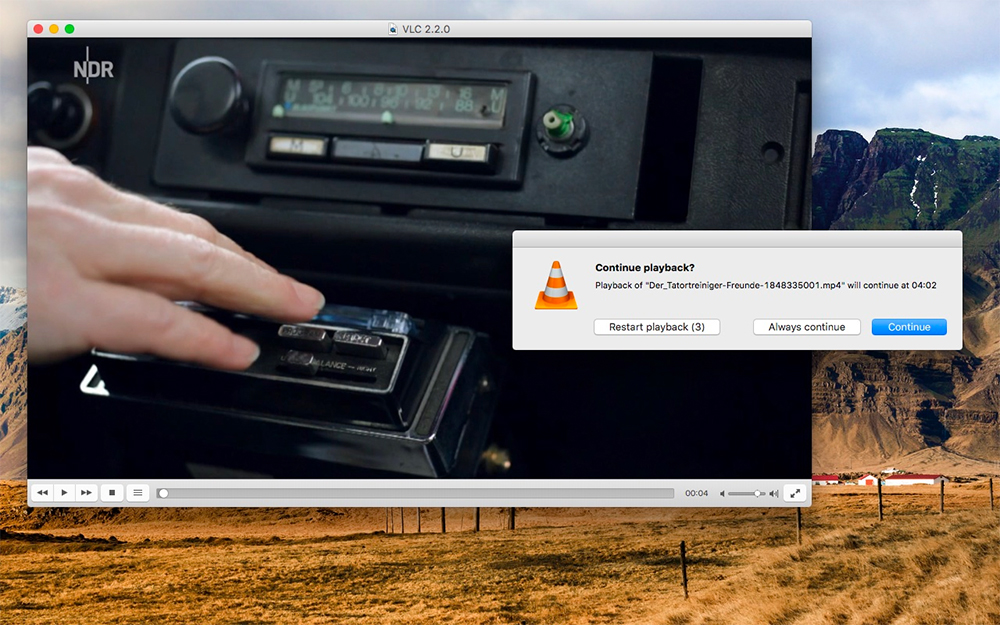
VLC is the most popular and widely used third-party media player that is completely free and offers many video playback features. It has basic and advanced movie playback controls, making it ideal for most Mac users. VLC is compatible with various macOS versions, including Apple’s latest M-series processors. The app is not found in the App Store, you can download and install it directly from the VLC website. VLC is an open source application that is completely free for all users.
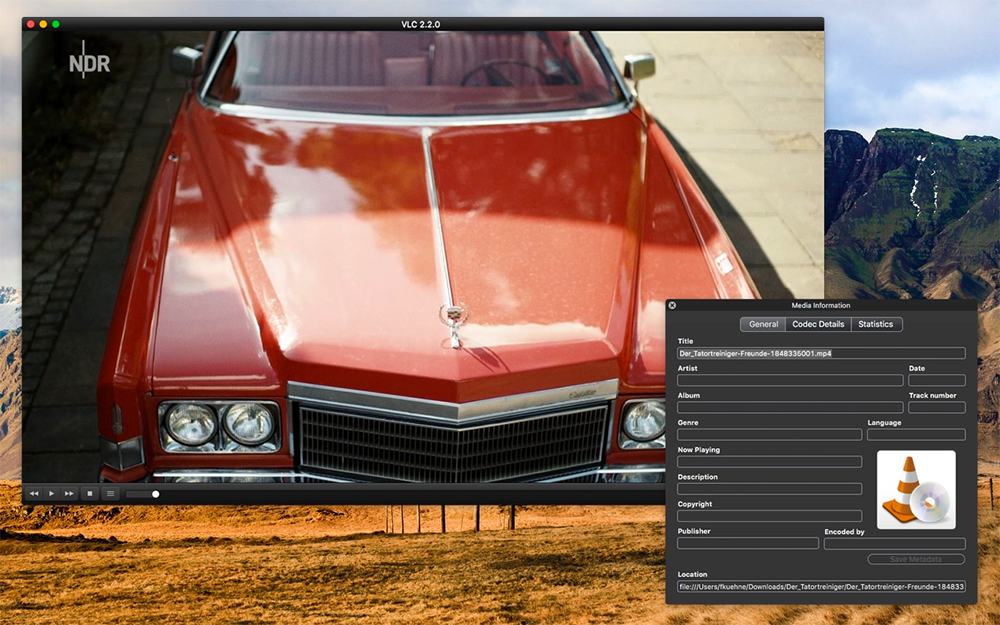
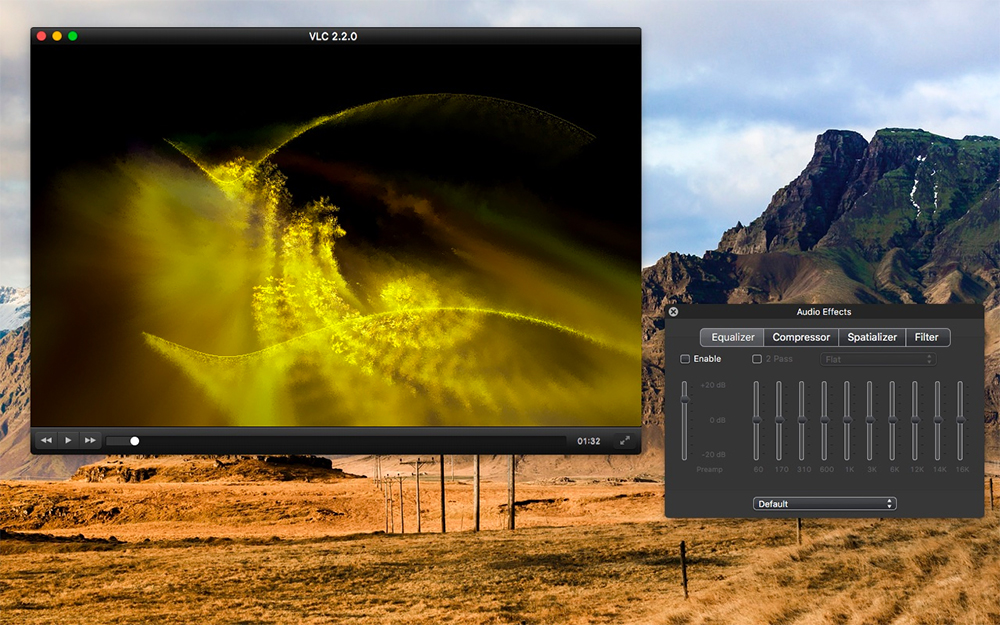
As for the app’s features, VLC Media Player supports video and audio formats. It can play MP3, MP4, AVI, WAV and other audio files and video formats. The app offers basic functions like play, pause, stop, rewind, fast forward, and volume control, and you can drag and drop videos to the media player or browse for videos to play in VLC. You can also use keyboard shortcuts to customize playback controls. The app also offers features such as custom audio settings and an equalizer to adjust bass, treble, and other audio frequencies. VLC also allows you to create, save and manage playlists to organize your favorite media. Media on your Mac displays directly in the VLC app, and you can browse and select media on your Mac and add subtitles to your videos. You can also download hosted subtitles for your videos and change the font, size, and color of the subtitles.
The app also performs very well on Mac. The app is fast, loading and playing videos quickly. VLC is known to handle large or high-quality files efficiently without affecting performance. The user interface is simple and easy to use. The interface of macOS is very different from that of Widows. If you are switching from Windows, it may be difficult to find your way at first. VLC also provides support for themes and plug-ins. Themes allow you to customize the interface, and plug-ins allow you to extend the functionality of the application. Even better, VLC has no ads and no user tracking, it’s secure and offers more privacy.
Final Video Player
- Supported formats: mkv, mp4, avi, m4v, mov, 3gp, ts, mts, m2ts, wmv, flv, f4v, asf, webm, rm, rmvb, qt, dv, mpg, mpeg, mxf, vob, gif, ogv, ogm.
- Compatible systems:
Compatible with all popular Macs, including those with M1 chips or higher. - Price: Free
- Download URL:Click here
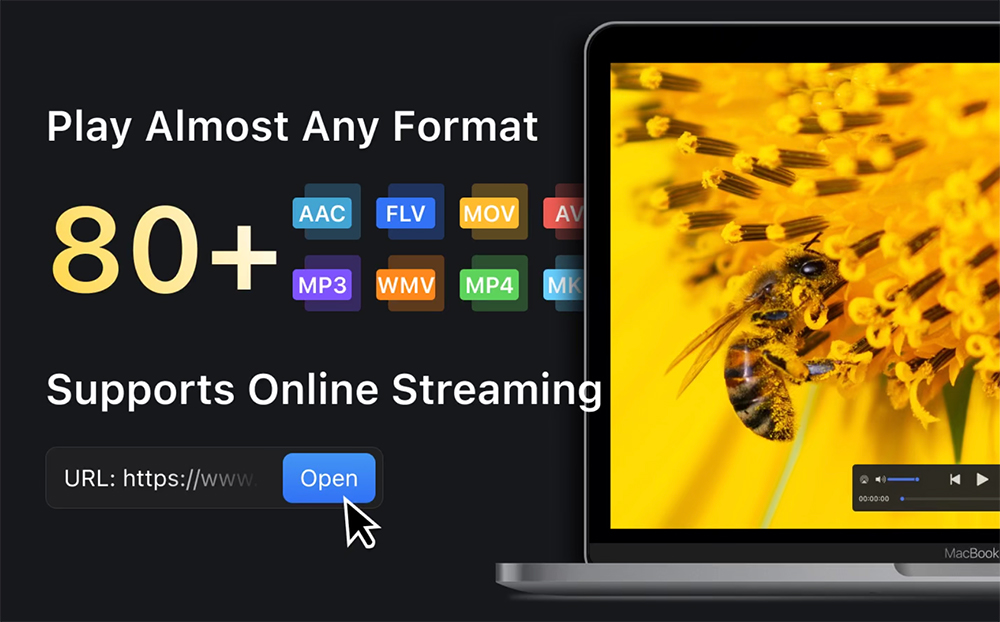
Final Video Player is another easy-to-use video player for Mac. The app provides a comprehensive and user-friendly experience for watching videos, listening to music, and streaming live content on your Mac. Support for various file formats makes it the first choice for a simple media player with advanced features. You can drag or select video files on your device, and the app also allows you to directly paste the URL to automatically retrieve the video file. The app is free and available on the Mac App Store. Overall, if you are looking for a simple and easy-to-use video player with advanced playback controls, playing videos through URLs, creating playlists, etc., then Final Video Player is the best choice.
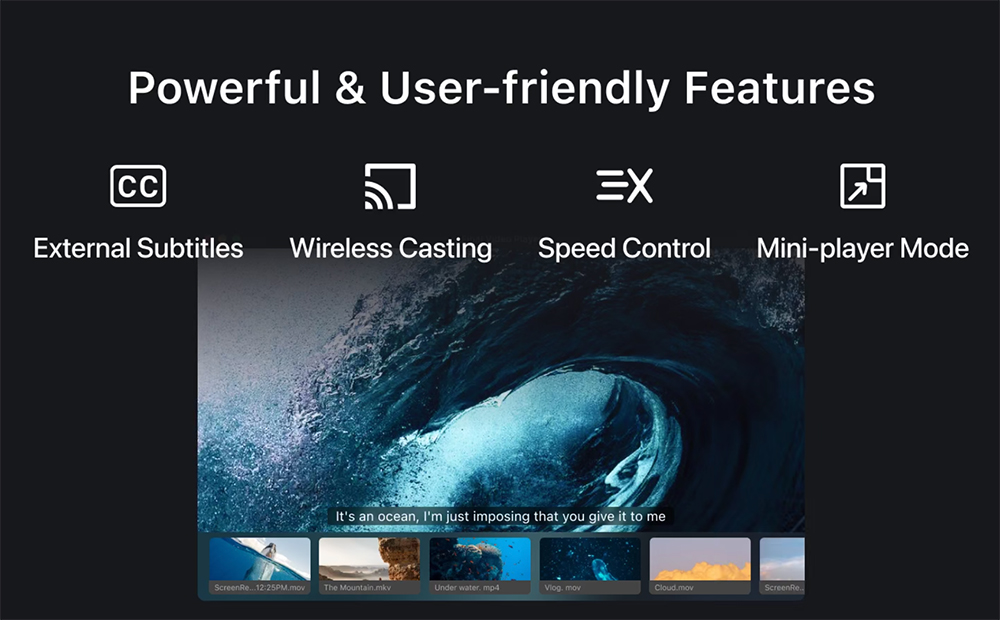
The app offers basic to advanced video playback options. Playback can be controlled using built-in controls and keyboard shortcuts. Features include playback speed adjustment from 0.1x to 16x, playback order support for shuffle playback, list looping and single looping, playing media in mini-player mode, maintaining playback on other windows, and more. The user interface is simple and clear, and the application runs quickly and smoothly. You can also watch high-definition videos and feature-length movies, which the app loads quickly and plays instantly. Built-in support for your own subtitles, allowing you to load external subtitles or browse and download different subtitles for your videos. The app also supports AirPlay and DLNA, allowing you to stream multimedia to other devices.
Source: KOCPC Chinese