


Sometimes you see something on your iPhone and want to copy it and paste it on your iPad or Mac. Did you know you can do this without installing or opening any other software? You may have never used this function seriously or don’t know it at all, but once you learn it, you will find it so convenient. You don’t have to go through various cloud detours. You can freely share clipboards in the Apple environment. Let’s learn together!
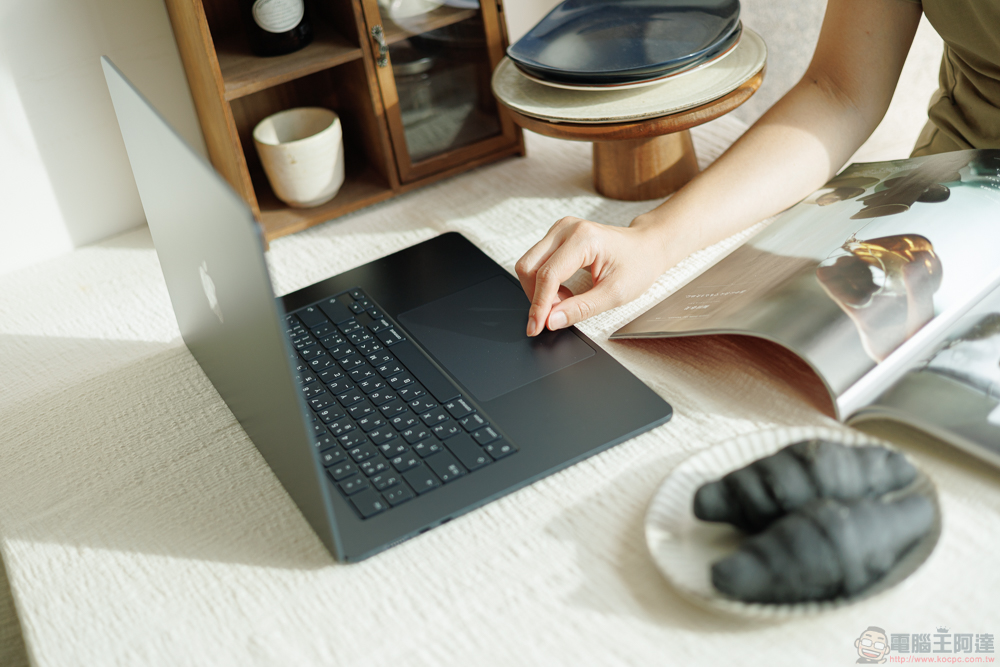
It’s super easy to copy and paste across devices. How to use the same clipboard between iPhone, iPad and Mac?
How to enable the Universal Clipboard function on Mac, iPhone and iPad?
Apple calls this feature “Universal Clipboard,” and it works on any Mac, iPhone, iPad and iPod touch that meet Apple’s system continuity needs. You’ll need a device running iOS 10 or later (at least an iPhone 5, fourth-generation iPad, iPad Pro, iPad Air, iPad mini 2, or sixth-generation iPod Touch) and a Mac running macOS Sierra or later (most 2012 or newer models, except for the 2015 MacBook and 2013 Mac Pro). For this feature to work between Mac computers, both systems need to be running macOS High Sierra or later.
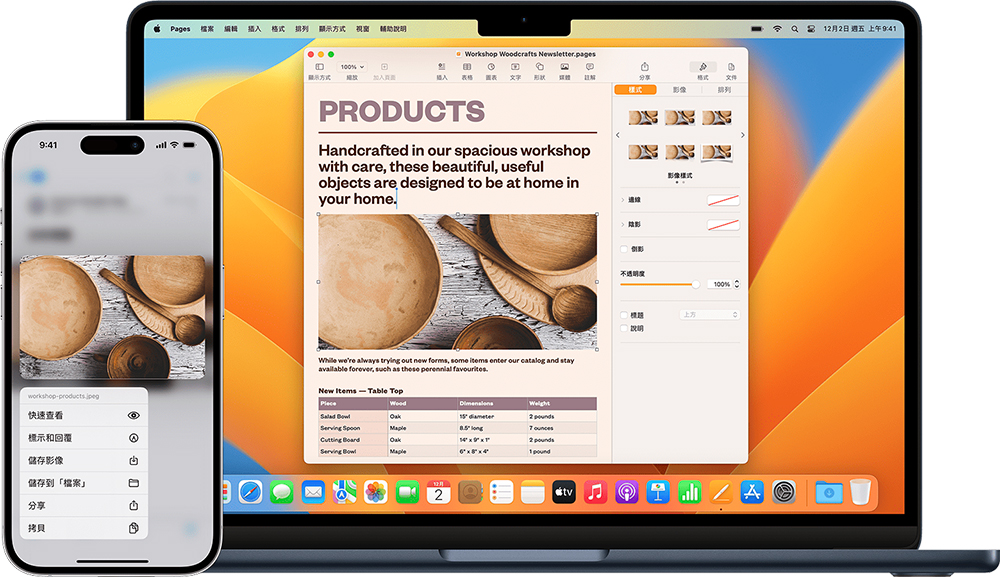
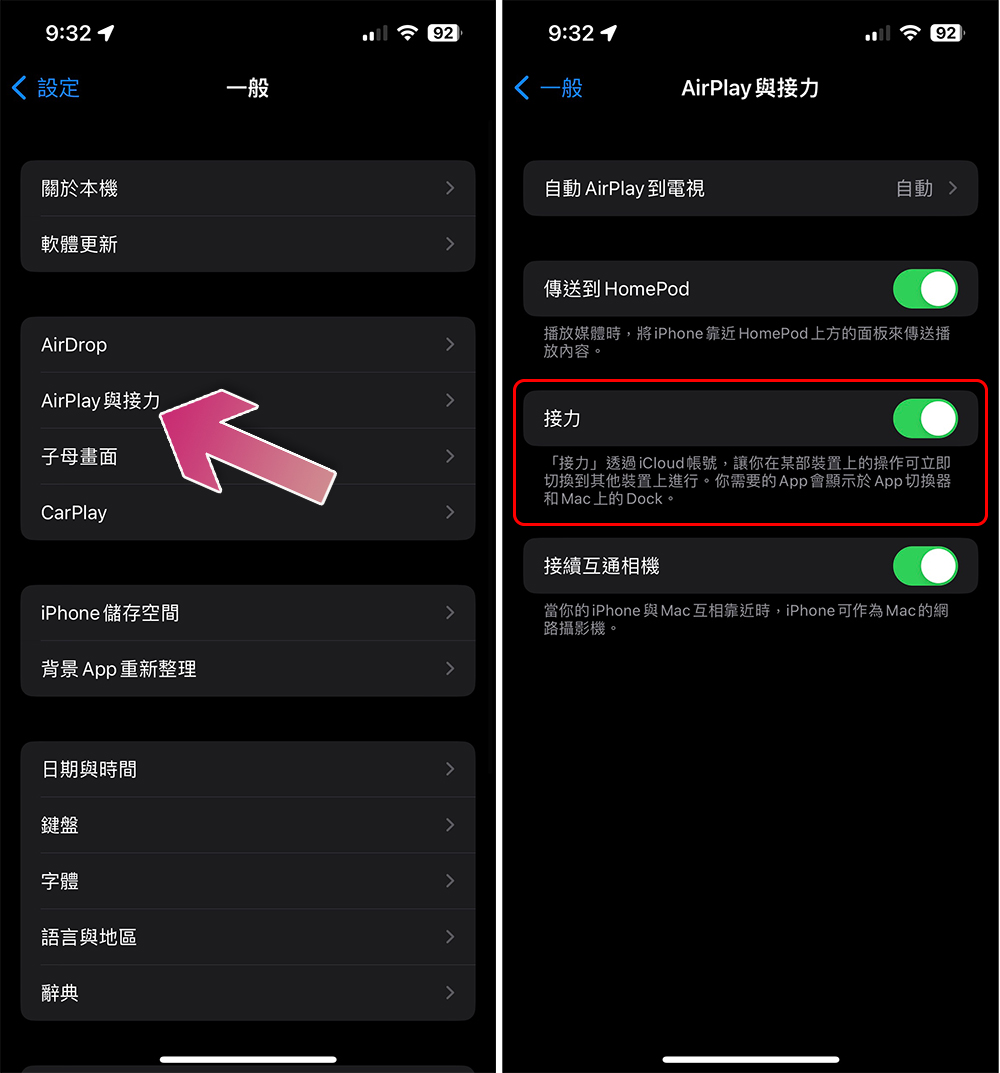
Most importantly, any devices you want to use with Universal Clipboard will need to be signed into the same Apple ID on the devices, Bluetooth and Wi-Fi will need to be enabled on those devices, and Handoff will need to be enabled. Once this feature is enabled, it’s just a matter of copying and pasting to the companion device as usual. There’s sometimes a slight delay, especially when working with files like copied photos, but it’s still helpful.
- Open the Settings app on your iPhone, iPad, or Mac.
- Click “General”.
- Enter “AirPlay and Handoff”.
- Turn on the “Relay” function.
It can also be used to copy passwords that aren’t saved in iCloud Keychain, addresses or phone numbers you’ll only use once, web or email addresses, and more. On iPhone and iPad, you can first highlight the text you want to copy, and then use gestures to control it:
Copy: Three fingers close together
Cut: bring three fingers together twice
Paste: three fingers apart
Why is the Universal Clipboard so useful?
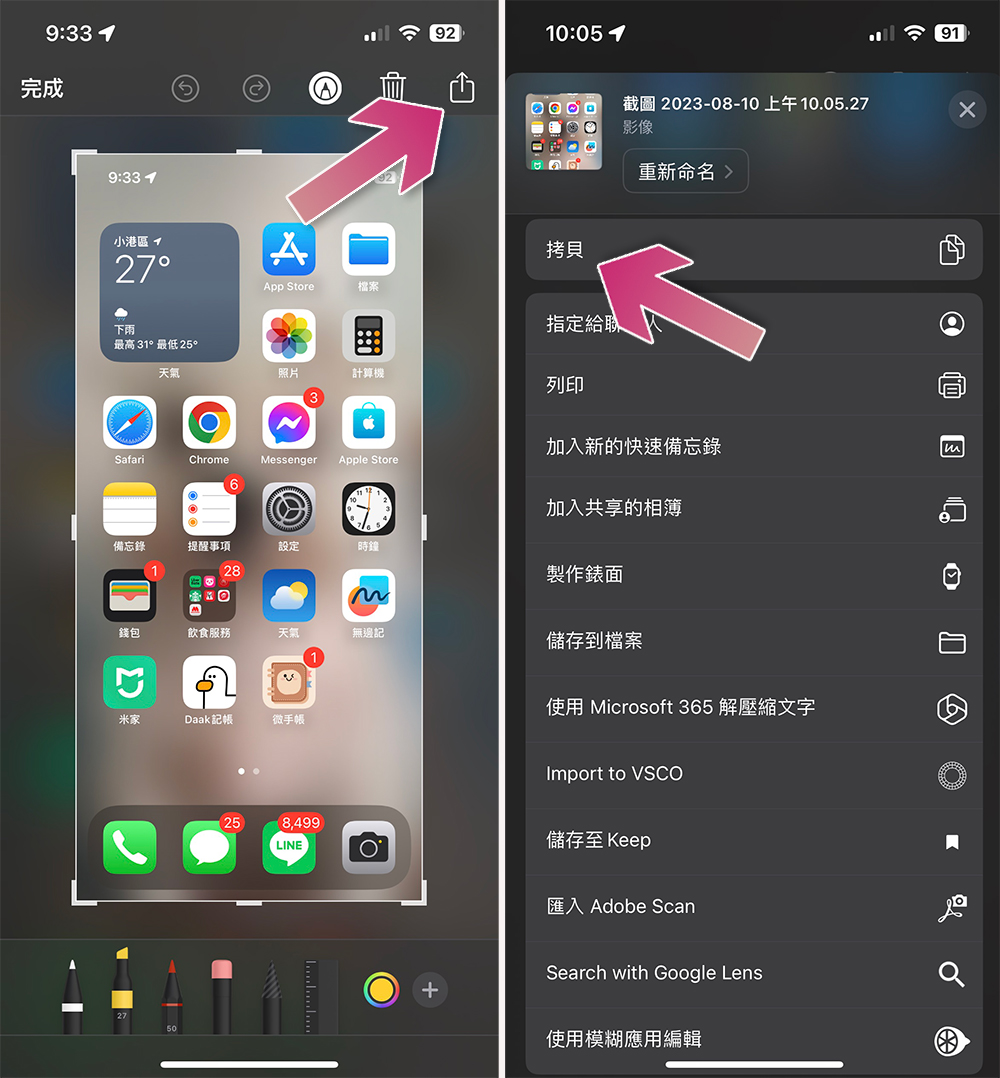
A shared clipboard is useful if you frequently switch between two devices at the same time. For serial multi-taskers, this feature is extremely helpful, allowing you to quickly move data from one app to another without having to rely on an intermediary platform like iCloud Drive or Notes to transfer it. For example, if you need to take an iPhone screenshot from your Mac but don’t want to fill up your photo album, just click the small image that appears in the lower left corner of the screen directly after the screenshot clicks, click “Share” in the upper right corner of the editing interface, then select “Copy” from the list, and press “command + V” directly on the Mac where you want to paste it to paste the screenshot into a memo, email, or other document. The screenshot itself on the phone can be deleted directly.
Universal Clipboard not working? Check these out…
Universal Clipboard won’t work when your device has Bluetooth or Wi-Fi disabled, so make sure these features are properly enabled on your iPhone, iPad (swipe down from the top right corner of the screen), or Mac (via the menu bar in the top right corner of the screen). You can also try turning Handoff off and back on on any device that doesn’t seem to be working properly. Finally, you can’t get Universal Clipboard to work properly when you’re using a VPN (we’ve also had issues with AirDrop and AirPlay when using VPNs). While inconvenient, turning off the VPN and then turning handoff back on seems to work fine.
Source: KOCPC Chinese