


Have you ever tried to receive emails on your iPhone but found that from time to time the emails cannot be received and the message “Email has not been downloaded” is displayed? This problem is not new and may come and go, but it can be annoying when you need to receive more time-sensitive letters. You are not alone, nor are you the only one who encounters this problem, follow us and try the 4 methods we tell you this time to fix it.
How to fix “Mail not downloaded” error on iPhone?
Before identifying and fixing the problem, if your email is not received immediately, please first try to manually re-download it to eliminate it. Sometimes it may just not be displayed immediately. After opening the Mail app, press and hold on the inbox page and slide down until the loading icon appears at the top. Wait for the update to complete and check whether the mail has been received. If not, then it’s time to try a fix.
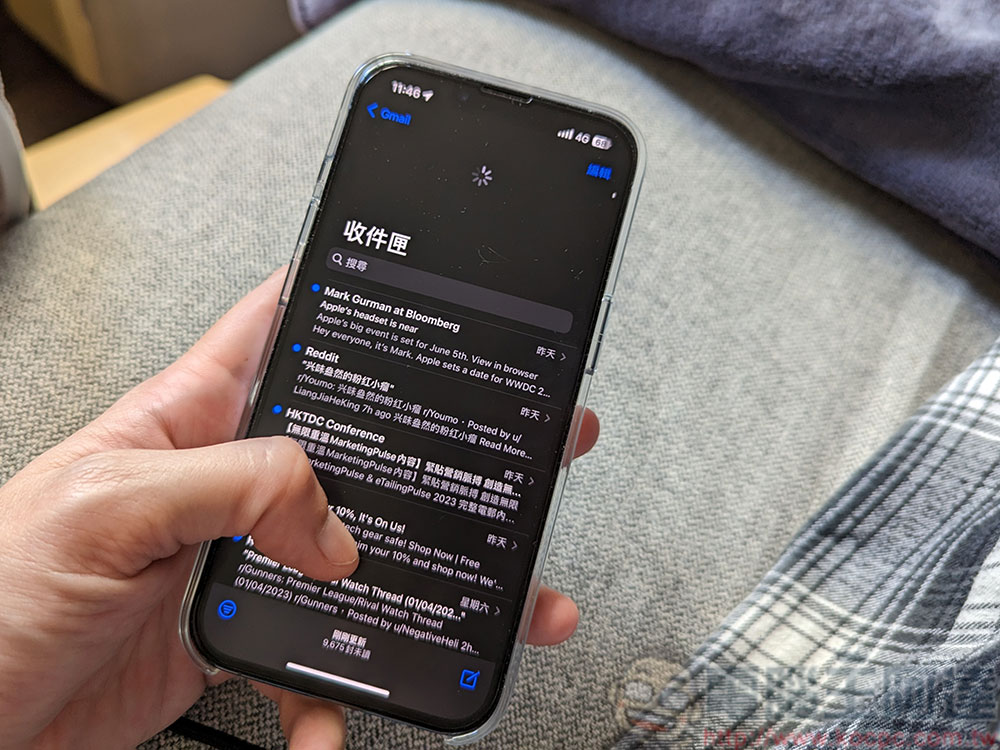
To fix the “Mail not downloaded” error on your iPhone, we provide four solutions for you to deal with step by step from mild to severe. It is recommended that you try them one by one from top to bottom. You may not need to go to the last one to solve the problem.
Method 1: Try restarting the Mail app
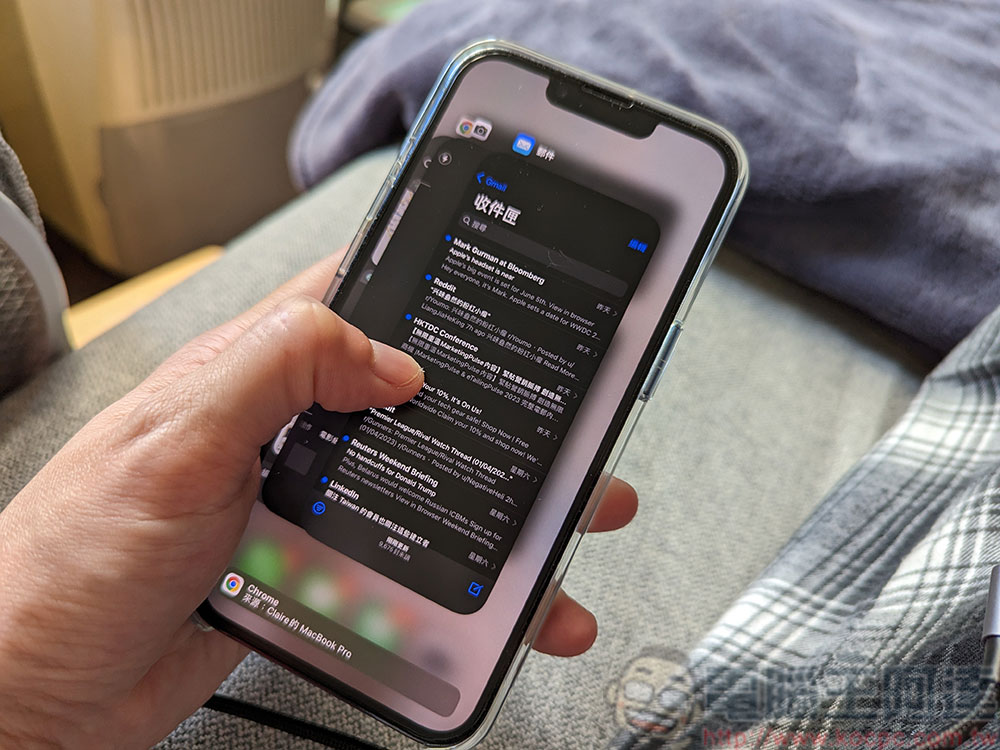
The solutions provided below revolve around a common thread: Restart. When your Mail app fails to try to re-download emails, the first thing you should do is to completely close the Mail app and then restart it. To do this on a newer iPhone (with a Face ID sensor and no Home button), swipe up on the screen and hold to display the app switcher, find the Mail app in the app list, and push it up to close it completely (as if you were throwing it away).
Method 2: Try restarting your iPhone
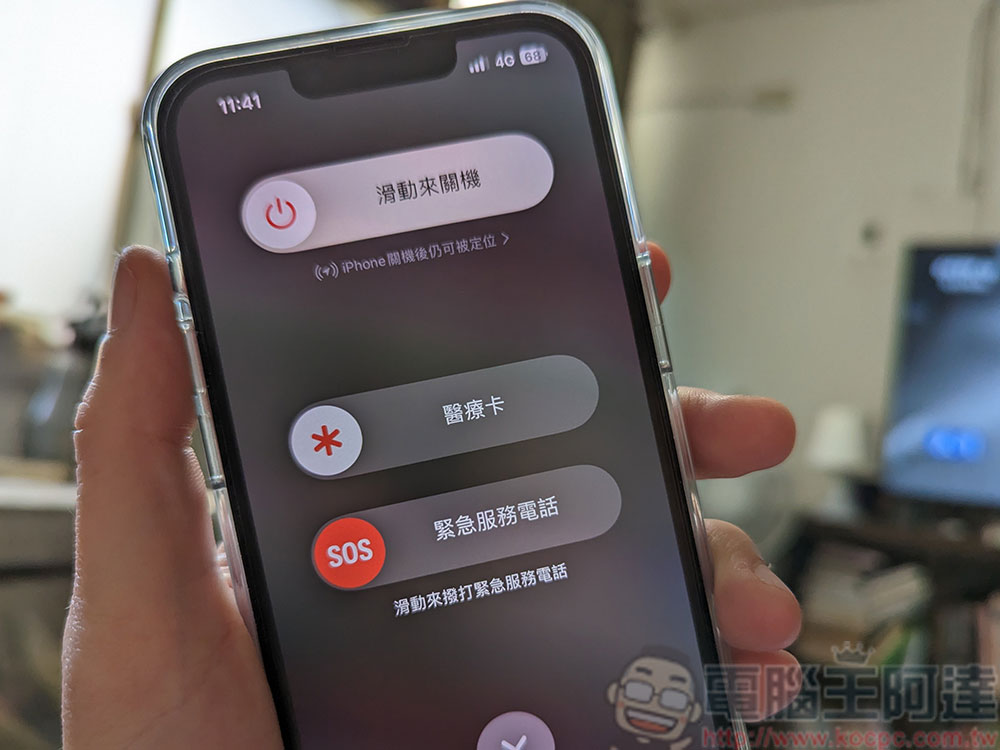
Once you’ve tried method 1 and it doesn’t work, take the next step. Restarting can often help solve minor glitches that appear inexplicably on various electronic products. Similarly, any incomplete messages will be re-downloaded after the iPhone is restarted, which may be able to bring the Mail app on the phone back to life. If you have updated your operating system to the latest iOS 16.4, the easiest way to restart is to give voice commands to Siri. If not, you can press and hold the power button and the volume up button at the same time, then slide the slider on the screen to turn off the phone, wait for at least 30 seconds, and then press and hold the power button to turn it on.
Method 3: Remove and rejoin account
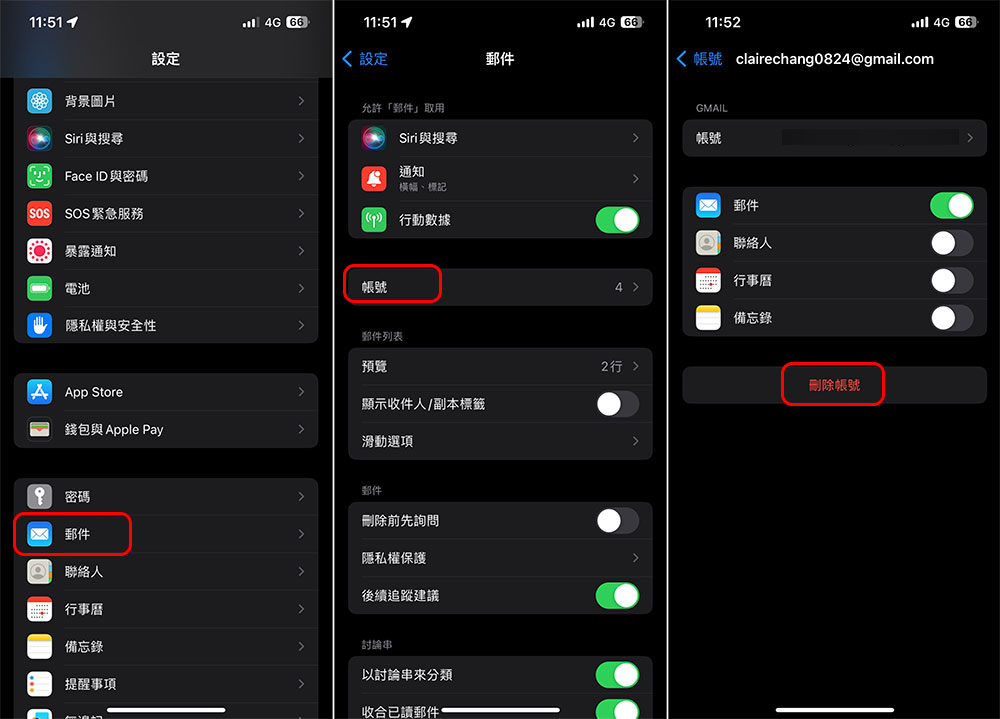
If you’re still getting the “Mail has not been downloaded from the server” error, now is the time to take further drastic measures. Please open the “Settings” application, then scroll down to find “Mail”, click “Accounts” after entering, then click the account that shows the problem of receiving mail, and then click “Delete Account” to delete it from the iPhone. Note that this will completely delete the account from your iPhone, as will any drafts saved on your phone that haven’t been pushed to the server.
It is not difficult to add the account back. First, go to “Settings” and click “Mail”, then click “Accounts”, then click “Add Account” at the bottom from the inner page, select the type of account you want to add and follow the steps to add it.
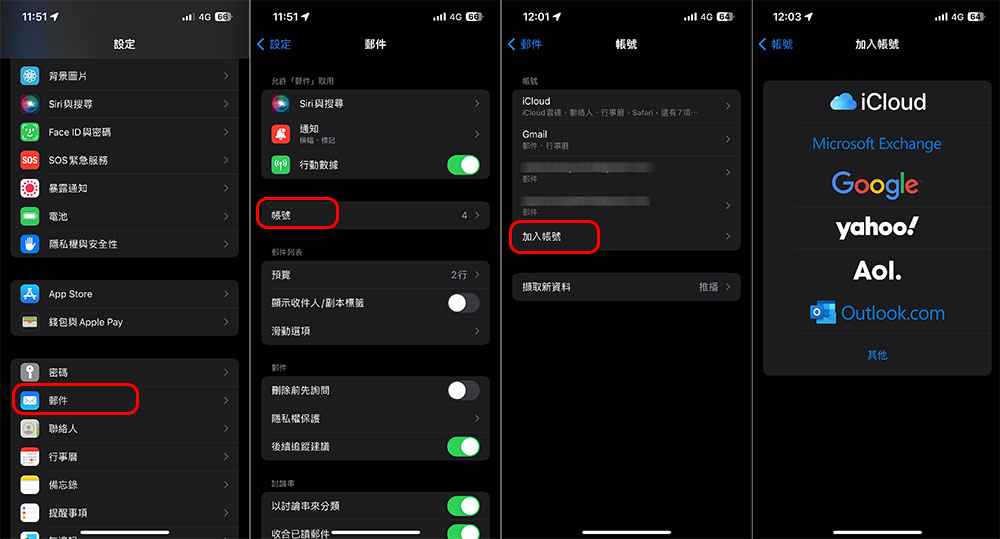
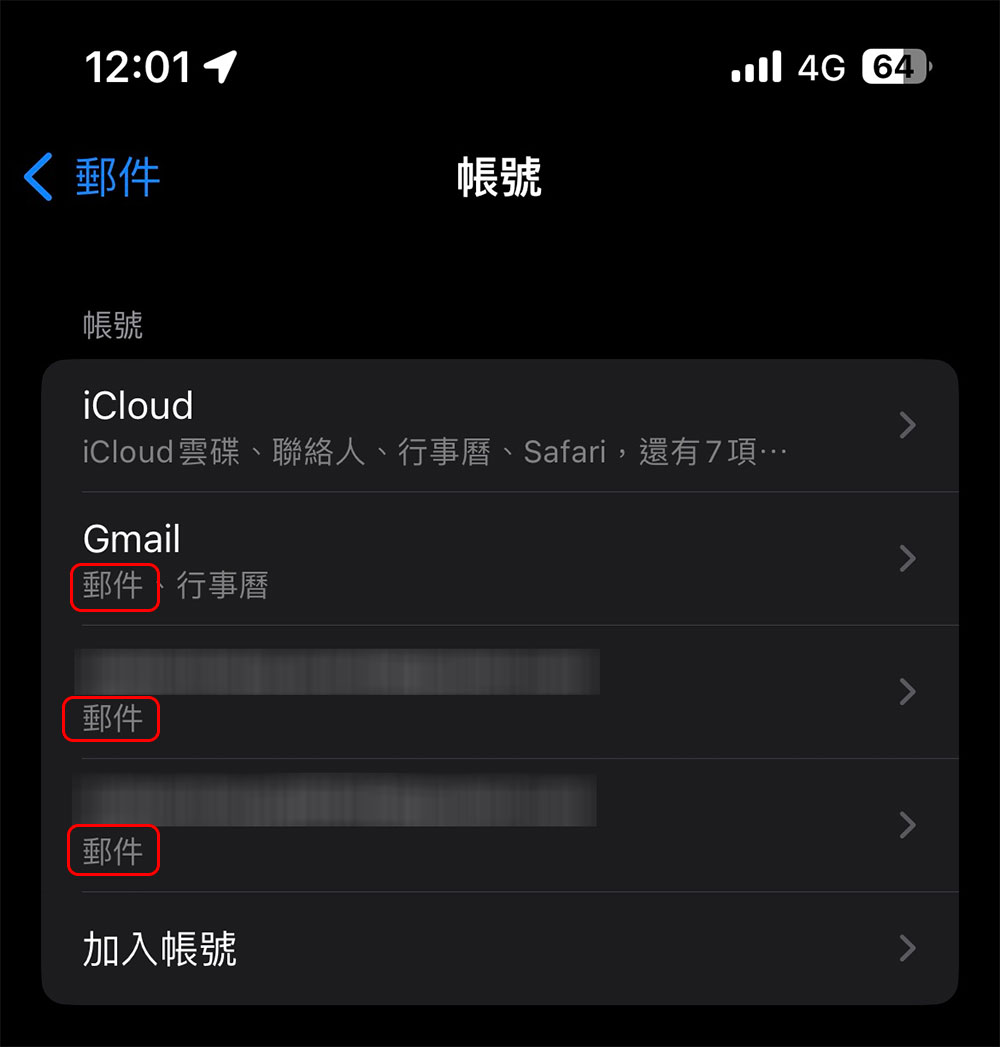
After adding the account, don’t forget to make sure you have turned on the “Mail” permission for it (if not, please click on the specific account, then go in and turn on the mail switch). Next, the iPhone will try to download the mail on the server for you. Depending on the amount of content, it may take a while, so please be patient.
Method 4: Use a service-specific app or web browser
Although Apple has its own mail application built into the iPhone, if you find that you are not used to it or find it very uncomfortable and often have problems, although Gmail and Outlook on the iPhone have slightly lower privacy protection features than Apple Mail, they are golden partners that perfectly match their own services.
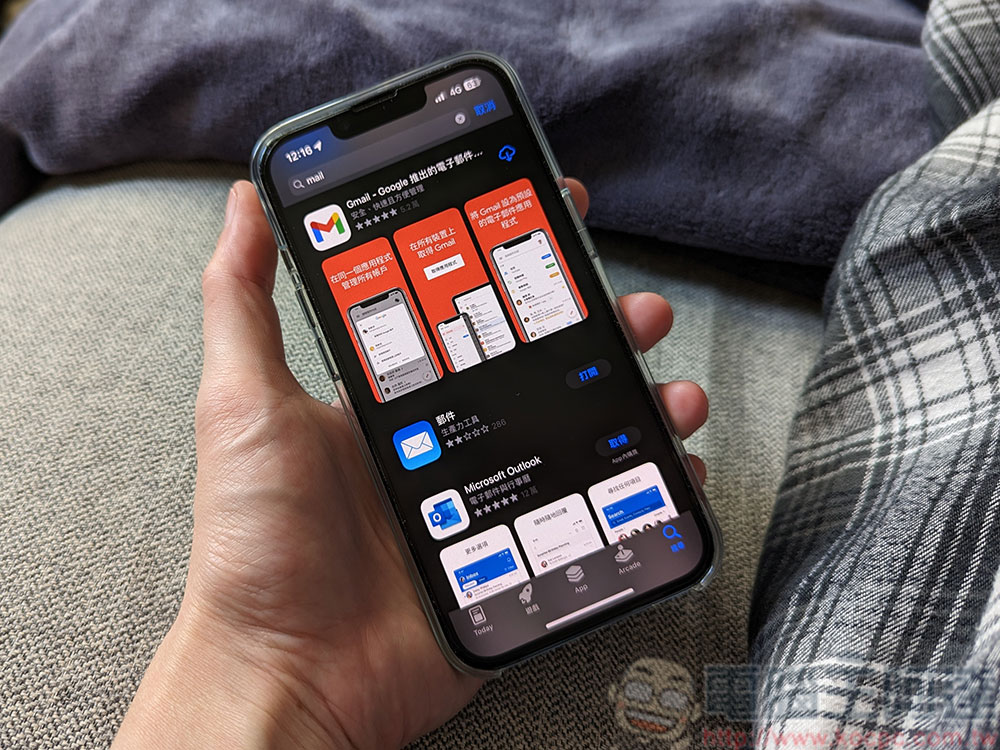
If you find that apps just have timing issues and you can’t stand any lag, most web email services offer web versions, including Gmail, Outlook, and even iCloud Mail, since even Apple services aren’t immune to this issue sometimes.
Written at the end…
Although the problem of not being able to receive letters is annoying, it only occurs occasionally, and usually it can be restored to normal by simply restarting the app or the phone. Apple’s own mail application is still very easy to use, and it also has many included functions and services, such as tracking pixel-blocking, and the email schedule provided starting from iOS 16 (long press the send key after composing the email to call up the scheduling options), and the “Hide My Email” service provided for iCloud+ subscribers, etc., which are all plus points for the mail application.
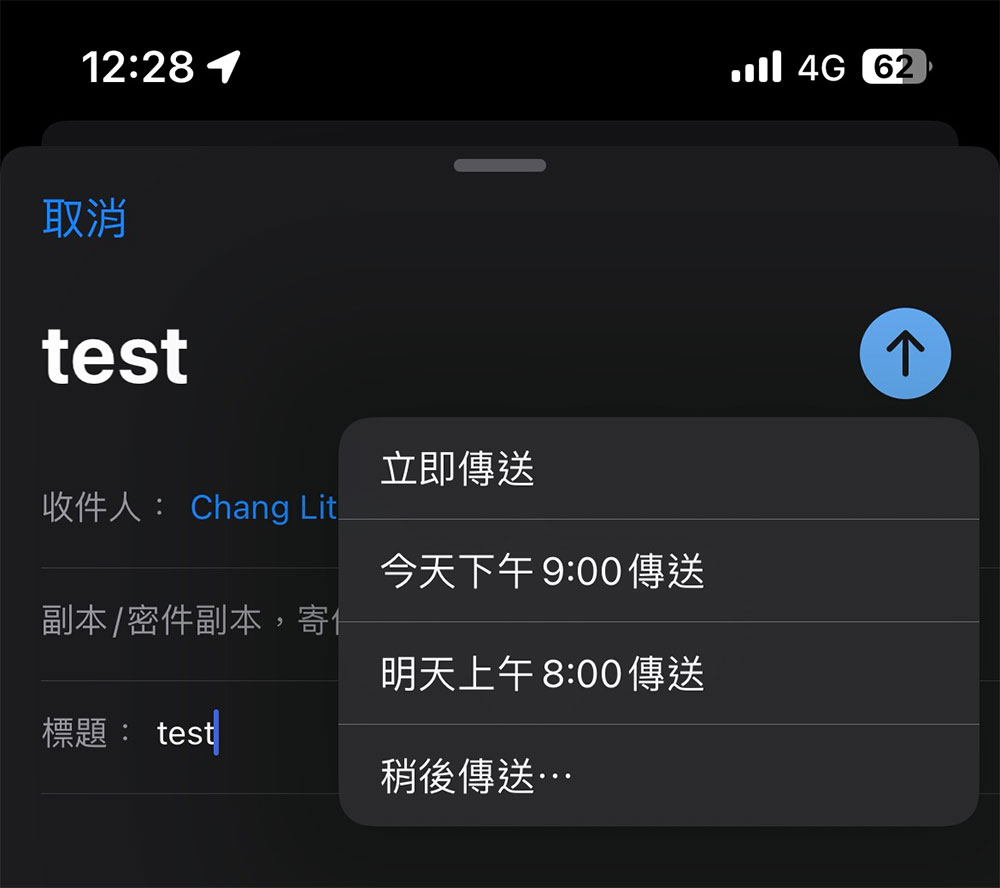
But if you are a cross-device user, such as having an iPhone and an Android device at the same time, and want to have consistent operation methods and experiences, it is recommended that you use applications that are available on both platforms, such as Gmail and Outlook, or simply use the online version, which may save a lot of habits and time required for switching.
Source: KOCPC Chinese