


YouTube is one of the most popular and used social media applications. Users spend hours on the platform every month watching videos, whether they are for entertainment, education or cute animal videos. Although the application has always been mainstream, it often suffers from lag when used on Android devices. So how to solve the problem?

How to solve the problem of watching YouTube videos on Android devices?
Video lag will greatly reduce the viewing experience. If you are tired of this problem, you can try to solve it on your Android device. However, before delving into these, you can try the most basic measures first, such as restarting the device and restarting the application. If these cannot solve the problem of lag, you can try the next four solutions.
Option 1: Change video resolution
Video resolution is one of the most important factors affecting YouTube video playback. The higher the resolution, the longer the video will take to load and the more likely it is to buffer. On Android devices, the YouTube app’s video quality defaults to “Auto,” which means video resolution automatically adjusts based on a variety of factors, including network speed and screen size.
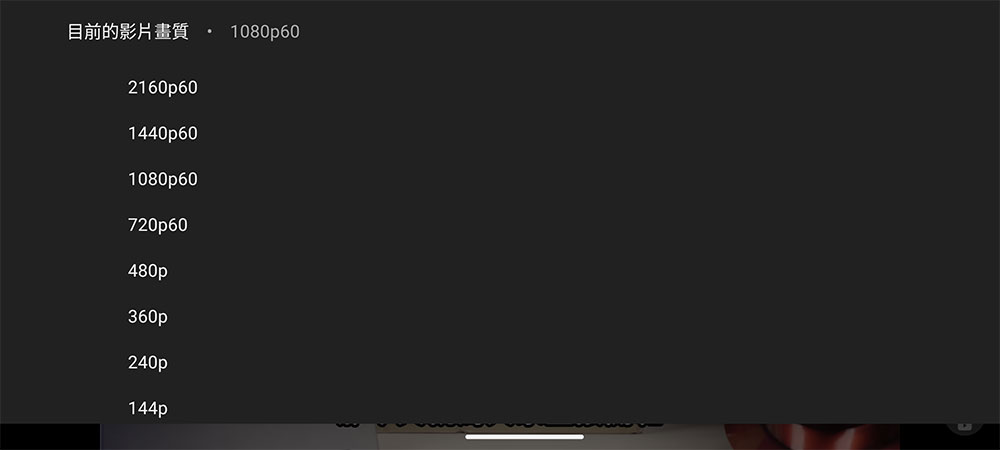
If the video is still lagging in automatic mode, you need to check your network speed and verify that the video resolution you are using matches your connection speed. The author briefly lists the recommended network speeds for each resolution for your reference:
- 4K:20Mbps
- 1080p:5Mbps
- 720p:2.5 Mbps
- 480p:1.1 Mbps
- 360p:0.7 Mbps
If your internet speed is lower than recommended, consider lowering your video resolution. If you want to change the resolution, please click on the video first, then click on the gear icon in the upper right corner, select “Image Quality”, and then select the specified resolution from “Advanced”.
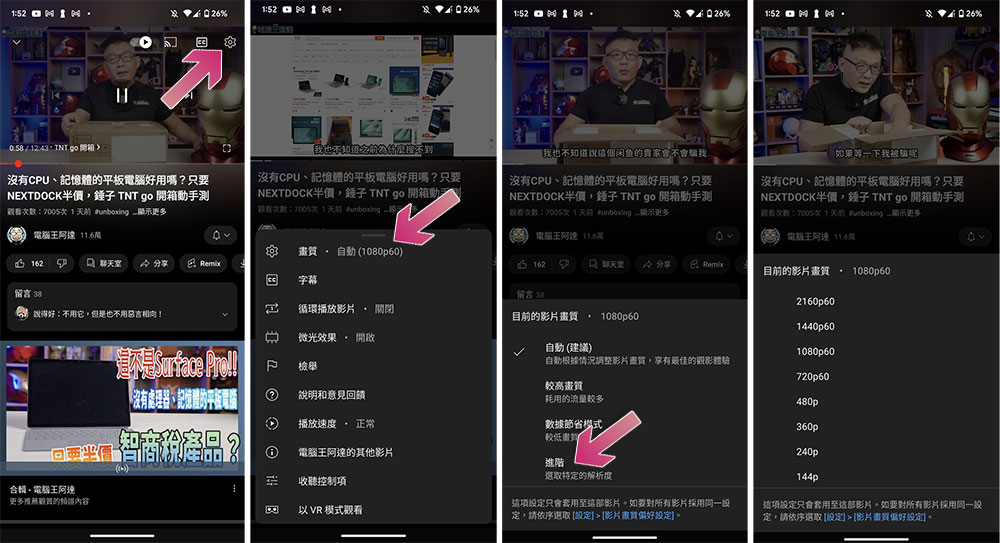
Option 2: Clear the cache in the application
A cache of the app is stored on your device to provide you with a smoother experience when using the app. Essentially, they make specific app elements load faster without having to download them again, so the next time you launch the app, it launches faster. However, cache builds up over time and takes up storage space, potentially reducing the performance of your phone and apps.
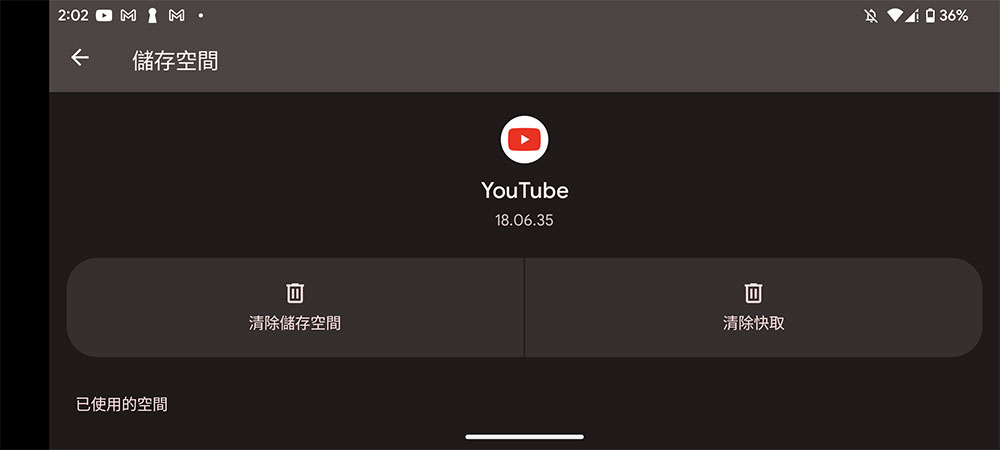
Most apps manage their cache, but sometimes various factors affect it, so you have to clear it manually. If you notice YouTube is running slow or your videos are lagging, it might be time to clear your app cache. These steps may vary depending on your device, but the core remains the same:
- Open the Settings app and select Applications.
- Find “YouTube” and click on it. If you don’t see it at first glance, click on “View all XXX apps”.
- Click “Storage and Cache” on the inner page.
- Click “Clear Cache”. After cleaning, you can see that the cache below becomes 0MB.
- Finally, restart the YouTube app.
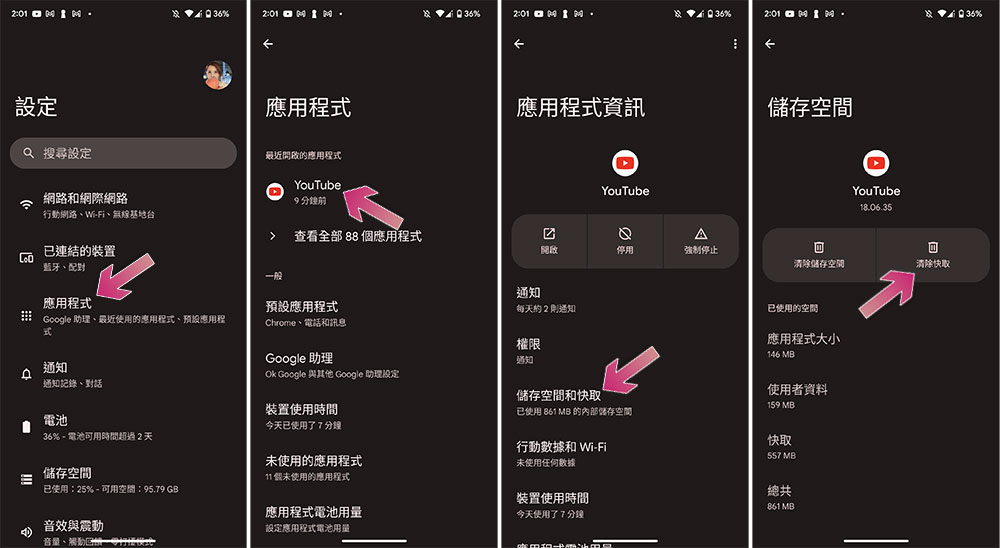
Option 3: Update apps and Android system
Sometimes, YouTube is running sluggishly due to app issues, and an update can fix most of the issues, so make sure you have the app updated to the latest version on your device for the best experience:
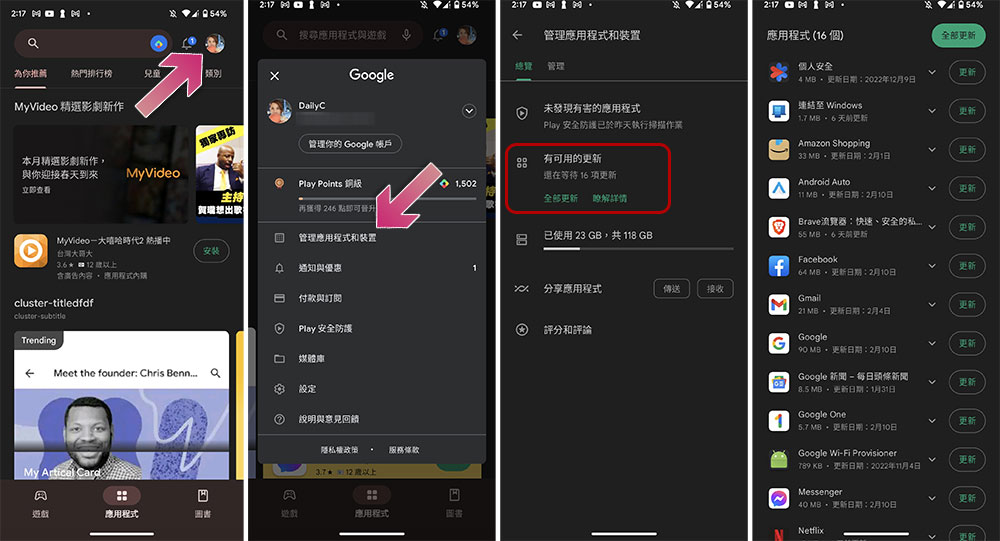
- Open the Google Play Store and click on your profile picture in the upper right corner.
- Select “Manage apps and devices.”
- Under “Updates Available”, you can click “Update All” to update all apps at once, or click “Learn More” to view them one by one and update the YouTube app individually.
In addition, you can also search YouTube directly in Google Play and go to the application homepage to update. If you don’t see the “Update” button, you may already be running the latest version. In this case, you can try clicking “Uninstall” on the YouTube app homepage. This will not delete the YouTube app from the device as it is pre-installed, but it will restore the app to its original version (the version you purchased it with) and then press the update option to install the latest update again.
In addition, you may also need to update the device itself. To do this, please scroll to the bottom of Settings and find the “System” option to update.
Option 4: Force stop YouTube
If updating the app and your phone doesn’t seem to have any effect, you can finally try force stopping the app. Force Stop is a quick way to stop an app directly from your phone’s memory. It closes all cashier and background activity of the app, allowing the app to start over. However, you don’t have to worry about losing saved data and cache, as force stopping does not delete them from the device:
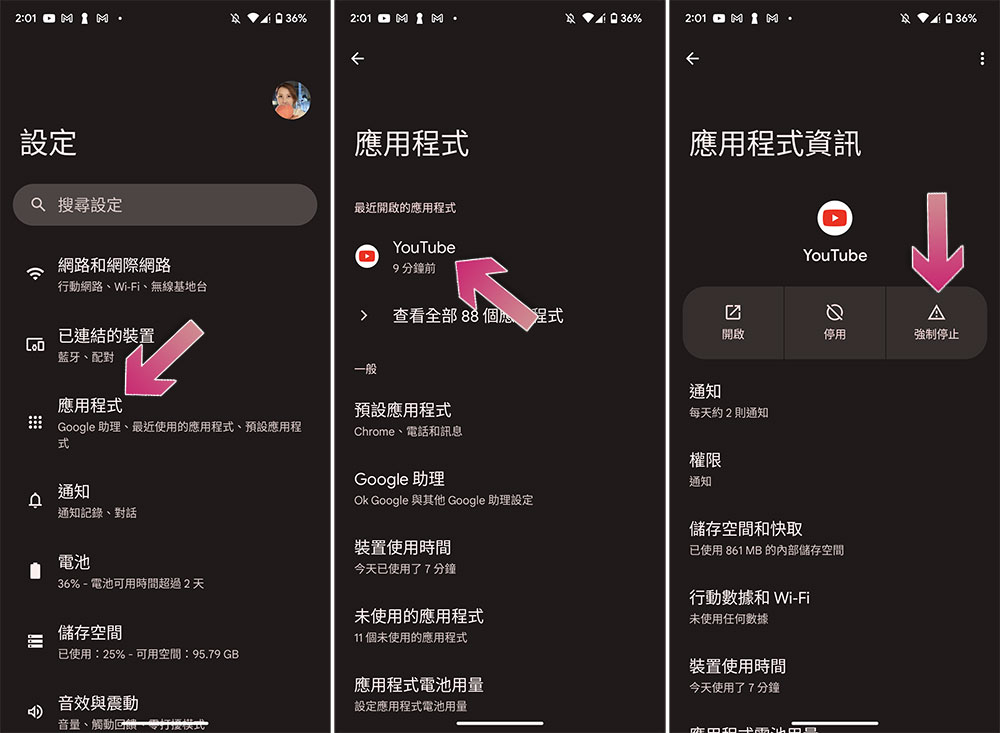
- Open the phone settings application and enter “Applications”.
- Find “YouTube” and click on it. If you don’t see it at first glance, click on “View all XXX apps”.
- Click “Force Stop” above.
- Then click “OK” in the next window.
If you force-stop YouTube while a video is playing, you’ll need to restart the app and play the video again. Force stop will also abort the download, but it will automatically resume if you reopen the YouTube app.
Source: KOCPC Chinese