


The photo-to-video feature has existed for a while, but past results were mediocre, often only 1-2 seconds long. With the advent and advancement of AI, the results are now far better and more natural. If you haven’t tried it yet, this article recommends a service called Image To Video AI Free that currently appears to be completely free. From my testing, you don’t even need to register, and there’s no limit on generation count. Normally, the free version only allows 10 uses per month, but I generated over 20 times without any problems. The generated videos also come without watermarks after download, so give it a try while you can.
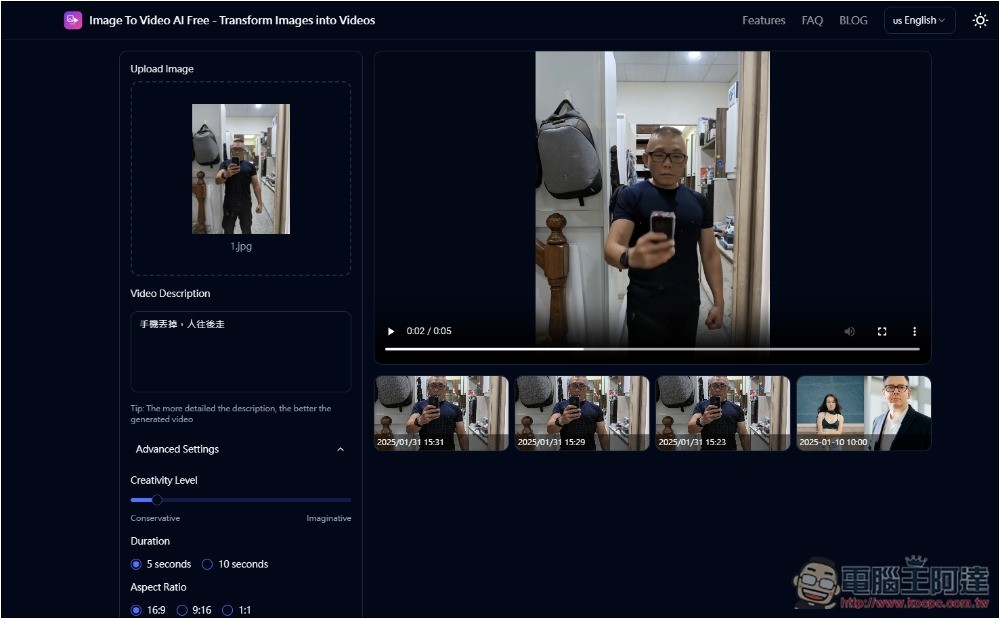
Introduction to Free Image To Video AI
Image To Video AI Free is a free tool specifically for converting static images into dynamic videos, and it boasts fast processing speed, completing in seconds while maintaining high quality and natural motion. The operation is also simple: after uploading an image and entering a description, you can generate the video, and it also provides some adjustable key parameters.
According to the website’s disclosure, it will likely move toward being split into free and paid tiers. The free version gives you 10 credits each month and can generate HD quality. The paid version starts at 500 credits, and all features are free to use.
Although the website already lists prices, it seems like it hasn’t started yet, since you can keep using it even without registering. However, it’s uncertain when this will stop.
One thing to note is that sometimes, when there are too many users, generation might fail. In that case, just try a few more times or refresh the page, and it should usually work.
Image To Video AI Free Operation Tutorial
Image To Video AI Free is very simple to use. After entering the website, click the image on the left side to upload your image. There are also some examples of image-to-video conversions, but since they are official examples, the results are quite good:
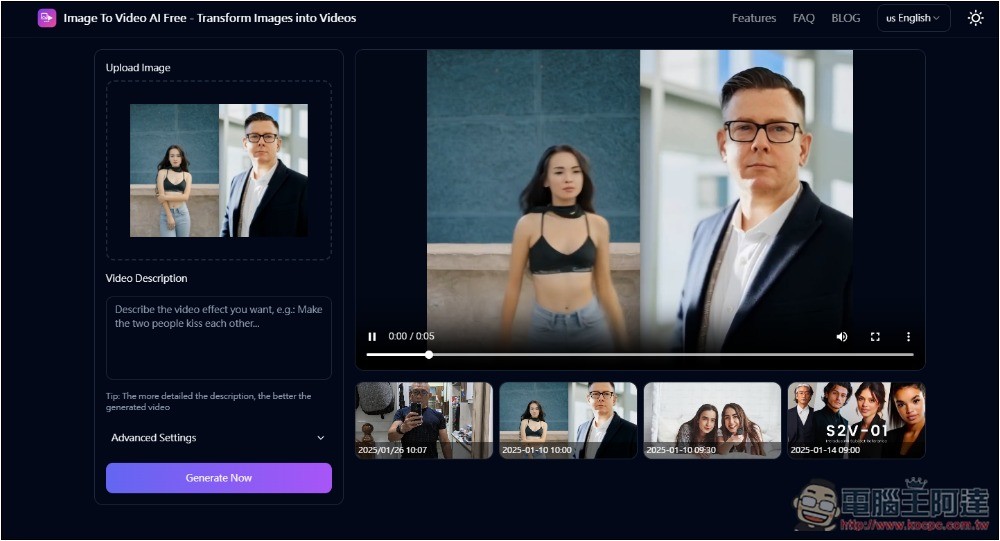
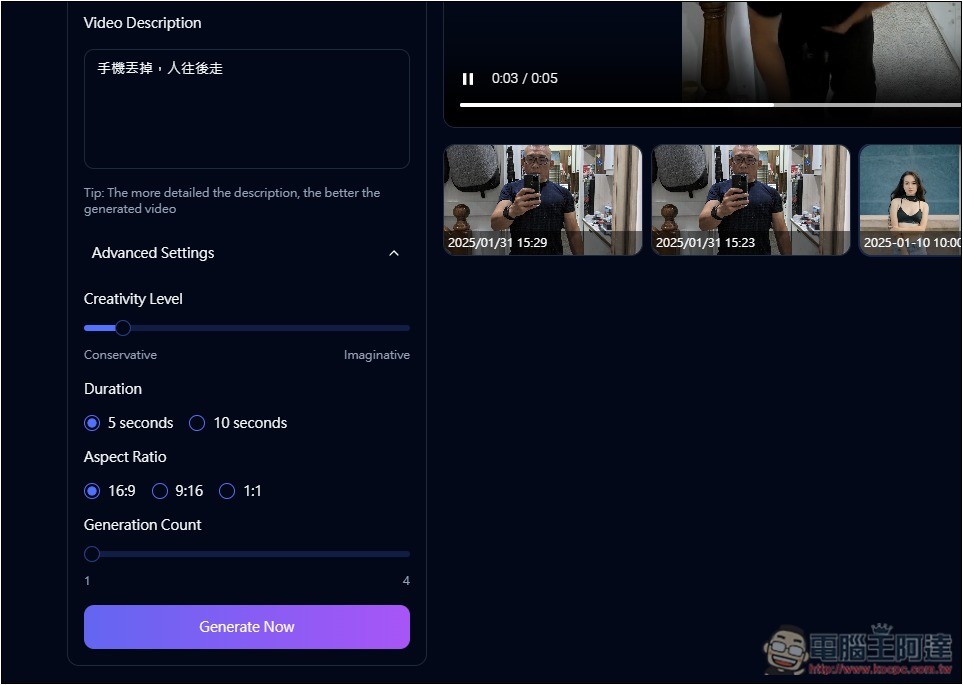
Describe the input in the Video Description below, i.e. how you want the image to animate. Chinese is supported. I tested that Chinese and English work the same, so just fill in Chinese. No need to deliberately switch to English.
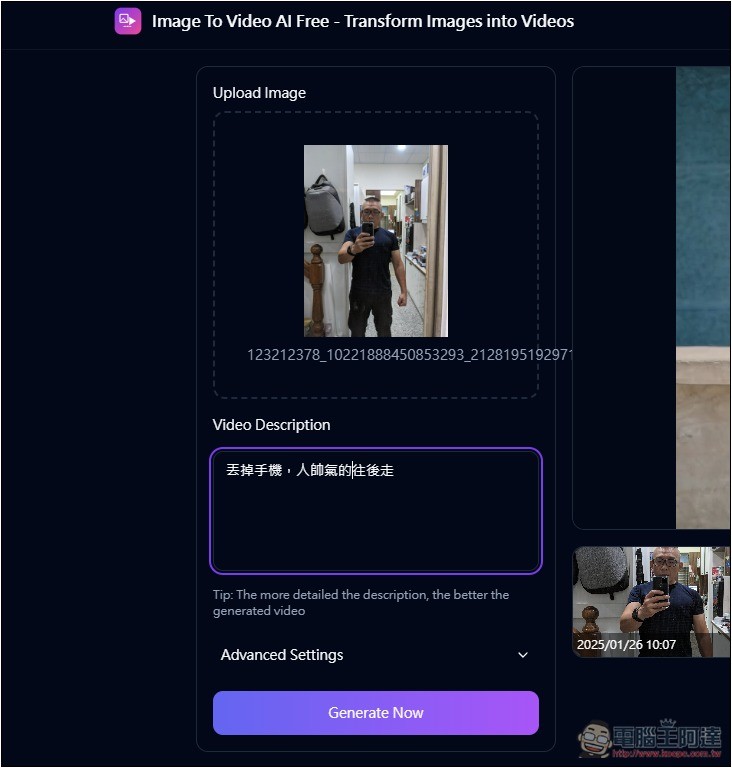
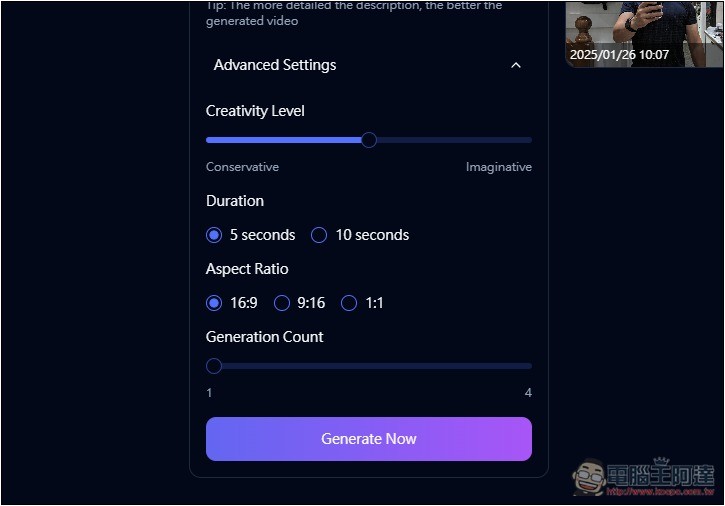
Advanced Settings has some values you can adjust, such as creativity level, length, ratio, etc. The default is 5 seconds; if you want a longer generation, change it to 10 seconds. You can try the default effect first, then gradually adjust and refine.
After clicking Generate Now, it will start generating. Sometimes a fail message may appear, but trying Retry a few times should get it started:
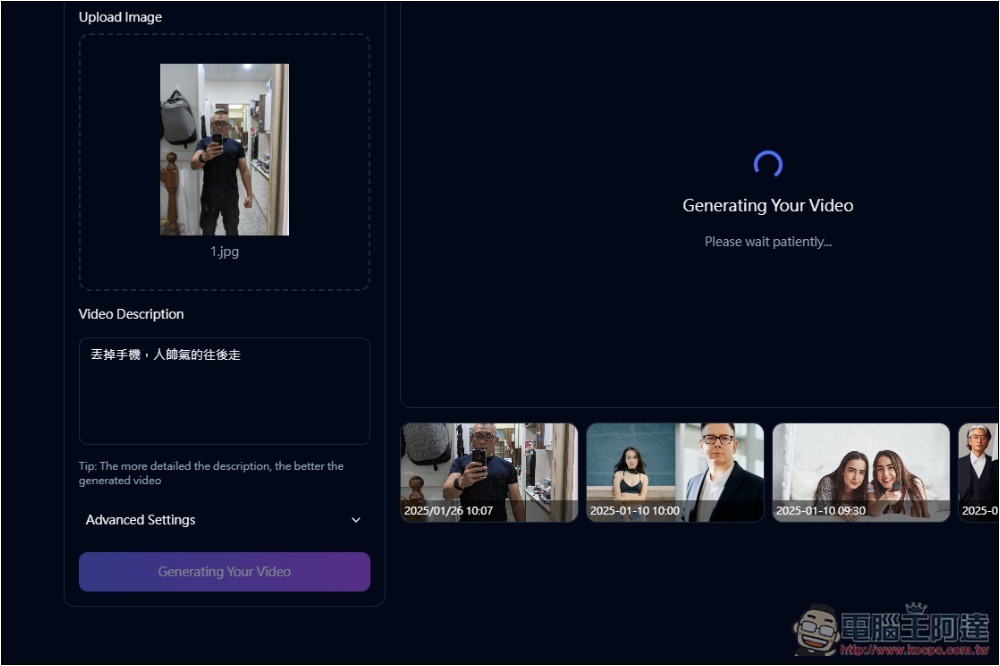
After generation begins, the current processing progress will be shown at the top of the video. Generating a 5-second video takes about 1–3 minutes:
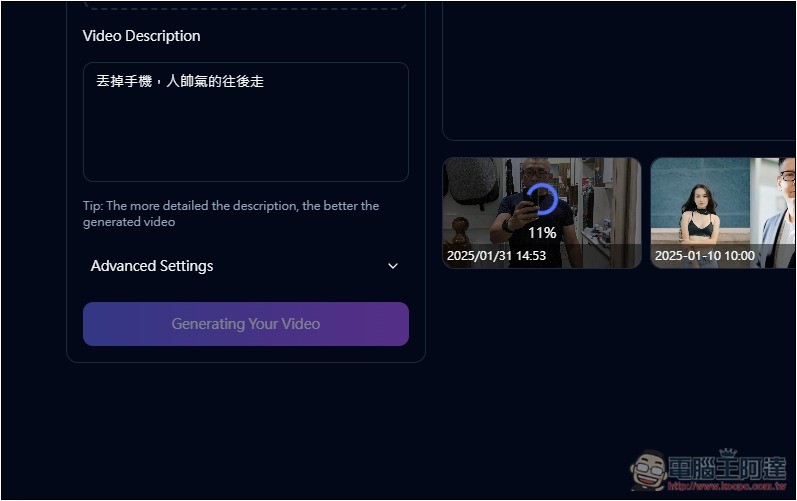
Once complete, it will start playing. If you’re satisfied, you can download it; if not, tweak the description or adjust the settings, then regenerate.
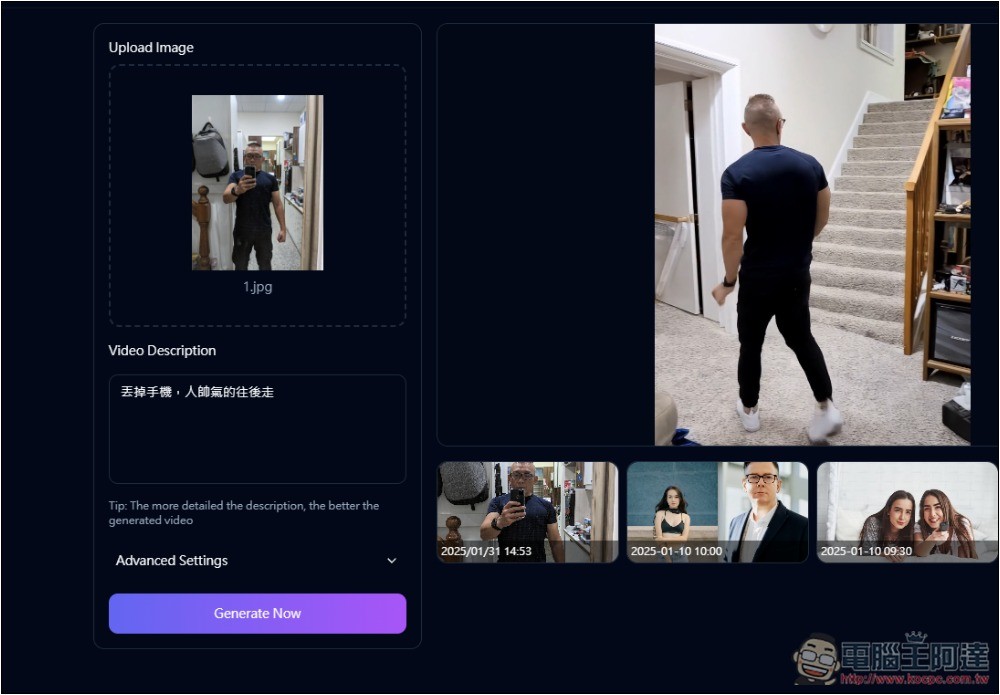
This is the first video I tested. You can see it’s very weird—the phone-throwing motion turns into it just falling apart:
So I’ll tweak the description slightly and then generate it again:
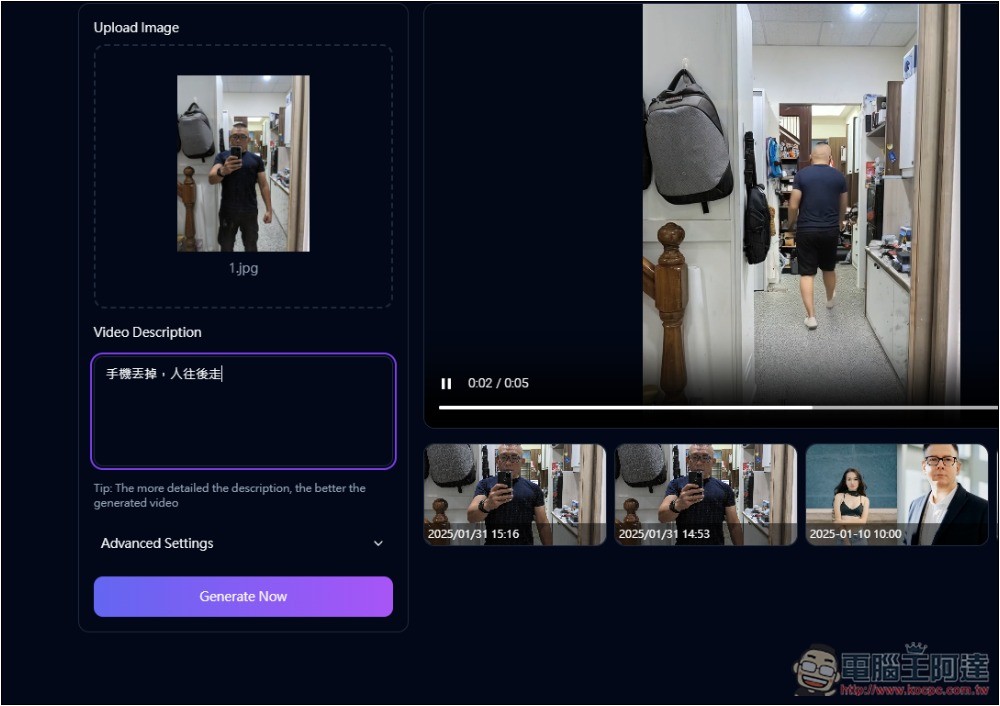
This one’s a bit more normal:
If you have failed many times in testing, consider lowering the Creativity Level a bit:
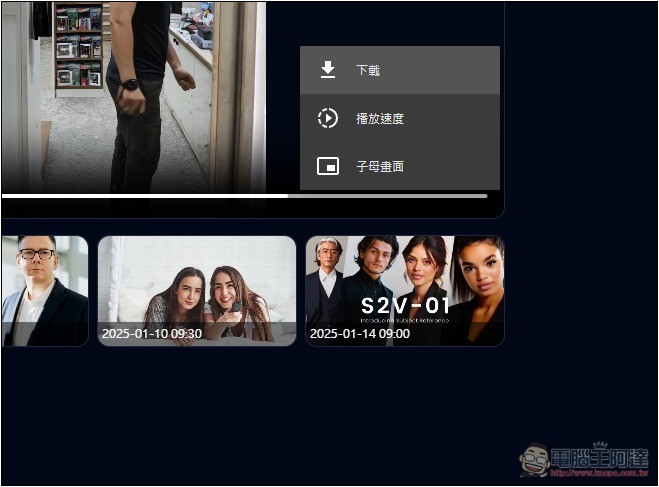
Open the video, and in the bottom-right corner, open the … menu to find the download button:
Source: KOCPC Chinese